


Sign in with QuestionPro: Partner Guide
This guide explains how to let your users sign in to your application with their existing QuestionPro account. It also covers how to call QuestionPro's API on their behalf.
QuestionPro uses the standard OAuth 2.0 authorization code flow, so most OAuth client libraries work without changes.
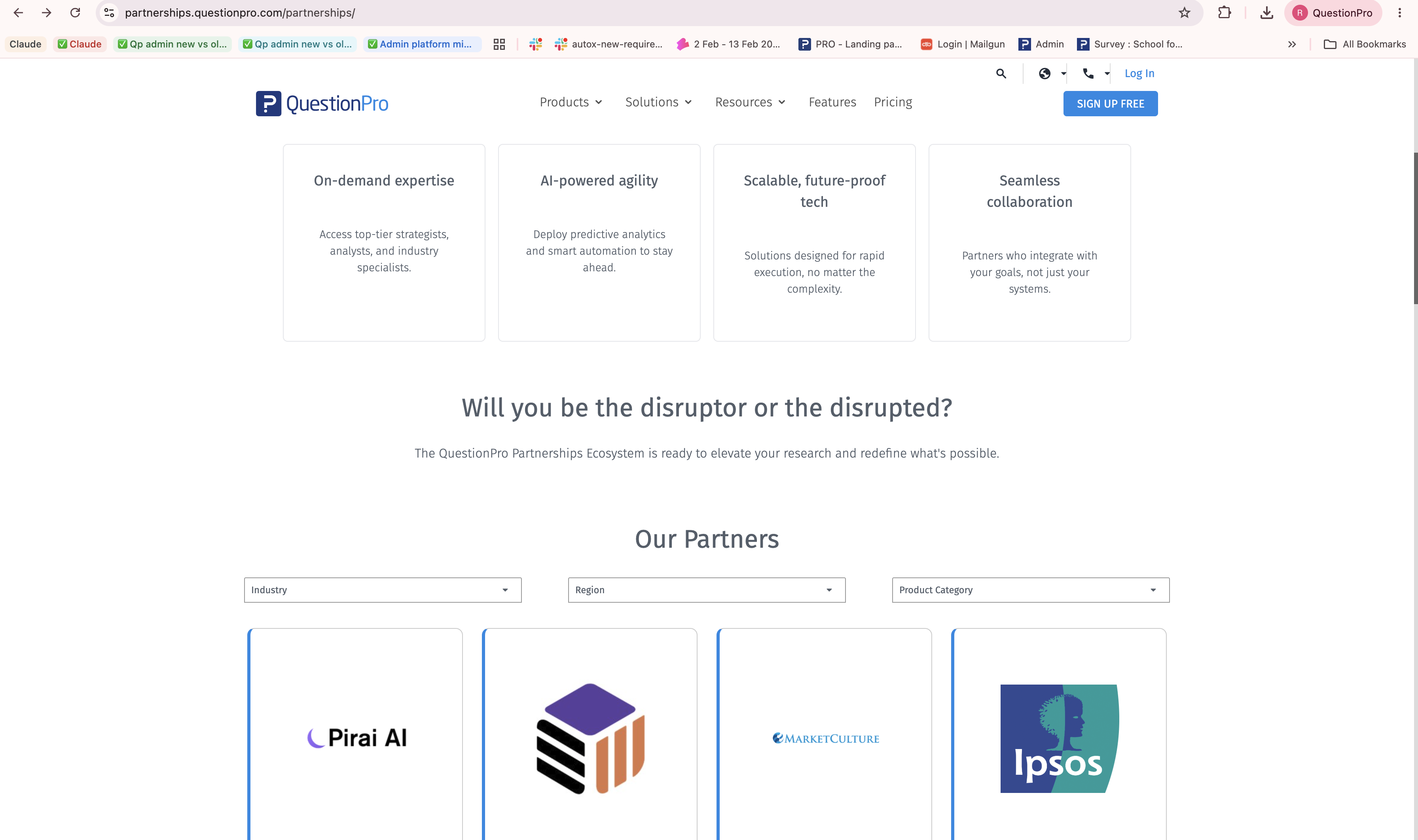
1. Your user clicks Sign in with QuestionPro on the Partner page in Partnerships, https://partnerships.questionpro.com/, or on the partner's own login page.
2. The user opens the partners page, chooses your card, and signs in to the application you created. They sign in on QuestionPro's own login page, so your application never sees their password.
3. QuestionPro sends the user back to your callback URL with a one-time code.
4. Your server exchanges that code, together with your client secret, for an access token.
5. Your server uses the access token to fetch the user's profile and call QuestionPro APIs.
Before you begin, you need:
- A QuestionPro partner account. Step 1 explains how to get one.
- A backend server that can keep a secret and make HTTPS requests.
- A public HTTPS callback URL in your application, for example https://app.example.com/auth/questionpro/callback.
Only partner accounts can create a Sign in with QuestionPro app, so start by requesting one.
1. Go to partnerships.questionpro.com and open the Get in touch form.
2. Fill in the form.
3. A QuestionPro partnerships manager will contact you to review your use case.
4. The partnerships manager sets up your partner account and records your company details and use cases.
5. You receive the sign-in details for your partner account.
When you create an app, the portal generates a client ID and a client secret for it straight away.
1. Sign in to your partner account at partnerships.questionpro.com.
2. You can update the partner details yourself, which your partner manager has created for you.
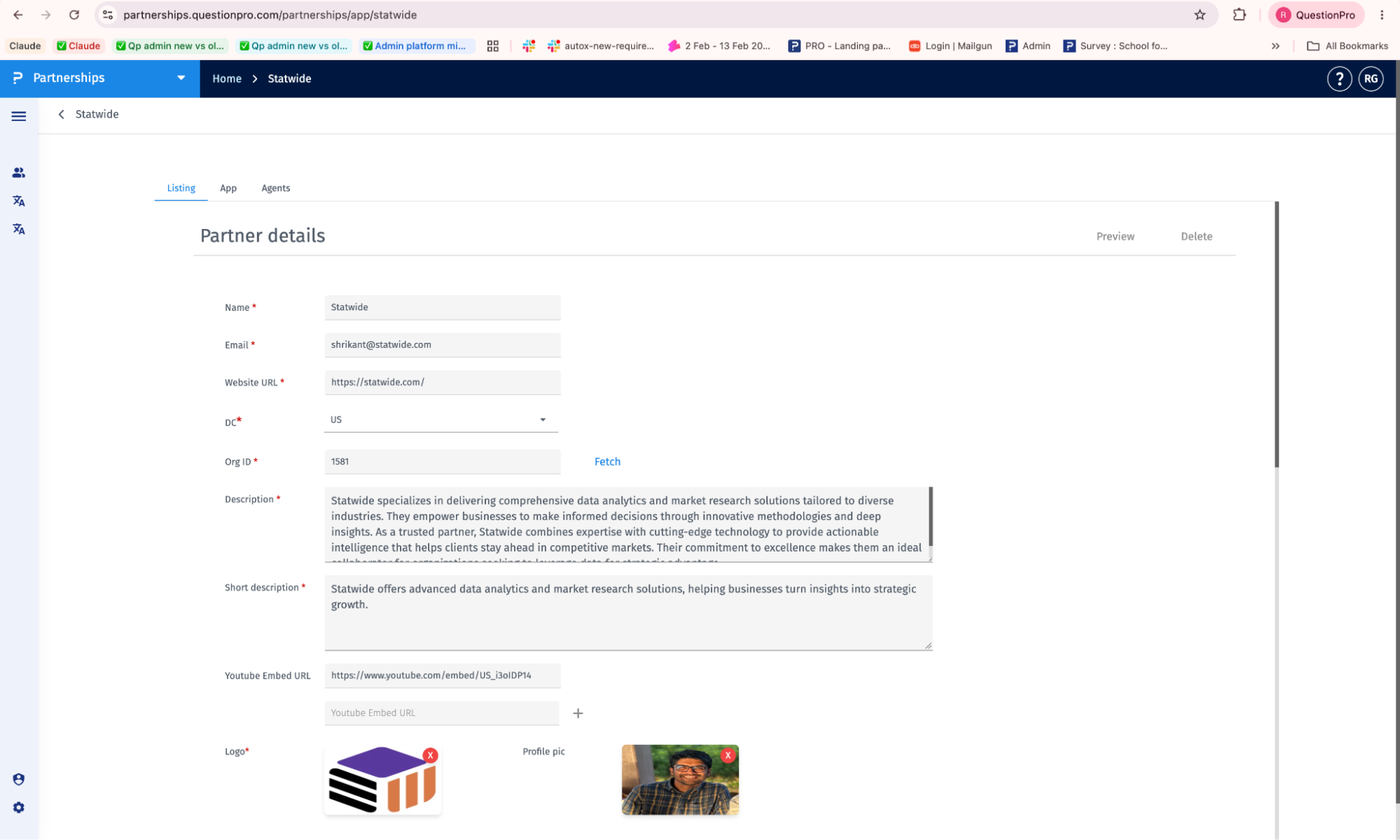
3. Switch tab and go to App.
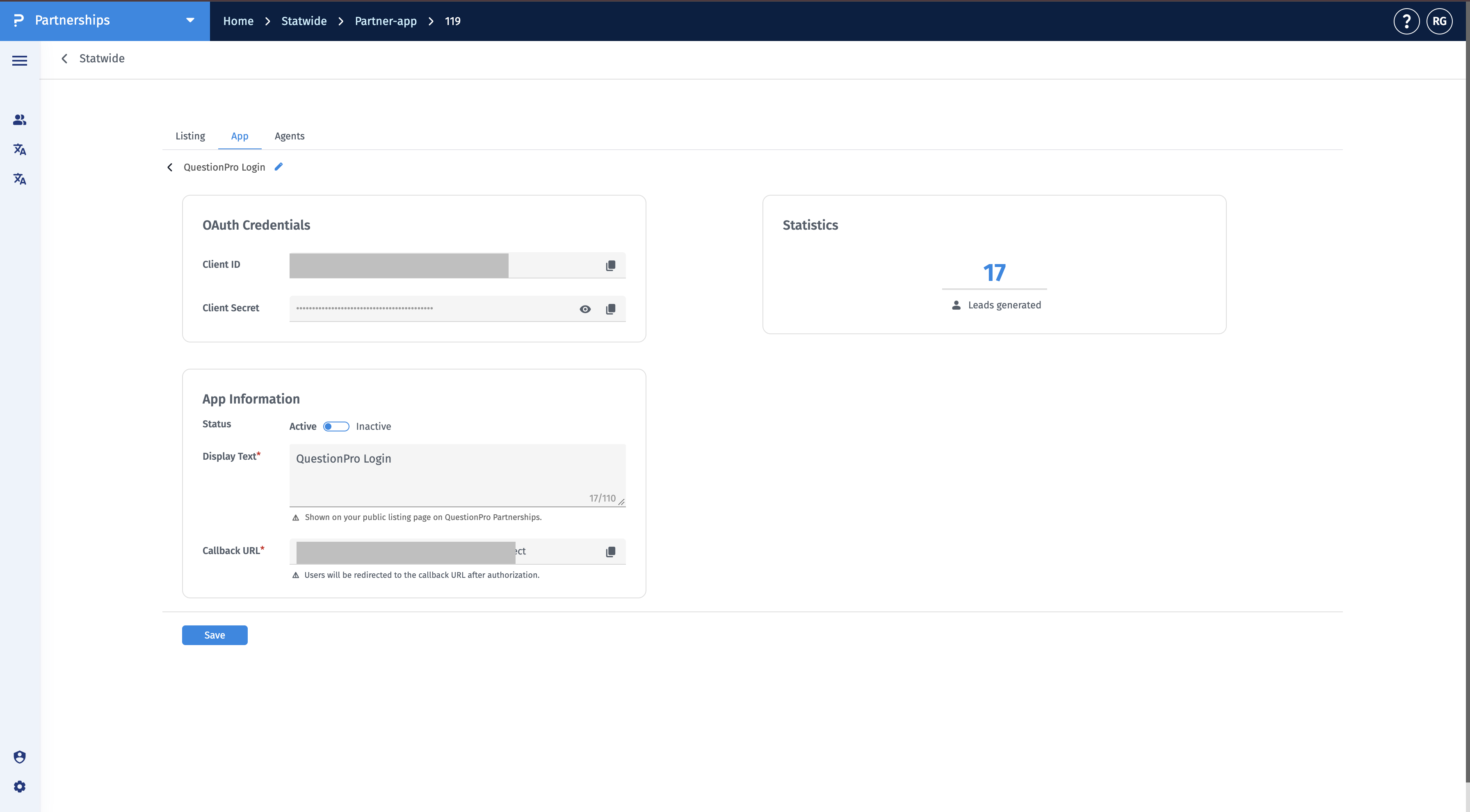
4. Choose Create app and fill in the fields below.
5. Save the app. Your Client ID and Client Secret appear on the app's page.
| Field | What to enter |
|---|---|
| Display Text | A short description of what your application does. |
| Callback URL | The URL in your application that QuestionPro sends users back to after they sign in, for example https://app.example.com/auth/questionpro/callback. |
The callback URL must be an exact match. The redirect_uri you send later must match it character for character, including the scheme, host, path and trailing slash. Always use https.
| Credential | What it is | Where it may be used |
|---|---|---|
| Client ID | Public identifier for your app, a UUID | In the browser and in your sign-in links |
| Client Secret | Proves a request comes from your app (43 characters) | Only on your server. Never put it in front-end code, mobile apps or source control. |
Add a Sign in with QuestionPro button to your sign-in page. The button links to a route on your own server, not to QuestionPro directly. That route creates a state value and sends the user on, so your client ID and state handling never depend on browser code.
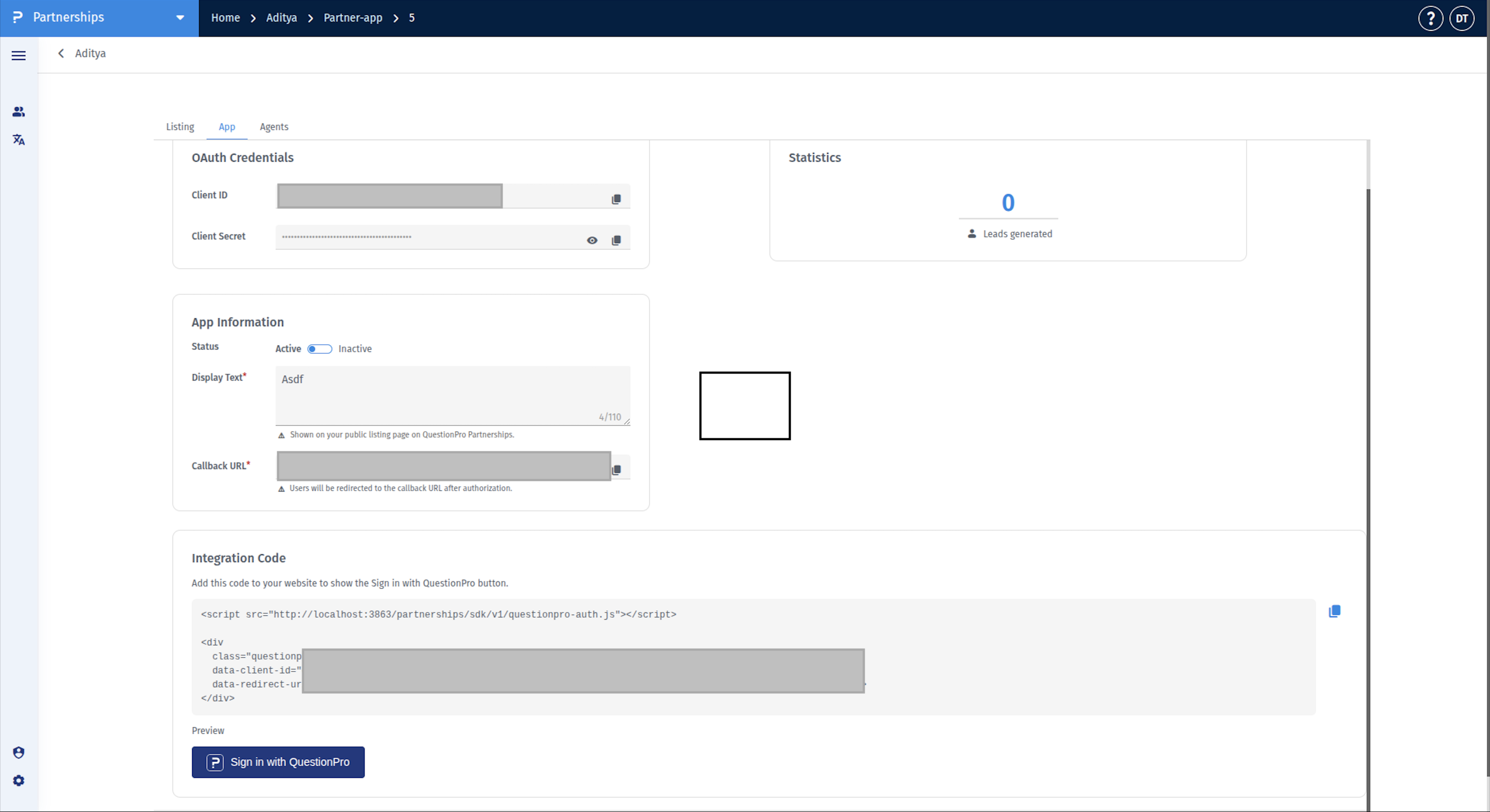
<a href="/auth/questionpro/login">Sign in with QuestionPro</a>
Style the button to match your site. Behind it you need two routes:
- /auth/questionpro/login, which the button points to.
- /auth/questionpro/callback, which must be the callback URL you registered in Step 2.
The two routes do the same thing in any language or framework:
1. Login route. Create a random state and store it in the user's session. Then redirect the user to https://www.questionpro.com/a/oauth2/authorize with these query parameters:
| Parameter | Required | Notes |
|---|---|---|
| response_type | Yes | Always code. |
| client_id | Yes | Your client ID. |
| redirect_uri | Yes | Your registered callback URL, URL-encoded. |
| state | Recommended | The random value you stored. It protects against cross-site request forgery. |
2. Callback route. Check state, then follow Steps 4 and 5 below. The callback route carries out both: it exchanges the code for tokens and loads the user's profile.
What the user sees:
- If the user is not signed in to QuestionPro, they see the QuestionPro sign-in page, with email and password or social sign-in.
- If they are already signed in, QuestionPro sends them straight back to your app.
This step and the next happen in your own code, on your server. They are where you use the Client ID and Client Secret from Step 2. Nothing here is done in the partner portal.
After the user signs in, QuestionPro redirects them to your callback URL with a one-time code. Your server exchanges that code for tokens.
https://app.example.com/auth/questionpro/callback?code=AUTH_CODE&state=RANDOM_VALUE
On your callback route:
1. Check that state matches the value you stored. If it does not, stop.
2. Send the code to the token endpoint from your server, within 5 minutes. Each code works only once.
curl -X POST https://www.questionpro.com/a/oauth2/token \n -d grant_type=authorization_code \n -d code=AUTH_CODE \n -d client_id=YOUR_CLIENT_ID \n -d client_secret=YOUR_CLIENT_SECRET \n -d redirect_uri=https://app.example.com/auth/questionpro/callback
Send the parameters in the request body. Do not put them in the URL.
Response:
{
  "access_token": "eyJ...",
  "refresh_token": "eyJ...",
  "token_type": "Bearer",
  "expires_in": 1200,
  "global_session_id": "...",
  "dc": "US"
}
| Field | Meaning |
|---|---|
| access_token | Sent with API calls. Valid for about 20 minutes. |
| refresh_token | Used to get a new access token. Valid for about 2 hours. |
| expires_in | Seconds until the access token expires. |
| dc | The QuestionPro data centre where the user's account lives. |
This also happens in your own code, on your server, using the access token from Step 4.
Use the access token as a bearer token. Start by fetching the signed-in user's profile, then sign them in to your application.
Get the user's profile. This endpoint accepts POST only.
curl -X POST https://www.questionpro.com/a/oauth2/me \n -H "Authorization: Bearer ACCESS_TOKEN"
The response includes:
- userID: the stable ID to link to your own user record
- emailAddress, firstName, lastName, profilePic
- orgID, roles, isAdmin
- languageCode, dc, status
Match users on userID. Email addresses can change.
Call the API. Send the same header to the QuestionPro REST API (/a/api/v2/...). Calls run with the signed-in user's permissions.
curl https://www.questionpro.com/a/api/v2/surveys \n -H "Authorization: Bearer ACCESS_TOKEN"
Refresh the access token. Do this before the access token expires, or when you get a 401:
curl -X POST https://www.questionpro.com/a/oauth2/token \n -d grant_type=refresh_token \n -d refresh_token=REFRESH_TOKEN \n -d client_id=YOUR_CLIENT_ID \n -d client_secret=YOUR_CLIENT_SECRET
The refresh token lasts about 2 hours. After that, send the user through Step 3 again. If they are still signed in to QuestionPro, this happens without them seeing anything.
Sign-out. When a user signs out of QuestionPro, every token issued to your app for that browser session stops working. Treat a 401 from QuestionPro as "signed out" and ask the user to sign in again.
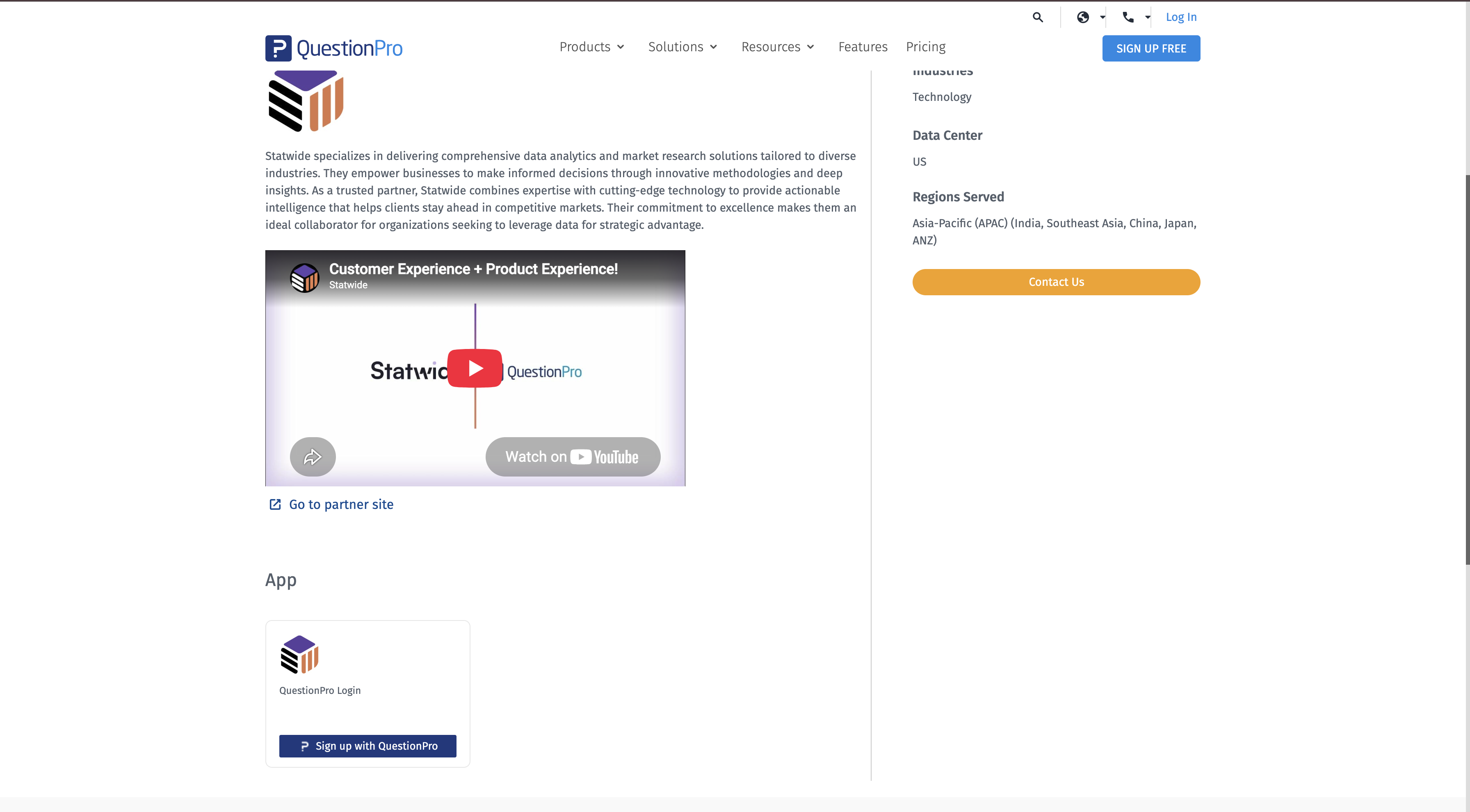
Once the integration is finished and your app is live, QuestionPro users can reach it from QuestionPro itself. Your application appears as a card on the partners page at https://partnerships.questionpro.com/.
1. A QuestionPro user opens the partners page and sees a card for each partner application.
2. They choose your card, which takes them to your application.
3. They sign in with QuestionPro, and the flow from Step 3 onwards runs exactly as it does from your own site.
Your users now have two ways in, and both run the same sign-in flow:
- From your own sign-in page, using the button you added in Step 3.
- From the QuestionPro partners page, using your card.
- Keep the client secret on your server only, in an environment variable or a secrets manager.
- Use https for your callback URL and for every call to QuestionPro.
- Always send and check state. Remove the stored value once you have checked it, so a code cannot be replayed.
- Store tokens on the server side or in encrypted storage. Never write them to logs.
- Set your session cookie to secure, httpOnly and sameSite=lax, and regenerate the session once the user is signed in.
- If your client secret may have leaked, contact your partnerships manager straight away.
| Problem | Likely cause and fix |
|---|---|
| "redirect_uri is not registered for this client" | The redirect_uri does not exactly match the callback URL you registered. Check the scheme, host, path and trailing slash. |
| Token request fails with an invalid or expired code | Codes last 5 minutes and work only once. Exchange the code immediately, and do not retry with the same code. |
| Token request fails with "something_went_wrong" | Usually a mismatched client secret. The token endpoint does not return a specific error for a wrong secret, so check that your client ID and secret come from the same app and were copied correctly. An unrecognised client ID returns "invalid_client" instead. |
| 401 from /a/oauth2/me or the API | The access token has expired or the user signed out. Refresh the token, or send the user through sign-in again. |
| /a/oauth2/me returns an error on GET | The endpoint accepts POST only. |
| The user returns to your app without seeing a login page | Expected: they were already signed in to QuestionPro. |
For anything else, contact your QuestionPro partnerships manager.
