The Participant Experience
When inviting participants, let them know they will be participating in an AI-moderated video interview. Recommend they use a quiet, well-lit space and a modern, supported browser like Google Chrome for the best experience.
If a participant clicks a link after the study's deadline has passed or the response limit has been reached, they will see an "Expired Link" message indicating that the study is now closed and no further responses can be accepted.
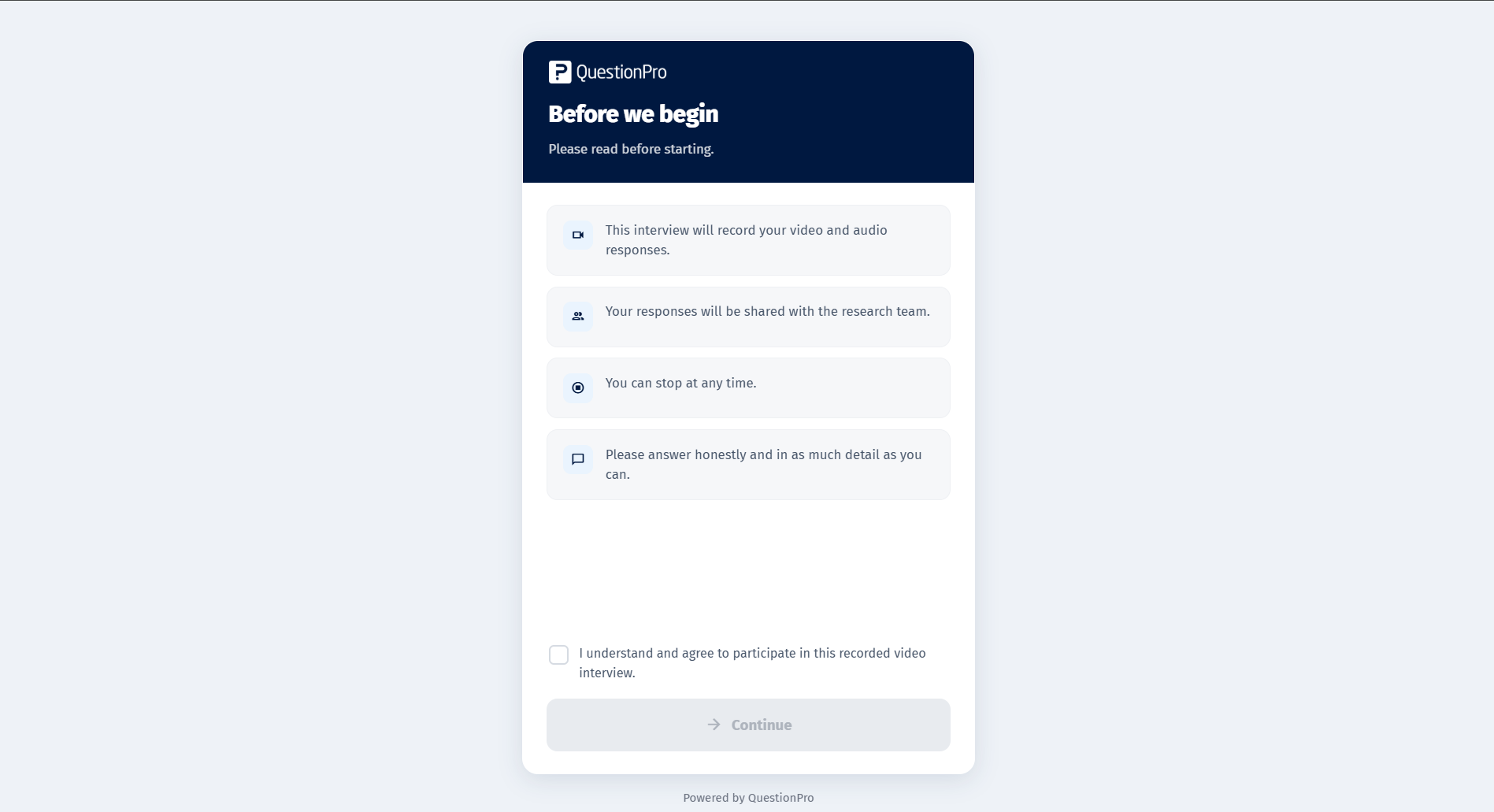
When participants first open the link, they are greeted with a "Before we begin" screen. This page outlines the expectations for the study, noting that the interview will record video and audio, that responses will be shared with the research team, and that they can stop at any time. Participants must check the box stating "I understand and agree to participate in this recorded video interview" before they can click Continue to proceed.
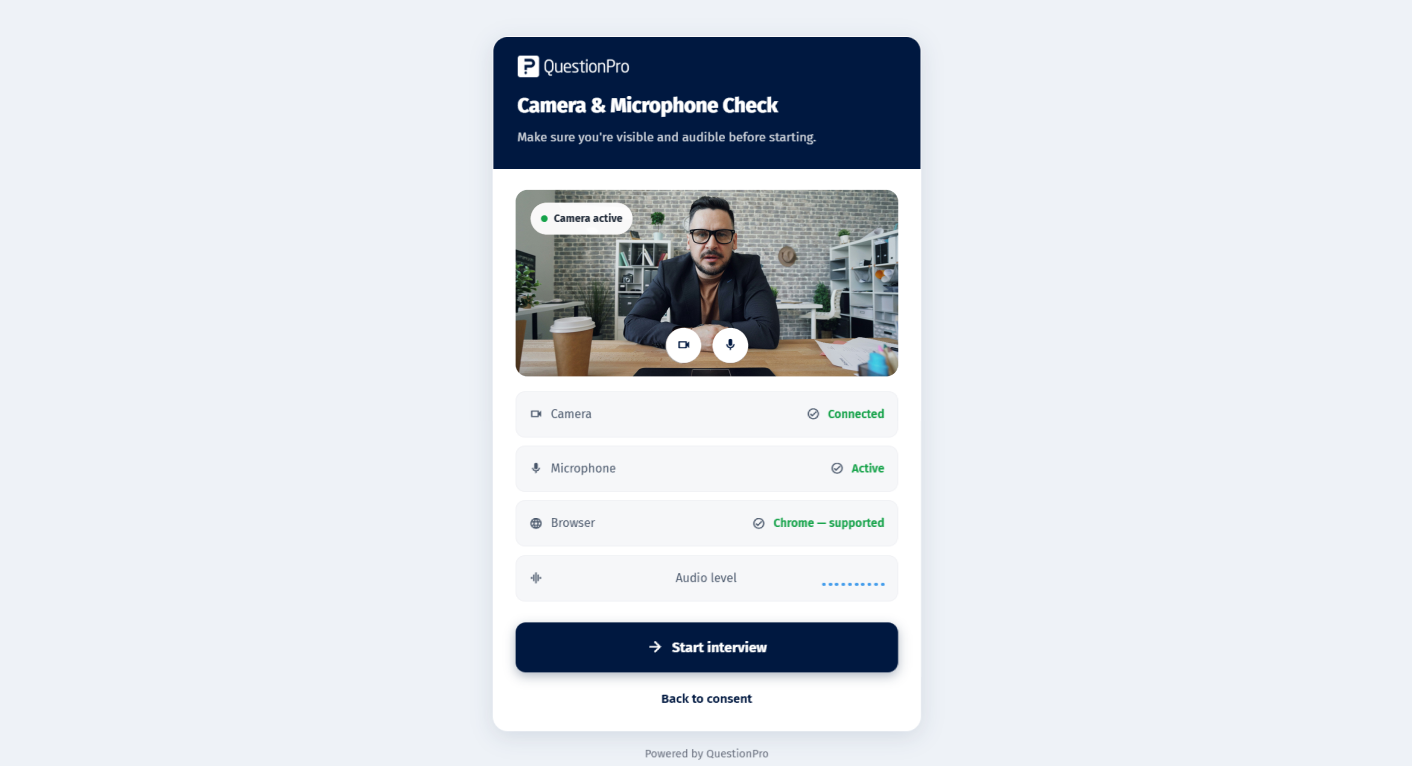
Next, participants must complete a "Camera & Microphone Check" to ensure they are visible and audible before starting. The system automatically verifies that the camera is connected, the microphone is active, and the browser being used (such as Chrome) is supported. It also features a visual audio level meter so participants can see their microphone picking up sound. Once everything is confirmed, they can click "Start interview".
Troubleshooting Camera, Mic, and Browser Issues:
- If the camera or microphone fails to connect, participants should click the padlock icon in their browser's URL bar to ensure camera and microphone permissions are set to "Allow".
- If they are using an unsupported browser, they should switch to a modern alternative like Google Chrome, Safari, or Edge.
- Refreshing the page or opening the link in an Incognito/Private window can resolve issues caused by interfering browser extensions.
Yes. If your study has been configured to support multiple languages, participants will be presented with a language choice screen right after the device check. They can select their preferred language from a dropdown menu, ensuring the AI moderator converses and displays text in the language they are most comfortable with.
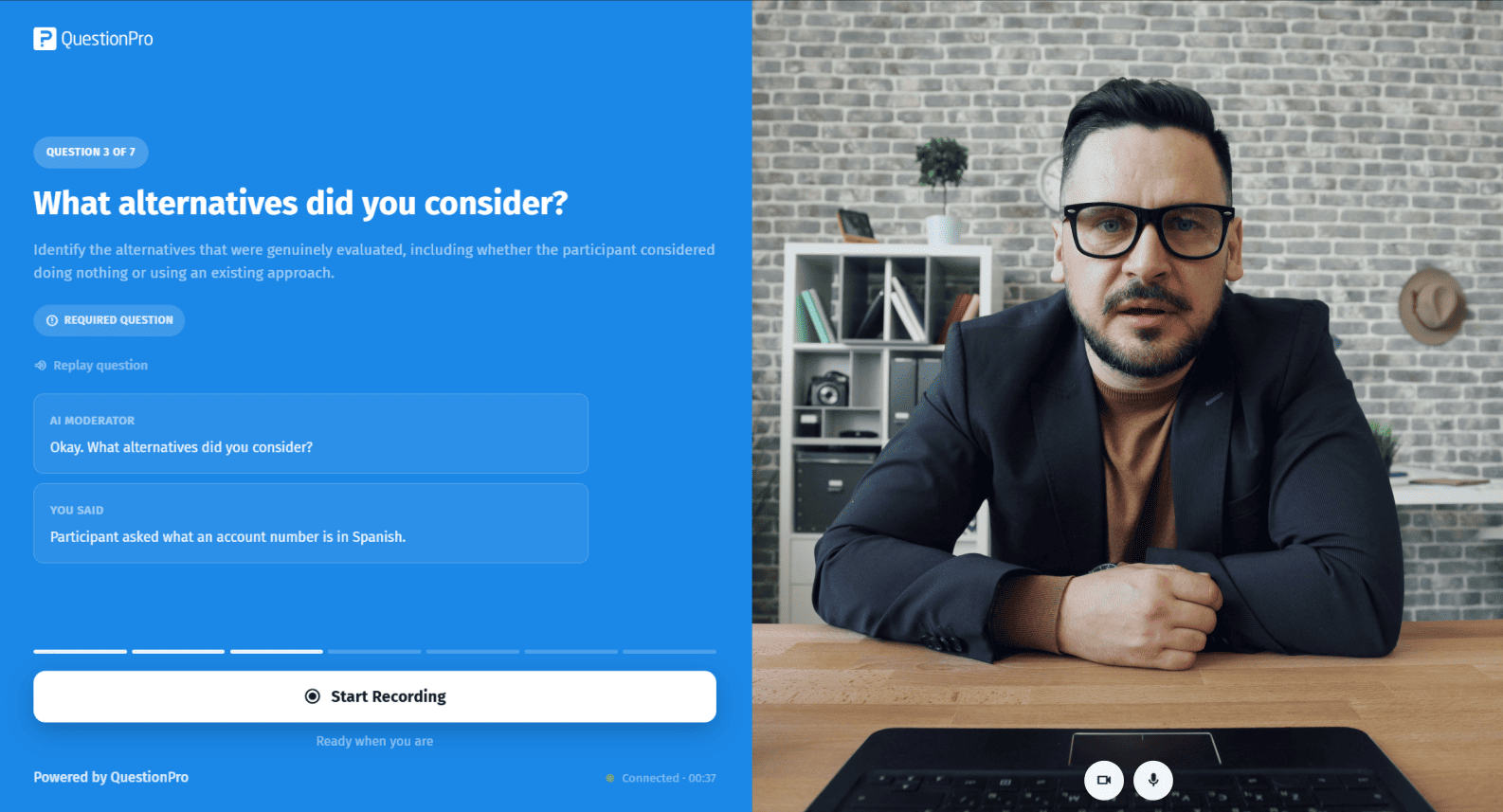
During the interview, participants interact with a user-friendly, split-screen interface. On the left side, they can read the current question, view the AI Moderator's follow-up dialogue, and see a live text transcription of what they just said under the "You Said" section. They also have the option to click a "Replay question" button if they need to hear the prompt again.
On the right side of the screen, participants see their live video feed, which includes simple toggle controls to mute their microphone or turn off their camera. A progress indicator at the top left shows their current step (e.g., "QUESTION 3 OF 7") and a visual progress bar sits at the bottom above the "Start Recording" button, which they use to control when they begin answering.
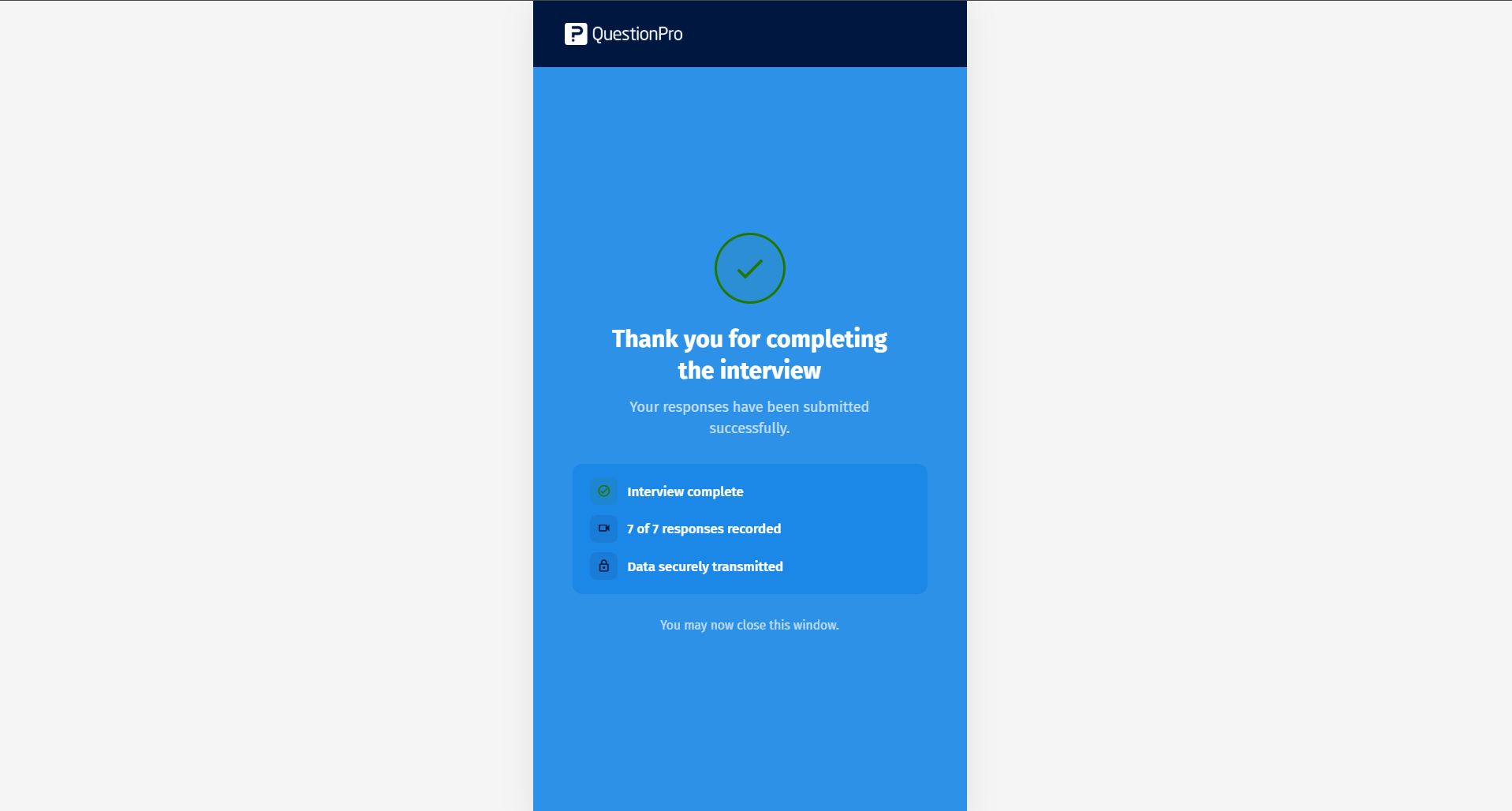
Once the participant answers the final question, they are taken to a completion screen displaying "Thank you for completing the interview". This screen provides confirmation that their responses have been submitted successfully, specifically noting that the interview is complete, all requested responses were recorded, and the data was securely transmitted. Participants are then informed that they may safely close the window.