Creating and Refining AI Studies
To create a new study, navigate to the Create AI Study dashboard. Simply describe what you want to learn in the provided text box, detailing your goals, target audience, and the key problem you are investigating. A highly descriptive brief helps the AI design a more accurate discussion guide and define the right participant criteria. Once ready, click the Generate Study button.
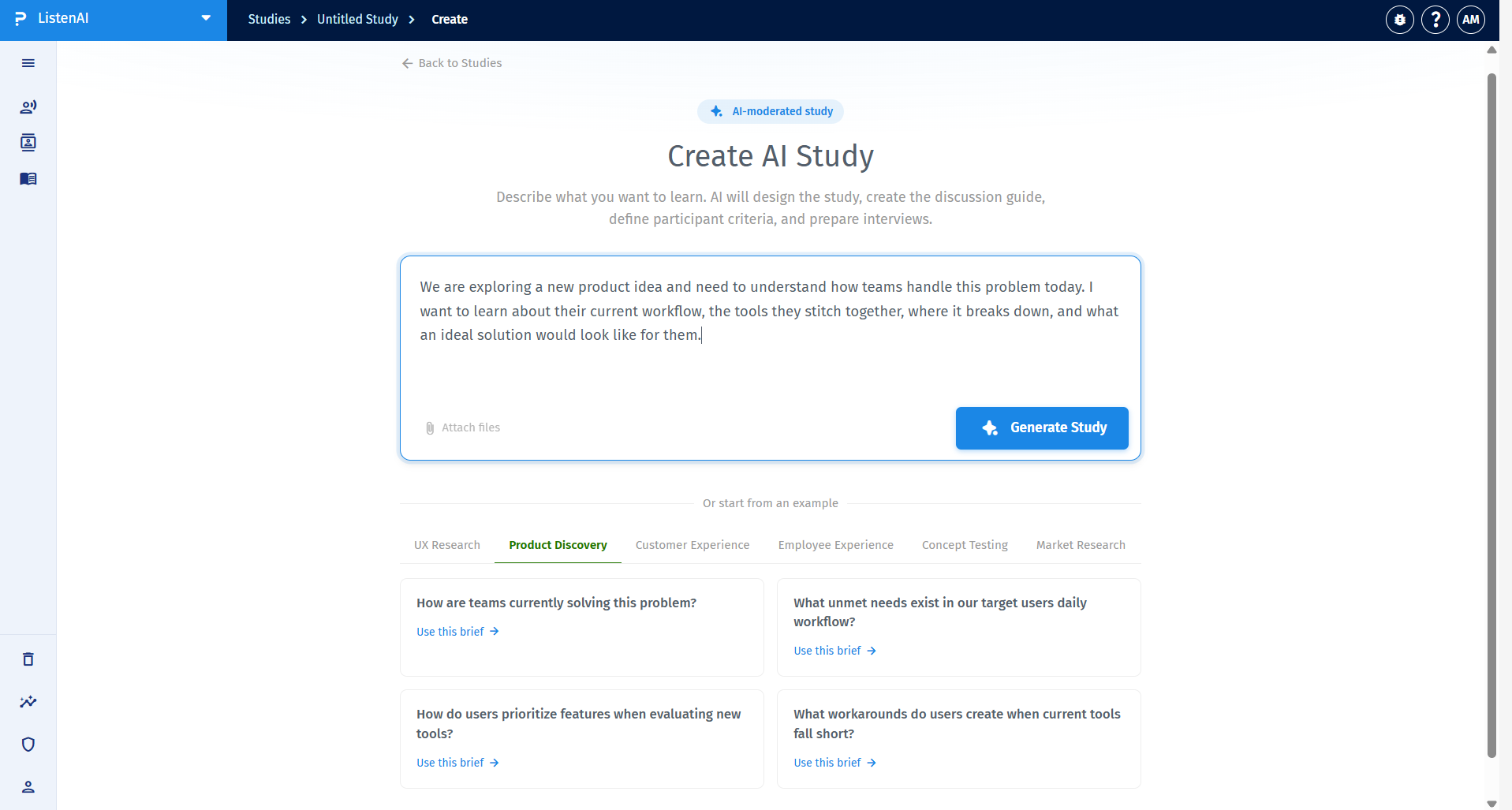
Yes. If you need inspiration or a quick starting point, you can start from pre-built examples located just below the brief entry box. These templates are categorized by research types such as UX Research, Product Discovery, Customer Experience, Employee Experience, Concept Testing, and Market Research. Click Use this brief on any template card to instantly populate the prompt box with a proven framework.
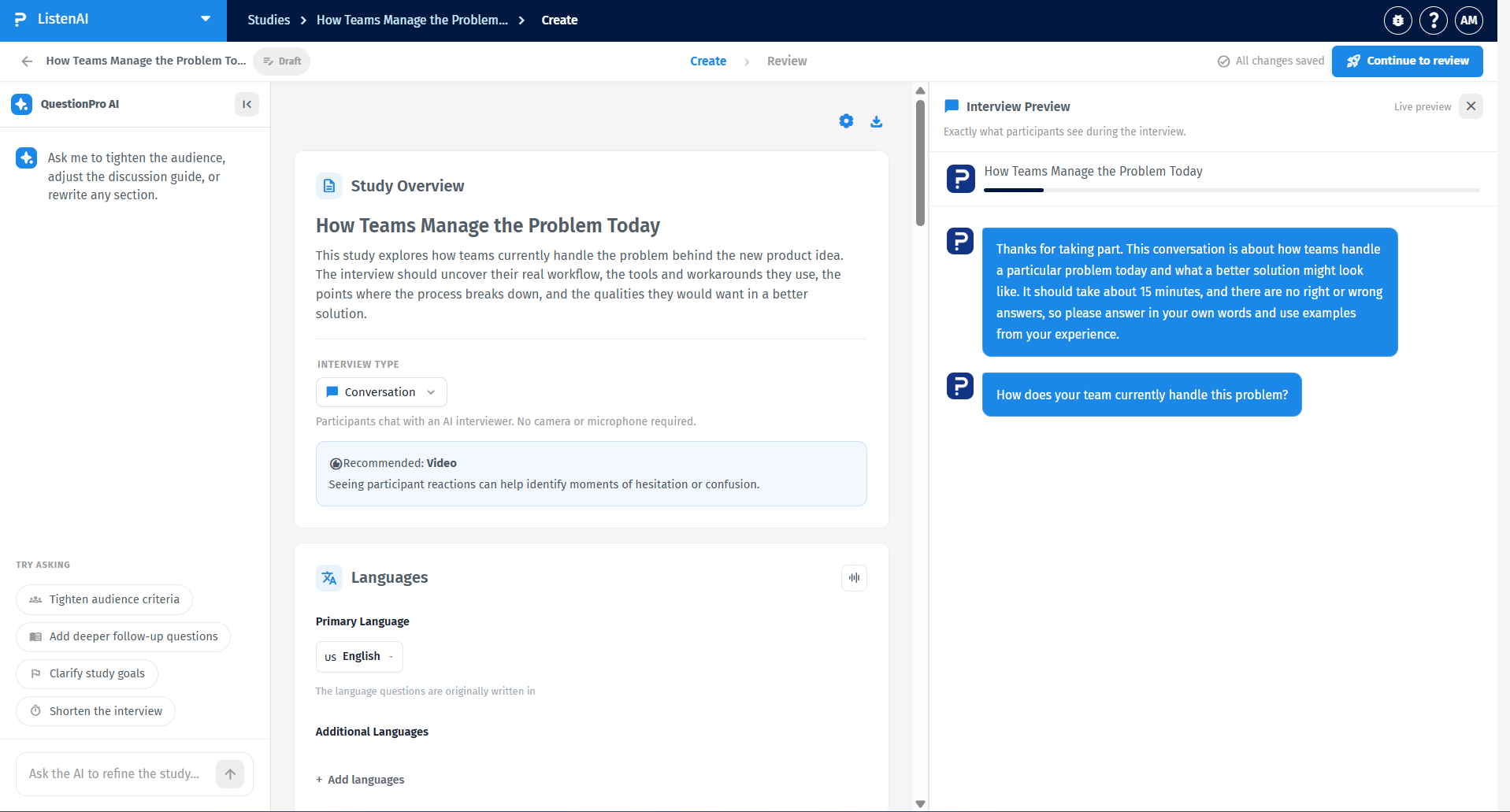
After the AI generates your initial study, you can use the QuestionPro AI panel on the left side of the screen to make iterative adjustments. You can type specific instructions to the AI, or click on suggested prompts like "Tighten audience criteria," "Add deeper follow-up questions," "Clarify study goals," or "Shorten the interview". The AI will immediately apply these refinements to your study overview and discussion guide.
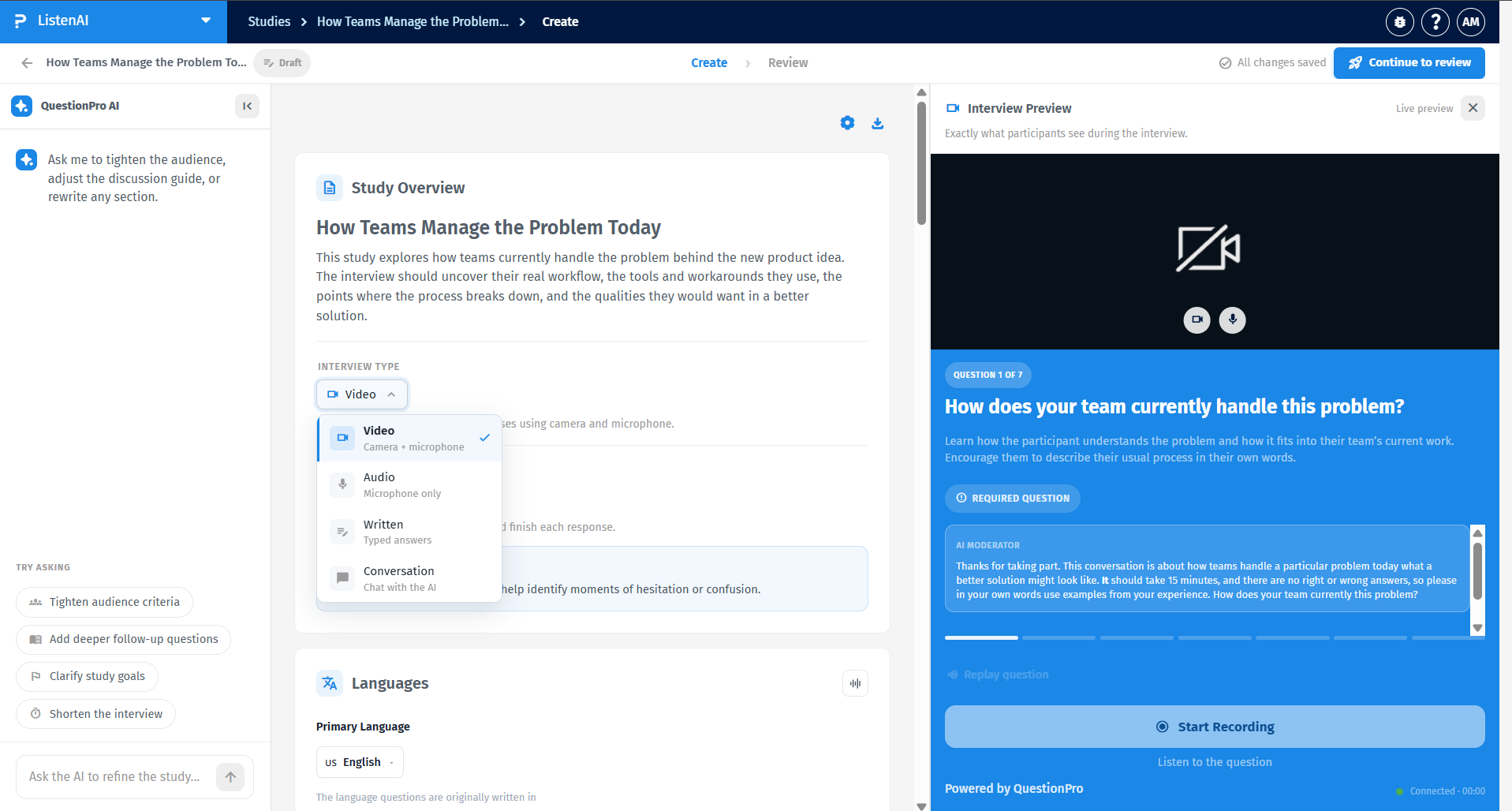
Absolutely. In the Study Overview section, you can manually select the Interview Type, choosing between Video (Camera + microphone), Audio (Microphone only), Written (Typed answers), or Conversation (Chat with the AI). You can also adjust the Response Control to dictate how participants interact with the system, such as using "Natural conversation" for hands-free answering.
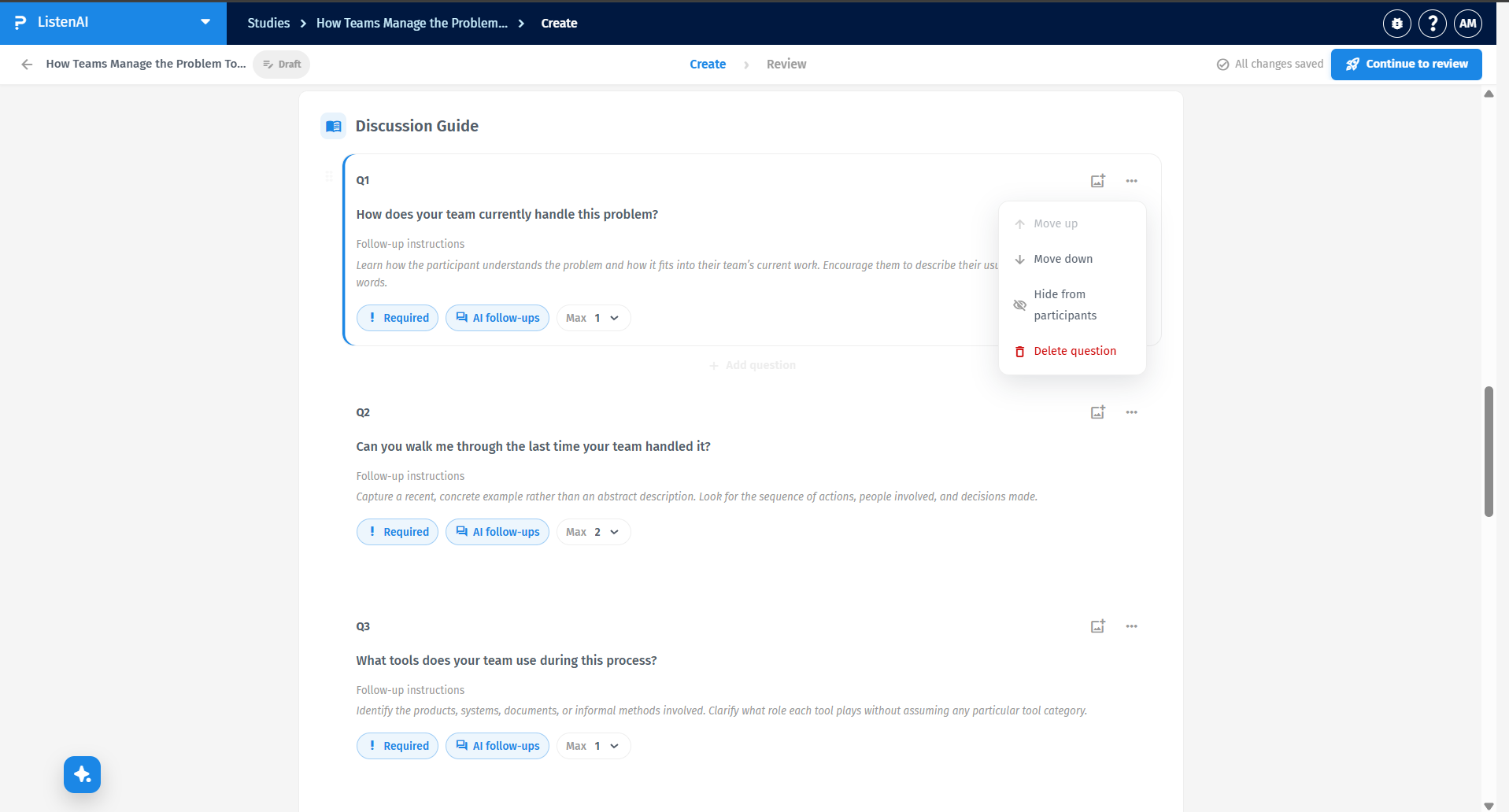
In the Discussion Guide section, you have full control over the individual questions. You can rearrange their order, edit the follow-up instructions provided to the AI moderator, mark questions as required, and set the maximum number of AI follow-up questions allowed for each prompt.