


Essential Mode for LivePolls
Essential Mode is a workspace level setting designed for formal environments such as training sessions, boardroom discussions, and internal workshops. When enabled, it transforms LivePolls into a focused and anonymous data collection tool by removing gamification features like nicknames, scores, and leaderboards. This allows facilitators to maintain a professional tone and ensure participants remain focused on the discussion rather than the tool itself.
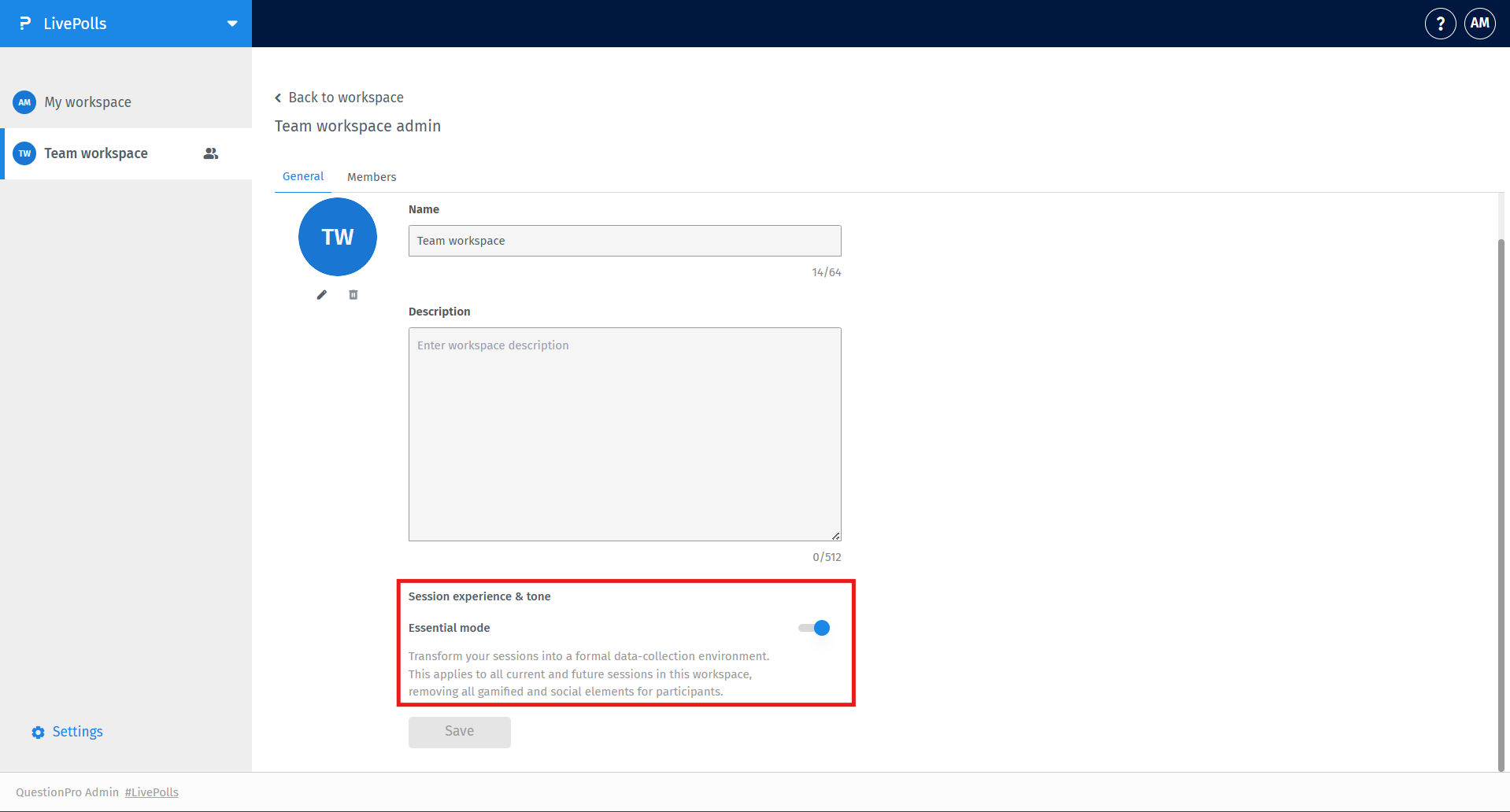
Essential Mode is configured at the Team Workspace level. To enable it, follow these steps:
- Log in to your QuestionPro account and navigate to the LivePolls section.
- Select your Team Workspace.
- Go to Workspace Settings.
- Locate the toggle for Essential Mode and switch it to ON.
- Click Save to apply the changes.
When Essential Mode is active, the participant journey is streamlined to eliminate distractions and entry friction:
- Entry and Identity: Participants skip the nickname entry step entirely. They are not assigned random names and are represented only as Anonymous User.
- Waiting Room: The waiting screen is simplified to a "Waiting for the host to start the poll" message. Word games, fun facts, and profile customization are removed.
- Response Confirmation: After submitting an answer, participants see a simple confirmation message: "Your response has been recorded".
- Conclusion: When the poll ends, the screen displays only: "Thank you. The poll is now closed".
The facilitator interface is adjusted to support professional data collection:
- Participant Tracking: The name list is removed. No individual names, avatars, or identifiers are visible to the host.
- Status Indicator: The host interface displays an "Essential mode active" indicator so the facilitator understands why scoring features are unavailable.
- Data Visualization: Results are restricted to the host screen to drive group engagement toward the primary display.
To ensure a distraction-free environment, the following elements are automatically disabled:
- Nickname entry and automatically generated anonymous names.
- Waiting room games and fun facts.
- Points, scoring logic, and participant rankings.
- Leaderboards and correct/incorrect answer indicators on participant devices.
- Teams setup and team-based competition logic.
- Post-task noise such as template recommendations and advertisements.
When Essential Mode is enabled at the workspace level, it locks preset enforcement to guarantee session consistency and removes the ability to configure teams or player names. You must disable Essential Mode in the workspace settings if these features are required.
To maintain focus and objectivity, the participant screen does not display their selected response or individual results in Essential Mode. Information is restricted to a submission confirmation.
Essential Mode automatically disables the Profile Questions section in the builder to maintain a privacy-first creation flow and prevent redundant data collection.
This feature is available with the following licenses :
Essentials Advanced Team Edition Research Edition Communities Customer Experience Employee Experience
