
Voices Included in ListenAI
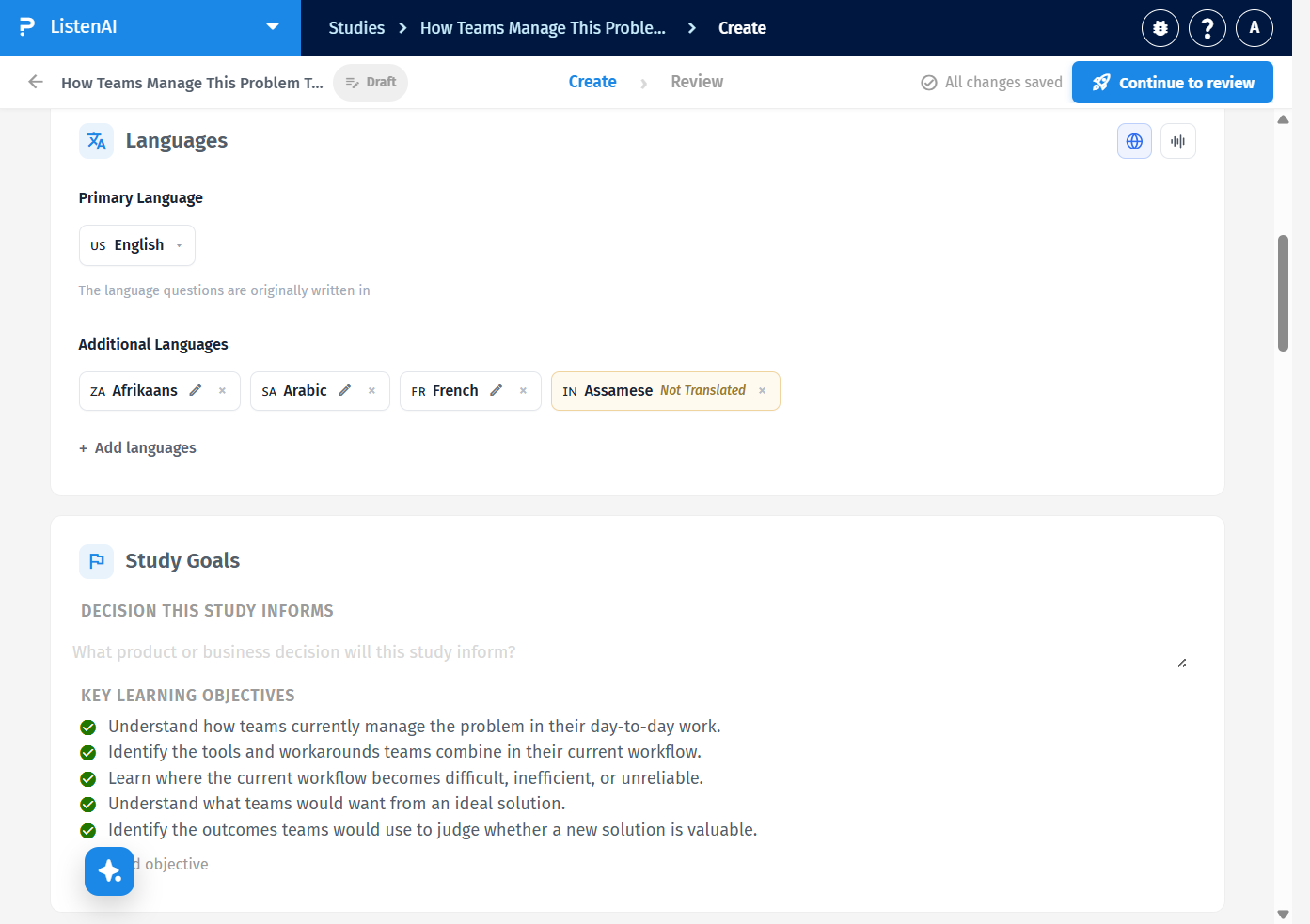
On the Create page, open the Languages panel. In the heading row, click the speaker icon labeled Voice (next to the globe). This opens the Voice popover: Enable reading of questions and select voice style.
No. Allow voice readout defaults off. The hint under the switch reads Participants can enable voice readout (default off). Leave it off if you do not want participants to hear questions read aloud. The Language menu and Voice for English menu still work while readout is off.
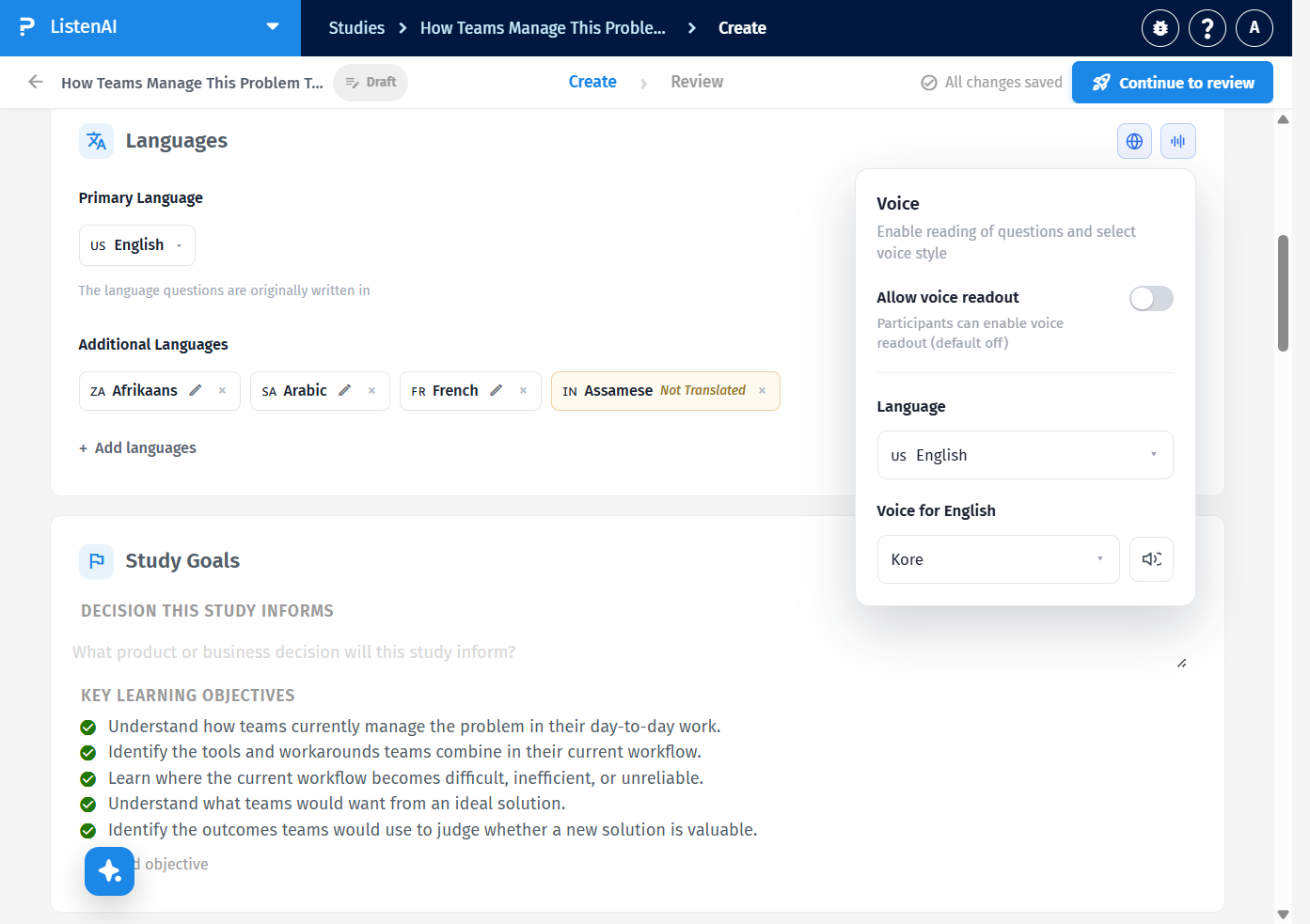
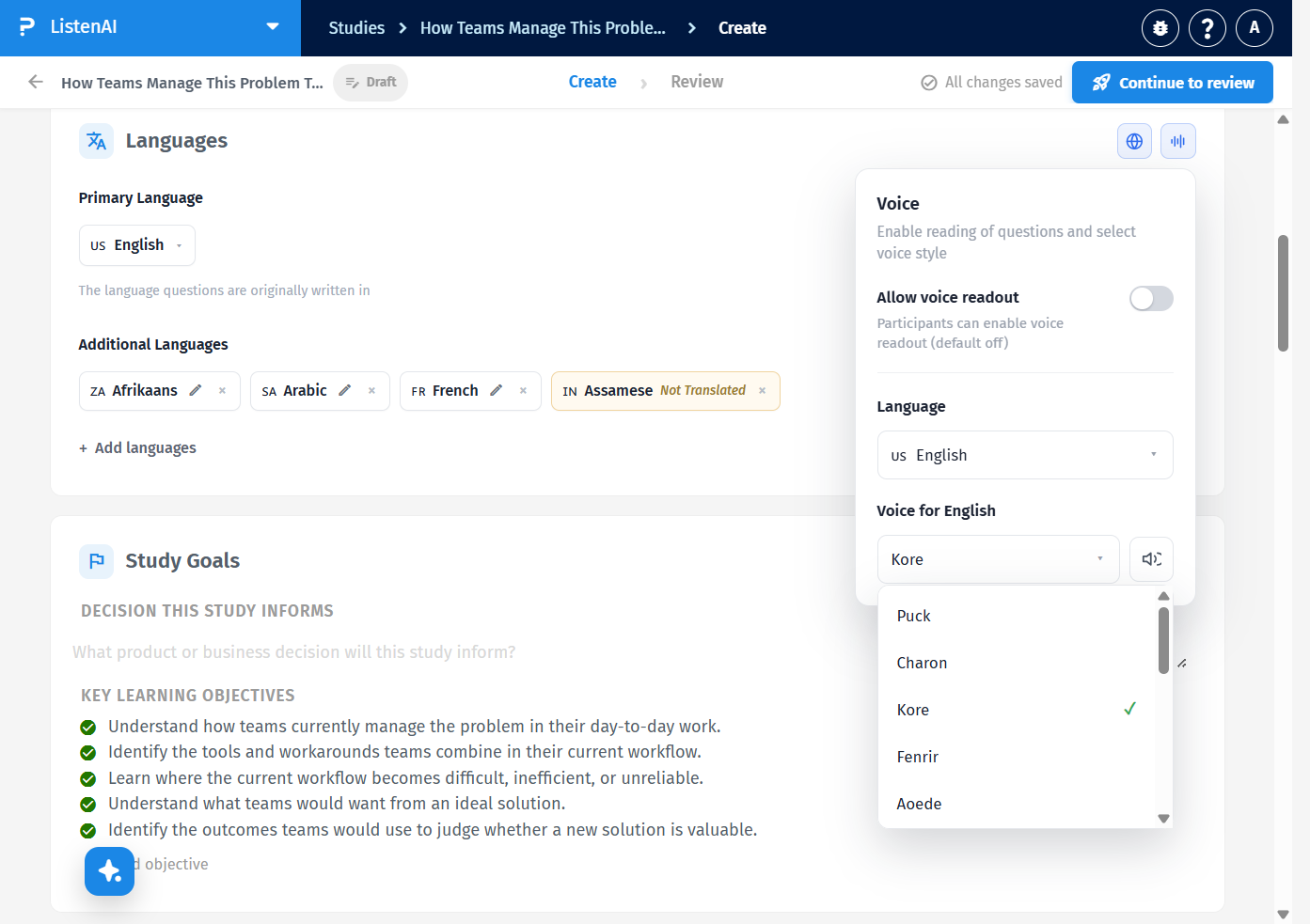
Open Voice for English. The included voices are Puck, Charon, Kore, Fenrir, Aoede, Ashley, Andrew, Melanie, Brenton, Nari, Krit, Minh, Linh, Karim, and Layla. For English, Kore is selected by default (checkmark). Choose one voice per language. Changing the voice here does not change the study’s Primary Language.
In the Voice popover, turn Allow voice readout on. Participants can then enable readout during the interview. The helper text still says readout defaults off for them. Turn the switch back off if you do not want that option.
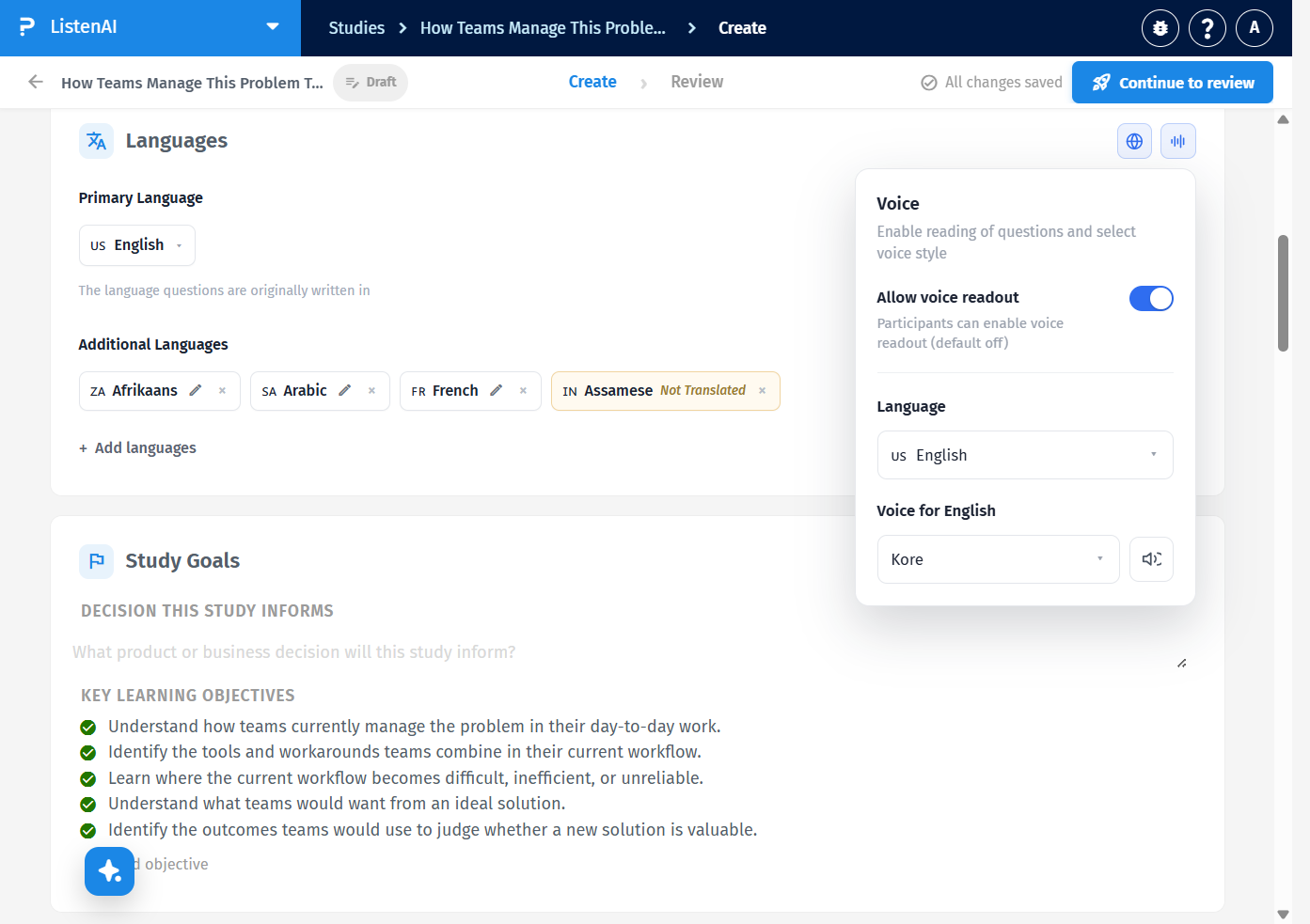
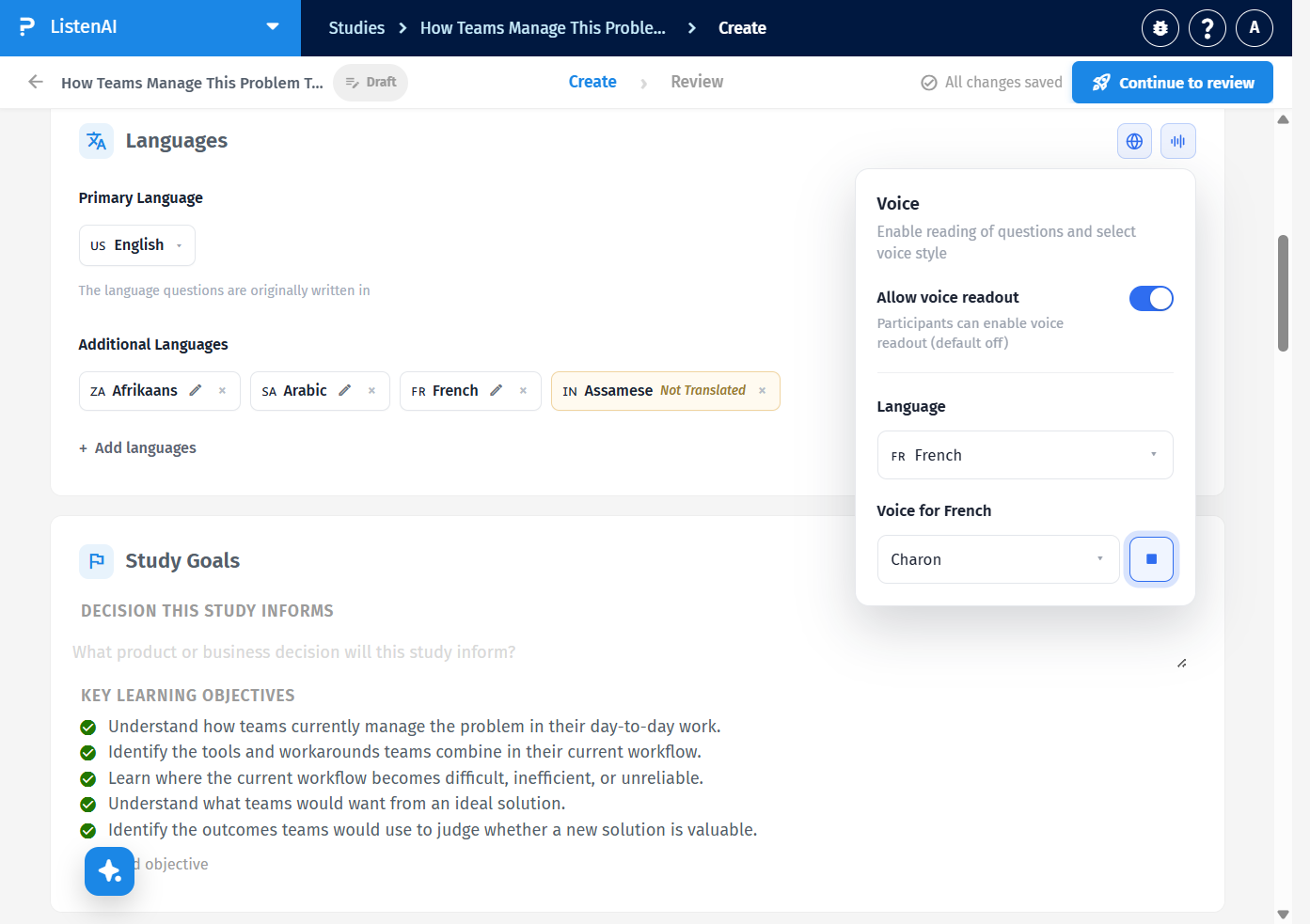
Yes. In the popover, open Language and select another language already on the study, such as French. The voice menu label becomes Voice for French. French uses Charon by default in this study. Each additional language has its own voice selection; only one voice is active for that language at a time.
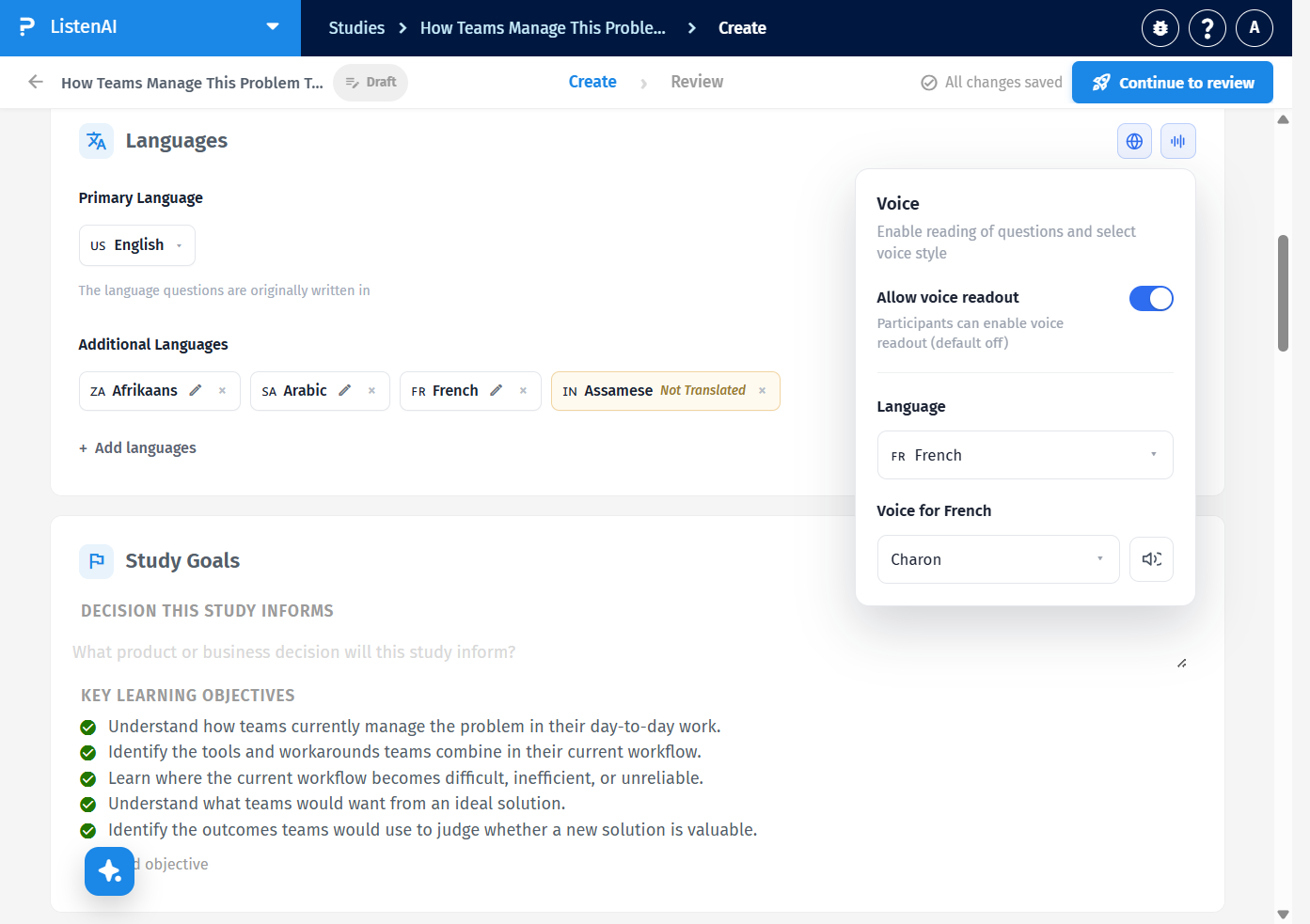
Next to the voice menu, click the speaker control labeled Preview voice. While the sample plays, the same control becomes a blue stop square labeled Stop voice preview. Click it to stop. Close the popover when you are done; the language shown in the popover is only for choosing a voice, not for changing the study primary language.