


Generating Translations for Additional Languages
In Languages, under Additional Languages, a language you just added stays on a Not Translated chip until you generate. For example, Assamese showed an orange Not Translated status. Languages that already have translations show an edit pencil instead, labeled Edit translation.
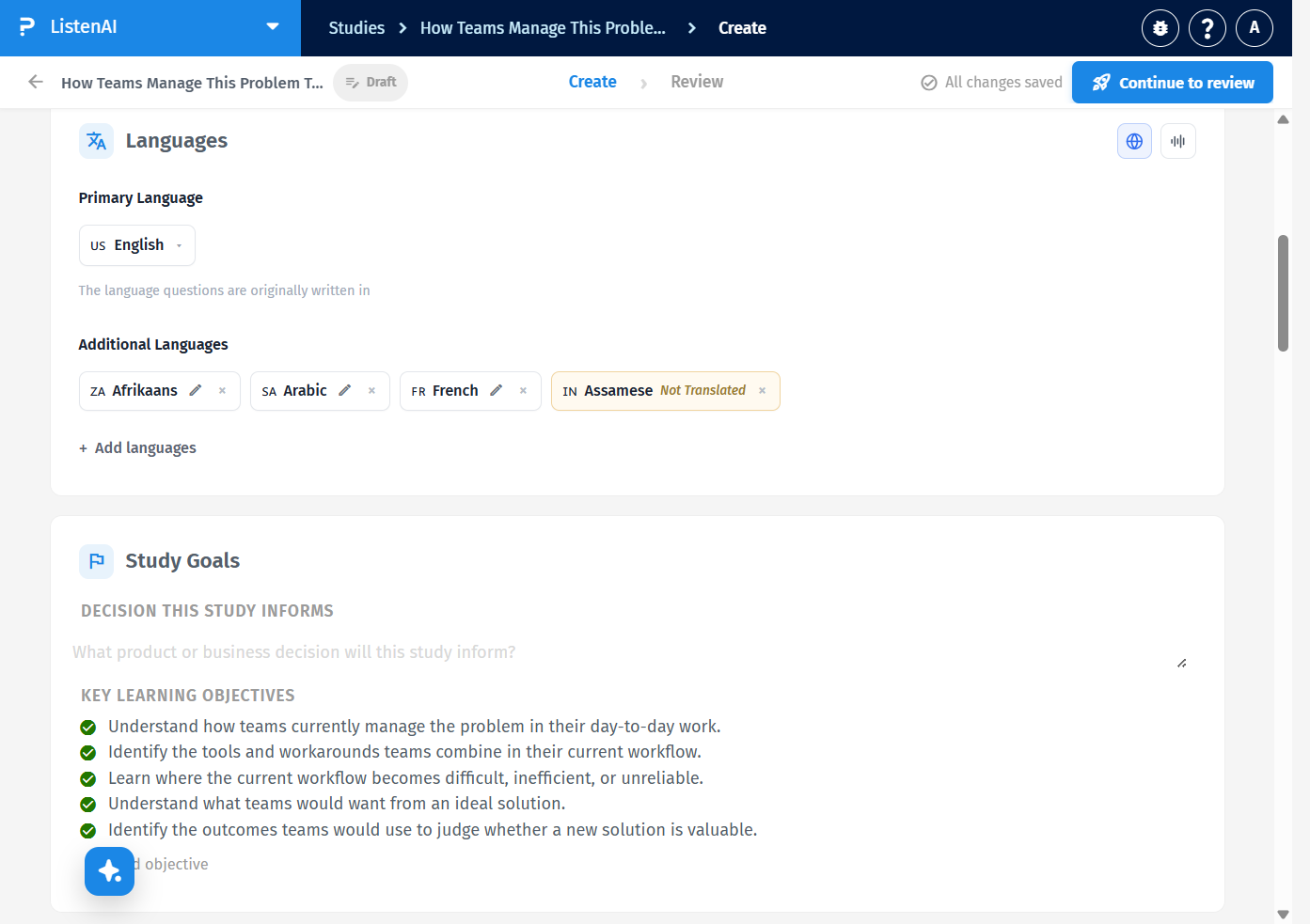
The globe control is labeled Generate translations. When a language is still missing, its tooltip is Generate 1 missing translation (the count matches how many additional languages still need a run). Click it to generate study content for those languages: title, overview, goals, audience, introduction, discussion guide, thank-you note, and moderator instructions. It does not add a language by itself; add the language first with + Add languages.
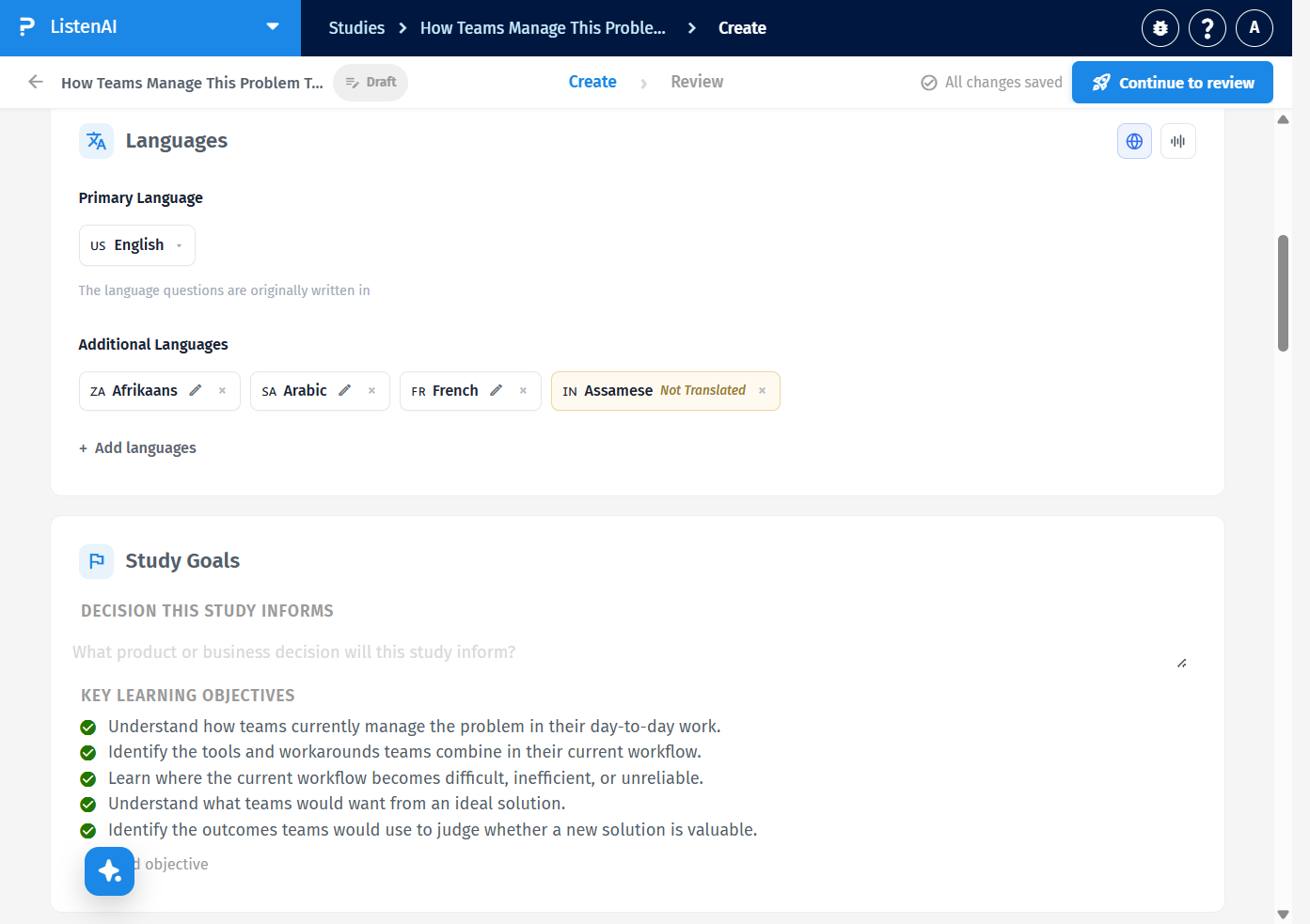
After you click Generate translations, the globe becomes a spinner and the additional-language chip replaces Not Translated with a spinner. The generate control is disabled while the run is in progress. Wait until the spinner clears.
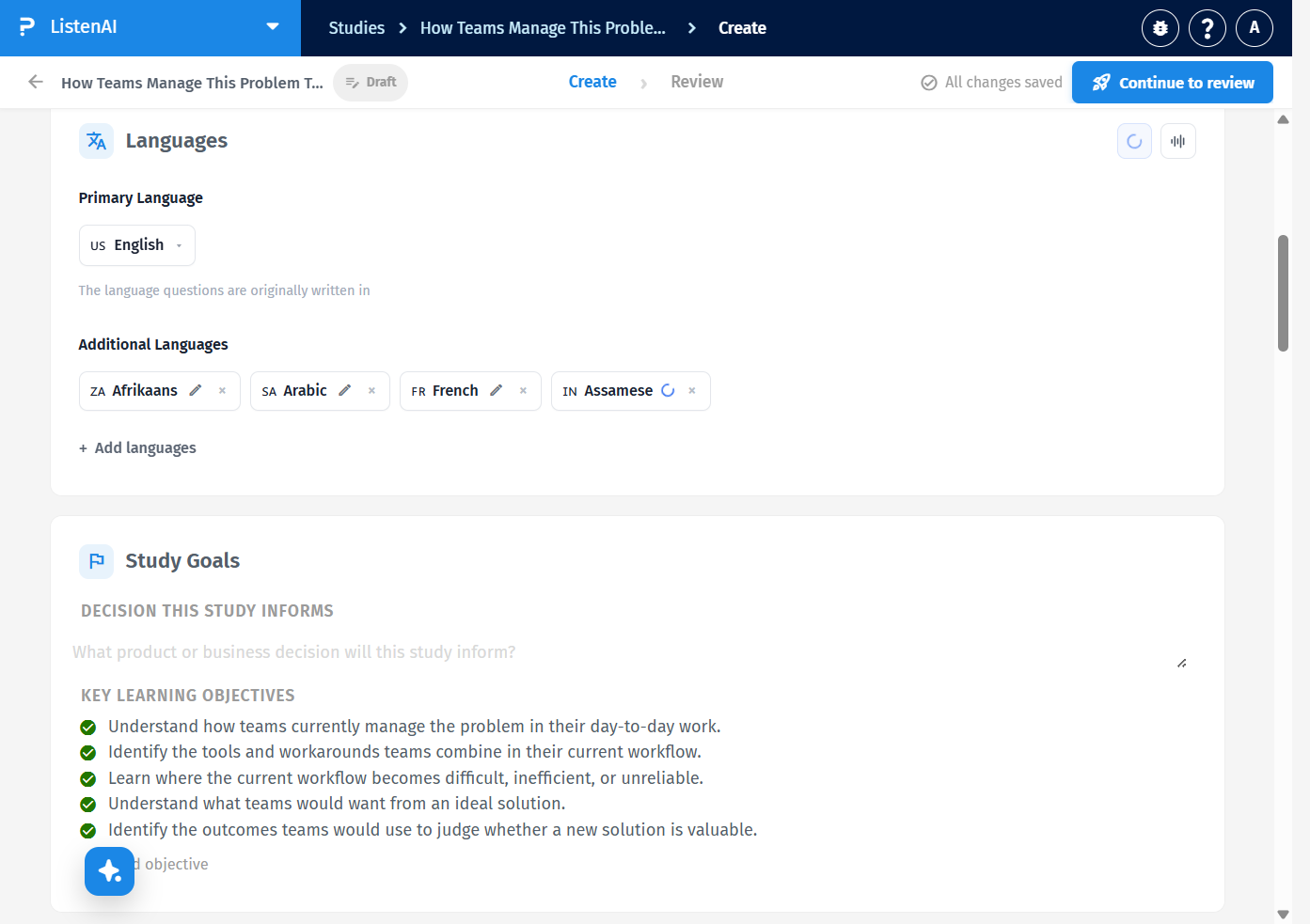
When the run finishes, Not Translated is gone. The chip shows the language name plus the edit pencil (Edit translation / Edit Assamese translation) and the remove control. Use the pencil to review the translation. Do not treat a chip with only a spinner or Not Translated as complete.
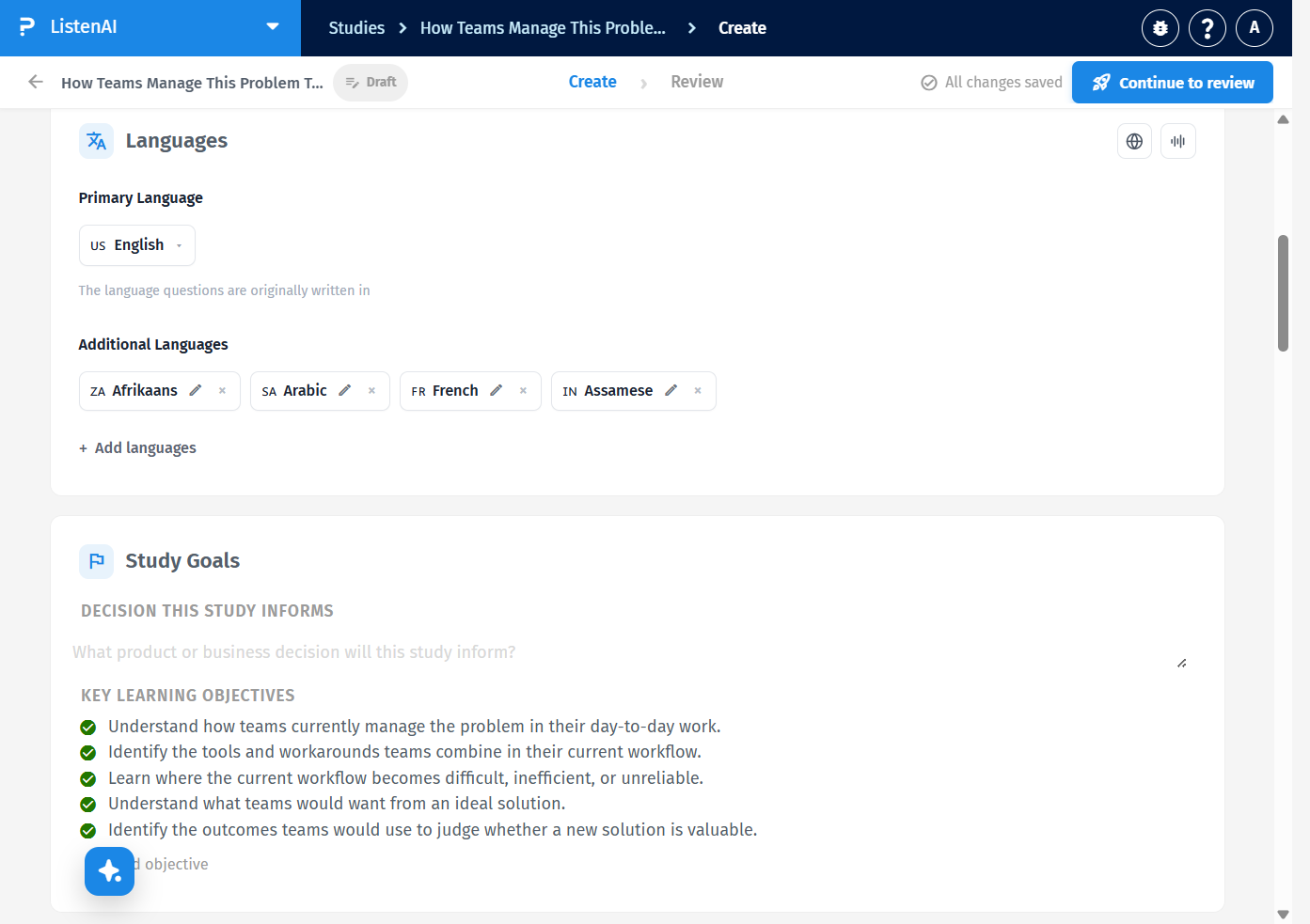
When every additional language already has a translation, the globe tooltip reads Translations already generated and the button is no longer highlighted as active. You do not need to click it again unless you change the primary-language content and need a new run.
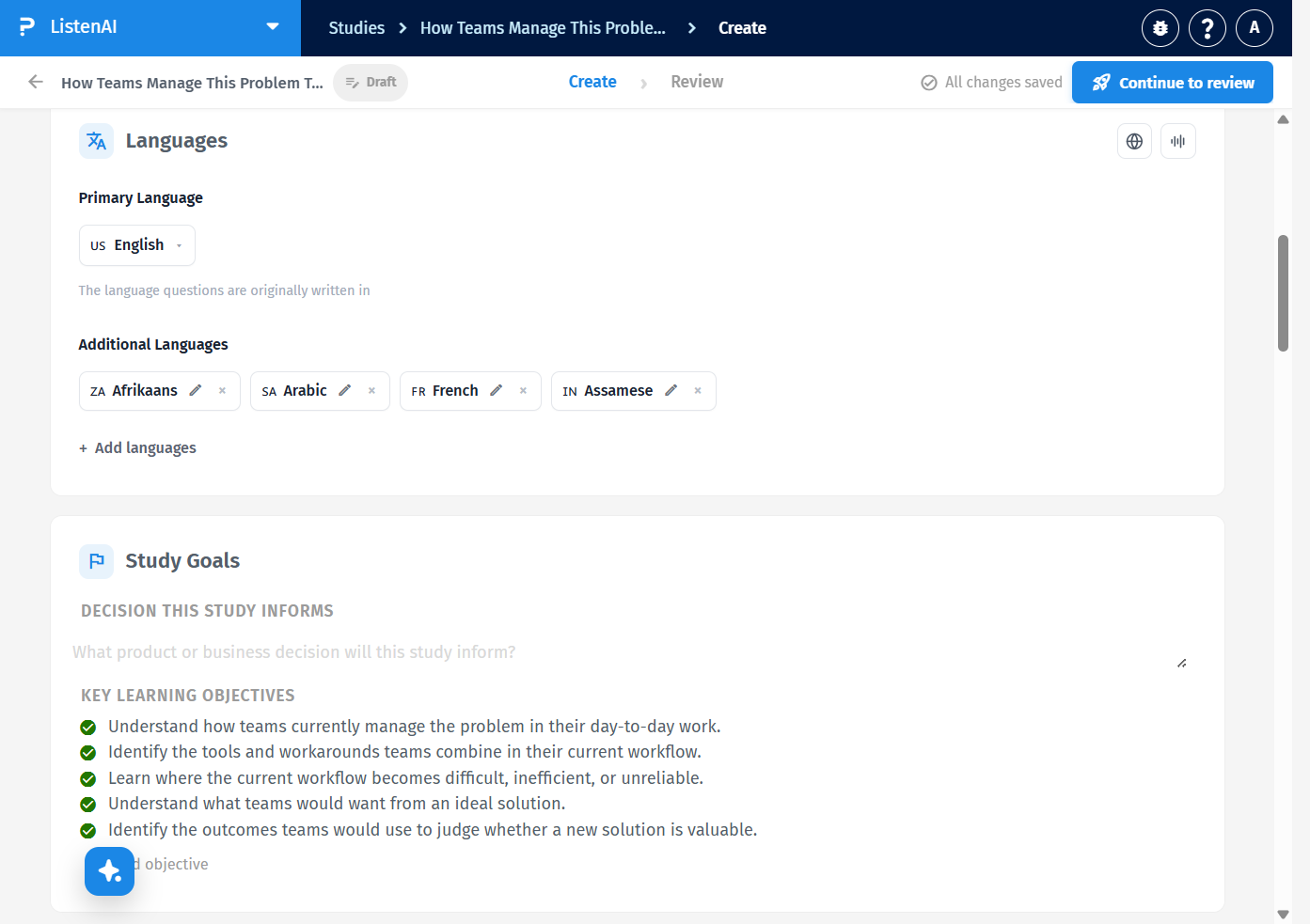
A newly added language stays Not Translated until you click Generate translations. After a successful run, the chip shows the edit pencil. If you later change the primary-language content, generate again so additional languages match. Review the chips on Create before you send the study to participants.
