
Advanced Settings in the Study Settings Menu
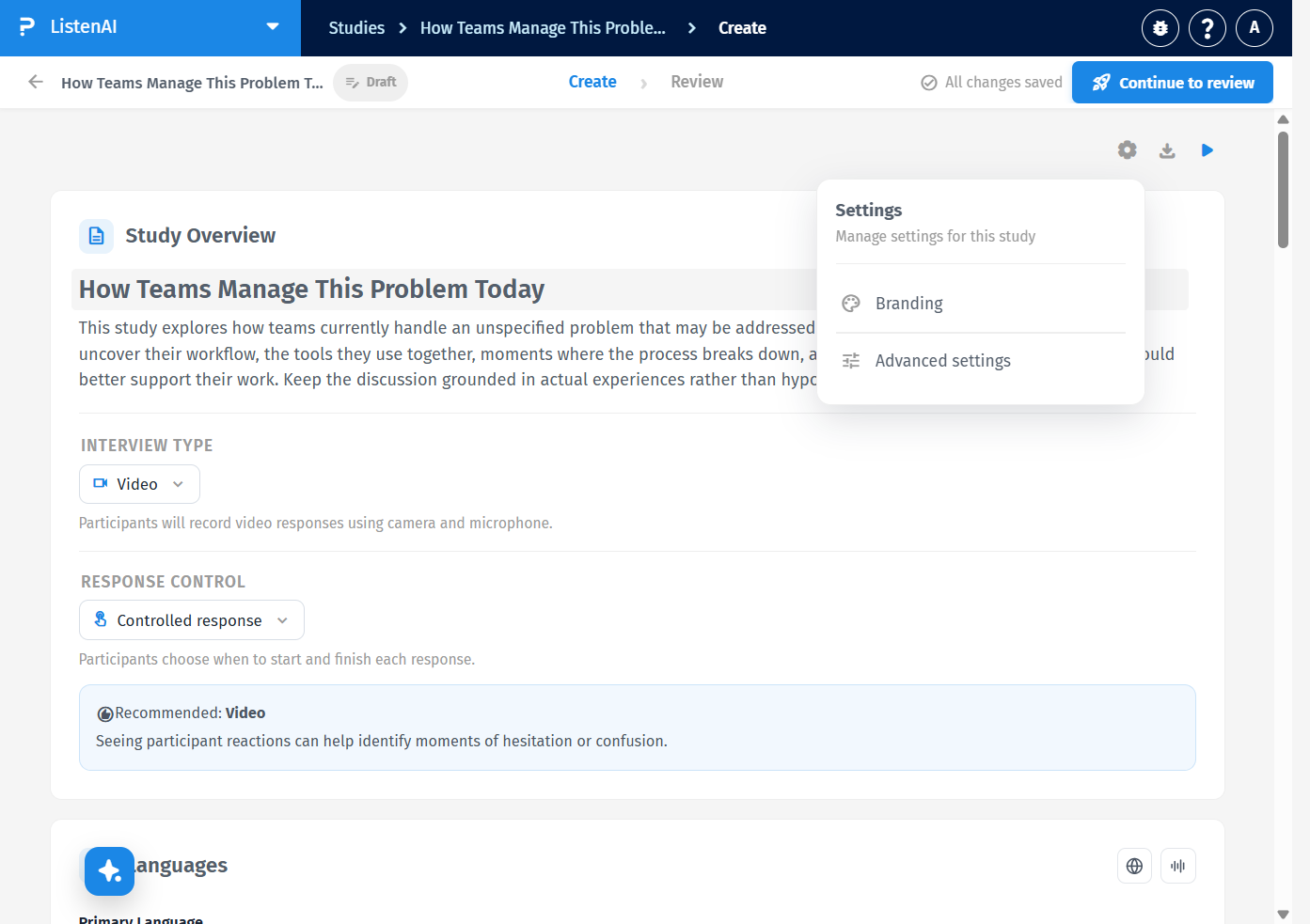
At the top of the builder, click the gear labeled Settings. The menu heading is Settings with the subtitle Manage settings for this study. Choose Advanced settings. (Do not use Branding for these controls.)
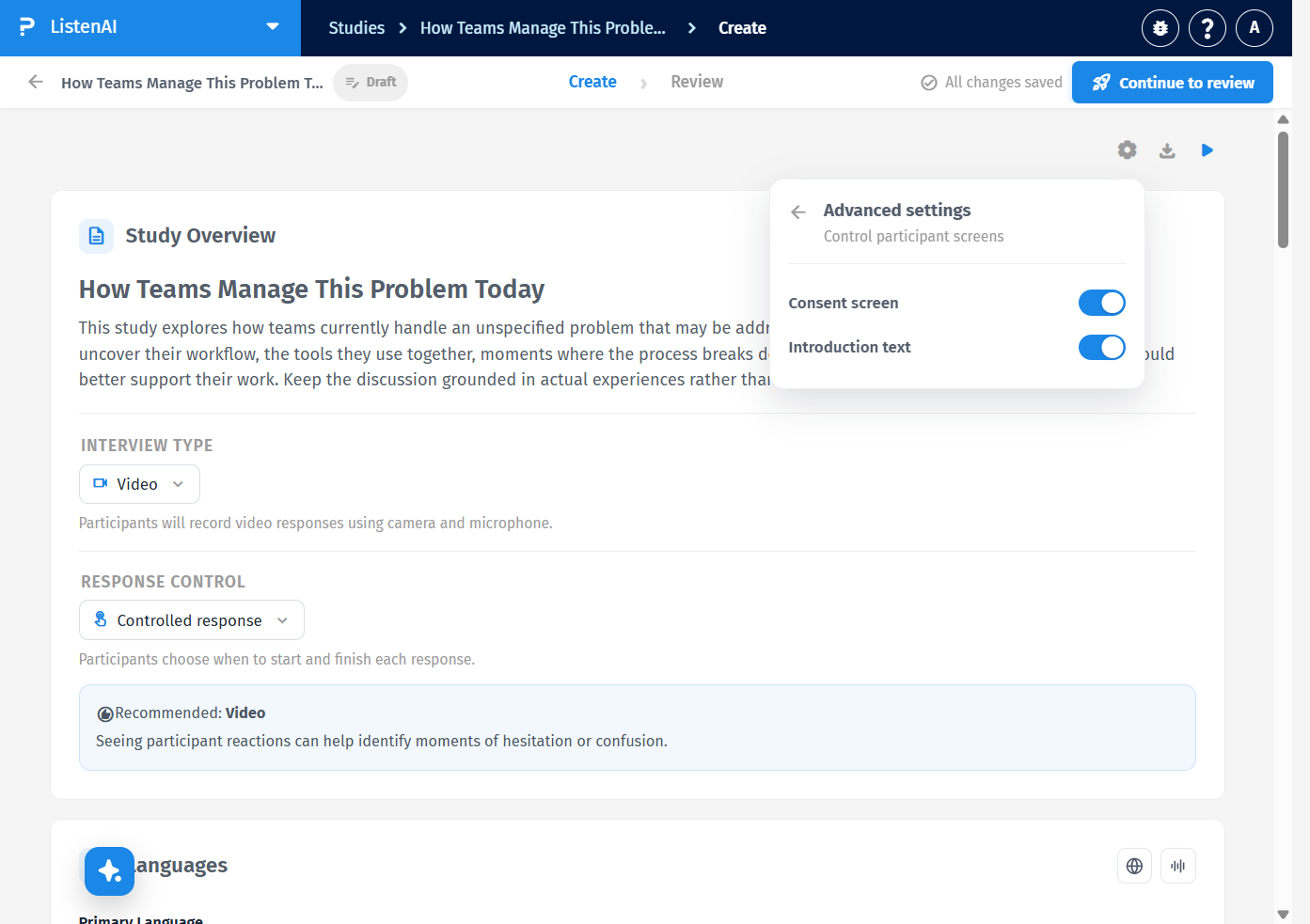
The panel heading is Advanced settings, with the subtitle Control participant screens. Two switches are available: Consent screen and Introduction text. Both default on. Use Back to settings to return to the previous menu.
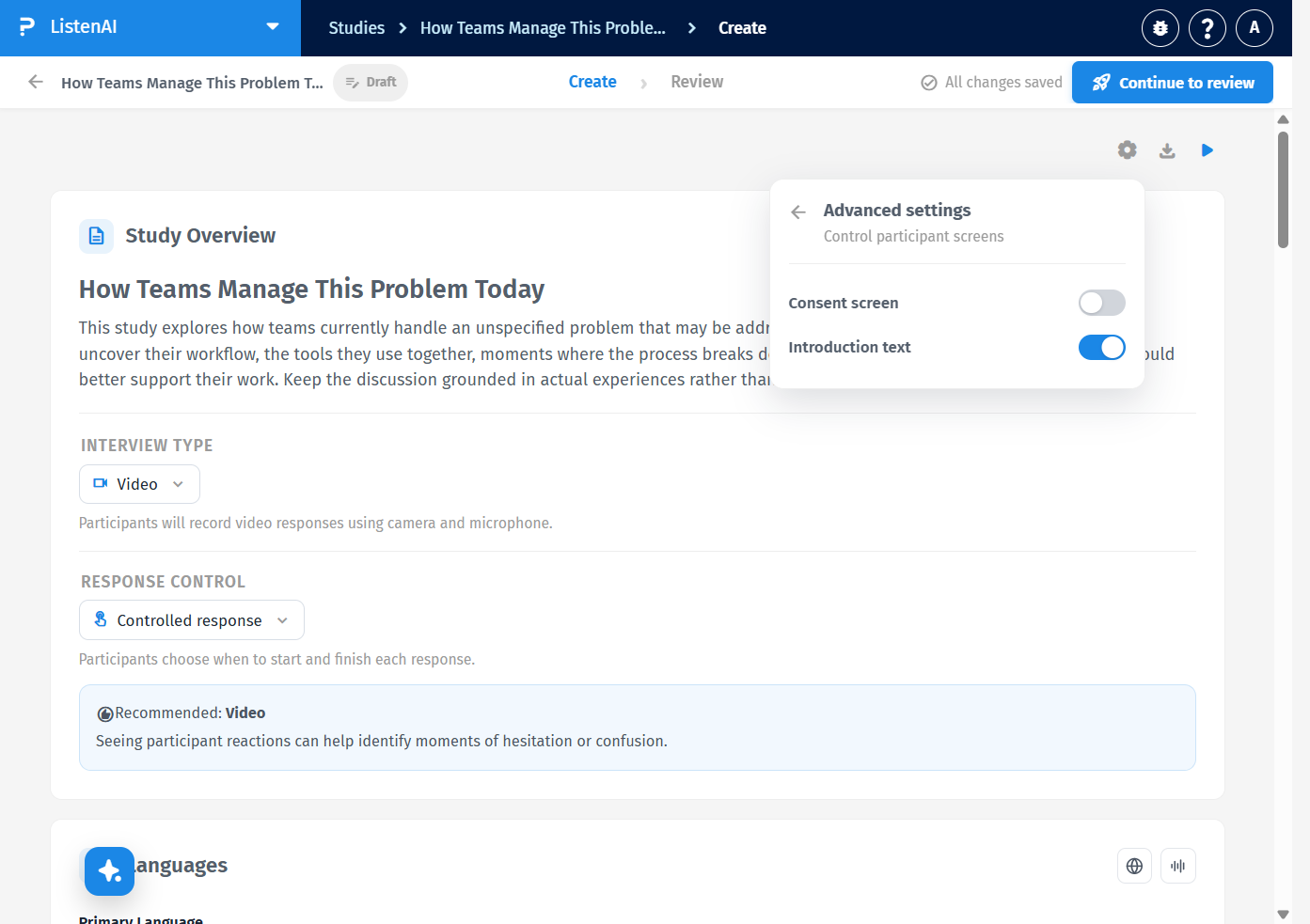
In Advanced settings, turn Consent screen off. The switch moves to the gray (off) position. Turn it back on if participants should still see a consent step before the interview.
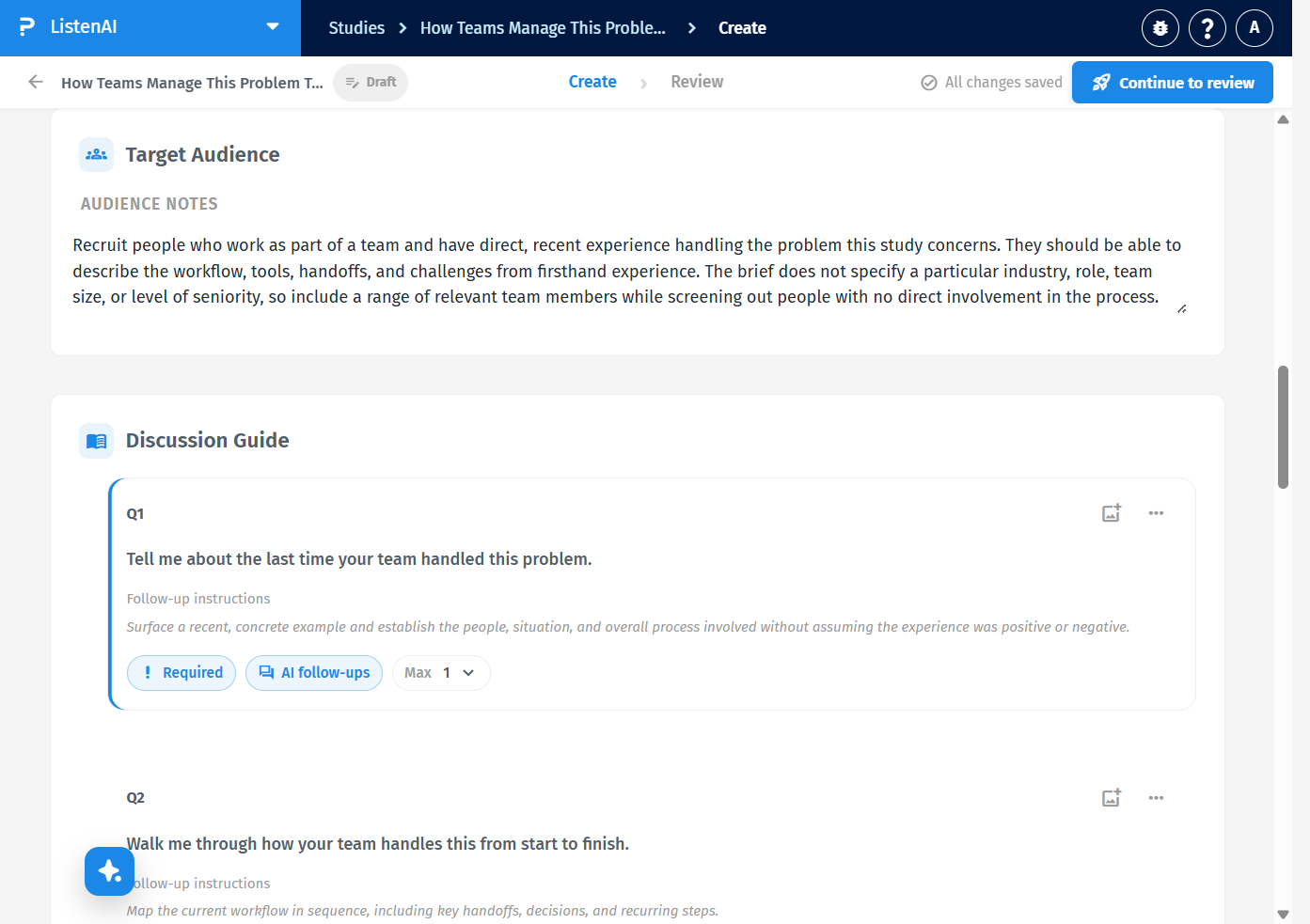
Turn Introduction text off. The Interview Introduction section disappears from the Create page, so Target Audience is followed directly by Discussion Guide. The welcome text is no longer available to edit on Create until you turn Introduction text back on.
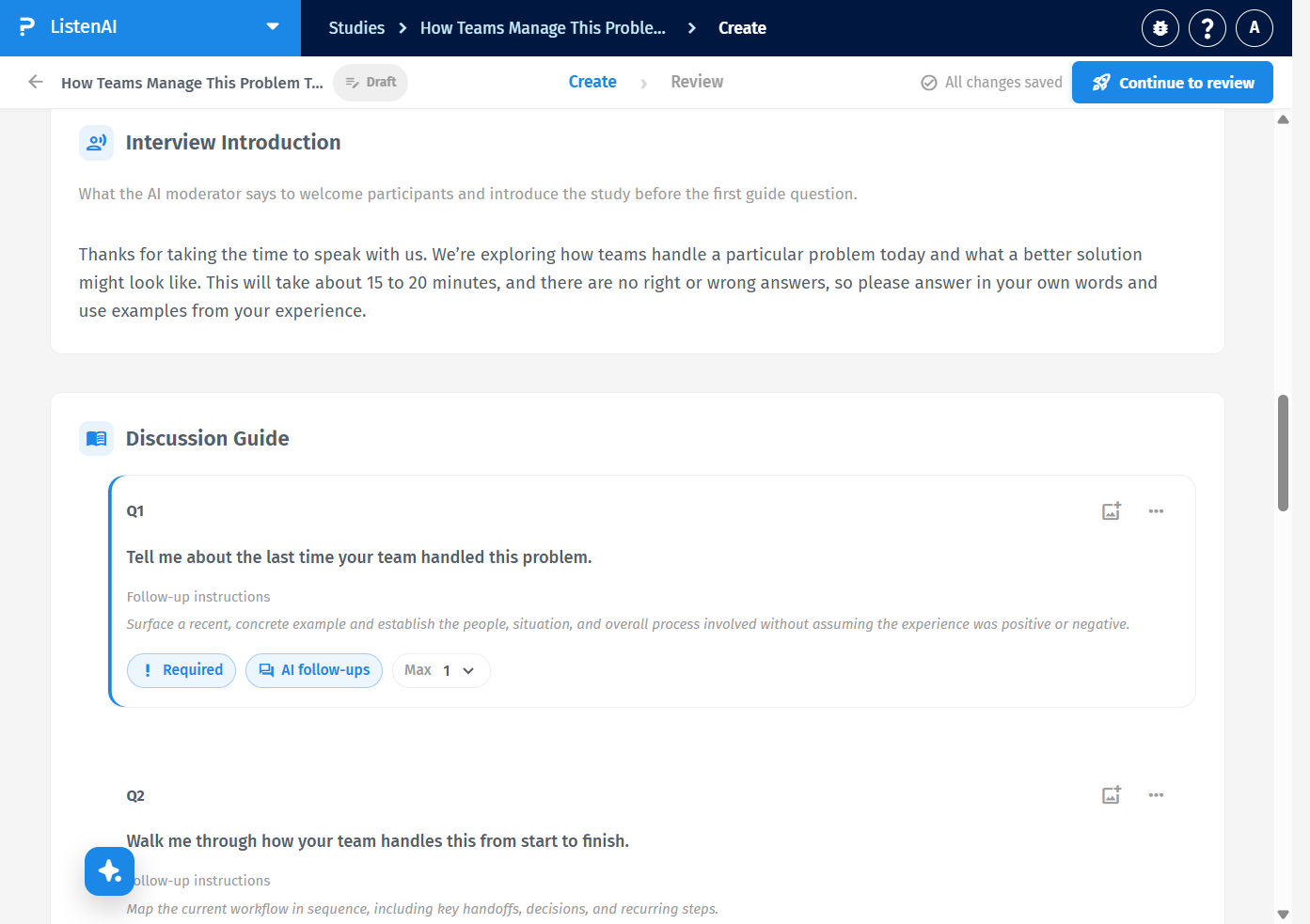
Open Settings > Advanced settings again and turn Introduction text on. The Interview Introduction heading returns, with the helper text What the AI moderator says to welcome participants and introduce the study before the first guide question. Edit the welcome copy there before you preview.