


Attaching an Image in the Discussion Guide
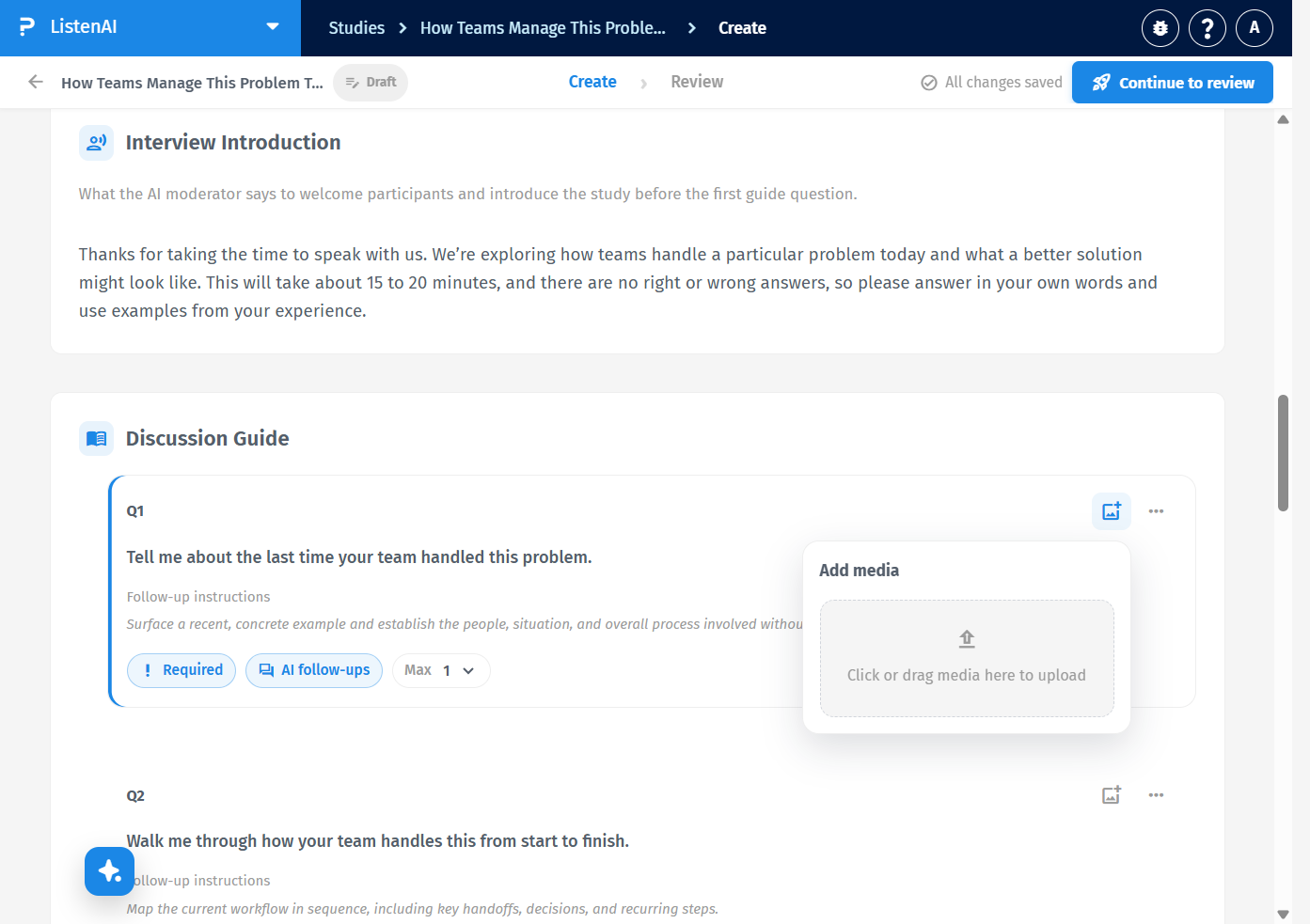
In Discussion Guide, open the question you want to illustrate. In the top-right of the question card, click the image icon labeled Add image (next to …).
The popover heading is Add media. Use the dropzone Click or drag media here to upload to choose a file. ListenAI accepts PNG, JPG, JPEG, and WEBP images.
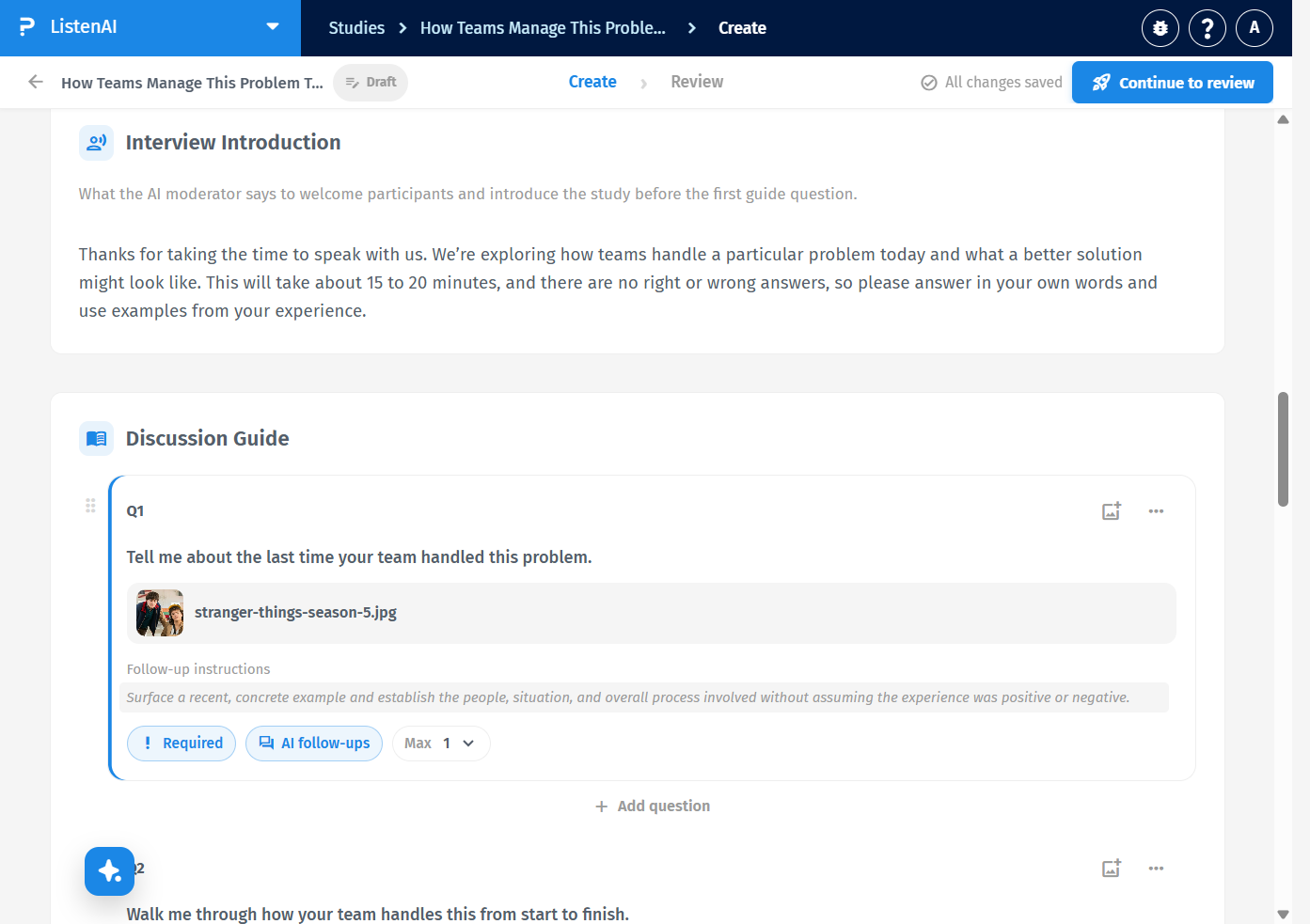
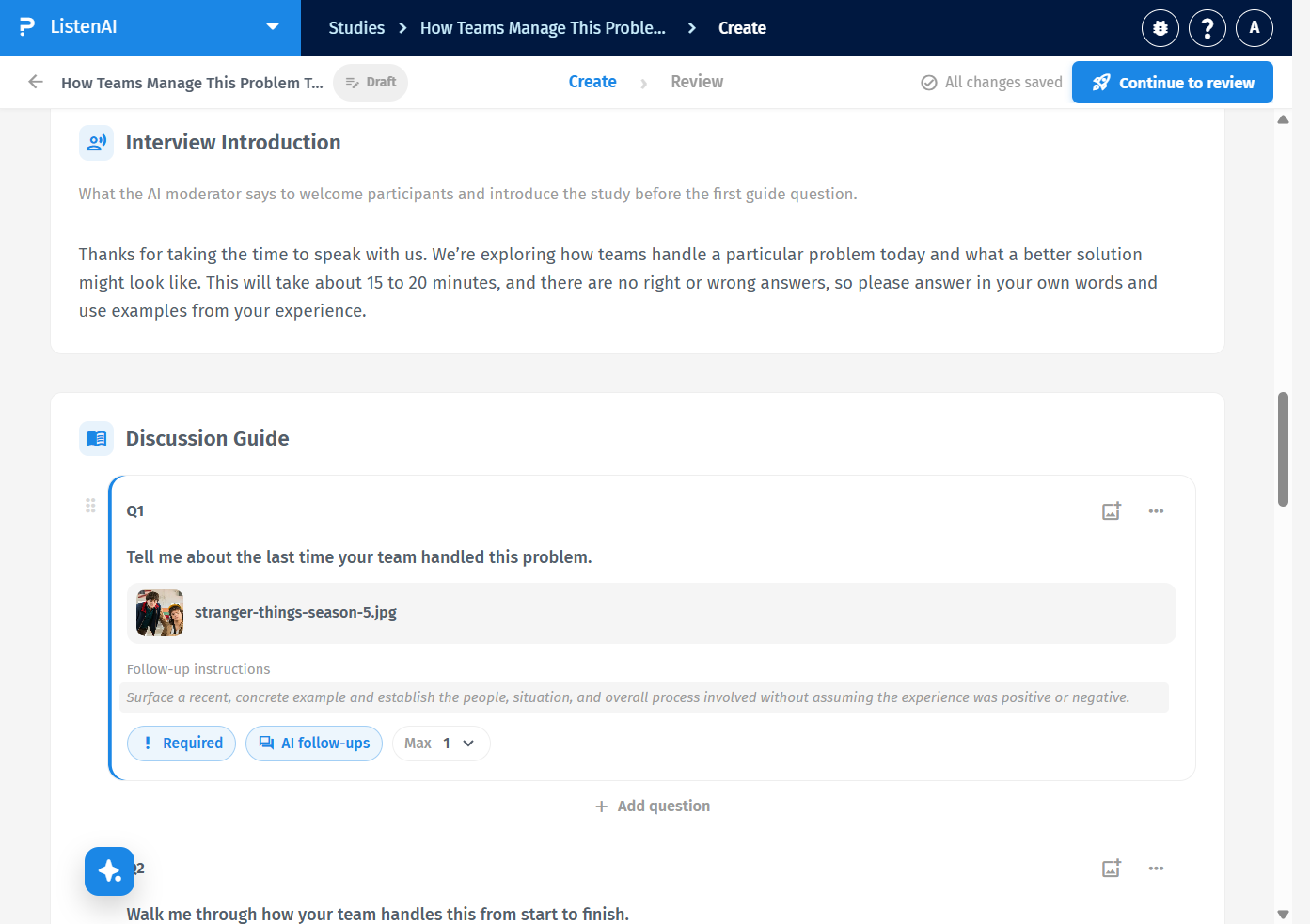
You do not click a separate save button. The Create toolbar shows All changes saved when the draft has finished storing your latest edit, including an attached image.
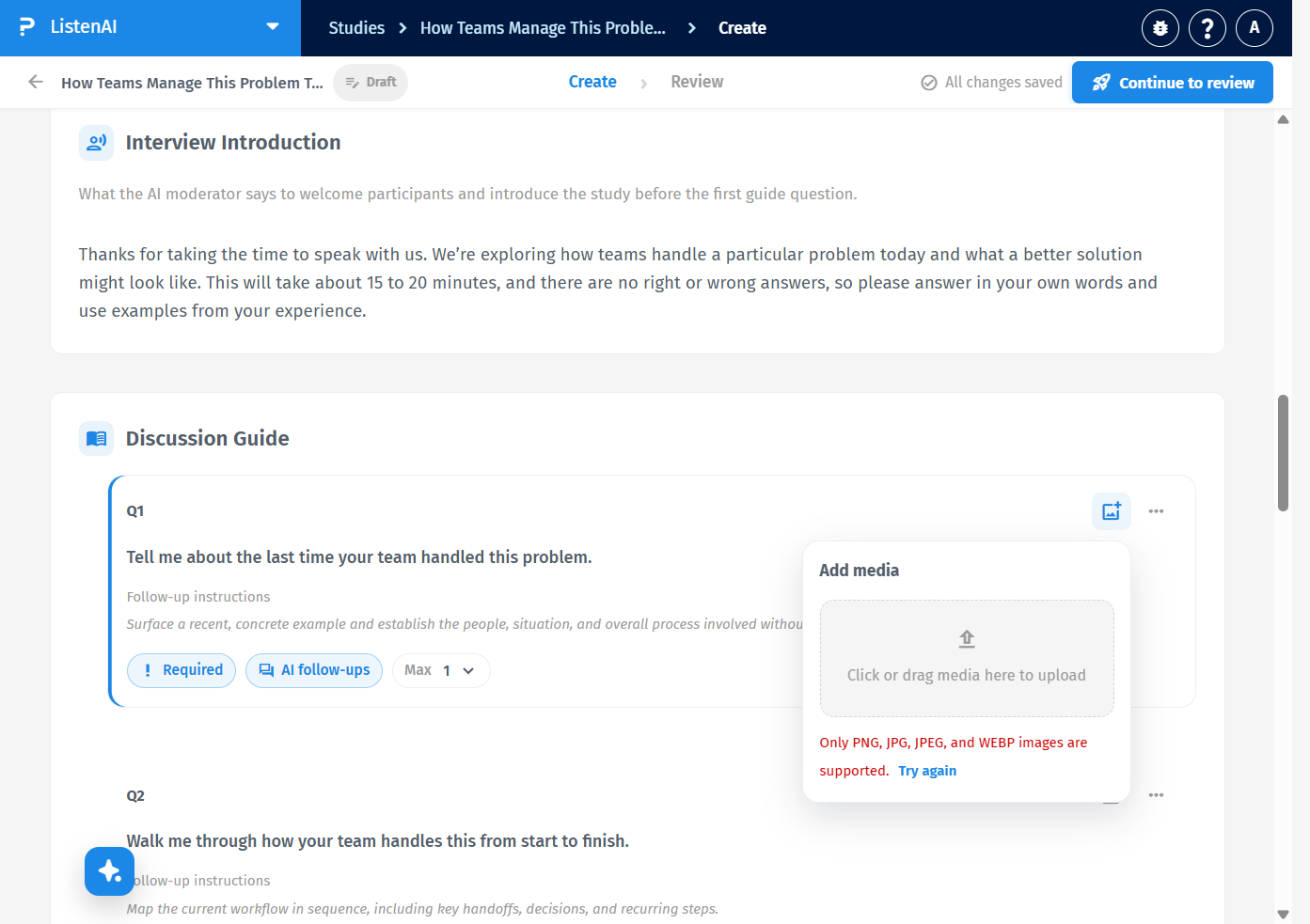
The popover shows a red alert: Only PNG, JPG, JPEG, and WEBP images are supported. Click Try again to clear the message and choose a supported file.
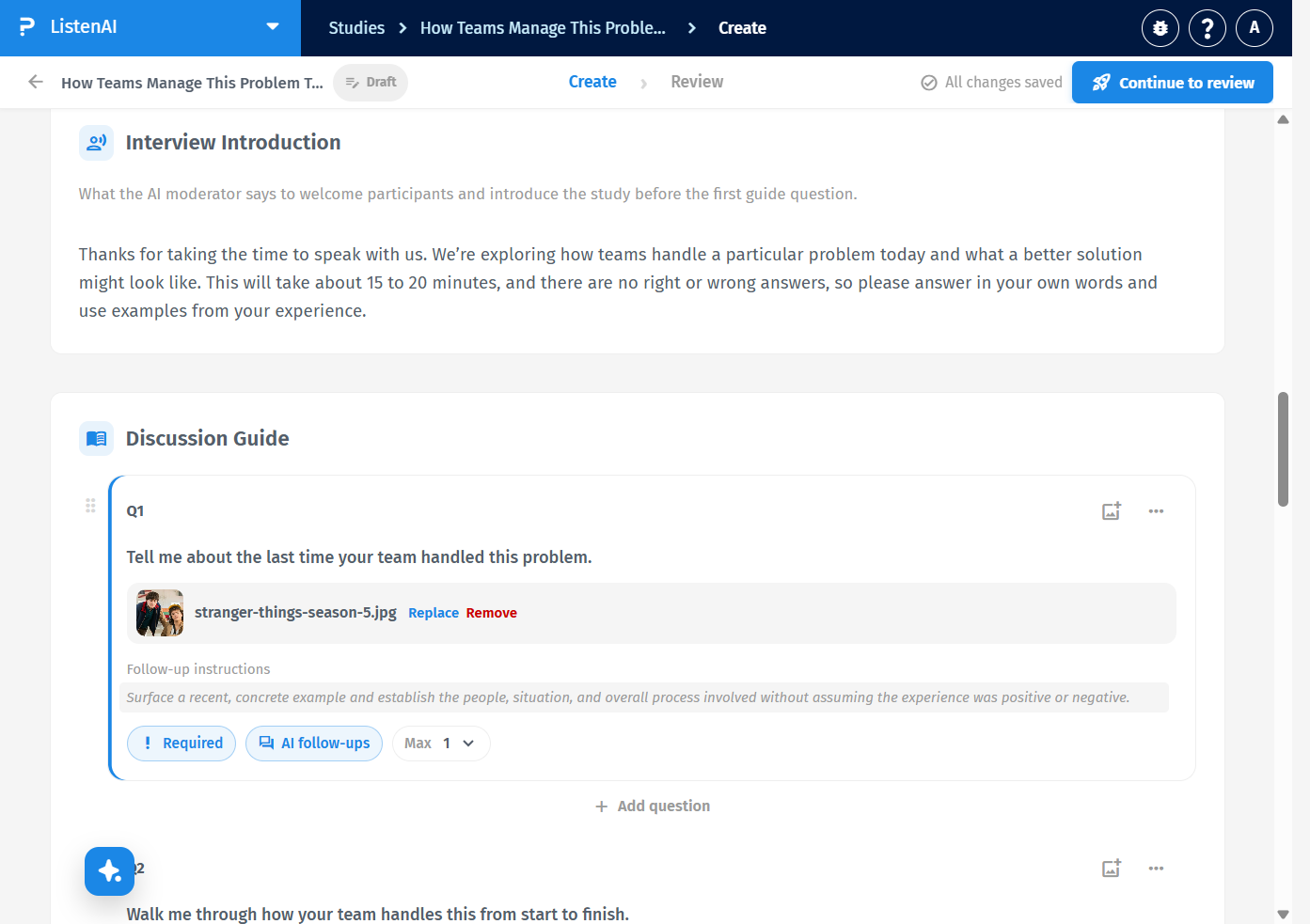
After a file is attached, the question shows a thumbnail and the file name. Hover the attachment to use Replace (blue) and Remove (red). Click the thumbnail (labeled Preview attached image plus the file name) to preview it. Replace opens Add media again so you can upload a different image. Remove takes the image off the question.
Open Interview Preview from the builder (labeled Open preview). The start screen heading is Interview Preview, with Exactly what participants see during the interview. It lists FIRST QUESTION and the question text, plus Start video interview. The attached thumbnail is not shown on that waiting-to-start screen.
