


Top-up and replacement
Top-up lets you collect more responses after a project is Closed, without creating a new project from scratch.
Use it when:
- You need to replace responses that you removed during reconciliation.
- You need more responses than you first planned.
- You need to fill a gap in your sample, for example you need 40 more male respondents.
Each Top-up creates a new Live project that is linked to the original project. The original project stays Closed.
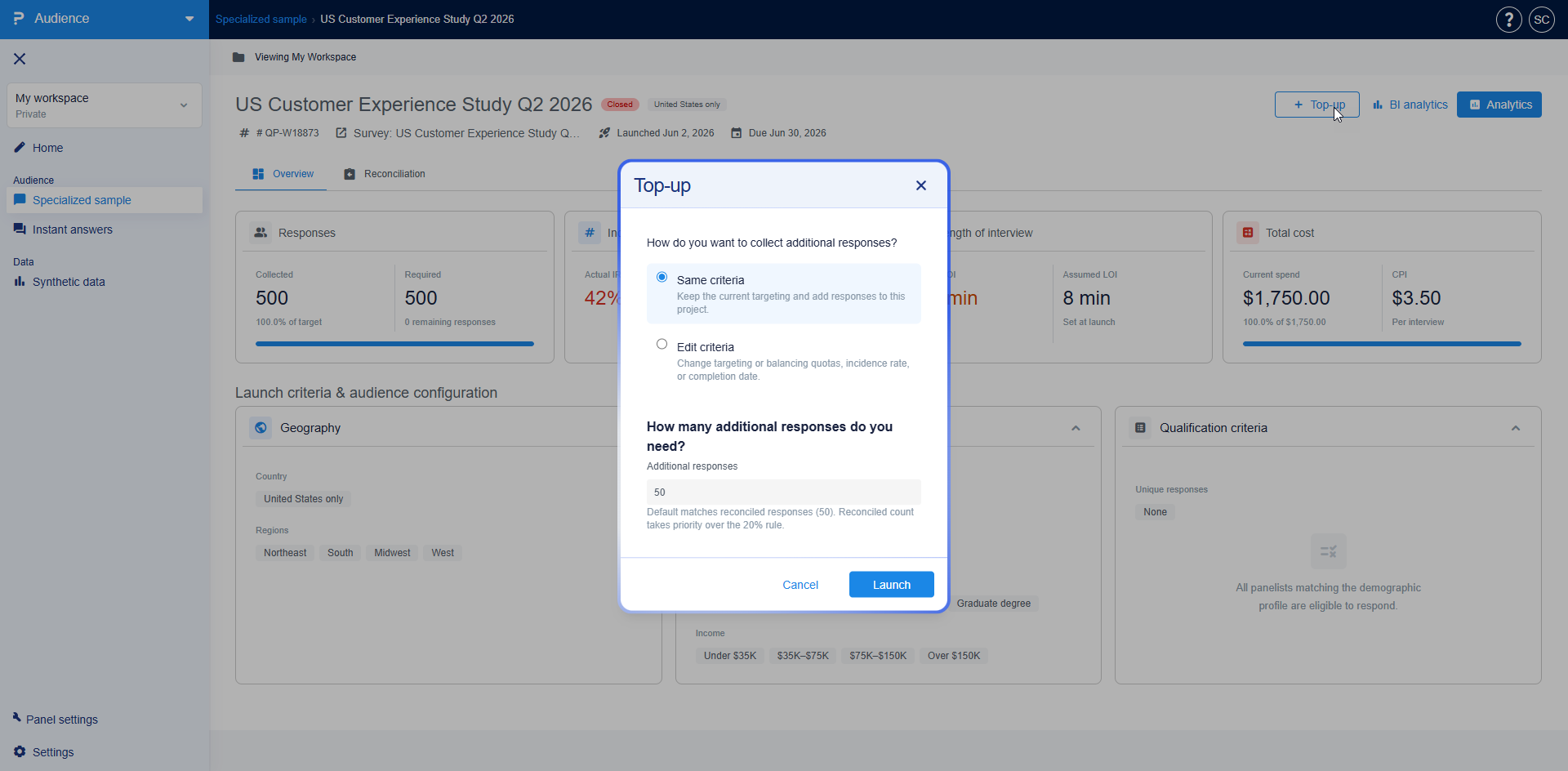
Top-up is available only on Closed projects, and only if you can edit the project.
- Specialized sample list - Move your mouse over a Closed project. Top-up appears on the right side of the row, where Push appears for Live projects.
- Project details - Click Top-up in the project header, to the left of BI analytics.
You cannot top-up a Top-up project again.
Use this to get more responses from the same audience.
- Click Top-up.
- Under How do you want to collect additional responses?, select Same criteria.
- In Additional responses, enter how many more responses you need. Audience fills in a number for you:
- If you removed responses during reconciliation, it uses that number. This replaces the responses you removed.
- Otherwise, it uses 20% of the responses the project needed. For example, 10 for a project of 50.
- Click Launch.
Audience creates a Live Top-up project named {project name} Topup1 with the same targeting. The next one is Topup2, and so on.
Use this when you need a different mix of respondents, a new due date, or a different incidence rate.
- Click Top-up.
- Select Edit criteria and click Continue.
- Create project opens with the settings of the Closed project already filled in.
- Change what you need:
- Project name. It starts as {project name} Topup1.
- Targeting. You can turn off criteria you no longer need.
- Completion date and incidence rate.
- Balancing quotas, for example 40 males.
- Click Launch.
You cannot change the survey, the country or the language. They stay the same as the original project.
On a multi-country project, a Top-up is created for one country at a time. Other countries do not change.
- Open the project and go to Overview.
- Select the country you want to top-up. Top-up is not shown when All is selected.
- Click Top-up and choose Same criteria or Edit criteria, as explained above.
- Click Launch.
Audience adds one Live project for that country, named with the country code. For example, Brand Tracker 2026 Topup1_US.
With Edit criteria, the country and language are locked, and your changes apply only to that country.
- In the Specialized sample list, the original project becomes a group. Click it to see its Top-up projects under it.
- In the original project's Overview, the Top-up projects section shows the status and progress of each Top-up.
- The original project's required responses go up by the number of responses you added. Its collected responses go up as the Top-up projects collect responses.
This feature is available with the following licenses :
Advanced Team Edition Research Edition Communities Customer Experience University - Research Edition
