
Survey Guide
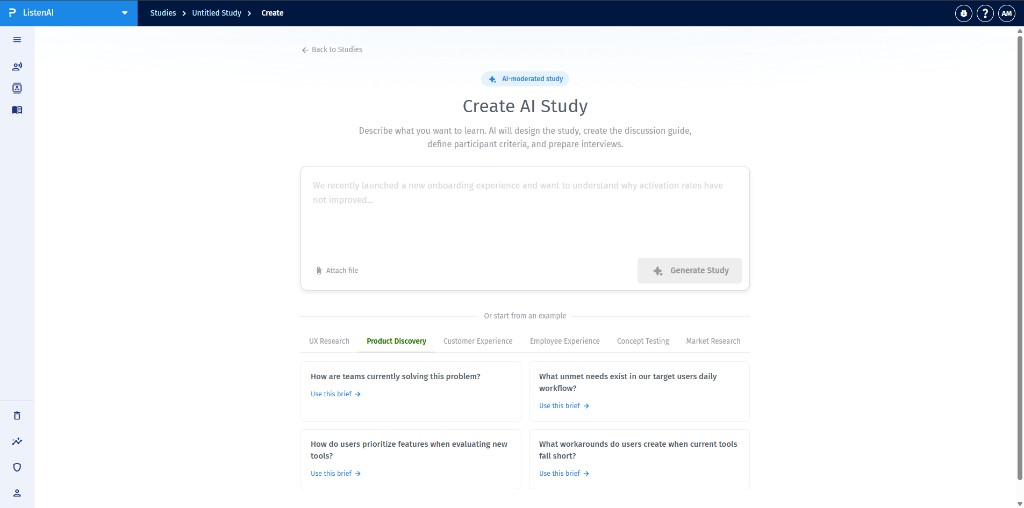
Open Create AI Study. In the composer, click Attach file and choose one document. ListenAI accepts PDF, TXT, and DOCX files up to 5 MB. You can attach only one file at a time.
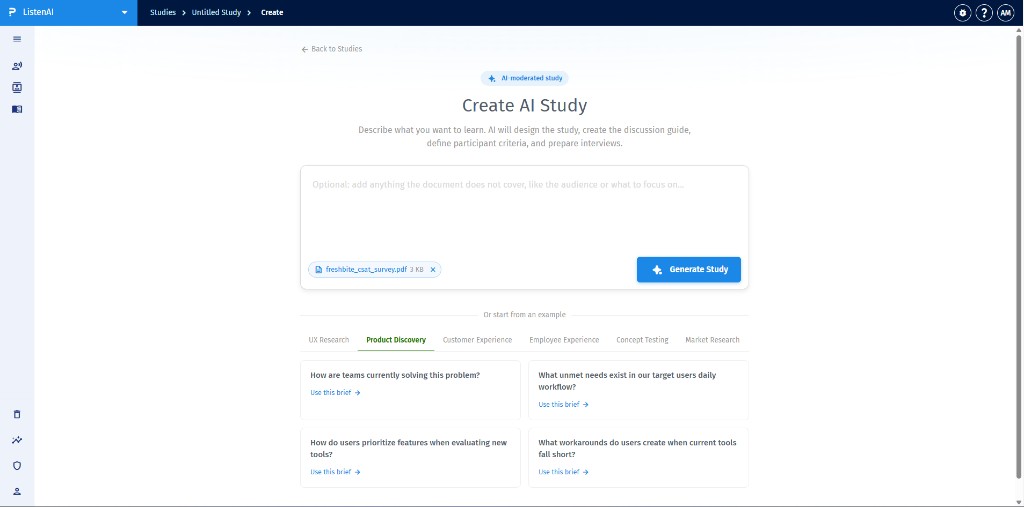
Yes. After the file uploads, a chip shows the file name and size (for example freshbite_csat_survey.pdf 3 KB). Generate Study becomes available even if the text box is empty. The placeholder changes to Optional: add anything the document does not cover, like the audience or what to focus on... Type there only if you want extra context; it is not required. Click the X on the chip to remove the file, then attach a different one if you need to replace it.
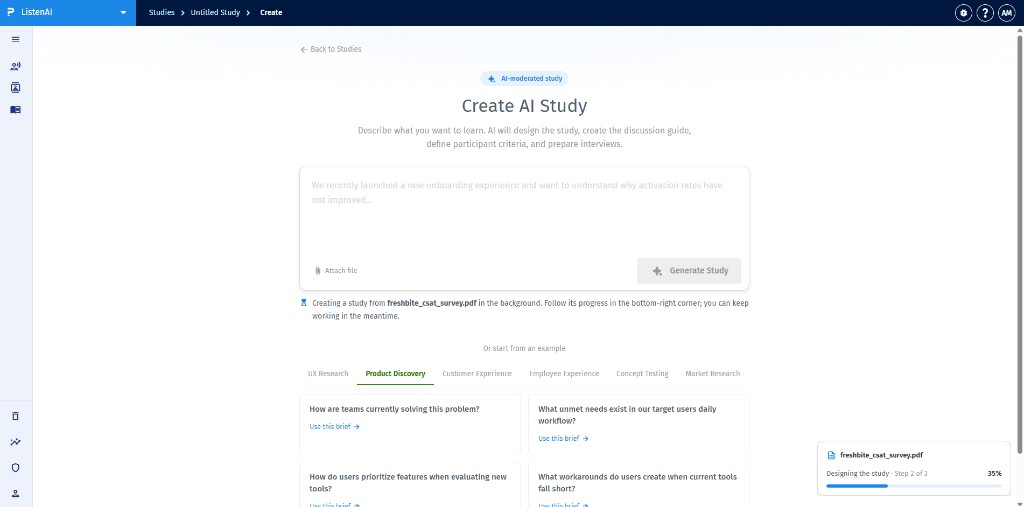
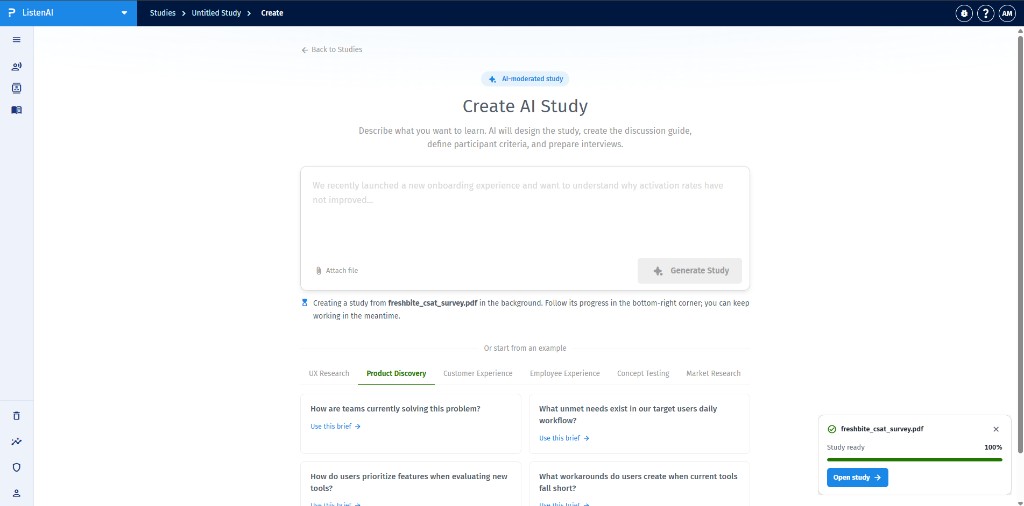
ListenAI builds the study in the background. A message under the composer reads Creating a study from freshbite_csat_survey.pdf in the background. Follow its progress in the bottom-right corner; you can keep working in the meantime. The bottom-right card shows the file name, Designing the study, the step (for example Step 2 of 3), and a percent complete.
When the run completes, the bottom-right card shows a green check, the file name, Study ready, and 100%. Click Open study to go to the draft. You can close the card with its X if you are not ready to open it yet.
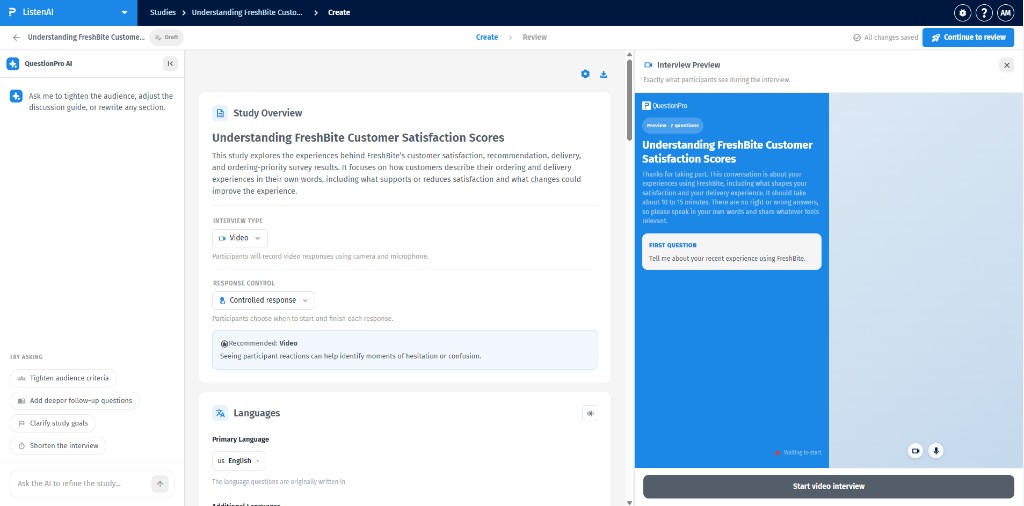
The draft opens on Create with a Draft badge and All changes saved. Study Overview holds the study built from your file (for example Understanding FreshBite Customer Satisfaction Scores). Interview Preview on the right shows Exactly what participants see during the interview. Use Continue to review when you are ready to move on.