

- Add widgets
- Survey Comparison
- Heatmap
- Confidentiality Settings
- eNPS in Workforce Analytics Portal
- Notes Widget
- Text Analysis Widget
- Response rate
- Text Report
- Trend analysis widget
- Show/hide Markers and Building blocks
- Question Filter
- Single Question Widget
- Heatmap default
- Sentiment analysis
- Scorecard
- Driver analysis
- Scorecard: All options view
- Heatmap Column Types
- Multiple Tabs in a Dashboard
- Tab Exports
- AI Summary and Recommendations
- 360 feedback introductory text
- 360 feedback display configurations
- 360 feedback display labels
- Multi Level Priority Logic
- 360 Surveys- Priority Model
- 360 feedback - skip logic
- 360 feedback - show hide question logic
- 360 Survey Settings
- 360 feedback configuration
- Customize the validation text
- 360 Survey design
- 360-Reorder section
- 360 Section Type - Single Select Section
- 360 Delete Sections
- 360 Add Sections
- 360 section type - Free responses text section
- 360 Section Type - Presentations text section
- 360 Section-Edit Configurations
- 360 Survey- Languages
- Matrix section

Employee Bulk Import - Excel
Adding employees to your employee list helps you keep track of their status and demographic details. It also allows you to distribute surveys to specific demographics and analyse the survey results by applying demographic filters
Watch this quick walkthrough to understand how it works:
Click to download video
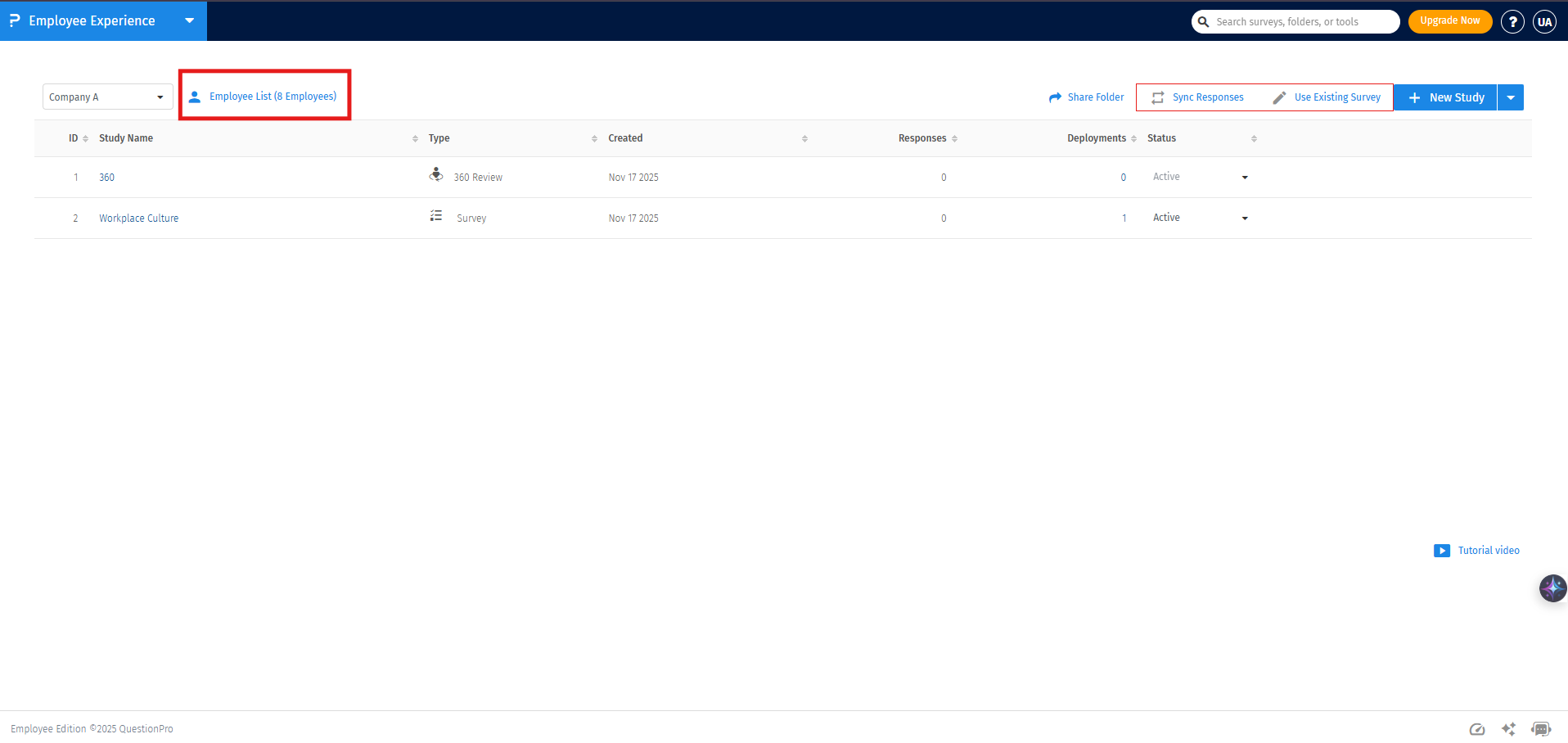
For bulk employee upload, go to:
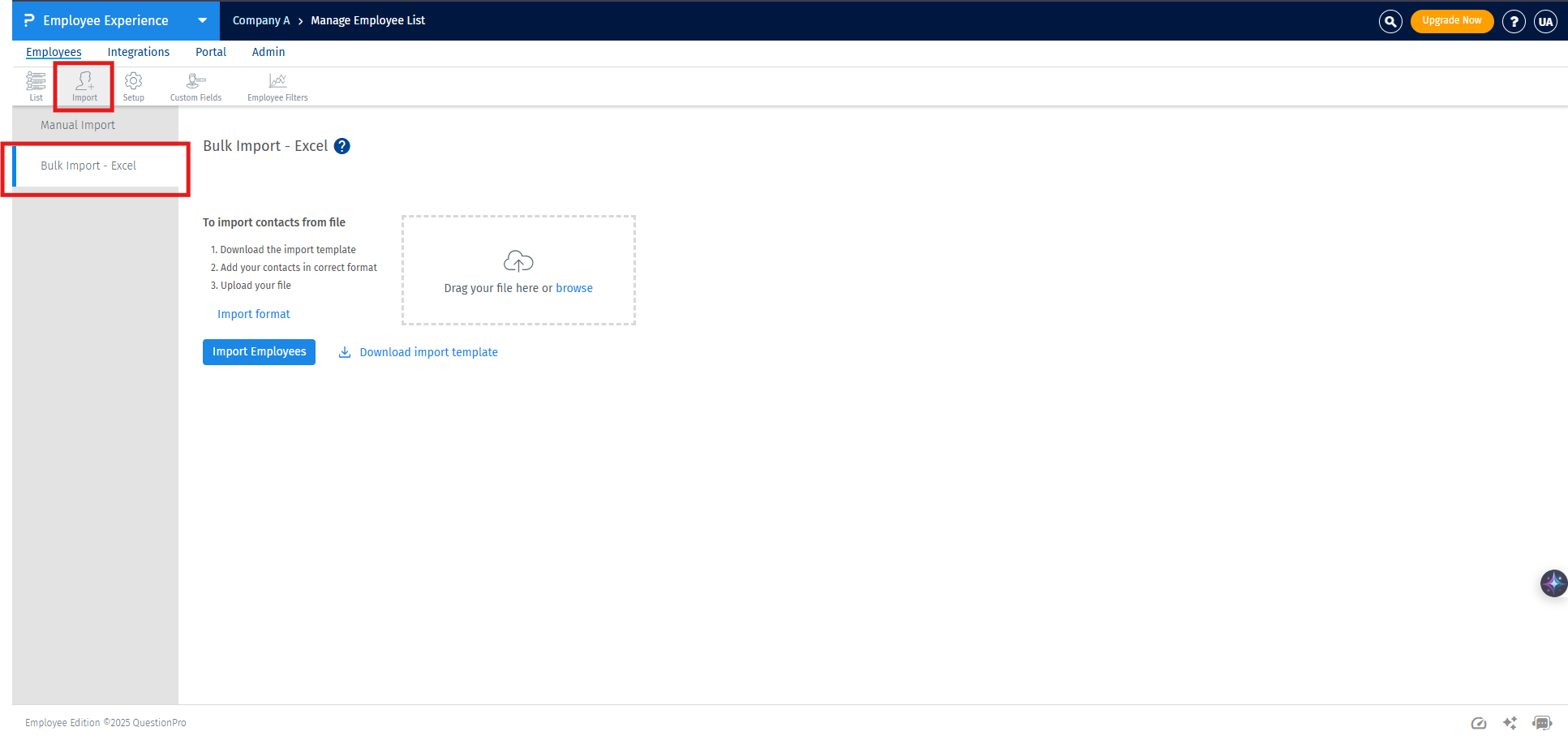
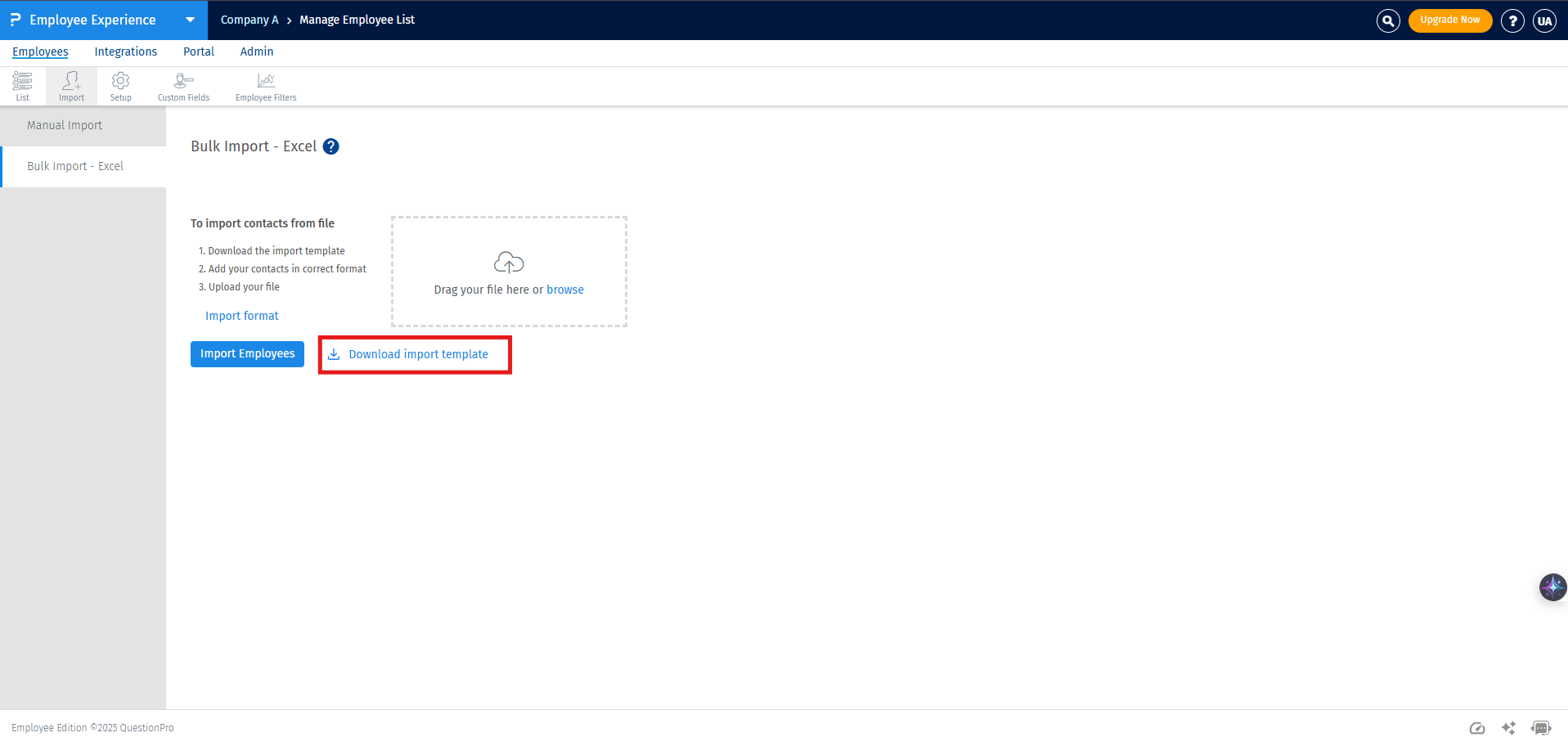
- Login >> Employee Experience>> Employee List >> Import >> Bulk Import - Excel
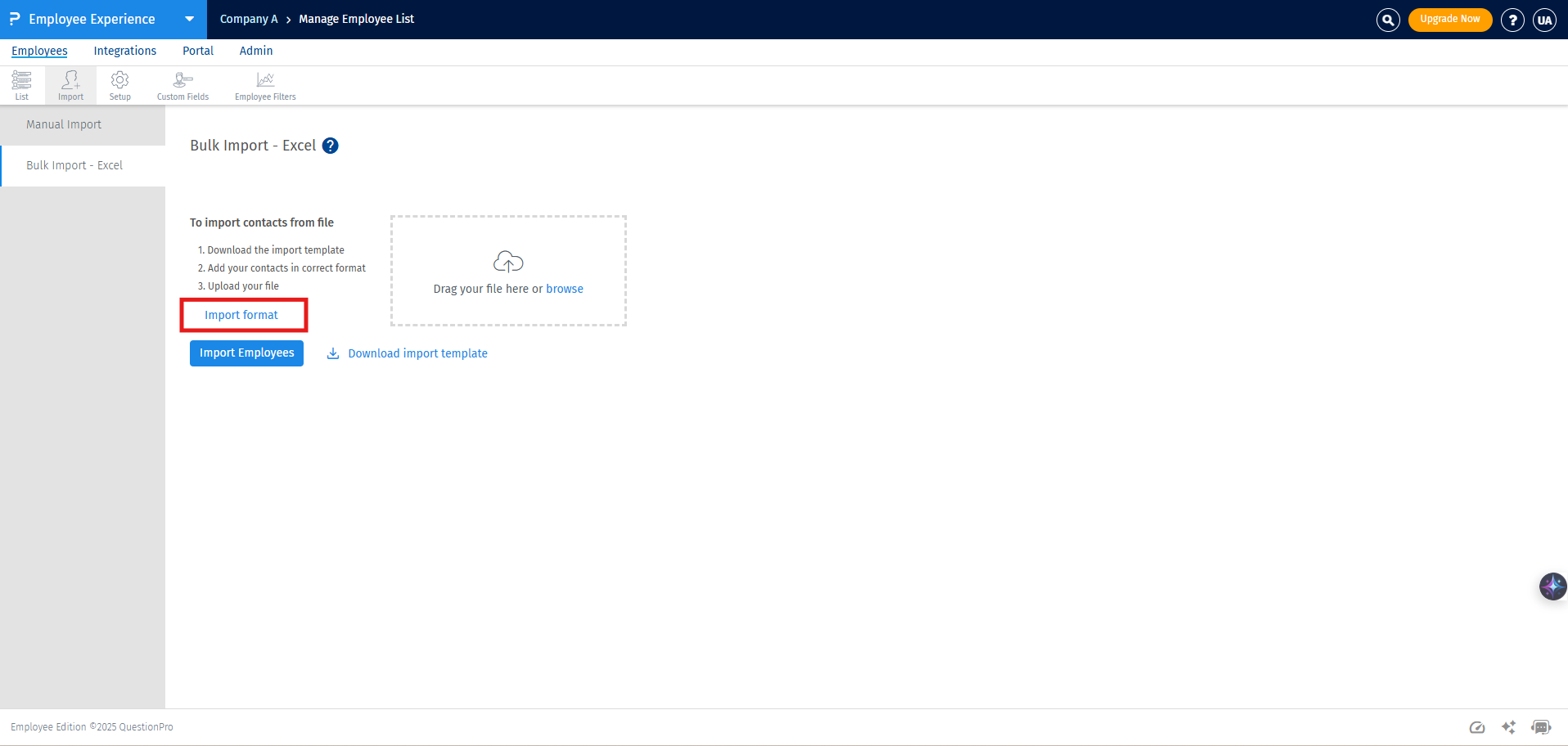
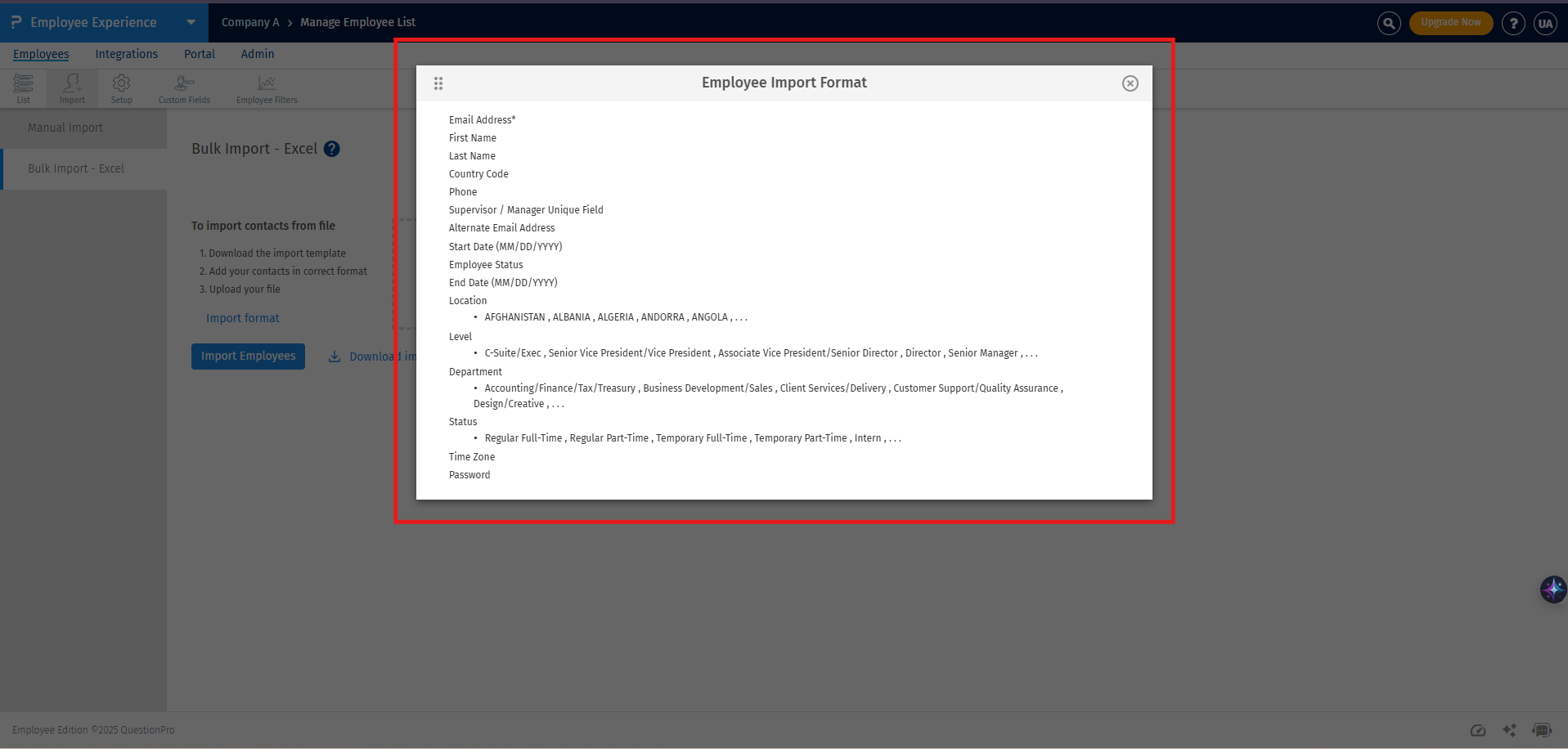
- Click on Import Format, to know the details needed for bulk upload.
- Preview the pop-up with the custom field options.
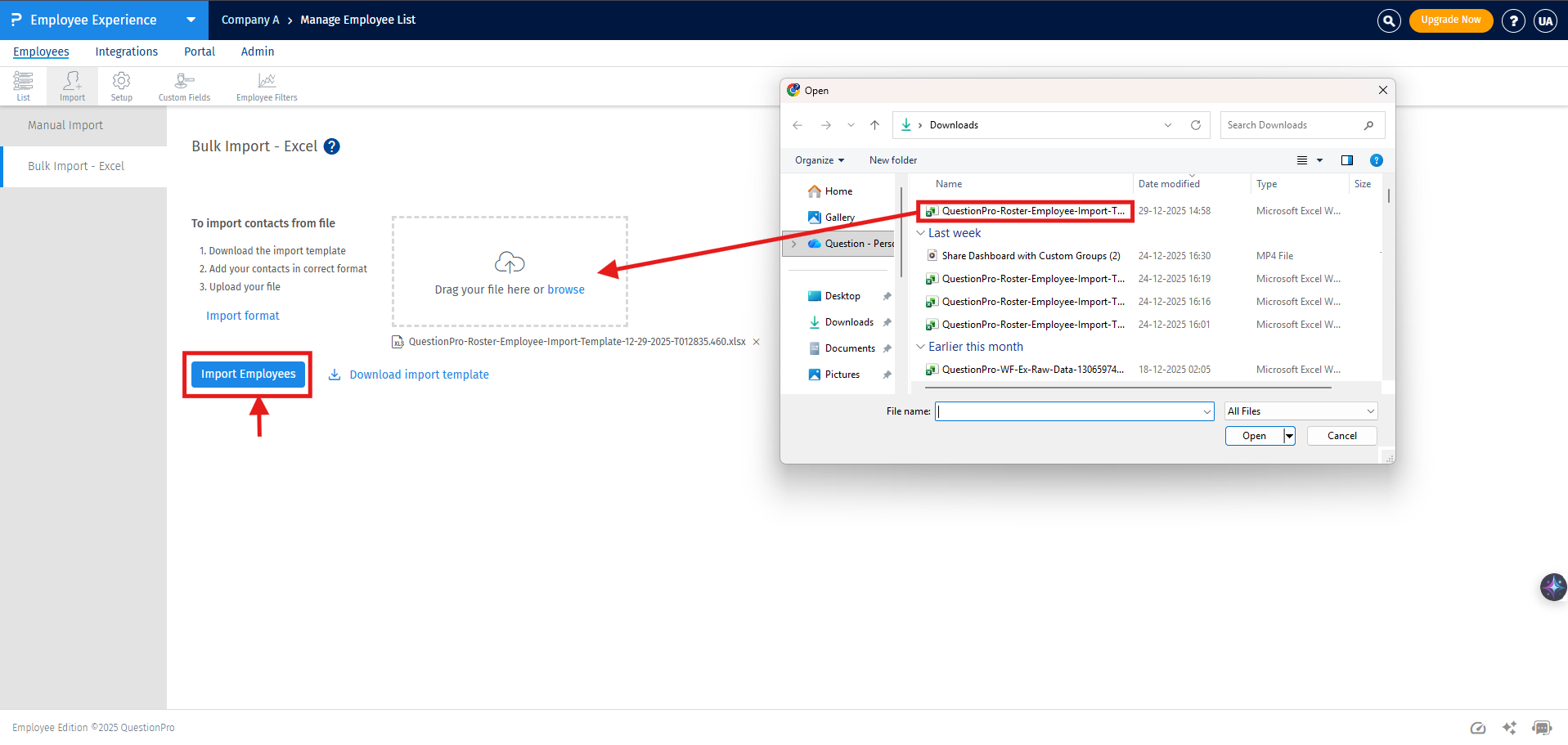
- After closing the pop-up, click on Download Import Template to download the Excel file.
- Add your employees and their information to the Excel template as specified and save the document
- To upload document, you can either drag and drop the document in the space shown on the image or browse.
Note: Employees should be uploaded in the format specified on the upload screen and in the Excel template.
Required fields and formats:
- Email address of employees is a mandatory field.
- Country code is a mandatory field if you are adding phone number.
- Country code should be in the format: +country code.
- Employee Status will have 2 fields: "Active" and "Terminated".
- If the employee status field is blank then it automatically considers employee as active.
- Date format should be MM/DD/YYYY
- You can only add "." and "/" in the custom field values, "," and "-" are not allowed
- Header row should not be edited or deleted.
- Custom field unique values must be predefined before importing the information.
