

- Community Settings
- Survey Opt-Out for Members
- Security
- Facebook setup
- LinkedIn setup
- Google setup
- Twitch setup
- Social login
- Mobile app - privacy policy
- HMAC
- External passback
- Google Analytics
- Survey swipe
- Communities Authentication - SAML SSO
- Merge all Pending Surveys
- Regional Sign Ups
- User Roles and Permissions
- Data Sharing Options
- Login Authentication
- Global community member profile
- Profiling surveys
- Default surveys
- Global community profile - settings
- Hidden field
- Move profile fields
- Profile fields - survey integration
- Profile sync
- Confidence score
- Import Profile Data
- Profile Groups
- Default Surveys 2.0
- Profiling Surveys 2.0
- Member Profile Fields 2.0
- Send new invitation
- Multiple Responses (Email/SMS)
- SMS pricing
- Survey authentication
- Send Invitation Multilingual
- New invitation profile exclusion
- Custom filter by member ID
- Send later
- Profile field mapping
- Automatic Closure
- Survey Alias
- AI create
- Community WhatsApp Integration
- Whatsapp Integration for Community

Multilingual Topics and Categories
Multilingual Topics lets panel managers and research managers create a discussion and add language versions to the same topic. Members can see the translated topic according to their selected community language.
The language versions remain linked to the same topic, category and tags. This reduces the work of creating and linking separate language posts and provides a more personalized experience for members with different language preferences. You can translate both topic and category titles and descriptions. Category translations help members understand the subject used to organize discussions. Topic translations provide the question and participation instructions in the selected language.Watch this video to learn how to create a category, add its translation, create a topic and add a translated version to that topic.
Click to download the videoOpen the community where you want to manage the discussion. Go to: Community » Languages and confirm that the default language and the additional languages you need are configured.
Prepare the following:- A clear topic title and description in the default language.
- Reviewed translations of the title and description for each additional language.
- An existing category or a new category with suitable translated wording.
- The tags and any supporting images or files needed for the activity.
Go to: Communities » My Communities » Select your community » Modules » Topics
- Open your community and click Modules.
- Check that the Topics module is enabled.
- Click Topics to open the module.
Click Modules in your selected community.
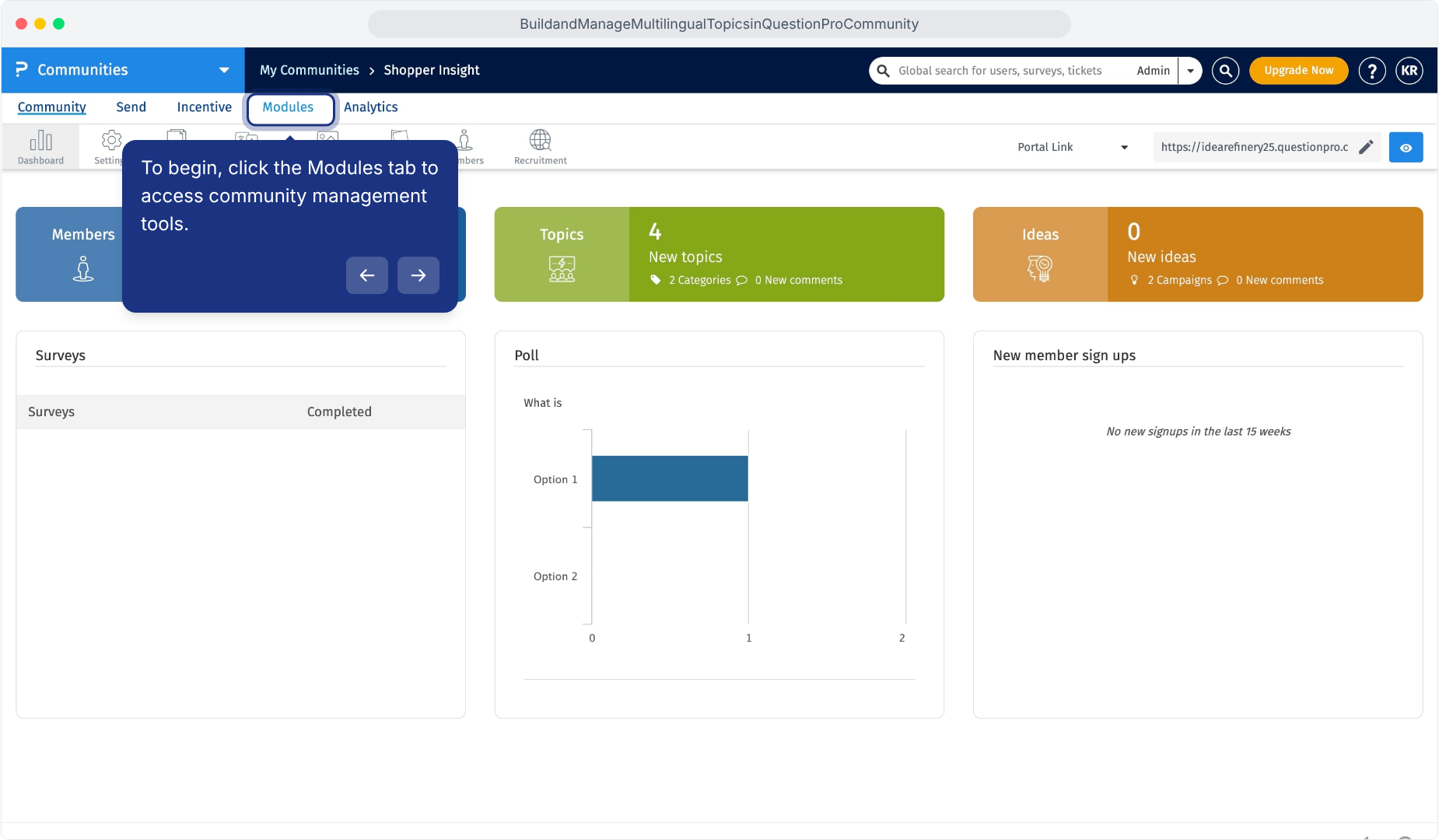
Open the Topics module.
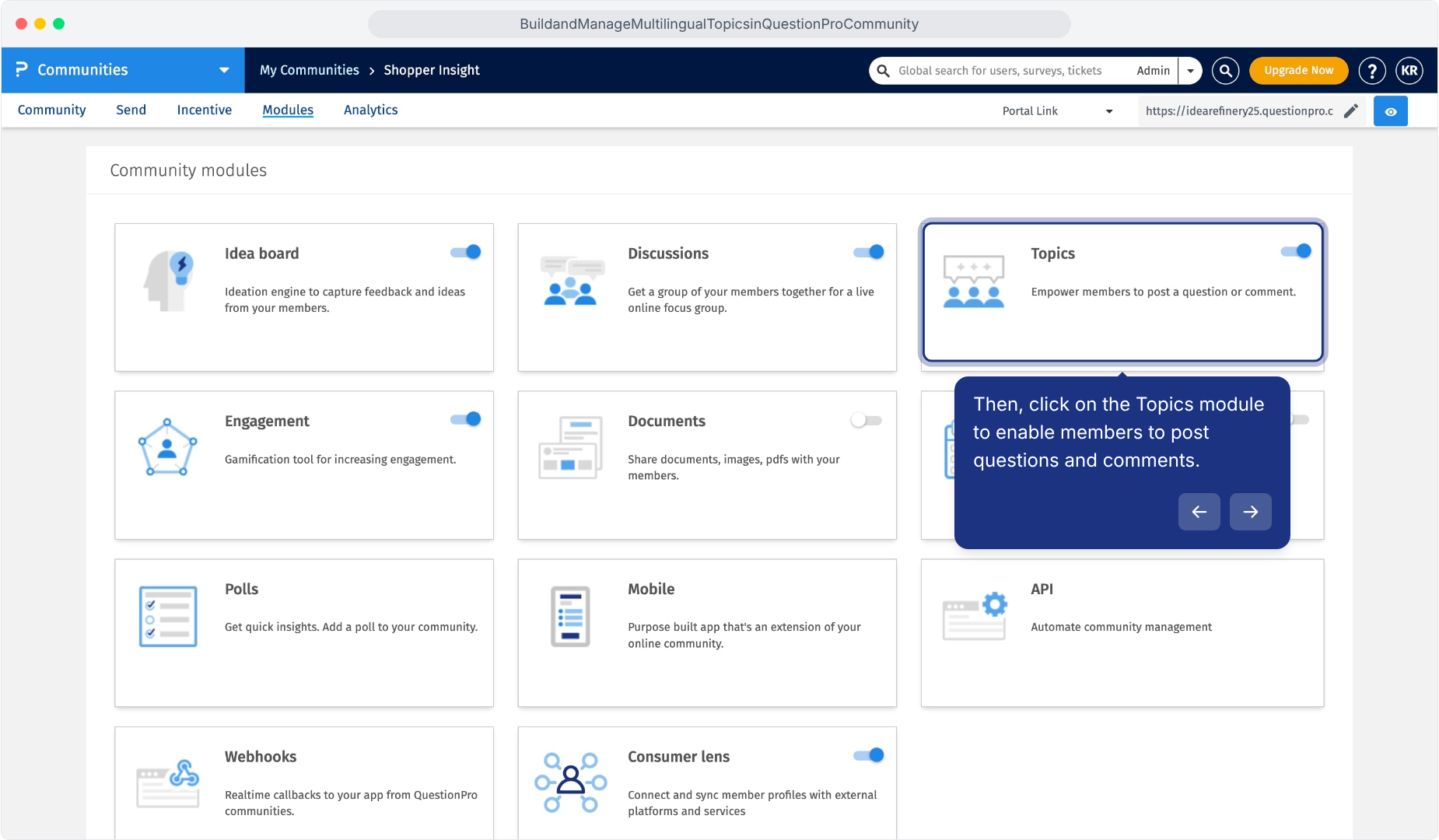
Categories organize topics by subject and help members find relevant discussions. Use an existing category or create a new one.
Go to: Modules » Topics » Settings » Categories- Click Settings, then select the Categories tab.
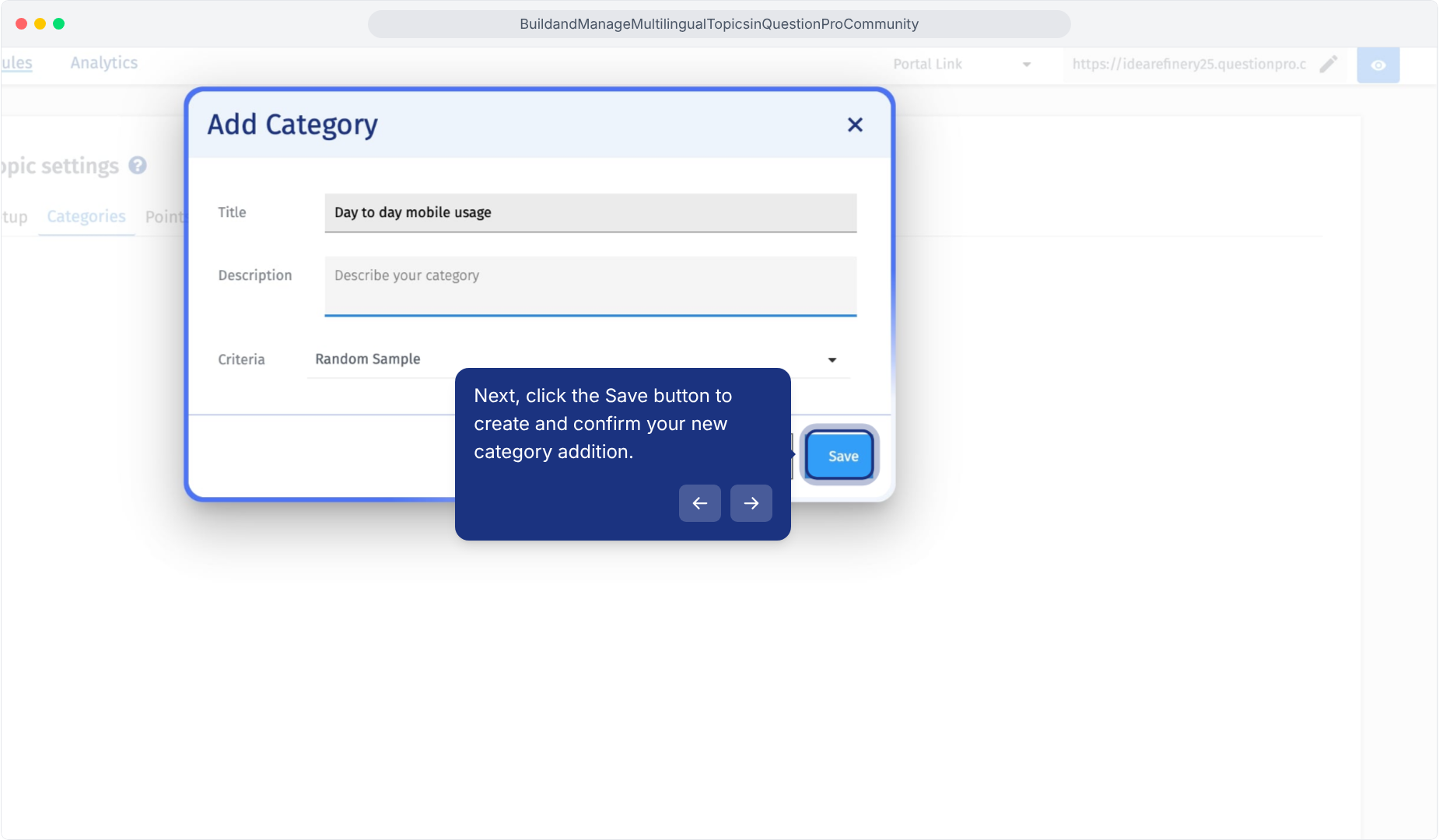
- Click Add Category.
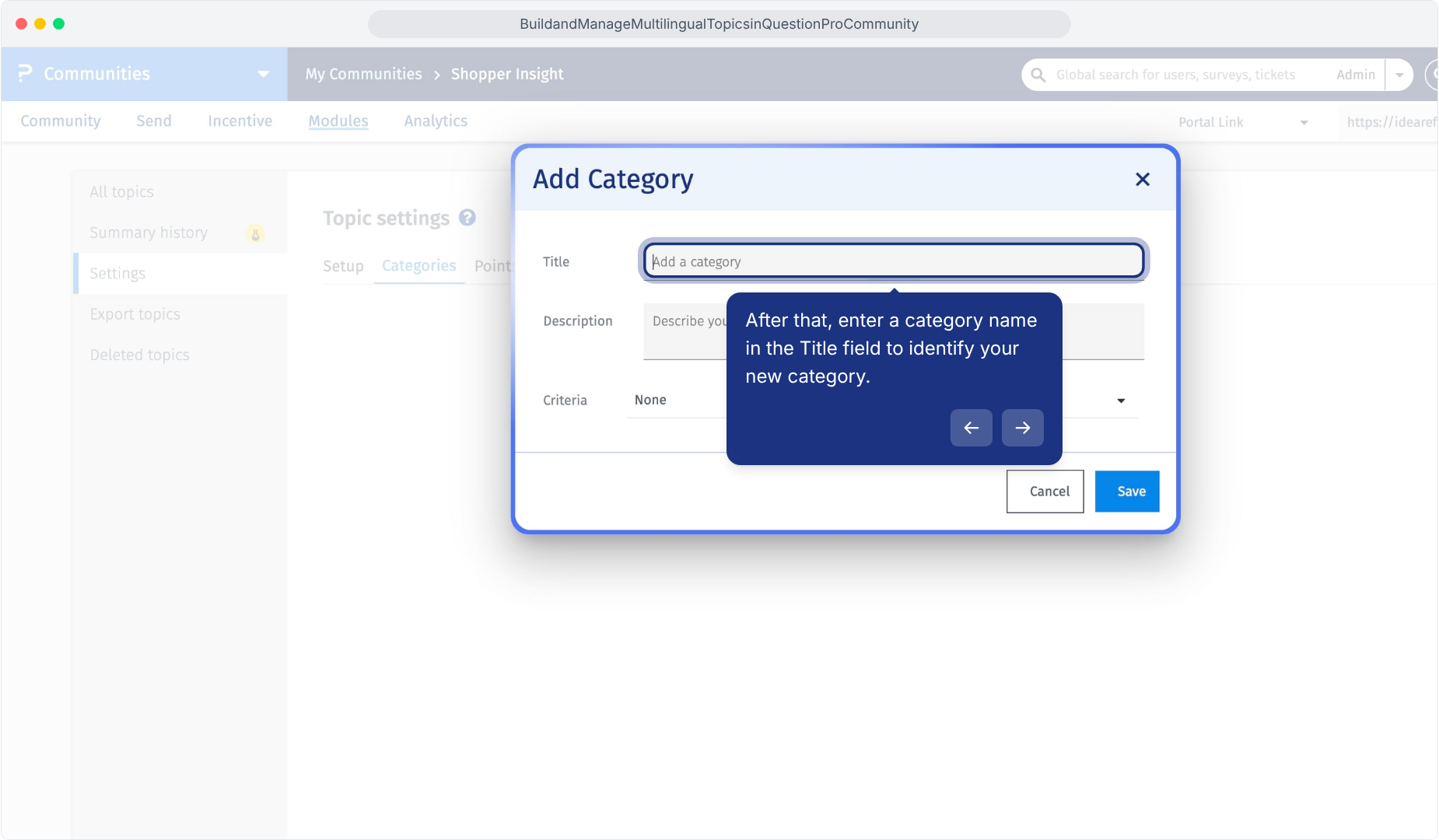
- Enter the category name in the Title field.
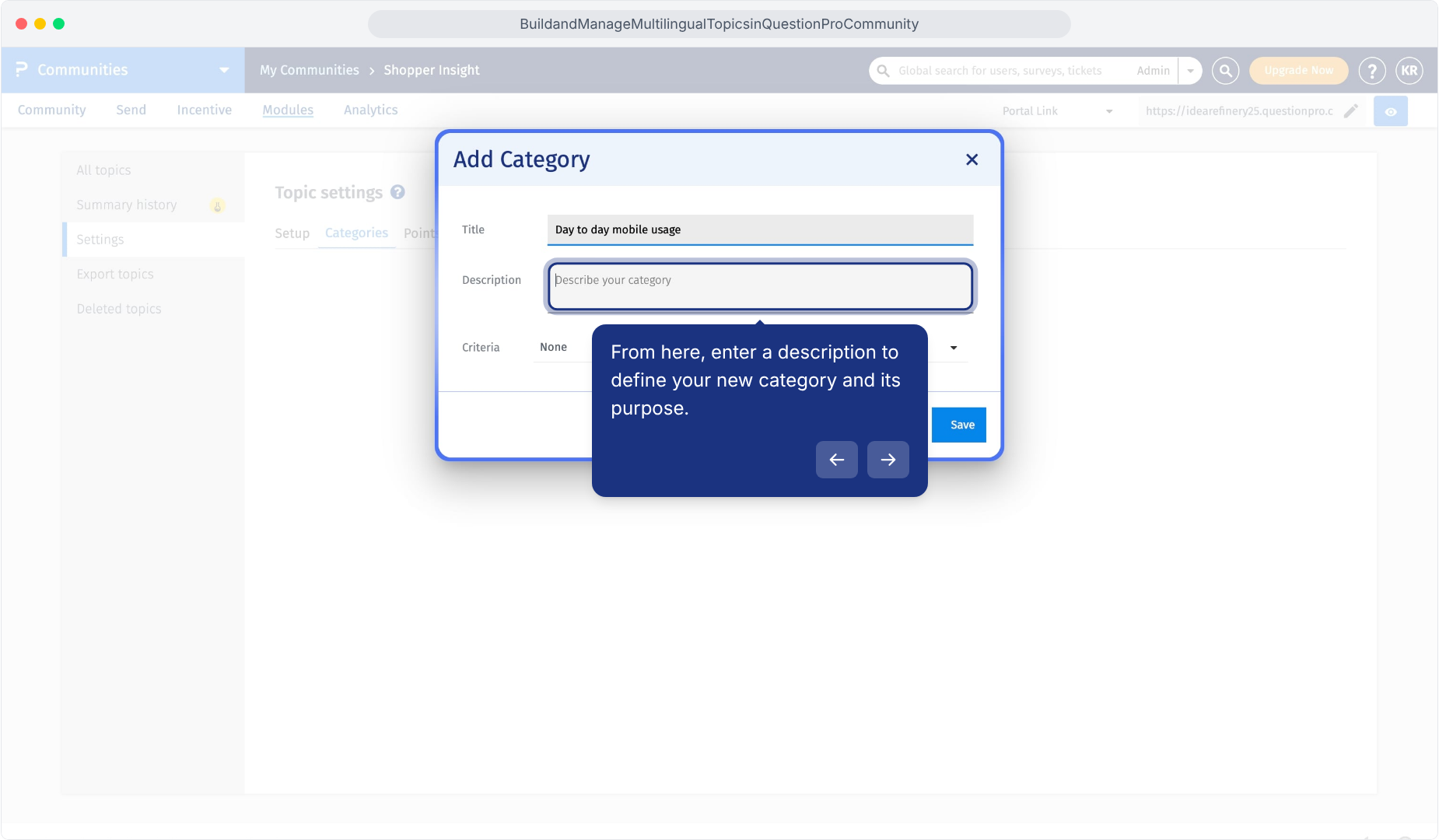
- Enter a Description explaining the category's subject.
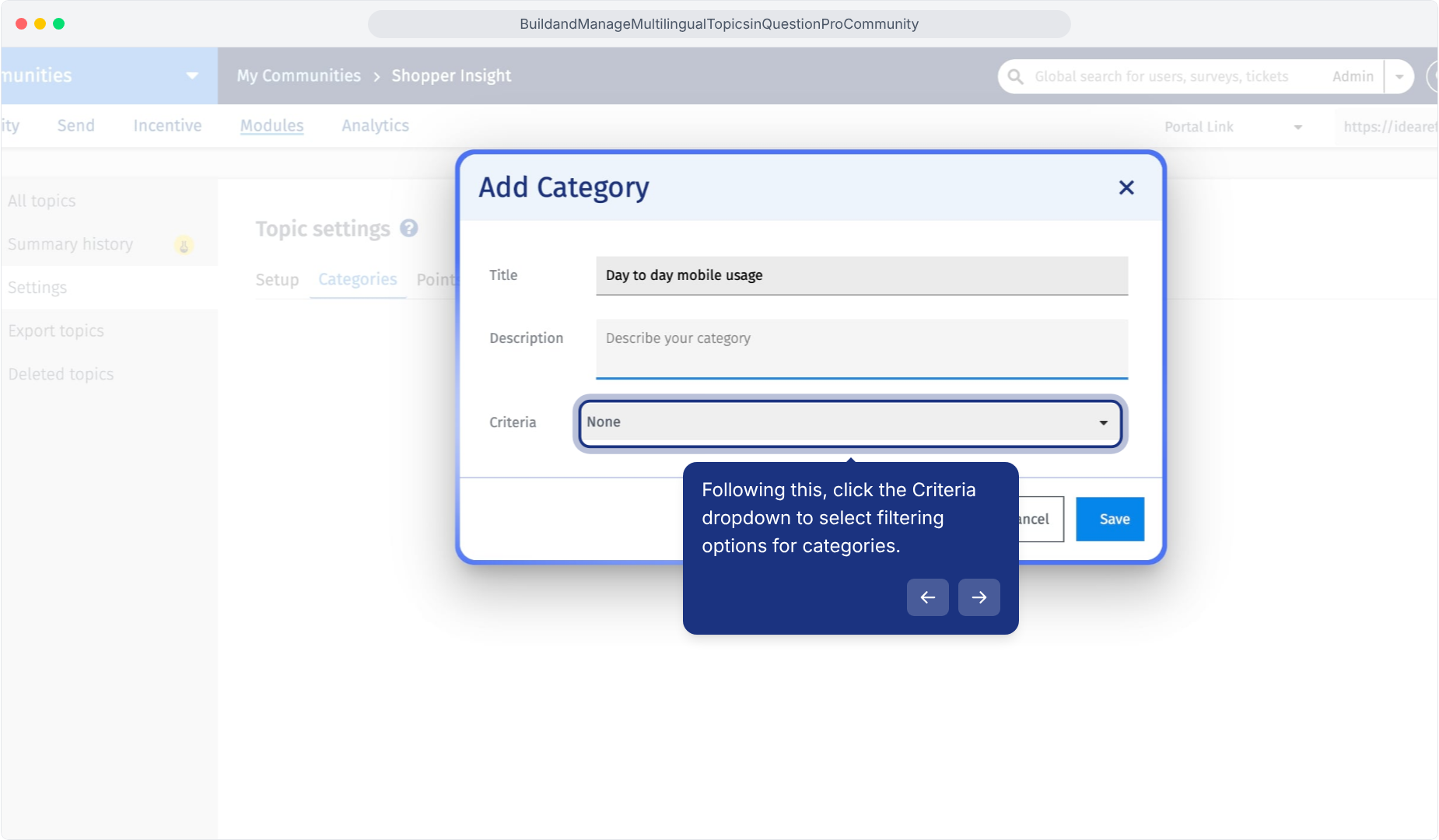
- Review the Criteria dropdown and select the appropriate available option.
- Click Save.
Open Settings in the Topics module.
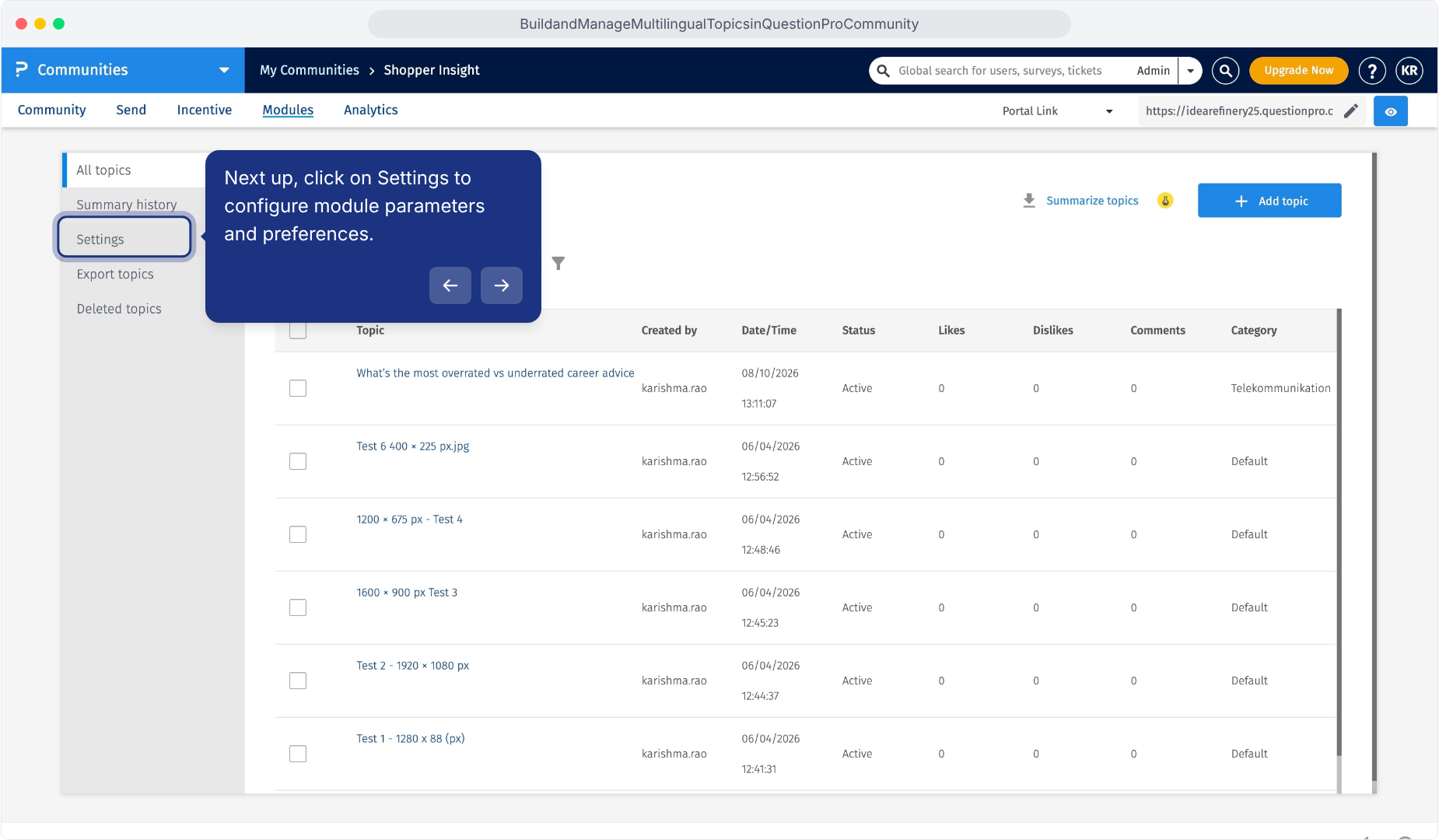
Select the Categories tab.
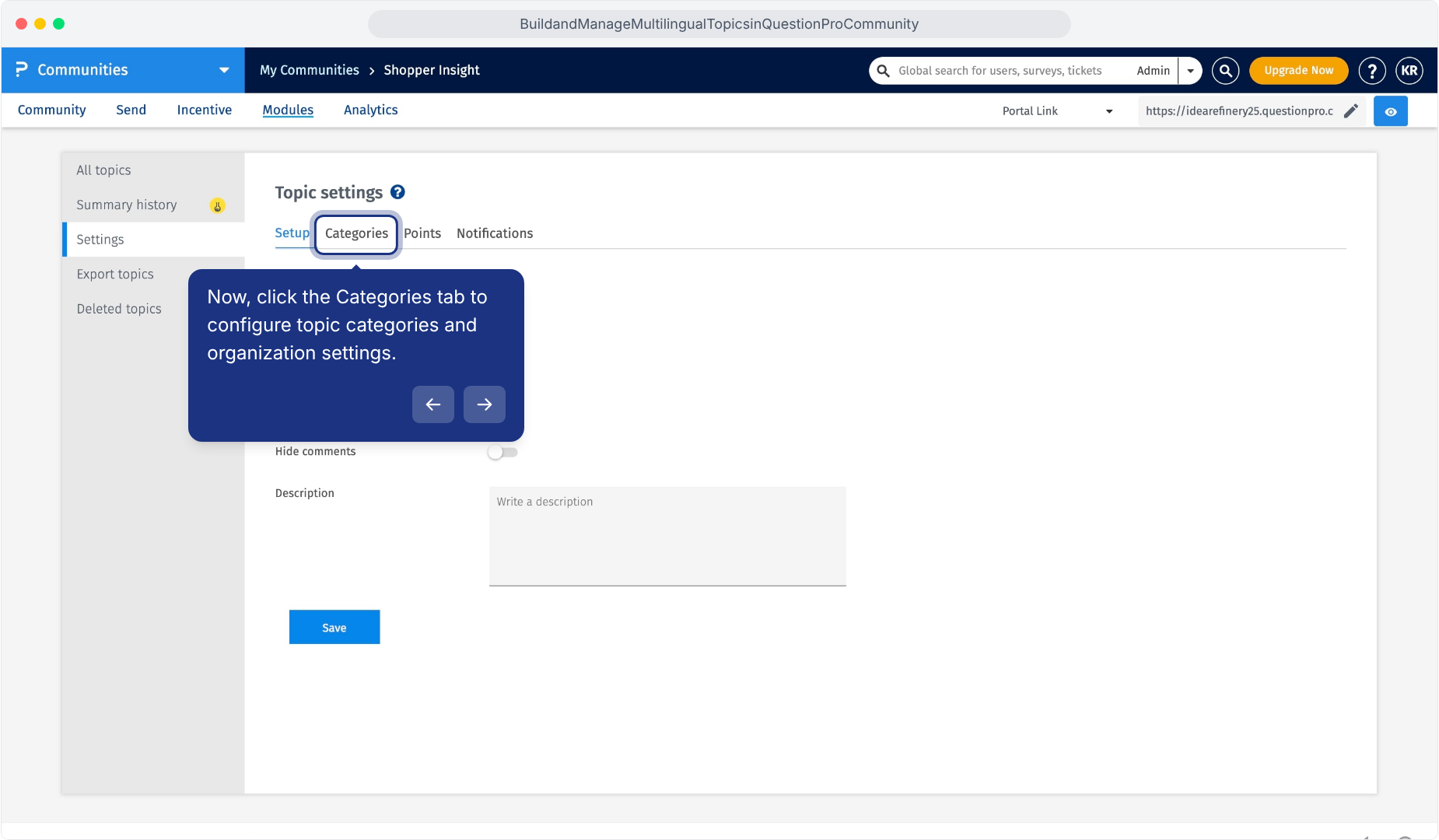
Click Add Category.
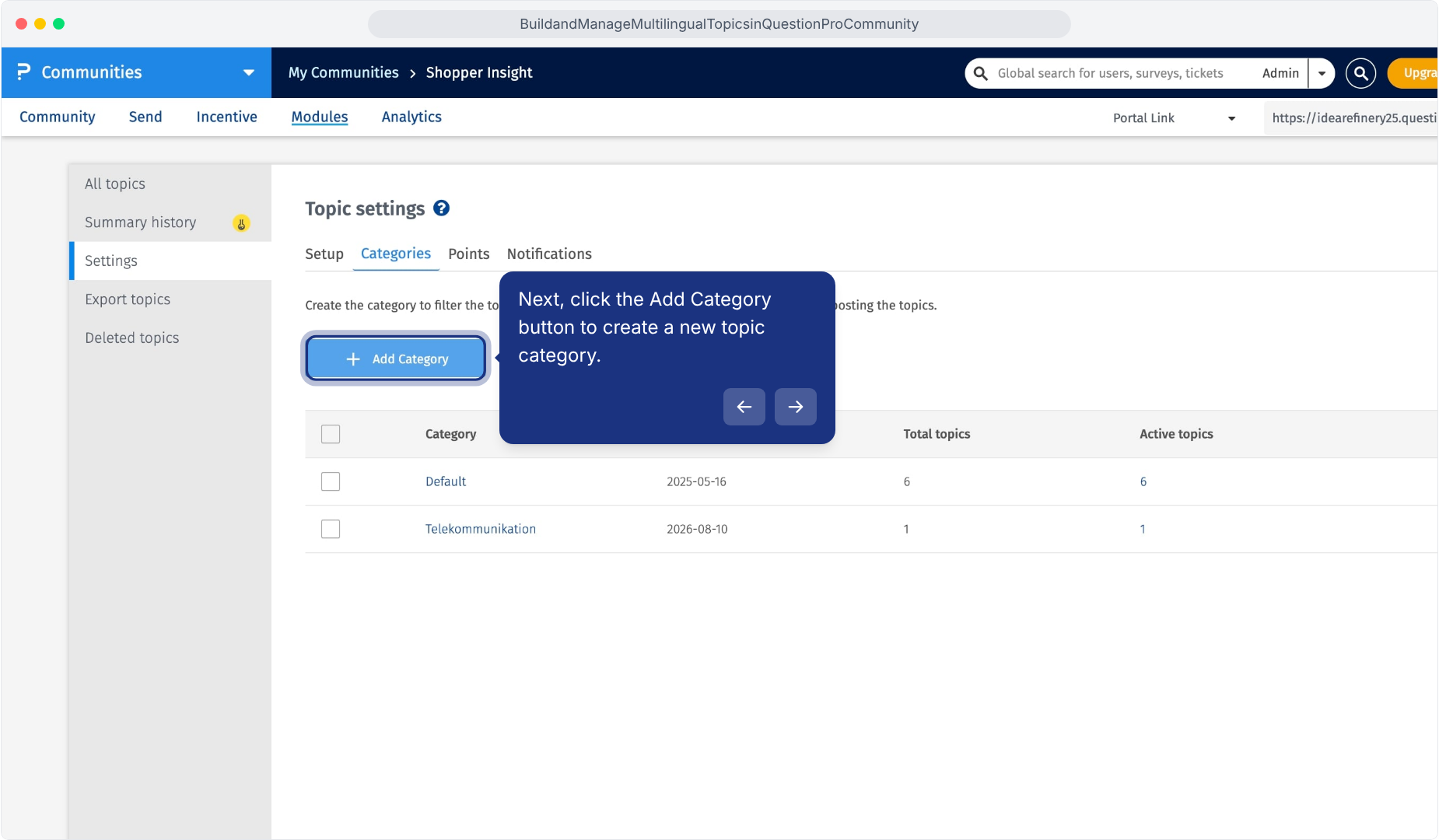
Enter the category title.
Enter the category description.
Review the Criteria setting.
Click Save to create the category.
Add the translation to the existing category so its language versions remain associated with the same category.
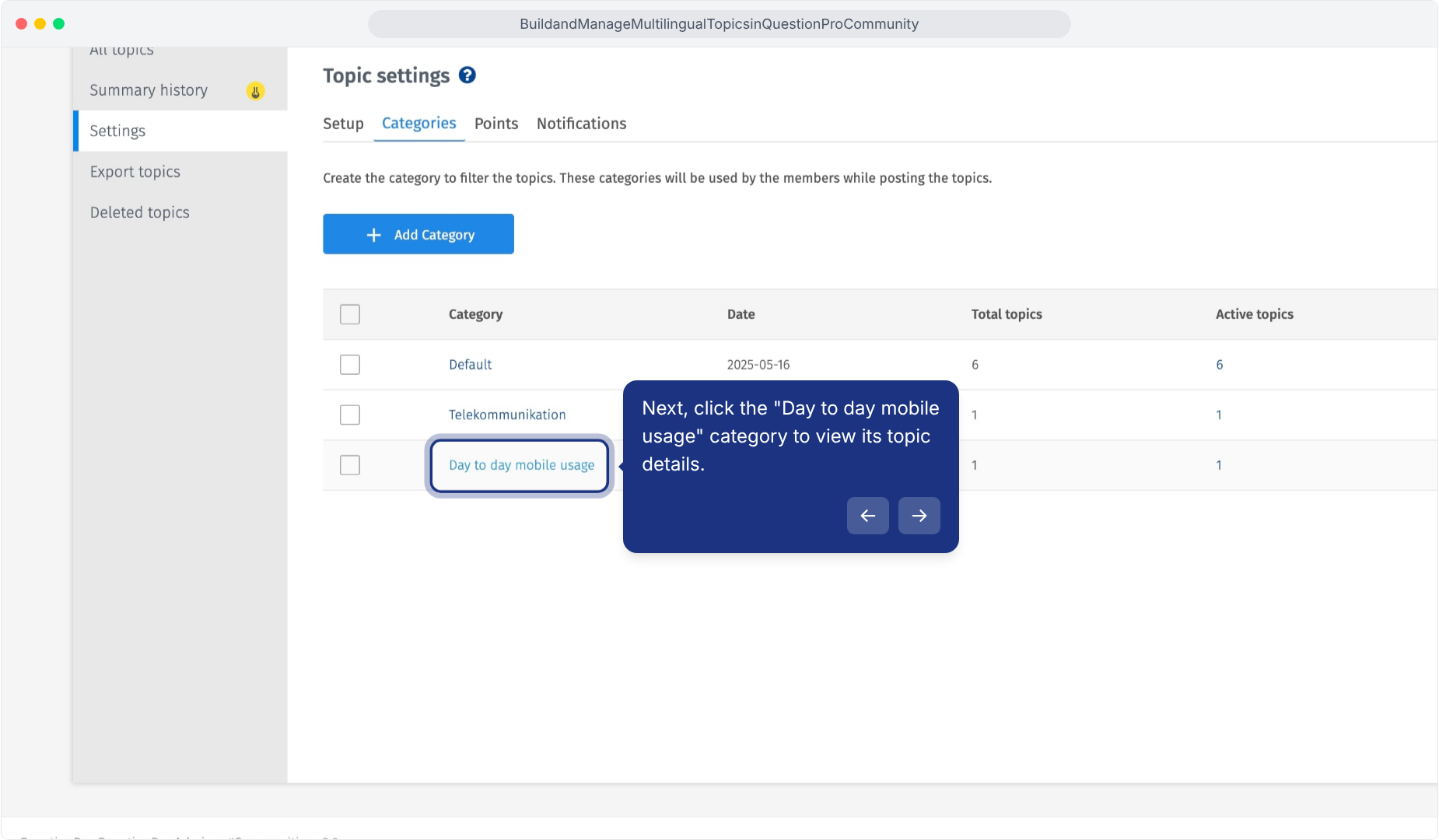
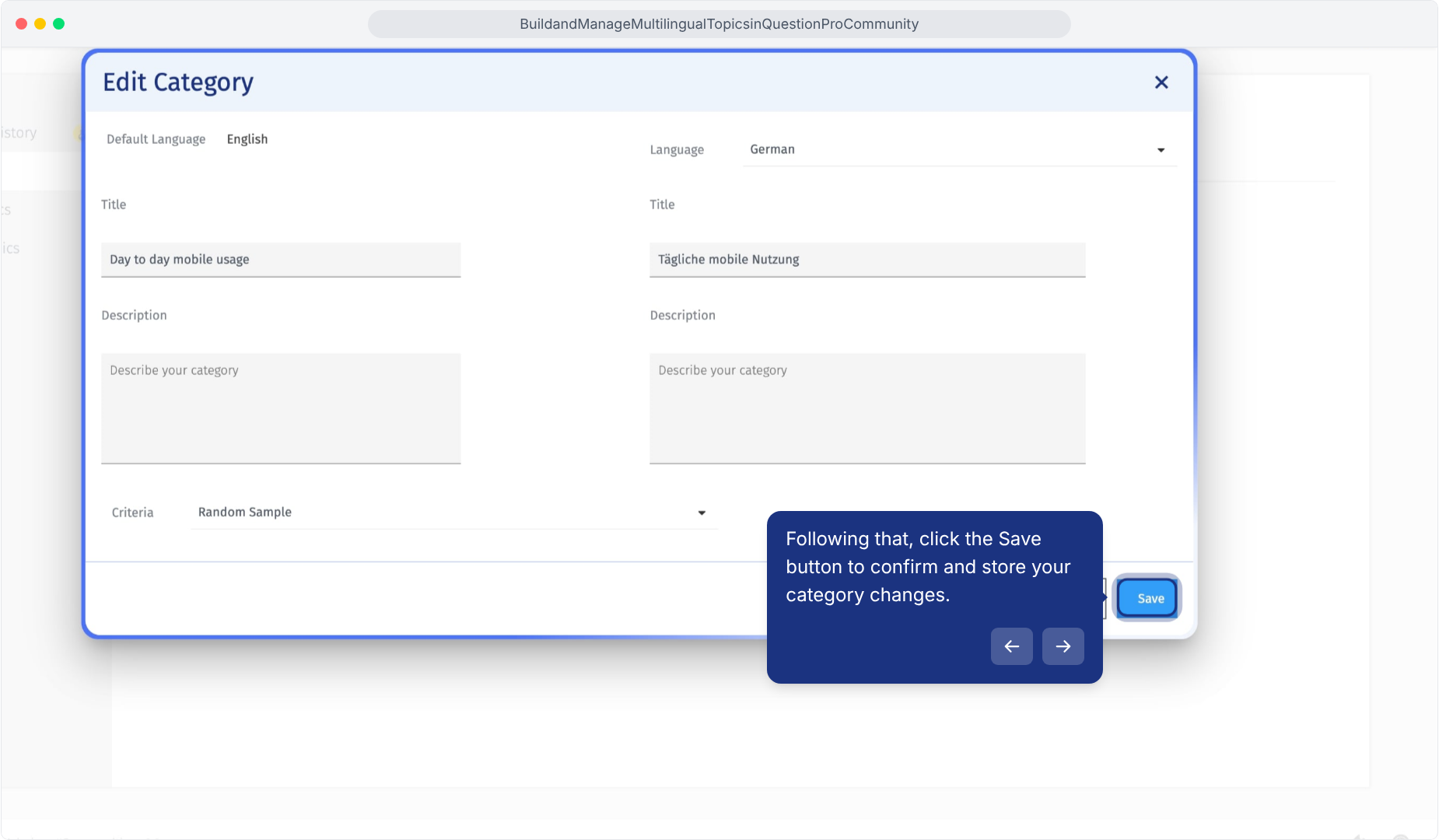
Go to: Modules » Topics » Settings » Categories- Click the category name to open Edit Category.
- Review the title and description in the default language.
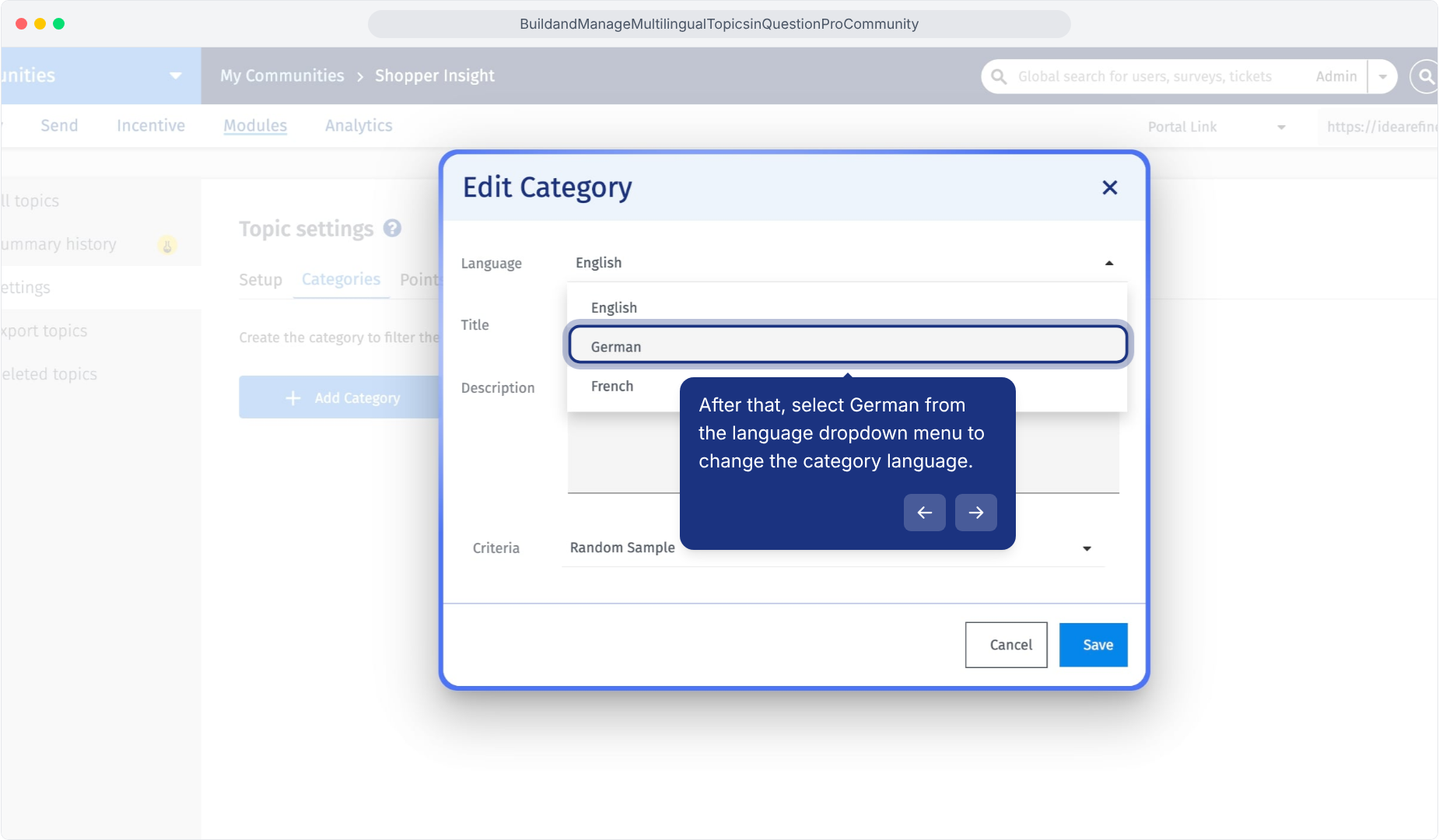
- Select the additional language from the Language dropdown. For example, select German.
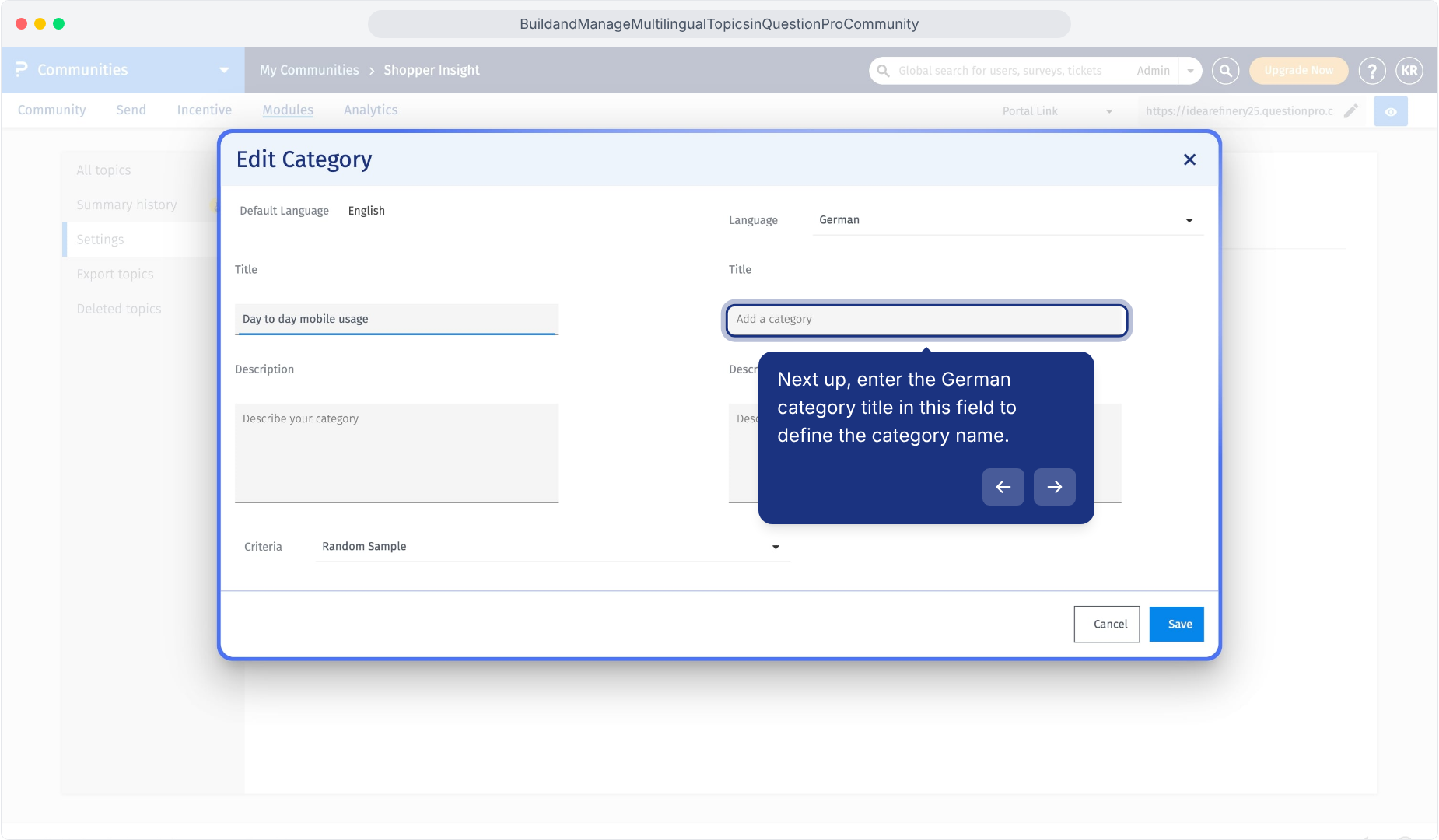
- The editor displays the default language content on the left and the selected language fields on the right.
- Enter the translated category title in the right-hand Title field.
- Enter the translated category description in the right-hand Description field.
- Review both versions and click Save.
Click the category name to edit it.
Select German from the Language dropdown.
Enter the translated category title in the right-hand field.
Click Save after completing and reviewing the category translation.
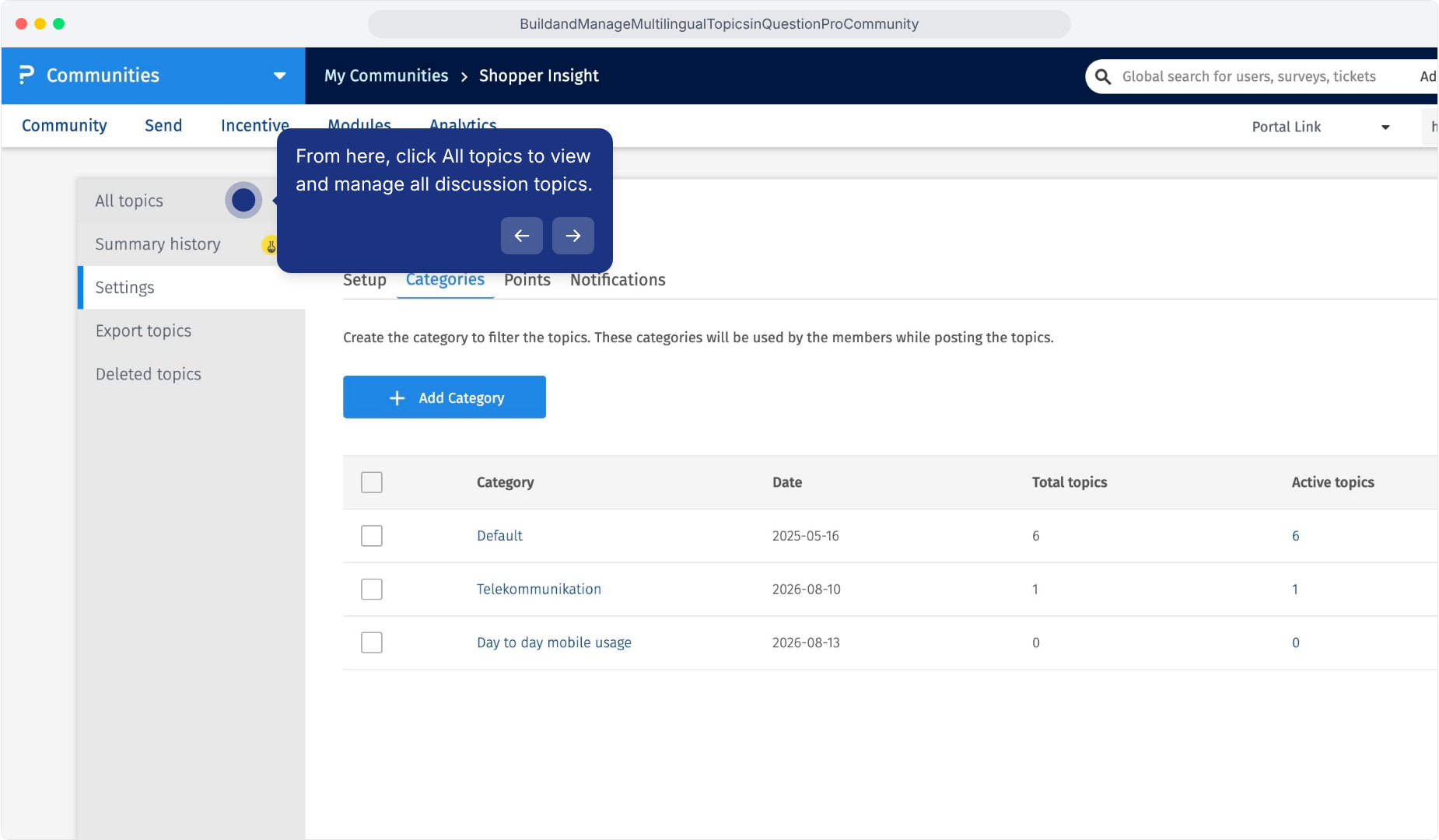
Go to: Modules » Topics » All topics
- Click All topics.
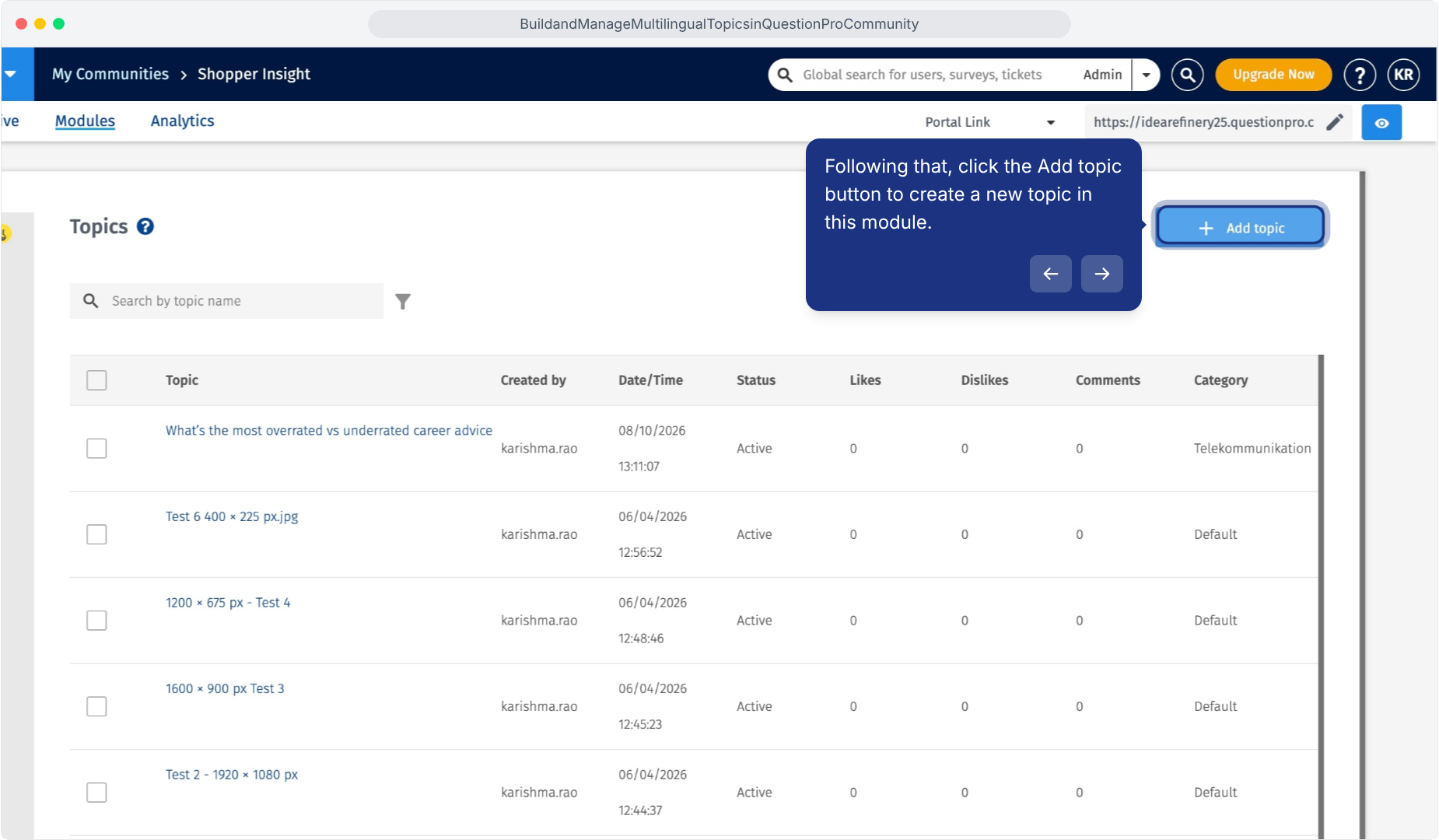
- Click Add topic.
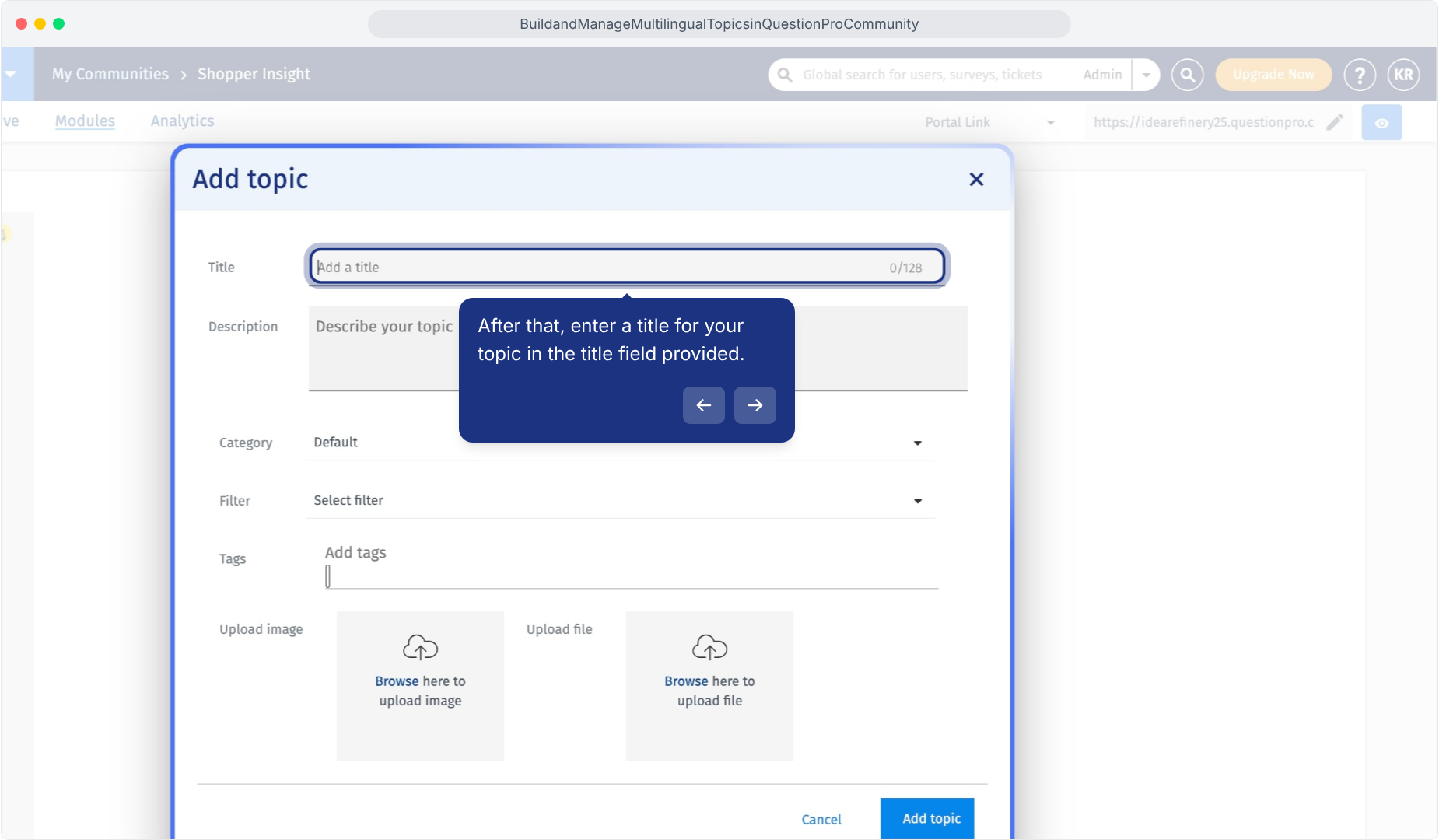
- Enter the topic Title in the default language.
- Enter the Description, including the question and what members should share.
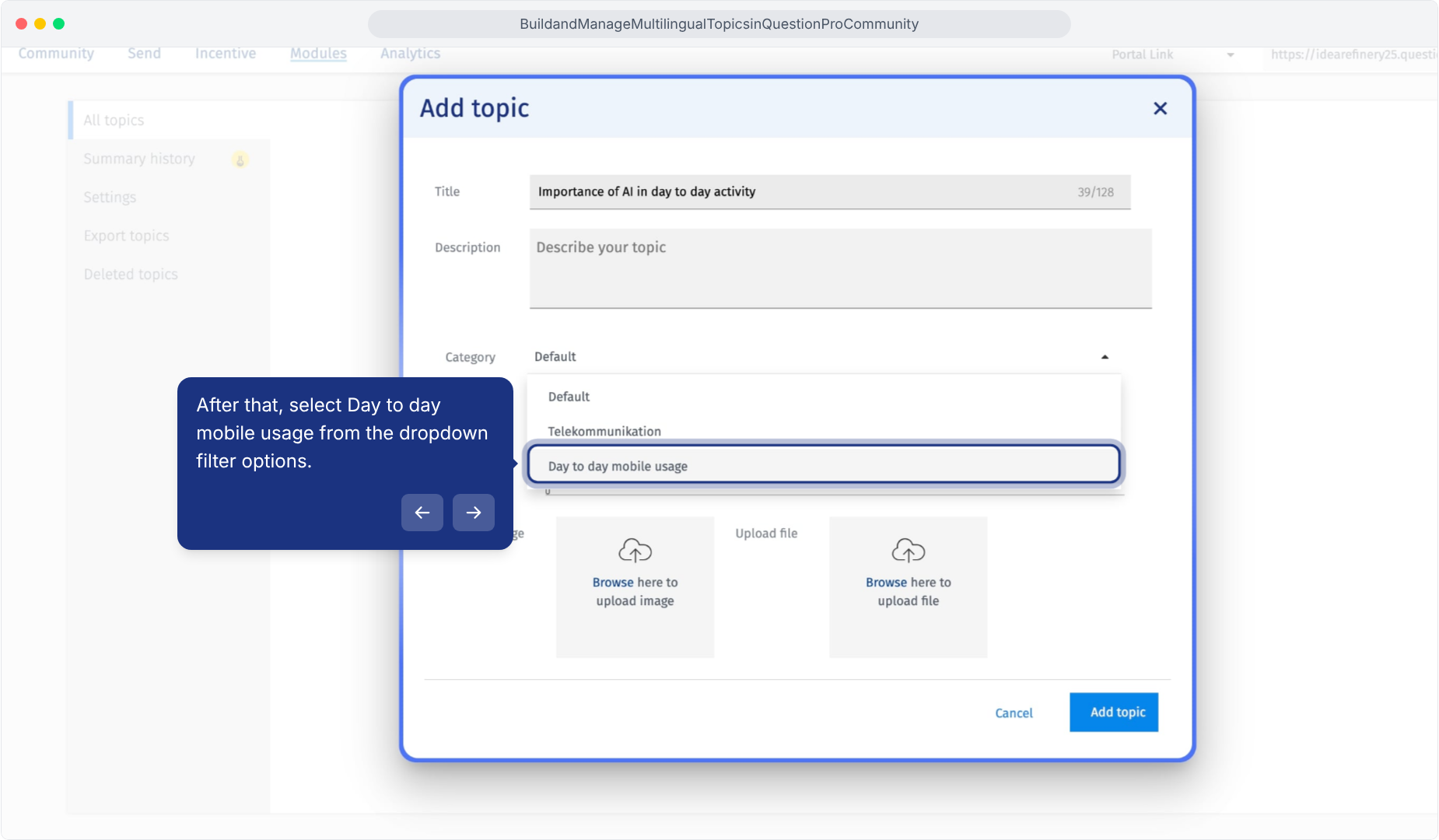
- Select the appropriate Category.
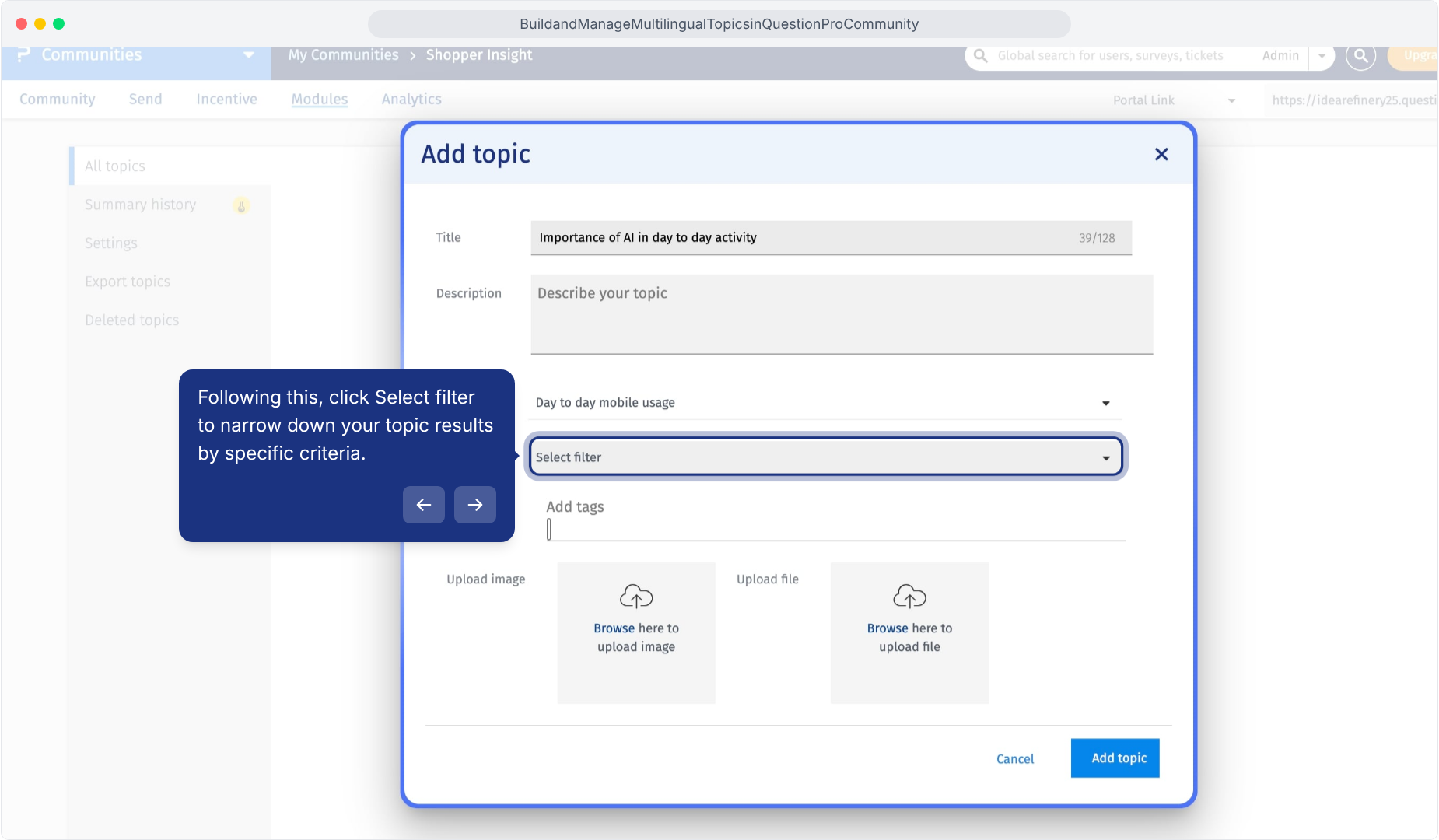
- Review Filter and select an appropriate available filter if needed.
- Enter the tags you want to associate with the topic.
- If needed, use Upload image or Upload file to add supporting content.
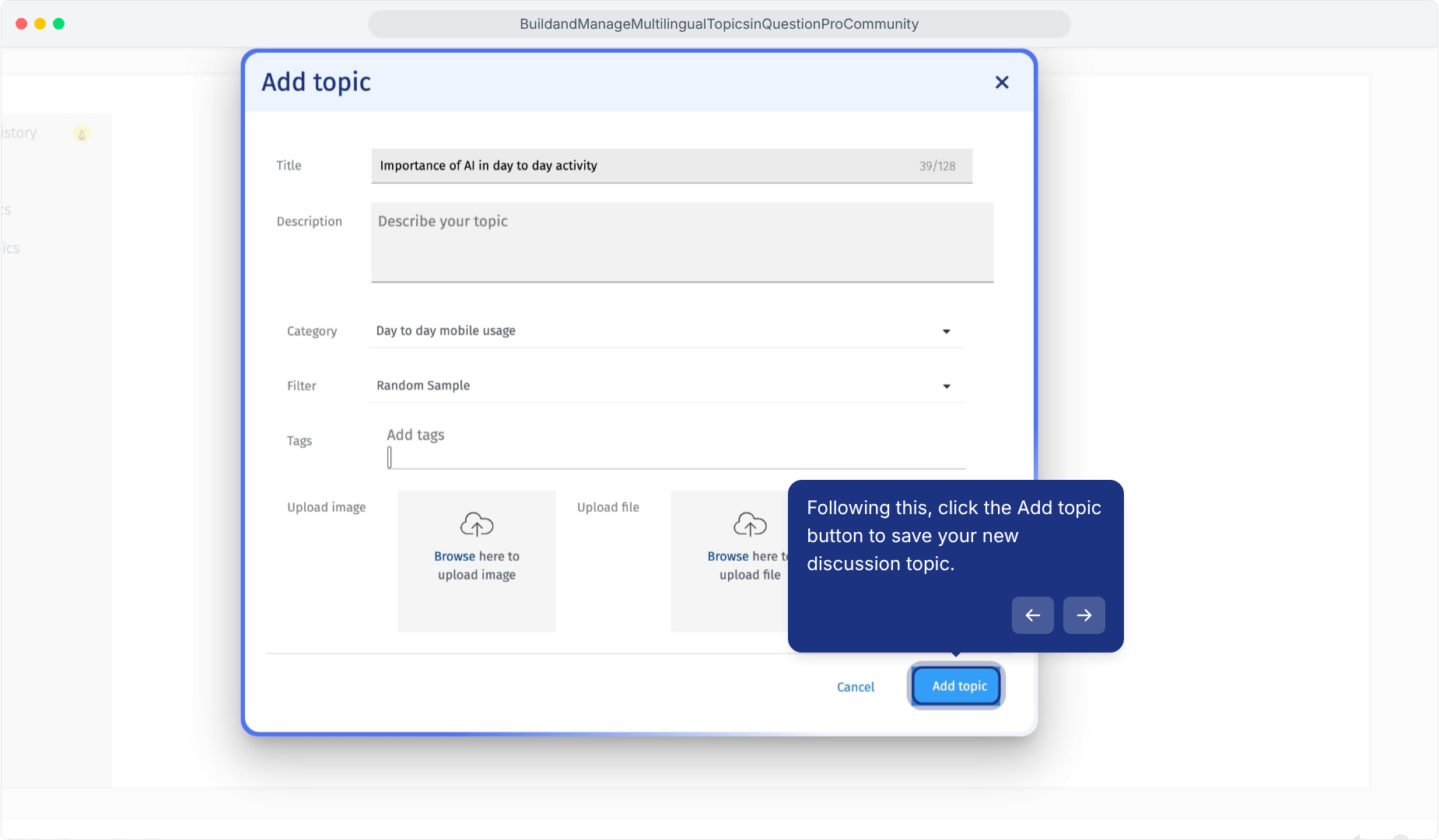
- Review the details and click Add topic.
Open All topics.
Click Add topic to create a discussion.
Enter the topic title.
Enter the topic description and participation instructions.
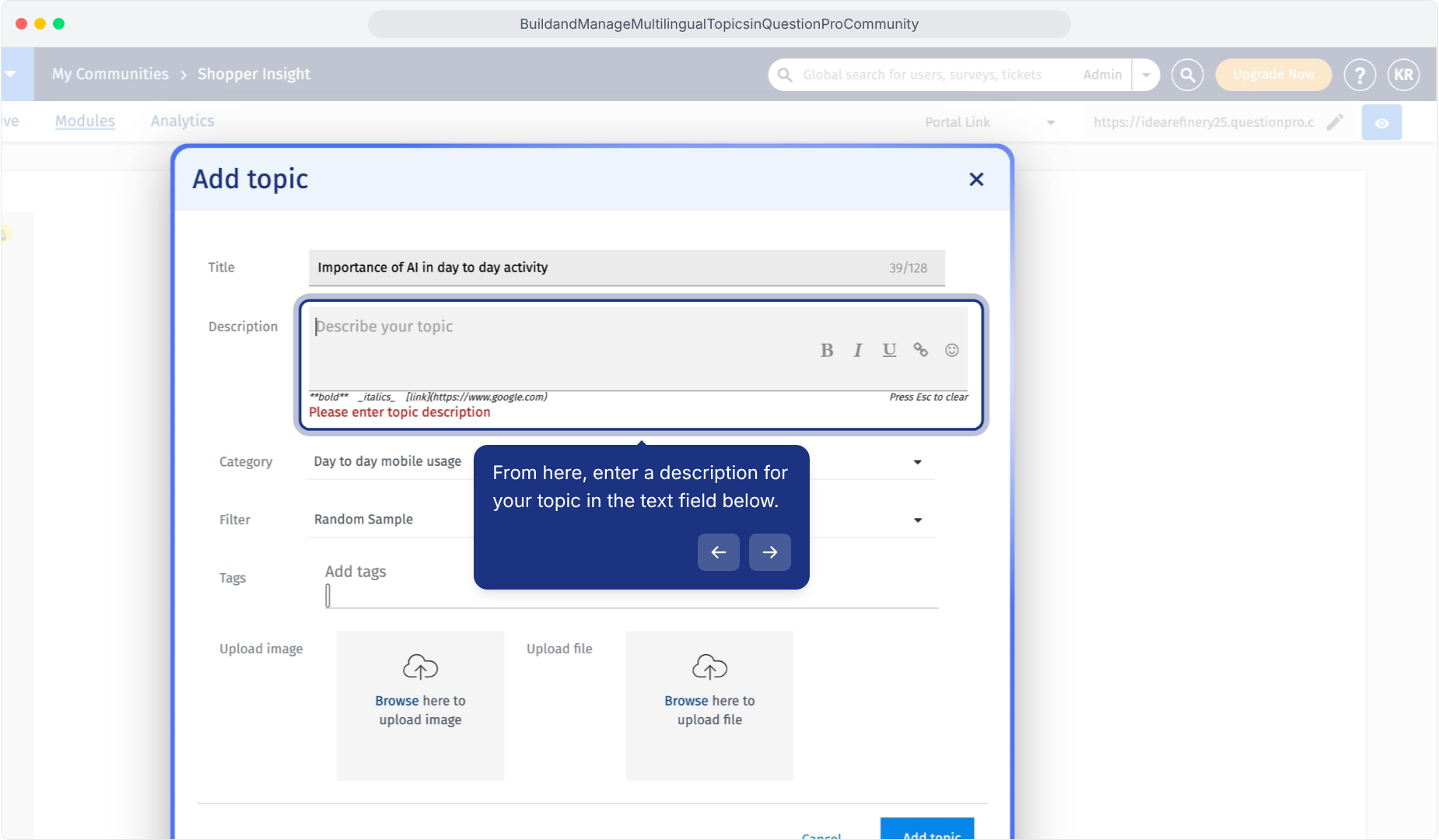
Select the category for your topic.
Review the Filter setting.
Click Add topic to save the new topic.
Add the language version by editing the existing topic. This keeps the translated content linked to the same discussion.
Go to: Modules » Topics » All topics- Click the topic title to open its details.
- Click the three-dot menu and select Edit.
- In Update Topic, review the default language title and description.
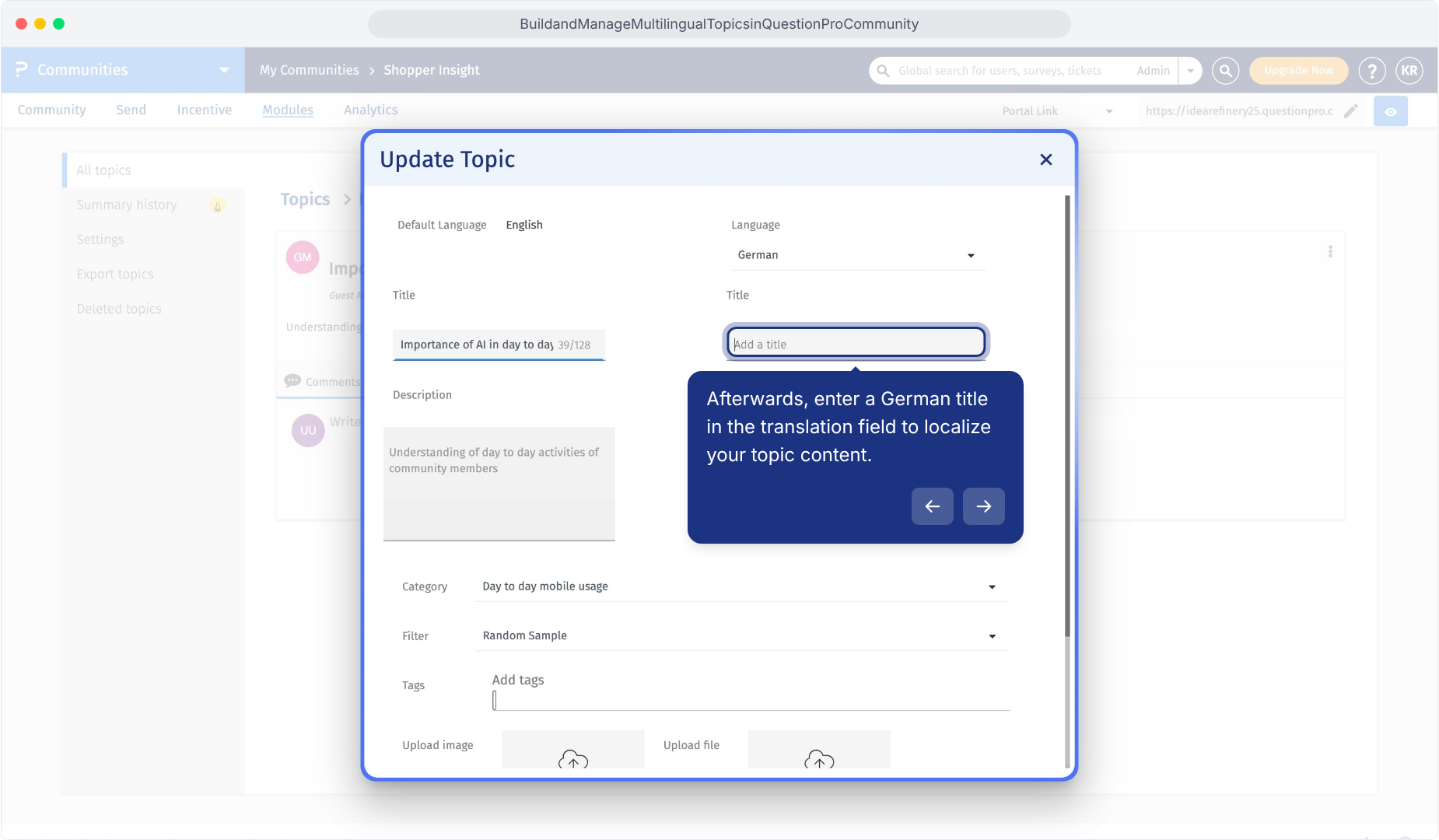
- Select the additional language from the Language dropdown. For example, select German.
- Enter the translated topic title in the selected language's Title field on the right.
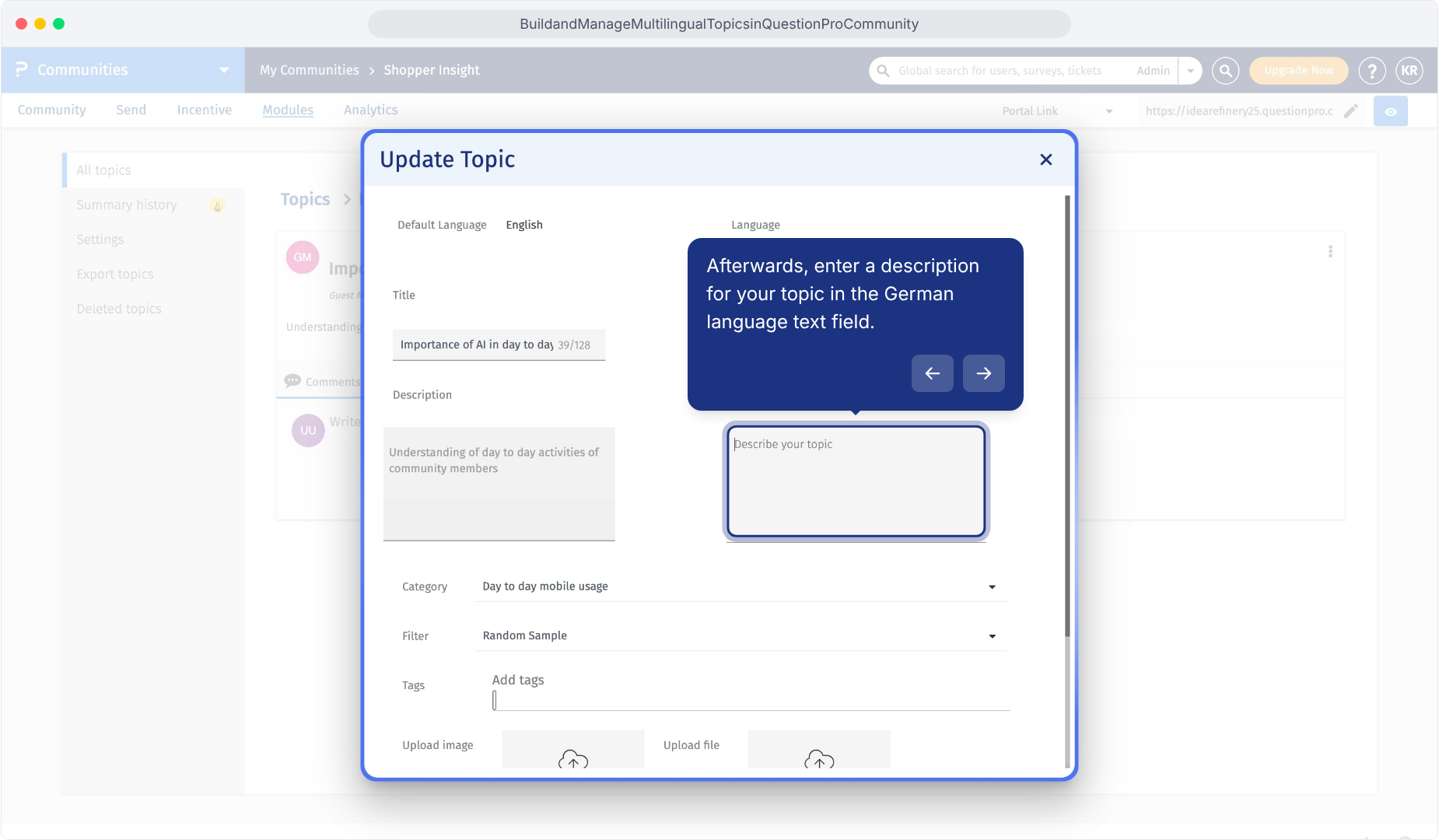
- Enter the complete translated description in the selected language's Description field on the right.
- Review the category, filter, tags and any supporting content.
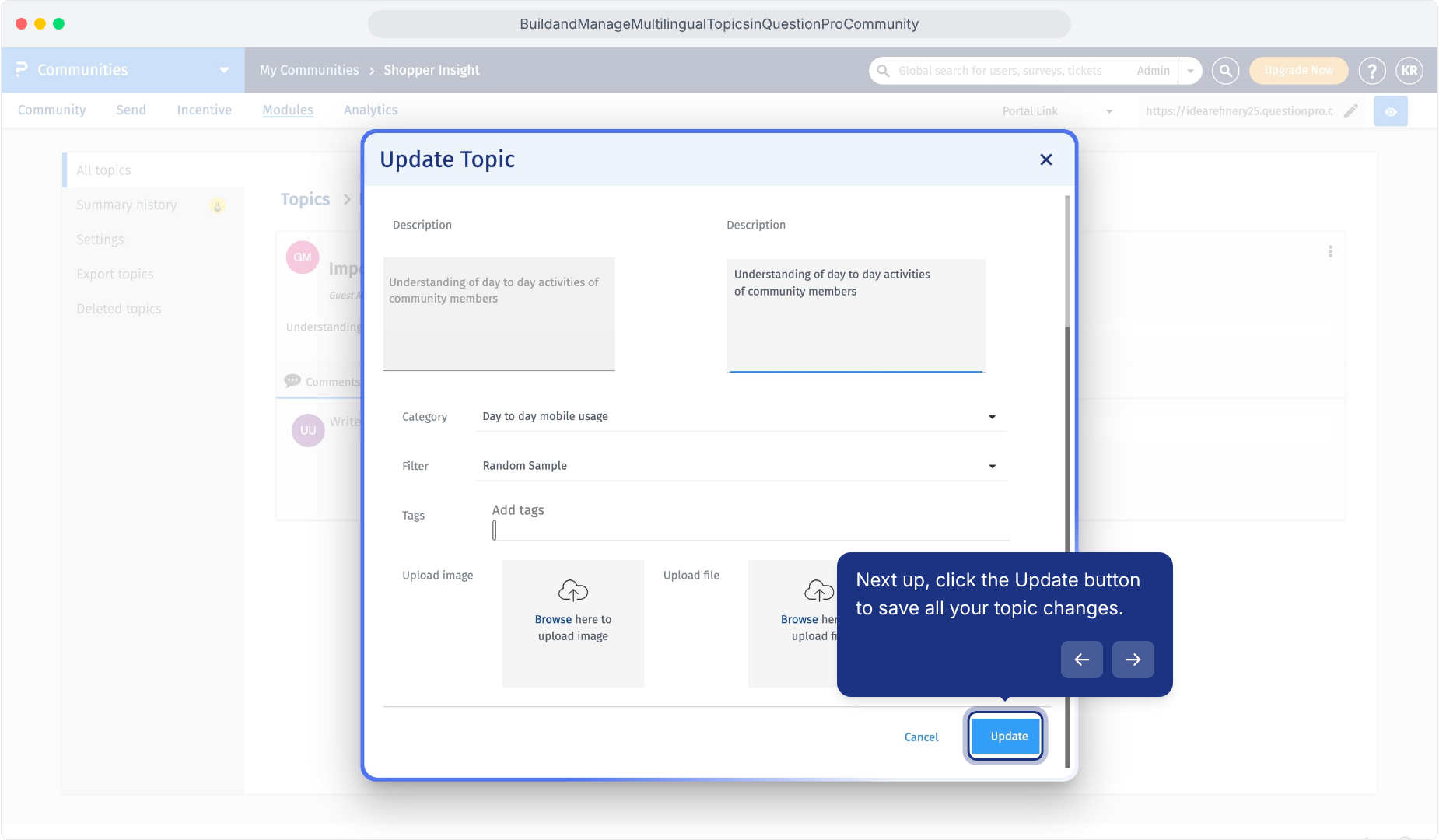
- Scroll down if necessary and click Update.
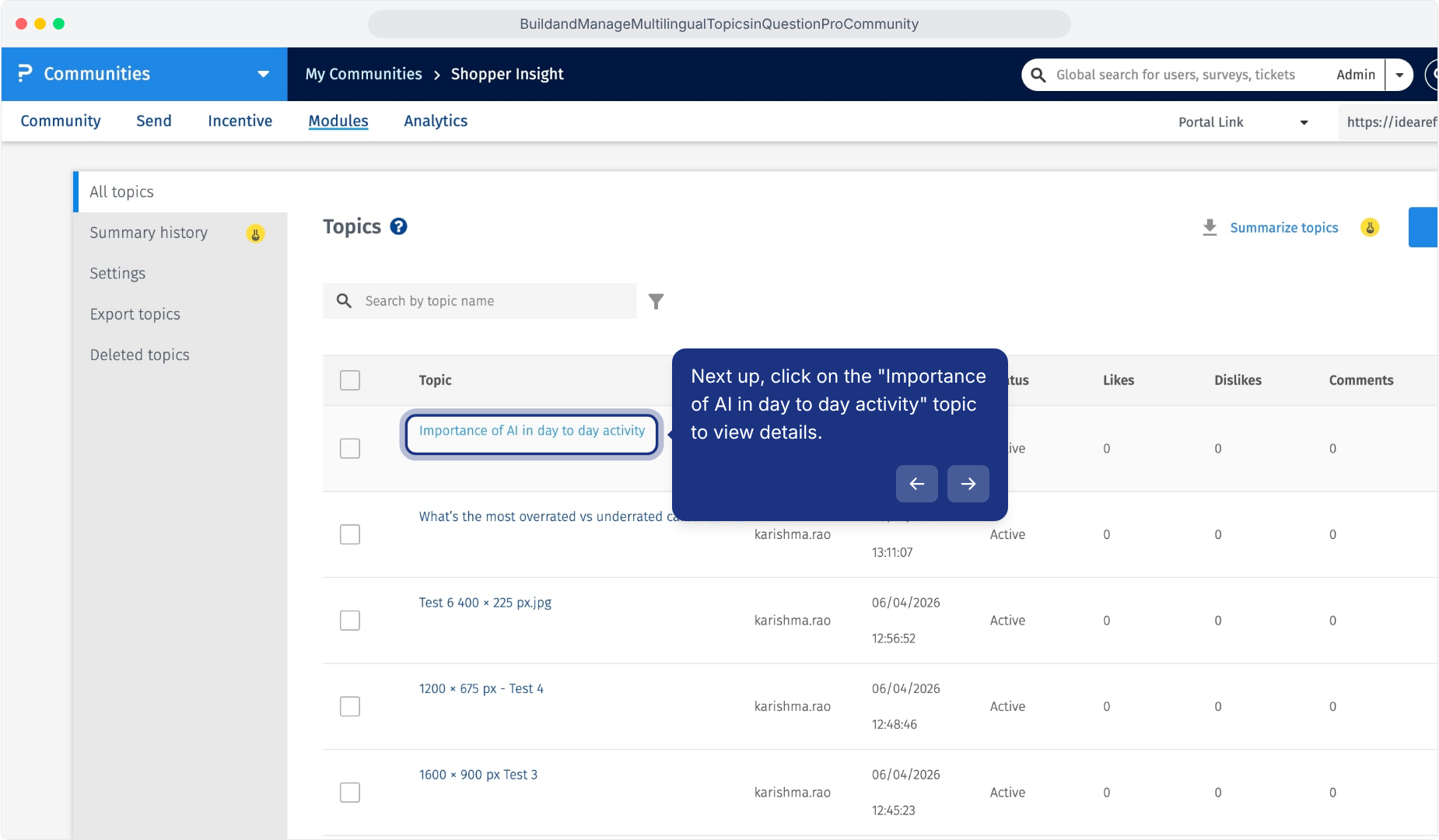
Click the topic title to open its details.
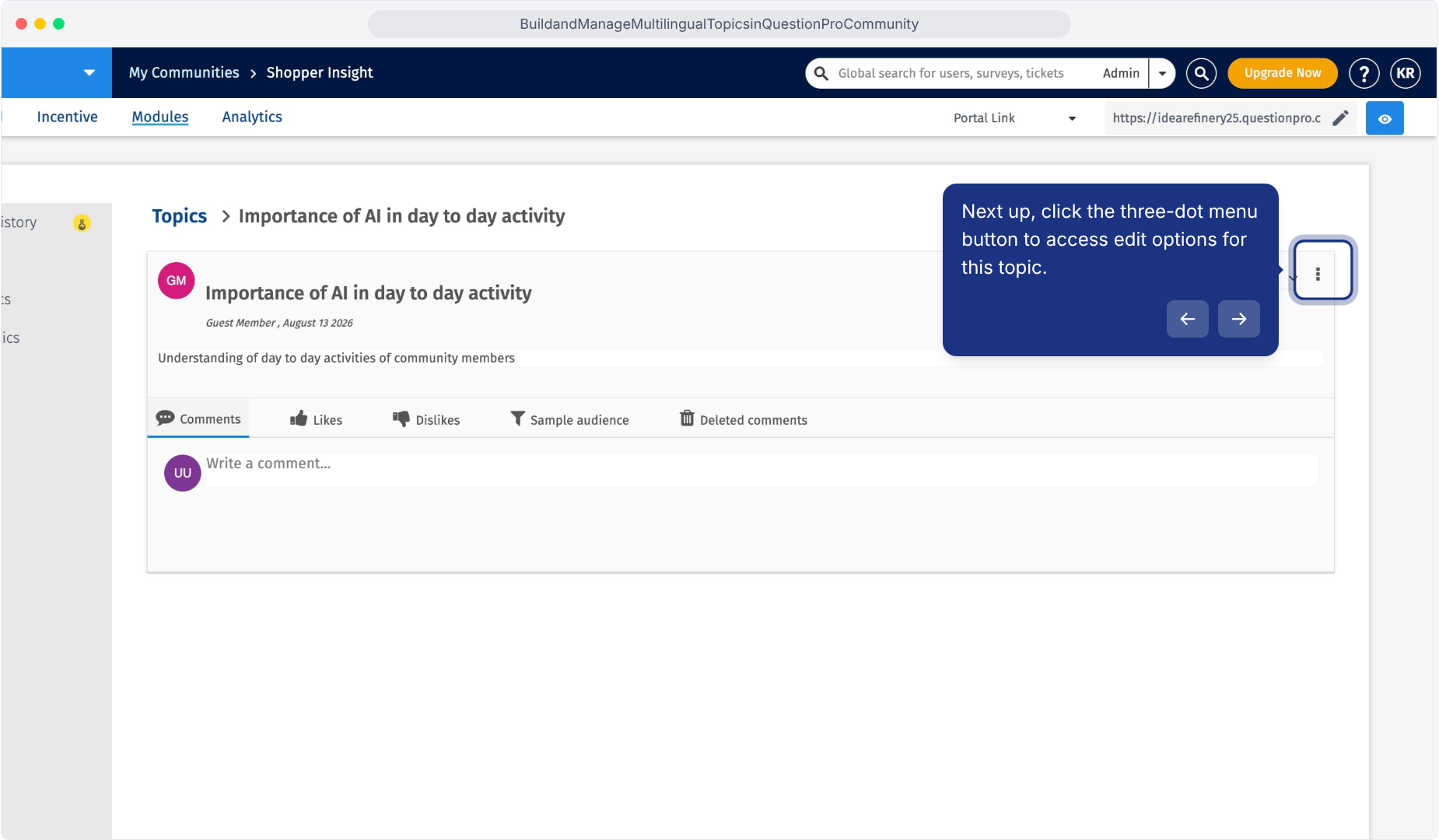
Open the three-dot menu on the topic.
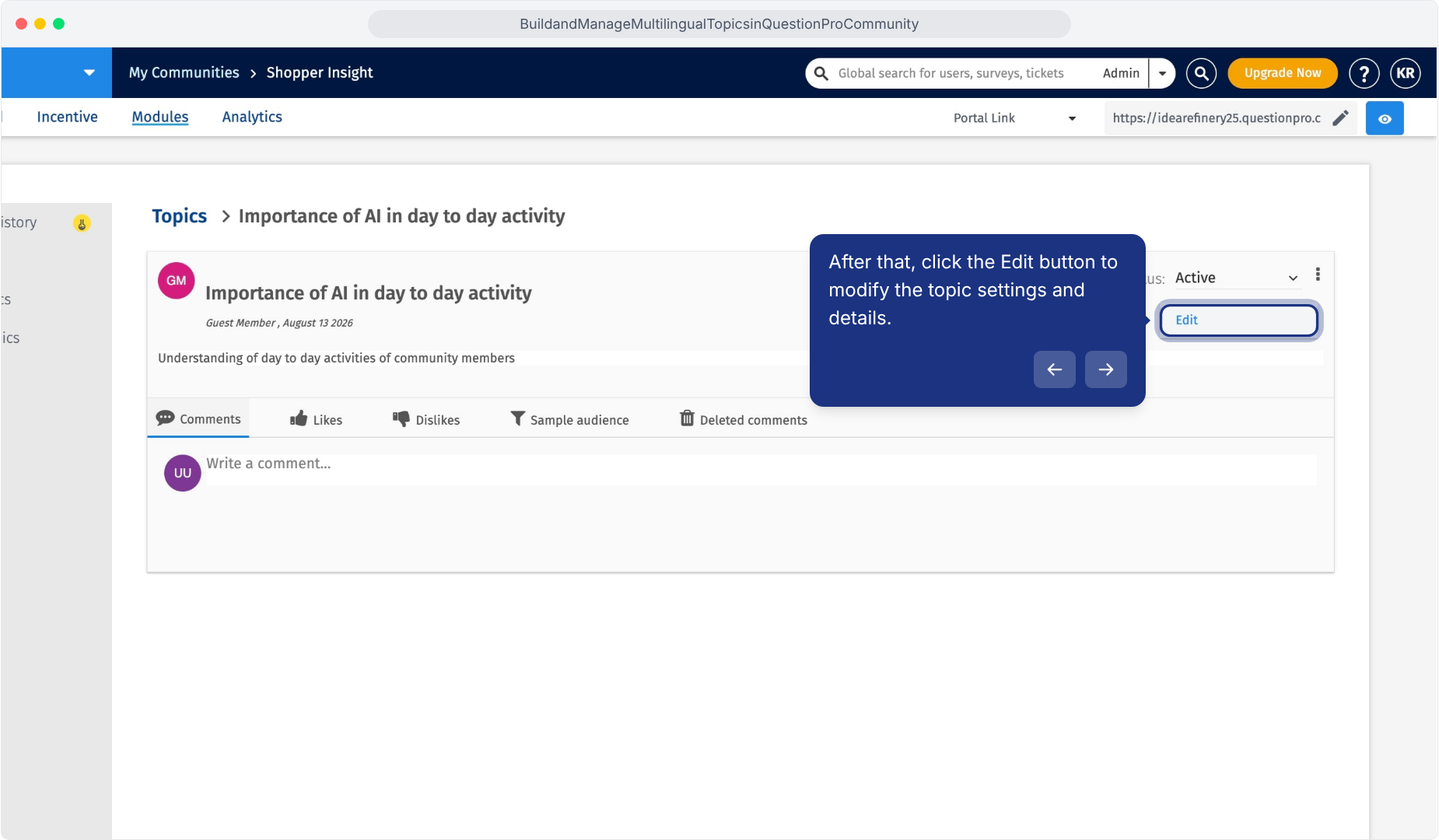
Select Edit to open Update Topic.
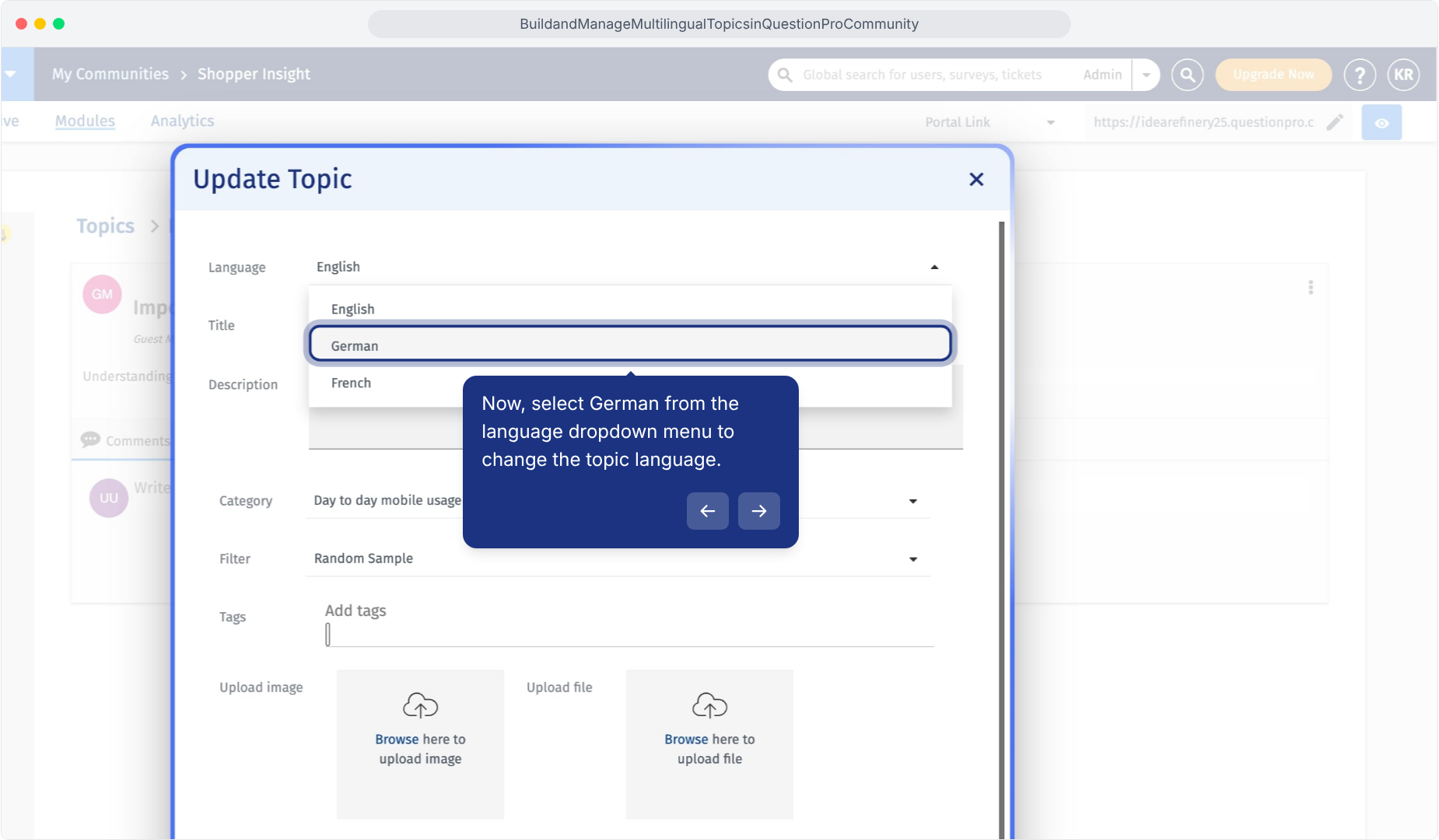
Select German from the Language dropdown.
Enter the translated topic title in the right-hand field.
Enter the translated topic description in the right-hand field.
Click Update after completing and reviewing the translation.
Members can see the translated topic according to their selected community language. The language versions remain linked to the same topic, category and tags.
For example, when an English topic has a German version, members using German can read the translated title and description for that language. Translate the category title and description as well to make the surrounding context understandable. Check images and files separately for language suitability. Topic and category translations do not establish automatic translation of member comments, attachments or notifications.Before inviting participation:
- Check that every intended language has a complete topic title and description.
- Confirm that each version asks the same question and gives equivalent instructions.
- Keep time periods and requests for examples consistent across languages.
- Review the translated category title and description.
- Confirm the intended category, tags, audience settings and supporting materials.
- Reopen the saved topic and check each language version.
- Review the topic in the member portal using each intended community language.
- Arrange moderation for the languages members will use.
- Language is unavailable: Check Community » Languages to confirm that the required language is configured.
- Topic translation is incomplete: Edit the topic, select the intended language, complete both translated fields and click Update.
- Category is untranslated: Edit the category separately, select the intended language, enter its translated title and description, and click Save.
- Original wording changed unexpectedly: Review the default language fields. Enter translations in the additional language fields on the right.
- Member sees a different language: Check the member's selected community language and the saved translation for that language.
This feature is available with the following licenses :
Essentials Advanced Team Edition Research Edition Communities
