

- Community Settings
- Survey Opt-Out for Members
- Security
- Facebook setup
- LinkedIn setup
- Google setup
- Twitch setup
- Social login
- Mobile app - privacy policy
- HMAC
- External passback
- Google Analytics
- Survey swipe
- Communities Authentication - SAML SSO
- Merge all Pending Surveys
- Regional Sign Ups
- User Roles and Permissions
- Data Sharing Options
- Login Authentication
- Global community member profile
- Profiling surveys
- Default surveys
- Global community profile - settings
- Hidden field
- Move profile fields
- Profile fields - survey integration
- Profile sync
- Confidence score
- Import Profile Data
- Profile Groups
- Default Surveys 2.0
- Profiling Surveys 2.0
- Member Profile Fields 2.0
- Send new invitation
- Multiple Responses (Email/SMS)
- SMS pricing
- Survey authentication
- Send Invitation Multilingual
- New invitation profile exclusion
- Custom filter by member ID
- Send later
- Profile field mapping
- Automatic Closure
- Survey Alias
- AI create
- Community WhatsApp Integration
- Whatsapp Integration for Community

QuestionPro UX Connector: Launch Qualitative Studies with Community Members
The QuestionPro UX Connector lets panel managers recruit participants for qualitative studies directly from an existing QuestionPro Community.
You can select a qualitative study available in QuestionPro UX, choose the community members you want to invite, configure participation incentives, manage portal and email notifications, and send the study invitation from one connected workflow.
This helps research teams move from an established community audience into qualitative research without manually managing separate participant lists.
Click to download the video
1.Open the Qualitative Studies module in your community.
2.Review the qualitative study available in QuestionPro UX.
3.Launch a new qualitative study from Communities.
4.Select the QuestionPro UX study.
5.Configure the participation incentive.
6.Select the community members you want to invite.
7.Configure portal and email notifications.
8.Preview or customize the Study Invitation Email.
9.Click Invite to send the study invitation.
10.Review the invitation from the member's perspective.
Before you begin, make sure you have:
- Access to the required QuestionPro Community.
- Access to QuestionPro UX.
- A qualitative study available in QuestionPro UX.
- The required study activity ready for participants.
- Community members available for recruitment.
1.Open the community you want to use for qualitative research recruitment.
2.Click Modules in the top navigation.
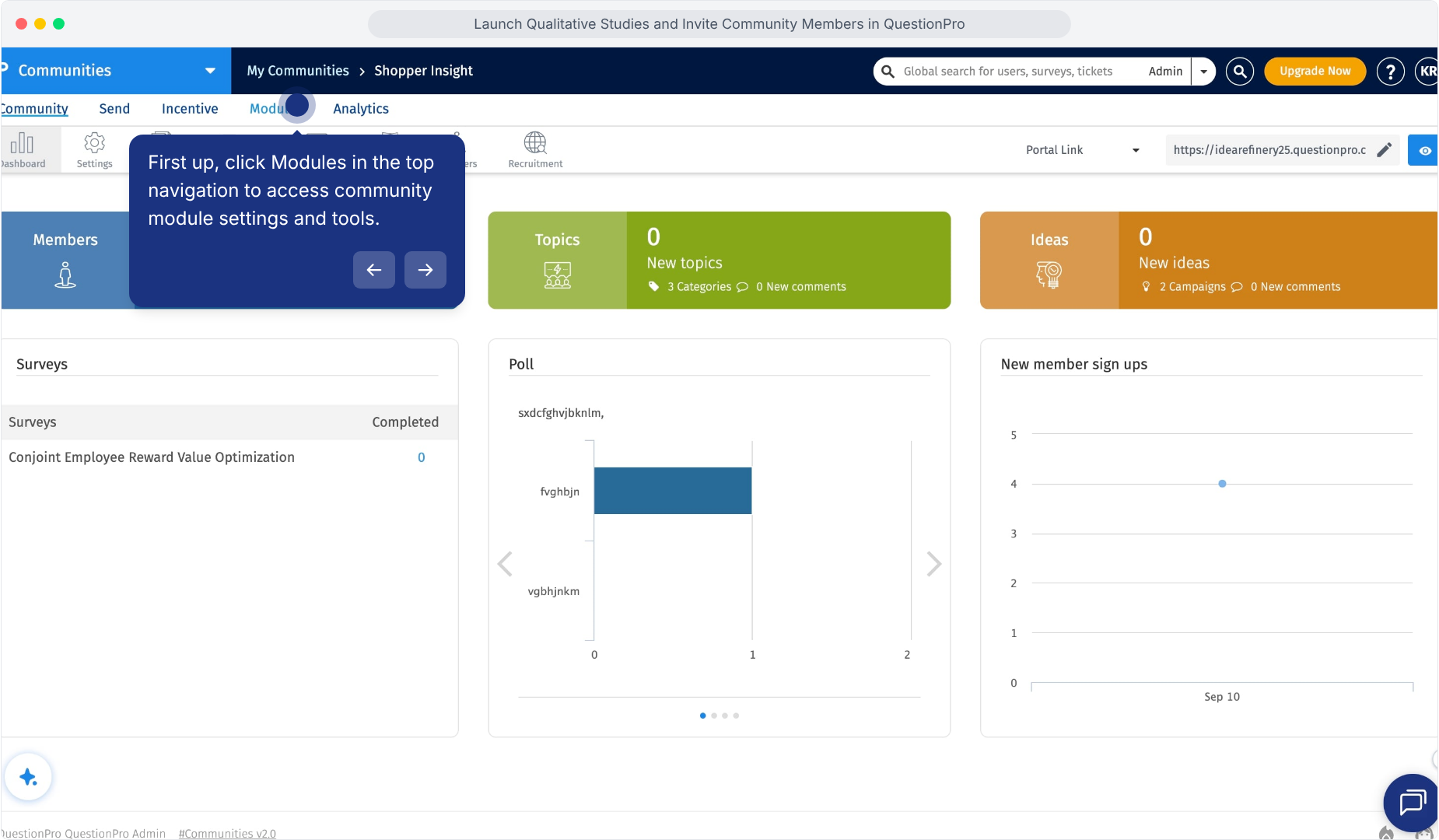
3.Review the modules available for the selected community.
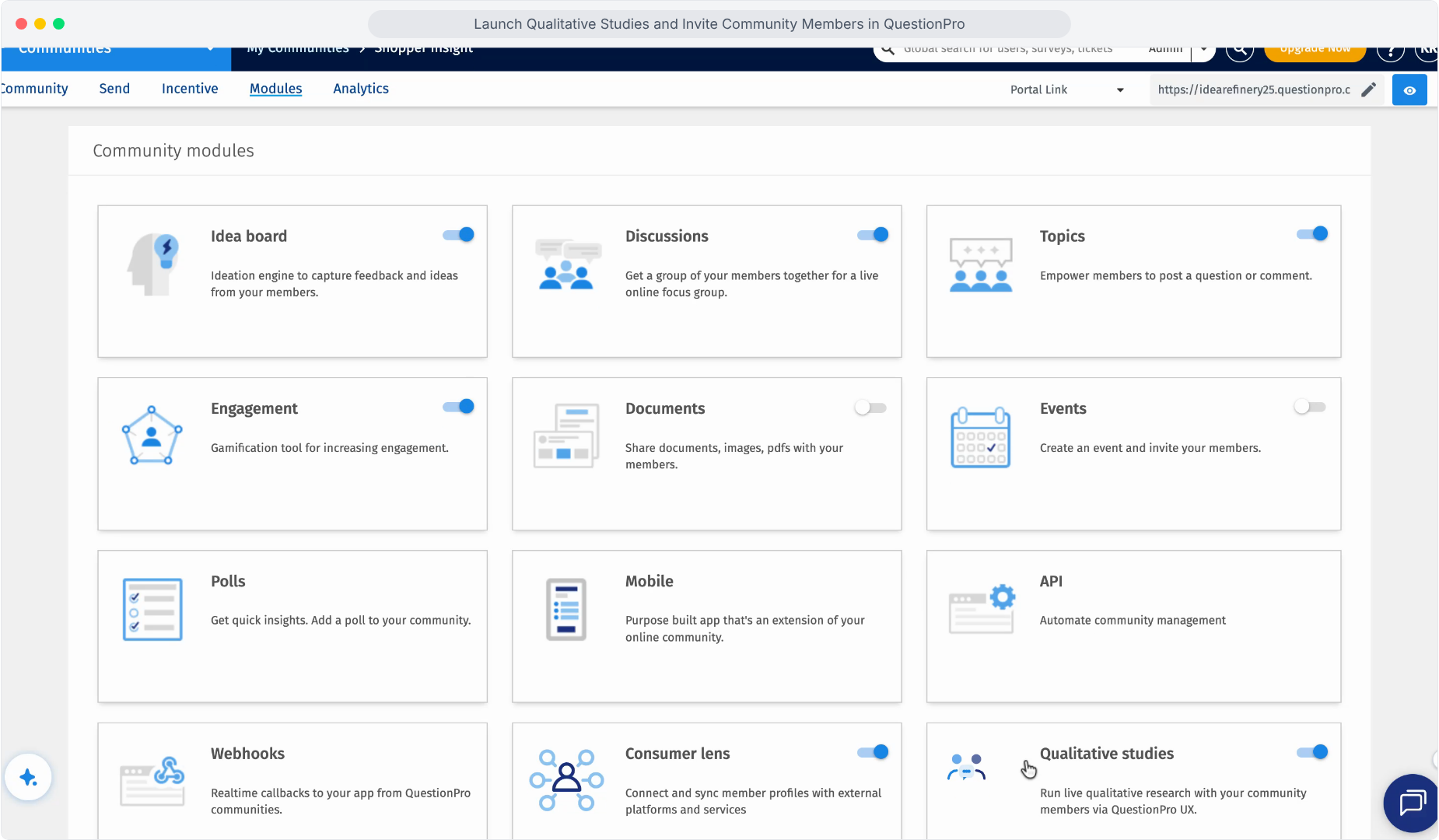
4.Locate and select Qualitative Studies.
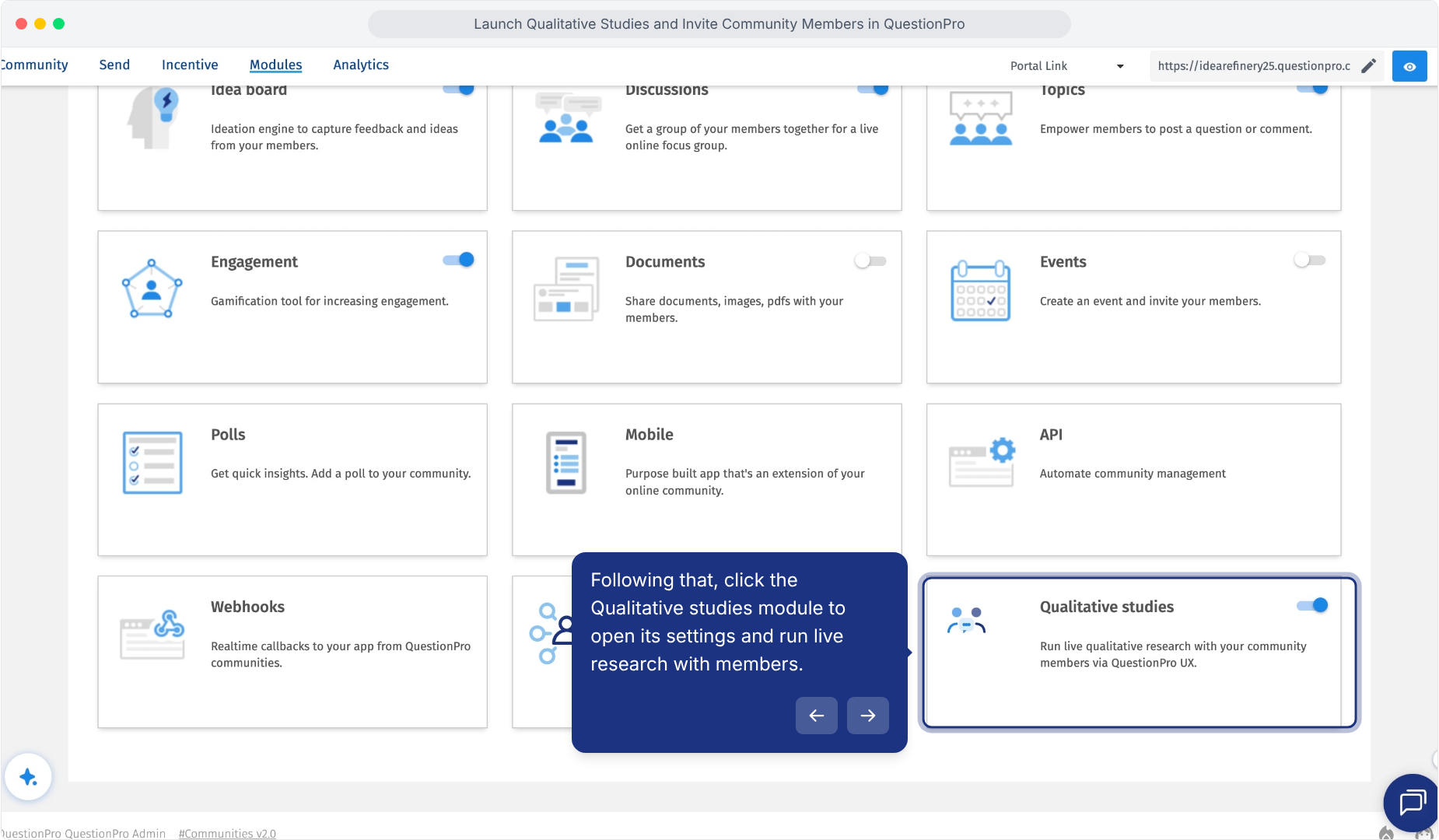
The Qualitative Studies module provides the connected workflow for recruiting community members into qualitative studies available in QuestionPro UX.
Before launching the invitation, review the qualitative study that community members will participate in.
1.Open the required study in QuestionPro UX.
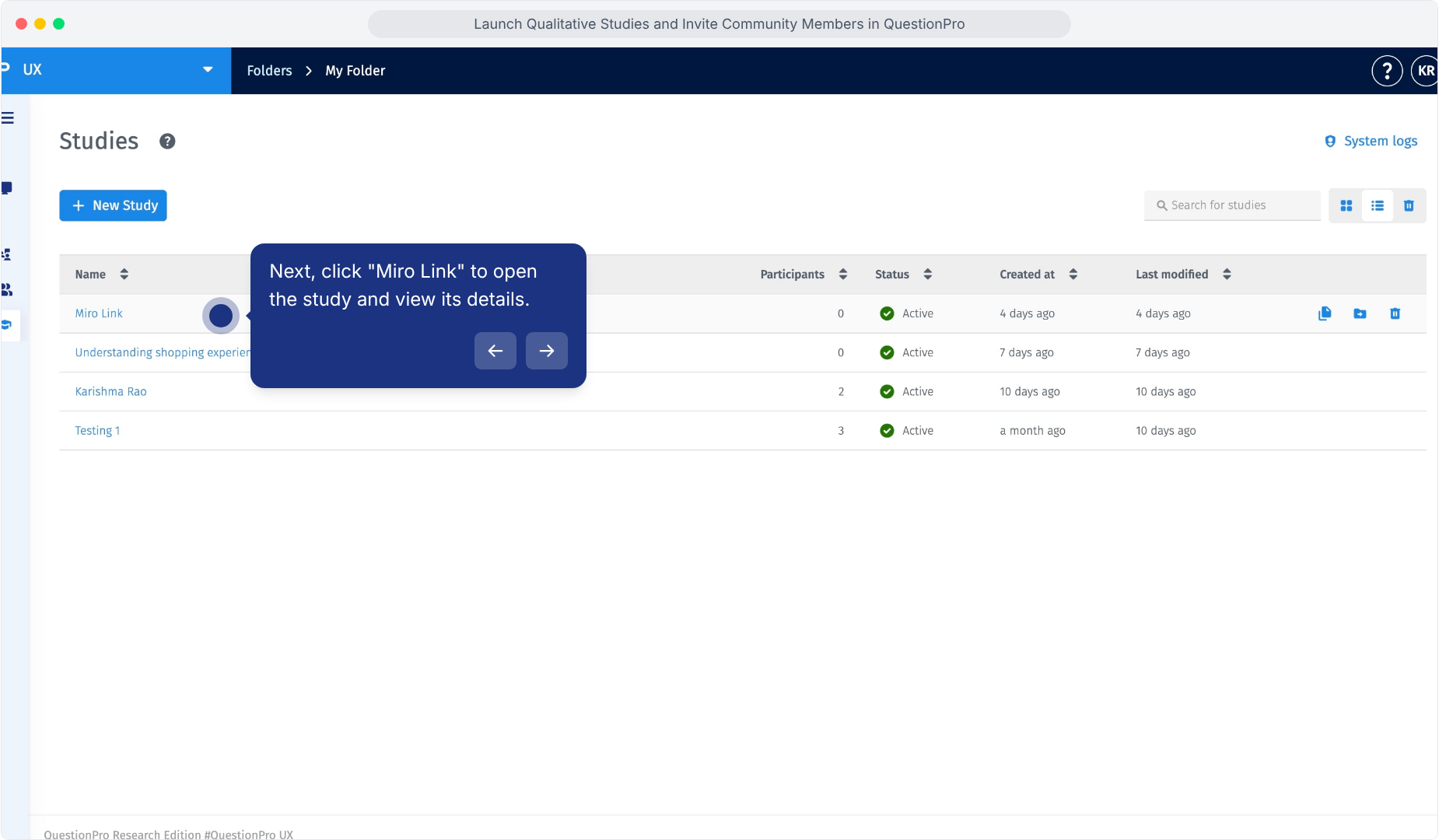
2.Select the study that you want to review.
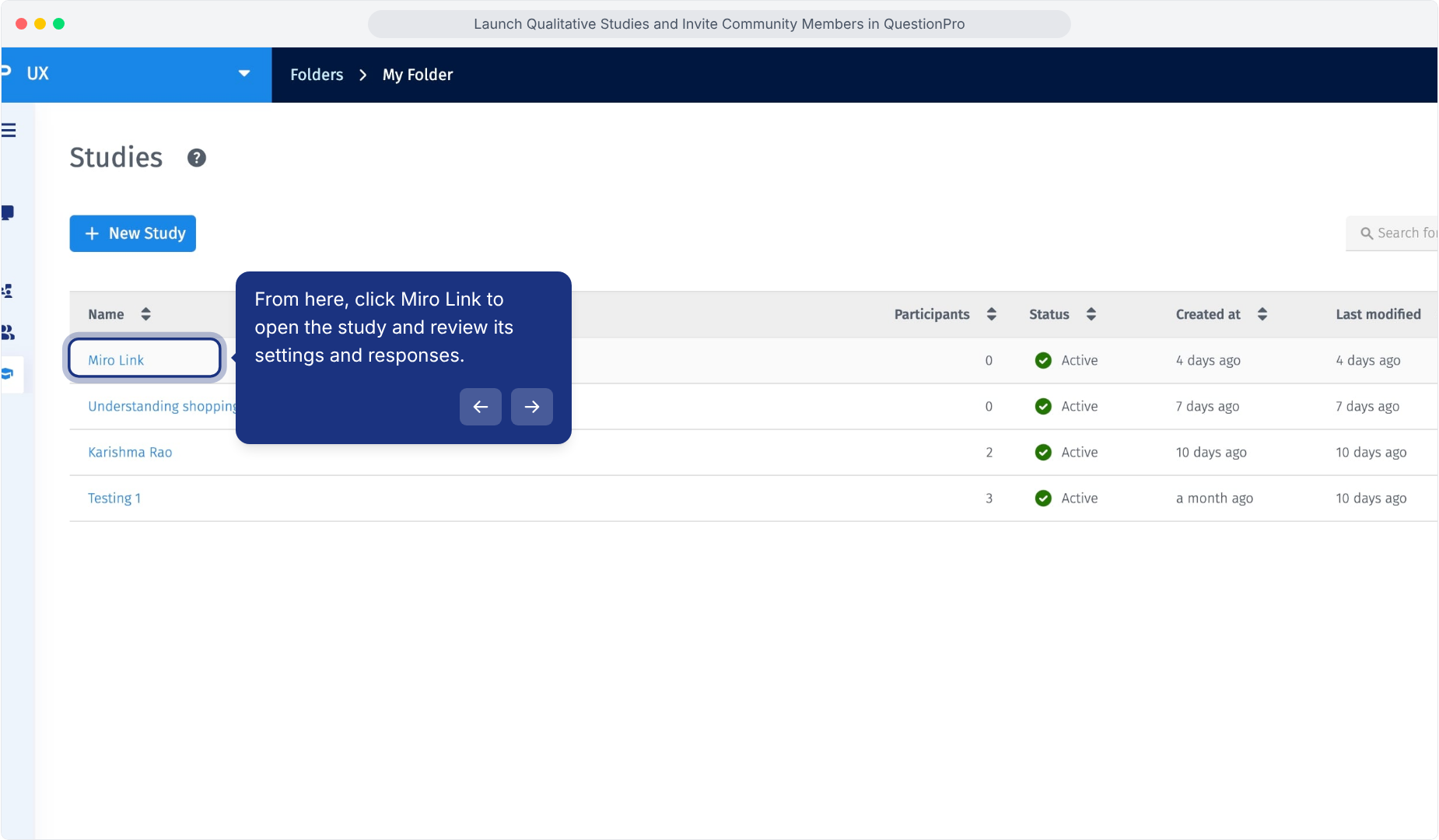
3.Open the relevant quest or activity within the study.
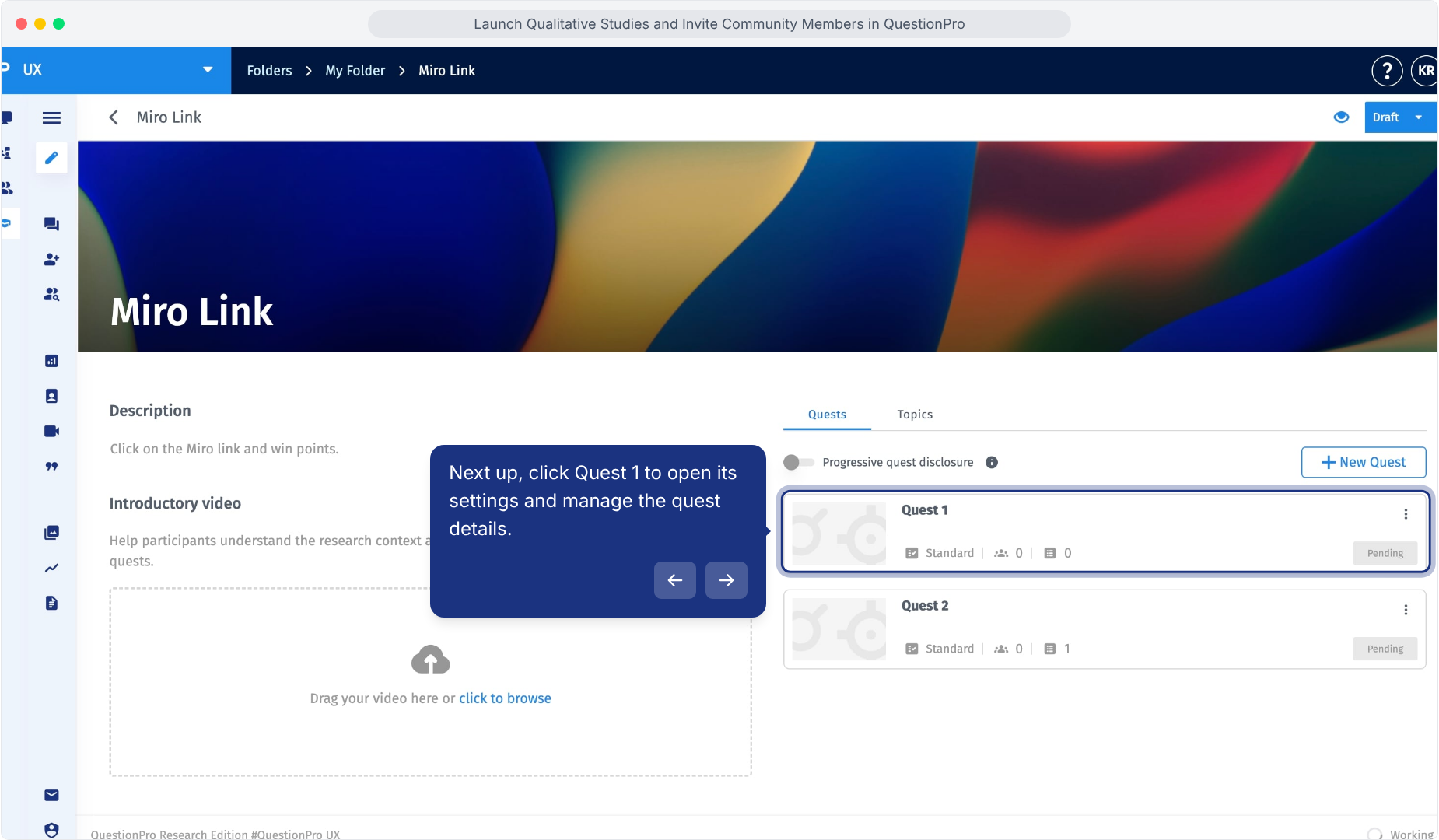
4.Confirm that the quest or activity is live and ready for participants.
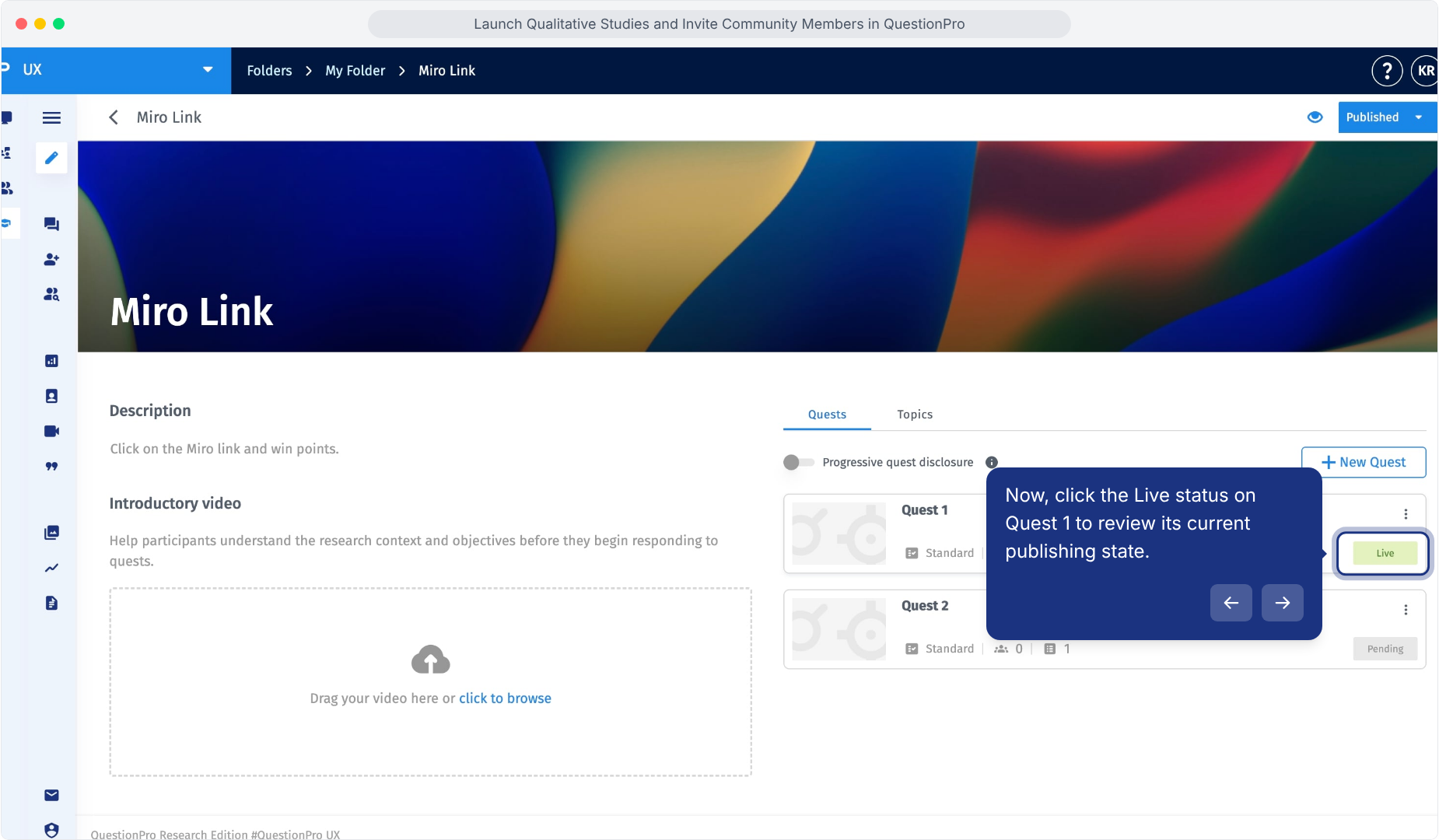
Review the participant experience before inviting members so the activity is ready when they open the study.
1.Return to the Qualitative Studies module in your community.
2.Click Launch a new study.
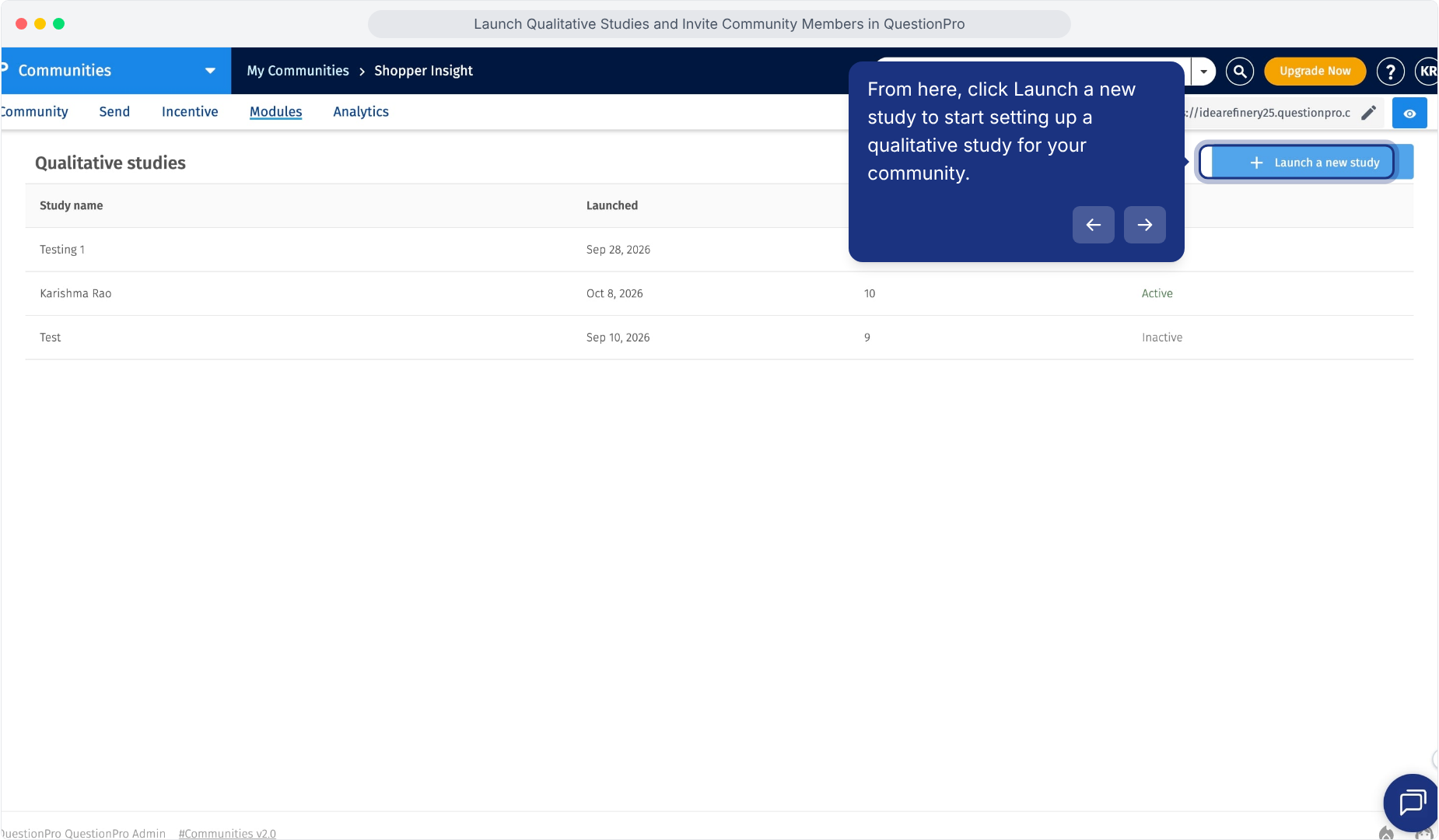
The Invite community to a qualitative study page opens, where you can configure the study, incentive, audience, and notifications.
1.In the Details section, click the Select study field.
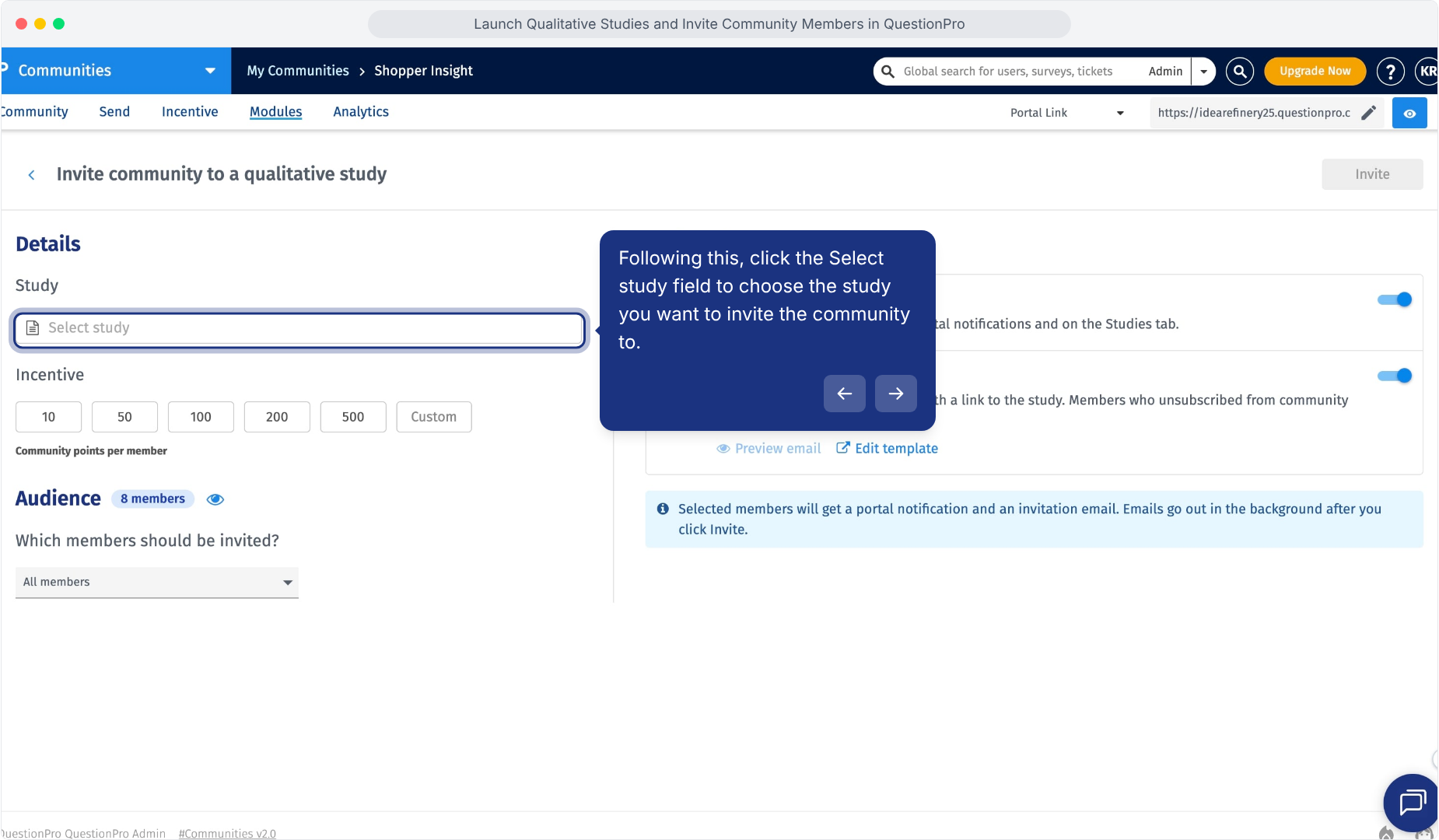
2.Review the list of available qualitative studies.
3.Select the study you want to use for the community invitation.
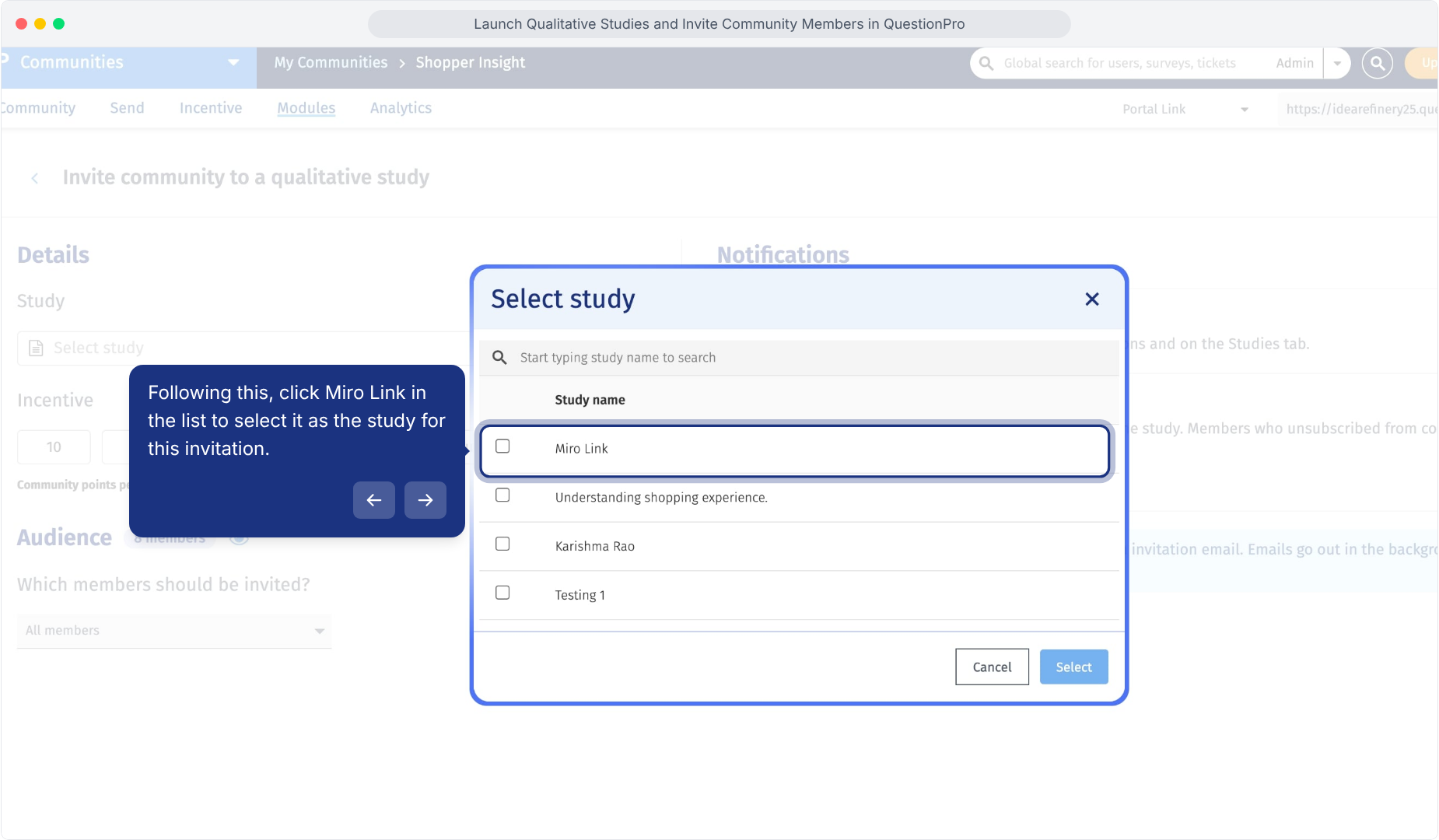
4.Click Select to confirm the study.
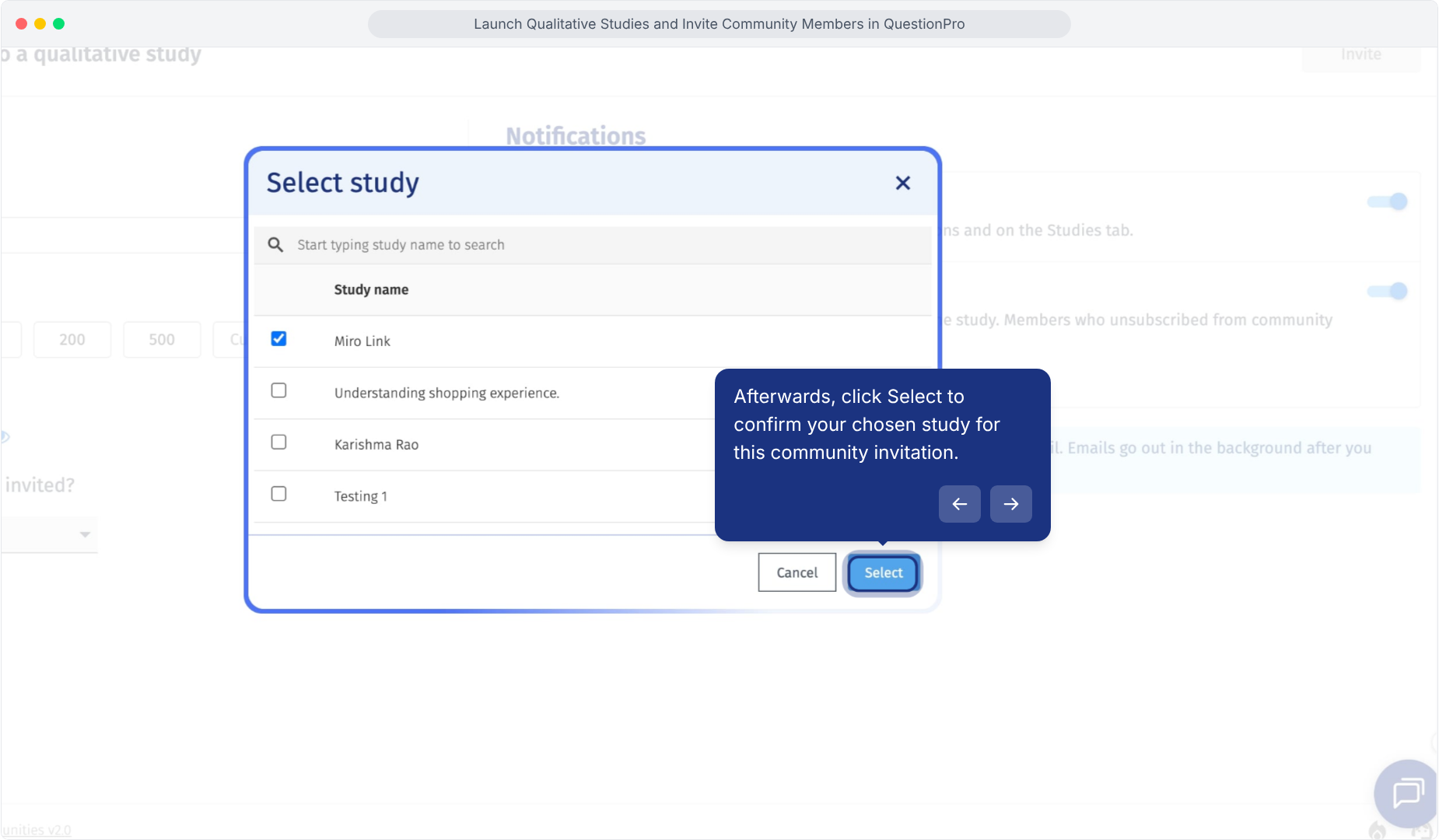
The selected study is now connected to the community invitation.
Use the Incentive section to define how many community points members can receive for participating.
1.Select one of the predefined community point values.
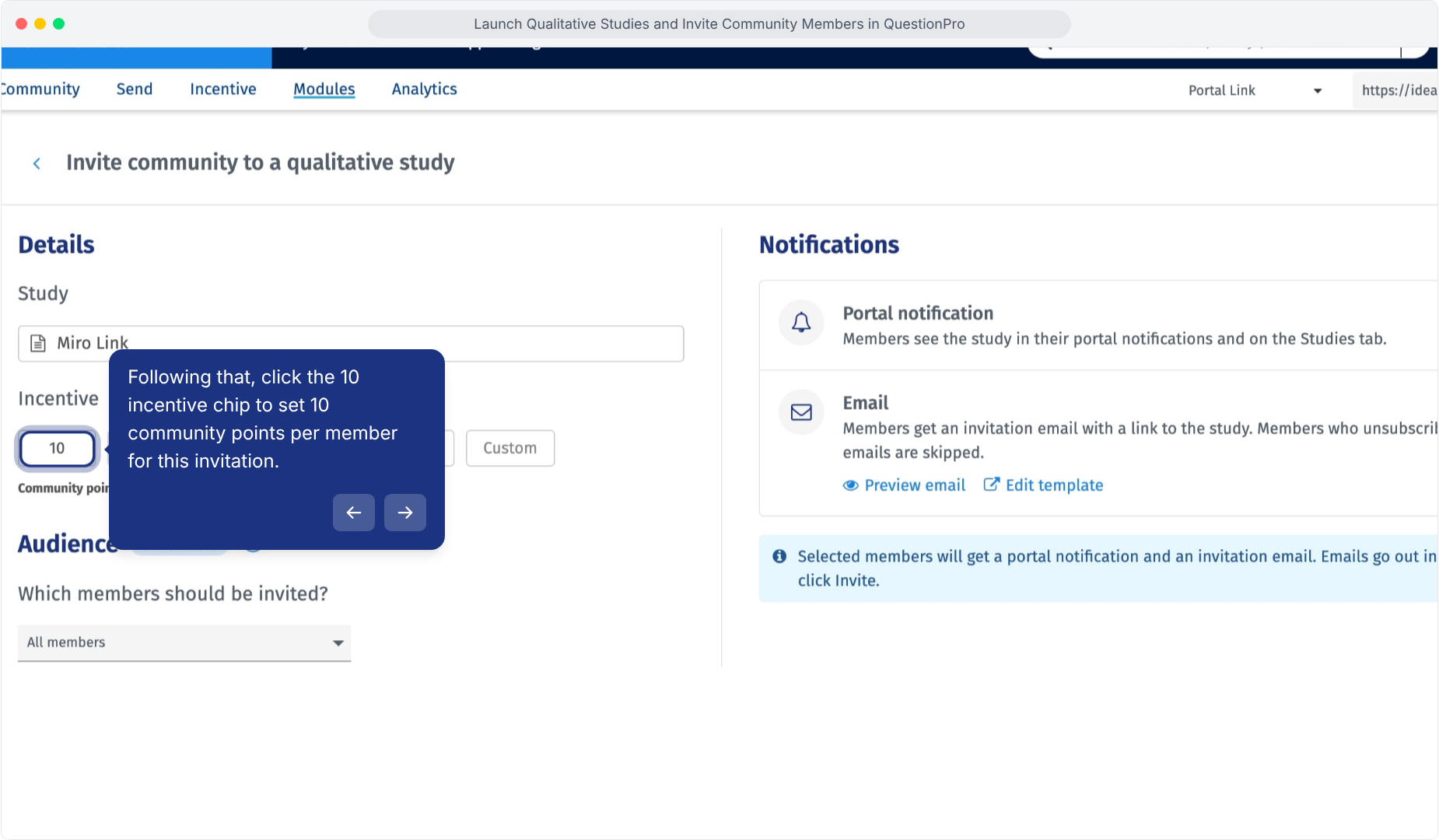
2.To enter a different value, click Custom.
3.Enter the required number of community points per member.
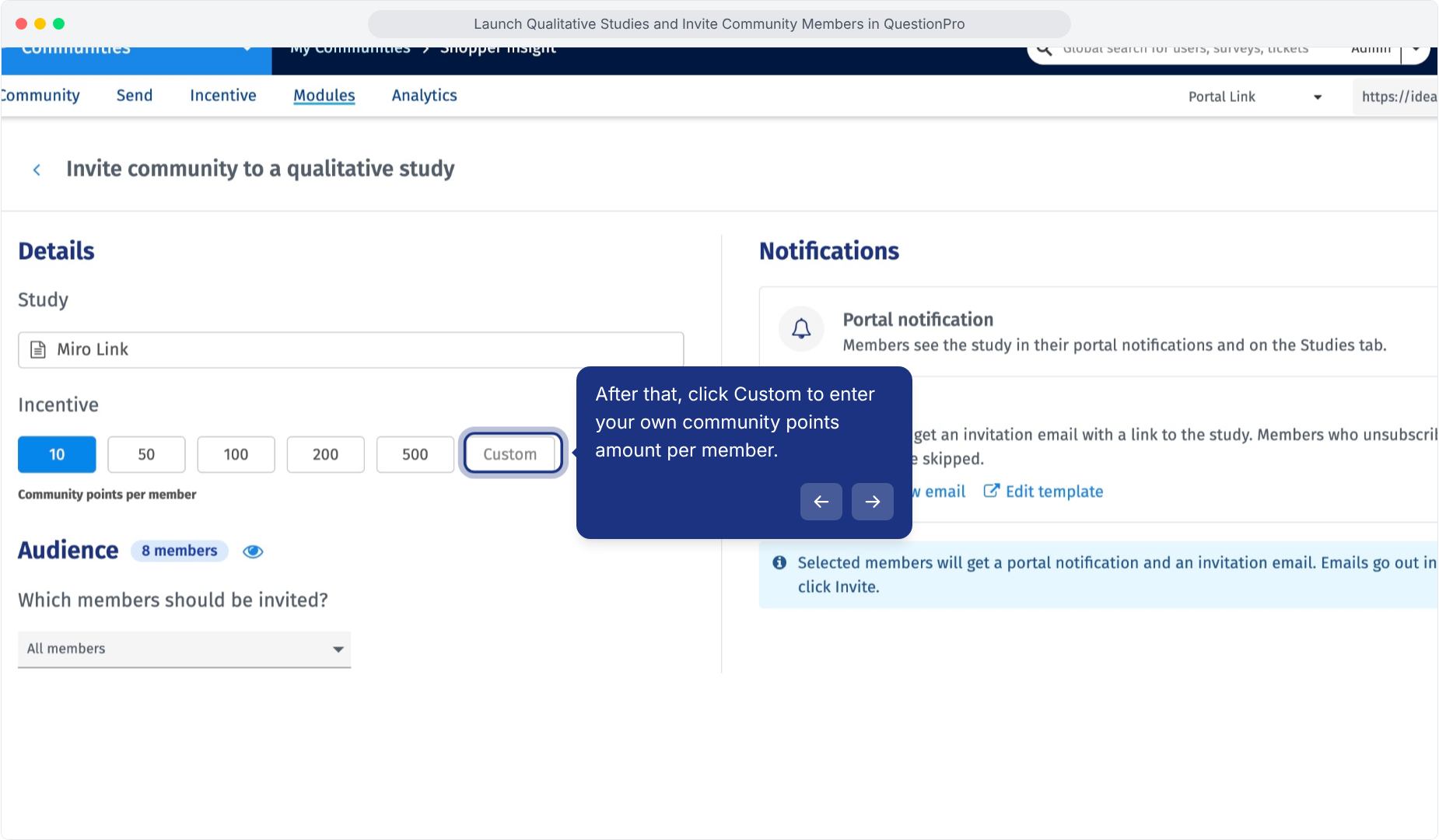
The configured incentive is included in the member invitation experience.
1.Go to the Audience section.
2.Open the Which members should be invited? dropdown.
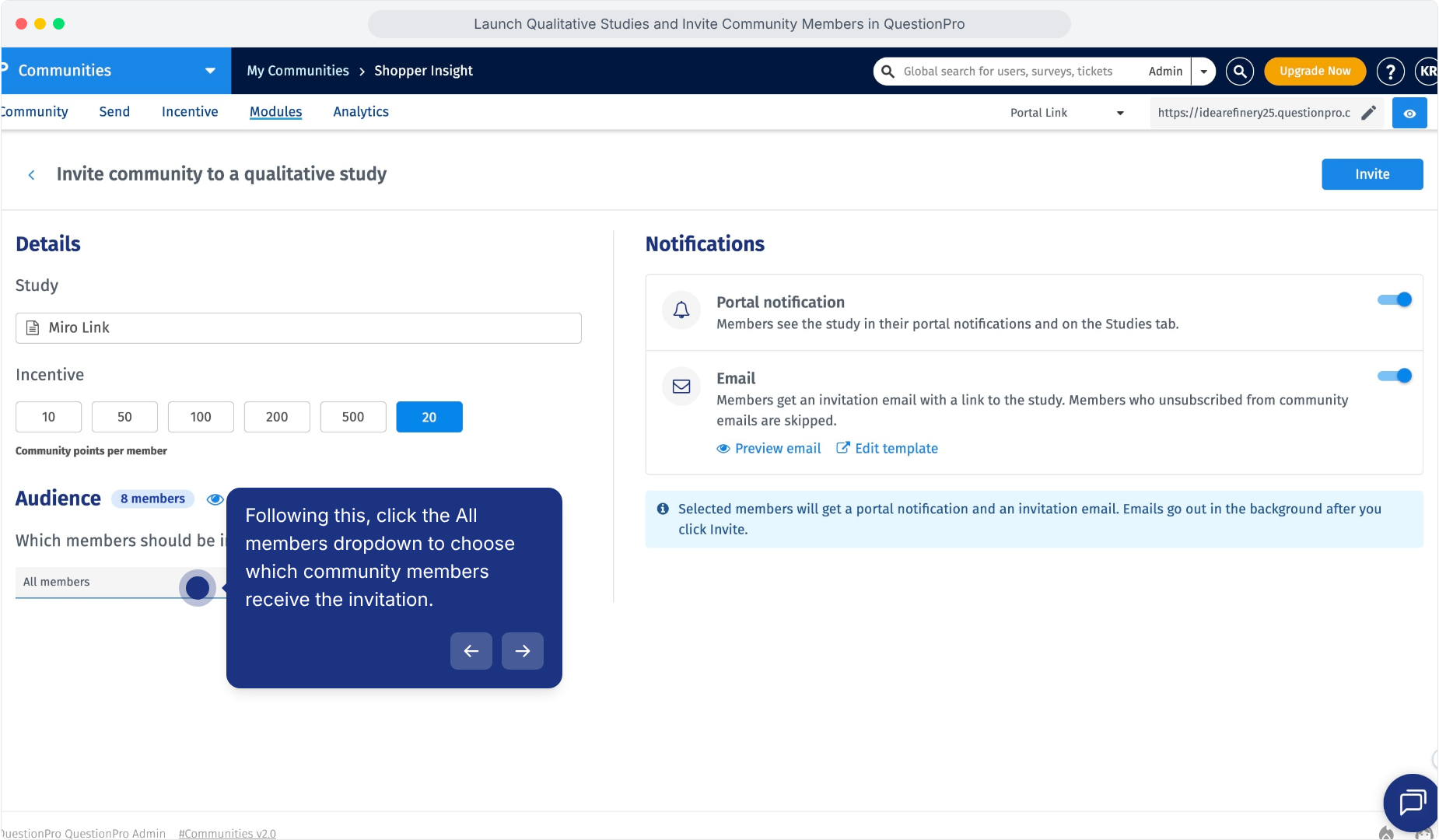
The available audience options include:
- All members:Use when you want to invite the available community audience.
- Via filter:Use when you want to recruit members matching an existing community filter.
- Via email:Use when you want to identify members using an email address.
Use a filter when your qualitative study requires a specific audience.
1.Open the Which members should be invited? dropdown.
2.Select Via filter.
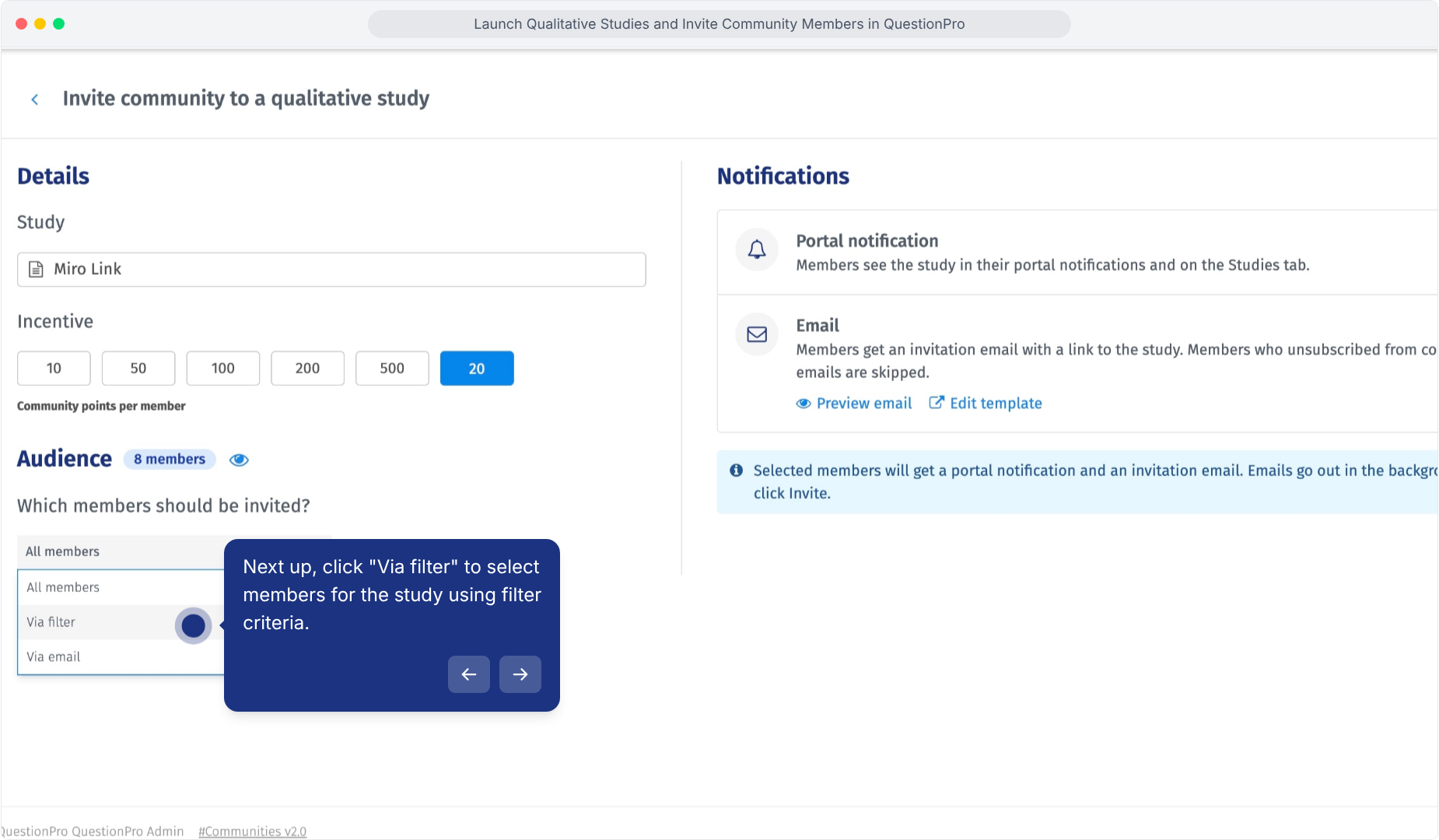
3.Click the Select filter field.
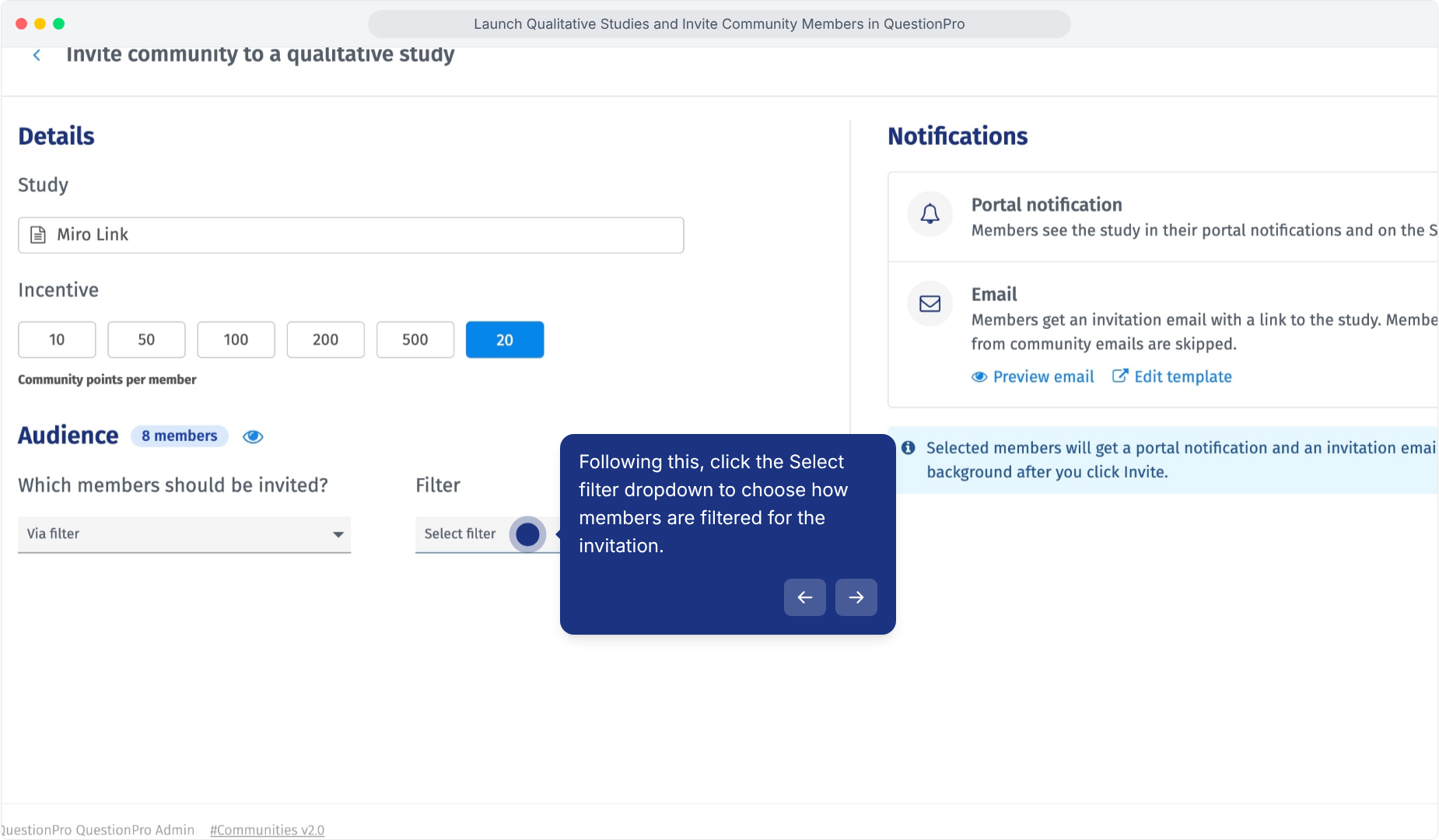
4.Select the required audience option from the available filter choices.
If you want to use a subset of eligible members, select the random sampling option available in the filter workflow.
1.Open the filter selection dropdown.
2.Select Random Sample.
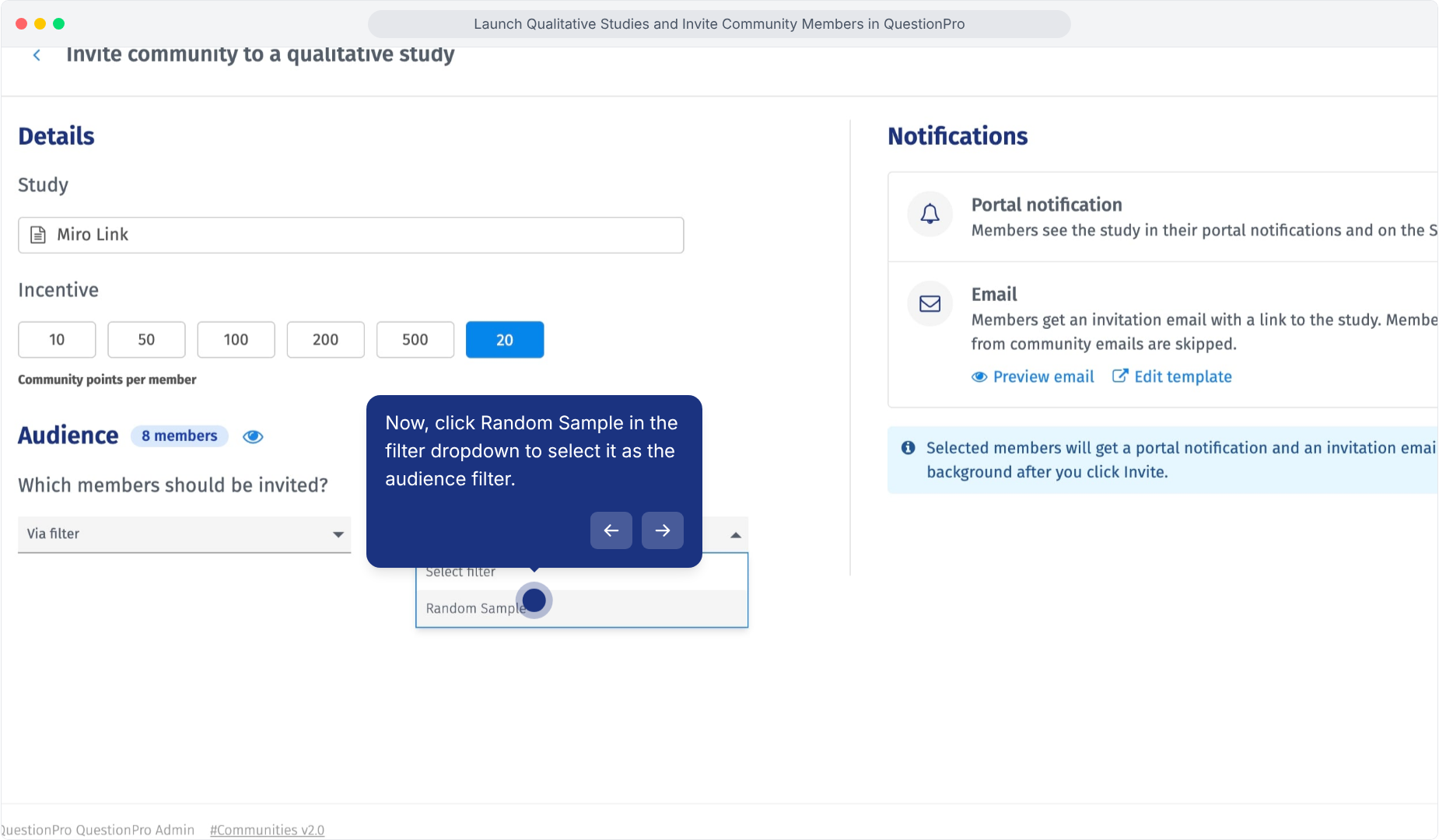
Review the audience count before continuing so the selected group matches your recruitment requirement.
Before sending invitations, preview the email that members will receive.
1.Go to the Notifications section.
2.Under Email, click Preview email.
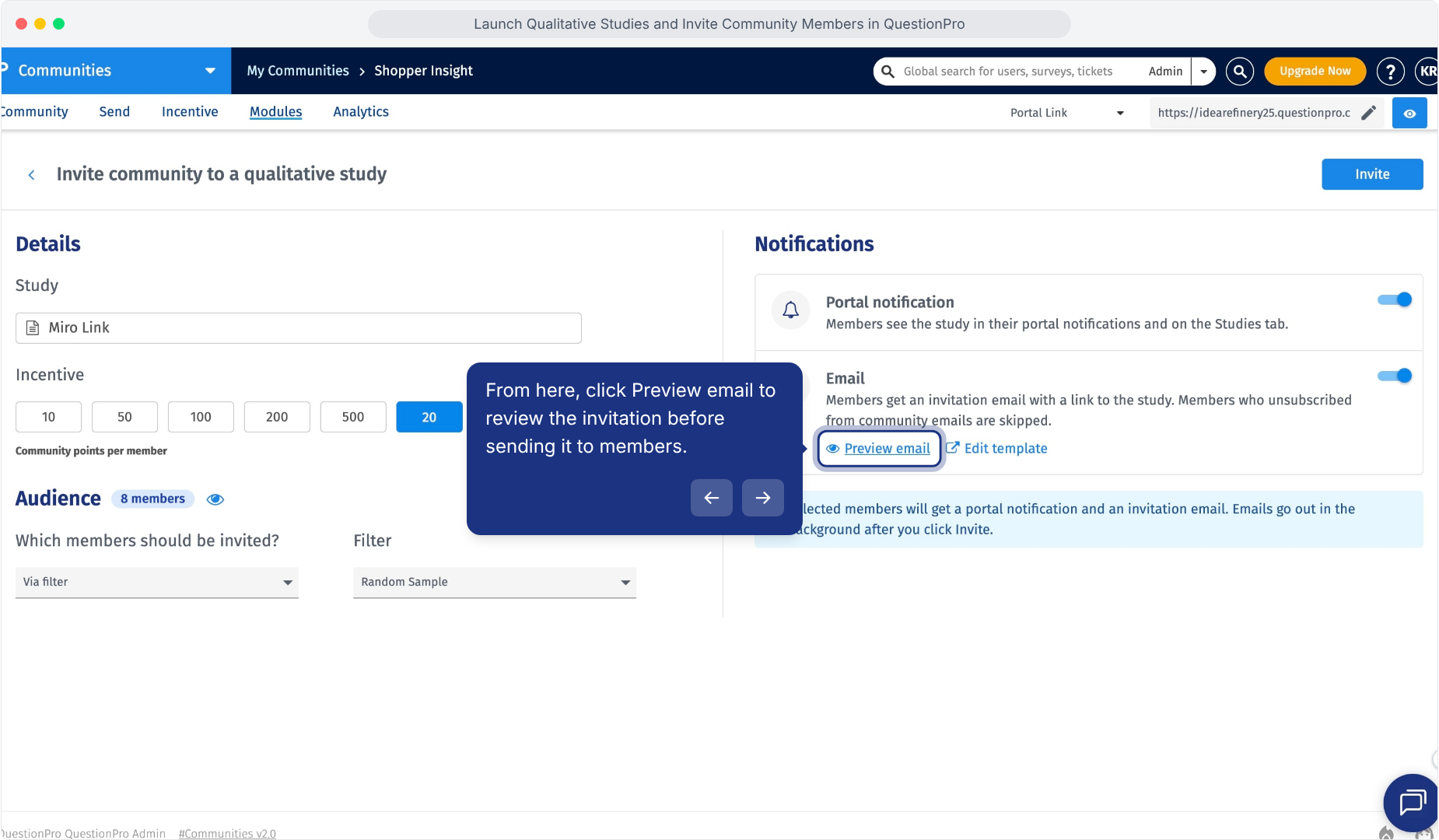
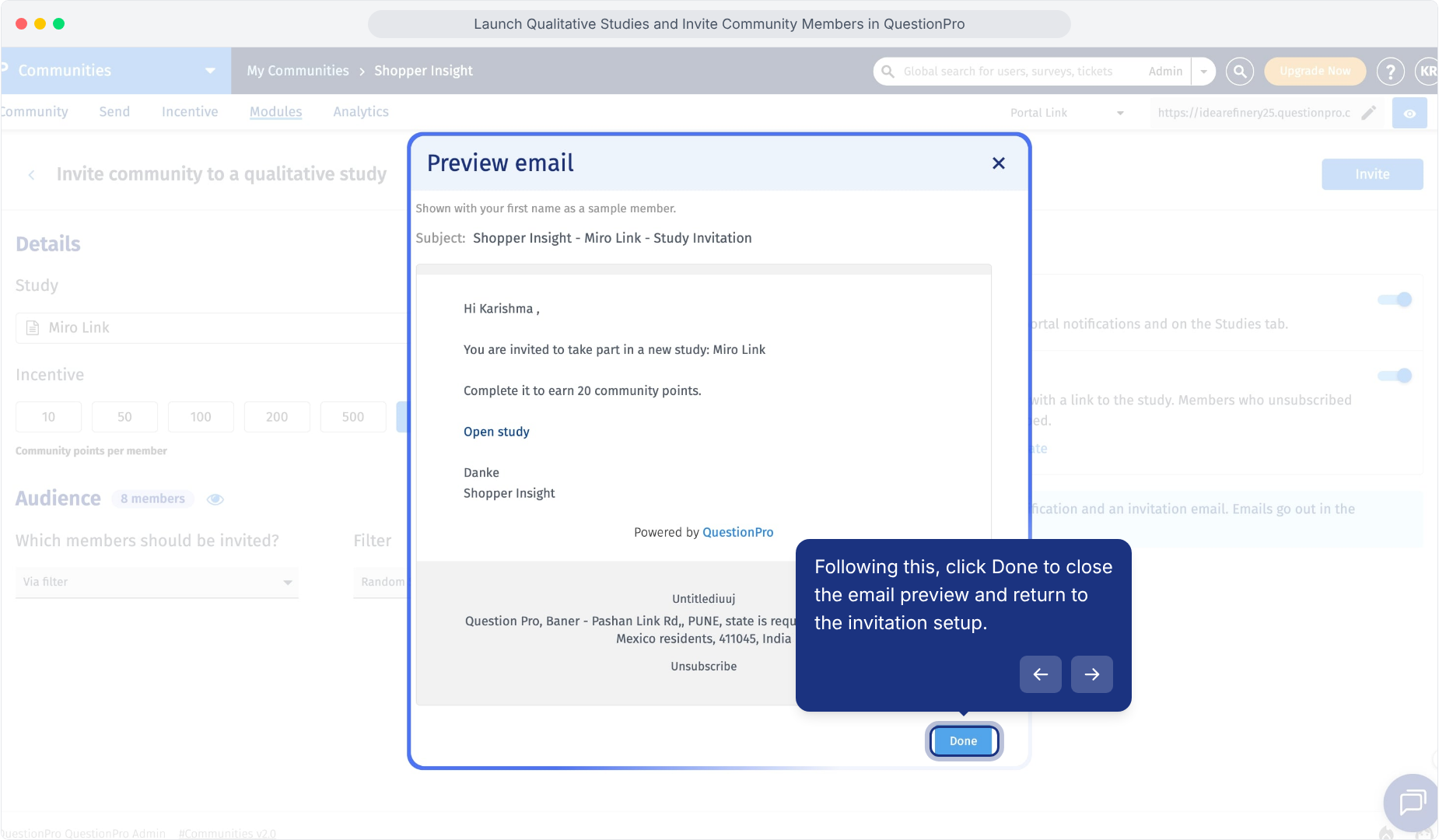
3.Review the invitation as a member will see it.
Check the following:
- Email subject
- Member greeting
- Study name
- Participation incentive
- Open study link
- Community name
- Email footer
4.Click Done to close the preview.
You can customize the invitation before sending it to community members.
1.Under the Email notification option, click Edit template.
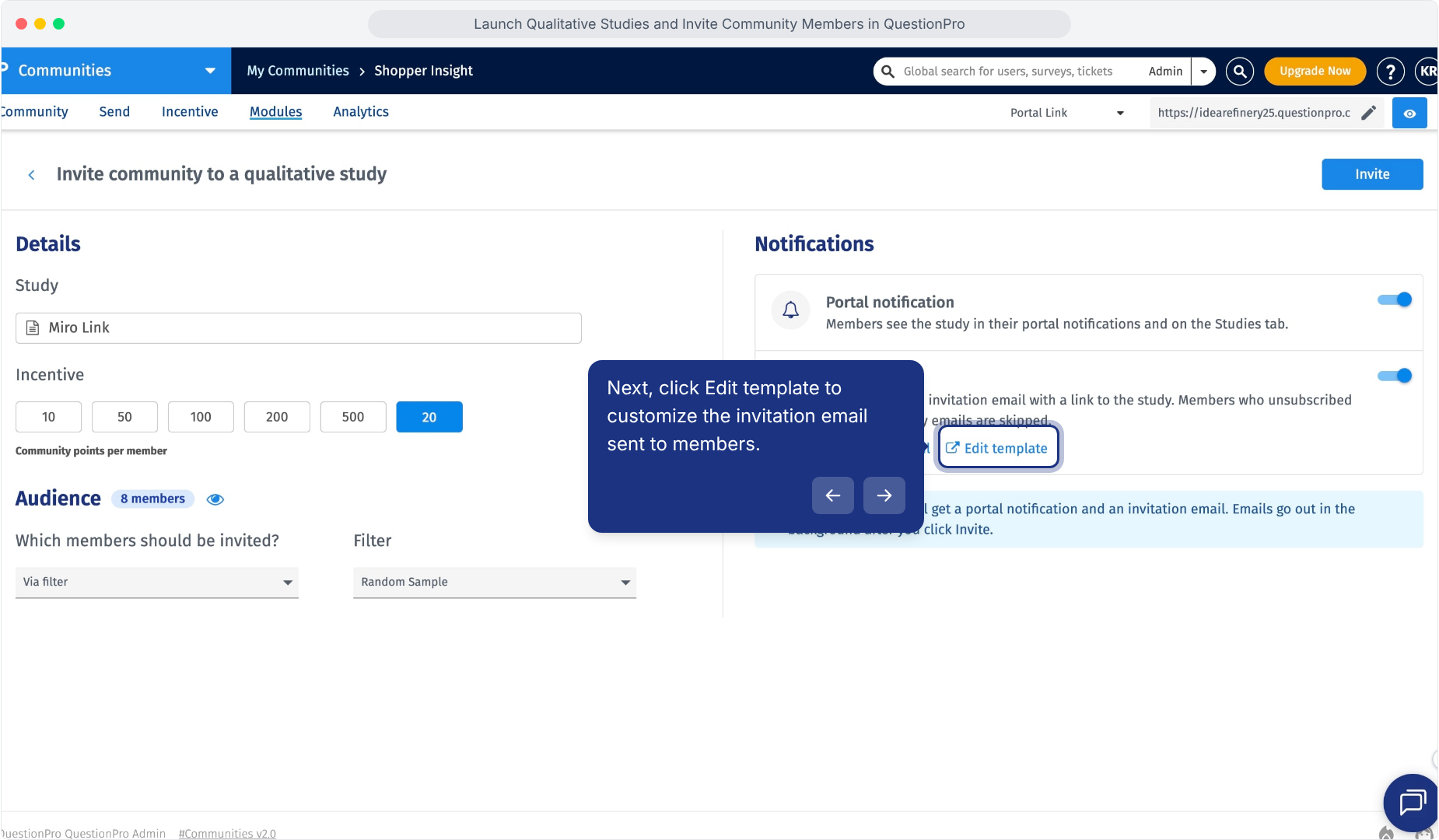
2.Open the Study Invitation Email from System Notifications.
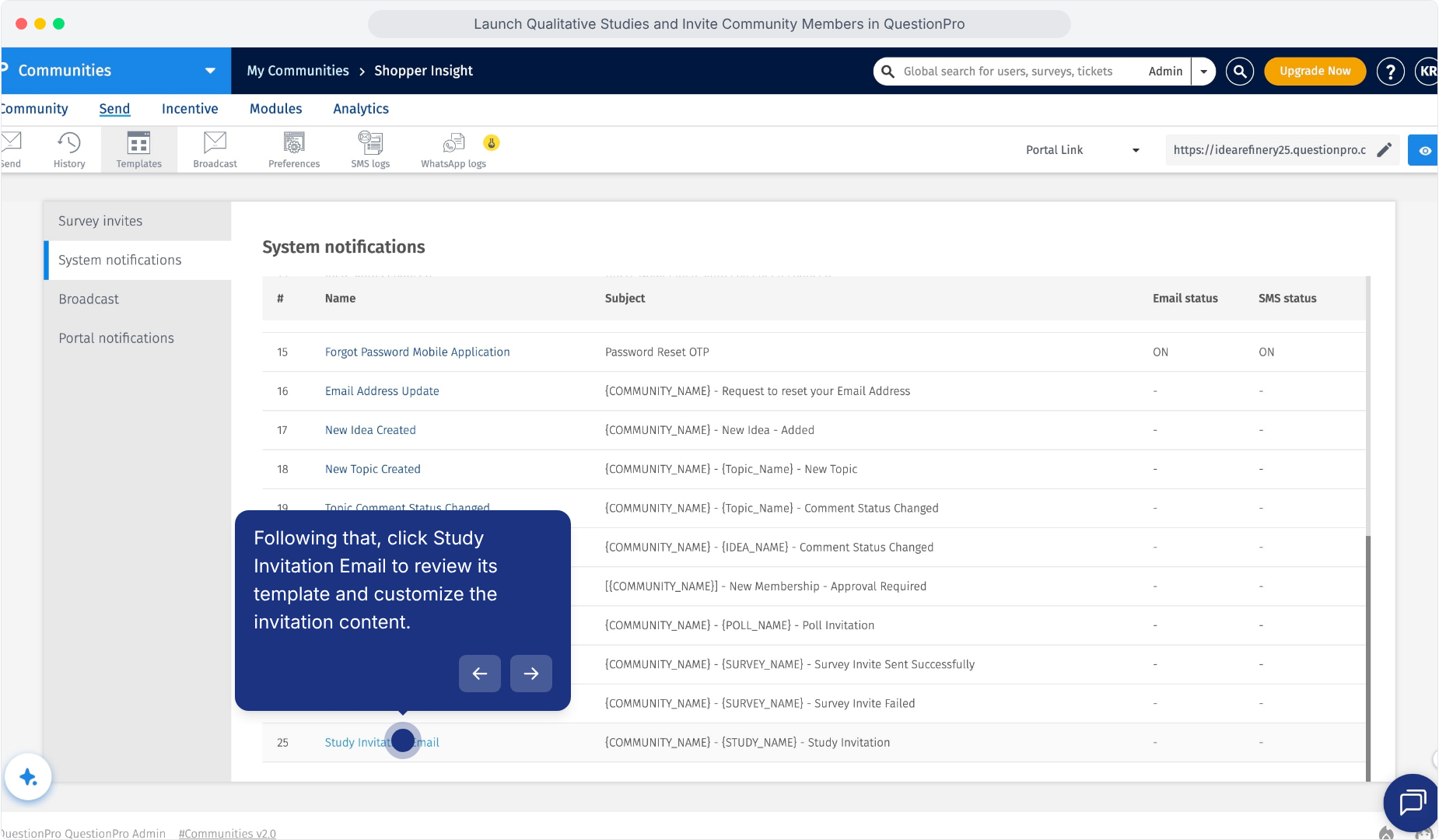
The template editor allows you to review and update the subject and member-facing invitation content.
1.Open the language dropdown in the Study Invitation Email editor.
2.Select the language version you want to review or edit.
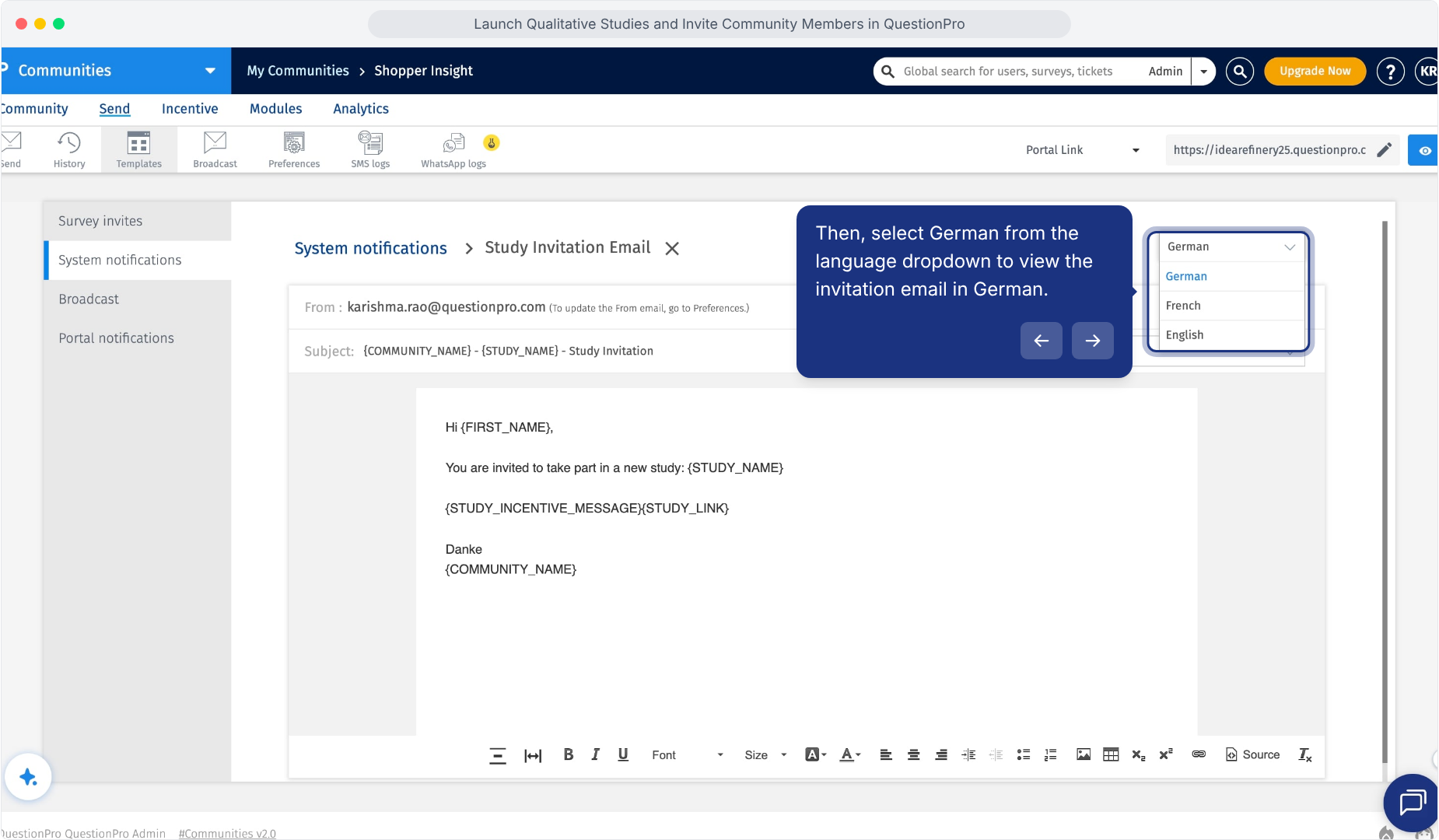
3.Review the content for the selected language and make any required updates.
Configure the required language version before sending invitations to members.
Use available variables to dynamically add community or member information to the invitation.
1.Open the variable selector beside the email subject.
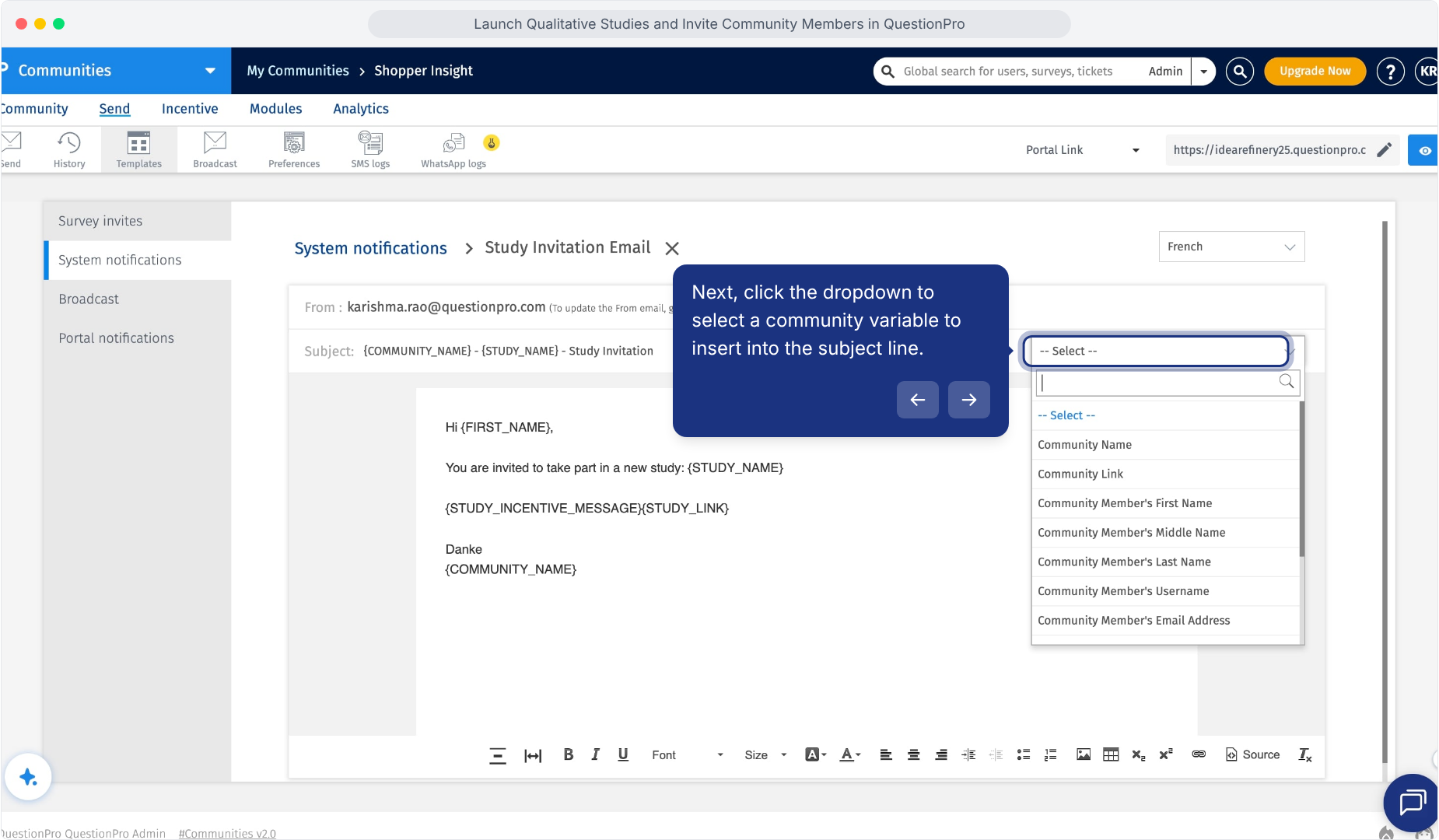
2.Select the required variable.
3.For example, select Community Name to insert the community name into the invitation.
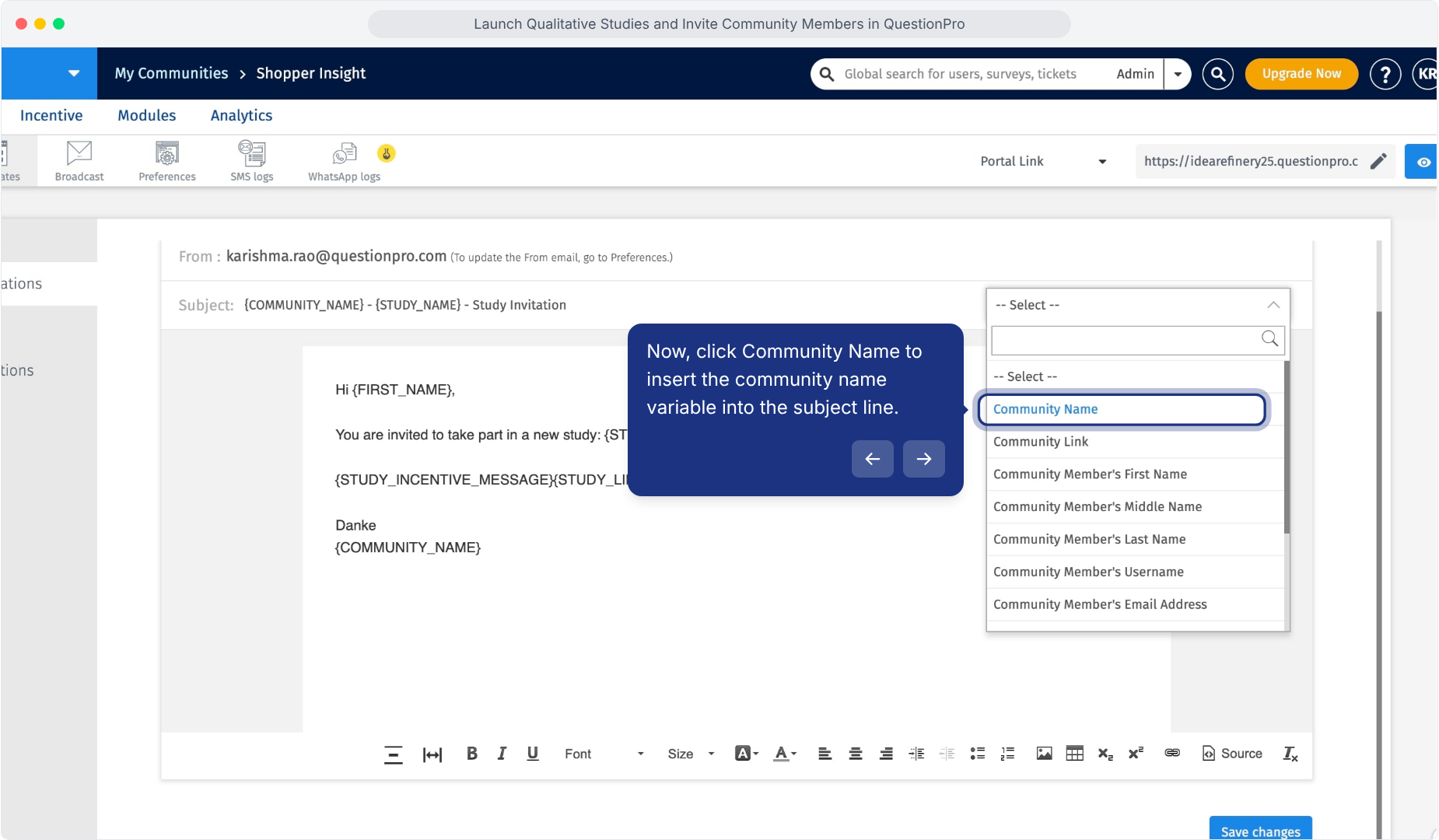
Available variables shown in the editor include:
- Community Name
- Community Link
- Community Member's First Name
- Community Member's Middle Name
- Community Member's Last Name
- Community Member's Username
- Community Member's Email Address
1.Review the email subject and invitation body.
2.Confirm that the personalization variables are correctly positioned.
3.Click Save changes.
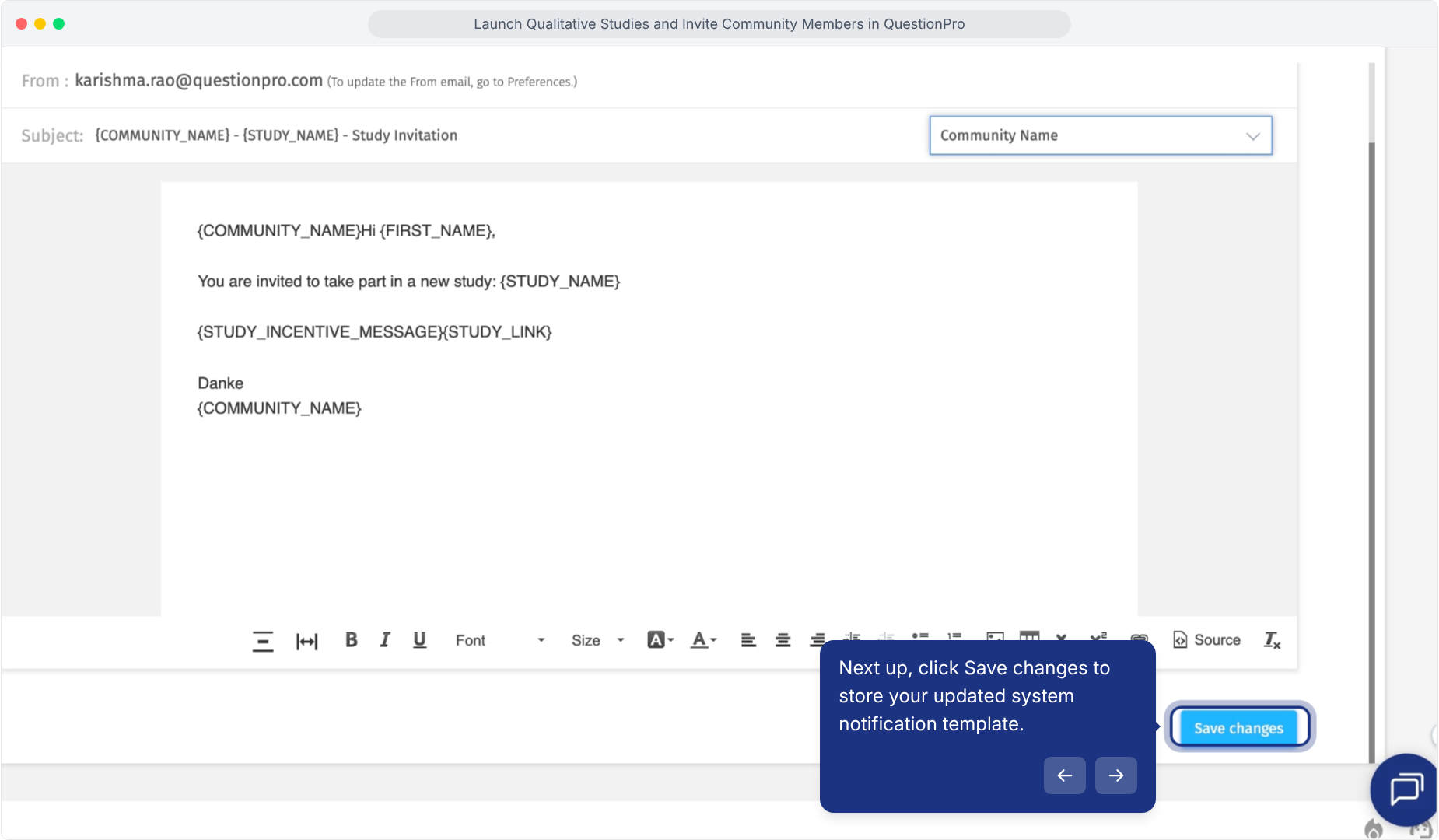
The updated Study Invitation Email can now be used for the qualitative study invitation.
After editing the invitation template, return to the qualitative study invitation setup.
1.Click Preview email again.
2.Review the updated invitation from the member's perspective.
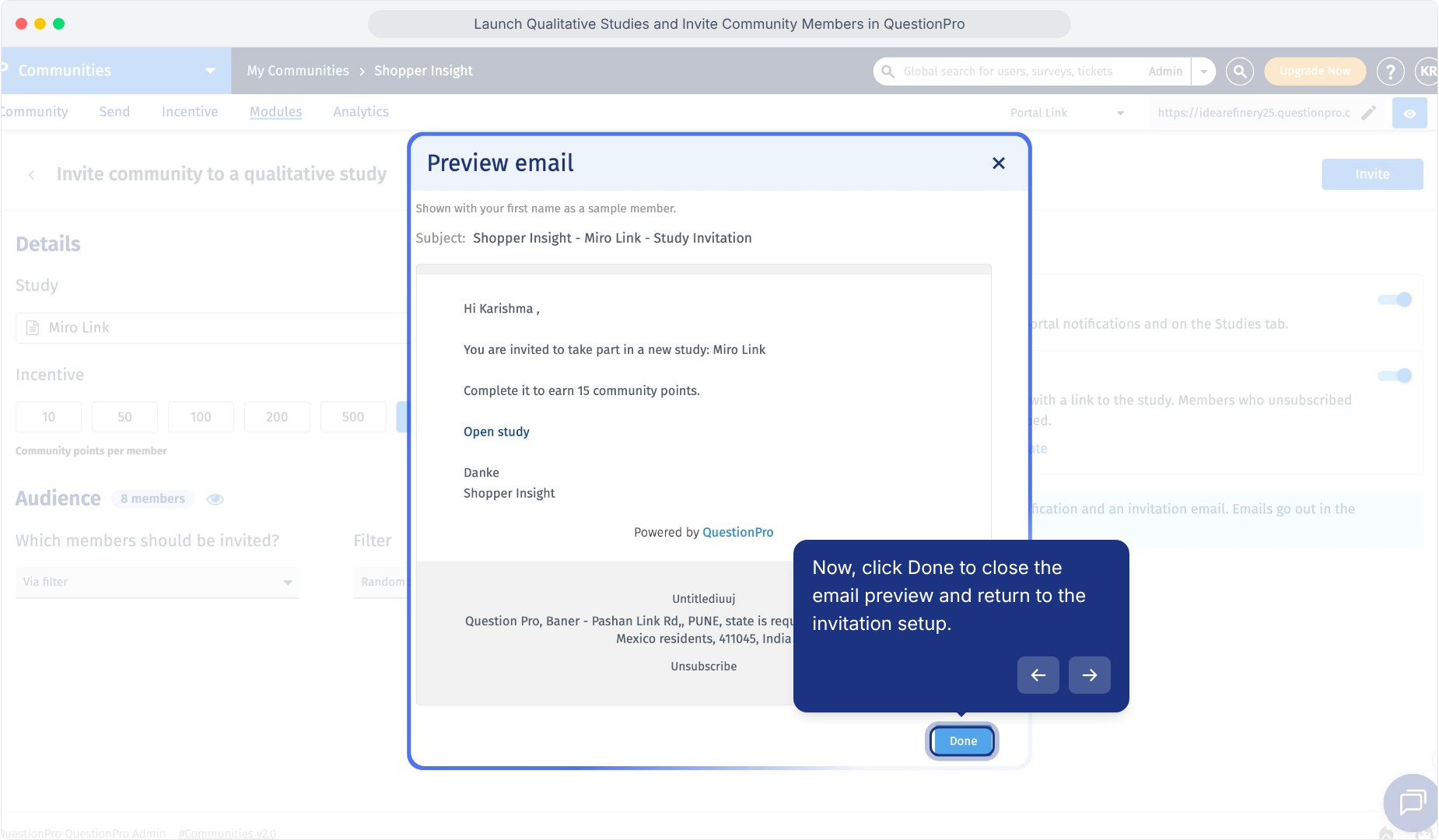
Confirm that the study name, incentive, member details, and invitation content display correctly before sending.
Before sending the invitation, review the study setup one final time.
Confirm:
- The correct QuestionPro UX study is selected.
- The participation incentive is correct.
- The intended audience is selected.
- The required audience filter or sample is selected.
- Portal notifications are configured as required.
- Email notifications are configured as required.
- The invitation email has been reviewed.
1.Click Invite.
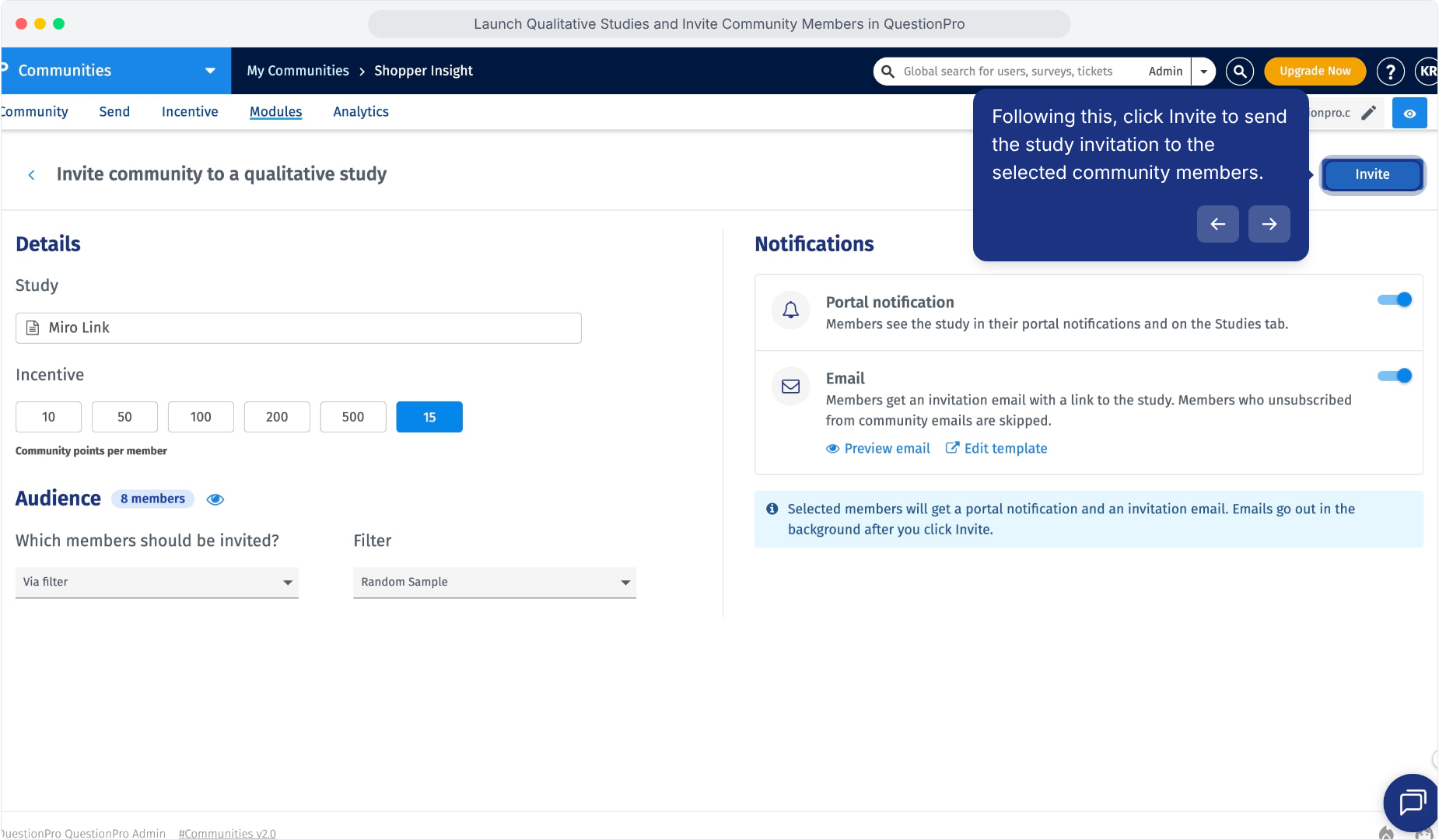
The selected community members are invited using the enabled notification channels.
When email notifications are enabled, invited members receive an email containing the qualitative study invitation.
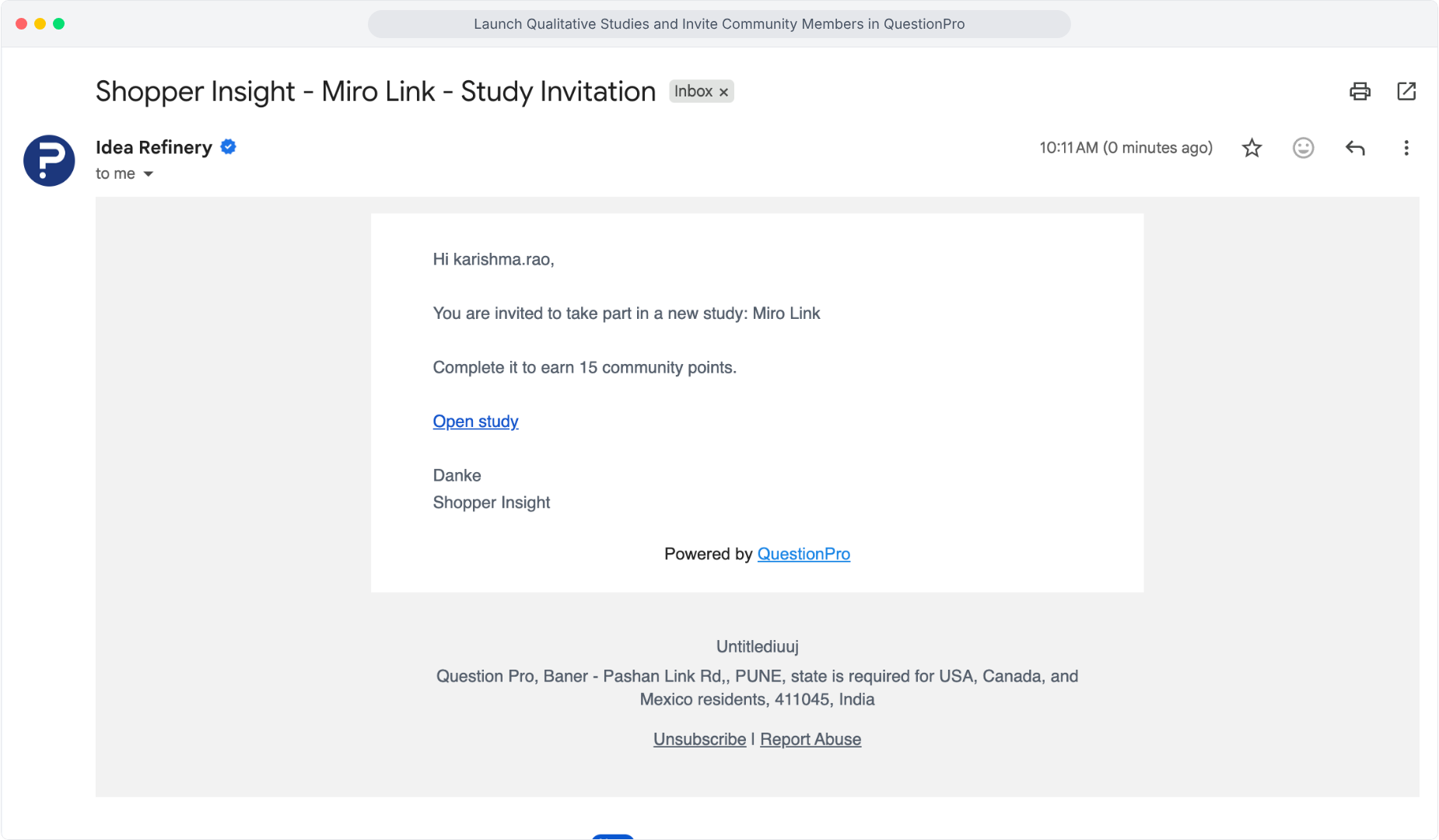
The invitation can include:
- A personalized greeting
- The qualitative study name
- The participation incentive
- An Open study link
- The community name
The member can use the invitation to continue to the study.
When portal notifications are enabled, members can also access information about the qualitative study through their community experience.
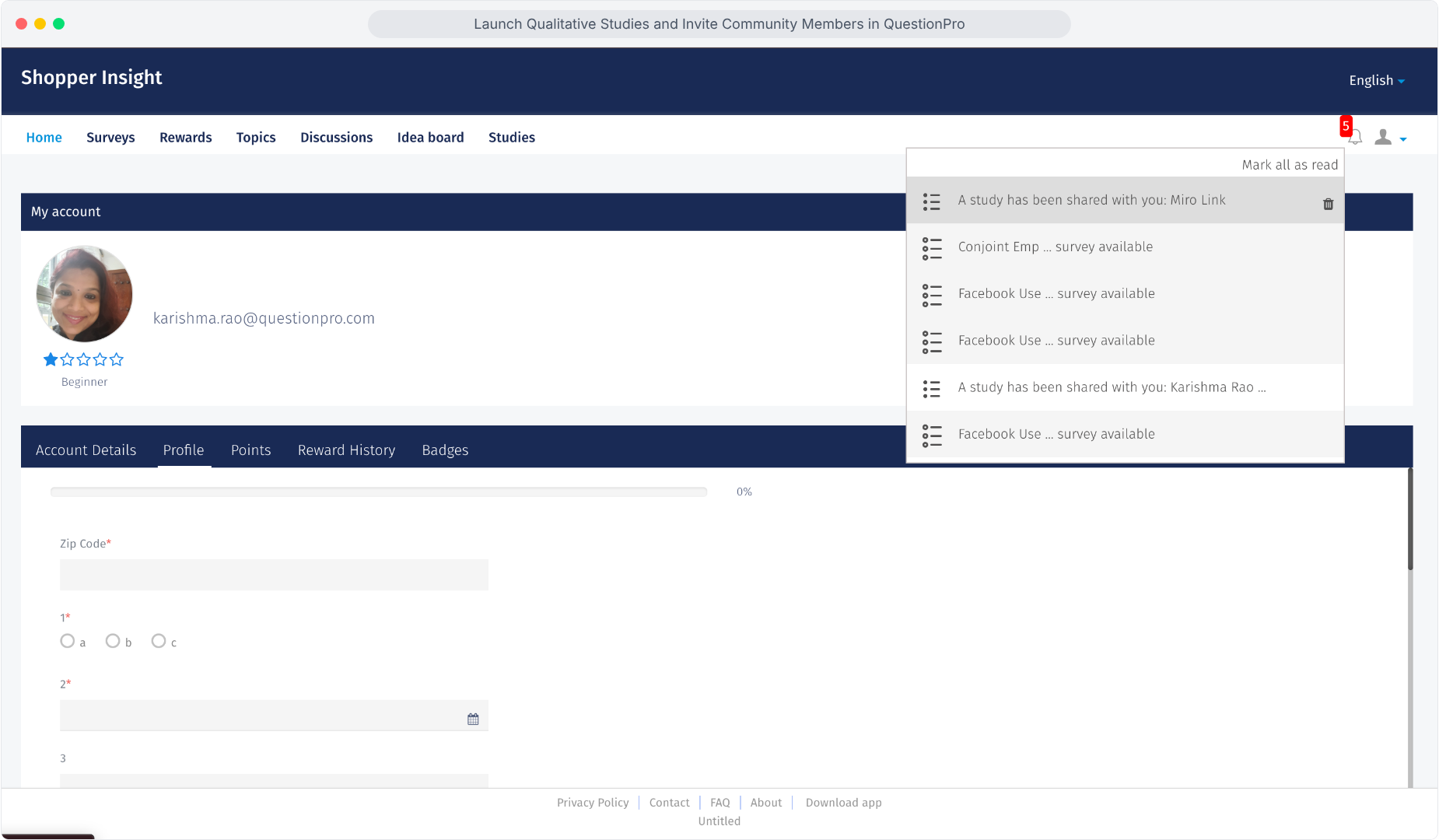
This provides an additional way for members to discover and access the study alongside the email invitation.
1.The member opens the qualitative study invitation.
2.Click Open study or the available study link.
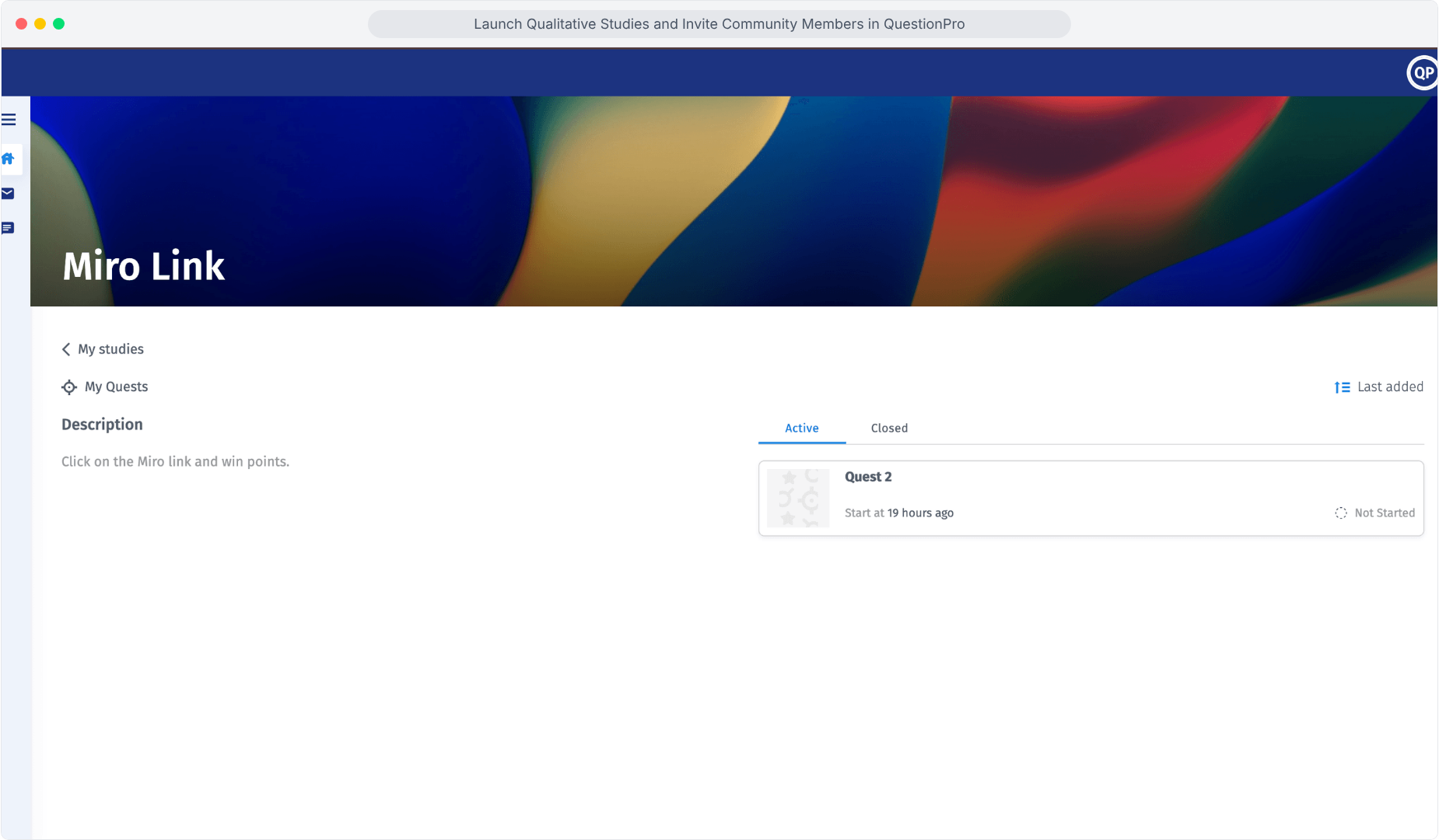
The member is taken into the connected study experience.
The participant can now review the study instructions and continue with the qualitative activity configured in QuestionPro UX.
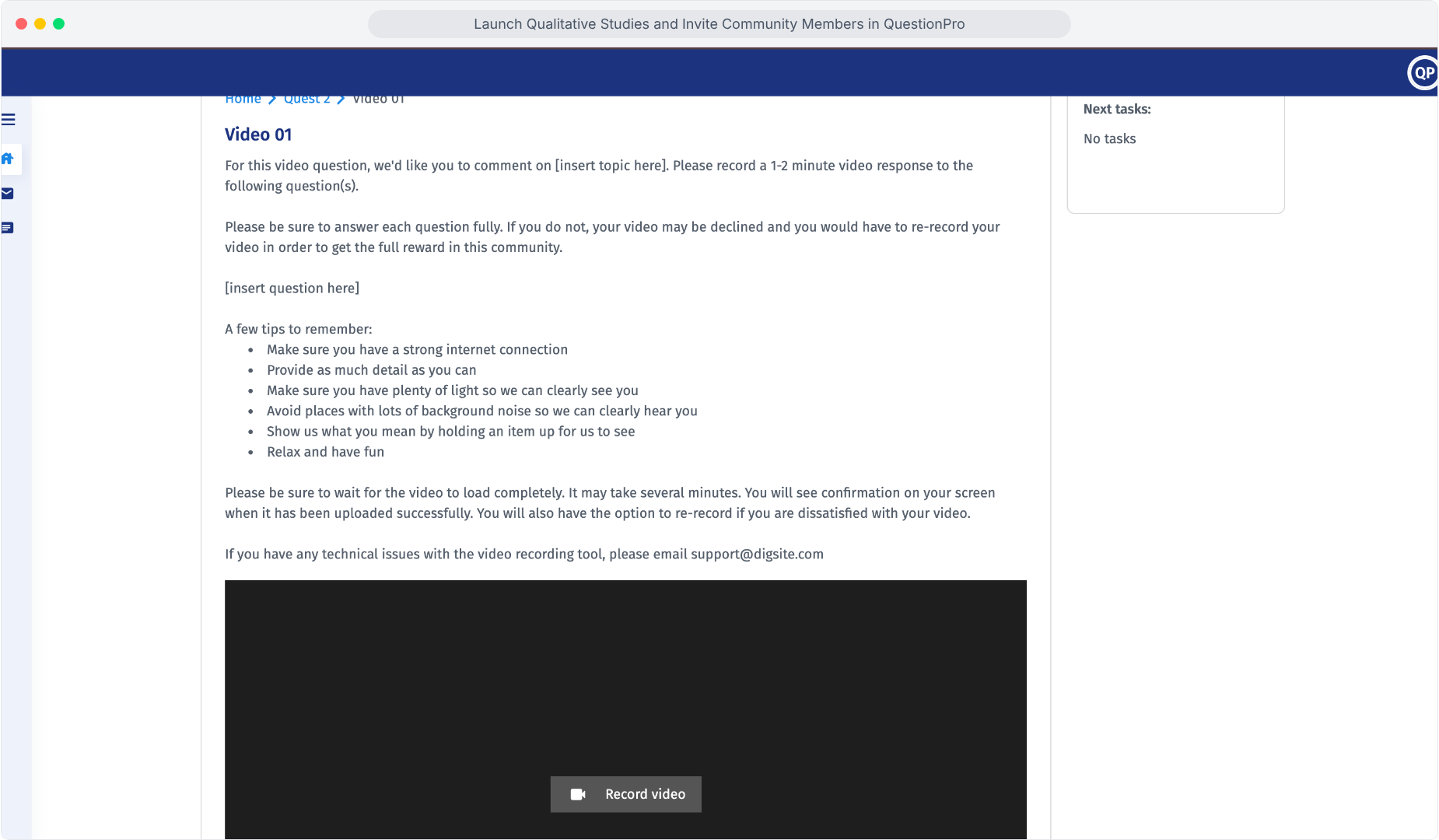
Members can then complete the available qualitative research activities according to the study setup.
The qualitative study invitation workflow is now complete.
The QuestionPro UX Connector gives panel managers a connected workflow for moving from an existing community audience into qualitative research.
| Option | When to use it |
|---|---|
| All members | Use when you want to invite the available community audience. |
| Via filter | Use when the study requires members matching an existing community filter. |
| Via email | Use when you want to identify specific members using their email address. |
| Channel | What it does |
|---|---|
| Portal notification | Makes the qualitative study available through the member's community experience when enabled. |
| Sends the member an invitation email with information about the study and a link to open it. |
Before launching the study invitation, check the following:
- The correct QuestionPro UX study is selected.
- The study is ready for participants.
- The participation incentive is correct.
- The audience count matches your recruitment requirement.
- The correct audience method is selected.
- The required filter or sample is selected.
- Portal notifications are configured correctly.
- Email notifications are configured correctly.
- The invitation email has been previewed.
- The study name, incentive, and member-facing content are correct.
Review the study before recruitment. Make sure the participant experience is ready before sending invitations to community members.
Use filters when the study requires a specific profile or segment rather than inviting the entire community.
Preview the invitation email before every launch to verify the study name, participation incentive, study link, and member-facing content.
Use personalization variables to make invitations more relevant while keeping the communication workflow scalable.
Review the audience count before clicking Invite to confirm that the intended number of members will receive the invitation.
Where is the qualitative study created?The qualitative study is available in QuestionPro UX and is selected from the Qualitative Studies workflow in Communities.
Can I invite only part of my community?Yes. Use the available audience selection options such as Via filter to narrow the group of members invited to participate.
Can I offer community points for participation?Yes. The invitation setup includes an Incentive section where you can select a predefined point value or configure a custom amount.
Can I preview the invitation before sending it?Yes. Click Preview email under Notifications to review the member-facing invitation.
Can I customize the invitation email?Yes. Click Edit template to open the Study Invitation Email system notification and update the invitation content.
Can I personalize the invitation?Yes. The invitation editor provides supported community and member variables that can be inserted into the template.
Can members receive both portal and email notifications?The invitation workflow provides both Portal notification and Email options. Configure the required channels before sending the invitation.
This feature is available with the following licenses :
Essentials Advanced Team Edition Research Edition Communities
