

- Community Settings
- Survey Opt-Out for Members
- Security
- Facebook setup
- LinkedIn setup
- Google setup
- Twitch setup
- Social login
- Mobile app - privacy policy
- HMAC
- External passback
- Google Analytics
- Survey swipe
- Communities Authentication - SAML SSO
- Merge all Pending Surveys
- Regional Sign Ups
- User Roles and Permissions
- Data Sharing Options
- Login Authentication
- Global community member profile
- Profiling surveys
- Default surveys
- Global community profile - settings
- Hidden field
- Move profile fields
- Profile fields - survey integration
- Profile sync
- Confidence score
- Import Profile Data
- Profile Groups
- Default Surveys 2.0
- Profiling Surveys 2.0
- Member Profile Fields 2.0
- Send new invitation
- Multiple Responses (Email/SMS)
- SMS pricing
- Survey authentication
- Send Invitation Multilingual
- New invitation profile exclusion
- Custom filter by member ID
- Send later
- Profile field mapping
- Automatic Closure
- Survey Alias
- AI create
- Community WhatsApp Integration
- Whatsapp Integration for Community

Community TasksApp
Overview
Community Tasks allow you to connect external applications to your community and collect non-survey data from members in a structured, scalable way.
Unlike surveys, Tasks are data-aware. Each task generates data that is securely stored and associated with the participating member. This makes Tasks ideal for activities such as behavioral tracking, purchase history collection, or other external integrations that require asynchronous data submission. Tasks provide a flexible framework for current and future integrations beyond surveys.What is a Task?
A Task is an activity assigned to selected members. When members complete a task:
- Their participation is tracked
- Any resulting data is captured and stored
- Rewards are applied automatically
What is a Task App?
A Task App represents the external system where the task is completed.
Task Apps:- Are created once at the system level
- Can be reused across multiple communities
- Act as the connection point between the community and the external application
Community Admin Experience
The section explains how administrators configure and manage Tasks.
Step 1: Create a Task App (Global setting) Before tasks can be used, the external application must be registered with the platform. Go to Admin > System > Task Apps.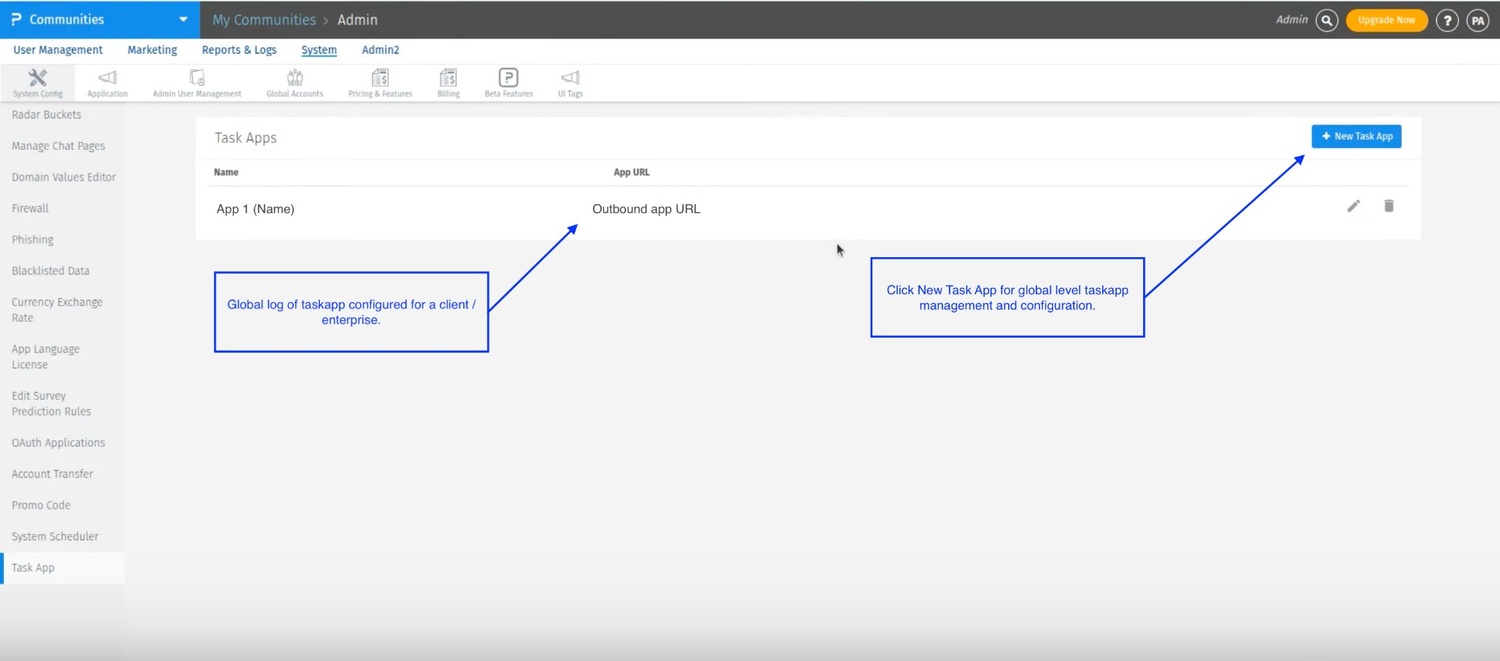 Create a new Task App by providing:
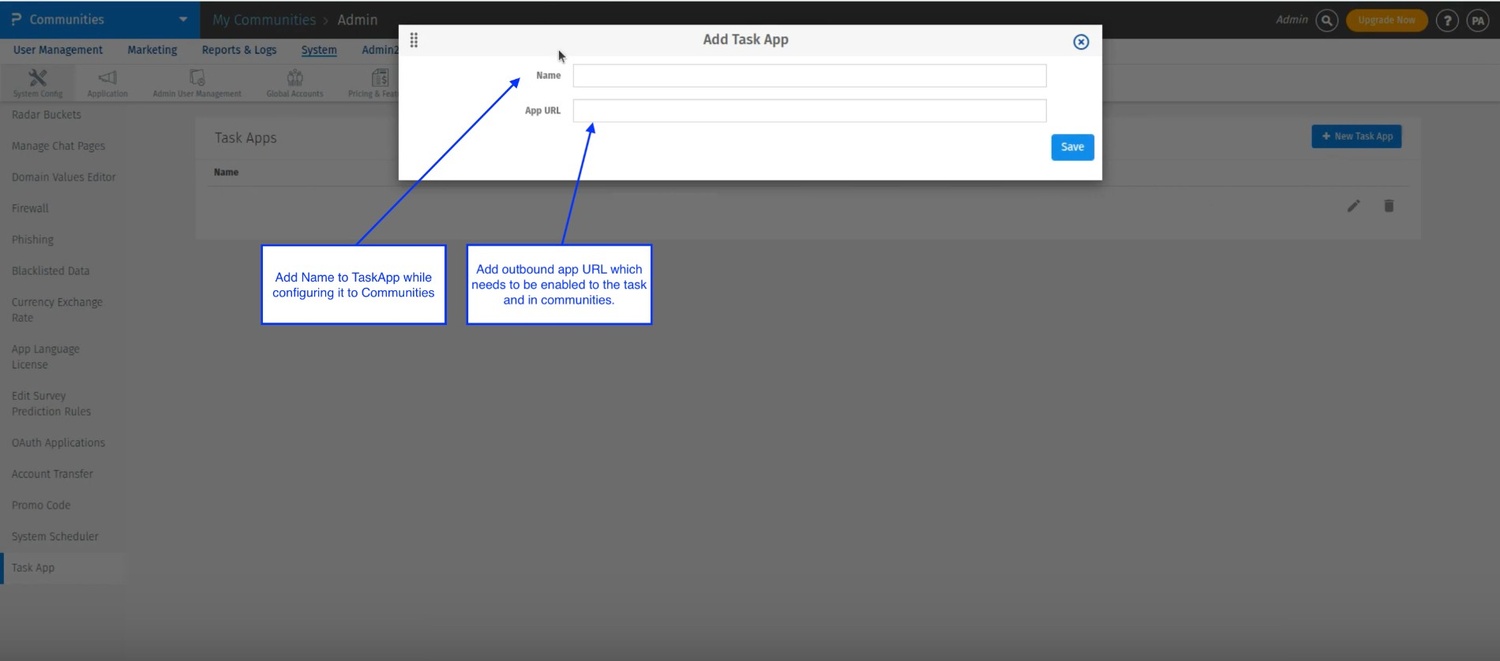
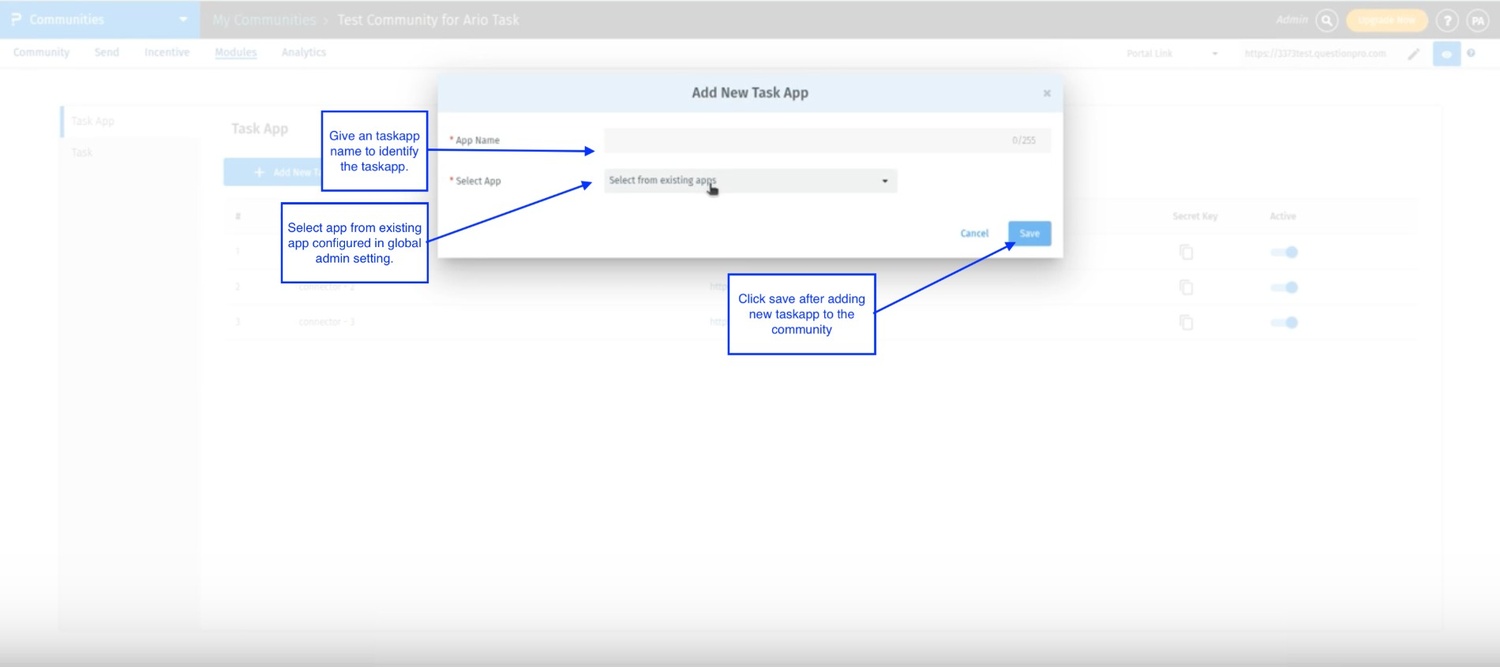
- App Name – A recognizable name for the external application
- App URL – The web address where members will complete the task
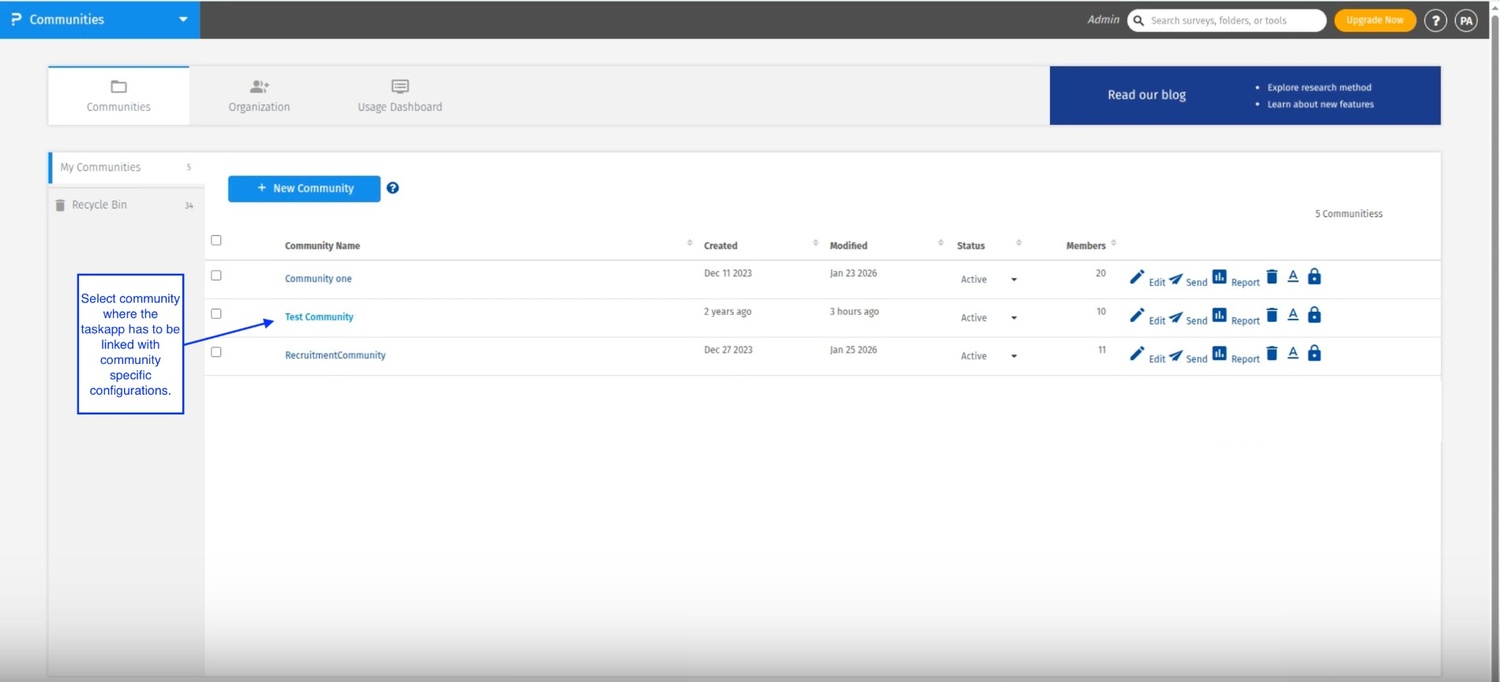
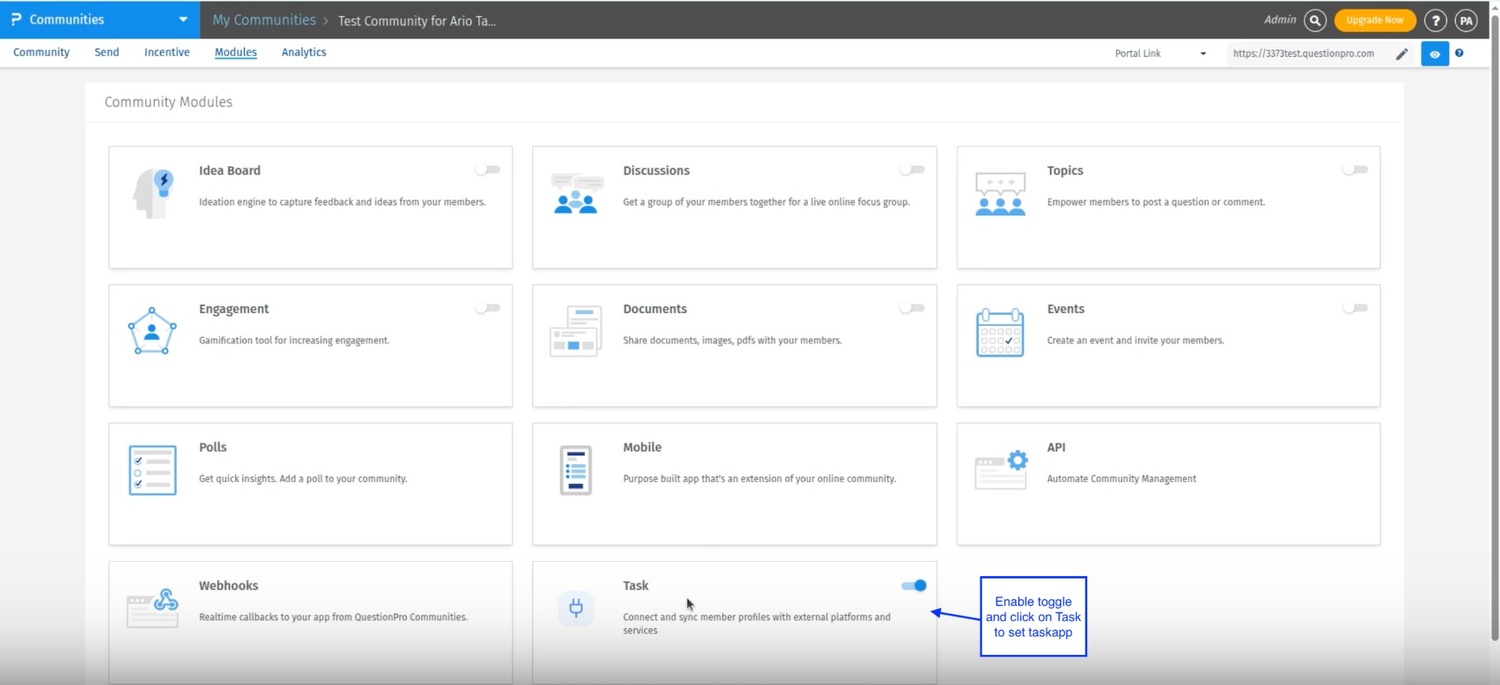
- Open the target Community
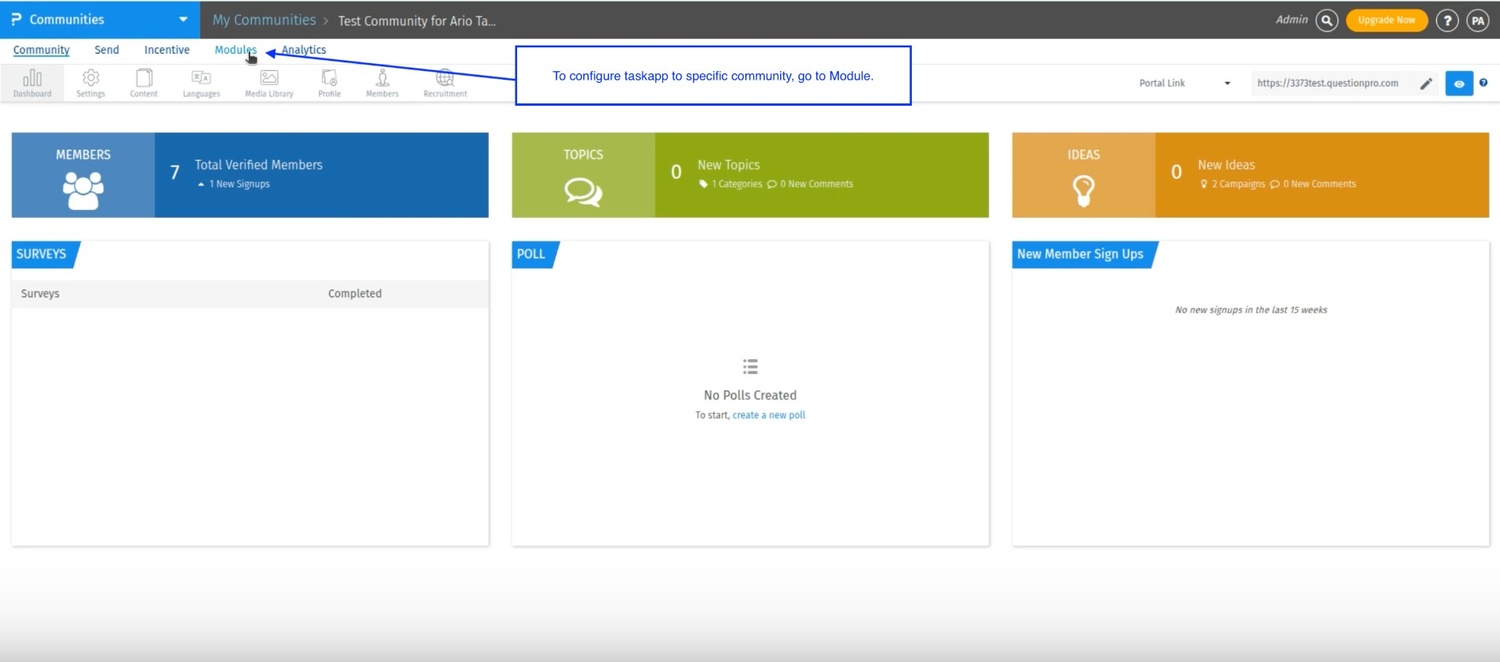
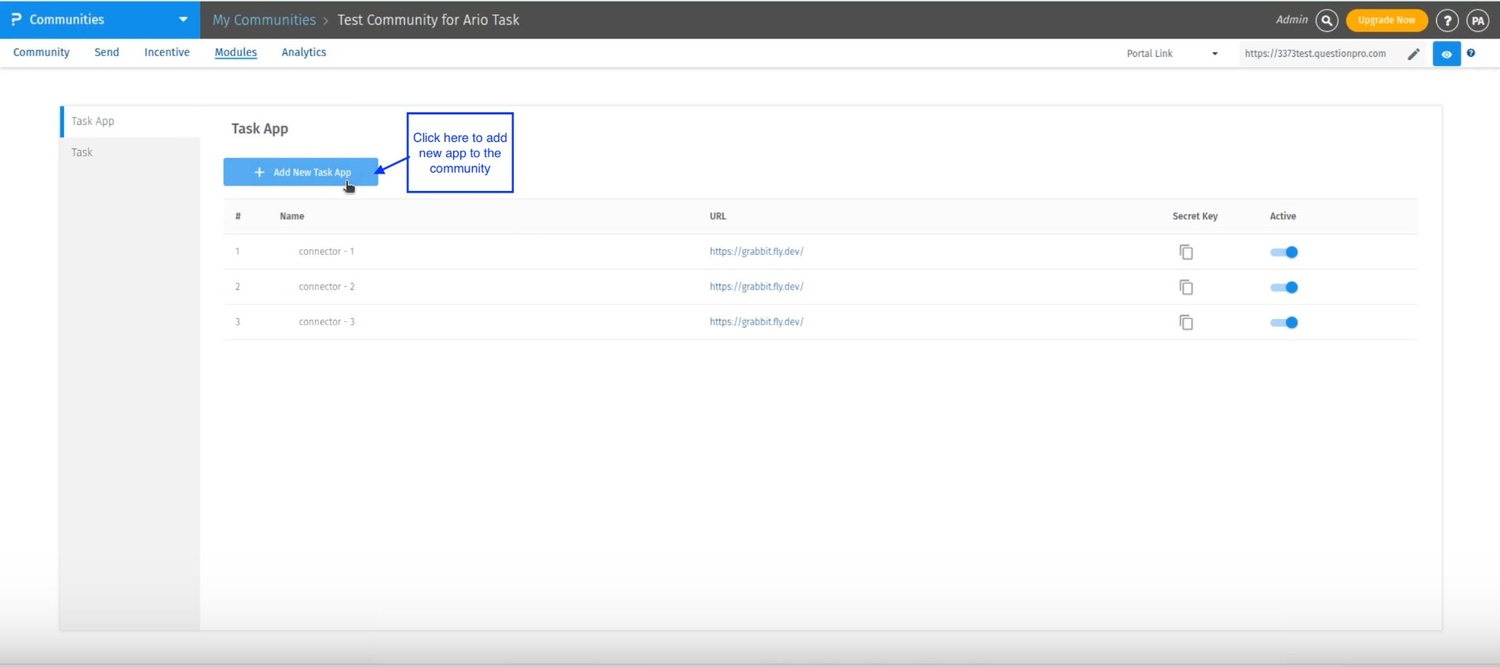
- Navigate to Modules → Tasks
- Select and install the previously created Task App
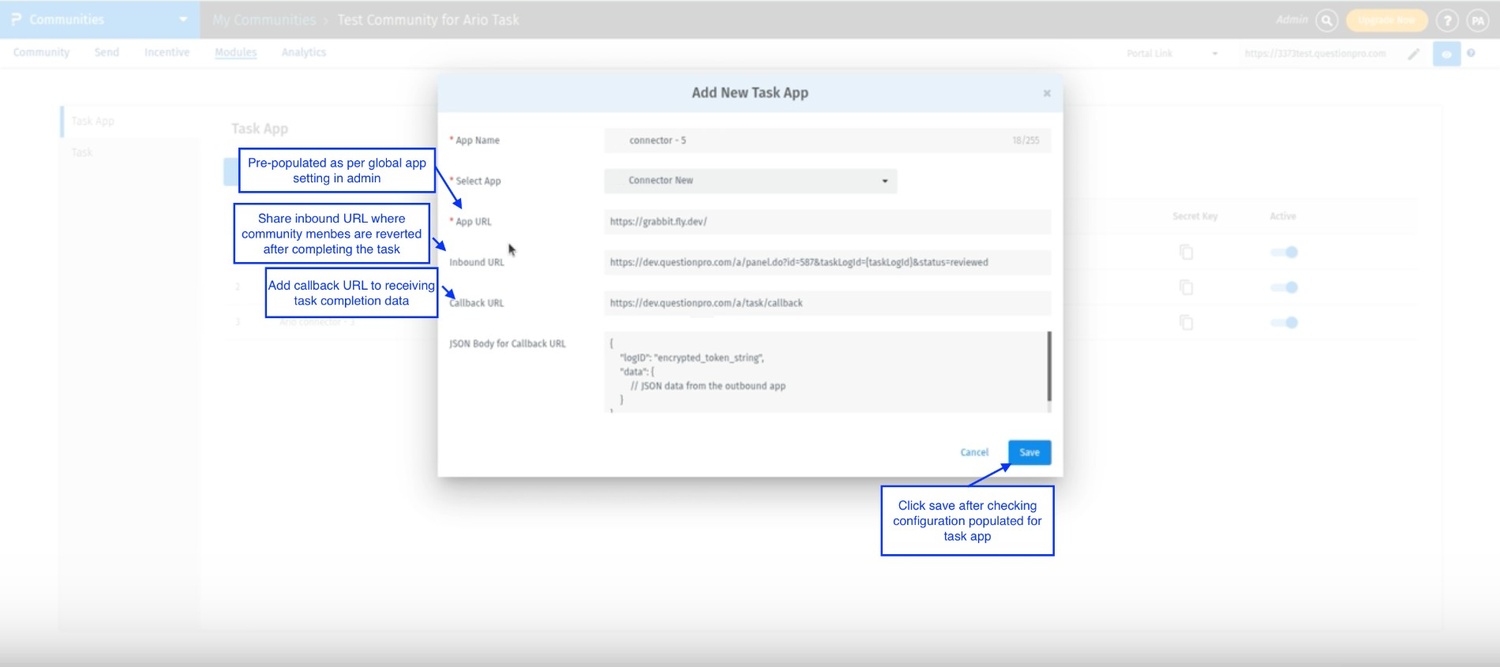
- A link used to launch the task
- A return path that brings members back to the community
- A secure method for receiving task completion data
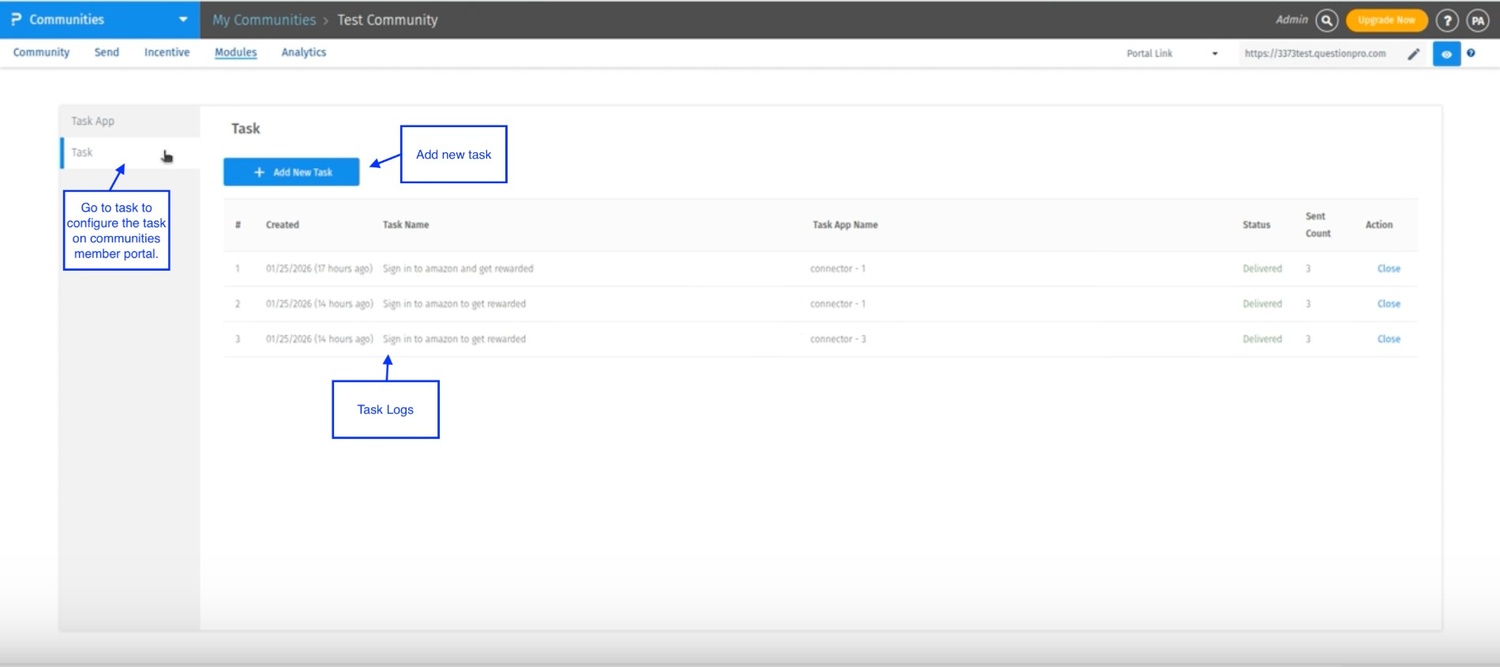
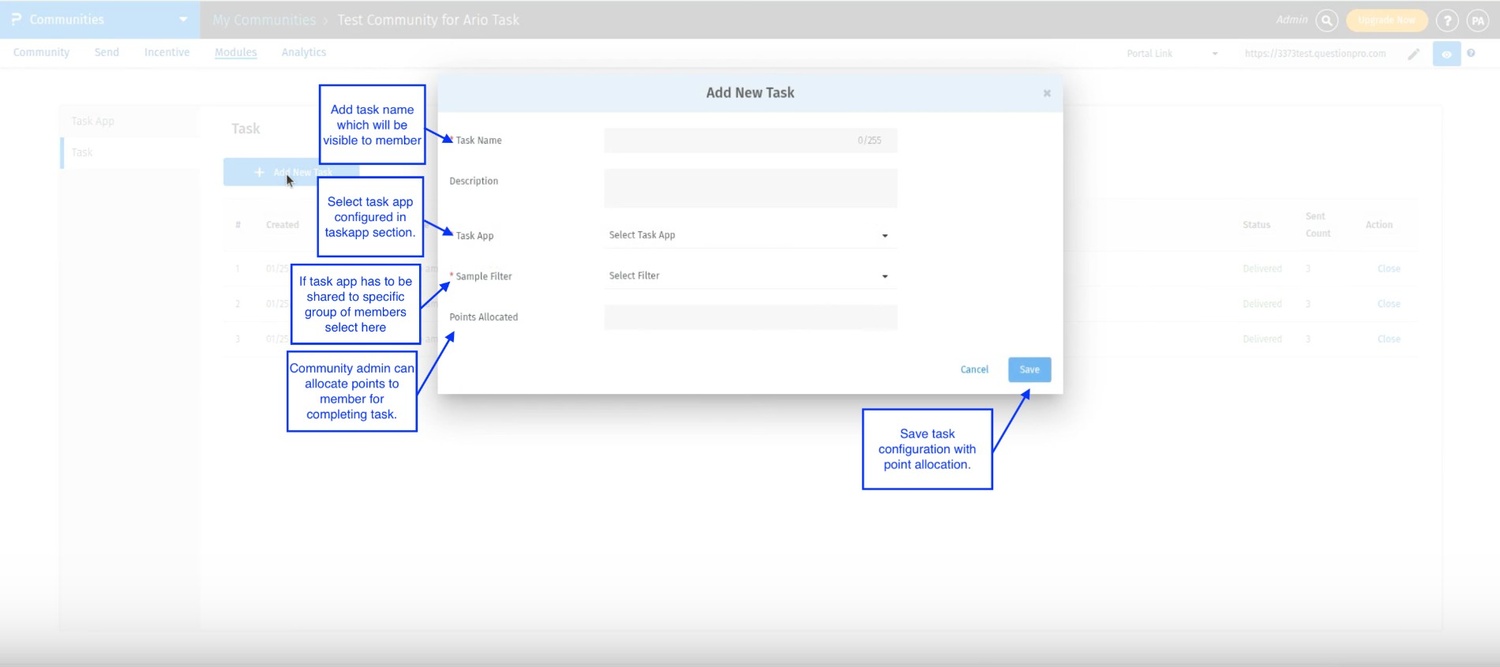
- Task name – What members will see in the community
- Description – For community admin to assign research objective to specific task.
- Task App – The external application used for the task
- Member filter – Determines which members are eligible
- Reward points – Incentive for completing the task
- Open: The task is available to the member but has not yet been started.
- Started: The member has clicked the task and has been redirected to the external application.
- Pending: The external application has started processing the task, but the platform has not yet received the completion data.
- Completed: The platform has received the final data payload for the task and confirmed successful completion.
Member Portal Experience
The section describes what members see when completing a Task. Completing a Task
- The member logs into the community
- Available tasks appear as Task Cards on the dashboard
- When the member clicks a task, the task status updates to Started and the member is redirected to the external application
- The member completes the activity on the external platform
- The member is returned to the community
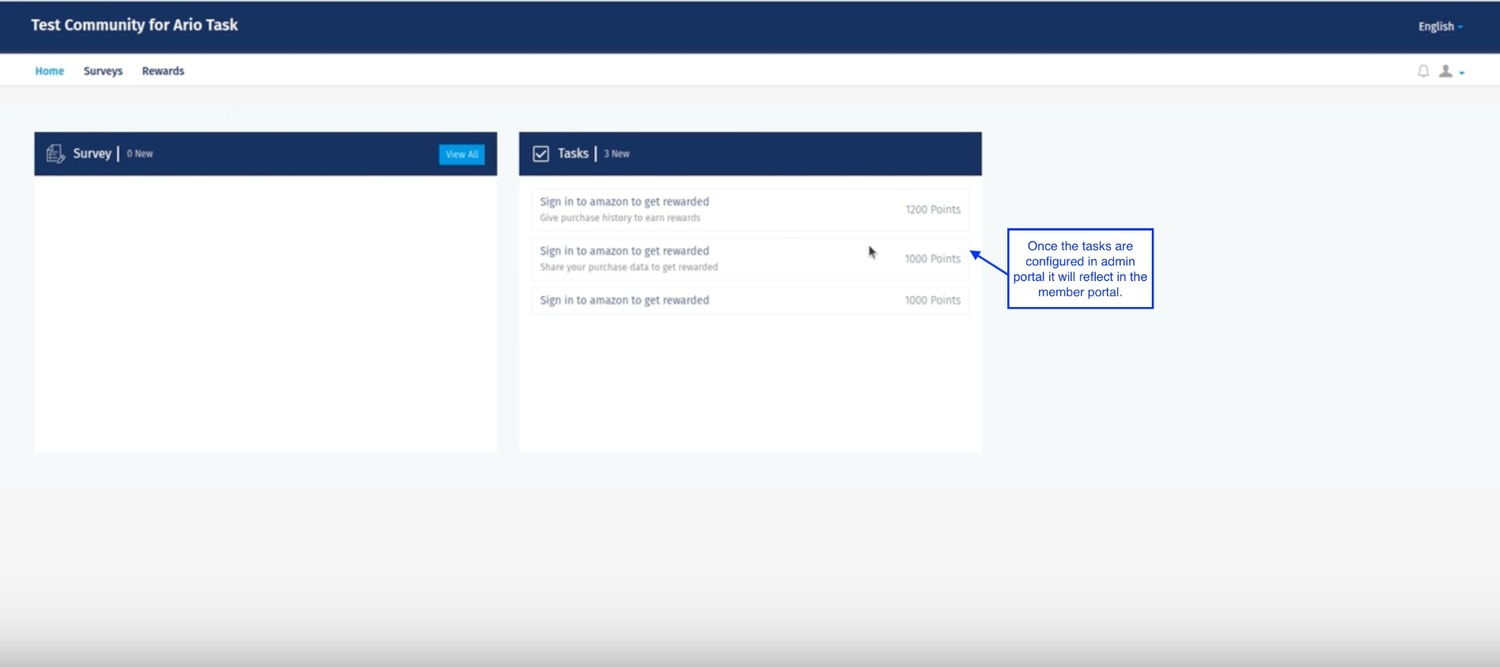
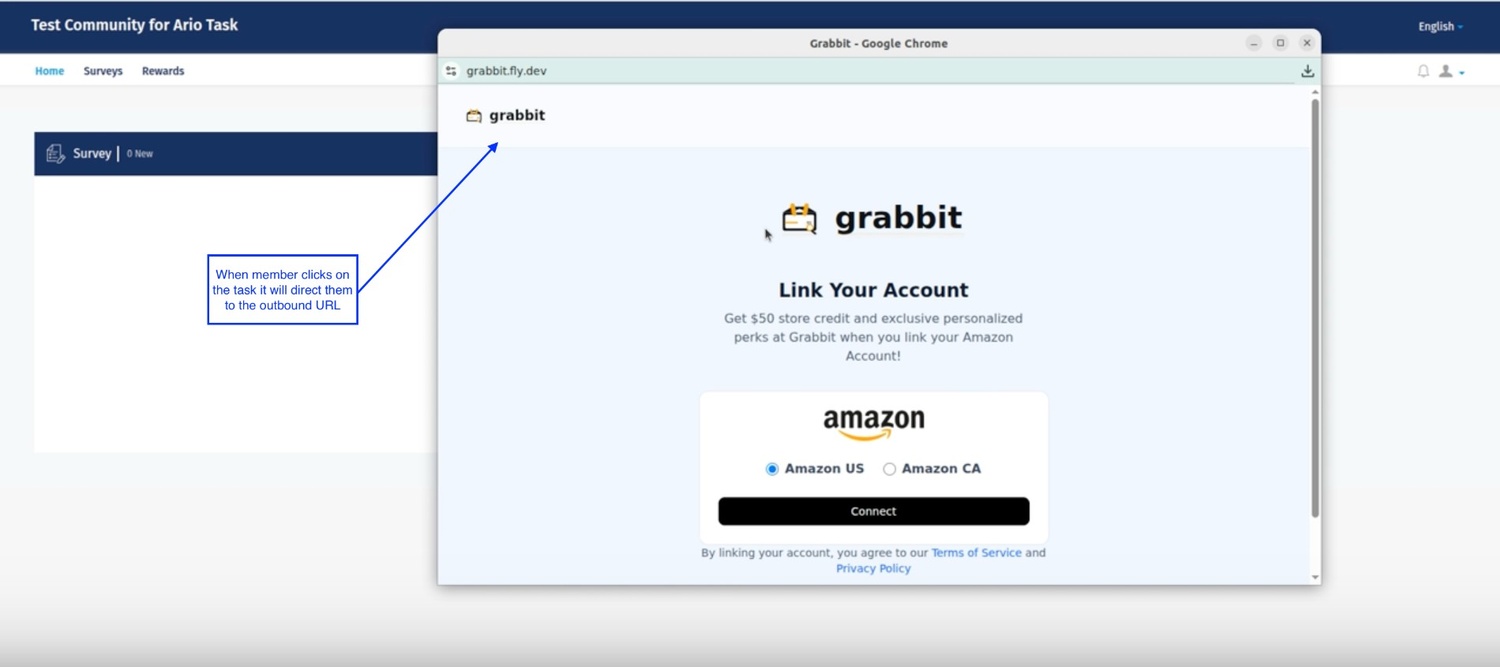
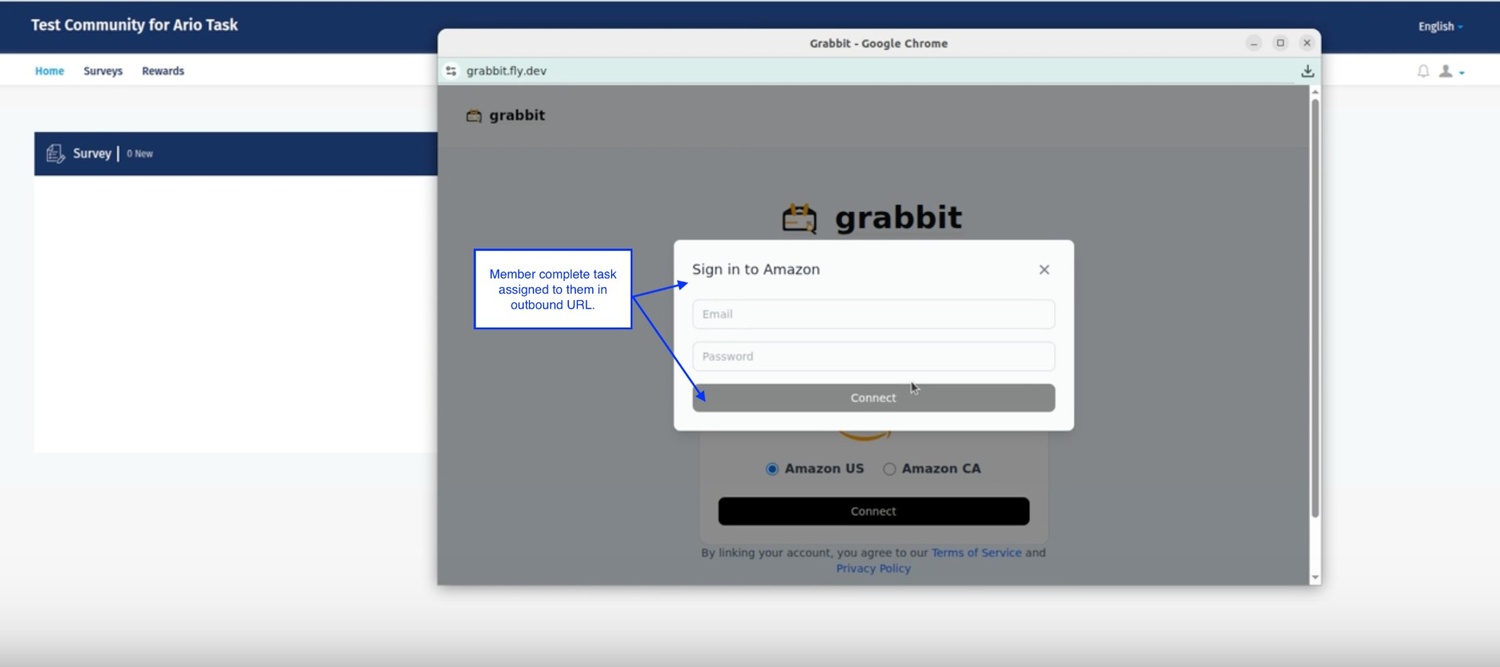
Task Completion and Rewards Once the application finishes processing and submits the task results:
- The platform receives the completion data
- The task status updates to Completed
- Reward points are automatically credited to the member
- The task is removed from the list of active tasks
Task Data Storage
Each completed task generates a Task Result, which includes:
- The member who completed the task
- The data returned by the application
- The task app used and its version
- The date and time the data was received
You may also be interested in...
Related articles:
