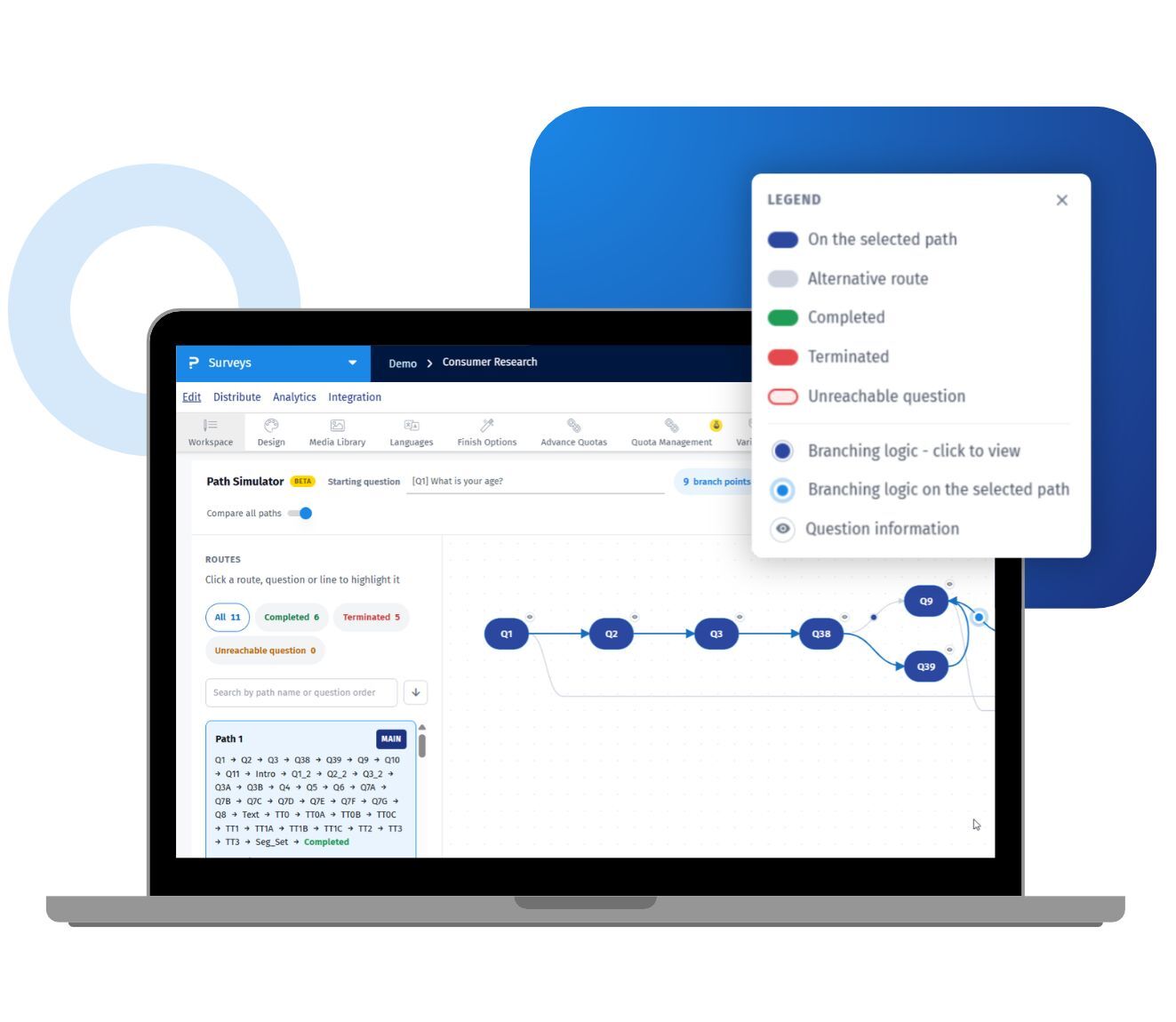
Checking branching logic used to mean opening the preview and answering your survey again and again, one path at a time. A survey with nine branch points can produce dozens of routes, so most never get tested and broken logic stays silent. The survey path simulator maps every route from your rules, shows where each one ends, and explains why a respondent goes where they do. You see it all before a single response comes in, and you keep every decision about what the logic should do.
Example of survey path simulator in your surveys
Consider a national market research agency in the US running a screener-heavy study on a paid panel sample. The project lead opens the survey path simulator, filters to terminated routes, and reads every screen-out against the client brief. One route removes a group the brief says to keep. They fix the rule in the survey editor and reopen the survey path simulator to confirm. The client gets a map of every route instead of a hopeful “we tested it,” and can see each screen-out checked against the brief. The same agency runs quarterly trackers for its clients. After each round of edits, a research manager reruns the survey path simulator. Any block cut off from the main flow shows up as unreachable before the next wave goes live. The sample budget stays intact, and clients sign off on logic they can actually see.
Uses of the path simulator
The uses of survey path simulator are:
Screener checks: Filter to terminated routes and read each screen-out against your project brief. Fix wrong conditions before you spend any sample.
Pre-launch QA: Run it before you publish for the first time, and again after any change to your logic. Every complete route is on one screen, so the check covers structure the way a proofread covers copy.
Tracking study updates: Rerun it between waves to confirm an edited answer option has not cut off a block further down the survey. Small edits are exactly where silent breaks hide.
Inherited and client surveys: Click any branch marker to read the rule behind it, instead of auditing rules one question at a time. You learn someone else’s logic in a single sitting.
CX follow-up journeys: Step through a detractor’s or promoter’s path to see exactly which questions that person receives, without reading rule syntax. It is a quick way to confirm the experience you intend for each group.
Logic sign-off: Check the whole map against your questionnaire spec in a read-only view. Reviewers can look closely, and nothing is changed by accident.
Advantages of the survey path simulator
The advantages of the path simulator are:
Every route, not just the ones you thought of: Compare all paths: list each complete route from your starting question, label it completed or terminated, and highlight your selection on the flow diagram. Eleven separate preview runs become one view.
Silent errors made visible: Questions and blocks no respondent can reach are listed with the reason. Silent gaps do the most damage, because they only surface after fieldwork has begun. A question is only flagged when it can be proven unreachable, so you can trust the flag.
No responses needed: Routes are worked out from your logic, so you can check a survey before fieldwork starts and avoid re-fielding later. There are no dummy responses to generate and nothing to clean up afterward.
Plain explanations for every turn: Branching reason shows the skip, compound, or show/hide rule behind each marker. The whole flow makes sense to researchers, analysts, and reviewers alike.
Built for real surveys: It checks skip logic, compound logic, show/hide rules, block flow, logic containers, and randomizers, all inside the QuestionPro survey editor. It handles loops without hanging and lists up to 5,000 routes.
Safe to explore: The view is read-only, so colleagues can look around without changing a single rule. To fix something, go back to the survey, edit the logic, and reopen the survey path simulator to confirm.
How to use survey path simulator in QuestionPro
To use this simulator in your research studies, read our help file on how to set up the survey path simulator.

 Survey Software
Easy to use and accessible for everyone. Design, send and analyze online surveys.
 Research Suite
A suite of enterprise-grade research tools for market research professionals.
 Customer Experience
Experiences change the world. Deliver the best with our CX management software.
 Employee Experience
Create the best employee experience and act on real-time data from end to end.