How passkeys make signing in to QuestionPro simpler, faster, and more secure.
Think about how often you sign in to your work applications throughout the day.
You enter your username, type your password, and sometimes reset it because you cannot remember which password you used. You might also need to navigate a password manager or complete additional verification steps before getting to work.
Now imagine signing in without typing a password at all.
You open QuestionPro, choose the passkey login option, and verify your identity using your fingerprint, face, or device PIN. Within moments, you are ready to get back to your work.
That is the idea behind passkeys in QuestionPro: making account access more convenient while strengthening protection against phishing attacks
Moving beyond traditional passwords
Passwords have been the standard way to access online accounts for years. But they come with familiar challenges.
People forget them, reuse them across services, or accidentally share them with fraudulent websites. Even a strong password can become a security risk if it is exposed or entered on a fake login page.
Passkeys offer a different approach.
Instead of relying on a password that you remember and type, a passkey uses cryptographic credentials associated with your account. Your device or passkey provider securely stores the private key, which is not shared with QuestionPro during login.
When you sign in, your device verifies your identity using an available authentication method, such as a fingerprint, facial recognition, or PIN.
Because passkeys are tied to the website or service for which they were created, they are also more resistant to phishing than traditional passwords.
The result is a sign-in experience that reduces reliance on passwords without asking users to compromise on security.
Three ways passkeys improve the QuestionPro experience
1. Spend less time signing in
Consider a researcher who accesses QuestionPro several times a day to manage surveys, review responses, and analyze results.
With traditional login, each session may involve entering credentials or retrieving a password from a password manager.
With passkeys, the process becomes more straightforward. After opening the QuestionPro login page, the researcher selects the passkey login option and completes the verification requested by their device.
Depending on the setup, this might mean using Windows Hello, scanning a QR code with a mobile device, or selecting a saved passkey from a supported password manager.
The practical value: Less dependence on manually entering passwords makes routine access more convenient, helping users get to their work with fewer login steps.
2. Add another layer of protection against phishing
Imagine an employee receives a convincing email asking them to sign in to QuestionPro through a link.
With a traditional password, a fake login page could potentially trick the employee into revealing their credentials.
Passkeys work differently. Their cryptographic design binds authentication to the legitimate website, making them resistant to common phishing attempts that rely on users entering passwords on fraudulent pages.
The private key remains with the passkey provider rather than being sent to QuestionPro during authentication.
The practical value: Passkeys reduce exposure to password-based phishing risks and help make the authentication process more secure.
As with any security measure, passkeys are not a guarantee against every threat. Protecting devices and passkey-provider accounts remains important.
3. Choose how and where you sign in
People do not always work from the same device.
A researcher might use a Windows laptop at the office, a personal computer at home, or a mobile device while traveling.
Passkeys offer flexibility in how users store and access their credentials. Depending on their device, browser, operating system, and passkey provider, users may be able to save a passkey using:
- A supported password manager, such as Google Password Manager.
- Their device, using Windows Hello or another supported authentication method.
- A nearby iPhone, iPad, or Android device through a QR code.
- An external security key or another supported passkey provider.
QuestionPro also allows users to register multiple passkeys, making it possible to maintain alternative sign-in options for different devices or providers.
The practical value: Users can choose a setup that fits their working habits while keeping their QuestionPro login experience convenient.
Getting started with passkeys in QuestionPro
Setting up a passkey is straightforward. Once the feature is available for your organization, you can register one through your account settings.
Here is how to get started.
Step 1: Open your account settings
Log in to QuestionPro, click your profile icon in the top-right corner, and select My Account.
Navigate to the Passkeys tab.
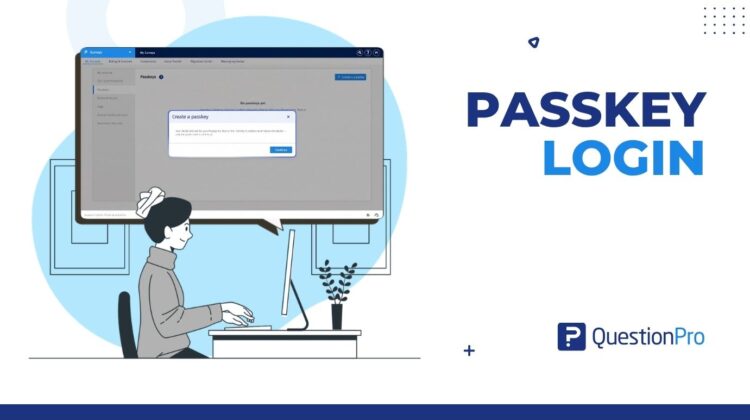
Step 2: Create your passkey
Click Create a Passkey, then select Continue when prompted.
Choose where you want to save your passkey. The available options depend on your device and browser.
Follow the on-screen instructions to complete registration.
Step 3: Give your passkey a name
Once the passkey is registered, assign it a recognizable name, such as “Office Laptop” or “Personal Phone.”
This makes it easier to identify and manage your registered passkeys later.
Click Save to finish the setup.
Step 4: Sign in using your passkey
The next time you access QuestionPro, select Passkey login on the login page.
Choose an available passkey or authentication device and complete the verification requested by your device.
Once authentication succeeds, you will be logged in without needing to enter your QuestionPro password.
A few things to know before you begin
Passkeys are designed to make login easier, but there are a few important considerations.
- Your organization administrator must enable the feature.
If you do not see the Passkeys tab in your account, check with your organization administrator.
- SAML authentication is currently not supported for passkey login.
Users whose organizations use SAML authentication must continue using their organization’s supported SAML login method.
- Availability depends on your environment.
Your QuestionPro license, organization settings, browser, operating system, device, and passkey provider may affect whether you can use the feature.
- Keep an alternative sign-in option available.
Registering more than one passkey can help you maintain access if a device becomes unavailable. If you lose access to a registered passkey, you can try another registered passkey or use another supported login method.
For organization administrators, enabling Passkey Login is simple: navigate to Organization → Settings, open the Settings modal, enable the Passkey Login toggle at the bottom, and click Save Changes.
For detailed instructions, visit the QuestionPro Passkey Login Help Guide.
Making secure access part of everyday work
Good security does not have to mean adding friction to every login.
Te goal is to protect accounts while making it easier for legitimate users to access the tools they need. Passkeys bring these two priorities closer together by replacing manually entered passwords with device-based or provider-based authentication.
For researchers, that means a more convenient way to access surveys, responses, and insights. For organizations, it offers another way to strengthen account security and reduce dependence on traditional passwords.
And for anyone who has ever had to reset a forgotten password just to get back to work, it is a welcome change.
Ready to leave passwords behind?
Your next QuestionPro login could be as simple as verifying your identity with your device.
Set up your passkey today and enjoy a faster, more convenient way to sign in to QuestionPro without a password.
Explore the QuestionPro Passkey Login Help Guide to learn how to get started.