Most survey problems are discovered by respondents. A branch leads nowhere, a scale leans one way, or a question asks two things at once, and by the time anyone notices, the responses are already in. Fixing it then means re-fielding, discarding data, or explaining results that can’t be trusted.
Careful teams catch these issues with a manual review before launch. That works when an experienced researcher has time to look. It works less well when many people build surveys, deadlines are tight, and reviews get skipped.
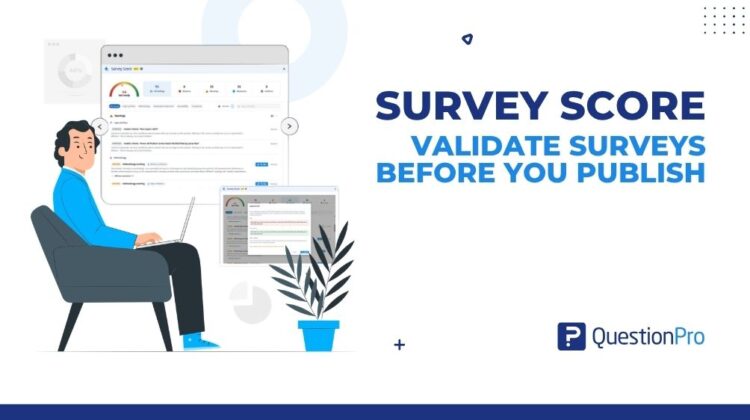
Survey Score brings that review into the Survey Builder. It checks your survey before you publish, gives you a clear readiness signal, and helps you fix what it finds in the same place you build.
Why checking before launch matters
Once a survey is live, every problem gets more expensive. A logic error that strands respondents lowers completion rates and leaves gaps in your data. An unbalanced scale shifts results in one direction, and no amount of analysis can fully correct it afterward. A missing privacy disclosure can turn a routine study into a compliance question.
These issues are rarely the result of carelessness. Surveys change during review, logic gets edited after questions move, and small wording choices are easy to miss when you have read a question many times. A consistent check before publishing catches what familiarity hides.
Survey Score is designed for everyone who publishes surveys in QuestionPro, from experienced researchers who want a reliable second check to CX, HR and academic teams who build surveys alongside other work. It applies the same standard to every survey, every time.
How to run Survey Score
Open your survey in the Survey Builder and click Survey Score at the top of the page, next to Draft and Publish. The report generates right away, with nothing to configure and no separate tool to open.
Survey Score also appears when you publish. If findings are still outstanding at that point, you’ll see them before the survey goes live, and you can choose to resolve them or publish anyway.
Results are saved with your survey. Reopen Survey Score on a survey you haven’t changed and the same report appears instantly, without recomputing anything, so you can come back to a review and pick up where you left off.
What Survey Score checks
Survey Score reviews your survey across five categories. They always appear in the same order, so re-running a review never reshuffles your results and it’s easy to see what has changed.
- Logic and flow looks at how respondents move through the survey. It catches dangling branches that point nowhere, questions no respondent can reach, and loops that send people back through the same pages.
- Methodology looks at how questions are asked. It flags leading wording, too few answer options, and double-barrelled questions that ask about two things at once, the kinds of issues that quietly bias results.
- Accessibility applies checks derived from WCAG, including missing alt text, unlabelled inputs and contrast. These help every respondent complete your survey, including people using assistive technology.
- Respondent experience looks at the survey from the respondent’s side, flagging excessive length and the drop-off pressure that comes with it.
- Compliance checks consent, the handling of personal information, and regional disclosure requirements, so that surveys collecting personal details include the disclosures respondents expect.
Alongside these rule-based checks, AI reviews read each question’s wording and the survey as a whole. They can spot phrasing that is vague or overly complex, and questions that drift from the survey’s apparent theme. These findings carry an AI-judged tag and a High confidence or Medium confidence label, so it is always clear where a suggestion came from and how certain it is.
How findings are prioritized
Every finding has a severity, which tells you what to address first.
A Blocker means the survey is broken for respondents: they will hit an error, a dead end or a loop. A Warning means the survey will run, but data quality will measurably suffer. An Advisory is a suggestion that is safe to launch without acting on.
In practice, this gives you a natural order of work. Resolve Blockers before you publish, address Warnings wherever you can, and treat Advisories as opportunities to improve the survey when time allows.
One clear answer: is it ready?
Every survey starts with a Readiness Score of 100. Each finding from the five categories lowers it according to severity, and the score maps to a readiness band.
| Band | Score |
|---|---|
| Ready to publish | 90 and above |
| Good shape | 75 to 89 |
| Needs work | 50 to 74 |
| Not ready | Below 50 |
A few rules keep the score meaningful. A single Blocker keeps the score below the quality threshold, so one serious problem is never hidden by an otherwise clean survey. A survey with no questions scores 0, whatever else it contains. And AI-judged findings never change the score: it reflects the rule-based checks only, so it stays consistent and explainable from one review to the next.
The result is a shared answer to a question every team asks before launch. Authors, reviewers and approvers can look at the same score and band and agree on whether a survey is ready.
Fix issues without leaving the builder
Each finding explains what was caught and why it matters, and each can be resolved from the review panel. There is no need to note down issues, hunt for the right question, and come back to check. Survey Score offers three ways to resolve a finding, depending on how clear the correction is.
Fix this is for issues with one clear correction. Survey Score shows the exact before and after, and you apply it with a single click. No AI is involved, so the result is predictable every time.
Suggest a fix is for wording issues. Survey Score proposes a rewrite, which may split one question into several. A double-barrelled question, for example, can become two focused questions. You review the before and after and apply it only if you’re happy with the result.
AI-proposed fix is for findings without one obvious correction. Survey Score proposes a change and shows you a preview before anything is made. Nothing AI-generated is applied until you confirm it.
Fixes apply as soon as you confirm them and can’t be undone, so it’s worth reading each preview carefully. Survey Score also protects shared work: if a colleague has edited the survey since you opened a preview, the fix is blocked rather than applied to out-of-date content.
Not every finding will apply to every study. You can dismiss a finding to clear it from your worklist and focus on what’s left, and restore it later if you change your mind. Dismissing doesn’t resolve the underlying issue, though, so it doesn’t improve the score. Only a real fix does.
Keep your score current
Once you edit the survey, including by applying a fix, the Refresh control becomes available. Refresh re-runs the checks so you can confirm your updated score before you publish. If you’re collaborating with someone on the same survey, Refresh also becomes available when their edits come through, so the review always reflects the latest version.
Large surveys can occasionally take longer to review. If an AI check is running longer than usual, Survey Score lets you know and suggests checking back shortly. If an AI check can’t complete, Survey Score tells you, and your score and the standard checks are unaffected.
Things to keep in mind
Survey Score evaluates your survey. It doesn’t change your data structure or any responses already collected, and it edits question wording, logic or settings only when you apply a fix.
Restoring an earlier version of a survey clears the record of fixes applied to it, since a restored draft may no longer contain the findings those fixes addressed. Run Survey Score again after restoring a version.
Survey Score informs your decision to publish rather than making it for you. You can always publish with findings outstanding, and publishing still requires at least one question, whatever the score. Its accessibility and compliance checks support your obligations but don’t certify a survey as accessible or legally compliant, so keep your usual reviews for regulated studies.
Survey Score is currently in open beta, and we’re improving it based on your feedback.
Getting started
Survey Score is available on the Advanced, Team Edition and Research Edition licenses. To run your first review:
- Open a survey in the Survey Builder and click Survey Score, next to Draft and Publish.
- Check the score and band to see where the survey stands.
- Work through Blockers first, then Warnings, then any Advisories worth acting on.
- Fix or dismiss each finding, reviewing every before and after preview.
- Click Refresh to confirm your updated score, then publish.
A good place to start is a survey you’re about to send. A single review shows what Survey Score can catch, and it takes only a few moments. Read the Survey Score help article for more detail on each step.