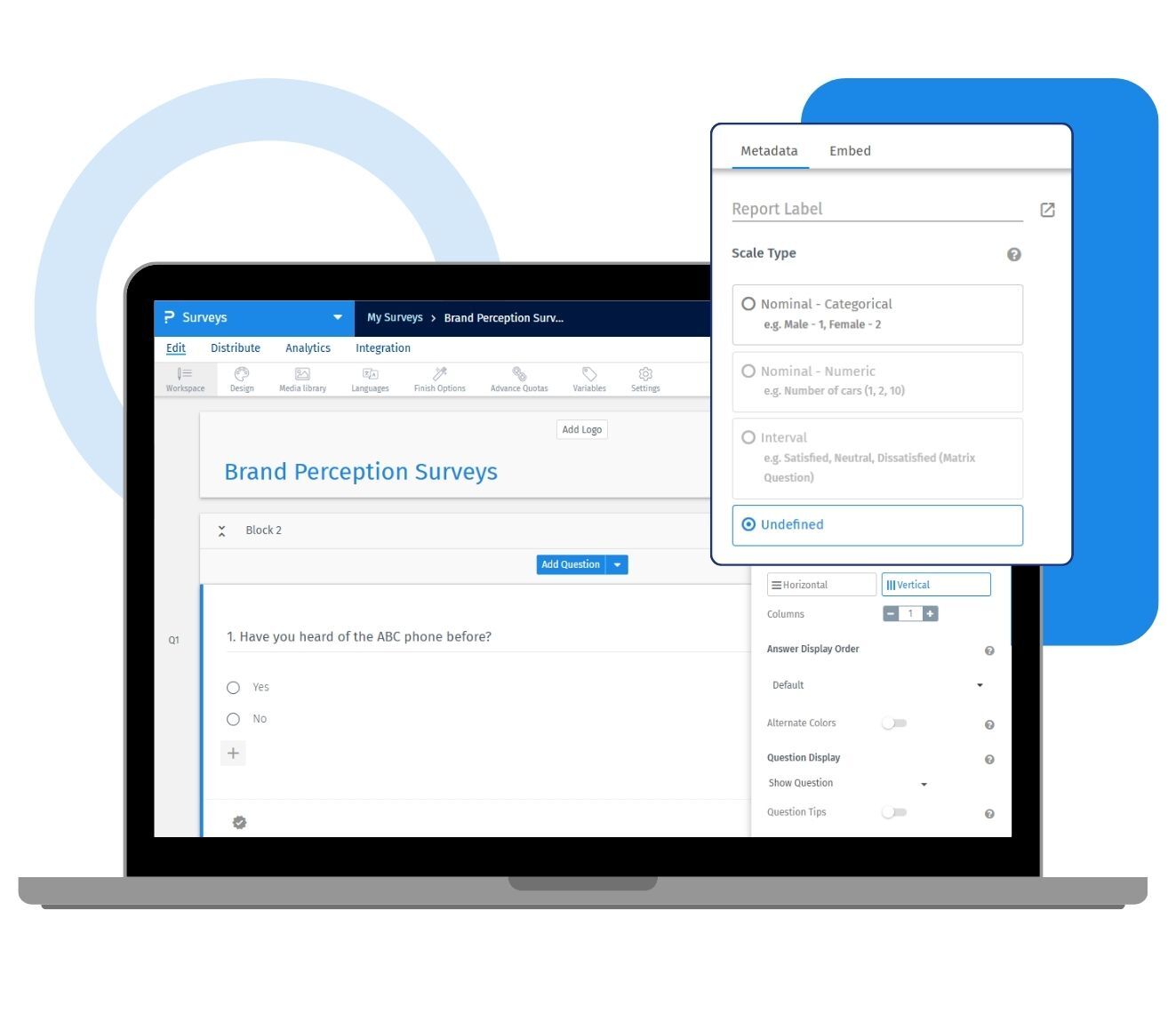
Report label is a QuestionPro metadata setting that lets you assign a short, clear name to any survey question or answer option for reporting. Instead of showing the full question text in your dashboard, raw data exports, and cross-tabs, you see the label you assigned. It works at both the question and answer levels, so long scales and multi-part questions stay readable wherever your data appears.
Market researchers write questions the way respondents need to read them, in full sentences with context and qualifiers built in. Those same sentences become unreadable once they land in a dashboard, a cross-tab, or an SPSS export next to fifty other variables. Report label solves this by separating what the respondent sees from what shows up in your reports. You set it once, under question settings in the metadata section, and every report, chart, and export downstream reflects the shorter name. Combined with scale type , which classifies your data for the correct statistics, report label keeps large, multi-question studies organized as they move from field to analysis.
Example of report label in your surveys
Consider a healthcare research firm in the US running a quarterly patient experience study across a dozen locations. The core NPS question reads: "On a scale of 0 to 10, how likely are you to recommend this clinic to a friend or family member based on your most recent visit?" That full sentence works fine for a respondent, but it clutters a dashboard next to twenty other questions. The research team sets the report label to likelihood to recommend, and the shorter name appears everywhere the data is reported, from the live dashboard to the cross-tab exported for the clinical director. When the same study is repeated each quarter, the labels remain consistent, so trend charts compare cleanly rather than requiring manual relabeling of column headers each cycle.
The uses of report label in survey reports
The uses of report labels in survey reports are:
Cleaner dashboards: Replace long question and answer text with short, readable names wherever results are displayed.
Faster cross-tab review: Scan banner tables and pivot views without long headers breaking the layout.
Consistent naming across waves: Reuse the same short label every time a tracking study repeats, so trend reports line up.
Readable raw data exports: Excel, CSV, and SPSS exports carry the report label instead of the full question text in column headers.
Label questions and answers separately: Apply a short name to the question, the answer options, or both, depending on what needs to be readable.
Support for long, multi-part questions: Give complex questions, like detailed NPS or CSAT wording, a name that fits a chart legend or table row.
Advantages of report label in survey reports
The advantages of report labels are:
Saves analysis time: Analysts stop renaming columns and relabeling charts by hand after every export.
Improves stakeholder-ready reporting: Dashboards and shared reports read clearly without editing before they go to a client or leadership team.
Reduces reporting errors: A single defined label removes the guesswork of matching long question text across multiple report views.
Scales across large questionnaires: QuestionPro lets you set report labels for every question and answer in a survey from one bulk-edit pop-up, rather than opening each question individually.
Keeps exports usable in outside tools: Short, clear labels carry over cleanly when data moves into SPSS, Excel, or a BI tool for deeper analysis.
Supports faster insight delivery: Insights teams spend less time cleaning up reports and more time interpreting what the data shows.
How to use report label in QuestionPro
To use report label in your research studies, read our help file on how to set up report label.

 Survey Software
Easy to use and accessible for everyone. Design, send and analyze online surveys.
Survey Software
Easy to use and accessible for everyone. Design, send and analyze online surveys.
 Research Suite
A suite of enterprise-grade research tools for market research professionals.
Research Suite
A suite of enterprise-grade research tools for market research professionals.
 Customer Experience
Experiences change the world. Deliver the best with our CX management software.
Customer Experience
Experiences change the world. Deliver the best with our CX management software.
 Employee Experience
Create the best employee experience and act on real-time data from end to end.
Employee Experience
Create the best employee experience and act on real-time data from end to end.