In the world of Employee Experience (EX), data is rarely the problem. Between annual engagement surveys, pulse checks, onboarding touchpoints, and 360-degree leadership reviews, modern People Teams are practically swimming in insights.
The real challenge? Context.
An HR Business Partner needs a granular, localized breakdown of team sentiment. An executive leadership team requires high-level, macro-trends across the entire enterprise. Up until now, delivering these distinct views meant building, duplicating, and managing an absolute maze of separate dashboards, or worse, burying stakeholders under one giant, messy scrollable page.
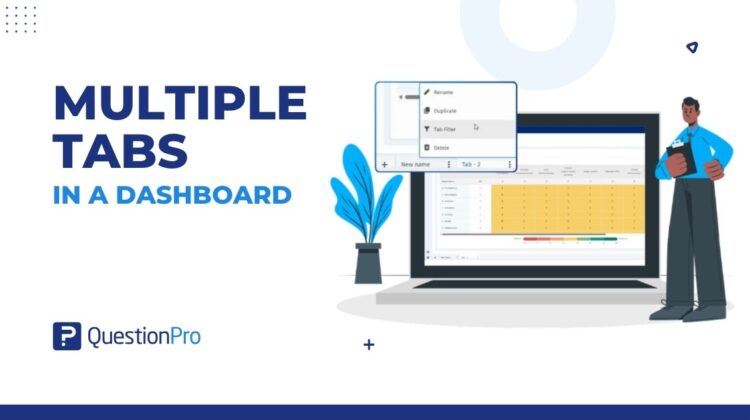
Today, we are changing that. We are thrilled to introduce one of our most requested platform upgrades: Multiple Tabs in QuestionPro EX Dashboards.
The Power of Tabs: Why Structure Matters in EX Reporting
Think of your employee data like a book. No matter how incredible the content is, nobody wants to read it if it’s printed on one continuous, mile-long scroll of paper without chapters.
The new Multiple Tabs feature brings elite structure and logical separation to your employee experience analytics. Instead of overwhelming your stakeholders, you can now segment your EX data into clean, thematic tabs within a single unified dashboard.
Whether you want to organize by department, geographic region, employee lifecycle stages, or distinct focus areas (like Diversity & Inclusion vs. Management Effectiveness), tabs allow you to curate the exact narrative your audience needs to see.
What’s New? Key Capabilities at a Glance
- Multi-Tab Architecture: Create and customize multiple tabs within any single Employee Experience dashboard to separate distinct data themes or business metrics.
- Independent Widget Layouts: Each tab acts as its own canvas. You can add, remove, resize, and reorder widgets dynamically per tab without affecting the layout of others.
- Targeted Tab and Dashboard Filters: Apply broad filters across the entire dashboard or use specific widget-level filters to drill down deeper into the numbers.
- Seamless Navigation: Effortlessly toggle between different analytical views with zero loading lag, creating a smooth experience for internal administrators and leadership alike.
How to Set Up Multiple Tabs in 3 Easy Steps
We designed this feature to seamlessly fit into your existing HR tech workflow. Here is how simple it is for an Employee Experience administrator to get started:
- Navigate to Your Dashboard: Log in to your QuestionPro Employee Experience portal, select your employee experience project, and head over to the Analytics tab to view your dashboard.
- Add a New Tab: Look for the new tab configuration icon next to your primary dashboard view. Click Add Tab, give it a clear, descriptive name (e.g., Engineering Sentiment or Q2 Onboarding), and save.
- Populate and Filter: Select your newly created tab and begin adding widgets. Drag and drop your favorite charts, apply targeted employee field filters (such as Role, Location, or Department), and watch your customized narrative come to life.
Transform Insights into Actionable Strategy
When data is scattered or hard to digest, executive buy-in stalls. By implementing a clean, multi-tab layout, you don’t just report numbers, you empower your organization to make faster, more confident talent decisions.
Line managers can focus exactly on their team metrics on their designated tab, while the C-suite can stick to the high-level Executive Summary tab. Everyone gets the data they need to build better work cultures, with zero added noise.
Ready to elevate your Employee Experience reporting? Log in to your QuestionPro Employee Experience account today to build your first multi-tab dashboard, or connect with our EX product specialists to see it in action!