In the fast-evolving world of Employee Experience (EX), data is rarely straightforward. HR leaders and people analytics teams aren’t just looking at engagement scores in a vacuum; they are constantly trying to understand the intersectionality of their workforce. How does engagement look for engineering teams specifically in APAC? What is the burnout risk for sales executives onboarding in the EU?
To answer these multi-dimensional questions, traditional static dashboards fall short. Analysts are often left forcing complex data into rigid grids or exporting raw sheets to manually build pivot tables.
At QuestionPro, we believe that discovering deep workforce insights shouldn’t feel like a chore. That is why we are thrilled to roll out our latest major enhancement to the Employee Experience Analytics Portal.
With this update, we are putting unparalleled multi-dimensional reporting, granular visibility control, and localized personalization directly into the hands of admins and managers alike. Here is a deep dive into how this feature is changing the game for B2B employee experience analytics.
The Power of Intersectionality: Three New Column Types
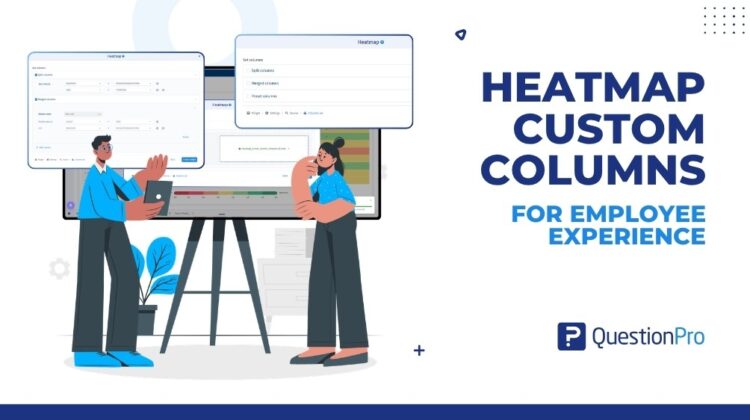
The centerpiece of this release is the ability to cross-analyze custom fields directly within your Heatmap widget. Instead of sticking to standard layouts, admins can now select, isolate, and configure columns using three highly flexible structural options:
1. Split Columns
Need to compare disparate groups side-by-side without building separate widgets? Split Columns generate a distinct heatmap column for every unique pairing of a selected custom field and its value.
- Example: If you select combinations like Department – HR, Department – Marketing, and Region – India, the widget automatically populates three standalone columns, allowing instant side-by-side benchmarking.
2. Merged Columns
Sometimes, the real story lies at the exact intersection of two identifiers. Merged Columns allow you to consolidate multiple field-value combinations into a single, aggregated column.
- Example: You can blend Department – Sales with Region – India to generate a tightly focused, single-intersection column labeled Sales – India. It’s instant pivot-table power natively built into your dashboard.
3. Preset Columns (Beta)
Managing data privacy and relevance across global or matrixed organizations can be difficult. Preset Columns allow administrators to pre-define column visibility based on specific users or user groups. This ensures that audience-specific or sensitive analytics are dynamically displayed only to the authorized dashboard recipients who match those criteria.
(Note: Preset Columns are currently available in beta specifically on our European Data Center)
Designed for Admins: Modernized Sidebar Management
An analytics tool is only as good as its user experience. Alongside these data enhancements, we’ve completely modernized the Heatmap widget configuration layout.
When configuring a Heatmap, admins will now interact with a sleek, compartmentalized edit sidebar split into four intuitive focus areas: Details, Data, Settings, and Design.
Under the Settings tab, managing your custom columns is entirely visual:
- Drag-and-Drop Reordering: Easily change the sequence of your custom columns to build a cohesive narrative flow.
- Instant Toggle Control: Want to clean up the view or temporarily hide sensitive metrics from manager layouts? Simply click the Eye icon next to any column name to instantly hide or unhide it.
The Employee Experience Bottom Line
In the B2B SaaS space, the companies that win are those that turn raw numbers into actionable empathy. By giving organizations the power to seamlessly slice engagement data by department, tenure, location, and custom demographics simultaneously, QuestionPro Employee Experience is making it easier than ever to pinpoint where culture is thriving—and where it needs support.
The Heatmap Custom Columns feature is fully live and available to all QuestionPro Employee Experience license holders.
Ready to transform how your managers interact with employee data? Log into your Employee Experience Portal today, open up your active dashboard, and start building your custom heatmaps.
Want to see Heatmap Custom Columns in action? Contact our EX experts for a personalized demo today.