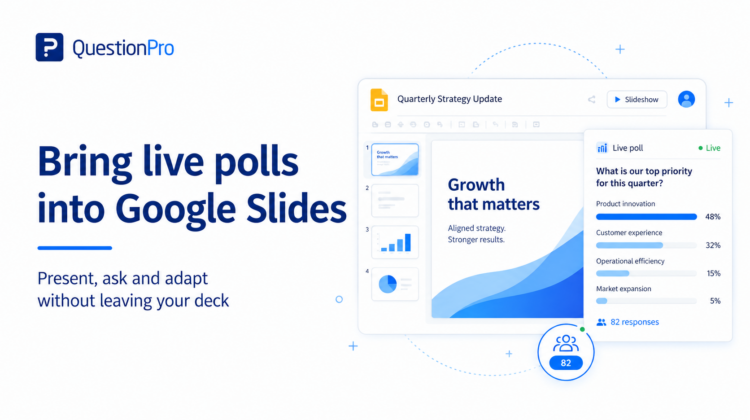
If Google Slides is already the center of your presentation workflow, opening a separate polling tool can create unnecessary friction. The presenter has to switch tabs, reshare a screen, or ask the audience to wait while the interaction loads.
QuestionPro LivePolls provides a Chrome extension designed to let hosts create, add, edit and run live polls in Google Slides.
What you need
- A QuestionPro / LivePolls account.
- Google Chrome.
- A Google Slides presentation.
- The LivePolls Chrome extension for Google Slides.
How to add the LivePolls extension to Google Slides
According to the current QuestionPro help documentation:
- Open the Chrome Web Store.
- Search for LivePolls.
- Select Add to Chrome.
- Open Google Slides. The LivePolls option should appear in the Google Slides menu bar.
View the official Google Slides extension instructions.
How to create a new LivePoll from Google Slides
- Open the LivePolls menu item in Google Slides.
- Log in to your LivePolls account if prompted.
- Open the LivePolls home screen.
- Select Create new.
- Create the poll or quiz in the LivePolls editor.
- The newly created LivePoll is added to the Google Slides presentation.
How to add an existing LivePoll
If you already created the interaction in LivePolls:
- Open the LivePolls menu item in Google Slides.
- Open the LivePolls home screen.
- Choose Add to Presentation for the LivePoll you want.
- If the presentation does not already contain a LivePoll slide, the extension creates one. If it does, the selected LivePoll can update the existing LivePoll slide.
Keep your deck moving and bring audience responses into Google Slides.
How to host the poll during the presentation
The current QuestionPro workflow is designed so the LivePoll session starts in the background when you present the deck.
- Make sure the LivePoll has been added to the presentation.
- Start the Google Slides presentation.
- When the LivePoll slide appears, the waiting room becomes visible.
- Ask participants to join.
- Start the question once participants are ready.
- Finish the question to reveal or review the collected responses.
- Continue through the remaining questions and results.
How participants join
QuestionPro’s current help article gives two joining options for Google Slides sessions:
- Scan the QR code displayed in the waiting room.
- Go to QuestionPro’s participant join page and enter the PIN shown in the waiting room.
What should you poll inside Google Slides?
At the beginning
Use one low-friction question to understand the audience:
Which of these topics is most relevant to you today?
After a key concept
Use a confidence check:
If someone asked you to explain this right now, how confident would you feel?
Before changing direction
Use a prioritization question:
We’ve got 10 minutes left. What deserves more time?
At the end
Use an open question:
What’s the question you’re thinking but haven’t asked yet?
Why integration matters
The advantage is not simply that “Google Slides has a poll.” It is that the interaction can happen without breaking the presenter’s flow. When polling is easy to launch, presenters are more likely to use it at the moment it is actually useful.
Live poll vs. quiz inside Google Slides
Use an unscored poll for opinion, confidence, prioritization or feedback. Use a scored quiz question for knowledge testing. QuestionPro LivePolls can combine both in one session through its unified editor.
Tips for a smoother live session
- Test the extension and login before the audience arrives.
- Keep poll questions short enough to read on a presentation slide.
- Tell participants how they will join before the first interaction.
- Do not overload the deck with interactions; use them at decision points.
- Plan what you will do if the result is different from what you expected.
Frequently asked questions
Can I create a new LivePoll from Google Slides?
Yes. The current LivePolls Chrome extension supports creating a new LivePoll from the Google Slides workflow.
Can I add an existing LivePoll?
Yes. Existing LivePolls can be added to a presentation through the extension.
Do participants need the Chrome extension?
No. The extension is for the presenter. Participants join the live session using the provided joining method, such as the QR code or PIN workflow.
Make the slide deck responsive to the audience
A presentation becomes more useful when the audience can influence what happens next. The Google Slides integration reduces the distance between asking a question, seeing the result and adapting the presentation around what the audience actually needs.