



A QuestionPro Marketo integration pushes survey responses directly into Marketo, so every lead record carries real customer insight instead of just a name and an email address. That gives marketing and sales teams data they cannot get from pop-up surveys, web forms, or phone calls alone.
Marketo logs every digital interaction a prospect has with your brand, which lets teams have a more relevant conversation with each one. Once QuestionPro is connected, survey answers become another data point Marketo can use to score, segment, and route leads automatically.
In this article, we’ll explore how the QuestionPro Marketo integration works, the step-by-step process for mapping survey data to lead records, and best practices for using customer insights to fuel your marketing automation.
What is Marketo, and why connect it to a survey tool?
Marketo is a marketing automation platform, owned by Adobe, that tracks prospect behavior, scores leads, and triggers automated email and nurture campaigns based on that activity. QuestionPro’s Survey Software is used to design, distribute, and analyze surveys, then pass the results into the other systems your team already relies on.
On their own, each tool does its job well. Connected together, they solve a specific gap: Marketo knows what a lead clicked, opened, or downloaded, but it does not know what that lead actually thinks, wants, or struggles with unless you ask them directly. A survey fills that gap, and the integration makes sure the answer lands in the same record Marketo already uses for scoring and automation.
Why integrate QuestionPro with Marketo?
Integrating QuestionPro with Marketo accelerates conversions and improves the sales process because the data already sitting in Marketo becomes enriched with real customer insight.
Three benefits stand out:
- It retrieves information that is harder to get through pop-up surveys, static forms, or phone calls, since respondents can answer on their own time in a native survey environment.
- You stay in control of the data. You decide which questions get sent to Marketo and how they map to lead fields.
- Every mapped response is recorded in Marketo regardless of whether the respondent finishes the full survey, so partial answers are not lost.
QuestionPro surveys vs Marketo’s native forms: Which should you use?
Marketo’s built-in forms are best for short, single-purpose data capture, like a name and email on a landing page. QuestionPro surveys are built for structured, multi-question research, like satisfaction ratings, open-ended feedback, or multi-step branching logic.
Use a native Marketo form when you only need to capture contact details to enter someone into a campaign. Use a QuestionPro survey, connected through this integration, when you need richer data, such as product feedback, NPS scores, or qualification questions that go beyond basic contact capture. Many teams use both: a Marketo form for initial capture, and a QuestionPro survey later in the relationship to deepen the profile. Marketo is one of several platforms QuestionPro connects with directly; teams already using HubSpot or another CRM can follow a similar mapping process.
How do you set up the QuestionPro Marketo integration?
Setting up the integration connects a specific QuestionPro survey to your Marketo account through Marketo’s REST API, then maps individual questions to Marketo lead fields.
- Create the survey you want to connect to Marketo inside your QuestionPro account.
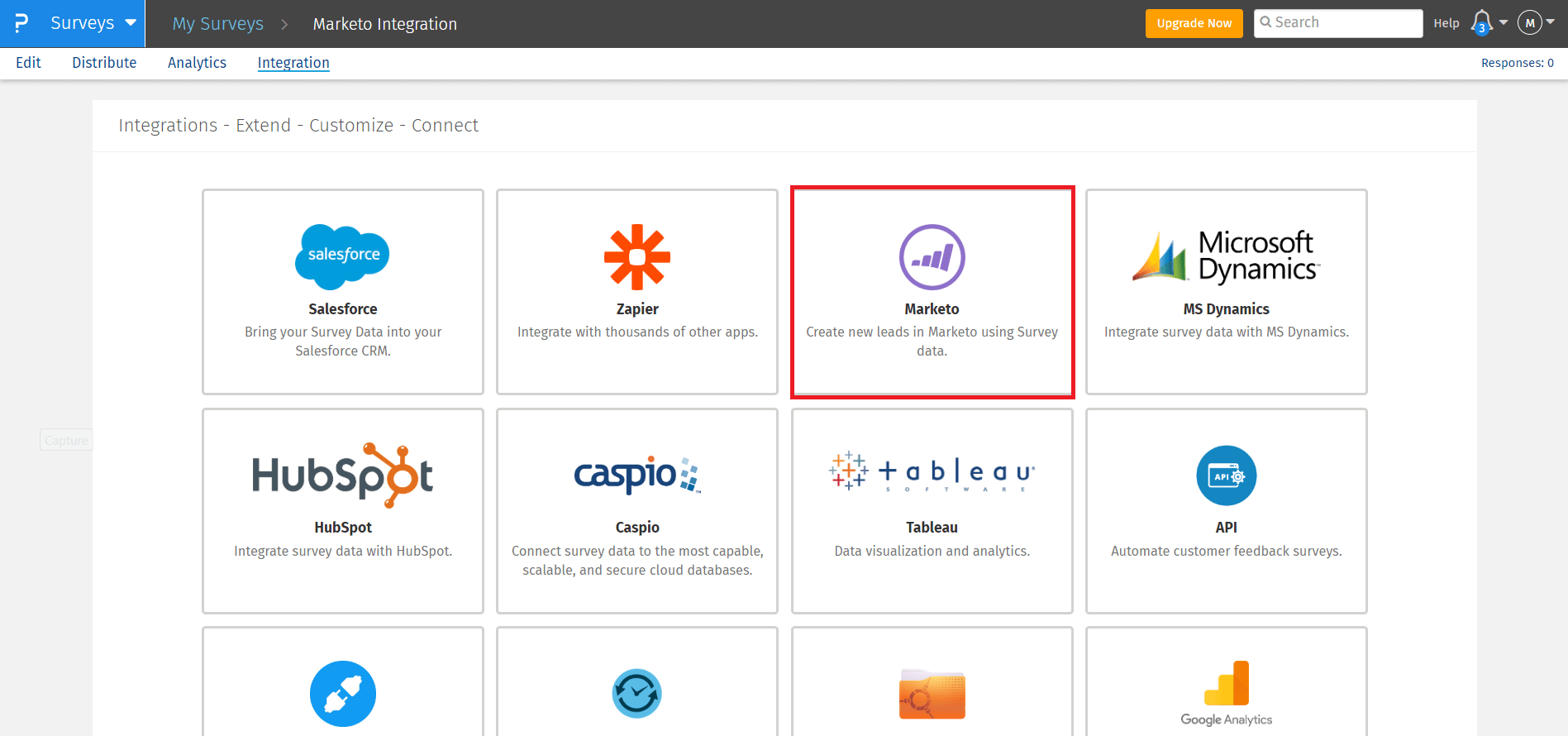
- Open the survey’s Integration tab and select Marketo from the list of available third-party tools.
- Gather your Connection Name, Client ID, Client Secret, and Connection URL. Adobe’s Quick Start Guide for the Marketo REST API explains where to find each of these inside your Marketo instance.
- Enter those details and select Save to complete the connection between QuestionPro and Marketo.
- On the mapping page, select + Add New Mapping to begin mapping survey responses to lead records.
- Choose how new respondents should be handled: Create new to add a new lead, Update existing to update a current lead, or Update if exists, else create new to handle both cases automatically.
- Select Continue, then map individual questions, custom variables, system variables, or answer values to the matching Marketo field.
- Select Continue again to review your mappings, then edit or delete any mapping as needed.
Once mapping is complete, the survey begins pushing data to Marketo automatically as responses come in.
What can you map between a survey and Marketo?
The mapping page offers four ways to connect survey data to Marketo fields, and most integrations use a mix of all four.
- Map a question
Connect a specific survey question type to a matching Marketo field type.
- Map a custom variable
Send a variable you have defined, such as a campaign source, into Marketo.
- Map a system variable
Send metadata QuestionPro collects automatically, such as completion status or timestamp.
- Map an answer value
Send a specific answer choice as its own data point, useful for triggering segmentation based on one response.
Every survey you connect has its own unique survey link tied to the Marketo mapping, so you distribute that specific link to push collected data into the right lead records. If your workflow needs data to flow in both directions rather than a one-way push into Marketo, webhooks for real-time survey data cover how QuestionPro can also pull information back into a survey dynamically.
How can this integration support a real lead nurture campaign?
A software company running a free trial can send a short in-app satisfaction survey through QuestionPro on day seven of the trial. Responses map directly into Marketo, so a low satisfaction score can automatically add that lead to a “trial at risk” nurture stream, while a high score routes the lead into a sales-ready campaign.
Without the integration, that same data would sit in a separate survey dashboard, disconnected from the automated campaigns that actually reach the lead. With it, the survey answer becomes a trigger, not just a data point sitting unused.
How do you measure whether the integration is working?
Measure success by checking whether mapped survey data is actually changing lead behavior inside Marketo, not just whether responses are arriving.
Useful checks include confirming that mapped fields populate correctly on a test lead, reviewing whether survey-triggered leads move through your nurture programs as expected, and comparing conversion rates for leads enriched with survey data against leads that only have standard form data. If survey-enriched leads consistently convert faster or score higher, the integration is doing its job.
What common mistakes should you avoid?
The most common mistake is mapping too many questions at once without testing the flow first. Send a handful of test responses through before connecting the integration to a live campaign, so you can confirm fields populate correctly in Marketo.
Other frequent issues include choosing “Create new” when “Update if exists, else create new” would prevent duplicate lead records, forgetting to update the mapping after adding new survey questions, and not documenting which Client ID and Connection URL belong to which Marketo instance when a team manages more than one. Teams juggling several connected tools at once can browse the full survey software integrations list to see which other systems are worth connecting alongside Marketo.
Keeping survey data and automation connected
A QuestionPro Marketo integration is only valuable once the mapped data actually changes what happens next in the funnel. Set it up once, test it with a few real responses, and revisit the mapping whenever the survey itself changes. Teams that route leads through a different automation stack can follow a similar approach through Zapier, which connects QuestionPro to thousands of other apps. From there, the survey results you already collect can quietly do more work inside every campaign your automation platform runs.
Frequently Asked Questions (FAQs)
Most marketers can complete the setup themselves using the Client ID, Client Secret, and Connection URL from their Marketo account. A developer may help the first time if your organization restricts API credential access to IT.
Yes. Any question that is mapped will be recorded in Marketo even if the respondent does not complete the entire survey, so partial responses are not lost and can still inform lead scoring and segmentation.
Yes. You can add as many mappings as you need to a single survey, connecting different questions, custom variables, or answer values to separate Marketo lead fields within the same integration setup.
Existing mappings do not update automatically. You need to revisit the mapping page and adjust or remap the question so that new response data continues to land in the correct Marketo field.
No. Smaller teams often benefit the most, since the integration automates lead enrichment that would otherwise require manually reviewing survey results and updating records by hand, one lead at a time.


