- Moderation
- Usability test: UX Diagnostics
- Sprint View: Usability tests
- Accessible Usability Scale - AUS
- System Usability Scale - SUS
- SUPR-Q
- PSSUQ
- UX Crowd: Usability tests
- AI Insights for Usability Tests
- Self-Reported Success (SRS)
- AI Executive Summaries
- Participant Diaries and Study Analysis
- Image analysis
- Voting task analysis
- Video tasks: Analysis

Organization Management
How do I manage my Organization and Members?
The My organization dashboard is the central hub for team collaboration within synchronous methods. Here, the Plan Admin can manage the organization name and view the full list of members.
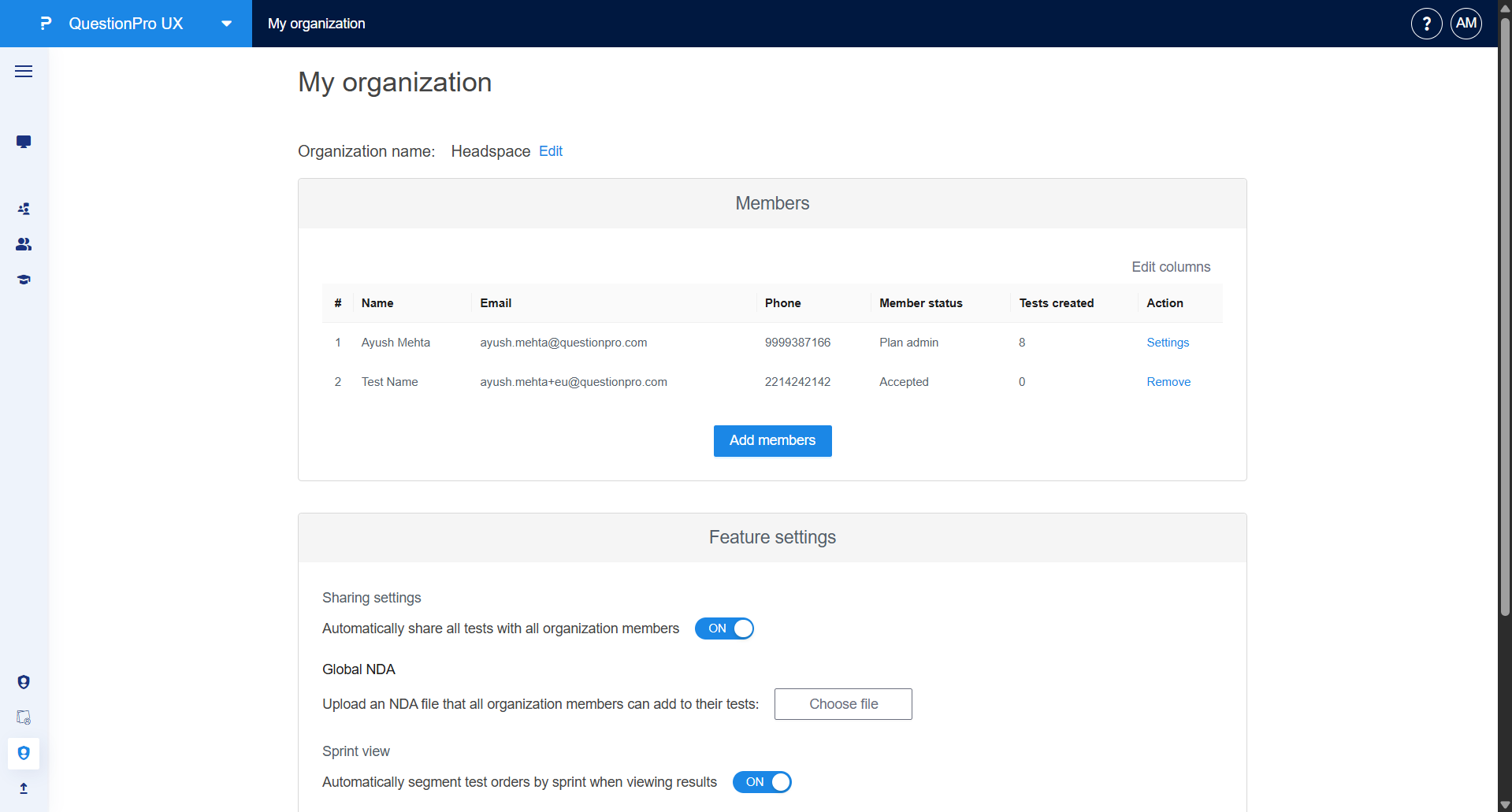
The Members table displays the following details for each user:
- Name and Email: The identifying details of the team member.
- Member status: Shows if a user is a Plan admin, Accepted, or has been Invited.
- Tests created: A count of the synchronous methods initiated by that specific user.
- Action: Admins can access individual Settings for a member or Remove them from the organization entirely.
How do I invite new members to the organization?
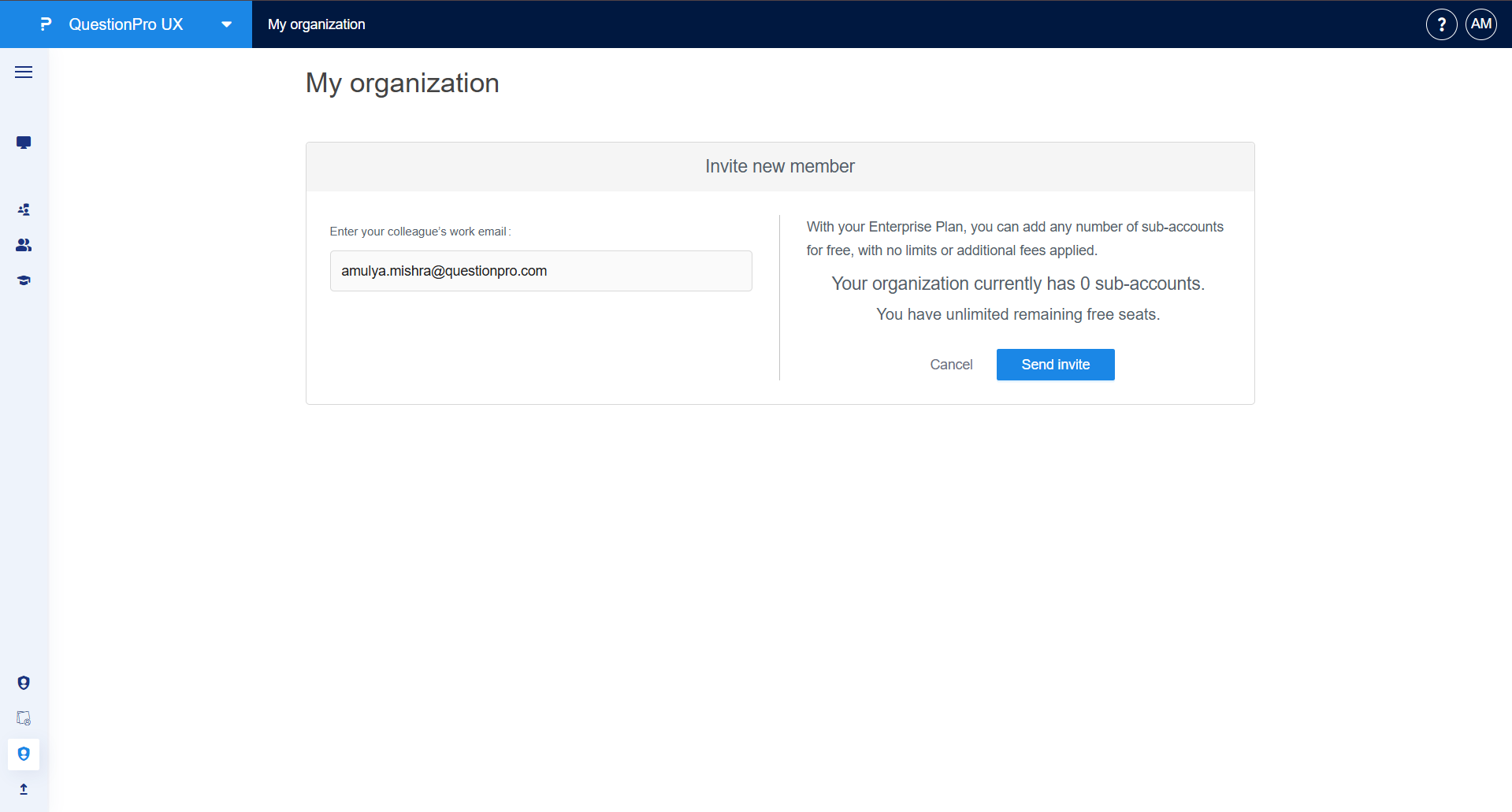
With an Enterprise Plan, you can add an unlimited number of sub-accounts without additional fees. To add a colleague:
- Click the Add members button on the organization dashboard.
- Enter your colleague's work email address in the provided field.
- Click Send invite. The user will receive an invitation to join the organization.
What are the available Feature Settings?
Admins can configure global behaviors for all synchronous methods within the organization to ensure consistency and efficiency:
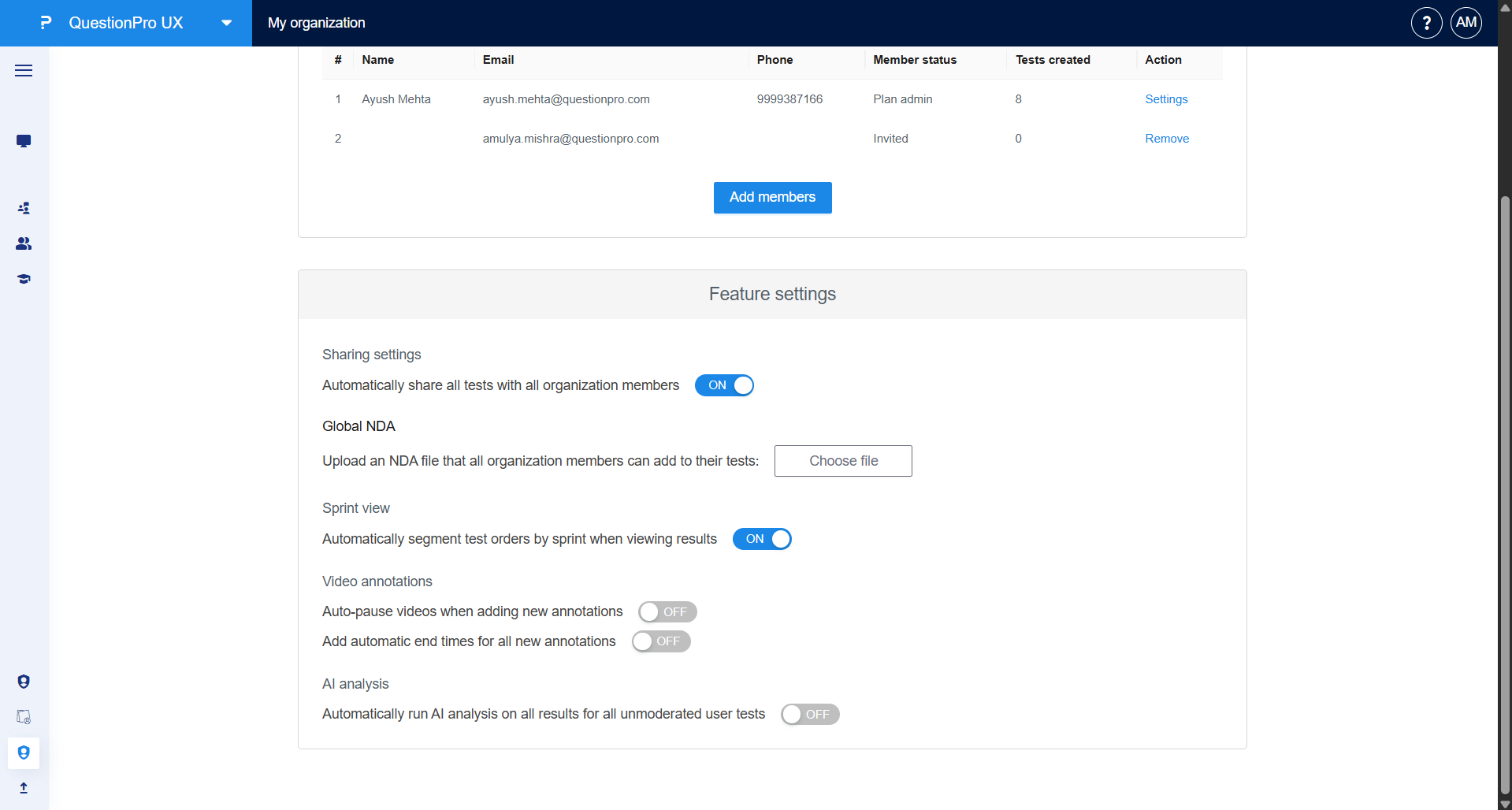
- Sharing settings: Enable the toggle to Automatically share all tests with all organization members, fostering transparency across the team.
- Global NDA: Upload a standardized Non-Disclosure Agreement (NDA) file that all members can quickly add to their specific tests.
- Sprint view: Toggle this ON to automatically segment test orders by sprint when viewing results.
- Video annotations: Configure defaults for video playback, such as auto-pausing when adding new annotations or adding automatic end times.
- AI analysis: Enable the toggle to automatically run AI analysis on all results for unmoderated user tests.