

- Moderation
- Usability test: UX Diagnostics
- Sprint View: Usability tests
- Accessible Usability Scale - AUS
- System Usability Scale - SUS
- SUPR-Q
- PSSUQ
- UX Crowd: Usability tests
- AI Insights for Usability Tests
- Self-Reported Success (SRS)
- AI Executive Summaries
- Participant Diaries and Study Analysis
- Image analysis
- Voting task analysis
- Video tasks: Analysis

Admin Management and Roles
To manage your research team, open your study and navigate to the Admin section located at the bottom of the left-hand sidebar. This dashboard allows you to invite team members and configure study-wide observer permissions.
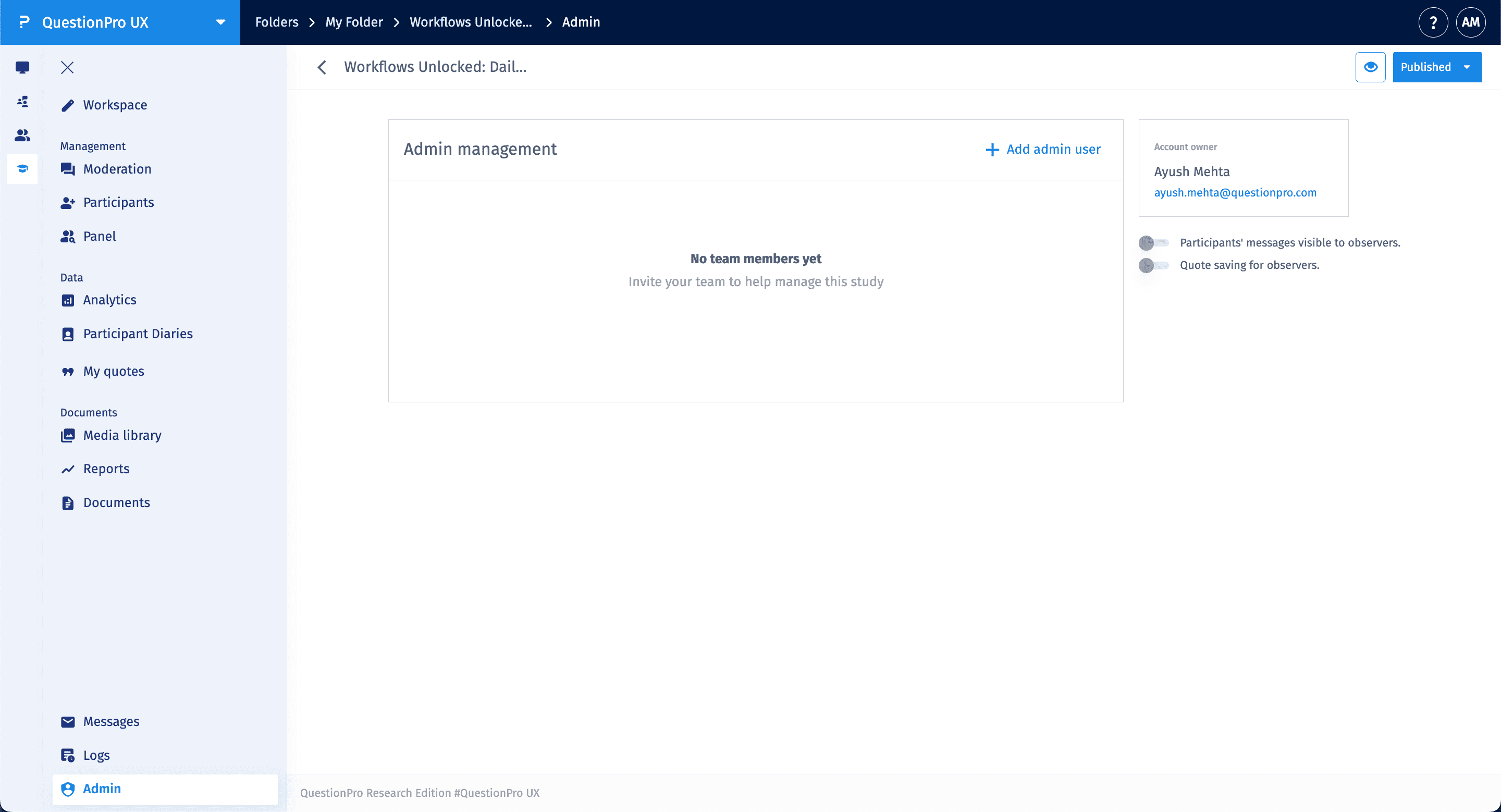
Within the Admin management dashboard, click the + Add admin user button. A modal will appear requiring the following information:
- Email: Enter the email address of the team member you wish to invite.
- Role: Select a role from the dropdown menu (Administrator, Moderator, or Observer) to define their level of access.
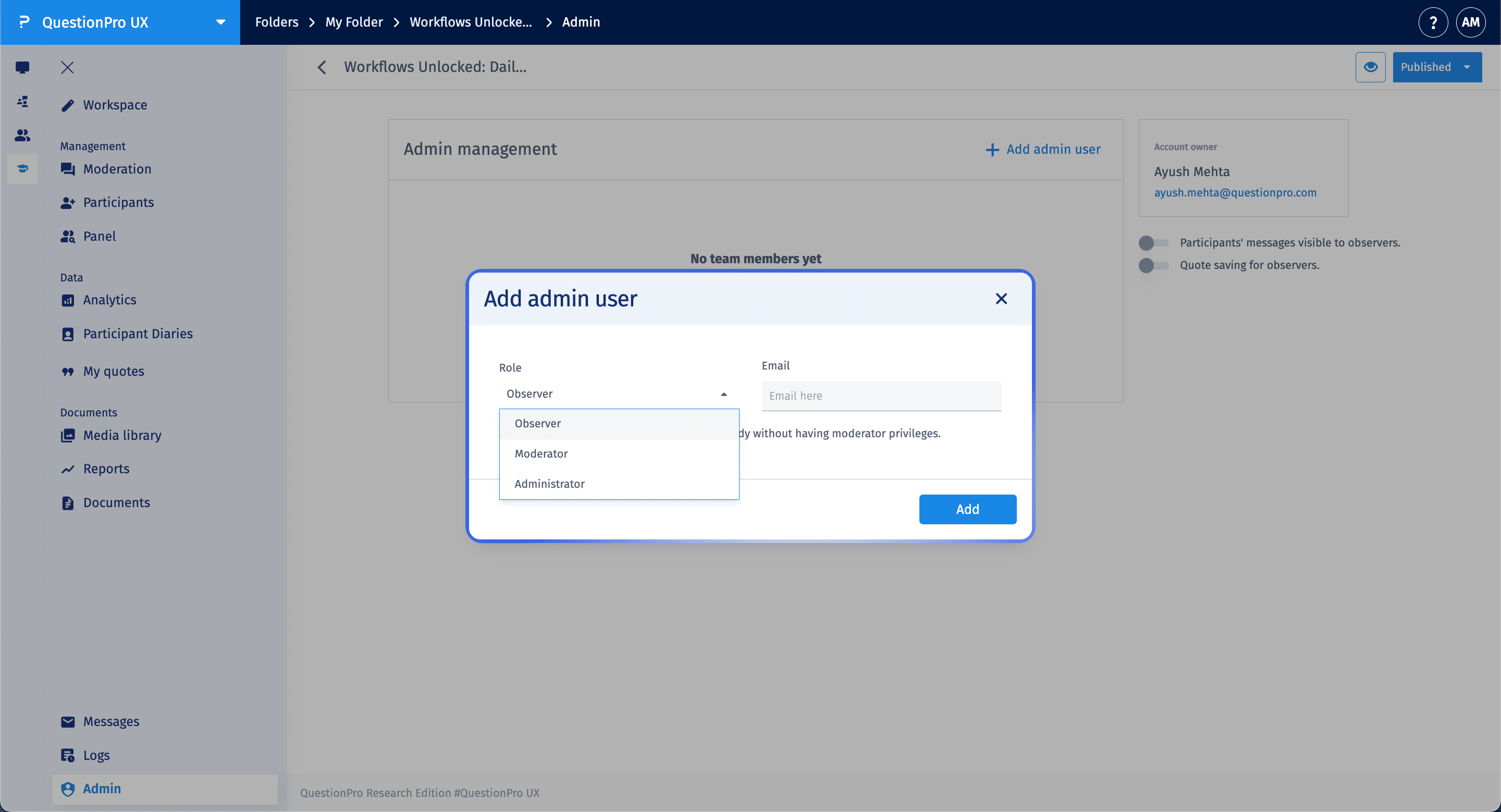
Once the details are entered, click Add to grant them access to the study.
QuestionPro UX uses role-based access control to ensure study security and workflow efficiency. The table below outlines the specific permissions for each role:
| Feature | Administrator | Moderator | Observer |
|---|---|---|---|
| Workspace & Quest Setup | Full Access | No Access | No Access |
| Participant Management & Panel | Full Access | No Access | No Access |
| Moderation & Analytics | Full Access | Full Access | View Only |
| Media Library & Reports | Full Access | Full Access | View Only |
| Messages | Full Access | Full Access | Conditional* |
| Admin & System Logs | Full Access | No Access | No Access |
*Observers can view and send participant messages only if the specific permission toggle is enabled in the Admin settings.
On the right side of the Admin dashboard, you will find global settings that influence how Observers interact with the study data:
- Participants' messages visible to observers: When enabled, this allows team members with the Observer role to both read and send messages to participants.
- Quote saving for observers: This toggle allows Observers to highlight and save specific participant quotes within the "My Quotes" section for qualitative analysis.
These settings are useful for keeping stakeholders informed and engaged without granting them full management privileges.
