- Moderation
- Usability test: UX Diagnostics
- Sprint View: Usability tests
- Accessible Usability Scale - AUS
- System Usability Scale - SUS
- SUPR-Q
- PSSUQ
- UX Crowd: Usability tests
- AI Insights for Usability Tests
- Self-Reported Success (SRS)
- AI Executive Summaries
- Participant Diaries and Study Analysis
- Image analysis
- Voting task analysis
- Video tasks: Analysis

Managing Quests
A Quest is a structured set of tasks or questions designed to capture specific user insights within a study. Quests allow researchers to organize their research into digestible segments for participants.
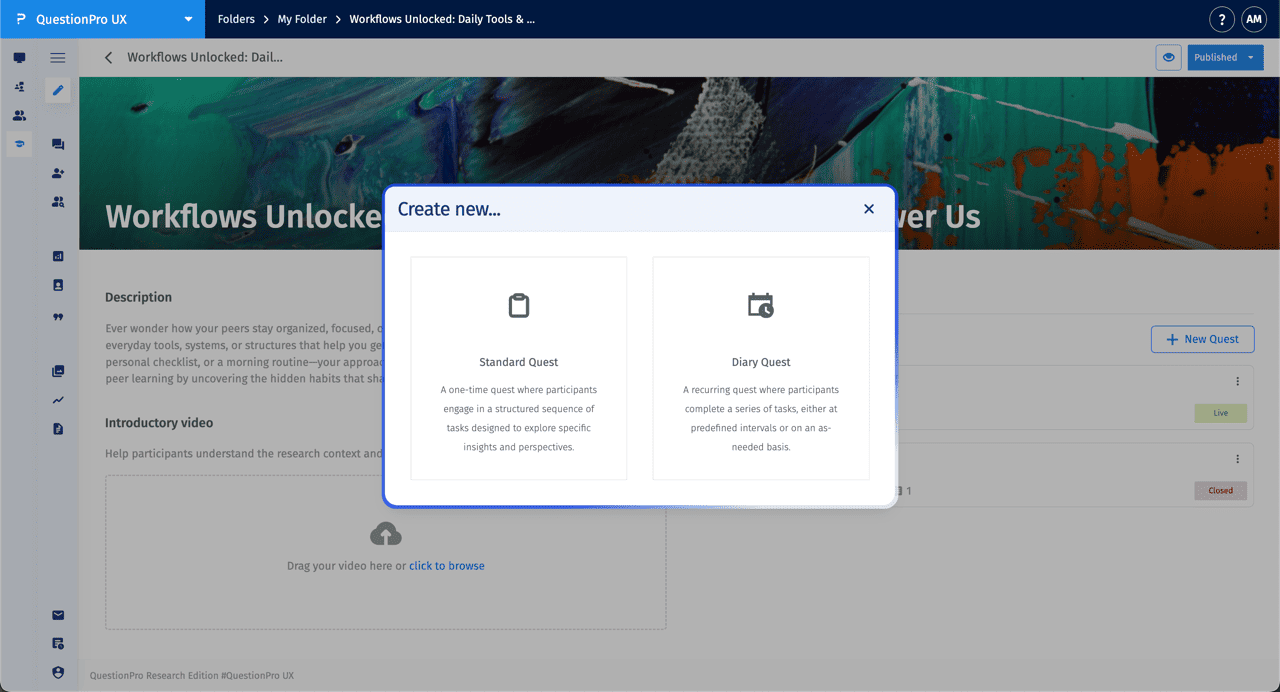
When you click + New Quest, you can choose between two types:
- Standard Quest: A one-time quest where participants engage in a structured sequence of tasks designed to explore specific insights and perspectives.
- Diary Quest: A recurring quest where participants complete a series of tasks, either at predefined intervals or on an as-needed basis.
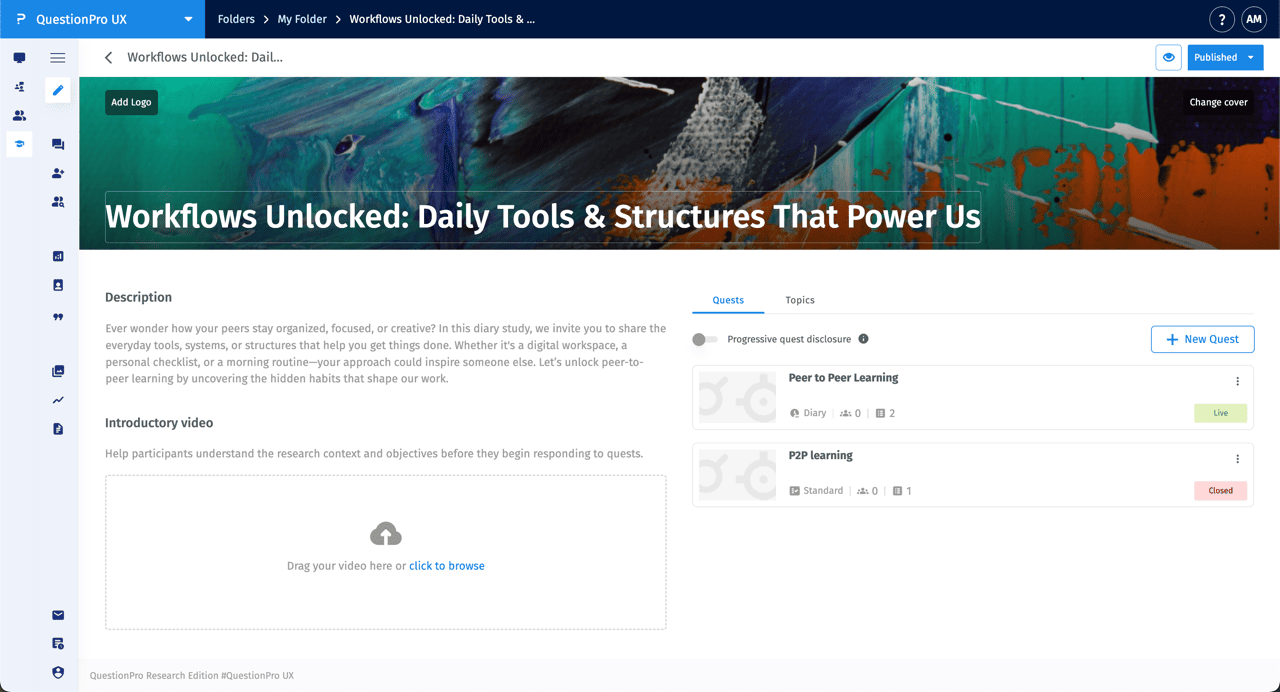
You can customize the visual identity of each quest by hovering over the banner region:
- Title: Simply click on the title area in the banner to edit the quest name.
- Add Logo: Hover over the top-left region of the banner and click the Add Logo button to upload your brand icon.
- Change Cover: Hover over the top-right region of the banner and click Change cover to upload a custom background image.
Suggested Dimensions: For optimal display, it is recommended to use a wide aspect ratio for the cover (approximately 1920x400 pixels) and a square, high-resolution file for the logo.
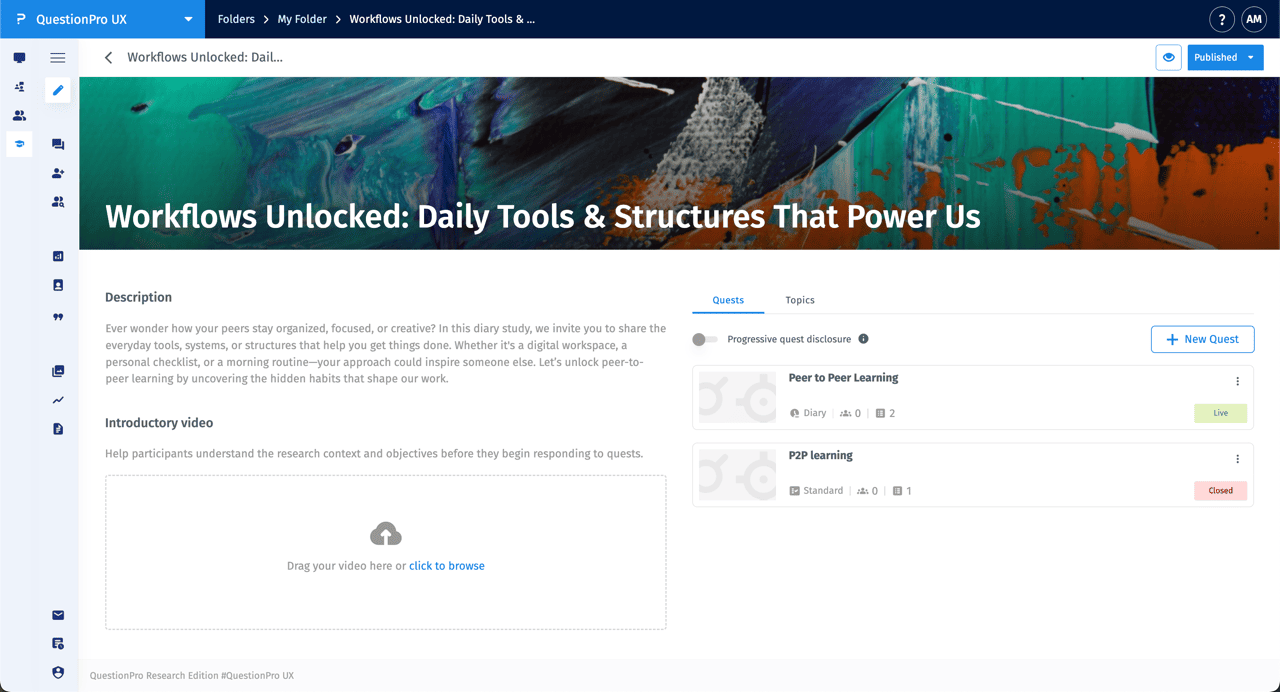
The Progressive quest disclosure toggle ensures that quests are revealed one at a time in the order you've defined. Each quest becomes visible to the participant only after the previous quest is completed.
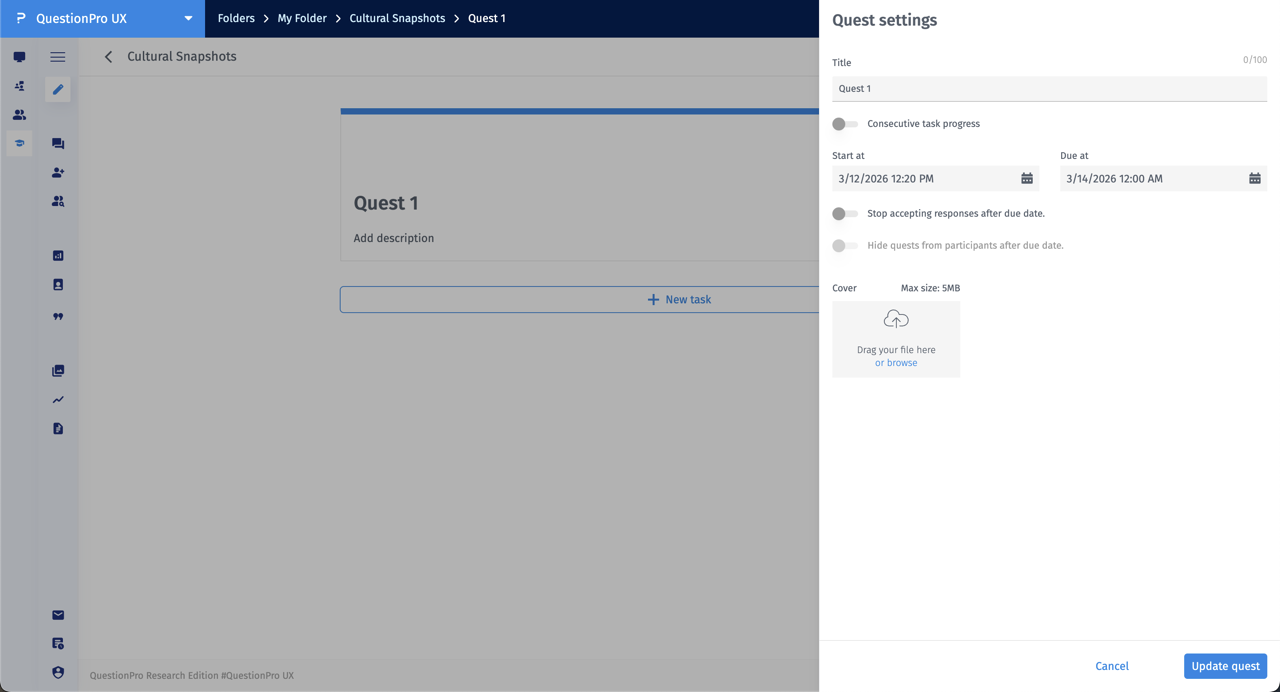
You can manage quest availability through the Quest settings panel:
- Start at & Due at: Define the window of activity; a quest remains active if the current date is between these two values. These can be edited later as needed.
- Stop accepting responses after due date: Enable this toggle to prevent further submissions once the deadline passes.
- Hide quests from participants after due date: This option hides the quest from view entirely. This is only enabled if you first choose to stop accepting responses.
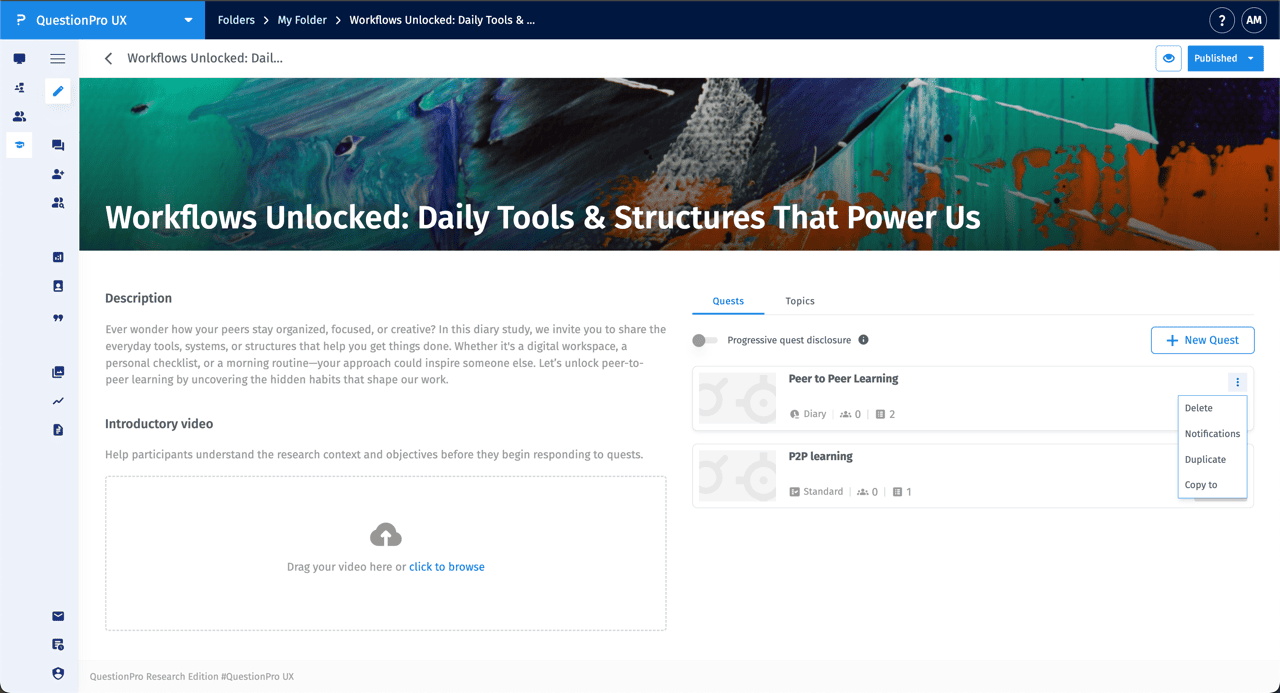
Click the three-dot menu icon on any individual Quest card to access the following management actions:
- Duplicate: Creates an identical copy of the quest within the same study.
- Copy to: Allows you to clone the quest into a different study.
- Delete: Permanently removes the quest and all associated data.