

- Moderation
- Usability test: UX Diagnostics
- Sprint View: Usability tests
- Accessible Usability Scale - AUS
- System Usability Scale - SUS
- SUPR-Q
- PSSUQ
- UX Crowd: Usability tests
- AI Insights for Usability Tests
- Self-Reported Success (SRS)
- AI Executive Summaries
- Participant Diaries and Study Analysis
- Image analysis
- Voting task analysis
- Video tasks: Analysis

Preview and Study States
To experience the study exactly as it will appear to your participants, click the Preview (eye) icon located in the top-right corner of the study dashboard.
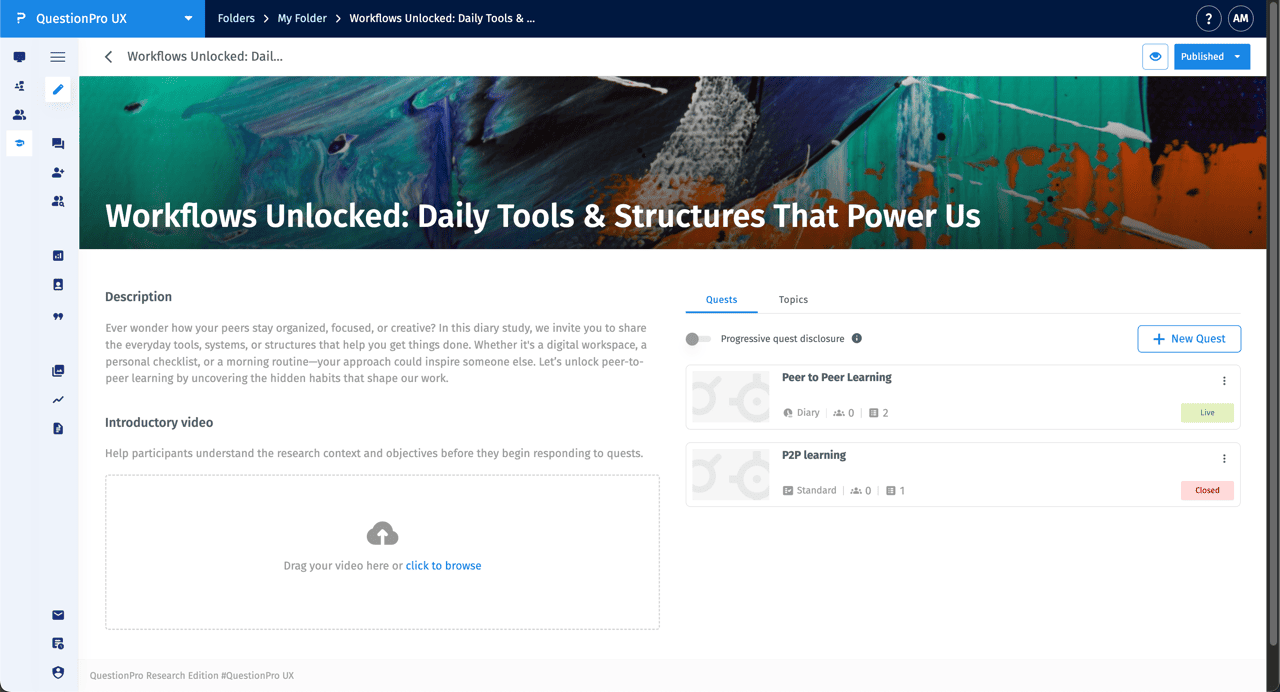
Preview mode allows you to navigate through the interface, view the study description, and interact with the quest list. This ensures that the branding, introductory video, and quest ordering are correctly configured before you go live.
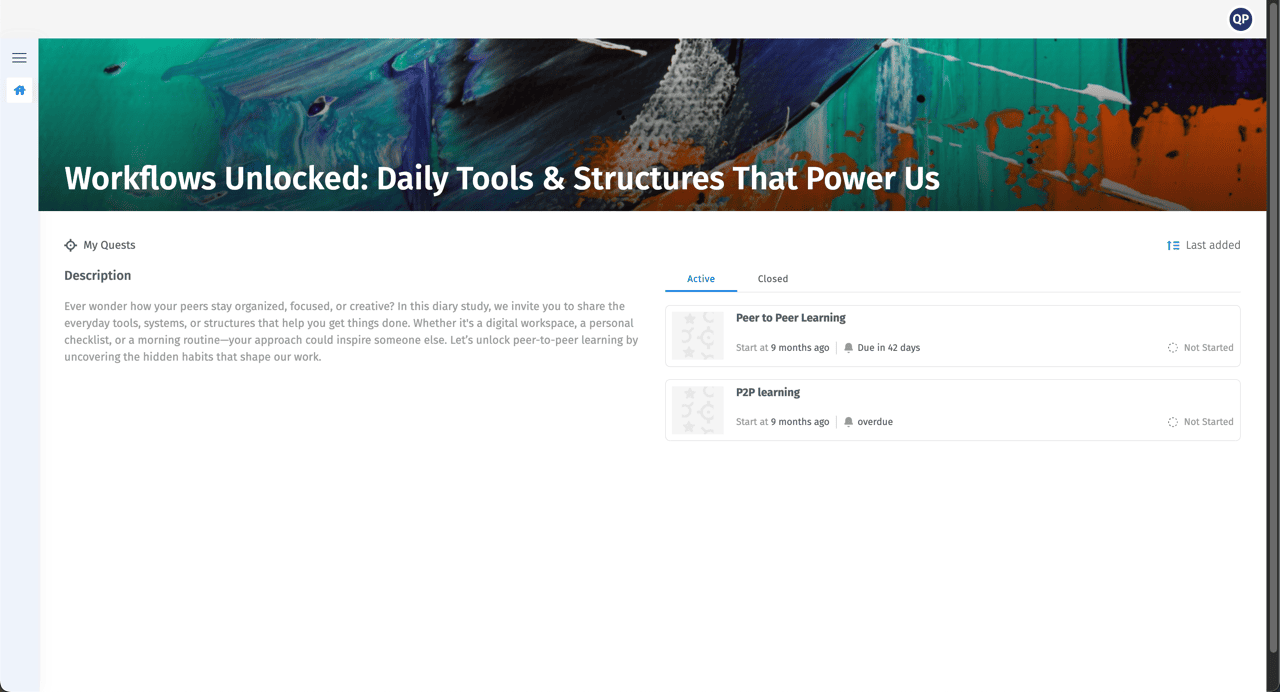
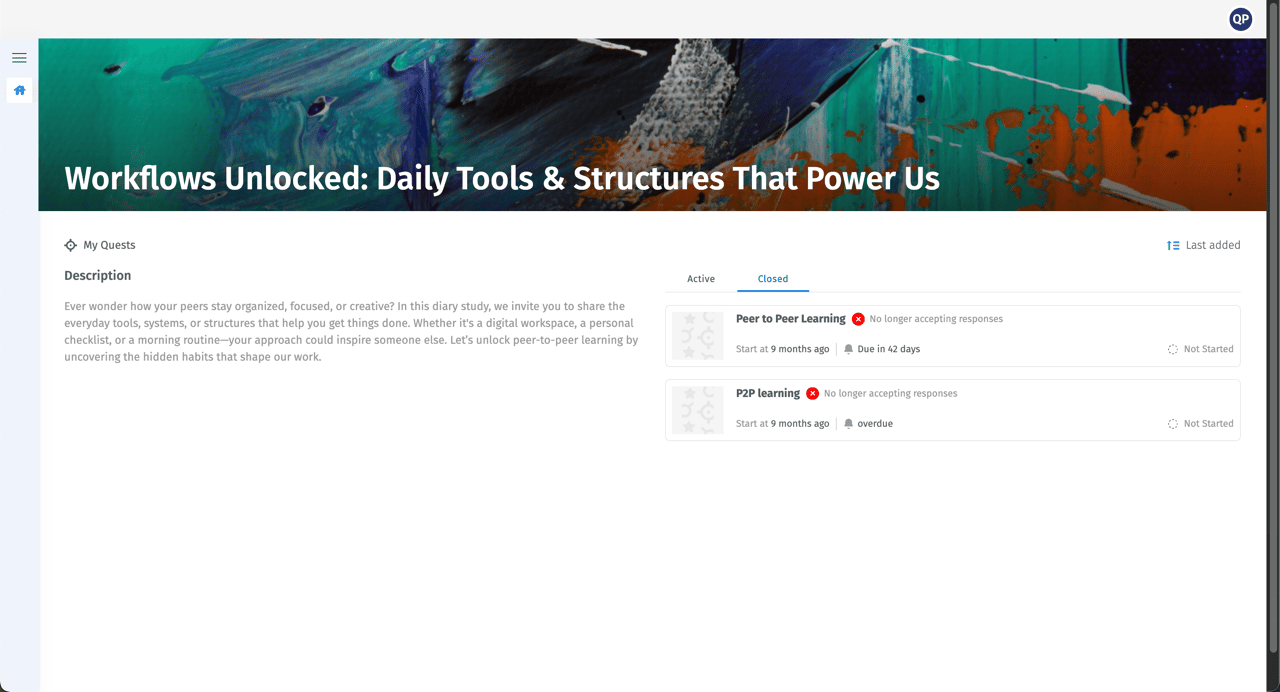
In this view, quests are organized into Active and Closed tabs, reflecting the scheduling settings you have defined.
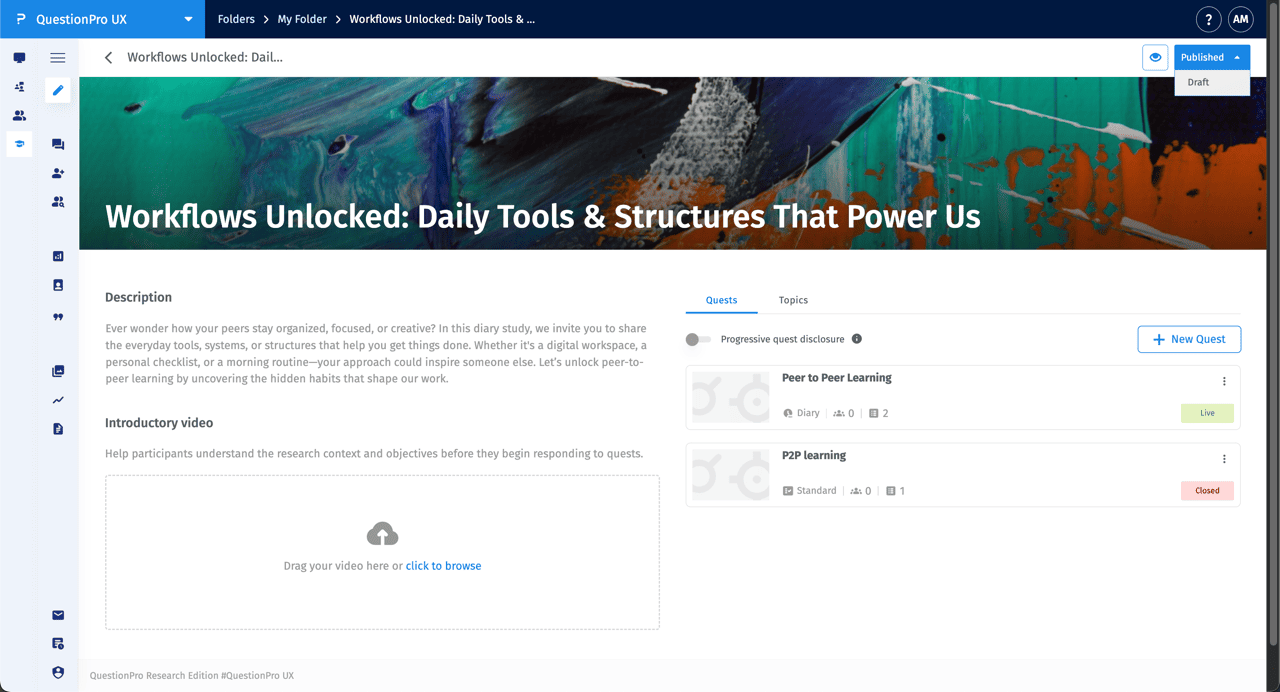
Every research project in QuestionPro UX exists in one of two states, which can be toggled via the dropdown menu in the top-right corner:
- Draft: This is the initial setup phase. While in Draft mode, you can edit all quest content and structure.
- Published: This state makes the study live and accessible to external respondents.
Certain core management features are disabled while a study is in the Draft state to prevent incomplete data collection:
- Participant Recruitment: You cannot add or invite new participants until the study is Published.
- Panel Invitations: Inviting panelists from your existing database is also disabled in Draft mode.
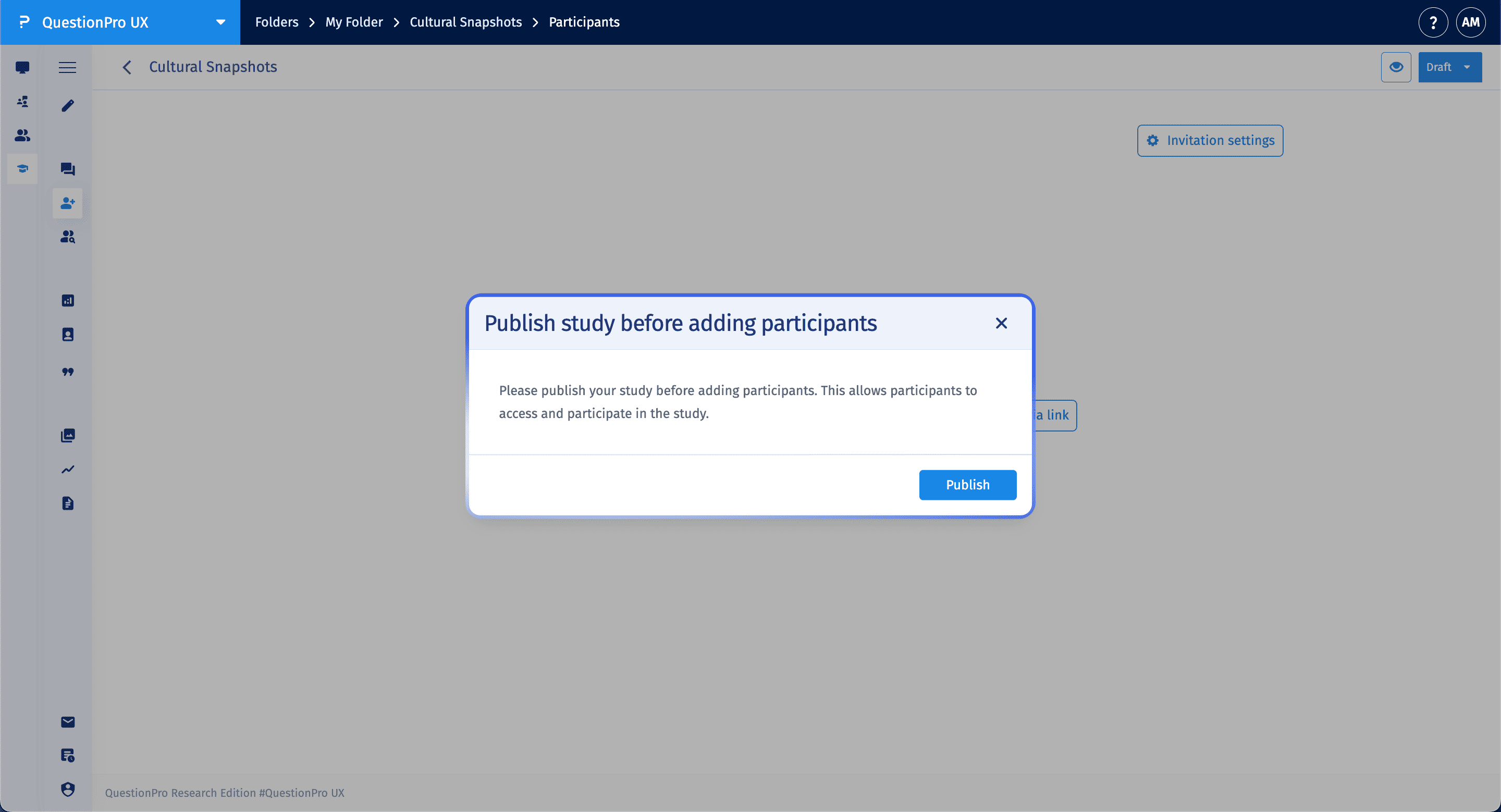
Note on Reverting to Draft: If you publish a study and add participants who are still in New or Pending status, you can revert the study to Draft. However, once reverted, those participants will be unable to sign in or open the study page via their links. Studies with Active participants who have already started responding cannot be moved back to Draft.
