- Moderation
- Usability test: UX Diagnostics
- Sprint View: Usability tests
- Accessible Usability Scale - AUS
- System Usability Scale - SUS
- SUPR-Q
- PSSUQ
- UX Crowd: Usability tests
- AI Insights for Usability Tests
- Self-Reported Success (SRS)
- AI Executive Summaries
- Participant Diaries and Study Analysis
- Image analysis
- Voting task analysis
- Video tasks: Analysis

Participant Management
Where do I access the Participants section?
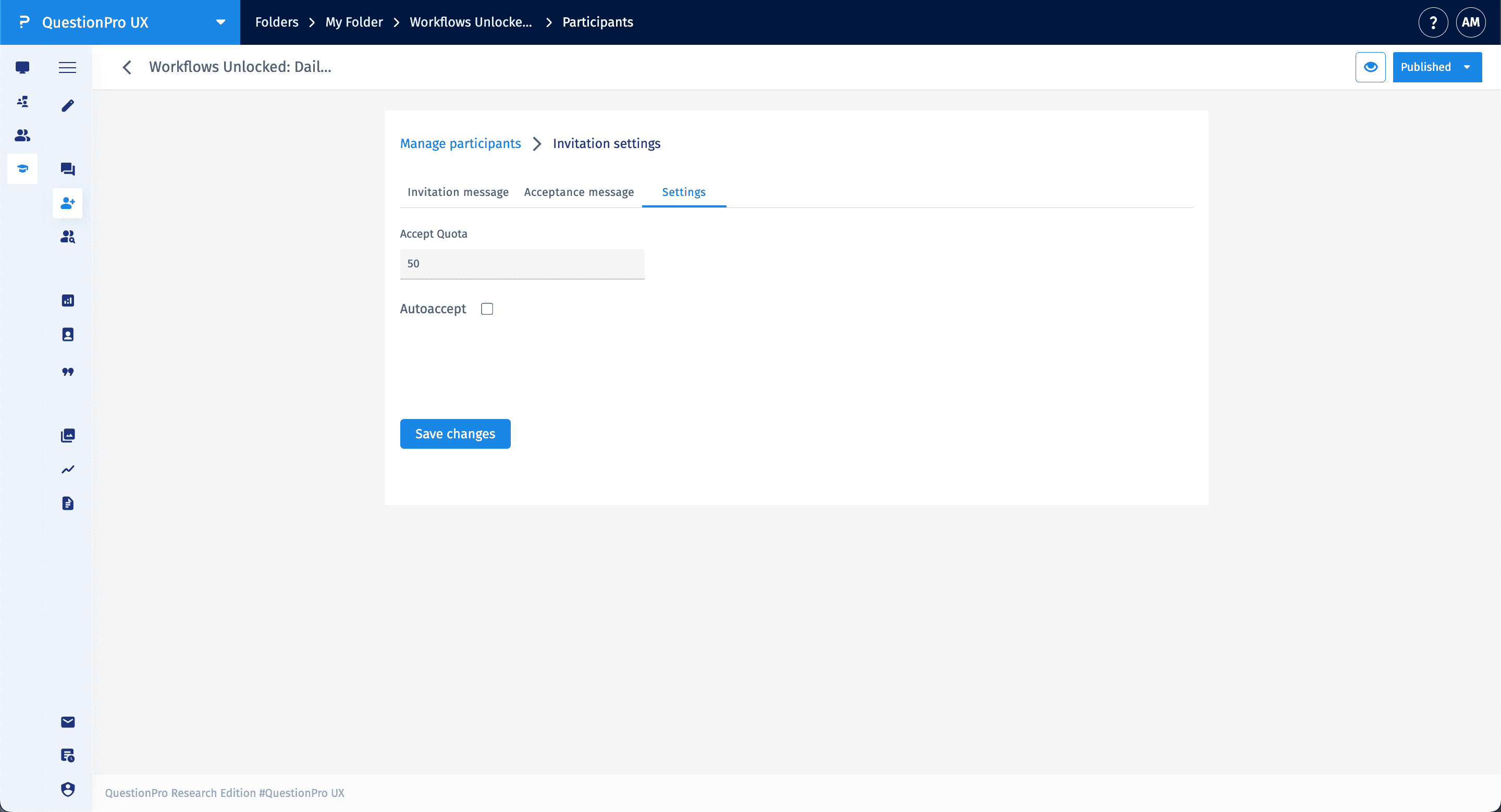
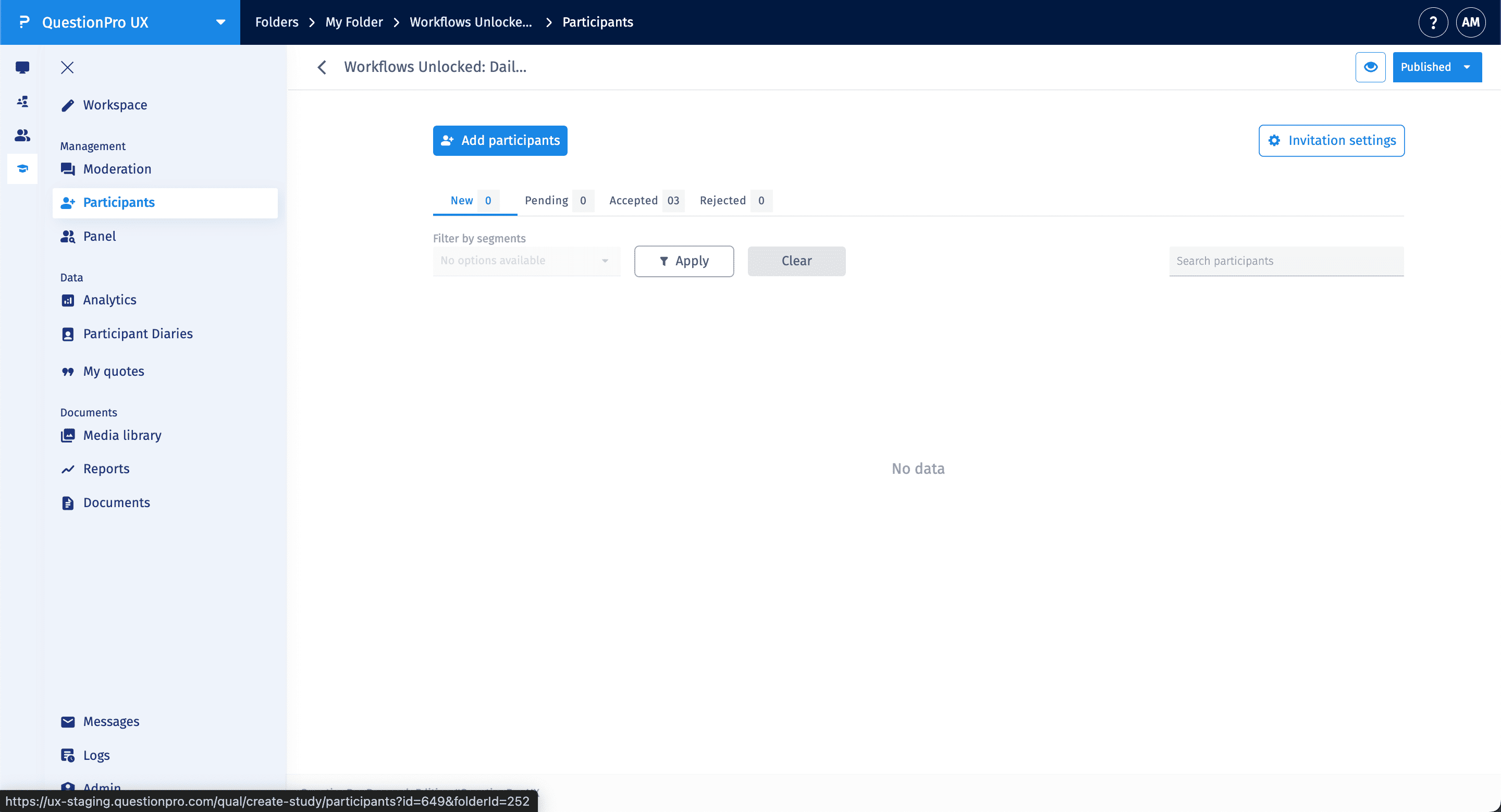
To manage the respondents for your research, navigate to the Management section in the left-hand sidebar of your study and select Participants. This dashboard is your central hub for recruiting new users and tracking their progress through the study lifecycle.
How can I recruit new participants?
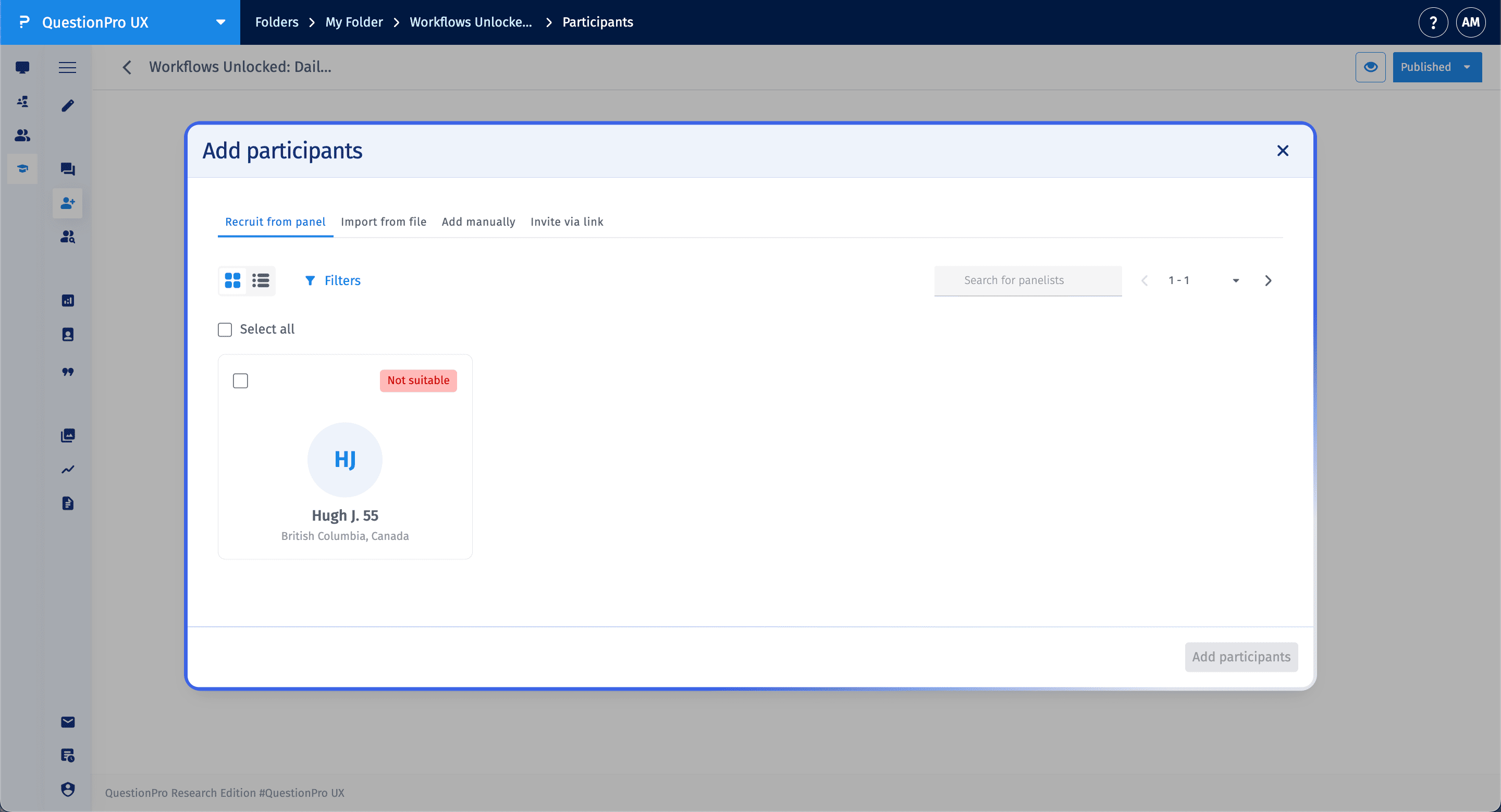
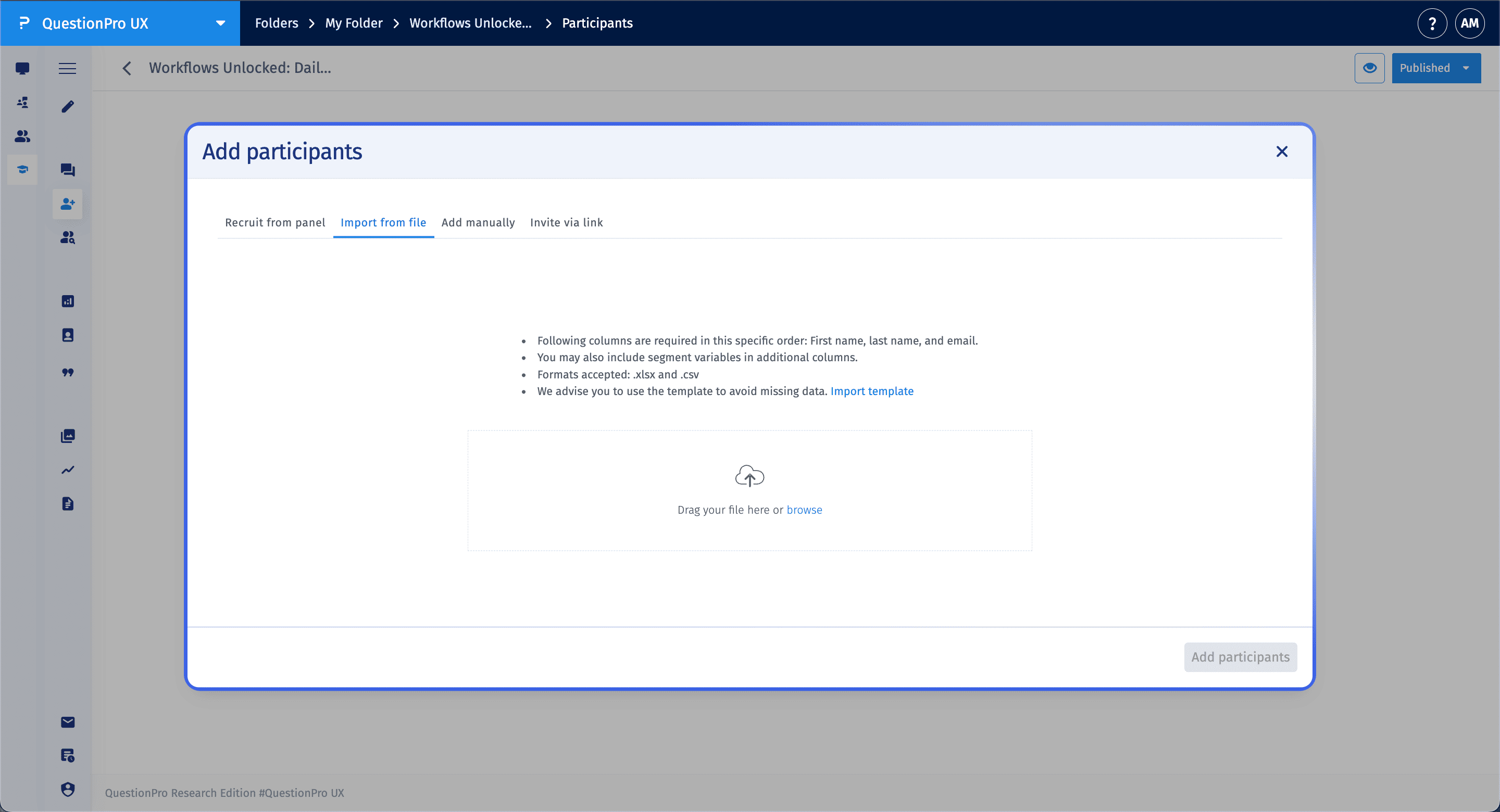
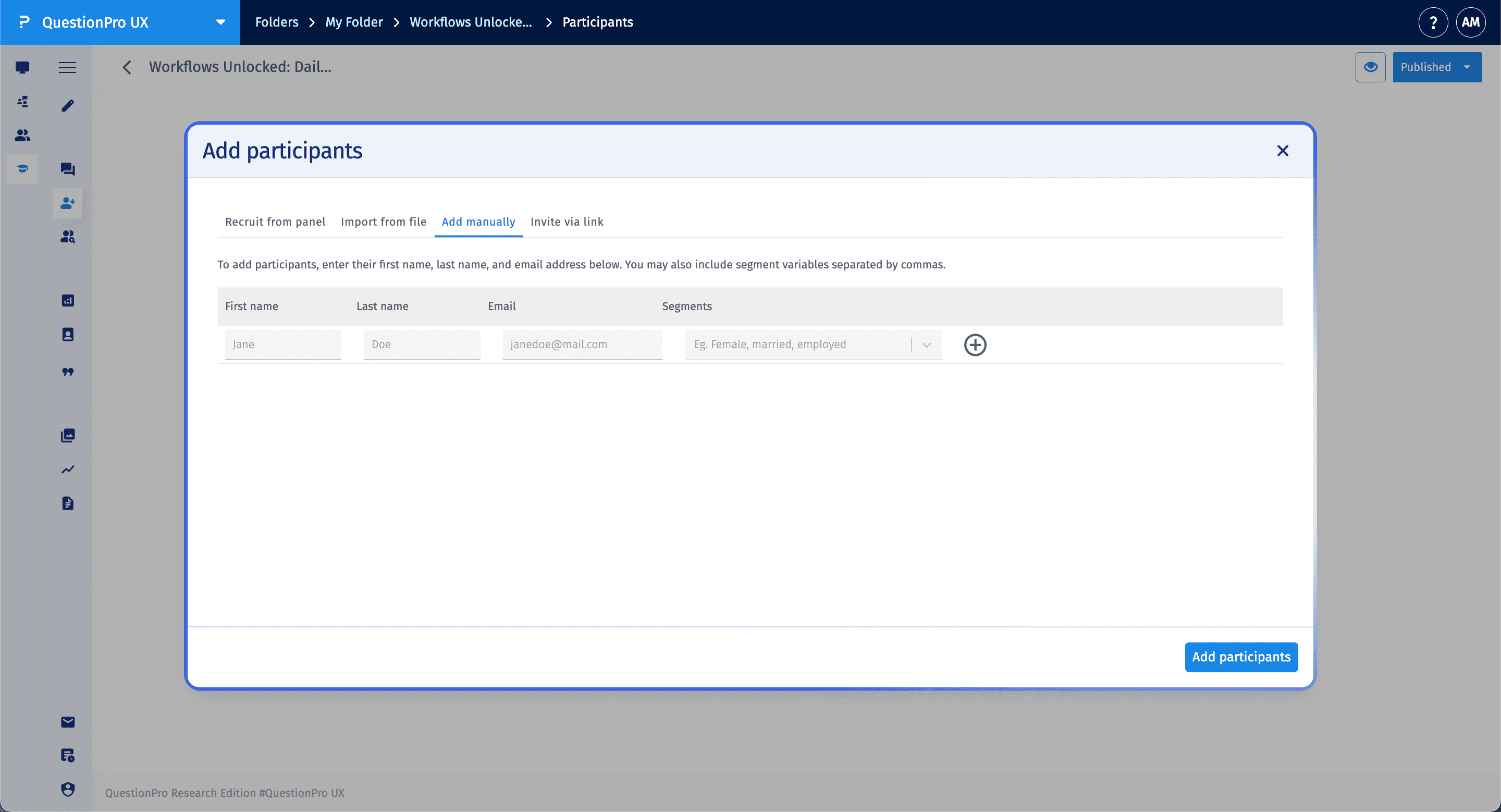
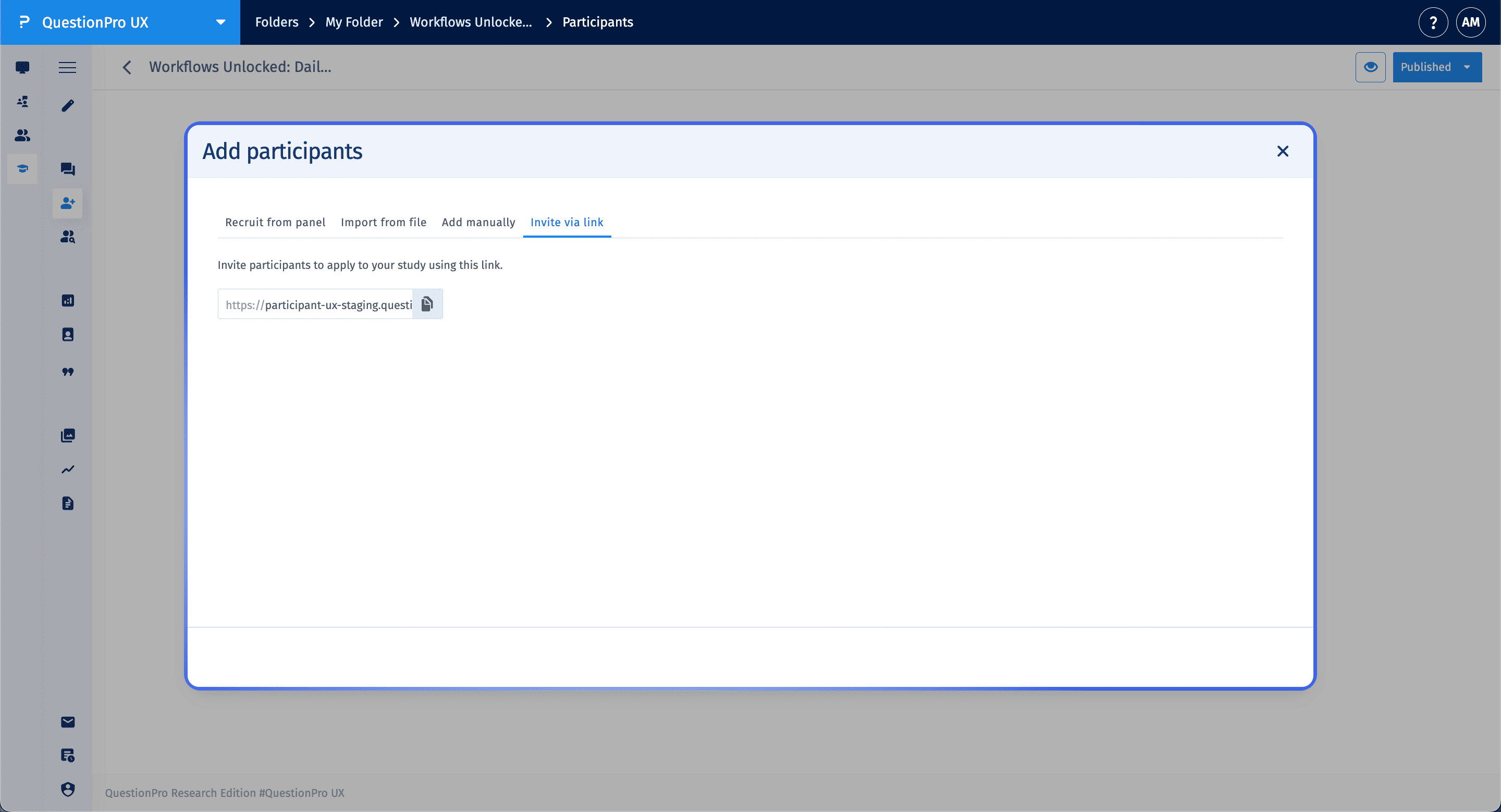
Click the Add participants button to view the four available recruitment methods:
- Recruit from panel: Select qualified members from your existing research panel who meet your study criteria.
- Import from file: Upload a .xlsx or .csv file. To avoid errors, ensure columns are in this specific order: First name, Last name, and Email.
- Add manually: Enter individual participant details and assign specific Segments to categorize them immediately.
- Invite via link: Copy a unique recruitment link that can be shared via email, social media, or any preferred communication channel.
What are the different participant states?
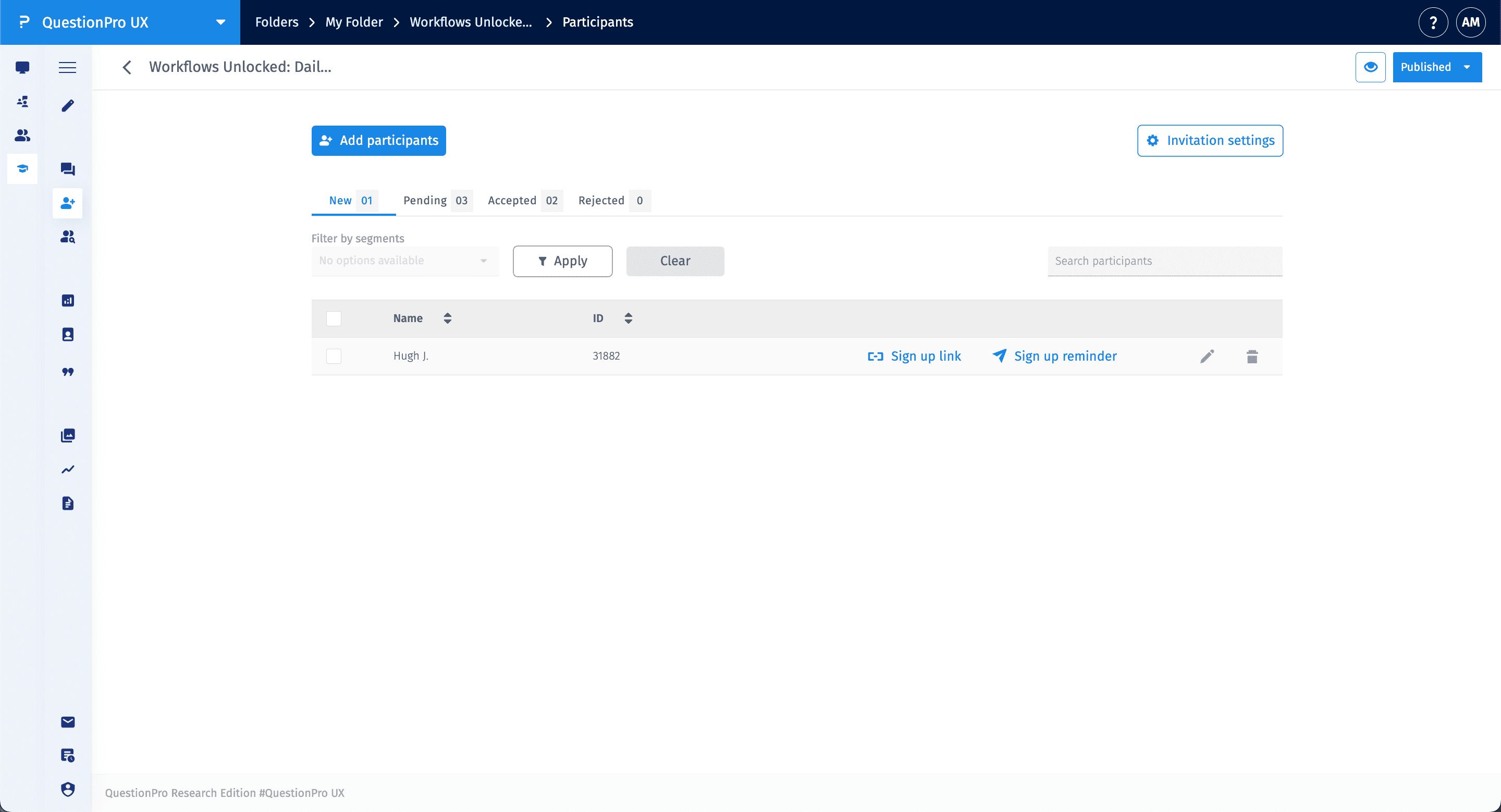
Participants move through four distinct states based on their engagement and your verification:
- New: Details have been added, but the user hasn't signed up yet. You can forward a Sign up link or Sign up reminder to these users.
- Pending: The user has signed up but is waiting for moderator approval.
- Accepted: Verified participants who are officially part of the study. Only users in this state can be forwarded Login links to access quests.
- Rejected: Users deemed unsuitable for the research objectives.
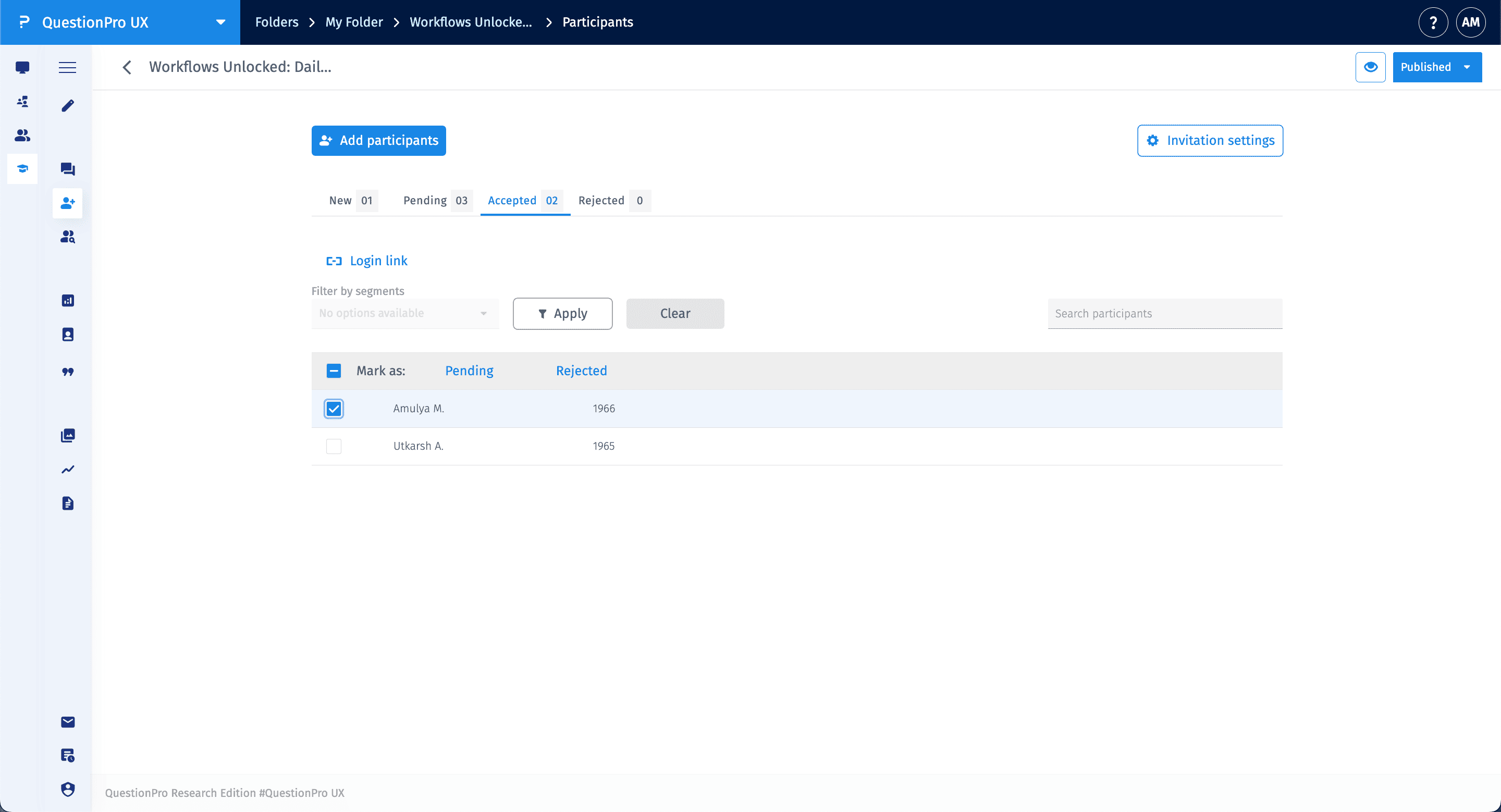
Moderators can manually move users between the Pending, Accepted, and Rejected states using the Mark as action bar.
How do I configure Invitation and Automation settings?
Click on Invitation settings in the top right of the participants' dashboard to customize the recruitment experience:
- Custom Messaging: Under the Invitation message and Acceptance message tabs, you can edit the exact text participants see during the sign-up and login process.
- Accept Quota: Set a cap on the number of participants allowed in the study. Once this number is reached, no further participants will be accepted.
- Auto-accept: Enable this toggle to automatically move participants from "Pending" to "Accepted" immediately upon signing up. This removes the need for manual verification and lets respondents start quests right away.