- Moderation
- Usability test: UX Diagnostics
- Sprint View: Usability tests
- Accessible Usability Scale - AUS
- System Usability Scale - SUS
- SUPR-Q
- PSSUQ
- UX Crowd: Usability tests
- AI Insights for Usability Tests
- Self-Reported Success (SRS)
- AI Executive Summaries
- Participant Diaries and Study Analysis
- Image analysis
- Voting task analysis
- Video tasks: Analysis

Participant Quotes
Participant Quotes allow researchers to highlight and save specific segments of participant feedback from text responses or video transcripts. These captured insights can be categorized by sentiment and viewed collectively to support research findings.
You can capture quotes directly while reviewing responses in the Moderation or Video Analysis sections:
- Text Moderation: Click the Quote icon (quotation marks) located at the top right of a participant's response.
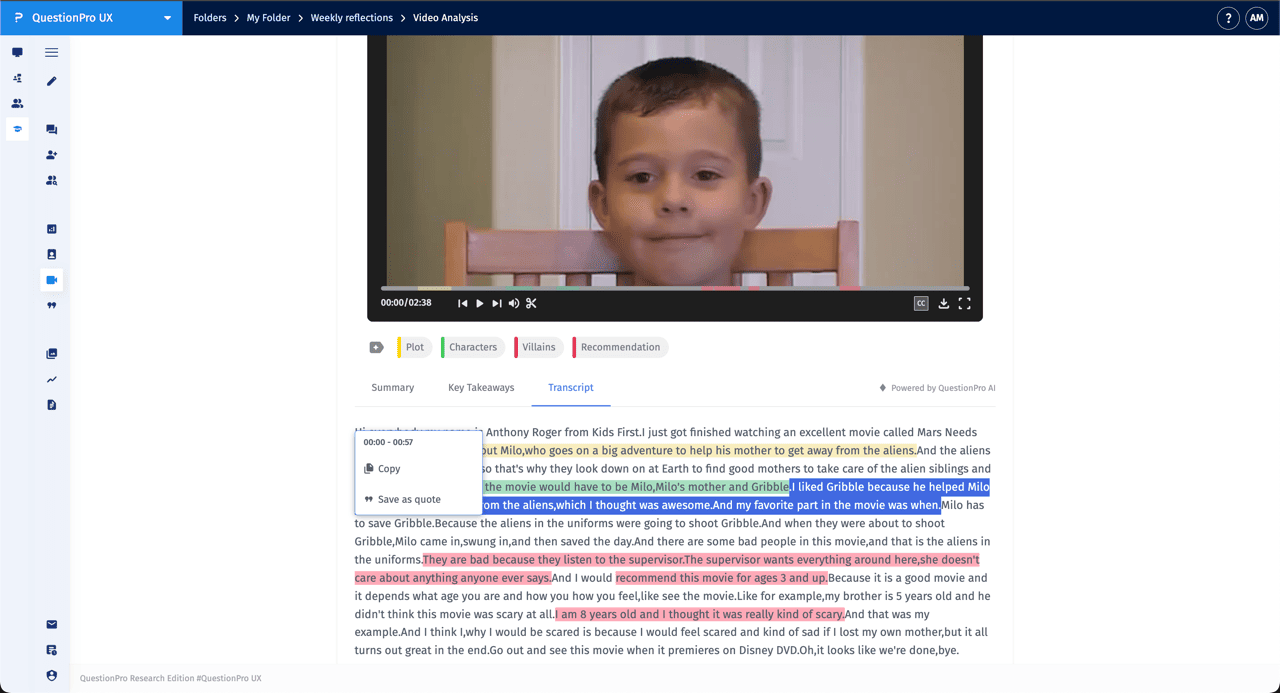
- Video Analysis: While viewing a transcript, highlight the specific text you wish to save. A pop-up menu will appear allowing you to select Save as quote.
Yes. Within the Analytics or Participant Diaries sections, you can quickly generate quotes using the Pencil (Edit) icon found next to participant entries. This allows you to refine the text or directly convert a response into a saved insight.
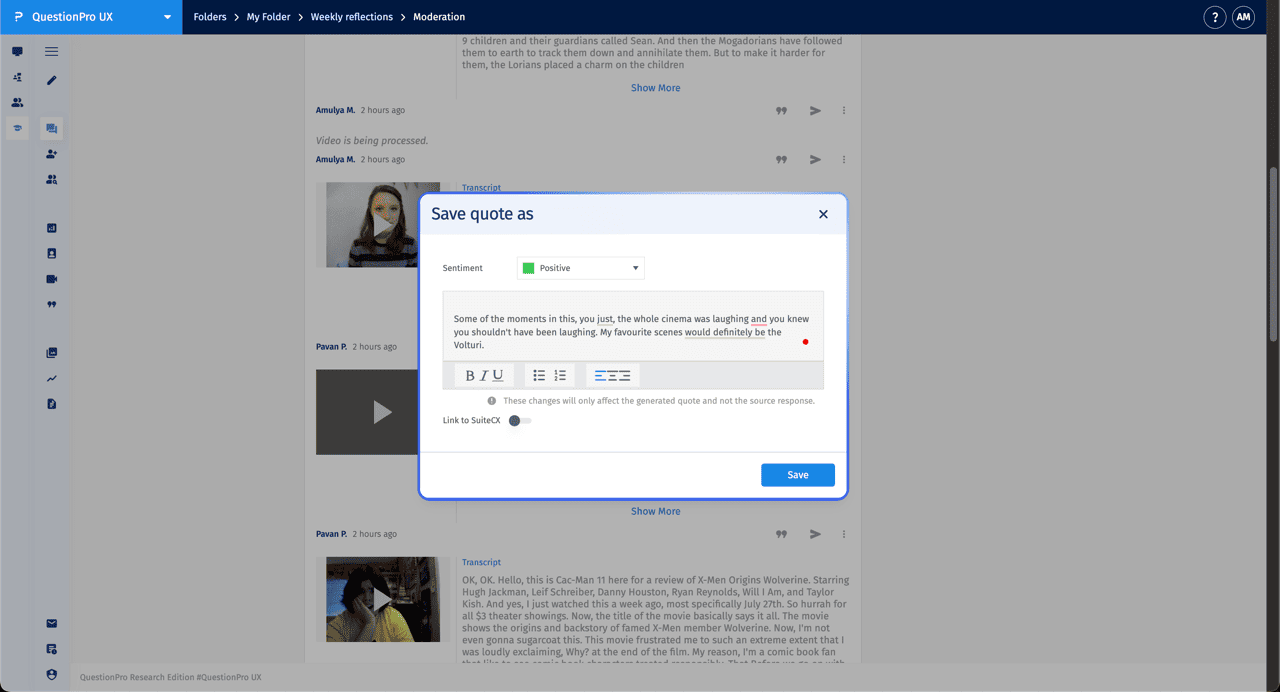
When you initiate a quote, the Save quote as dialog box appears:
- Sentiment: Assign a sentiment (Positive, Neutral, or Negative) to the quote using the dropdown menu.
- Text Editing: You can use rich text tools (Bold, Italics, Underline, Lists) to format the quote for your reports.
- Link to SuiteCX: If integrated, toggle the switch to link the quote to your SuiteCX project.
Click Save or Update to add the quote to your library.
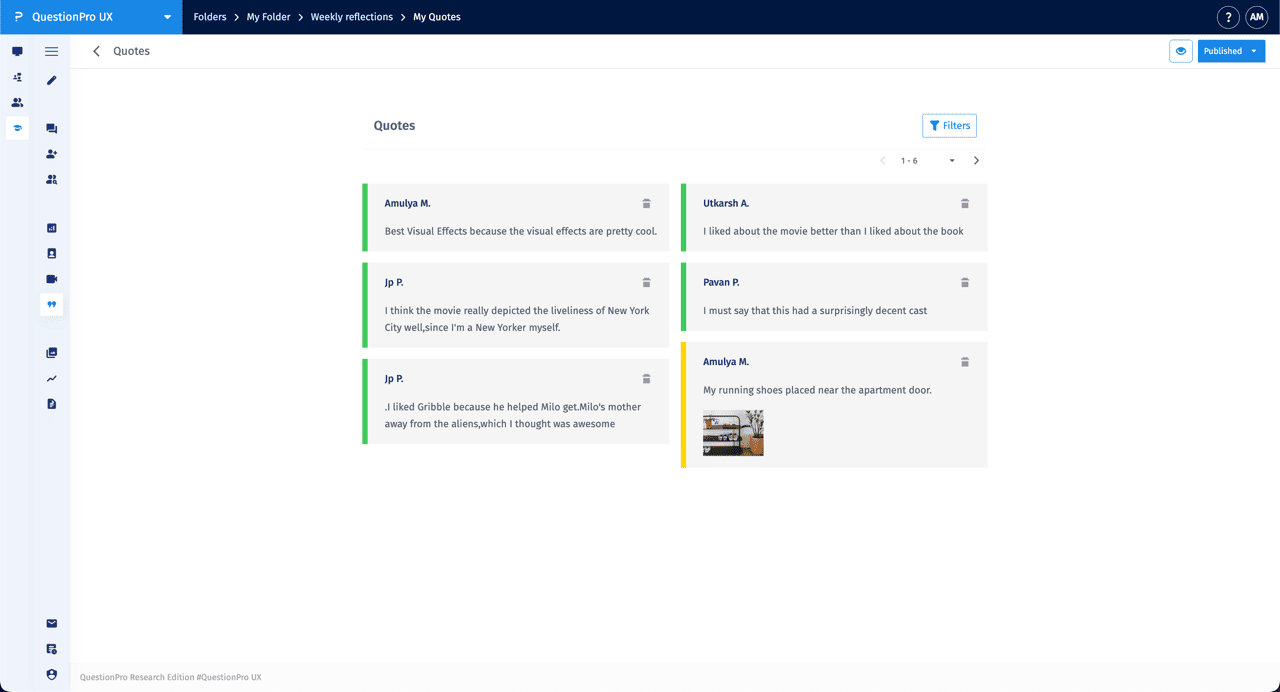
Saved quotes are accessible in two primary ways:
- My Quotes: Click the Quotes icon in the left-hand sidebar to see a dedicated gallery of all captured insights across the project. Each quote card displays the participant's name, the original task, and any associated media.
- Analytics Responses: In the Analytics > Responses tab, quotes are displayed directly beneath the relevant tasks.
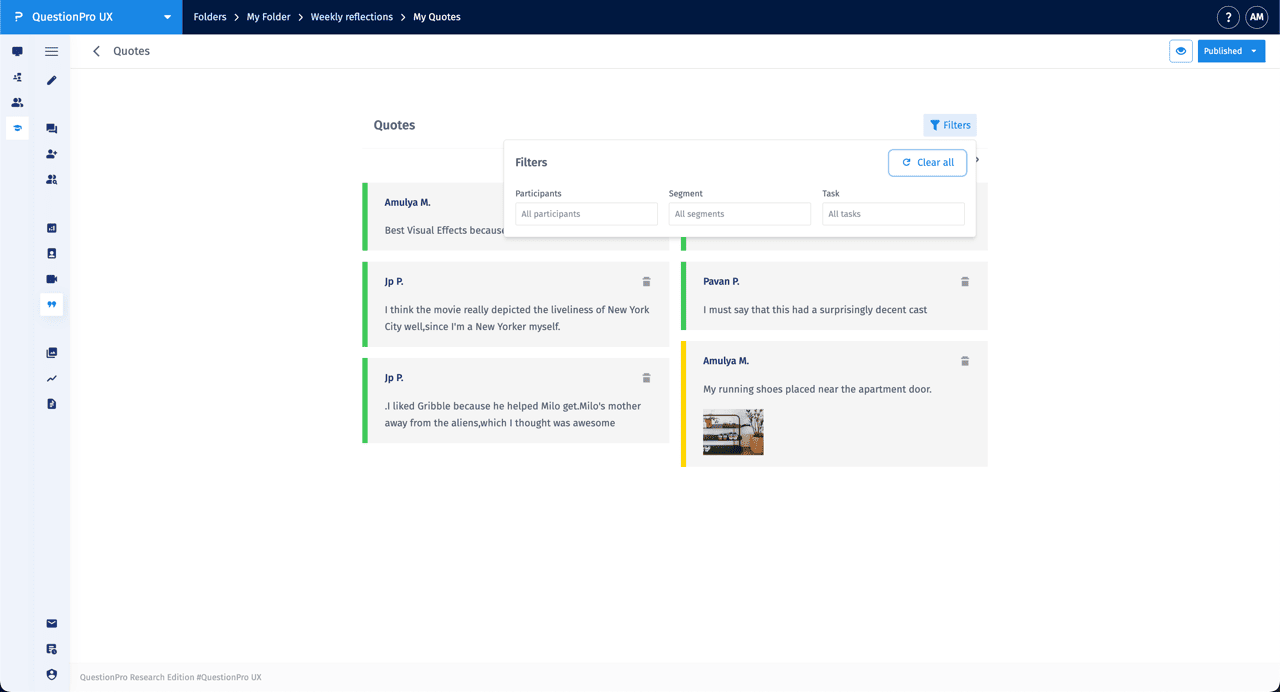
You can narrow down your saved quotes using the Filters button in the Quotes gallery or Analytics view:
- Participants: View quotes from specific respondents.
- Tasks: Filter by the specific Quest or Task the quote originated from.
- Segments: Filter based on participant demographic segments.