• Skip to main content
  • Skip to primary sidebar
  • Skip to footer
QuestionPro

QuestionPro

questionpro logo
  • Products
    survey software iconSurvey softwareEasy to use and accessible for everyone. Design, send and analyze online surveys.research edition iconResearch SuiteA suite of enterprise-grade research tools for market research professionals.CX iconCustomer ExperienceExperiences change the world. Deliver the best with our CX management software.WF iconEmployee ExperienceCreate the best employee experience and act on real-time data from end to end.
  • Solutions
    IndustriesGamingAutomotiveSports and eventsEducationGovernment
    Travel & HospitalityFinancial ServicesHealthcareCannabisTechnology
    Use CaseAskWhyCommunitiesAudienceContactless surveysMobile
    LivePollsMember ExperienceGDPRPositive People Science360 Feedback Surveys
  • Resources
    BlogeBooksSurvey TemplatesCase StudiesTrainingHelp center
  • Features
  • Pricing
Language
  • English
  • Español (Spanish)
  • Português (Portuguese (Brazil))
  • Nederlands (Dutch)
  • العربية (Arabic)
  • Français (French)
  • Italiano (Italian)
  • 日本語 (Japanese)
  • Türkçe (Turkish)
  • Svenska (Swedish)
  • Hebrew IL (Hebrew)
  • ไทย (Thai)
  • Deutsch (German)
  • Portuguese de Portugal (Portuguese (Portugal))
  • Español / España (Spanish / Spain)
Call Us
+1 800 531 0228 +1 (647) 956-1242 +55 9448 6154 +49 030 9173 9255 +44 01344 921310 +81-3-6869-1954 +61 (02) 6190 6592 +971 529 852 540
Log In Log In
SIGN UP FREE

Home Audience

Shared Workspace: What It Is and How Access Works

shared-workspace-team-access

A live Specialized sample project is in the field. The owner is out. Completes are still arriving, and someone on the team needs to check monitoring or pause the work without copying the project into another account. Shared workspace is built for that moment: open a colleague’s Audience workspace, keep the original owner, and work from the access the organization actually granted.

Content Index hide
1. Why is team collaboration hard when every Audience project stays with its creator?
2. Why did we build Shared workspace?
3. What is Shared workspace and what does it change?
4. How do you switch to a Shared workspace in Audience?
5. What is the difference between Read and Read and write?
6. Who controls Shared workspace access in the organization?
7. What does Shared workspace look like on a live project?
8. What should research teams do next?

Why is team collaboration hard when every Audience project stays with its creator?

In many organizations, Audience projects lived only with the person who created them. Teammates could not open that list, so fieldwork became a single-person dependency. If the owner was unavailable, the rest of the team waited, or asked support to transfer access, instead of helping on the original project.

That wait is the real cost. Copying a project splits reporting. Transferring ownership is slow and is not what most teams wanted. They wanted to see, and sometimes manage, the same project under clear rules.

Why did we build Shared workspace?

Research operations teams asked for a way to cover live work without moving projects or changing the owner. Administrators asked for a single place to decide who can view, who can change, and who can create Specialized samples, Instant answers, or Synthetic projects.

The product decision was a workspace model. Every user keeps My workspace. A Shared workspace is another person’s workspace in the same organization, opened only after the Primary user grants access. Permissions are enforced on the workspace, not by copying the project.

What is Shared workspace and what does it change?

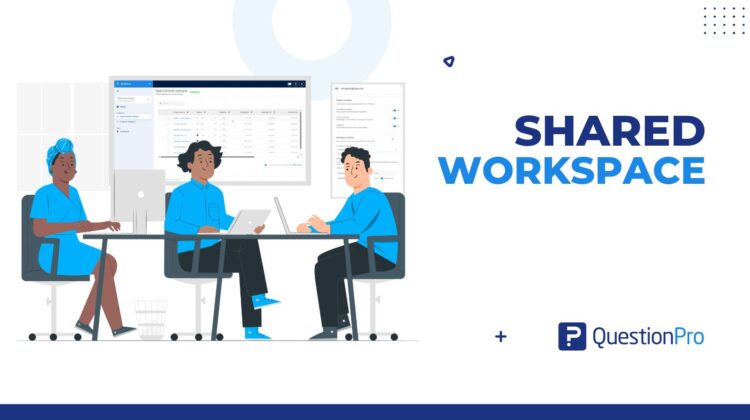
Shared workspace lets you switch from My workspace into a colleague’s workspace and see that person’s projects. The header shows whose workspace you are in and a chip for Read or Read and write.

What does not change is ownership. The person who created a project stays its owner, even when someone with Read and write pauses, resumes, or otherwise manages it. With Read and write, you can also create a project in that Shared workspace. Create project is hidden on Read access.

How do you switch to a Shared workspace in Audience?

Click the workspace switcher at the top of the left menu. It shows the workspace you are in. Under Shared workspace, click the name of the person whose projects you need. The Specialized sample list then shows only that person’s projects.

To go back, open the switcher and click My workspace. Audience opens My workspace first after every login. The workspace you pick stays selected until you log out. If no one has shared a workspace with you, the switcher shows No shared workspaces.

What is the difference between Read and Read and write?

Read is for monitoring. You can view projects, project details, monitoring, and reports. You cannot change anything, so Push, edit, pause, resume, close, and Create project are hidden.

Read and write is for coverage. You can view and manage projects as you would in your own workspace. The project owner does not change.

The Primary user sets this per workspace. The default is Read and write.

Who controls Shared workspace access in the organization?

Each organization has one Primary user. Only that person can give or remove access.

The Primary user opens the workspace switcher, clicks Organization access, and chooses Manage next to a user. In Project creation, they turn on Specialized sample, Instant answers, and Synthetic for that user. In Workspace access, Accessible workspaces controls which workspaces the user can open. For each one, they choose Read or Read and write, then click Update permissions.

Audience asks for confirmation before a workspace is removed from a user or before access is changed from Read and write to Read. If access is removed while you are in that workspace, you see Access unavailable and can click Go to My Workspace.

What does Shared workspace look like on a live project?

A research operations manager owns a live Specialized sample project. A teammate needs to watch completes while the owner is in another meeting. The Primary user has already granted that teammate Read access to the owner’s workspace. The teammate opens the switcher, selects the owner’s Shared workspace, and reviews monitoring and reports. Push, edit, pause, resume, and close stay hidden.

Later the same week, the owner is out and the project needs to be paused. The Primary user has granted a second teammate Read and Write access. That person opens the same Shared workspace, manages the project, and leaves ownership with the original creator. No copy. No ownership transfer. If they have Read and Write, they can also create a project in that Shared workspace.

What should research teams do next?

If more than one person in the organization needs to cover Audience projects, ask the Primary user to open Organization access and grant the right workspaces. Use Read when someone should only view details and reports. Use Read and write when someone must manage a live project or create a project in that Shared workspace.

Shared workspace is documented as available with Advanced, Team Edition, Research Edition, Communities, Customer Experience, and University — Research Edition. It does not transfer ownership, share across organizations, or add folders, project-level sharing, temporary access, or an audit log. For the product rules, use the Shared workspace help file.
Create memorable experiences based on real-time data, insights and advanced analysis. Request Demo

SHARE THIS ARTICLE:

About the author
Raj Purohit
PDM Audience & Synthetic data
View all posts by Raj Purohit

Primary Sidebar

Unlock the Power of Research with QuestionPro Audience

Gain insights from more than 22 million high-quality respondents around the globe

Get a Free Quote Now!

RELATED ARTICLES

HubSpot - QuestionPro Integration

Gamified Corporate Training: Turning Compliance Modules Into Quizzes People Actually Finish

Sep 24,2026

HubSpot - QuestionPro Integration

Smart survey dashboards with BI, now included with every professional QuestionPro

Oct 13,2026

HubSpot - QuestionPro Integration

Business Analytics Software in India: The Complete 2026 Guide

May 15,2026

BROWSE BY CATEGORY

Footer

MORE LIKE THIS

shared-workspace-team-access

Shared Workspace: What It Is and How Access Works

Nov 2, 2026

questionpro-product-updates-october -2026

QuestionPro product updates: everything that shipped in October 2026

Nov 1, 2026

closedloop-analytics

Why CX Analytics Needs More Than a Dashboard: Introducing Upgraded Closedloop Analytics

Oct 30, 2026

Student Experience Data for ATEC Mission-Based Compacts: A Guide for Australian Universities

Oct 27, 2026

Other categories

questionpro-logo-nw
Help center Live Chat SIGN UP FREE
  • Sample questions
  • Sample reports
  • Survey logic
  • Branding
  • Integrations
  • Professional services
  • Security
  • Survey Software
  • Customer Experience
  • Workforce
  • Communities
  • Audience
  • Polls Explore the QuestionPro Poll Software - The World's leading Online Poll Maker & Creator. Create online polls, distribute them using email and multiple other options and start analyzing poll results.
  • Research Edition
  • LivePolls
  • InsightsHub
  • Blog
  • Articles
  • eBooks
  • Survey Templates
  • Case Studies
  • Training
  • Webinars
  • All Plans
  • Nonprofit
  • Academic
  • Qualtrics Alternative Explore the list of features that QuestionPro has compared to Qualtrics and learn how you can get more, for less.
  • SurveyMonkey Alternative
  • VisionCritical Alternative
  • Medallia Alternative
  • Likert Scale Complete Likert Scale Questions, Examples and Surveys for 5, 7 and 9 point scales. Learn everything about Likert Scale with corresponding example for each question and survey demonstrations.
  • Conjoint Analysis
  • Net Promoter Score (NPS) Learn everything about Net Promoter Score (NPS) and the Net Promoter Question. Get a clear view on the universal Net Promoter Score Formula, how to undertake Net Promoter Score Calculation followed by a simple Net Promoter Score Example.
  • Offline Surveys
  • Customer Satisfaction Surveys
  • Employee Survey Software Employee survey software & tool to create, send and analyze employee surveys. Get real-time analysis for employee satisfaction, engagement, work culture and map your employee experience from onboarding to exit!
  • Market Research Survey Software Real-time, automated and advanced market research survey software & tool to create surveys, collect data and analyze results for actionable market insights.
  • GDPR & EU Compliance
  • Employee Experience
  • Customer Journey
  • Synthetic Data
  • About us
  • Executive Team
  • In the news
  • Testimonials
  • Advisory Board
  • Careers
  • Brand
  • Media Kit
  • Contact Us

QuestionPro in your language

  • English
  • Español (Spanish)
  • Português (Portuguese (Brazil))
  • Nederlands (Dutch)
  • العربية (Arabic)
  • Français (French)
  • Italiano (Italian)
  • 日本語 (Japanese)
  • Türkçe (Turkish)
  • Svenska (Swedish)
  • Hebrew IL (Hebrew)
  • ไทย (Thai)
  • Deutsch (German)
  • Portuguese de Portugal (Portuguese (Portugal))
  • Español / España (Spanish / Spain)

Awards & certificates

  • survey-leader-asia-leader-2023
  • survey-leader-asiapacific-leader-2023
  • survey-leader-enterprise-leader-2023
  • survey-leader-europe-leader-2023
  • survey-leader-latinamerica-leader-2023
  • survey-leader-leader-2023
  • survey-leader-middleeast-leader-2023
  • survey-leader-mid-market-leader-2023
  • survey-leader-small-business-leader-2023
  • survey-leader-unitedkingdom-leader-2023
  • survey-momentumleader-leader-2023
  • bbb-acredited
The Experience Journal

Find innovative ideas about Experience Management from the experts

  • © 2022 QuestionPro Survey Software | +1 (800) 531 0228
  • Sitemap
  • Privacy Statement
  • Terms of Use