Imagine a visitor browsing your website. They are exploring a product, comparing services, or trying to complete a purchase when a feedback invitation appears on their screen.
The design, placement, and timing of that invitation can influence whether they engage with it or simply close it.
But how do you know whether your website feedback popup looks right before showing it to actual visitors?
Publishing an intercept just to check its appearance can make the design process unnecessarily time-consuming. You need a way to see how the feedback invitation fits into your website, evaluate its appearance across devices, and make adjustments before going live.
That’s where Website Intercept Preview comes in.
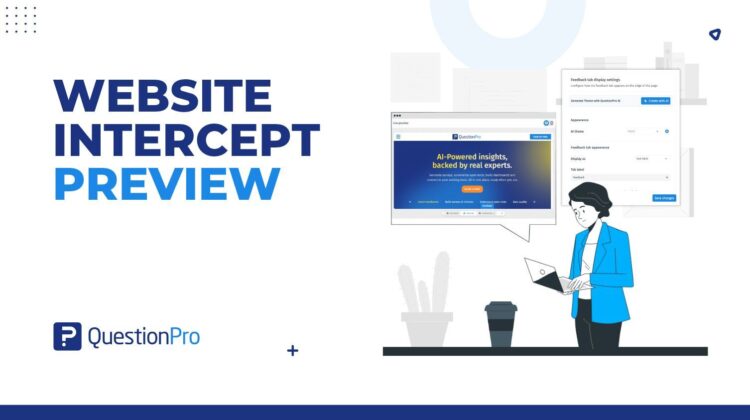
With QuestionPro CX, you can preview your website intercepts directly on your website, against a neutral background, or on an uploaded webpage screenshot. You can also switch between desktop and mobile views to review the experience across different screen layouts.
Let’s explore why website intercept preview matters and how QuestionPro makes the process easier.
What Is Website Intercept Preview?
Website Intercept Preview is a feature that allows organizations to visualize how their website feedback intercepts will appear to visitors before publishing them.
A website intercept is a feedback invitation displayed to visitors while they are browsing a website. It helps organizations collect feedback at relevant moments without requiring visitors to navigate to a separate feedback destination.
However, creating an intercept is only one part of the process. It is equally important to understand how the invitation will look within the website environment.
QuestionPro’s Intercept Preview addresses this need by providing a visual preview of the configured intercept.
Users can:
- Preview an intercept on their actual website.
- View the intercept against a neutral placeholder background.
- Upload a webpage screenshot and preview the intercept on it.
- Switch between desktop and mobile views.
- Maximize the preview panel for a closer inspection.
- See design changes reflected in the preview.
This makes it easier to validate the visual experience before saving and publishing an intercept.
Why Is Previewing Website Feedback Intercepts Important?
A feedback invitation becomes part of the visitor’s website experience. If it does not fit the surrounding design or layout, it may create unnecessary friction.
For example, consider an e-commerce website displaying a feedback popup on a product page. If the popup overlaps important product information or looks inconsistent with the website’s visual design, it may distract visitors from their primary activity.
Similarly, an intercept that looks appropriate on a desktop screen may need additional visual review on mobile.
Previewing an intercept helps teams identify potential design issues before making the experience available to visitors.
Here are some reasons why website intercept preview is important:
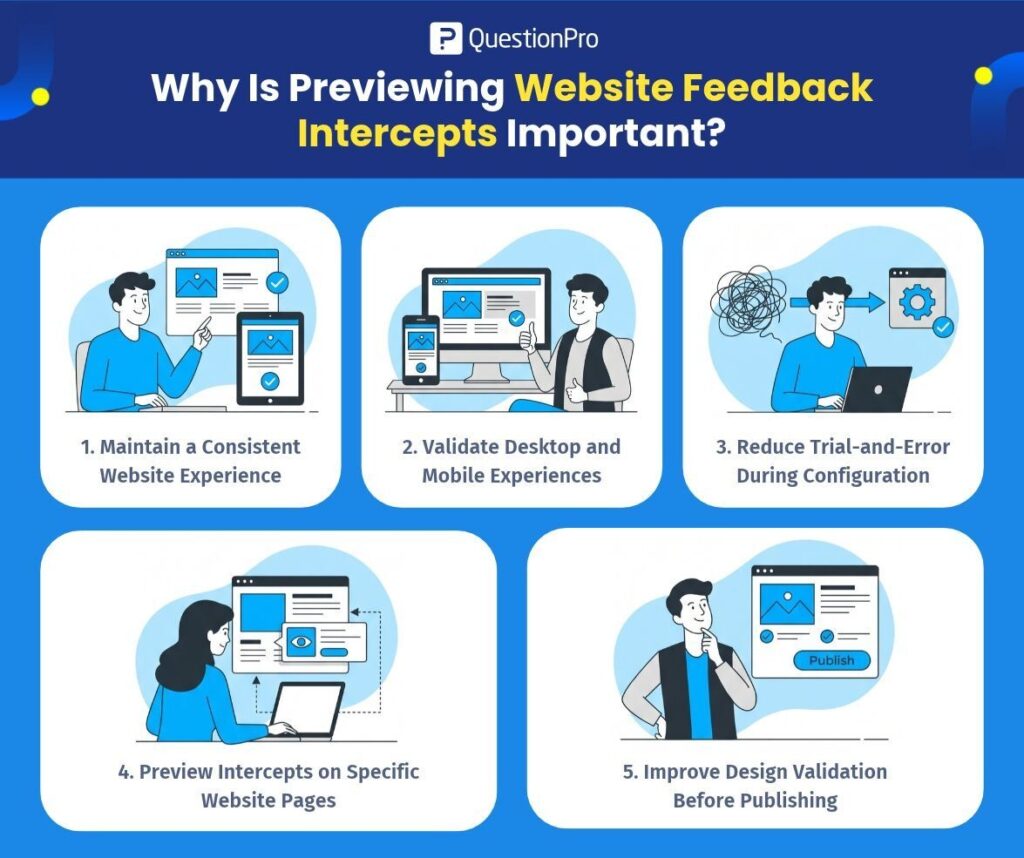
1. Maintain a Consistent Website Experience
Your feedback invitation should feel like a natural part of your website rather than an unrelated element.
Previewing an intercept on the actual website helps teams evaluate how its appearance fits within the surrounding webpage.
2. Validate Desktop and Mobile Experiences
Visitors access websites through different devices. A design that looks appropriate on a desktop may need adjustments when viewed on a mobile screen.
Desktop and mobile preview options help teams review the intercept across different screen layouts.
3. Reduce Trial-and-Error During Configuration
Without a preview, teams may need to repeatedly publish or test intercept configurations to understand how design changes affect their appearance.
A visual preview allows users to review design adjustments directly within QuestionPro before saving their changes.
4. Preview Intercepts on Specific Website Pages
A feedback invitation may appear on a homepage, product page, checkout page, or support page.
Each page has a different layout and content structure.
Using an uploaded webpage screenshot, teams can evaluate how an intercept appears on a specific page.
5. Improve Design Validation Before Publishing
Previewing helps teams review the visual presentation of an intercept before it becomes part of the visitor experience.
It provides an additional opportunity to identify design adjustments and make the necessary changes.
How QuestionPro Makes Website Intercept Preview Easier
QuestionPro CX provides three ways to preview a website intercept, depending on the type of visual context you want to evaluate.
1. Live Site Preview: See Your Intercept on Your Actual Website
The Live Site option allows you to preview your intercept directly on your configured website.
Instead of viewing the feedback invitation in isolation, you can see how it appears over your actual webpage.
This is particularly useful when you want to understand how the intercept fits into your existing website layout.
How it works:
- Open your intercept in QuestionPro CX.
- Navigate to the Design tab.
- Select Live Site from the preview toolbar.
- The configured Project URL loads inside the preview panel.
- Make changes to your intercept design.
- Review the updated appearance.
- Click Save Changes when you are satisfied.
Live Site is the default preview option.
When to use it:
- When validating an intercept against your actual website.
- When reviewing the visual placement of feedback invitations.
- When checking how the design fits with existing website content.
- When making design adjustments before publishing.
Important: Some websites prevent their pages from loading inside an iframe due to security settings. If this happens, you can use the Upload Screenshot option instead.
2. Backdrop Preview: Focus on Your Intercept Design
Sometimes you may want to evaluate the intercept itself without the distraction of your website’s content.
The Backdrop option displays your intercept against a neutral placeholder page.
This provides a simplified environment for reviewing the visual appearance of your feedback invitation.
How it works:
- Open the Design tab of your intercept.
- Select Backdrop from the preview toolbar.
- Review the intercept against the neutral background.
- Adjust the design settings as required.
- Save your changes.
When to use it:
- When reviewing the standalone appearance of an intercept.
- When a website background is not required.
- When you want to focus on the visual design.
- When you do not have a webpage screenshot available.
3. Upload Screenshot: Preview Your Intercept on Specific Webpages
Not every website can be loaded directly into a preview environment.
For example, some websites restrict iframe embedding, while others require users to log in before accessing specific pages.
QuestionPro provides an alternative through its Upload Screenshot option.
You can upload a screenshot of your webpage and visualize how the intercept appears on top of it.
Supported image formats:
- PNG
- JPEG
- WEBP
How it works:
- Take a screenshot of the webpage where you want to preview the intercept.
- Open the Design tab in QuestionPro CX.
- Select Upload Screenshot from the preview toolbar.
- Choose your screenshot file.
- Review the intercept on the uploaded webpage.
- Make any required design adjustments.
- Click Save Changes.
You can also remove an uploaded screenshot by clicking the X next to the Screenshot option.
When to use it:
- When your website blocks iframe embedding.
- When previewing pages that require authentication.
- When validating an intercept on a specific webpage.
- When reviewing the intercept against different website layouts.
Pro Tip: Capture separate desktop and mobile screenshots to evaluate the intercept across both layouts.
Preview Your Website Feedback Intercept on Desktop and Mobile
A consistent feedback experience across devices is important for organizations collecting feedback from website visitors.
QuestionPro allows users to switch between desktop and mobile preview modes directly from the Live Preview panel.
This makes it easier to evaluate how the intercept appears across different screen layouts.
For example:
- Desktop Preview: Review how the intercept appears alongside the full website layout.
- Mobile Preview: Evaluate how the intercept appears within a smaller screen layout.
You can switch between these views using the device toggle at the top-right of the preview panel.
The preview panel can also be maximized for a closer inspection.
By reviewing both device views, teams can make more informed design adjustments before saving their intercept configuration.
How to Preview a Website Intercept Using QuestionPro
Getting started with Intercept Preview is straightforward.
Follow these steps:
Step 1: Open Your CX Workspace
Log in to QuestionPro CX and select the workspace containing your website intercept project.
Step 2: Select Your Intercept
Choose the intercept you want to review.
Step 3: Navigate to the Design Tab
Open the Design tab to access the intercept configuration and Live Preview panel.
Step 4: Choose a Preview Background
Select one of the available options:
- Live Site
- Backdrop
- Upload Screenshot
Step 5: Review the Design
Evaluate how the intercept appears against the selected background.
Step 6: Switch Between Devices
Use the desktop and mobile toggle to review the experience across screen layouts.
Step 7: Make Design Adjustments
Update the design settings and review how the changes appear in the preview panel.
Step 8: Save Your Changes
Once satisfied with the design, click Save Changes.
Your intercept design is now saved and ready for the next steps in your publishing workflow.
Best Practices for Website Intercept Preview
To get the most out of website intercept preview, consider the following practices:
1. Always Review the Intercept on Its Intended Webpage
If your feedback invitation is designed for a product page, preview it against that page rather than relying only on a generic background.
This helps you evaluate the design in the context where visitors will encounter it.
2. Validate Both Desktop and Mobile Layouts
Do not assume that an intercept will look identical across devices.
Review both views and use separate screenshots when working with screenshot-based previews.
3. Use Screenshots for Restricted Websites
If your website cannot be loaded in the Live Site preview, use the Upload Screenshot option.
This allows you to continue validating the design without relying on iframe embedding.
4. Review the Intercept Against Different Page Layouts
If an intercept will appear across multiple website pages, consider uploading screenshots of those pages individually.
This helps you understand how the design looks in different website contexts.
5. Make Design Changes Before Publishing
Use the preview to review your design adjustments before saving and moving forward with publishing.
This can reduce unnecessary design iterations and help teams follow a more consistent configuration process.
Who Can Benefit from Website Intercept Preview?
Website Intercept Preview is useful for teams that manage digital customer experiences and collect feedback through website intercepts.
Customer Experience Managers
Can review the visual presentation of feedback invitations before deploying them across customer touchpoints.
Digital Experience Managers
Can evaluate how feedback invitations fit into different website pages and digital experiences.
Product Managers
Can review the presentation of feedback requests across product-related website experiences.
UX/UI Designers
Can validate the visual appearance of intercepts and review their presentation across desktop and mobile layouts.
Website Optimization Teams
Can use webpage screenshots and live previews to evaluate intercept designs in different website environments.
UX Researchers
Can review the presentation of feedback invitations before using them to collect website visitor insights.
Frequently Asked Questions About Website Intercept Preview
1. What is a website intercept preview?
A website intercept preview allows users to visualize how a feedback invitation will appear on a website before publishing it. QuestionPro provides live website, backdrop, and screenshot-based preview options.
2. Can I preview a website intercept before publishing it?
Yes. QuestionPro allows you to preview your intercept from the Design tab before publishing. You can review its appearance, make design changes, and save the updated configuration.
3. Can I preview an intercept on my actual website?
Yes. Select Live Site from the preview toolbar. QuestionPro loads your configured Project URL inside the preview panel and displays the intercept over the webpage.
4. What if my website does not load in Live Site Preview?
Some websites block iframe embedding or require authentication. In these situations, you can upload a screenshot of the webpage and preview the intercept against it.
5. Which screenshot formats are supported?
QuestionPro supports PNG, JPEG, and WEBP image formats for screenshot-based previews.
6. Can I preview website intercepts on mobile devices?
Yes. You can switch between desktop and mobile views using the device toggle at the top-right of the Live Preview panel.
7. Does changing the preview background affect how visitors see my intercept?
No. The preview background is only used to visualize the intercept within QuestionPro. It does not change how the intercept appears to actual website visitors.
8. Where can I access Intercept Preview in QuestionPro?
You can access it by selecting your CX workspace, opening the required intercept, and navigating to the Design tab.
Create Better Website Feedback Experiences with QuestionPro
Collecting website feedback is not just about asking visitors questions. It is also about creating an experience that makes them comfortable engaging with your feedback invitation.
A poorly presented intercept can distract visitors, while a thoughtfully configured invitation can become a more natural part of their website experience.
With QuestionPro CX Intercept Preview, teams can visualize their feedback invitations on live websites, neutral backgrounds, and uploaded webpage screenshots. Desktop and mobile preview options make it easier to evaluate the design across different screen layouts.
Whether you are creating your first website intercept or managing multiple feedback invitations, previewing before publishing gives you greater visibility into how your feedback experience will look.
Ready to create a better website feedback experience?
Explore QuestionPro CX and discover how its website intercept capabilities can help you collect feedback at important digital touchpoints.