

- Custom Variable Widget
- Priority Matrix
- Heatmap Widget
- Grid Widget
- Weighted mean widget
- Comment List widget
- Widget Filters
- Ranking List Widget
- Distribution Chart
- NPS Widget
- Trend Widget
- Word Cloud Widget
- Cross tab widget
- KPI Comparison Widget
- Bubble chart
- Custom Metric Trend Chart
- Trend Comparison Widget

Preview Your Intercept on Your Website
Intercept preview lets you see how your intercept will look on your website before you publish it. You can check the design, position, and appearance of the feedback tab in context, and make changes until it fits your site.
The preview offers three background options:
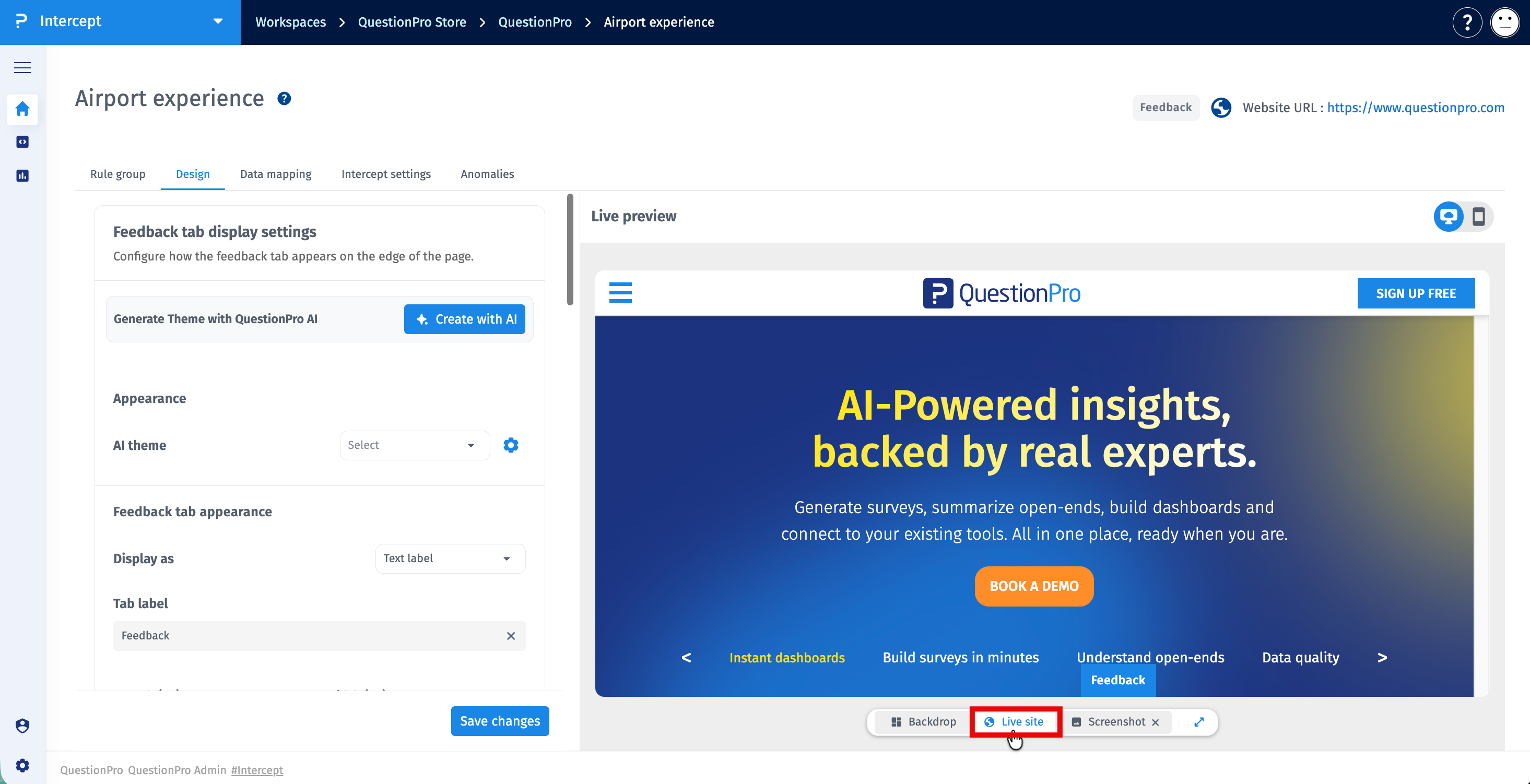
- Live site: Loads your Project URL inside the preview so you see the intercept on your actual webpage. This is the default option.
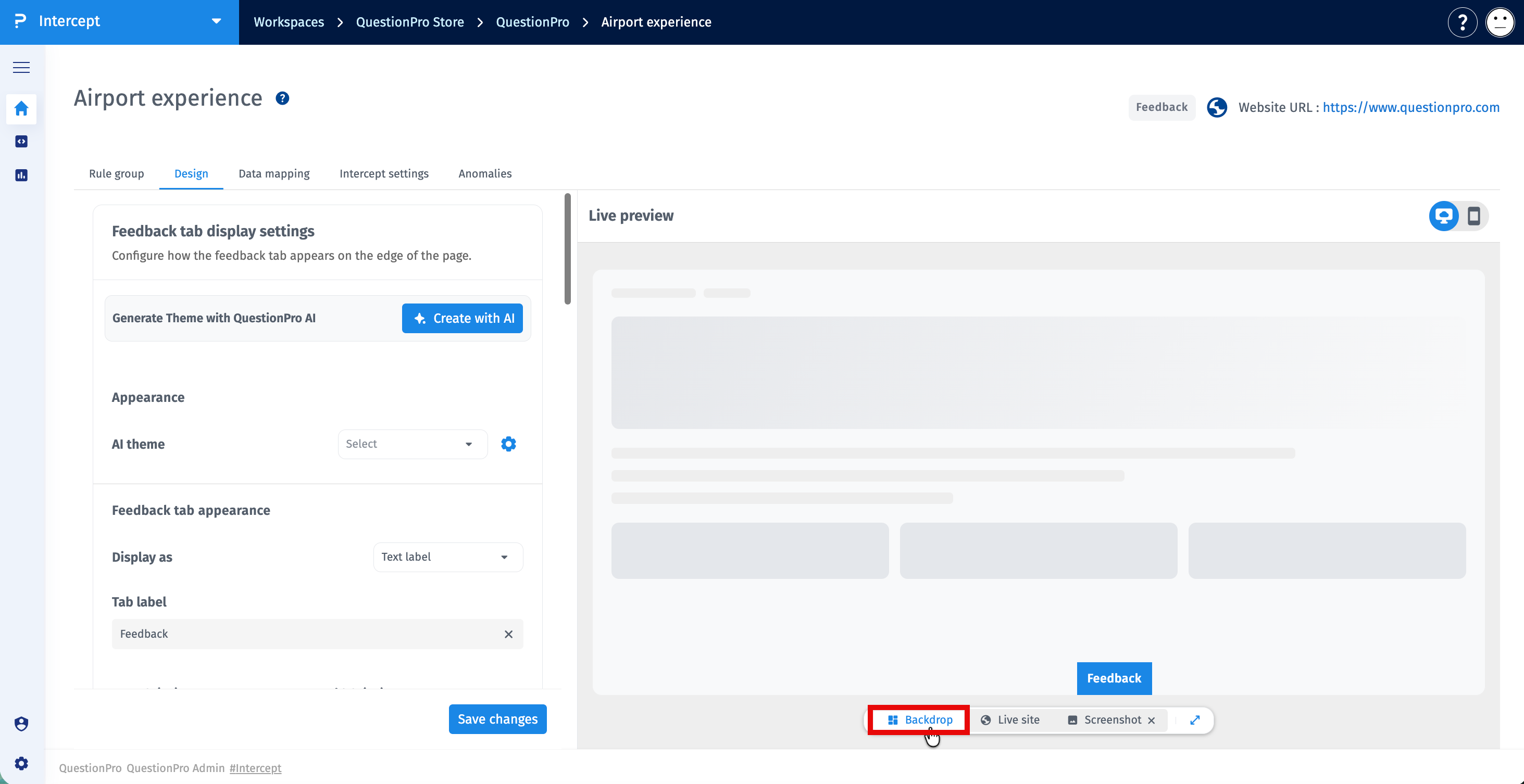
- Backdrop: Shows the intercept on a neutral placeholder page layout.
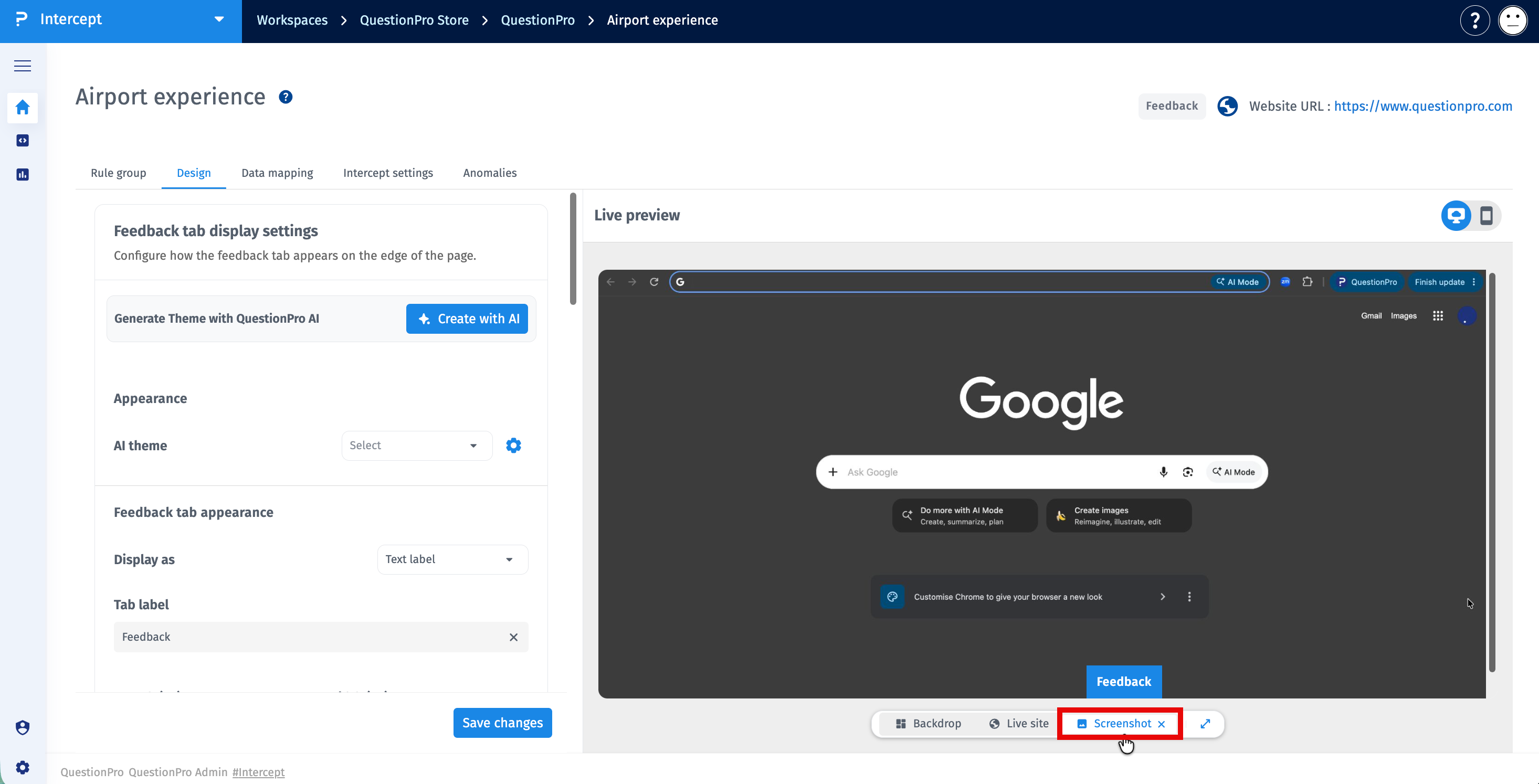
- Upload screenshot: Shows the intercept on top of a screenshot of your webpage that you upload.
You can also switch between desktop and mobile views and maximize the preview for a closer look.
- An Intercept project with a Project (website) URL.
- An intercept created within that project.
- For Upload screenshot: A screenshot of the webpage where you want the intercept to appear, in PNG, JPEG, or WEBP format.
- Select the workspace that contains your project.
- Select the intercept you want to preview.
- Go to the Design tab.
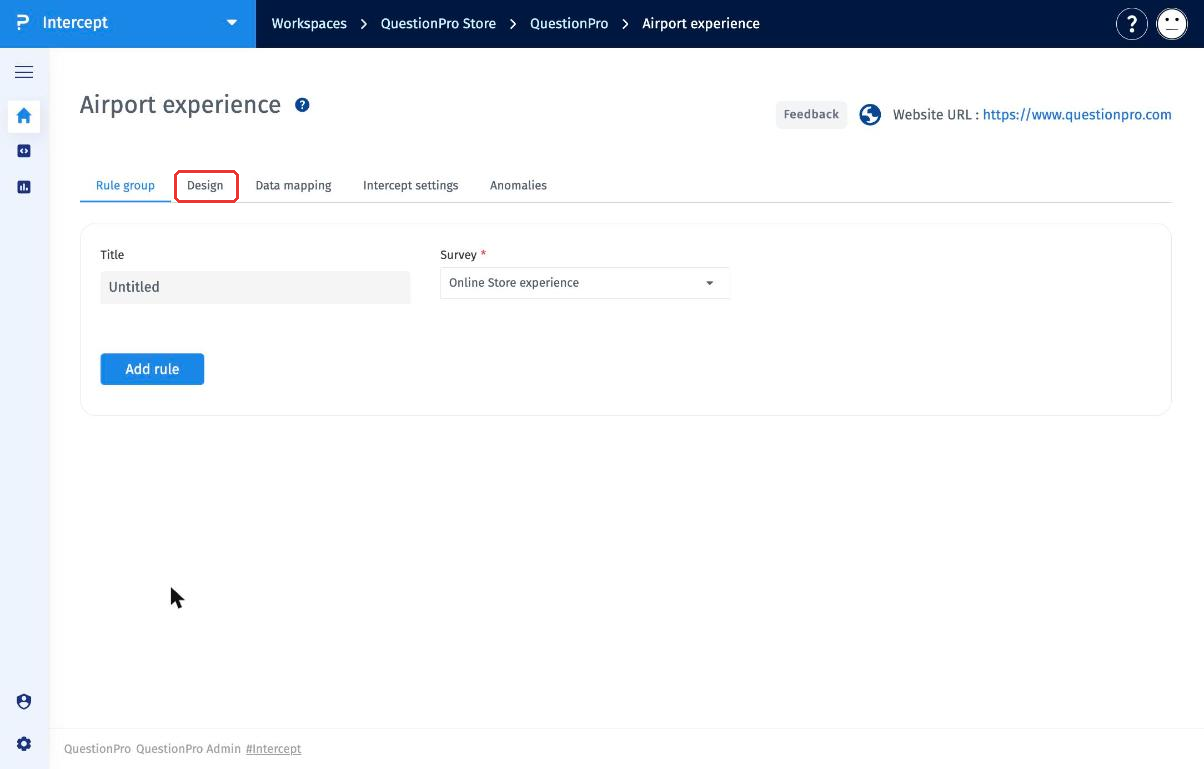
The Live preview panel appears on the right. Use the toolbar at the bottom of the panel to switch between Backdrop, Live site, and Upload screenshot.
Live site is selected by default. The preview takes the Project URL shown at the top of the page and loads that website in an iframe, with your intercept displayed on top of it.
- Open the Design tab of your intercept.
- Make sure Live site is selected in the preview toolbar.
- Update the design settings on the left. The preview reflects your changes.
- Click Save changes.
Note: Some websites block their pages from being loaded in an iframe. If your website does this, the Live site preview will not load your page. Use Upload screenshot instead.
Use this option when your website cannot be displayed in the Live site preview, or when you want to check the intercept on a specific page.
- Take a screenshot of the webpage where you want the intercept to appear.
- Open the Design tab of your intercept.
- In the preview toolbar, click Upload screenshot.
- Select your screenshot file (PNG, JPEG, or WEBP).
- Check how the intercept appears on your page and adjust the design settings as needed. Once uploaded, the option appears as Screenshot in the toolbar. Click the x next to it to remove the screenshot.
- Click Save changes.
Tip: Take separate screenshots for desktop and mobile layouts, and use the desktop and mobile toggle to check each one.
Select Backdrop to preview the intercept on a neutral placeholder page. This is useful when you want to focus on the intercept's design without the distraction of your site's content, or when you don't have a screenshot ready.
- The website blocks iframe embedding: Many websites use security settings that prevent their pages from loading inside other pages. Use Upload screenshot to preview the intercept instead.
- The page requires login: Pages behind authentication cannot be loaded in the preview. Upload a screenshot of the page instead.
- The Project URL is incorrect: Check the Website URL shown at the top of the intercept page.
- See it in context: Check how the intercept looks on your actual website before publishing.
- Works for every website: If your site blocks embedding, use a screenshot instead.
- Faster design changes: See the effect of each design change immediately.
- Check every page: Upload screenshots of specific pages where the intercept will appear.
Which preview option is selected by default?
Live site. It loads your Project URL in the preview.
What should I do if my website does not load in the preview?
Your website likely blocks iframe embedding. Take a screenshot of the page and use Upload screenshot.
Which file formats are supported for screenshots?
PNG, JPEG, and WEBP.
Does the preview option affect how the intercept appears to my website visitors?
No. The preview background is only for checking the design inside QuestionPro. Your visitors see the intercept on your live website.
Can I preview the intercept on mobile?
Yes. Use the desktop and mobile toggle at the top-right of the Live preview panel.
