

- Custom Variable Widget
- Priority Matrix
- Heatmap Widget
- Grid Widget
- Weighted mean widget
- Comment List widget
- Widget Filters
- Ranking List Widget
- Distribution Chart
- NPS Widget
- Trend Widget
- Word Cloud Widget
- Cross tab widget
- KPI Comparison Widget
- Bubble chart
- Custom Metric Trend Chart
- Trend Comparison Widget

Pop-up Widget Settings
The Widget Settings page allows you to customize the appearance, positioning, size, animation, and behavior of the Pop-up Intercept. These settings help you create a branded experience while controlling how the popup is presented to visitors.
To access the Widget Settings page:
- From the Product Switcher, navigate to Intercepts.
- Select the Workspace in which you want to create the intercept.
- Select the Project where the intercept will reside.
- Click Create Intercept.
- Select the Pop-up intercept type.
- Select the survey you want to associate with the intercept.
- Open the Widget Settings tab.
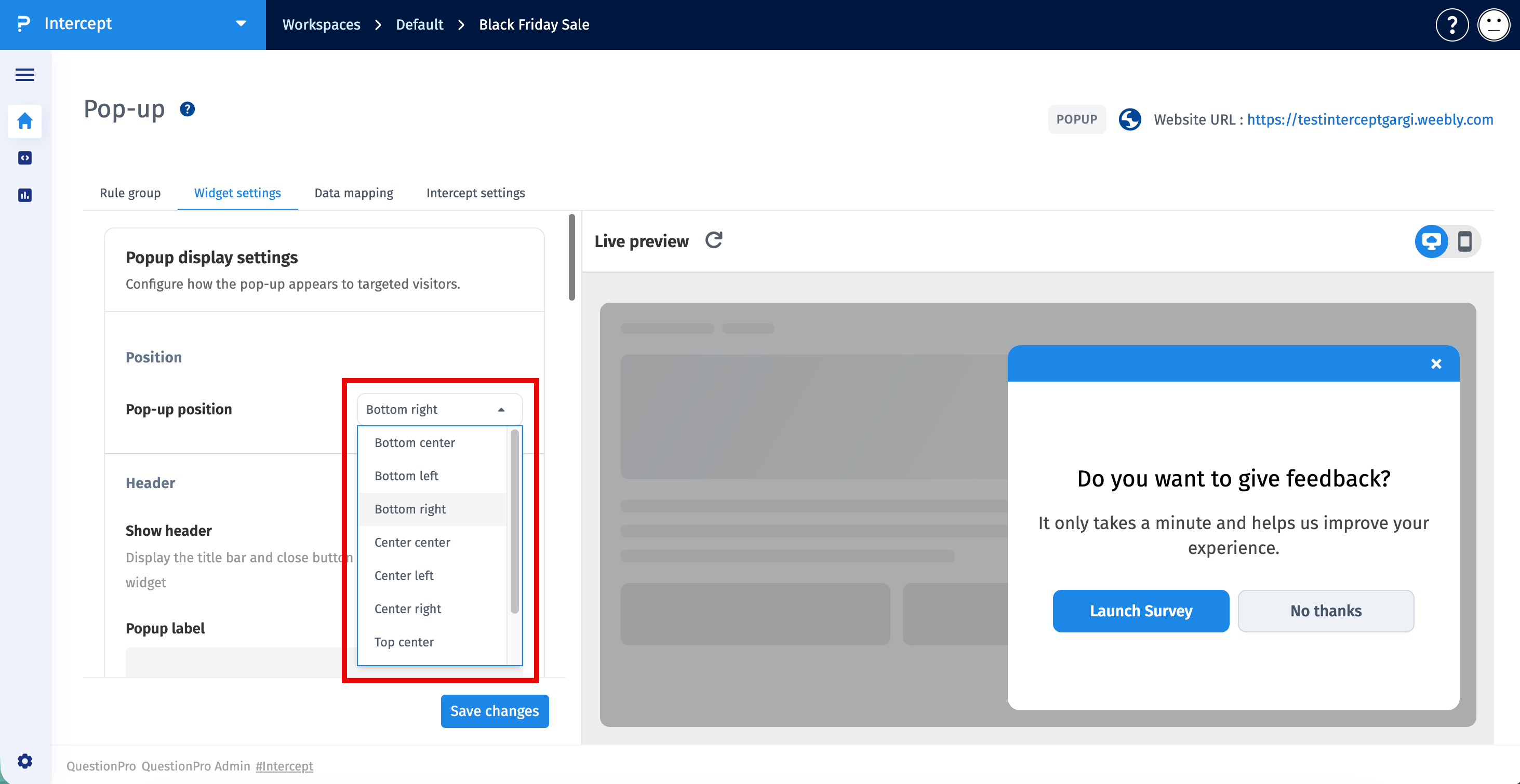
The Popup Display Settings section controls where the popup appears on your website and whether the popup header is displayed.
Popup Position
- Bottom Center
- Bottom Left
- Bottom Right
- Center Center
- Center Left
- Center Right
- Top Center
- Top Left
- Top Right
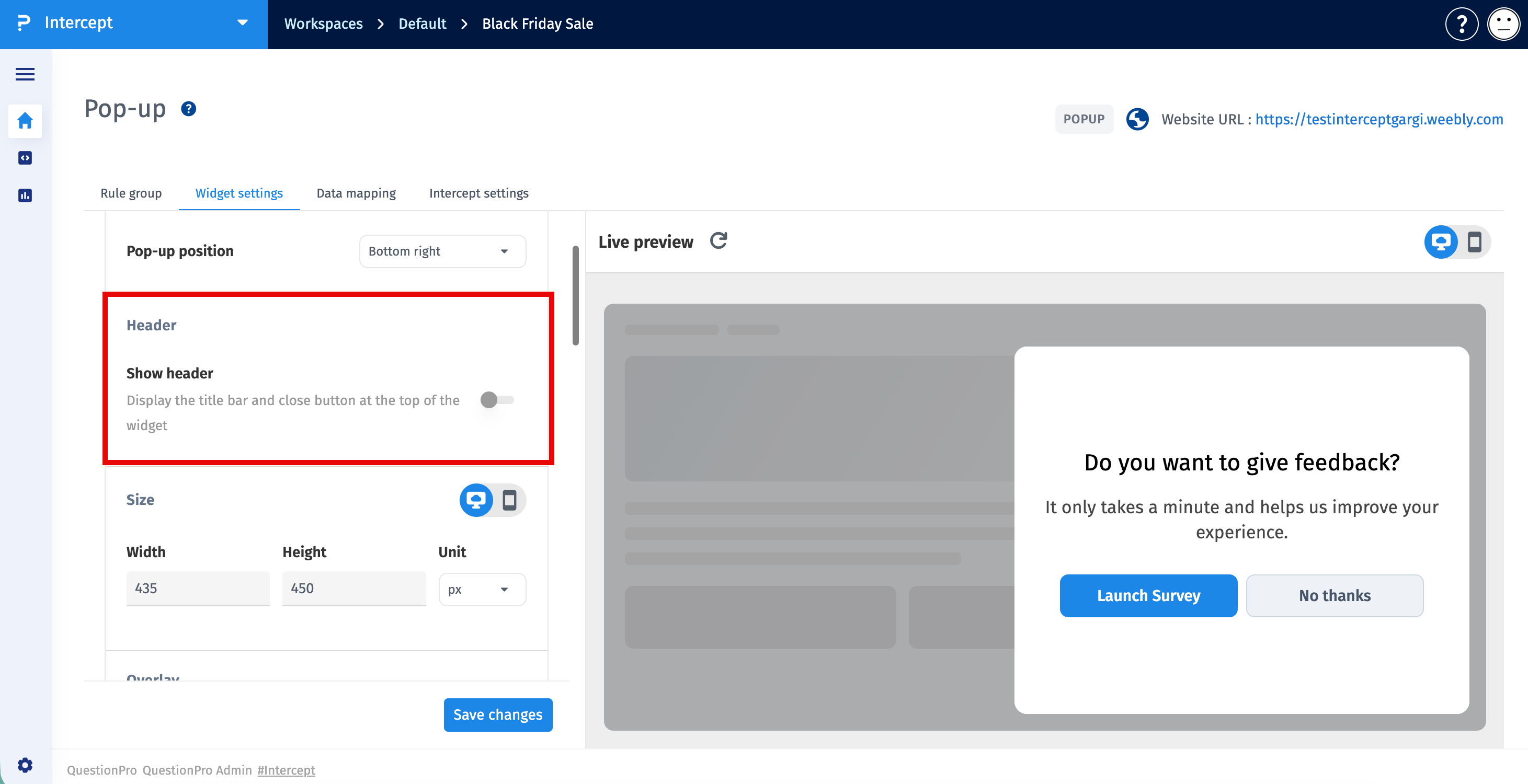
Show Header - Enable this option to display the popup header containing the title bar and close button. Disable this option to hide the header and maximize the survey display area.
- Width - Specify the width of the popup.
- Height - Specify the height of the popup.
- Unit
- Pixels (px) - Uses fixed dimensions regardless of screen size.
- Percentage (%) - Uses responsive dimensions based on the available browser space.
- Show Overlay - Dim the webpage behind the popup.
- Overlay Opacity - Control the transparency of the overlay.
- Show Opt-in Box - Display an invitation before opening the survey.
- Background Color - Select the background color.
- Logo Image - Upload a logo.
- Title - Specify the title.
- Subtitle - Specify the supporting text.
- Buttons - Display one or two buttons.
- Layout - Horizontal or Vertical.
- Button Width - Specify the width.
- Button Font - Select the font.
- Button Font Weight - Select the font weight.
- Fade - Gradually fades the popup into view.
- Slide - Slides the popup into view.
- Pop - Displays using a pop animation.
- None - Displays immediately without animation.
Can I choose where the popup appears?
Yes. Select one of the available popup positions.
Can I make the popup responsive?
Yes. Select Percentage (%) as the unit.
What does the overlay do?
It dims the webpage behind the popup.
Can I animate the popup?
Yes. Choose Fade, Slide, Pop, or None.
- Use responsive dimensions (%) across devices.
- Enable the overlay to improve visitor focus.
- Keep the opt-in message concise.
- Use subtle entrance animations.
- Review changes before publishing.
