

- Custom Variable Widget
- Priority Matrix
- Heatmap Widget
- Grid Widget
- Weighted mean widget
- Comment List widget
- Widget Filters
- Ranking List Widget
- Distribution Chart
- NPS Widget
- Trend Widget
- Word Cloud Widget
- Cross tab widget
- KPI Comparison Widget
- Bubble chart
- Custom Metric Trend Chart
- Trend Comparison Widget

CX Auto Scheduler
Scheduler is another way to automate the transactions import and report export process. You need to provide the FTP details while scheduling the Import/Export feature. With the scheduler in place, CX will read the Excel files to be imported and can send out survey invites to imported transactions (only if selected). You can also export Raw Data or Dashboard reports to your FTP location periodically, or choose to receive them via email instead. Apart from raw data, reports for Bounced, Delivered, and Unsubscribed users can also be exported.
-
The Auto Scheduler allows you to:
- Automate the transaction upload process.
- Automate report exporting in PDF or Excel format.
To set up the import, go to – Login >> Customer Experience >> Admin >> Integration >> Scheduler
Click on Add Scheduler button.
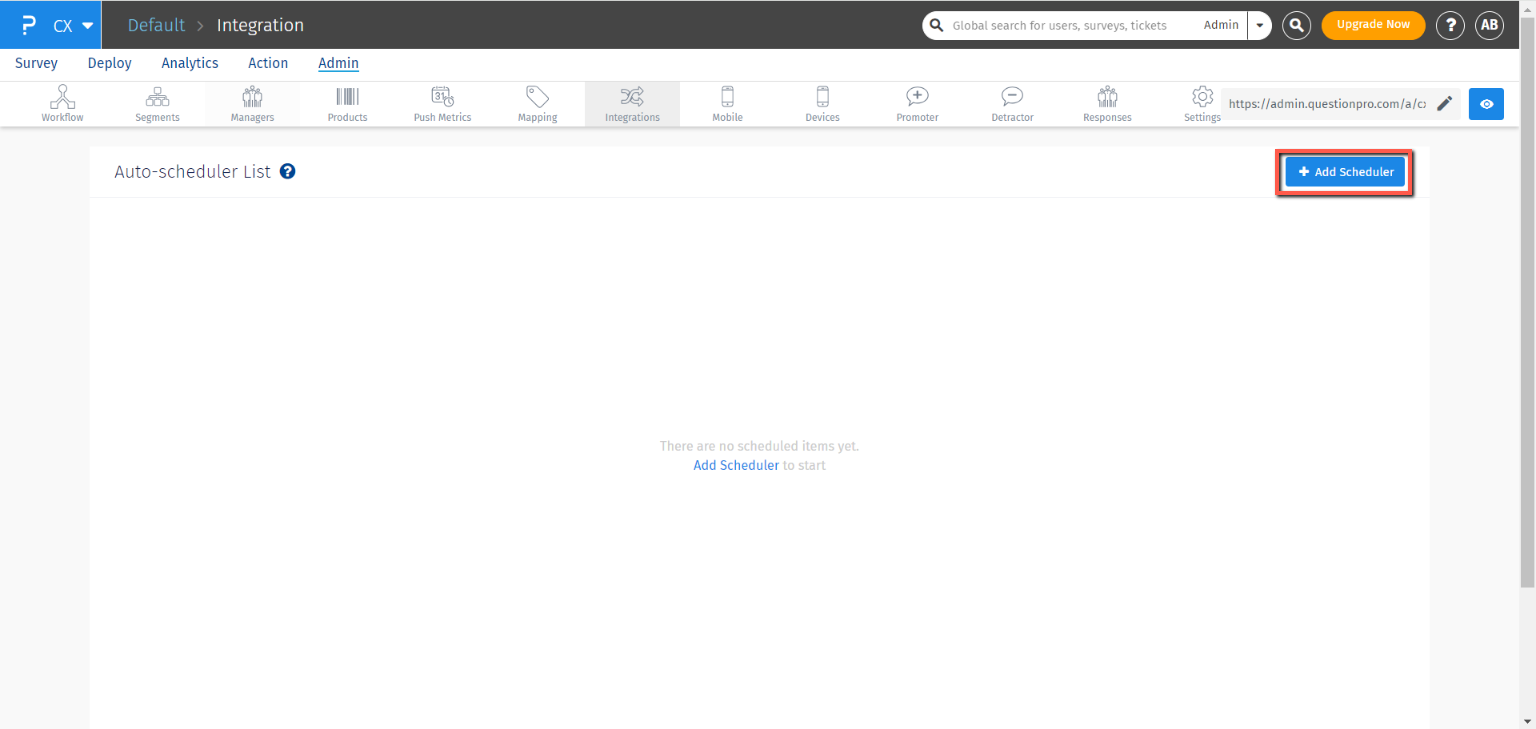
Import Contact option is selected by default. The scheduler runs every hour to check for files in the FTP location. If a file is found, it imports the records into CX.
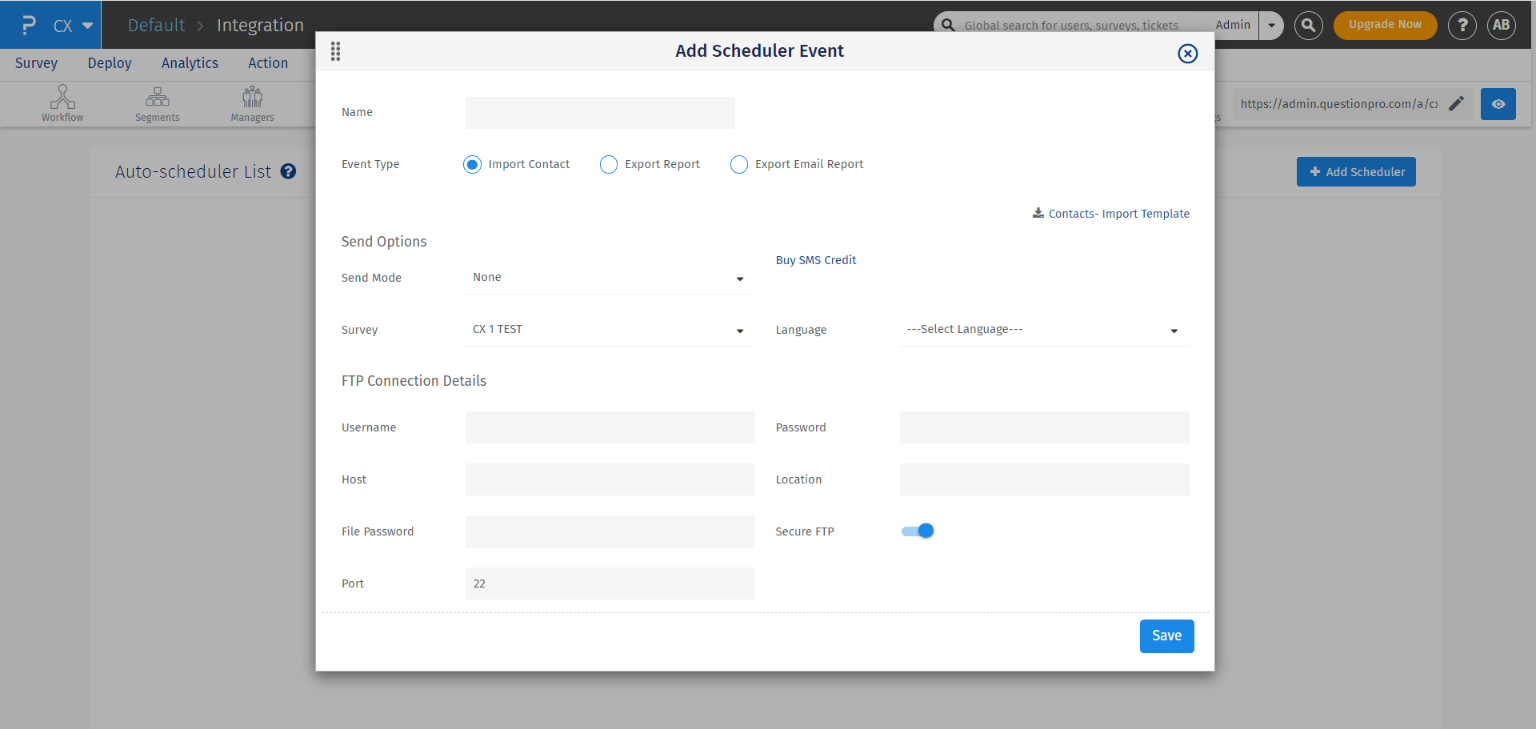
- Name: Provide a name for the import event.
- Send Mode: Choose Email, SMS, or Both to send survey invites immediately. Select 'None' if you do not want to send invites. A "Buy SMS credits" option appears if credits are insufficient.
- Survey: Select the survey to send.
- Language: Select the survey language for respondents.
From the FTP connection details:
- If using SFTP, enable the Secure FTP toggle.
- You can authenticate using either password-based authentication or SSH key-based authentication. For SSH key authentication, configure your server with the public key and provide the corresponding private key in the scheduler setup.
- Set up the FTP details and click on Create Scheduler Event.
- Unknown Host Exception: The FTP scheduler will be suspended.
- Authentication Failure: The scheduler will continue running, but an email notification will be sent.
- Directory Not Found (No such file): The FTP scheduler will be suspended and an email notification will be sent.
After creating the FTP scheduler, upload the contact file to the FTP location. You can download the template using "Contacts - Import Template", fill in the details, and upload it.
Upload a sample contact file to the FTP location.
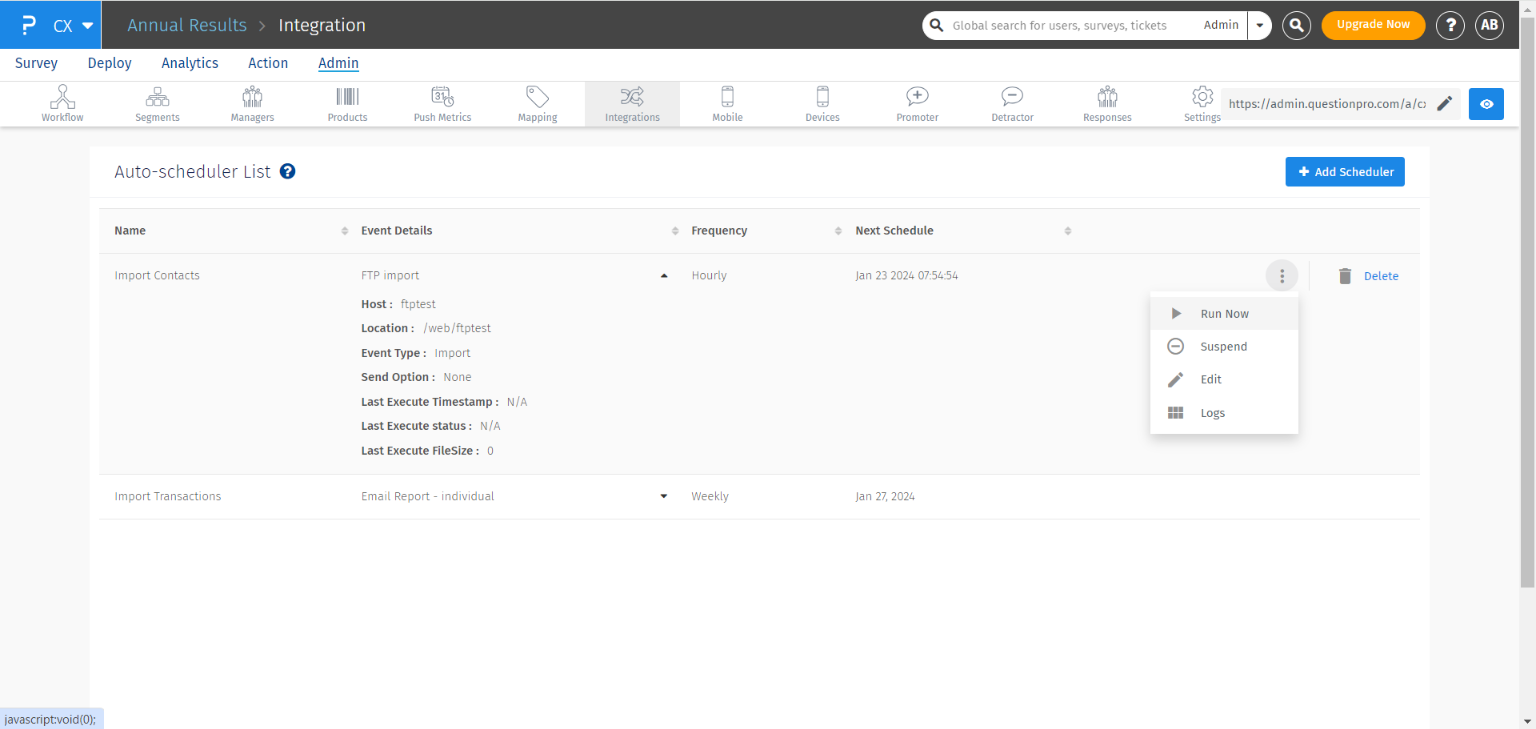
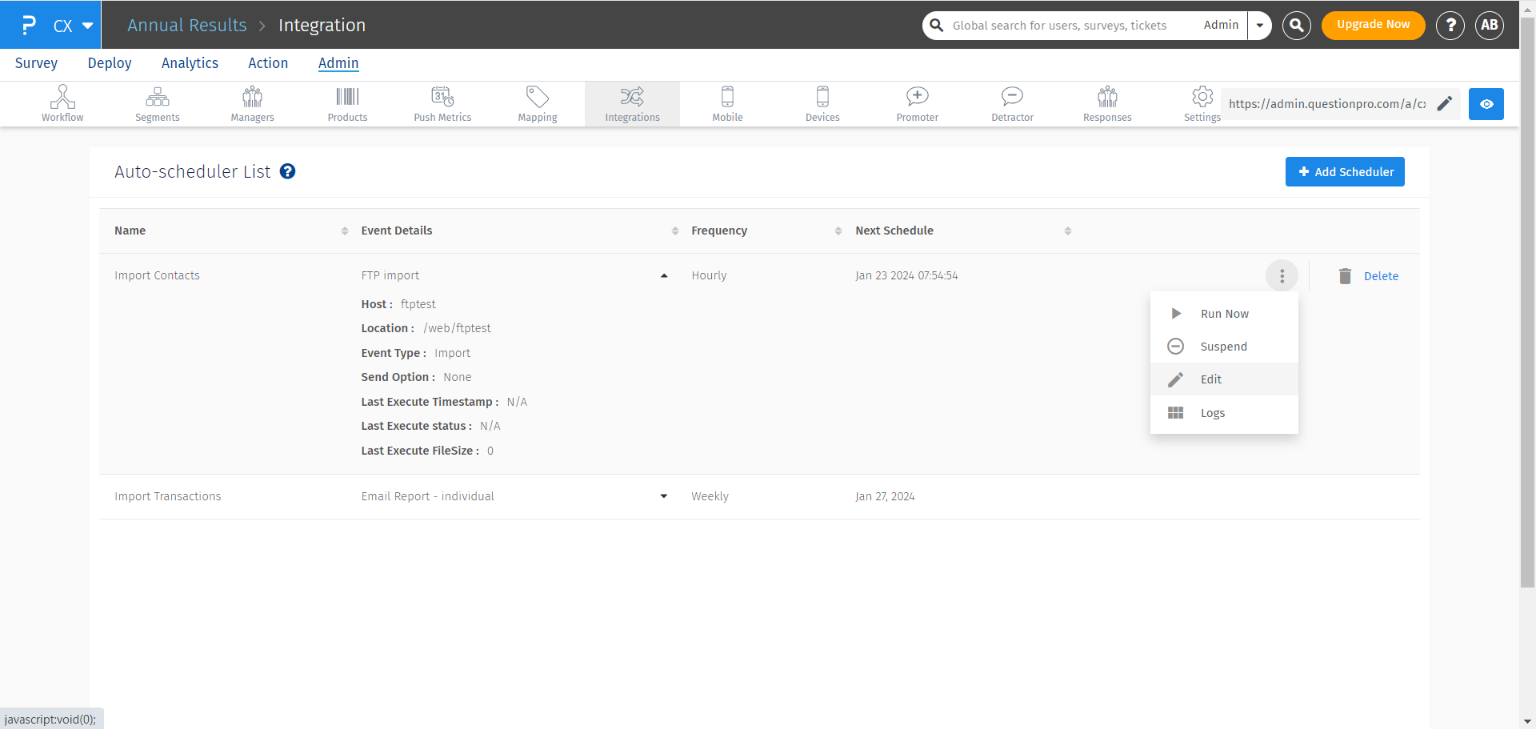
Click on Run Now to test the connection.
If successful, the system imports the contacts and deletes the file from the FTP location.
No, there is no specific naming convention.
Ensure the file format matches the provided template.
You can upload multiple files at once. The scheduler processes them sequentially.
No, files are not stored.
After processing, files are deleted from the FTP location.
Yes, logs include file names and the number of records processed.
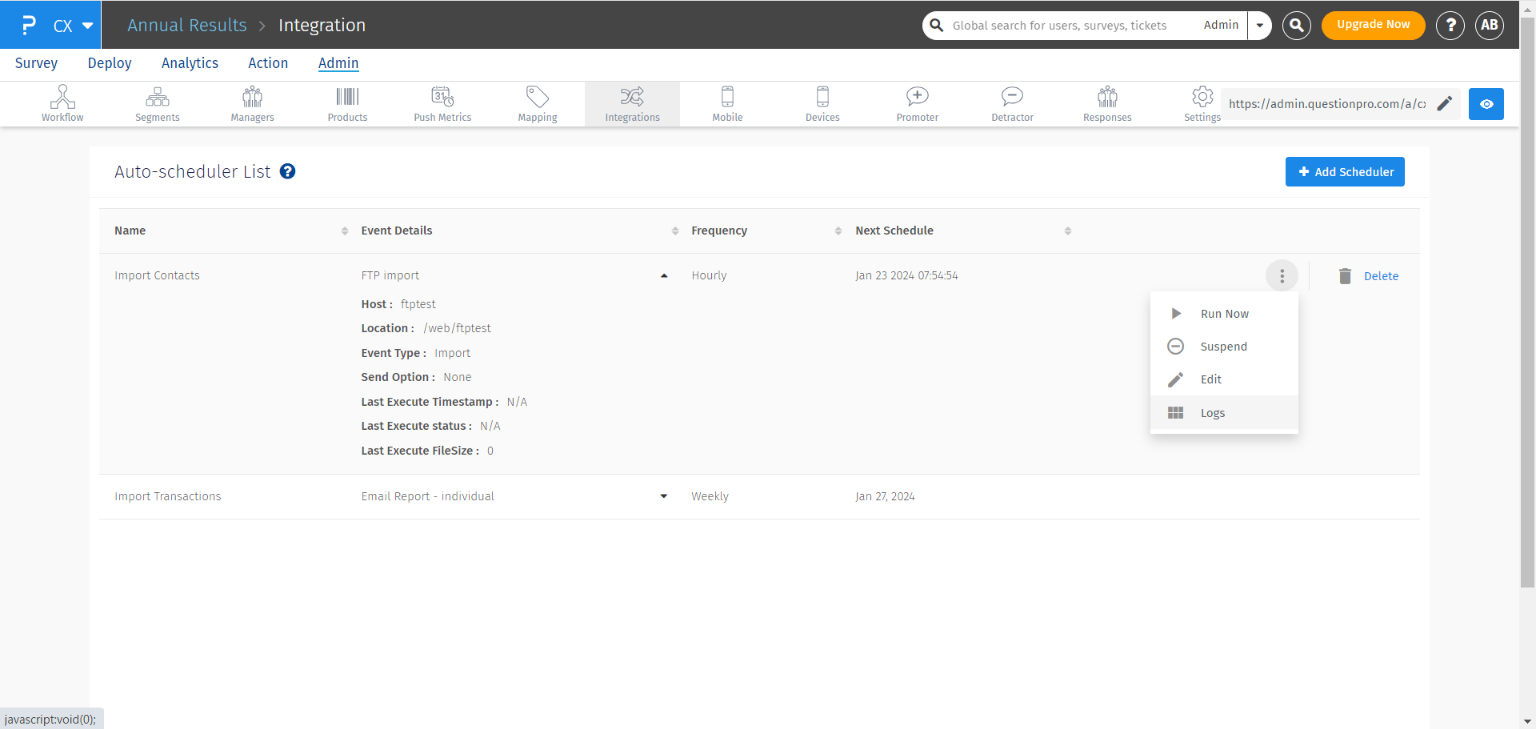
You can access logs by clicking on Logs under the Action column.
Invalid or failed records are saved as an Excel file in the same FTP location.
These files will not be reprocessed by the system.
Yes, click on Edit to modify the scheduler.
Select the Export Report option in the scheduler pop-up.
- Name: Provide a name for the export event.
- Frequency: Choose Daily, Weekly, or Monthly.
- Day: Select a day (for Weekly and Monthly).
- Hour: Select the time.
Enable Email Report Notifications under My Account >> Account Settings.
