Workspaces Overview
What is a ‘Workspace’ and why different workspaces are required?
Workspace is a folder where you can create different surveys, import transactions, deploy surveys and view the dashboard or report.
The data of one Workspace system cannot be moved into another Workspace system. If you copy a survey from one Workspace to another, then all the logics as well as action alerts created for the survey needs to be created again in the new Workspace system.
If as a Business Owner you have different verticals of business, you can create separate Workspace systems to view reports specific to your business vertical.
For example, if we consider ITC as a customer using CX. They have various business verticals and each of their business verticals has different target audience. In such scenario, they can create different Workspace systems naming FMCG, Hotels, Paperboard and so on.
In each Workspace system, they will have specific survey, business hierarchy, transactions and report.
How to create a Workspace?
-
Login to the Customer Experience platform.
-
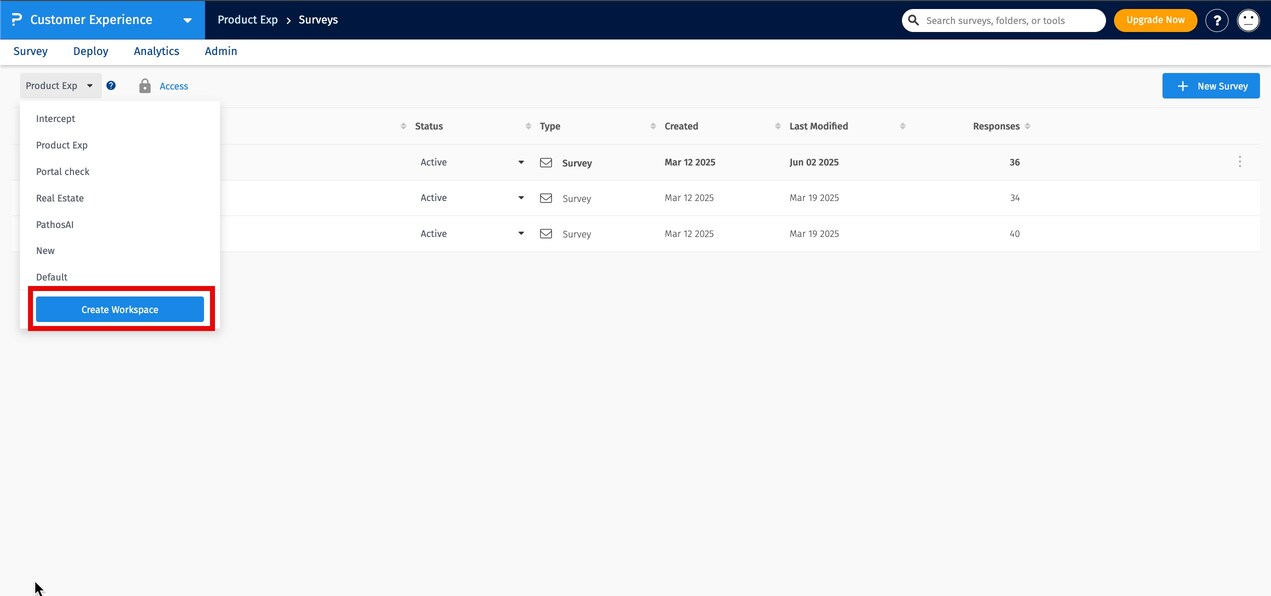
Click on the Workspace drop down in the left.
-
Click on Create Workspace button.
-
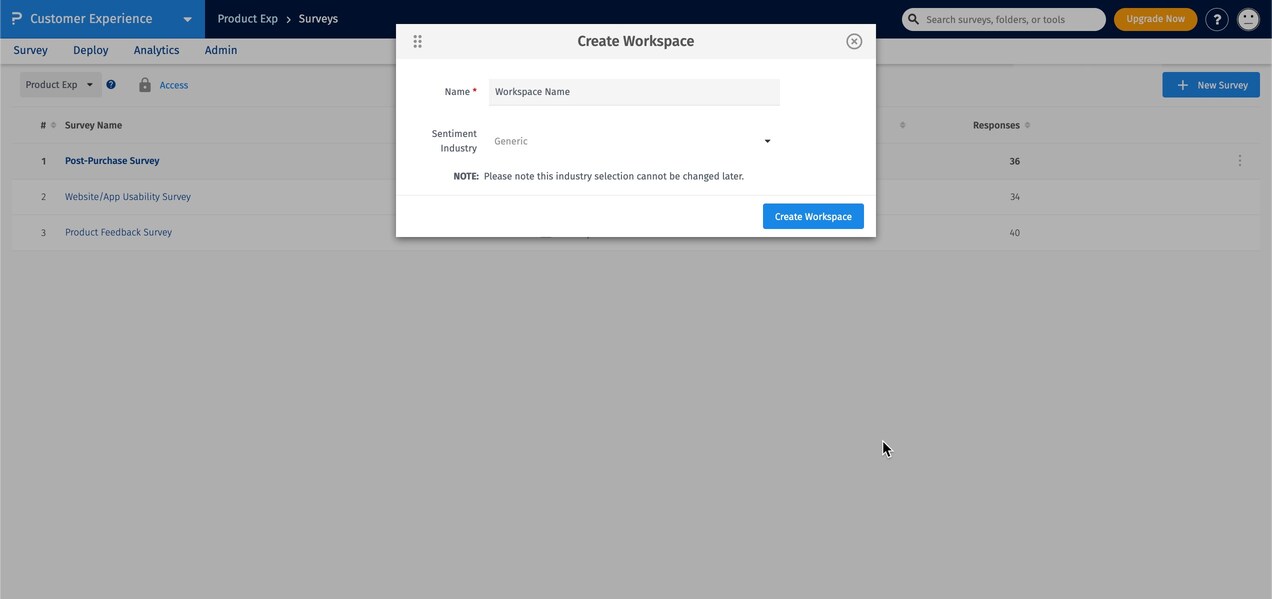
Provide a name to the Workspace and click on the ‘Create Workspace’ button.
How to add surveys in the Workspace?
-
Once the Workspace is added, click on Create Survey button.
-
Select the type of survey you want to add, Survey or Web Intercept.
-
Provide a name to the survey and click Create survey button.
-
Post this, a survey would be added and will be shown in the list.
How to copy surveys to another workspace?
-
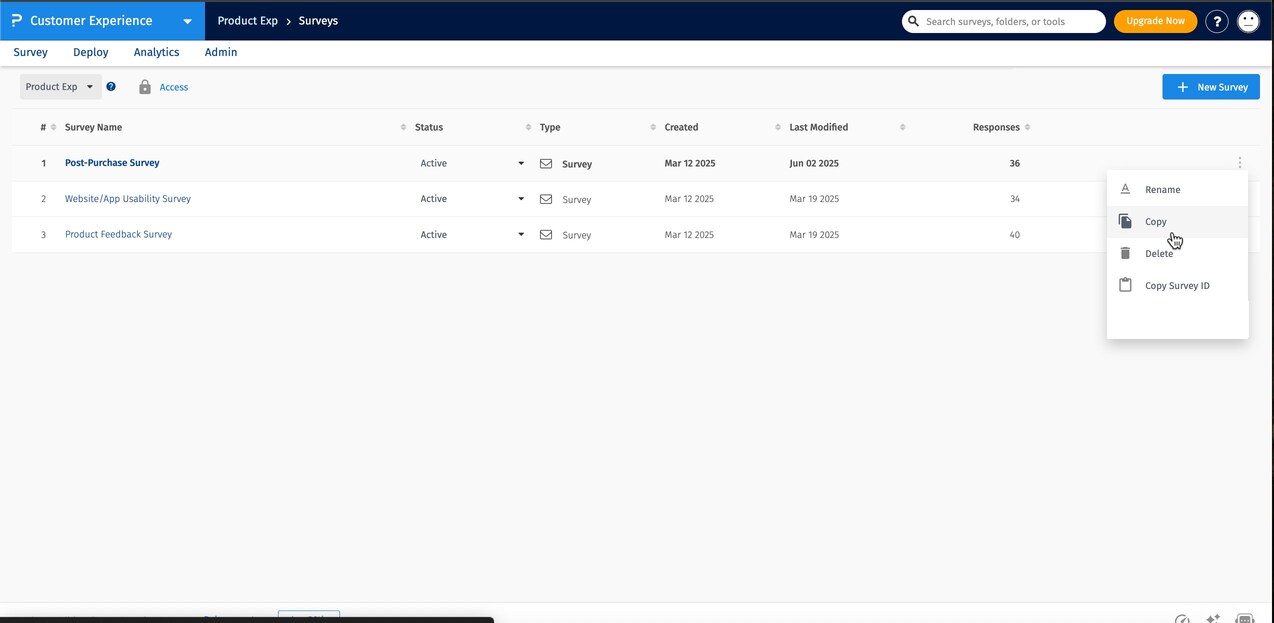
After adding a survey, click on the Copy link.
-
Select same or another workspace and copy your survey.
-
The copied survey will appear in the list of the surveys in the workspace selected.
All the logic and notifications have to be set again to the survey copied in the new workspace.
How to rename survey?
-
In the surveys lists displayed, click on the Rename link.
-
Provide a new name to the survey and click 'Update'.
How to delete survey?
-
In the surveys lists displayed, click on the Delete link.
-
Provide the confirmation in the pop-up and survey will be sent to the Recycle Bin.
-
If you want to restore the survey back, click on Restore the survey will be restored in the list.
-
If you want to permanently delete the survey, click on the Delete link in the Recycle bin section and the survey will be deleted permanently.
How to edit a workspace?
-
Login to the Customer Experience platform.
-
Click on the workspace drop down in the left.
-
Click on Edit workspace button.
-
Click the edit icon besides the workspace name and provide the new name to the workspace.
How to delete a workspace?
-
Go to Customer Experience Tab.
-
Click on the workspace drop down in the left.
-
Click the delete icon besides the workspace name.
-
It will ask you for confirmation. Once you confirm, workspace will be deleted.
How to share a workspace?
- Go to the Customer Experience platform and open the workspace you want to share.
- Click on the Access button option.
- Select the users you want to grant access.
- Click Save to apply access controls.
What permissions are available for a shared workspace user?
When a workspace is shared with a sub-account user, the administrator can enable specific permissions to control the level of access within the workspace. The following permissions can be granted:
- Create Survey - Create new surveys within the shared workspace, including survey structure, logic, and configuration.
- Edit Survey - Modify survey questions, design, and survey settings.
- Copy Survey - Duplicate an existing survey. Email templates linked to the survey will also be copied.
- Deploy Survey - Activate and distribute surveys to respondents.
- Analytics - View dashboards, reports, and survey insights.
- Share Workspace - Re-share the same workspace with additional sub-account users (if permitted).
Can I move survey from "Surveys" to "CX workspace"?
Yes, a survey can be copied to CX workspace. This feature is present in Admin settings. Contact our customer representative/account manager, they will do it for you.
To copy/move survey to CX, it should have at least one NPS question.
Currently, a survey can only be copied/moved from "Surveys" to "CX" and not the other way round.
Thank you for submitting feedback.