

- Custom Variable Widget
- Priority Matrix
- Heatmap Widget
- Grid Widget
- Weighted mean widget
- Comment List widget
- Widget Filters
- Ranking List Widget
- Distribution Chart
- NPS Widget
- Trend Widget
- Word Cloud Widget
- Cross tab widget
- KPI Comparison Widget
- Bubble chart
- Custom Metric Trend Chart
- Trend Comparison Widget

Import Tasks via Excel
The Import Tasks via Excel feature allows you to bring in tasks from external sources directly into your initiatives in the Journey Management Platform. This helps you quickly migrate existing task data, assign owners and contributors, and maintain continuity across projects without manual entry.
Import Tasks via Excel lets you upload external task data in bulk and automatically create tasks within your initiative. You can include details such as Task Name, Owner, Contributors, Due Date, and Status. Existing users in your organization are automatically assigned, while new users are added as sub-accounts under your organization, ensuring smooth integration of external data.
To import tasks from an external Excel file, follow these steps:
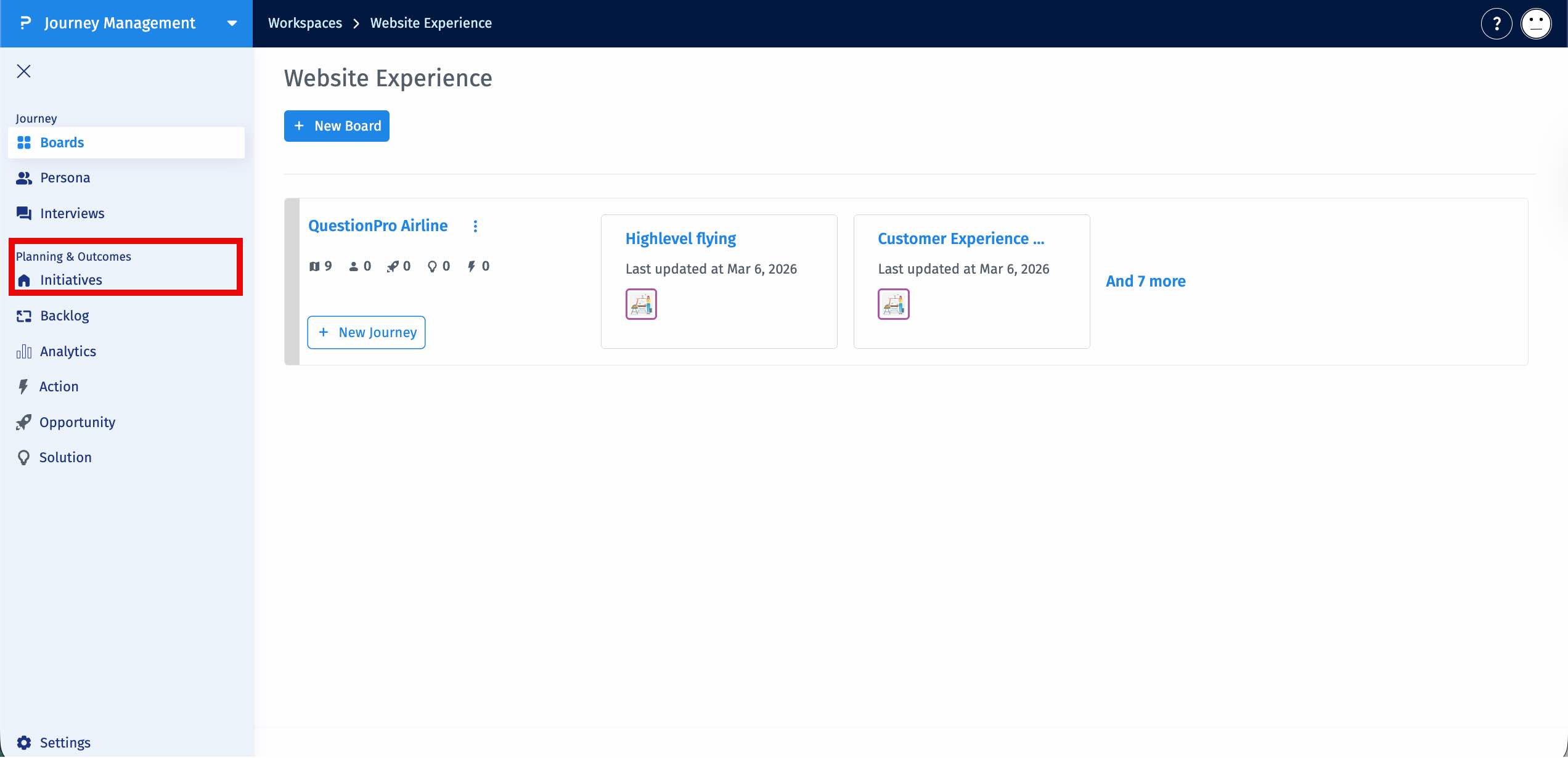
- Go to Initiatives under the Planning and Outcomes section in the Journey Management Platform.
- Go to the Initiative where you want to add tasks.
-
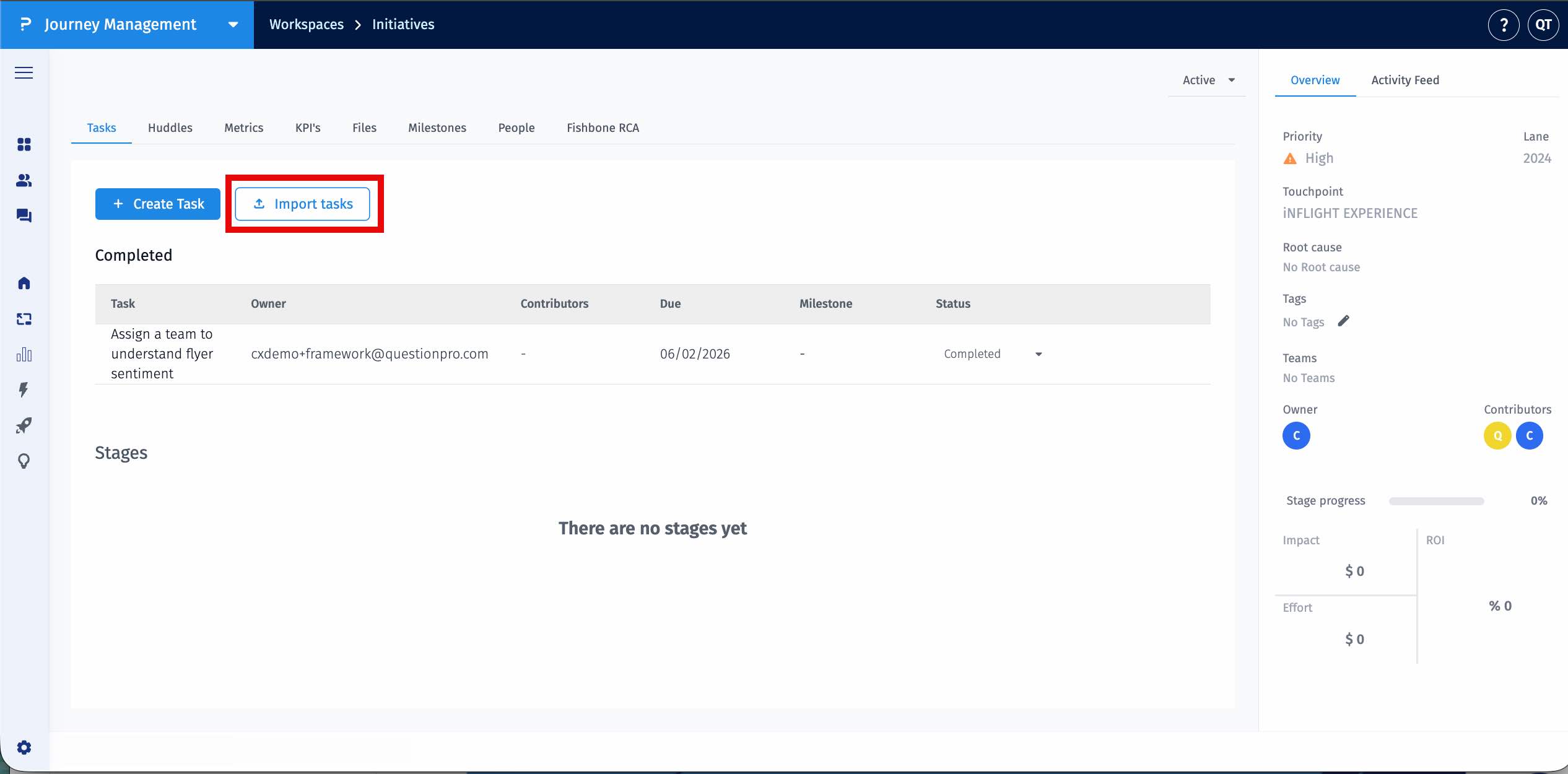
Click the Import Tasks button.

-
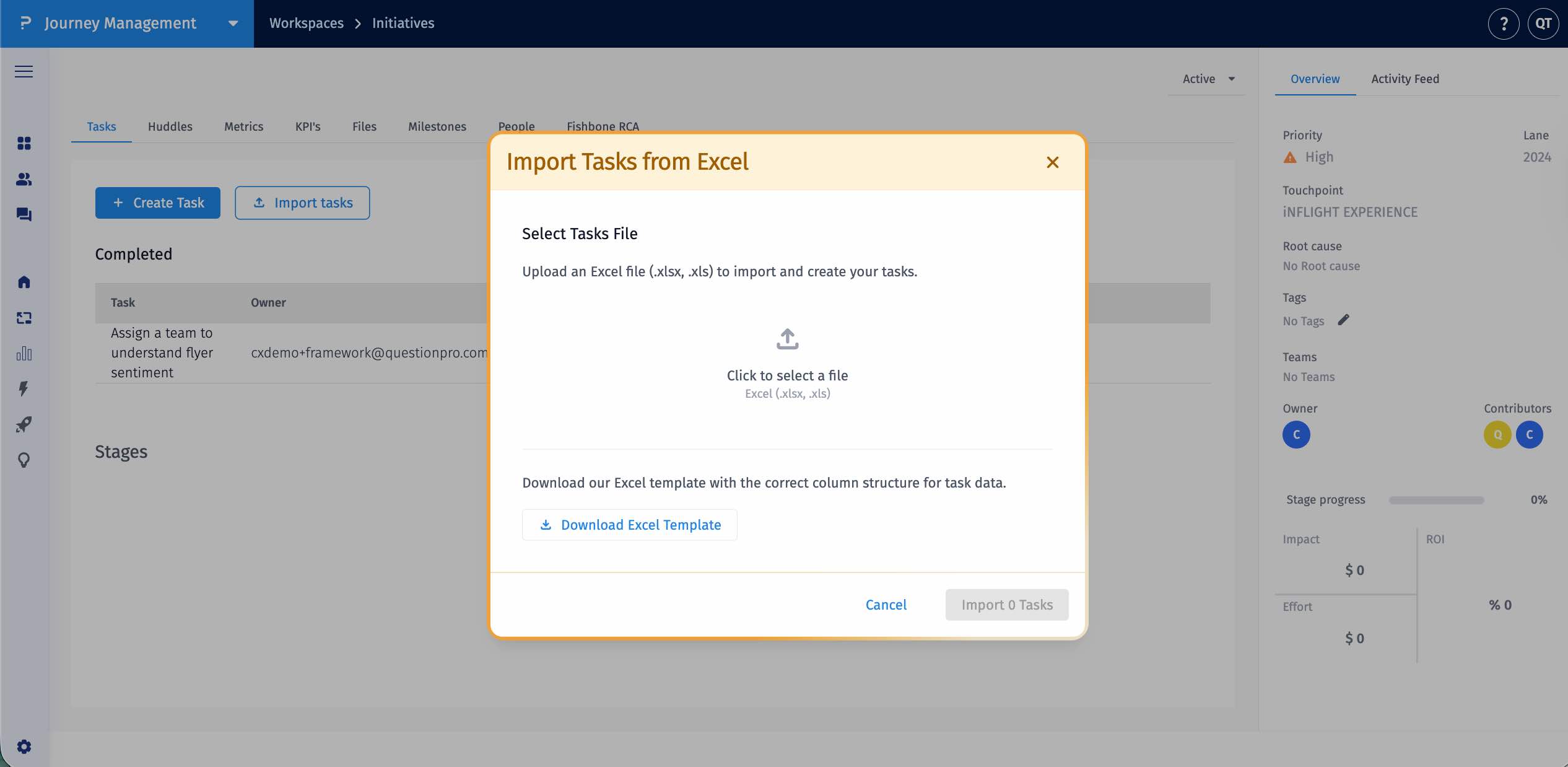
In the pop-up window:
- Download the sample template first.
- Fill in your task details (Task Name, Owner, Contributors, Due Date, Status) in the template.
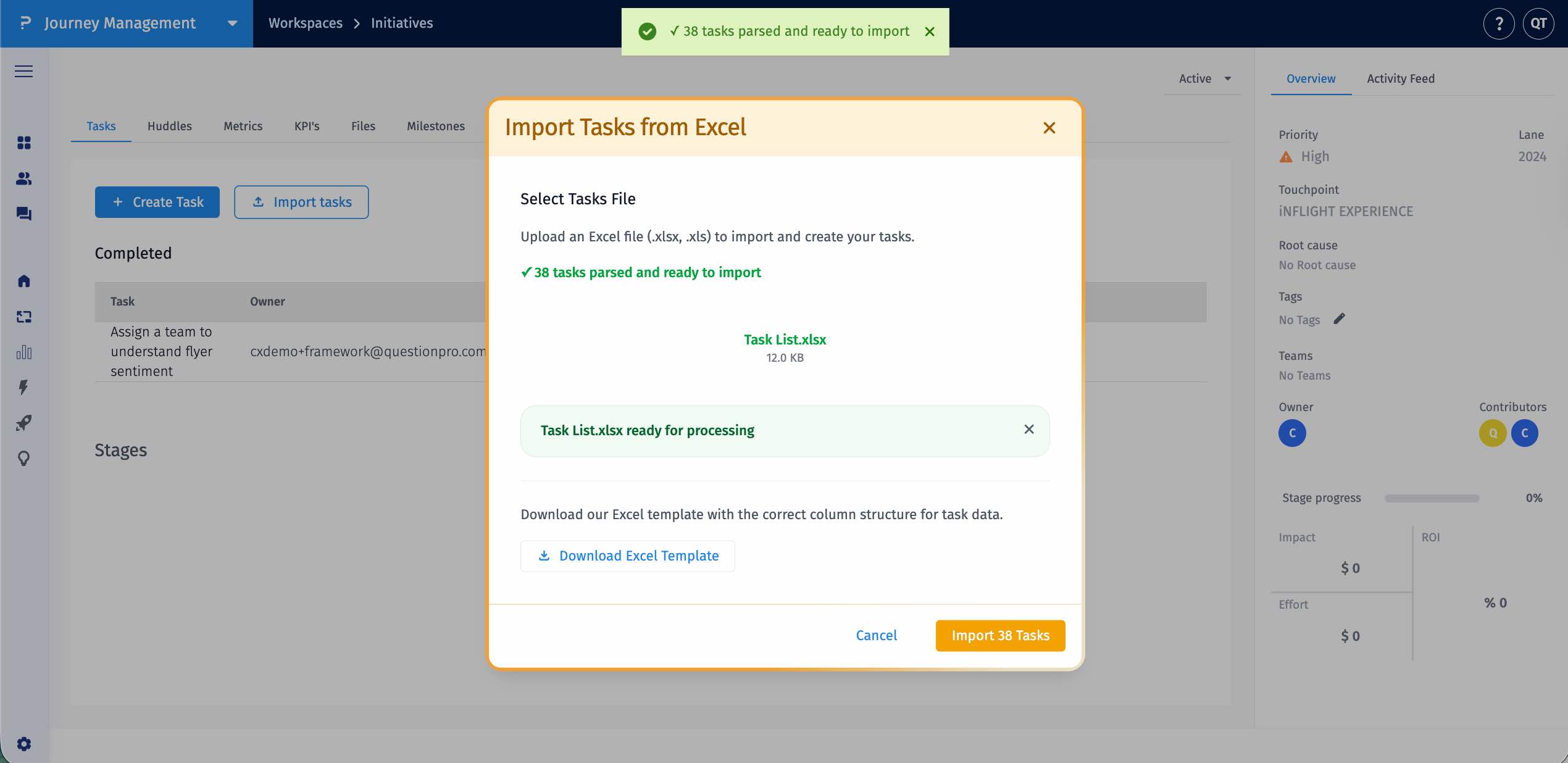
- Once complete, upload the filled template to import your tasks.
-
Click Import to add all tasks from the Excel file into your initiative automatically.
Your Excel file should include the following columns:
- Task Name – Name of the task.
- Owner – Person responsible for the task.
- Contributors – Team members involved in the task.
- Due Date – Task deadline
- Status – Current status of the task (e.g., Pending, In progress, Completed).
After import:
- All external tasks are added to the selected initiative.
- Owners and Contributors are assigned automatically if they exist in your organization.
- New sub-accounts are created for any external users not in your organization.
- You can edit tasks, update owners, contributors, due dates, and status just like any other task in the platform.
Frequently Asked Questions
The following questions cover common usage scenarios, best practices, and troubleshooting for importing tasks from external sources.
Yes. Using the provided sample template ensures all required columns are included and properly formatted. This minimizes import errors and guarantees correct task assignment.
Yes. External users specified as Owners or Contributors will be automatically added as sub-accounts under your organization.
No. Imported tasks are added as new tasks in the selected initiative. Existing tasks remain unchanged.
Yes. Once tasks are imported, you can edit task names, assign new owners or contributors, update statuses, and adjust due dates.
Check that your Excel file follows the template format, all required columns are filled, and user names match existing organization members. Correct any errors and try importing again.
