

- Custom Variable Widget
- Priority Matrix
- Heatmap Widget
- Grid Widget
- Weighted mean widget
- Comment List widget
- Widget Filters
- Ranking List Widget
- Distribution Chart
- NPS Widget
- Trend Widget
- Word Cloud Widget
- Cross tab widget
- KPI Comparison Widget
- Bubble chart
- Custom Metric Trend Chart
- Trend Comparison Widget

Column Manager for List view
The Column Manager allows you to personalize the ticket list by choosing which columns are displayed and arranging them in the order that best suits your workflow. You can configure both system fields and custom variable fields available for the active workspace.
The Ticket ID and Contact columns are always displayed and cannot be hidden or reordered. Your column preferences are saved for your user account and are maintained separately for each workspace.
Navigate to Customer Experience → Closedloop → Workspace → List view.
Click the Manage Columns icon in the ticket list header to open the Column Manager.
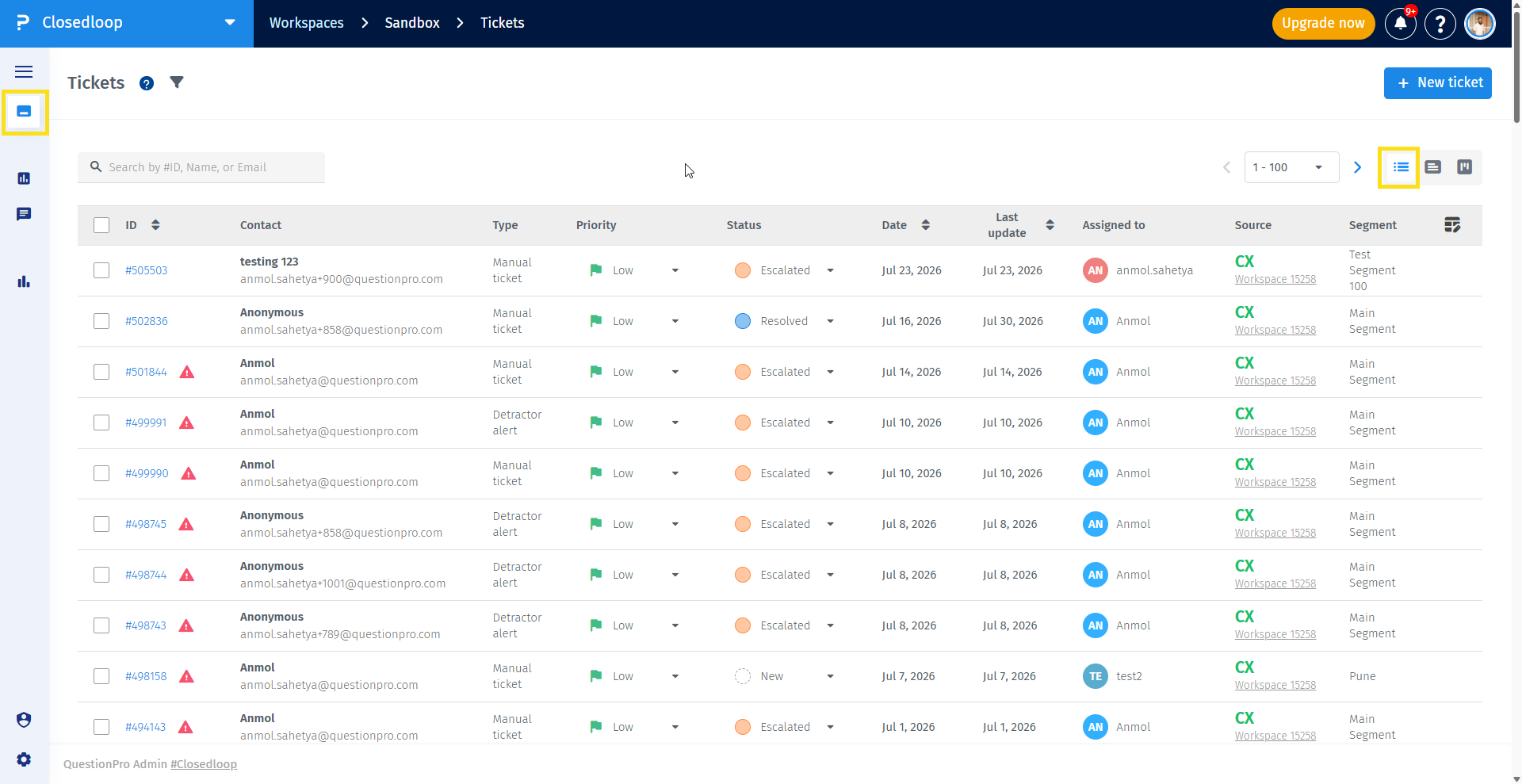
- Open the List view and click the Manage Columns icon.
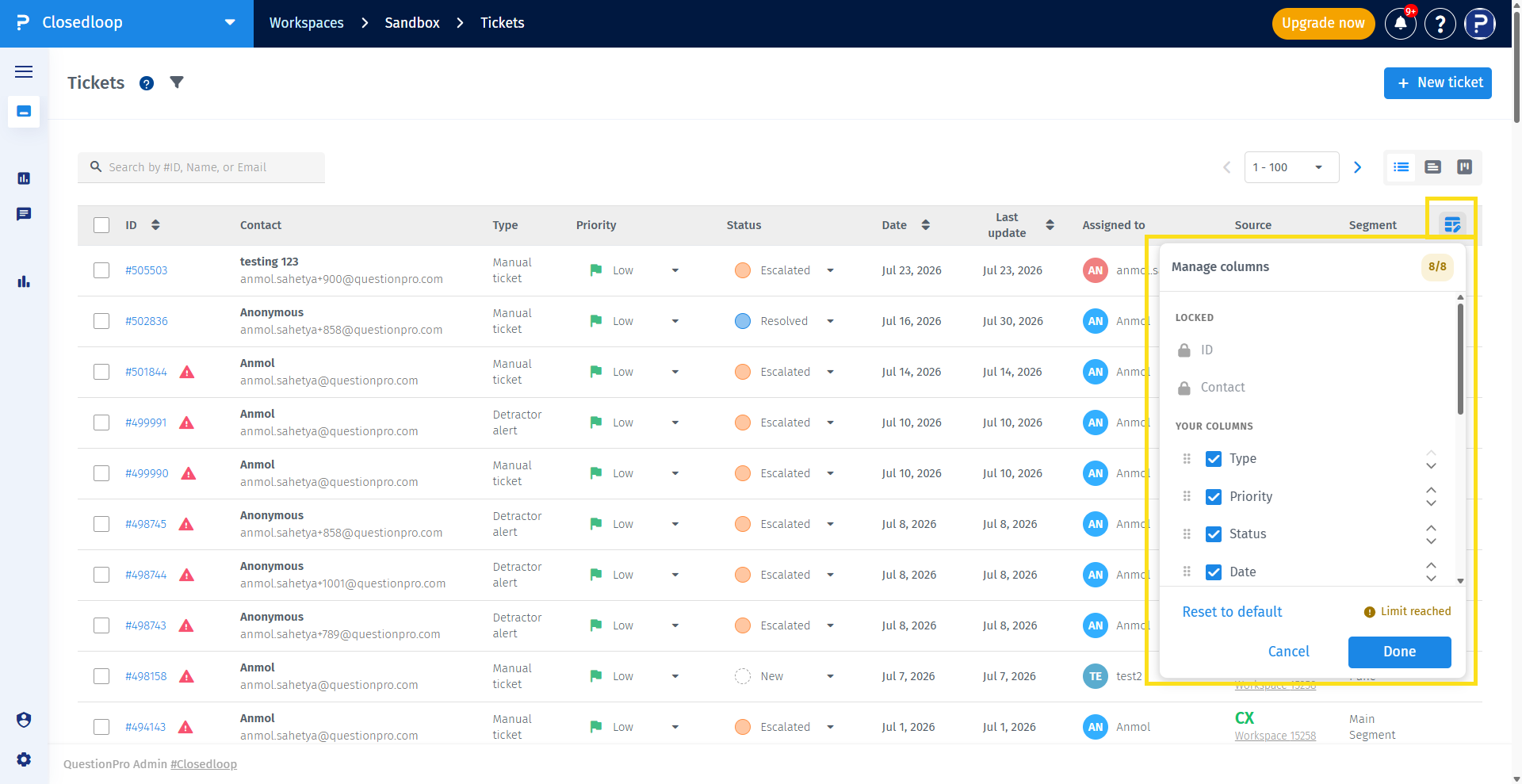
- Review the available columns.
- Locked columns appear at the top and cannot be modified.
- System fields appear below the locked columns.
- Custom fields for the active feedback source appear below the system fields.
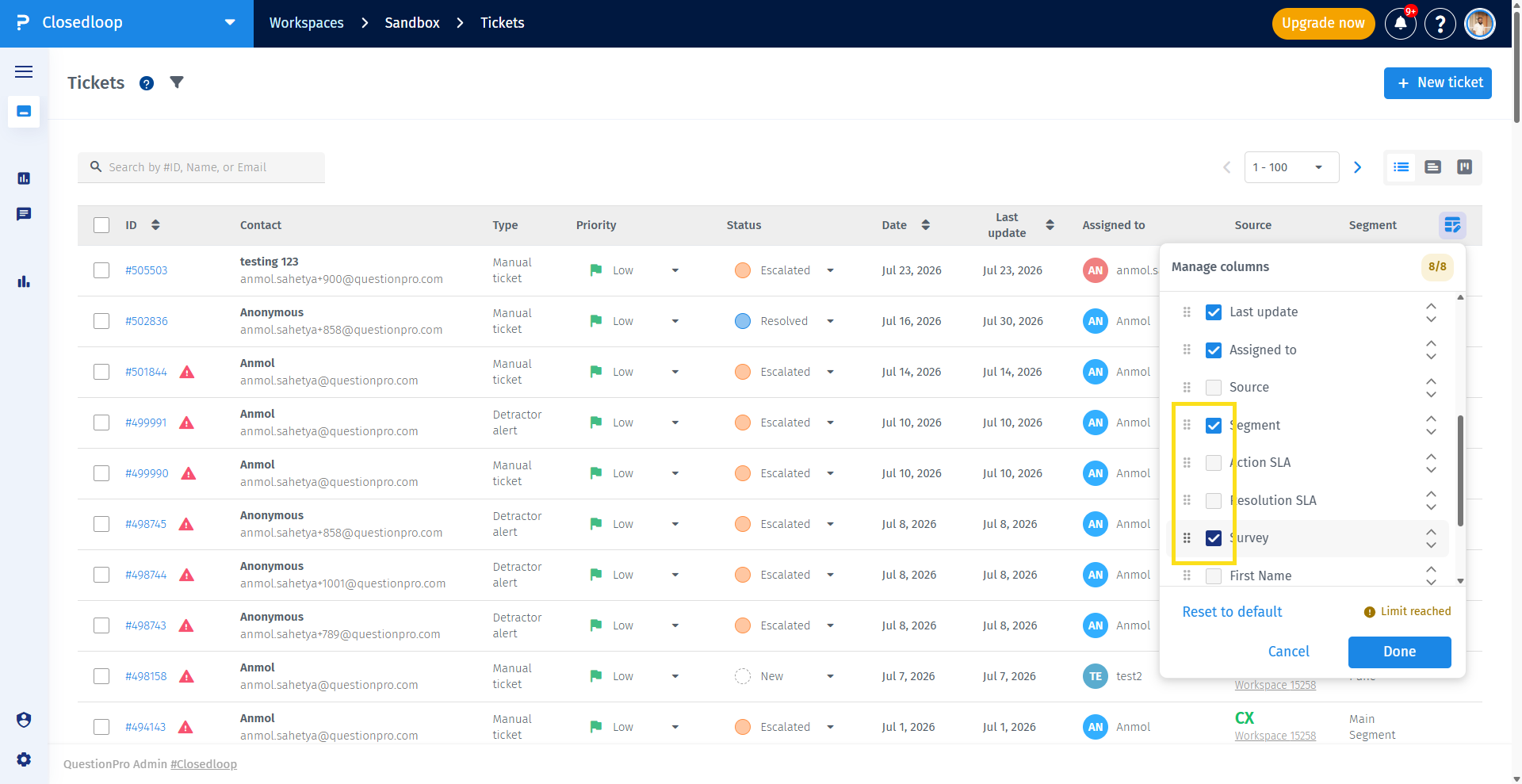
- Select or clear the checkboxes to show or hide optional columns.
- Drag and drop the enabled optional columns to arrange them in your preferred order.
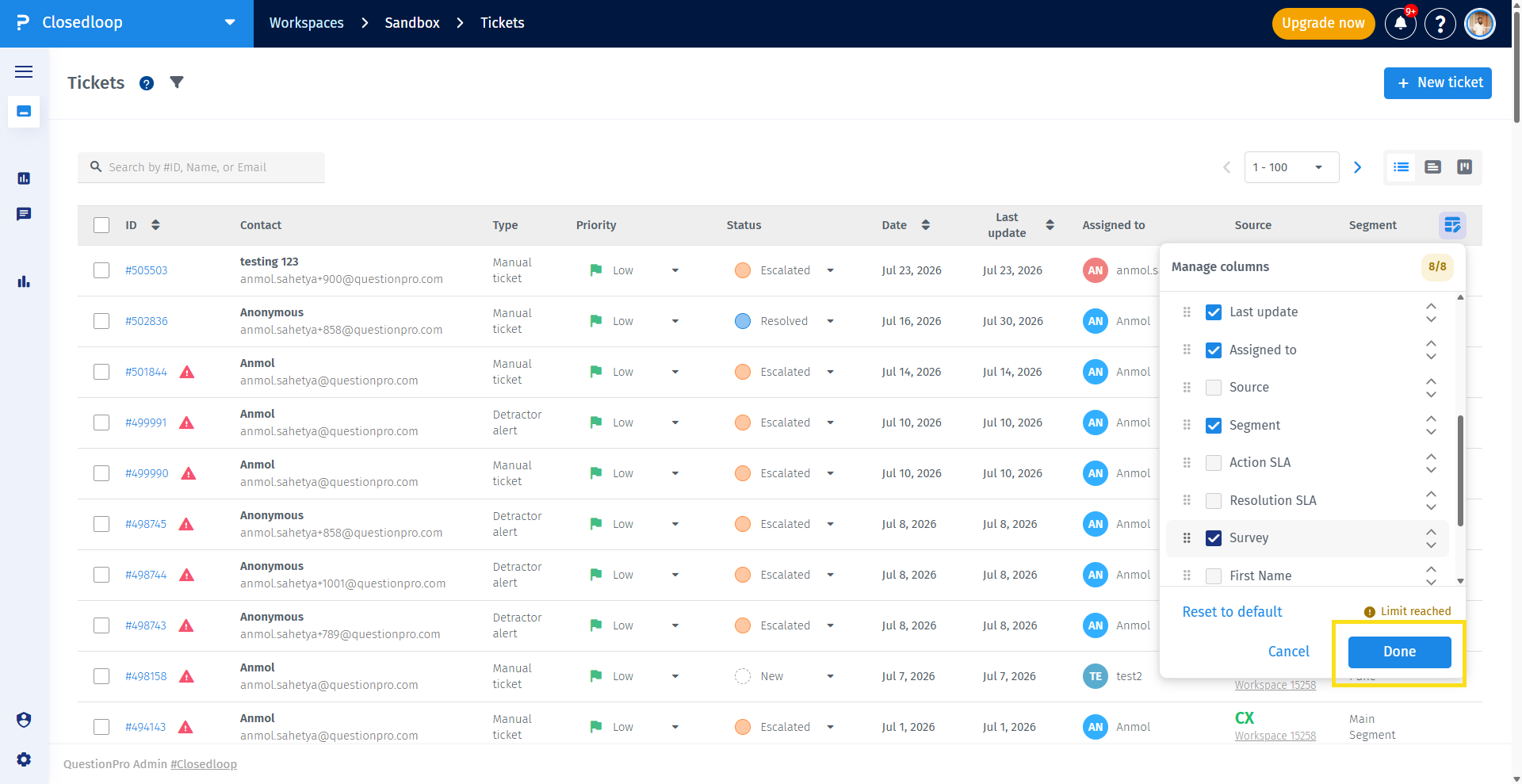
- Click Done to save your changes.
The default ticket list displays the following columns:
- Ticket ID
- Contact
- Type
- Priority
- Status
- Date
- Last update
- Assigned to
- Source
- Segment
The Reset to Default option restores both the default column selection and the default column order. The ticket list is updated only after you click Done.
- Display only the columns that are relevant to your work.
- Reduce horizontal scrolling by hiding unnecessary columns.
- Arrange columns in the order that matches your workflow.
- Quickly locate available fields using search.
- Save your preferred layout for each feedback source.
No. These are locked columns and are always displayed in the first two positions.
You can select up to eight optional columns. Once the maximum is reached, the remaining unchecked columns become disabled until you deselect one of the selected columns.
No. Column preferences are saved for your user account only.
No. Column configurations are maintained separately for each feedback source.
The Column Manager displays only the available system fields.
- Keep only the columns you regularly use to reduce horizontal scrolling.
- Arrange frequently referenced columns closer to the beginning of the ticket list.
- Use the search field when working with a large number of custom fields.
- Use Reset to Default if you want to restore the original ticket list layout.
