

- Custom Variable Widget
- Priority Matrix
- Heatmap Widget
- Grid Widget
- Weighted mean widget
- Comment List widget
- Widget Filters
- Ranking List Widget
- Distribution Chart
- NPS Widget
- Trend Widget
- Word Cloud Widget
- Cross tab widget
- KPI Comparison Widget
- Bubble chart
- Custom Metric Trend Chart
- Trend Comparison Widget

Closedloop Webhooks
Closedloop Webhooks allow Workspace Admins to configure outbound webhooks that trigger external APIs based on Closedloop Ticket-related events and conditions. You can select a Ticket event, add optional conditions, configure the API request, test the configuration, and activate the webhook.
You can also include supported Closedloop Ticket Objects and Ticket Fields in the JSON request body and review the results of webhook executions through execution logs.
Only Workspace Admins can create, edit, enable, disable, and delete Webhooks. Users who are not Workspace Admins cannot manage webhook configurations.
Navigate to Customer Experience → Closedloop → Workspace Settings → Webhooks.
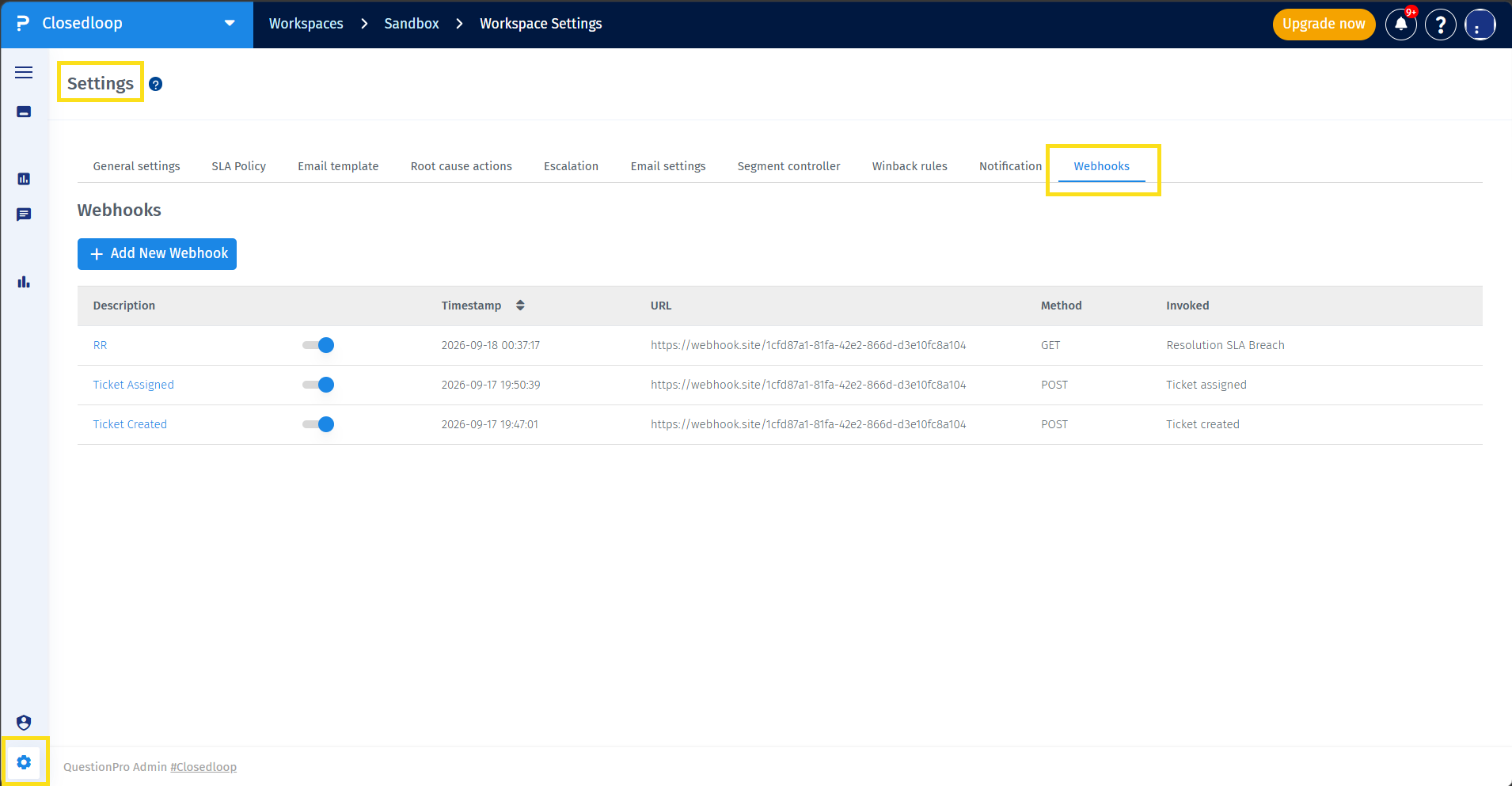
- Navigate to Customer Experience → Closedloop → Workspace Settings → Webhooks.
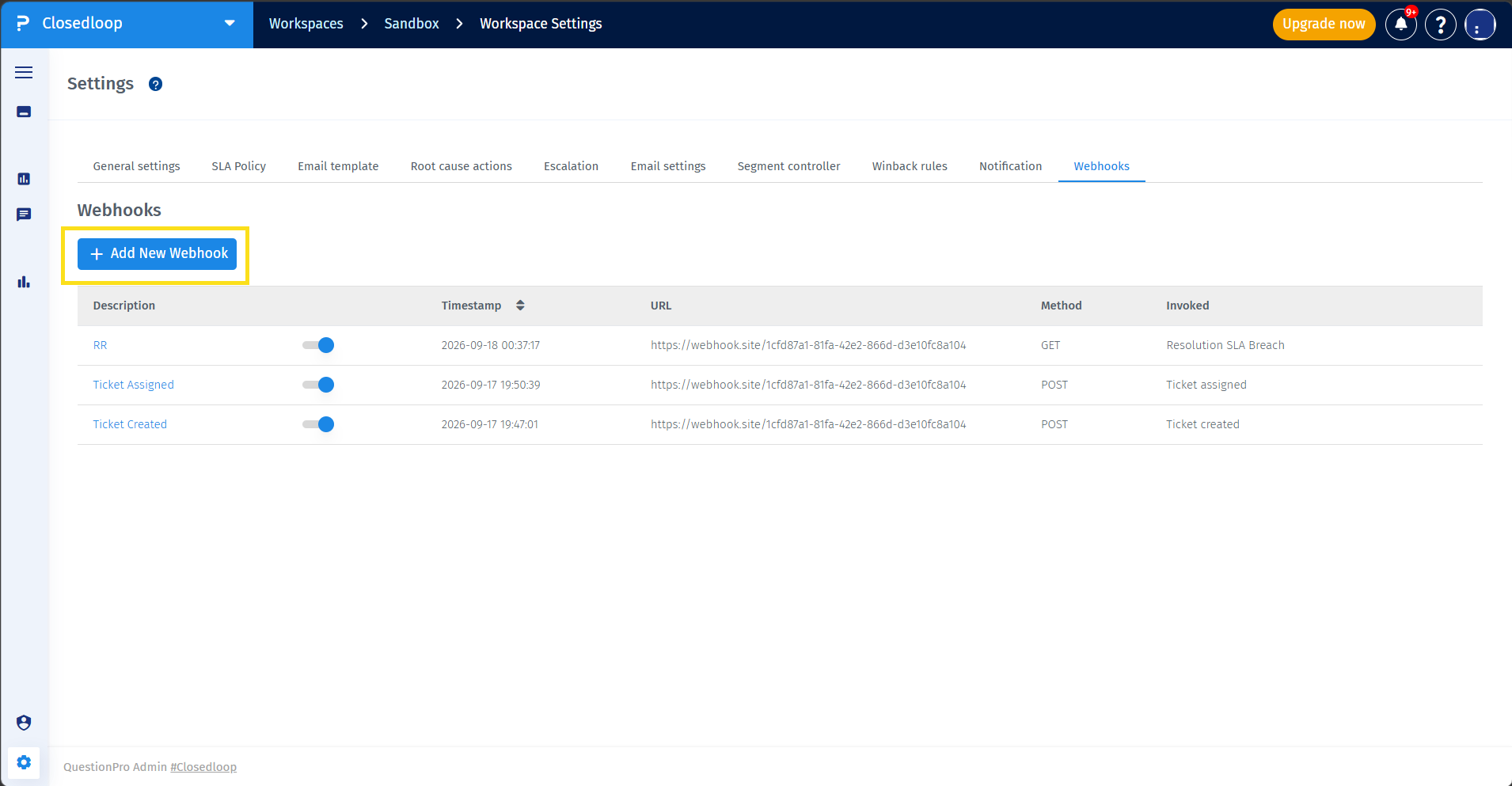
- Click + Add New Webhook.
- Enter a webhook description. The description can contain up to 60 characters.
- Configure the trigger event and any required conditions in the Trigger Logic step.
- Click Next.
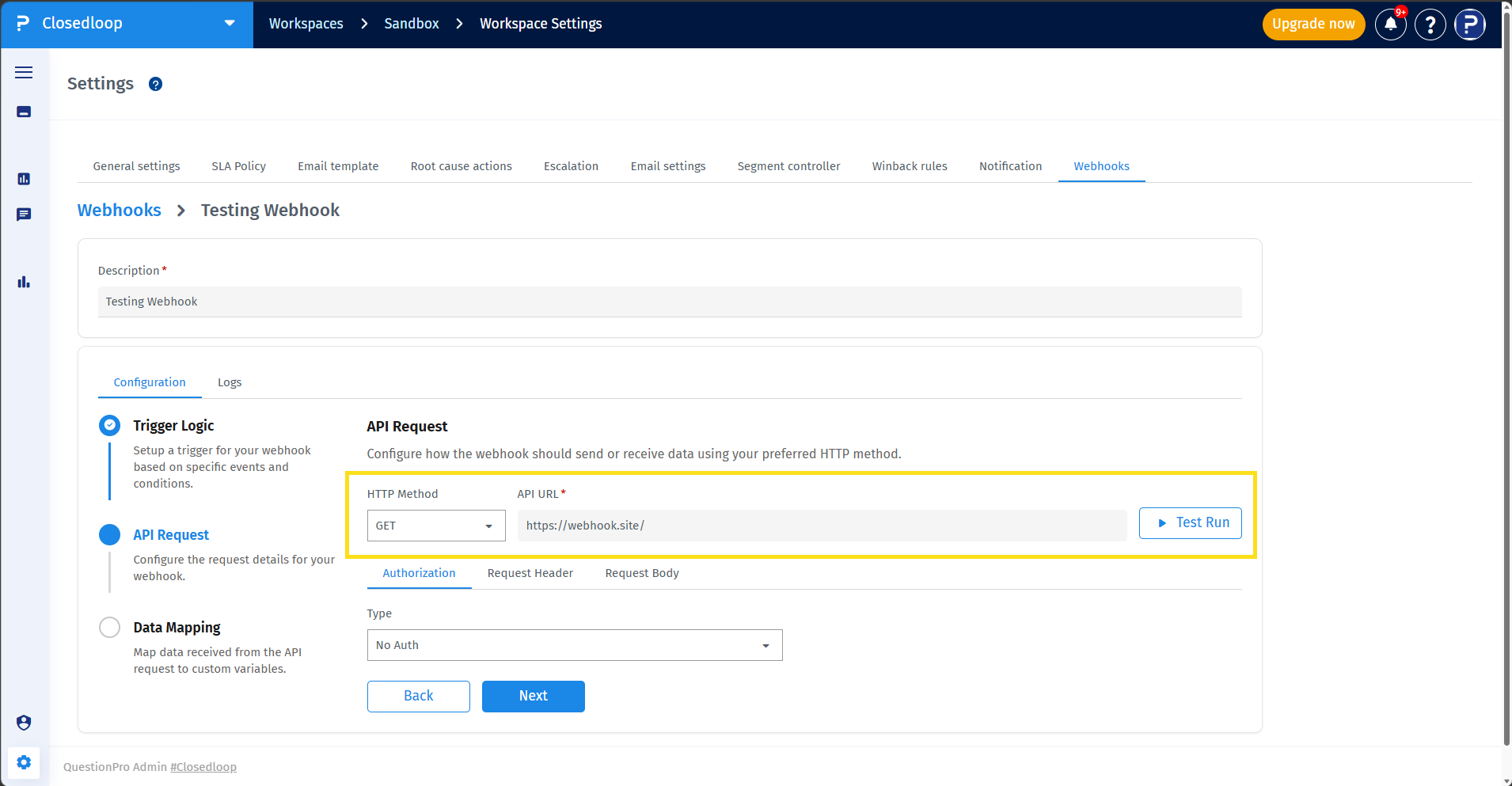
- Configure the API request in the API Request step.
- Use Test Run to test the API configuration before saving the webhook.
- Review the test result and make any required changes.
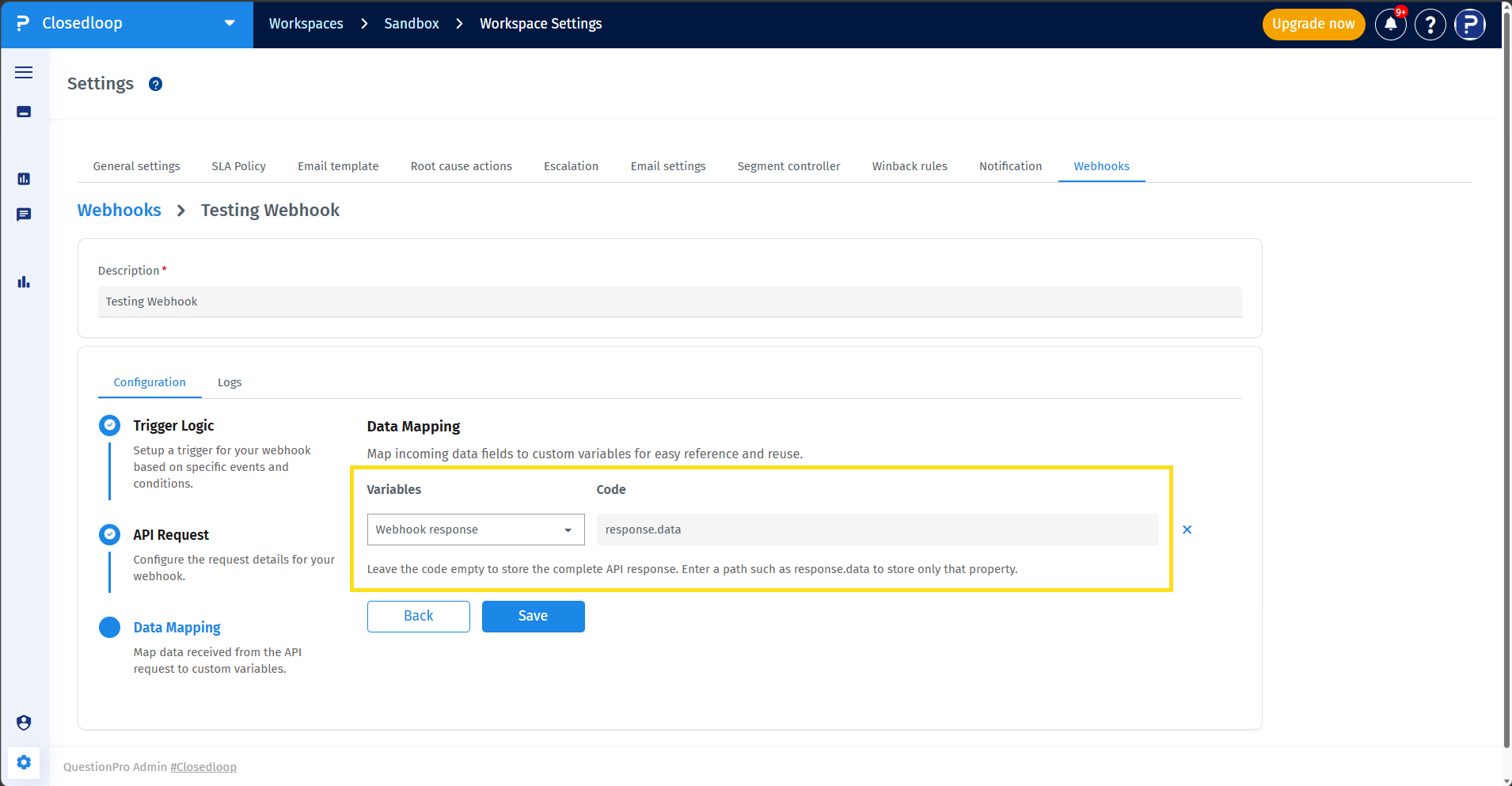
- Configure the data mapping for API response and Save the webhook. Newly created webhooks are enabled automatically.
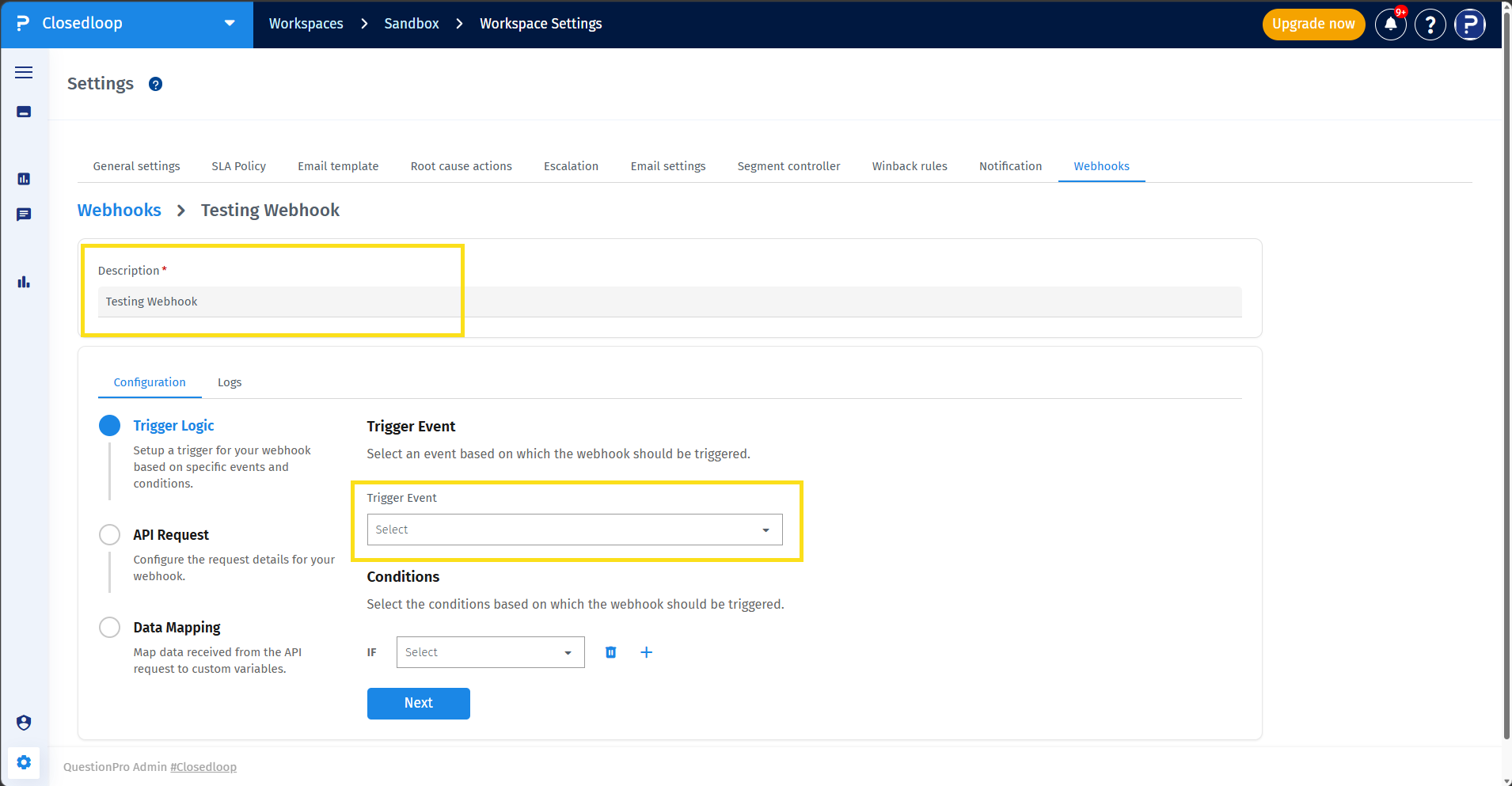
You can configure a webhook to trigger when any of the following Closedloop Ticket events occurs:
- Ticket created
- Ticket deleted
- Ticket assigned
- Ticket status changed
- Ticket priority changed
- Ticket comment added
- Ticket inactivity status
- Action SLA Breach
- Resolution SLA Breach
You can add conditions based on Current Segment, Survey, and Custom Variable.
- In the Trigger Logic step, select a condition type.
- Select the required value from the available drop-down options.
- For Custom Variable, select the variable name and its value.
The supported condition operator is Is. When multiple conditions are configured, all conditions must match for the webhook to execute.
If no conditions are configured, the webhook is eligible to execute whenever its configured trigger event occurs.
An enabled webhook executes when its configured Ticket event occurs and all configured conditions match.
If a configured condition does not match, the webhook is not executed. Disabled webhooks do not execute when their configured event occurs.
- In the API Request step, enter the API URL. The API URL is mandatory.
- GET, POST, and PUT methods of API are supported right now
- Select the required authentication method.
- Configure request headers as required.
- For POST and PUT requests, configure the request body using valid JSON if required.
- Review the configuration and use Test Run to validate the request.
For GET requests, the request body is disabled.
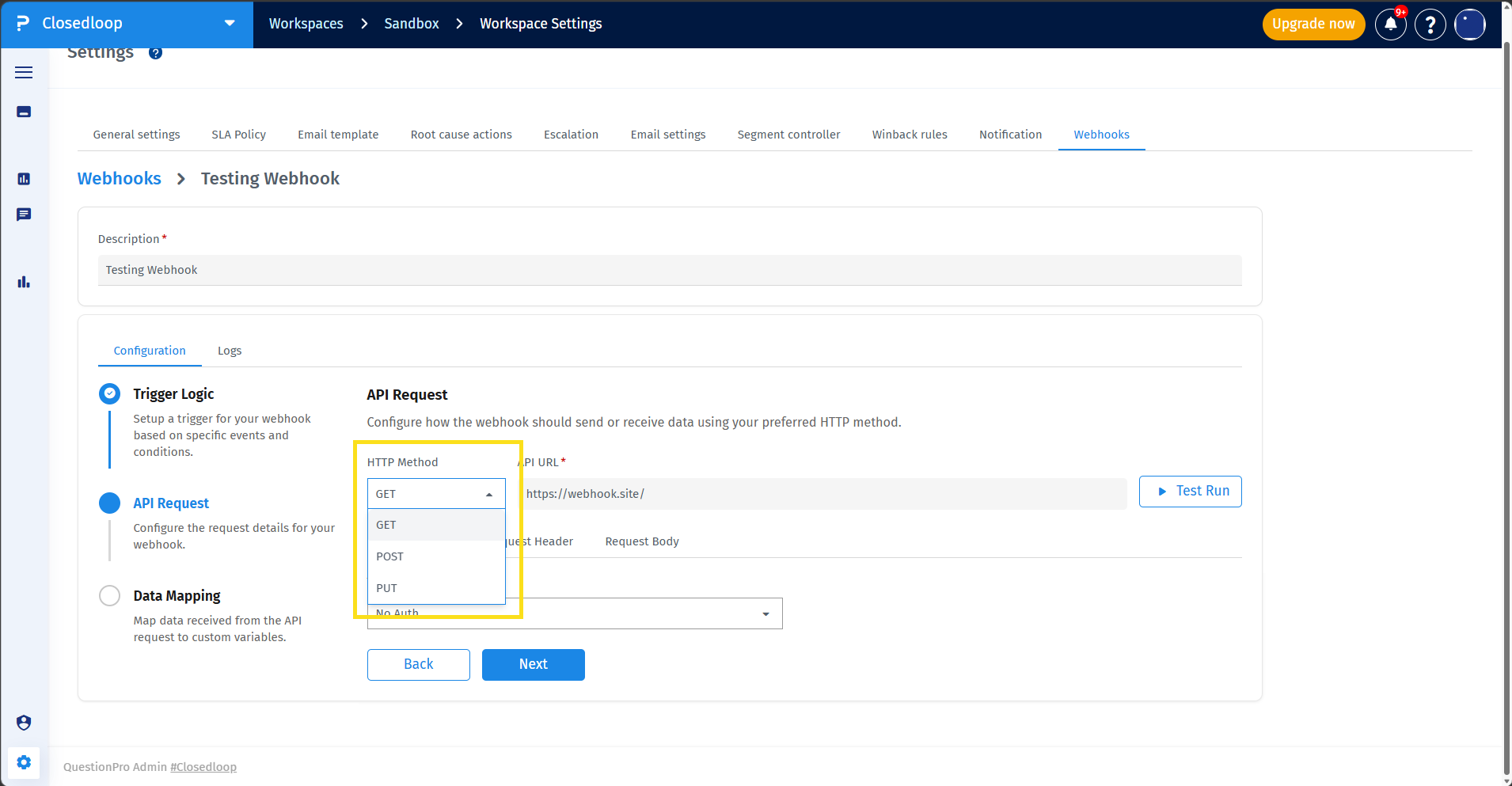
Closedloop Webhooks support the following authentication methods:
- No Auth: No authentication details are required.
- API Key: Enter the Key and Value, and select whether the API key should be added to the request Header or Query Param.
- Bearer Token: Enter the Token.
- Basic Auth: Enter the Username and Password.
Yes. You can configure request headers as key/value pairs when configuring the API request.
Request bodies are available for POST and PUT requests. The request body is optional and must contain valid JSON.
You can insert supported Ticket Objects and Ticket Fields into the request body from the configuration interface.
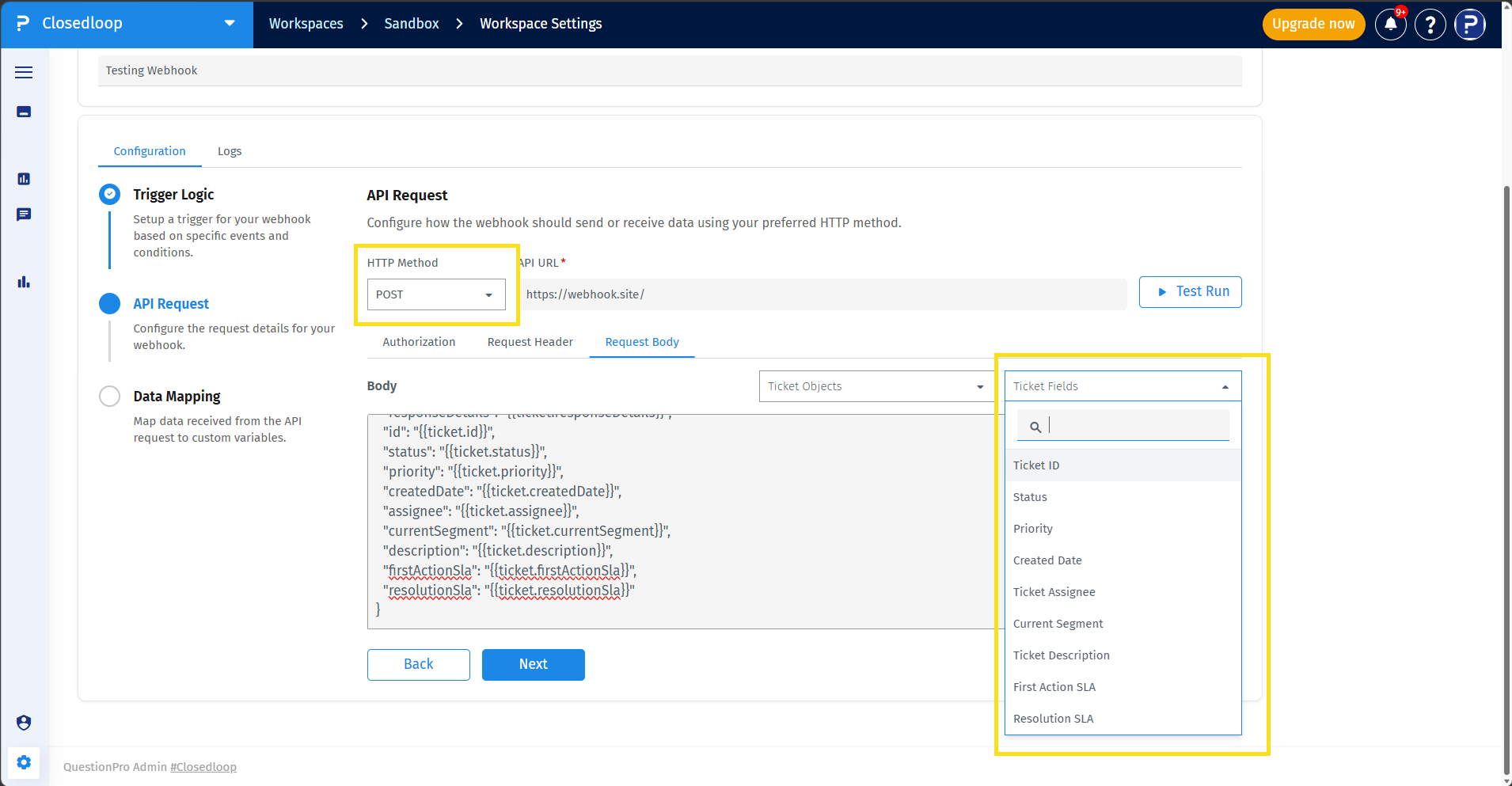
You can insert the following supported Ticket Objects:
- {{ticket.details}}
- {{ticket.conversationHistory}}
- {{ticket.commentsHistory}}
- {{ticket.activityHistory}}
- {{ticket.rootCauseActions}}
- {{ticket.responseDetails}}
You can insert the following supported Ticket Fields:
- {{ticket.id}}
- {{ticket.status}}
- {{ticket.priority}}
- {{ticket.createdDate}}
- {{ticket.assignee}}
- {{ticket.currentSegment}}
- {{ticket.firstActionSla}}
- {{ticket.resolutionSla}}
- {{ticket.description}}
- Complete the API request configuration.
- Click Test Run.
- Closedloop executes the configured API request using the configured authorization, request headers, and request body.
- Review the test result displayed in the pop-up modal.
- Review the API URL and returned response or result.
If the test run fails, the pop-up displays an appropriate message or reason for the failure.
The complete API response is stored in the system Webhook response field. The response is not stored directly on the Closedloop Ticket.
- Navigate to Customer Experience → Closedloop → Workspace Settings → Webhooks.
- Click the Webhook name for the webhook you want to review.
- Click Logs next to Configuration.
Every webhook execution is recorded in the execution logs.
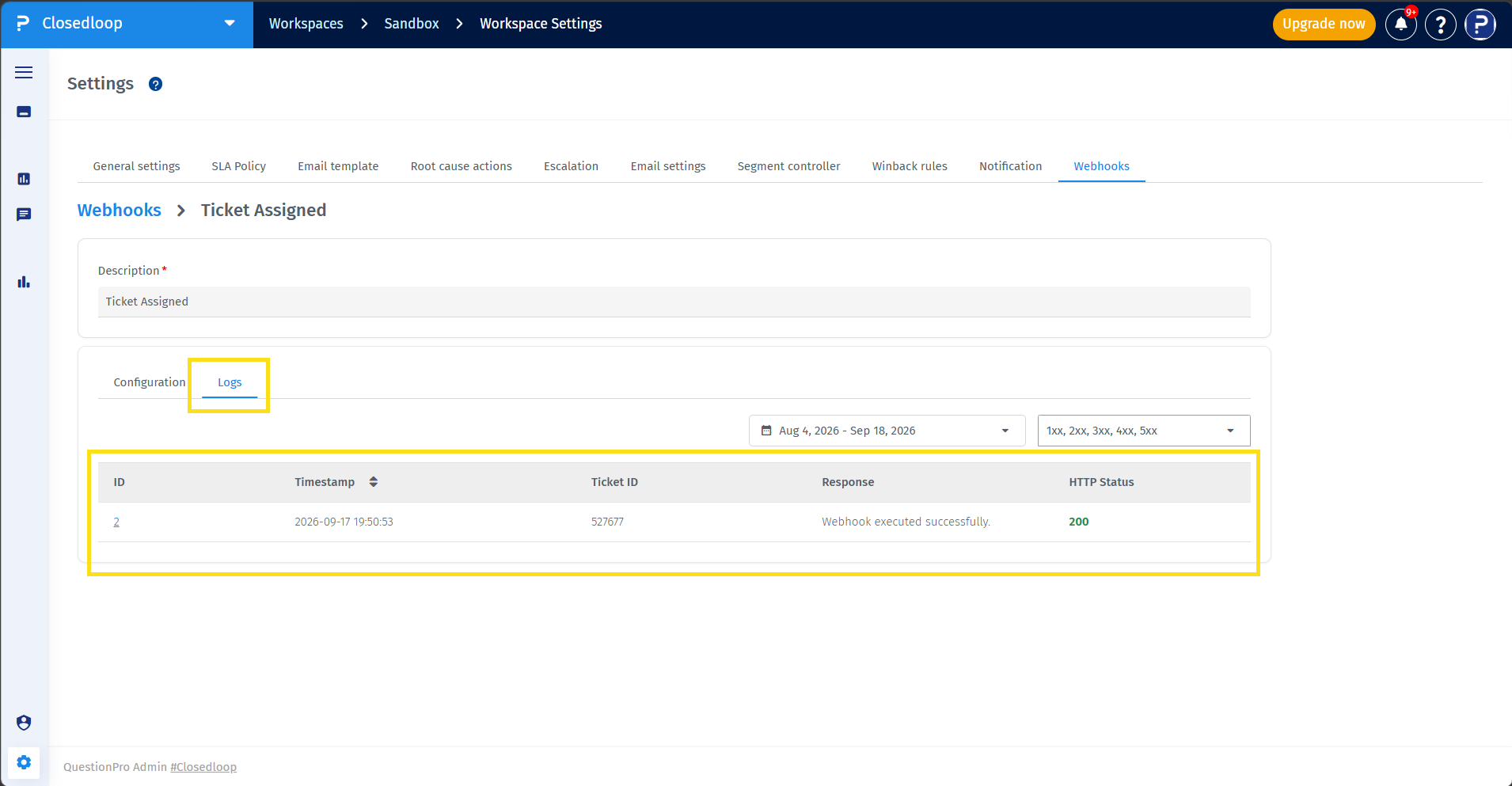
The execution logs include:
- Webhook ID
- Timestamp
- Ticket ID
- Response
- HTTP Status
Failed API responses are also recorded in the execution logs.
Click the execution ID in the webhook execution logs to open the detailed execution information in a modal.
The detail modal includes the request URL, Payload, and API response.
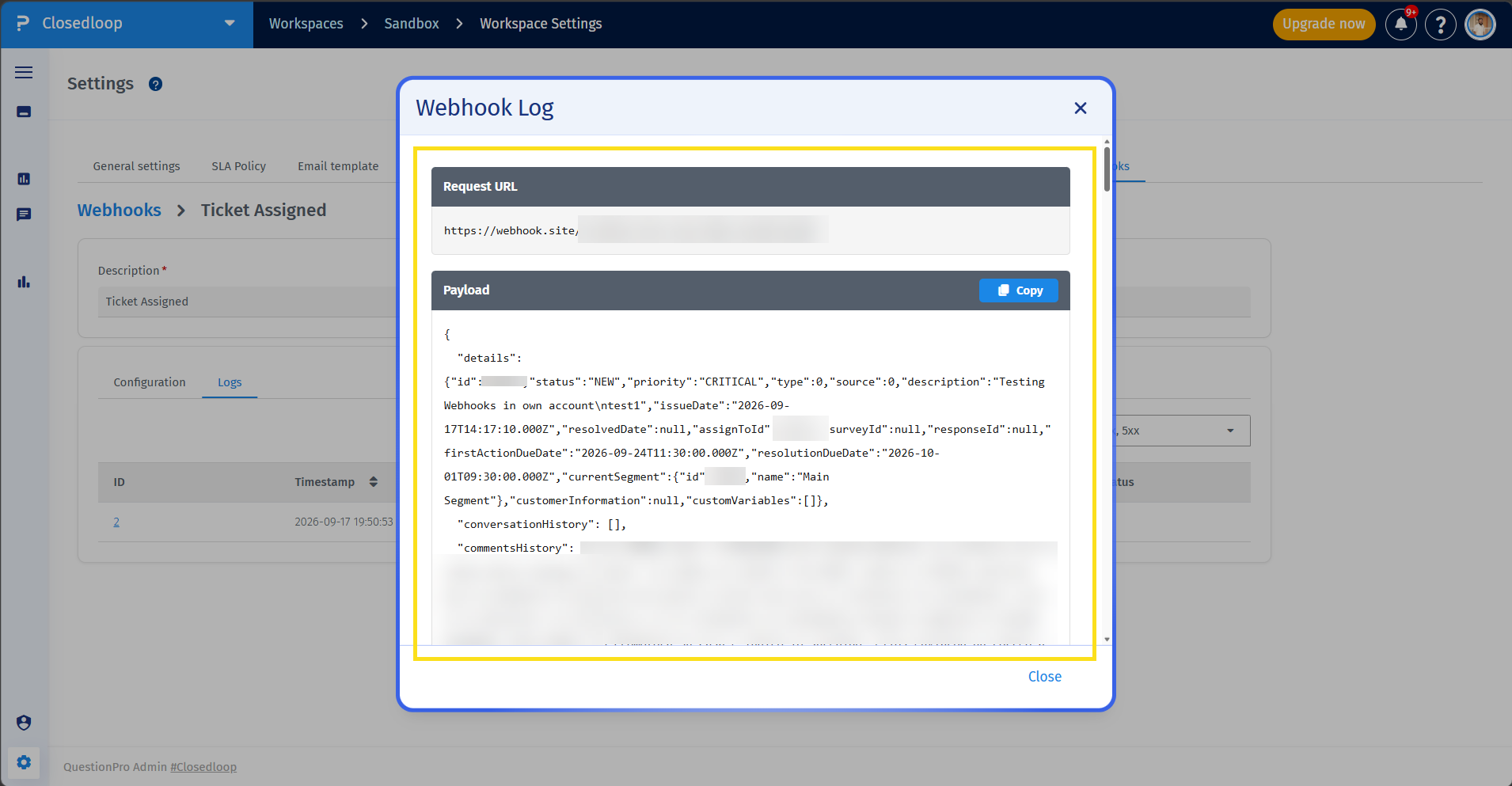
- Navigate to Customer Experience → Closedloop → Workspace Settings → Webhooks.
- Locate the webhook you want to modify.
- Use the Edit control for the webhook.
- Update the required configuration.
- Save the changes.
Workspace Admins can edit existing webhooks.
Workspace Admins can enable or disable existing webhooks from the Webhooks configuration page.
When a webhook is disabled, it does not execute when its configured Ticket event occurs.
- Navigate to Customer Experience → Closedloop → Workspace Settings → Webhooks.
- Locate the webhook you want to remove.
- Click the Delete control for the webhook.
- Confirm the deletion.
Failed API requests are recorded in the webhook execution logs. Failed API requests are not automatically retried and do not trigger an additional Closedloop Ticket action.
- Configure integrations between Closedloop and external systems without separate integration configuration for each workflow.
- Control which Ticket events trigger external APIs.
- Use conditions to ensure only relevant Ticket events invoke an external API.
- Configure authentication and request headers for external API requests.
- Construct JSON request bodies using supported Ticket Objects and Ticket Fields.
- Test API configurations before activating a webhook.
- Review webhook execution results through standardized execution logs.
- Use a clear webhook description so that the purpose of the configuration is easy to identify.
- Configure conditions when the external API should only be triggered for specific Ticket criteria.
- Review the API URL, authentication, headers, and request body before saving the webhook.
- Use Test Run to validate the API configuration before relying on live Ticket events.
- Review execution logs to monitor webhook requests and API responses.
