

- Custom Variable Widget
- Priority Matrix
- Heatmap Widget
- Grid Widget
- Weighted mean widget
- Comment List widget
- Widget Filters
- Ranking List Widget
- Distribution Chart
- NPS Widget
- Trend Widget
- Word Cloud Widget
- Cross tab widget
- KPI Comparison Widget
- Bubble chart
- Custom Metric Trend Chart
- Trend Comparison Widget

Customer360 - AI-Powered Churn Risk Predictor
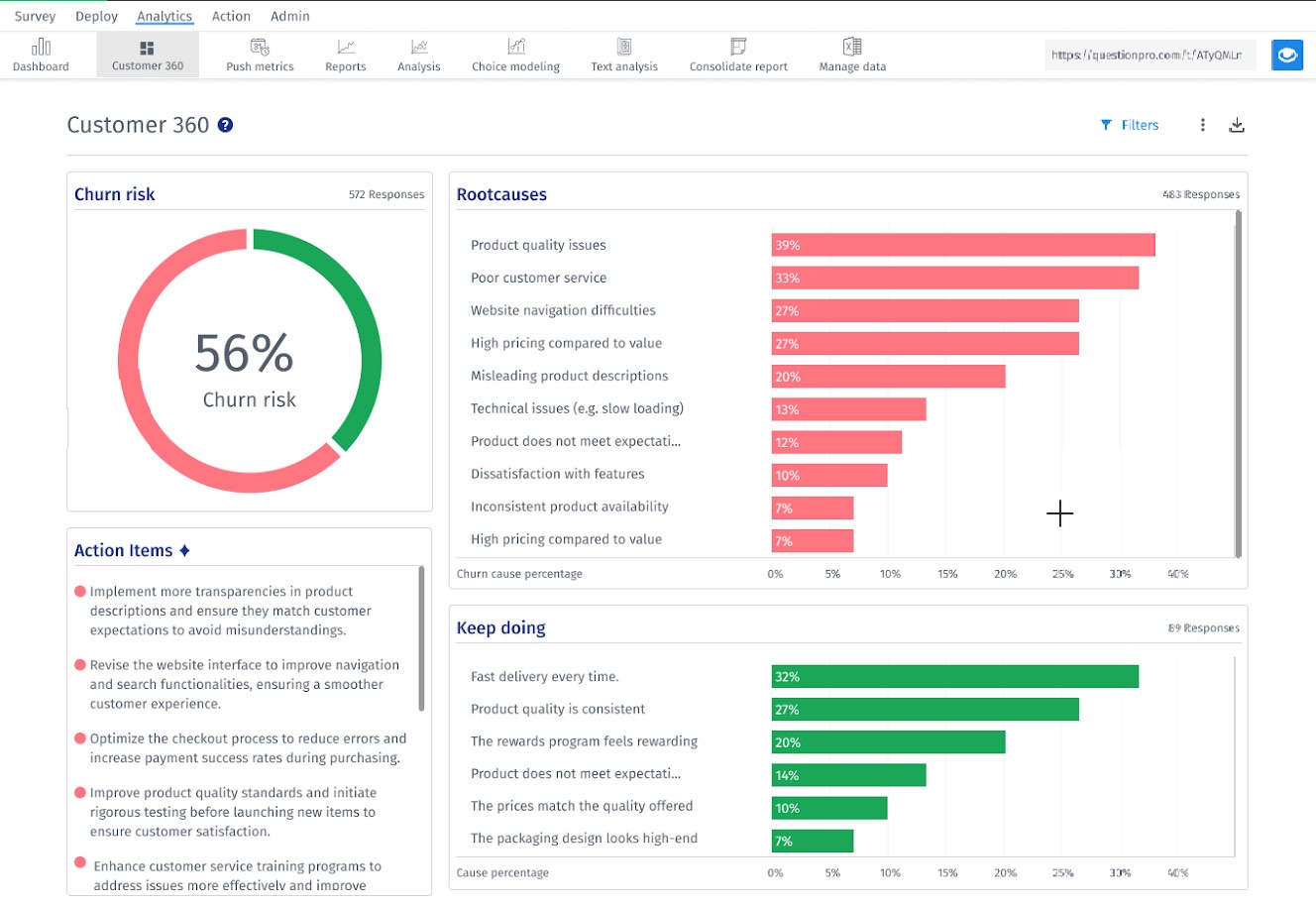
The Customer360 is an AI-powered centralized churn analysis tool within our Customer Experience suite. It provides a comprehensive view of customer sentiment and behavior across all surveys in a workspace, helping organizations proactively identify and act on churn risk.
By aggregating scores, sentiment, and feedback trends, Customer360 uncovers at-risk customers, identifies the reasons behind dissatisfaction, and recommends actions to improve retention.
Watch this video to learn how to use Customer360 to identify at-risk customers, analyze churn drivers, review customer feedback, access customer-level insights, and take proactive actions to improve customer retention and satisfaction.
- Identifies customers at high, medium, or low risk of churn using AI.
- Highlights the primary reasons for dissatisfaction and loyalty.
- Generates actionable recommendations to reduce churn.
- Allows filtering by product, severity, and date range.
- Enables ticket creation and follow-up for at-risk customers.
- Exports churn insights for reporting and presentations.
The dashboard includes the following sections:
- Churn Risk: Percentage of customers identified as at risk.
- Top 10 Root Causes: Most frequent drivers of dissatisfaction.
- Keep Doing: Top positive experiences from promoters.
- Action Items: AI-generated recommendations to reduce churn.
- Customer List: Customer email, average rating, churn severity, root causes, insights, and tickets.
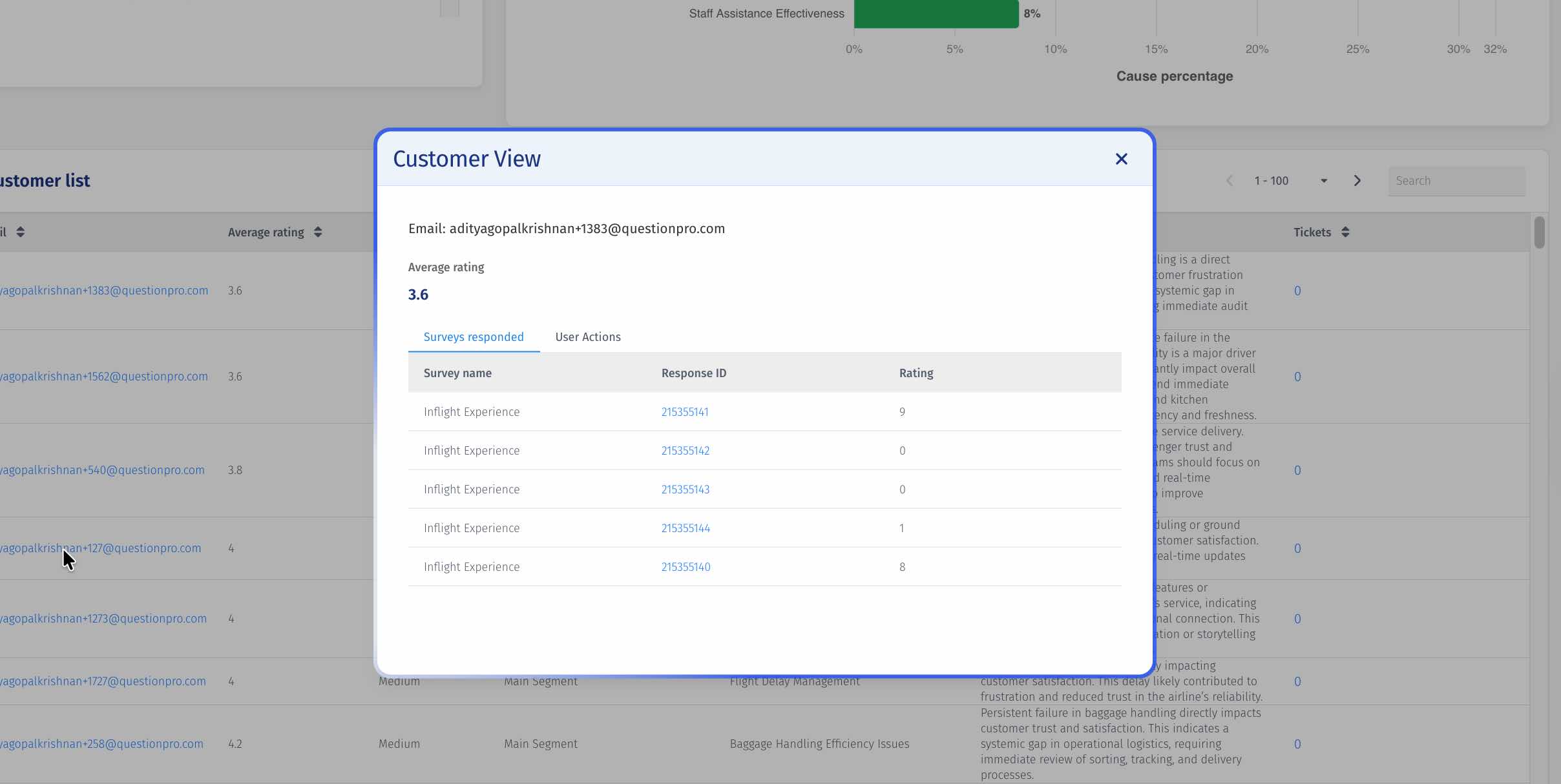
The Customer View provides a detailed customer-level view by consolidating all survey responses submitted by an individual customer across the workspace.
Users can click a customer's email address from the Customer List to view detailed customer insights.
Information Available:
- Customer Information: Customer email.
- Average Rating: Average rating across all survey responses.
- Survey Responses: Complete response history from all surveys.
- Root Causes: AI-generated reasons for dissatisfaction.
- Action Items: Recommended actions to improve customer experience.
How to Access Customer View:
- Navigate to the Customer360 tab.
- Locate the customer in the Customer List.
- Click the customer's email address.
- The customer details page opens displaying all responses and customer insights.
Customer360 focuses only on meaningful customer data to ensure accurate churn predictions.
- Imported responses, test responses, or survey token responses are excluded from churn analysis.
- Churn risk is calculated only for customers who have submitted more than two responses across the workspace.
This ensures that churn insights are based on reliable engagement patterns rather than isolated or non-authentic responses.
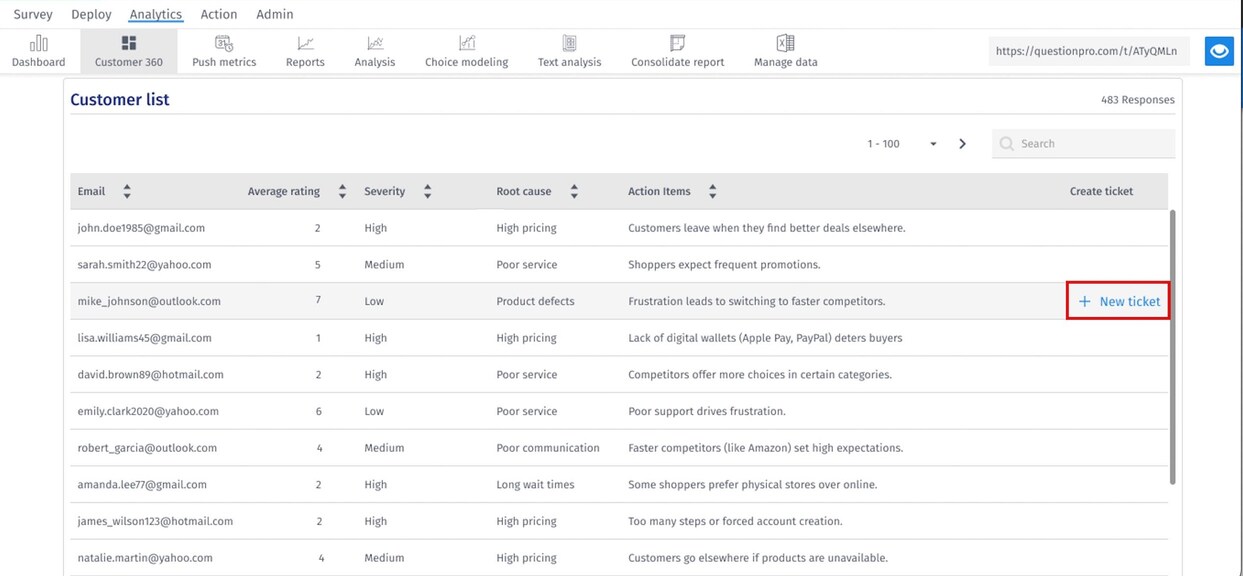
Customer360 allows users to create and manage support tickets directly from the churn insights dashboard.
How to Create a Ticket:
- Go to the Customer360 tab under Analytics.
- Locate the customer in the Customer List.
- Click the Create Ticket button.
- The Add New Ticket window appears.
- Enter the subject, description, and category.
- Click Submit.
How to View Tickets:
- Click the View All Tickets link.
- A new browser tab opens the ticketing system.
- The page displays tickets associated with the customer's email.
You can export the Customer360 dashboard for reporting and sharing.
- Navigate to the Customer360 tab.
- Click the Download button.
- Select the export format.
- Confirm the export.
