

- Custom Variable Widget
- Priority Matrix
- Heatmap Widget
- Grid Widget
- Weighted mean widget
- Comment List widget
- Widget Filters
- Ranking List Widget
- Distribution Chart
- NPS Widget
- Trend Widget
- Word Cloud Widget
- Cross tab widget
- KPI Comparison Widget
- Bubble chart
- Custom Metric Trend Chart
- Trend Comparison Widget

Stacked Cards in Journey Management
Stacked Cards allow you to group multiple journey cards into a single layered view. This helps reduce visual clutter and enables better organization when working with complex journeys. When cards are stacked, they appear on top of each other as a single unit. You can expand them at any time to return to the individual card view.
How Stacked Cards Work
- Multiple cards can be grouped into a single stack
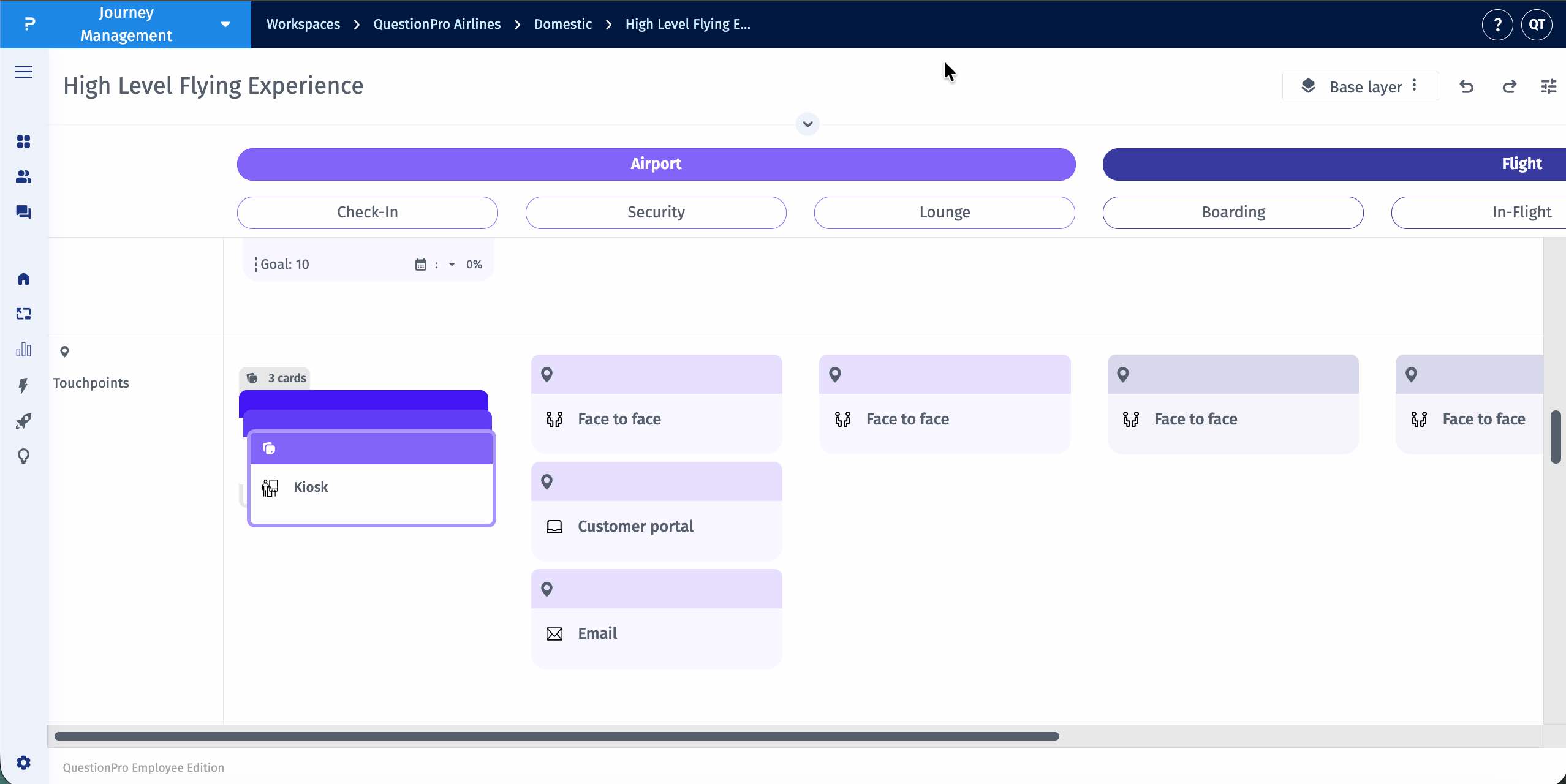
- Stacked cards appear as a layered pile on the journey canvas
- You can expand the stack at any time to return to the individual card view
- Stacking is a visual organization feature and does not modify card data
How to Stack Cards
Managing Cards in a Stack
How to Unstack Cards
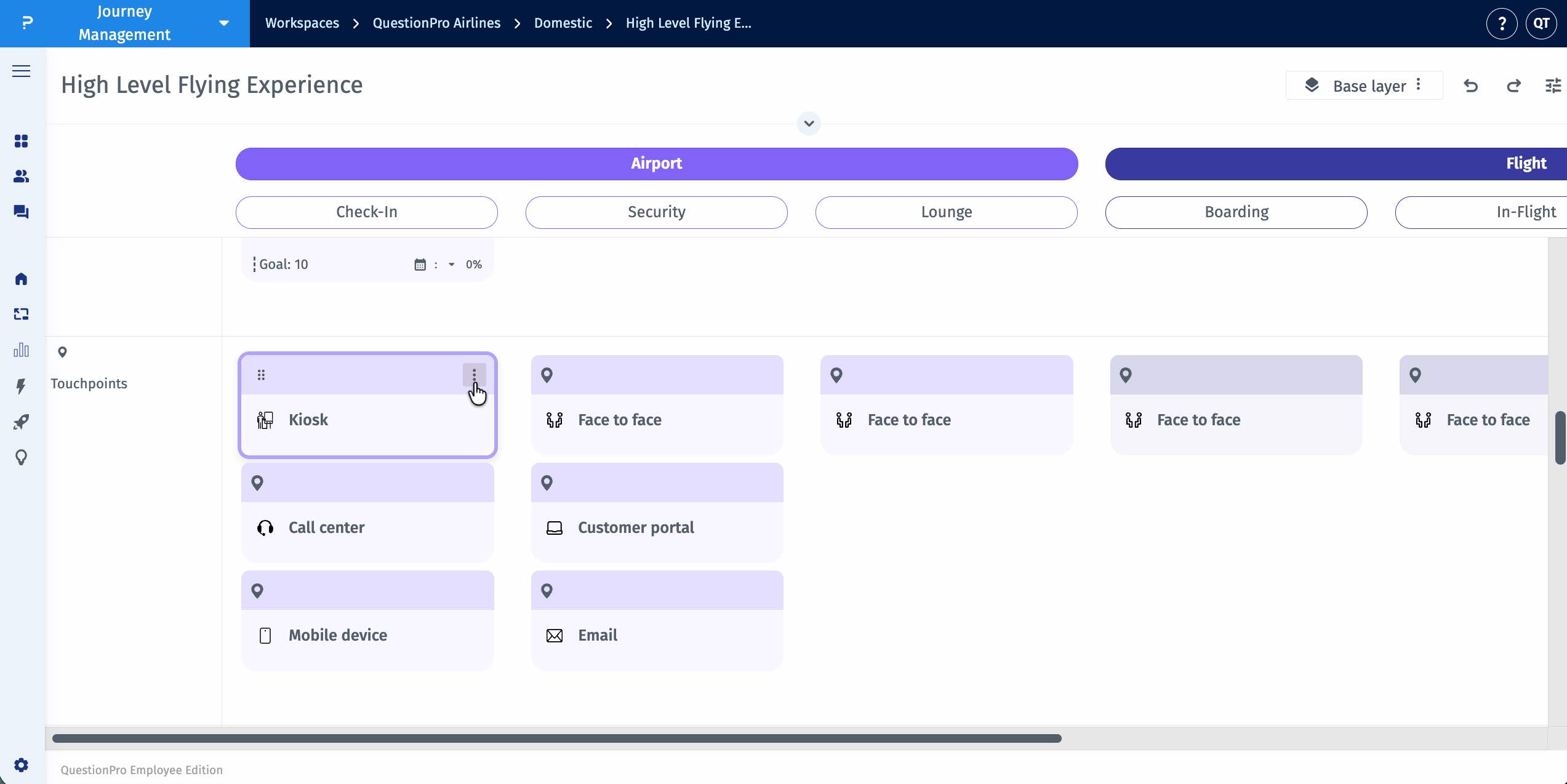
- Go to the lane in which you want to create the stack
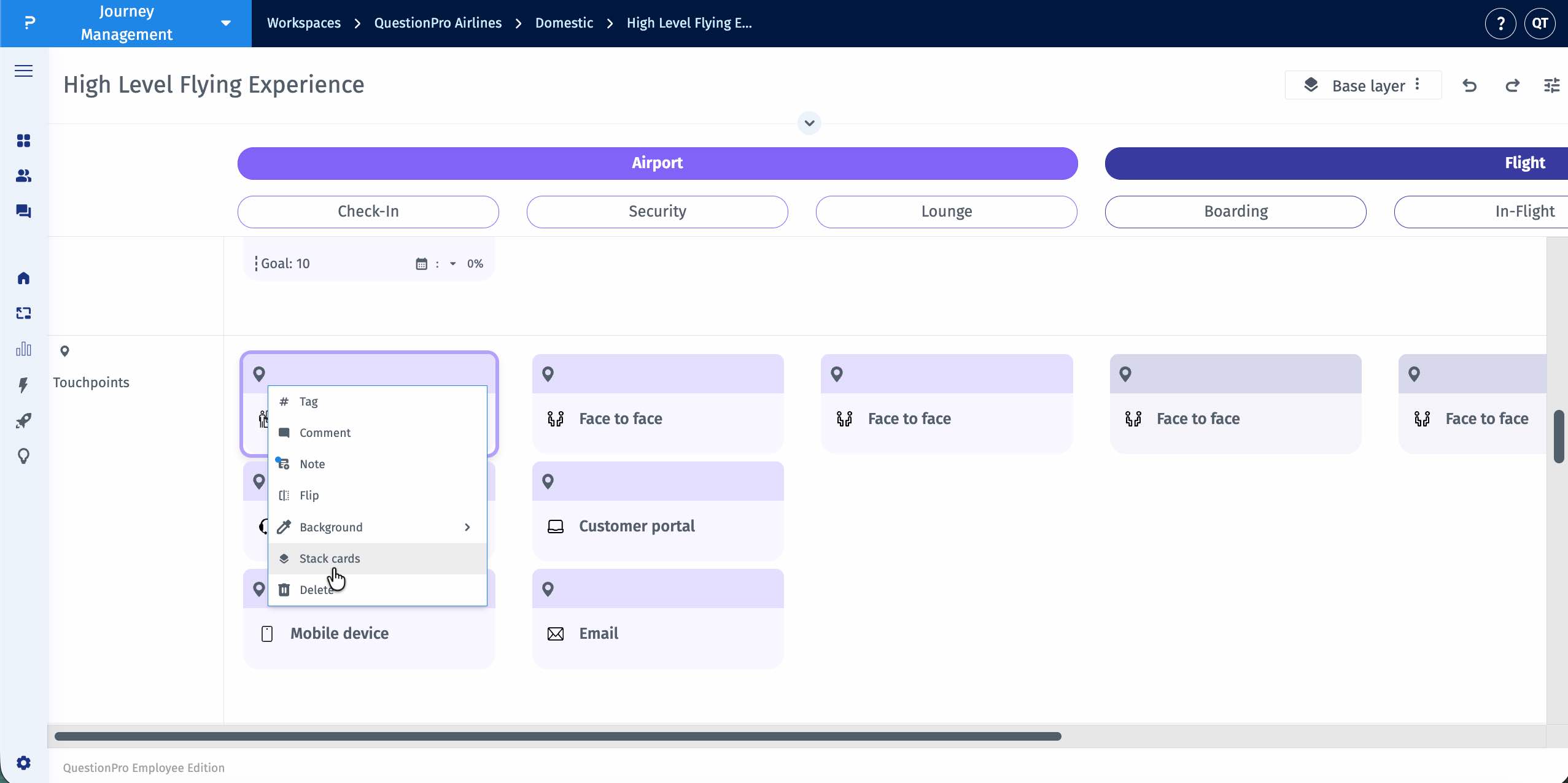
- On the first card, click on the three dots to open the menu
- Select the Stack Cards option
- All the cards in the lane will be stacked
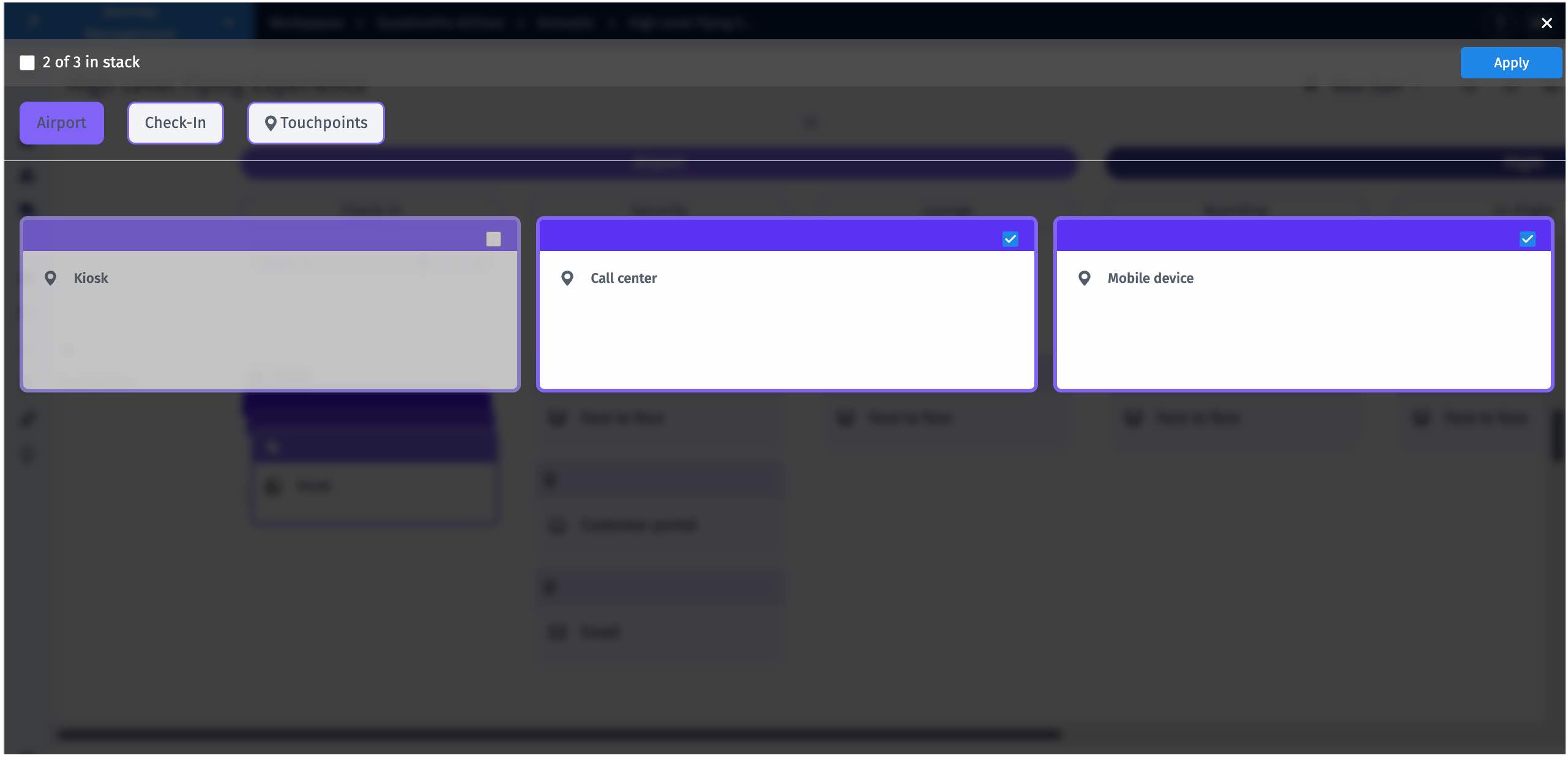
Managing Cards in a Stack
- Click on the stacked cards
- Select the Manage option
- Choose the cards you want to remove from the stack
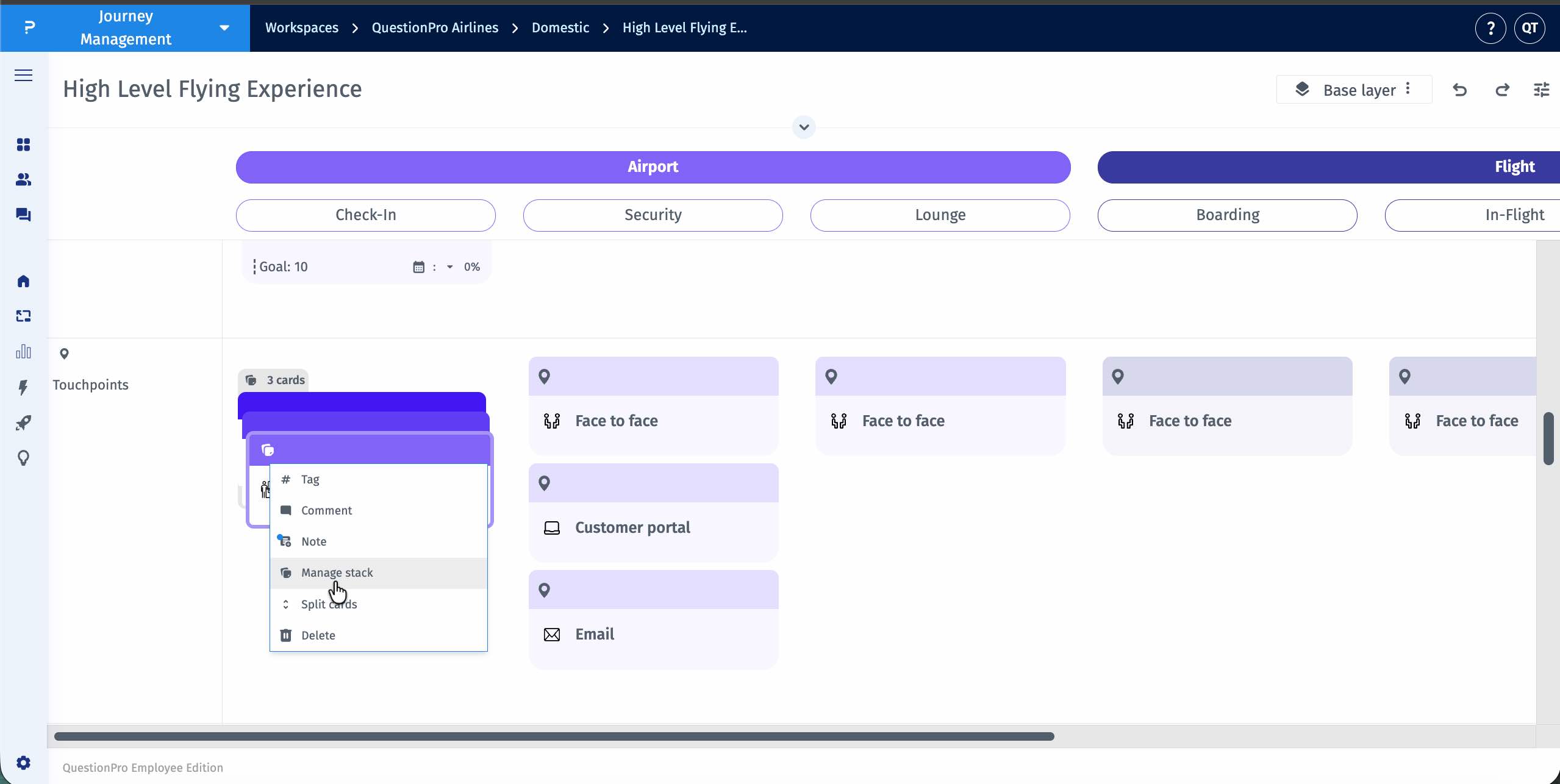
How to Unstack Cards
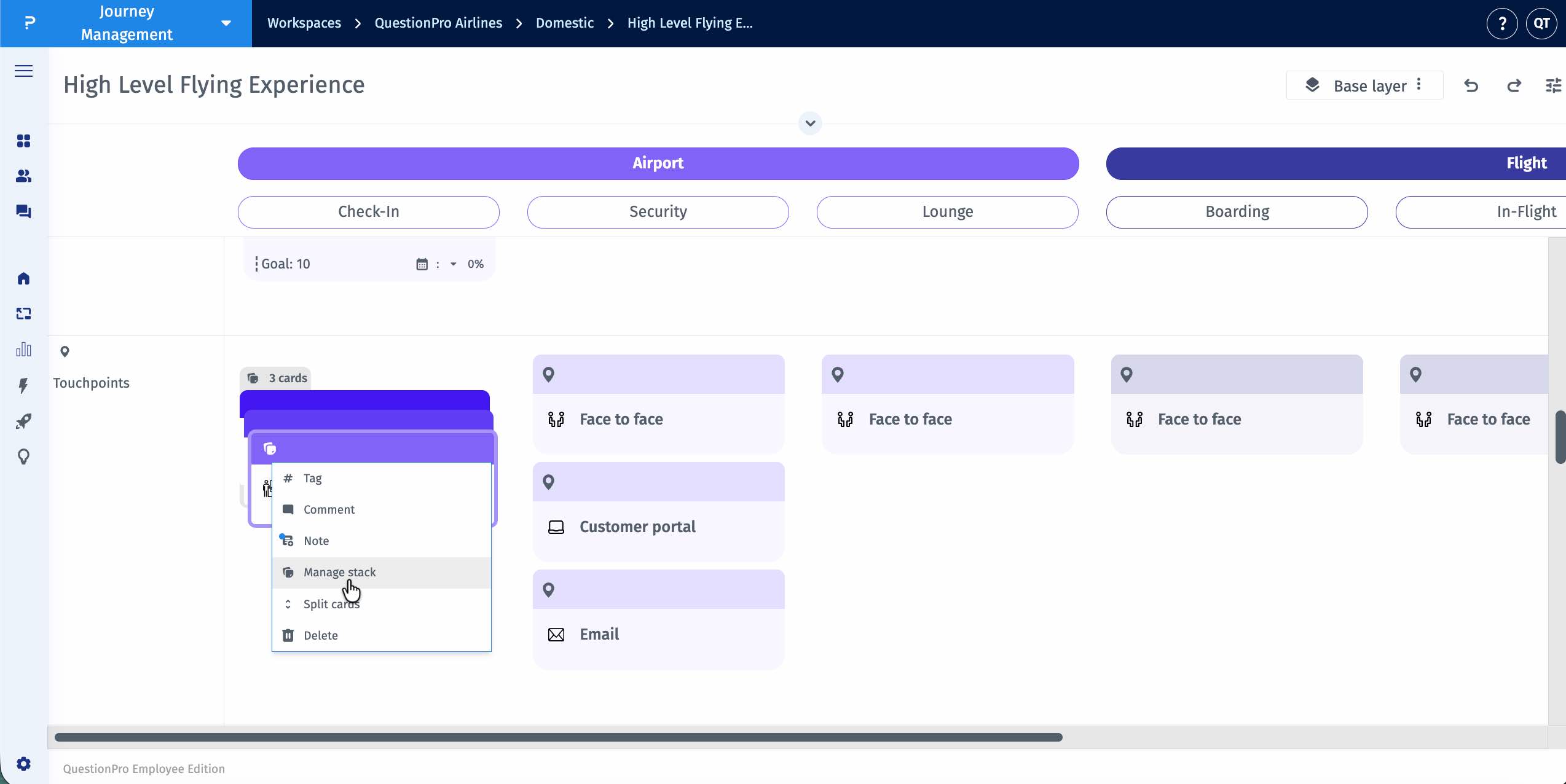
- Click on the menu of the stacked cards
- Select the Split Cards option to return to the original view
Key Notes
- Stacking does not delete or modify any cards
- You can stack and unstack cards at any time
- Changes are reflected instantly on the journey map
- This feature is intended for better visual organization
When to Use Stacked Cards
- Group related touchpoints
- Simplify complex journey views
- Present high-level journey flows
- Focus on specific journey stages
