

- Custom Variable Widget
- Priority Matrix
- Heatmap Widget
- Grid Widget
- Weighted mean widget
- Comment List widget
- Widget Filters
- Ranking List Widget
- Distribution Chart
- NPS Widget
- Trend Widget
- Word Cloud Widget
- Cross tab widget
- KPI Comparison Widget
- Bubble chart
- Custom Metric Trend Chart
- Trend Comparison Widget

AI Themes for Intercept
AI Themes helps you create branded themes for your Intercept widgets using your existing brand guidelines. You can provide a brand guidelines URL or upload a brand document in PDF, DOC/DOCX, JPG, or PNG format, and QuestionPro AI will analyze the content to identify relevant brand elements such as colors, fonts, and visual styling.
QuestionPro AI generates theme options based on your brand guidelines. You can preview each theme, apply a theme to check how it looks in the widget, and save the theme once you are satisfied with the result.
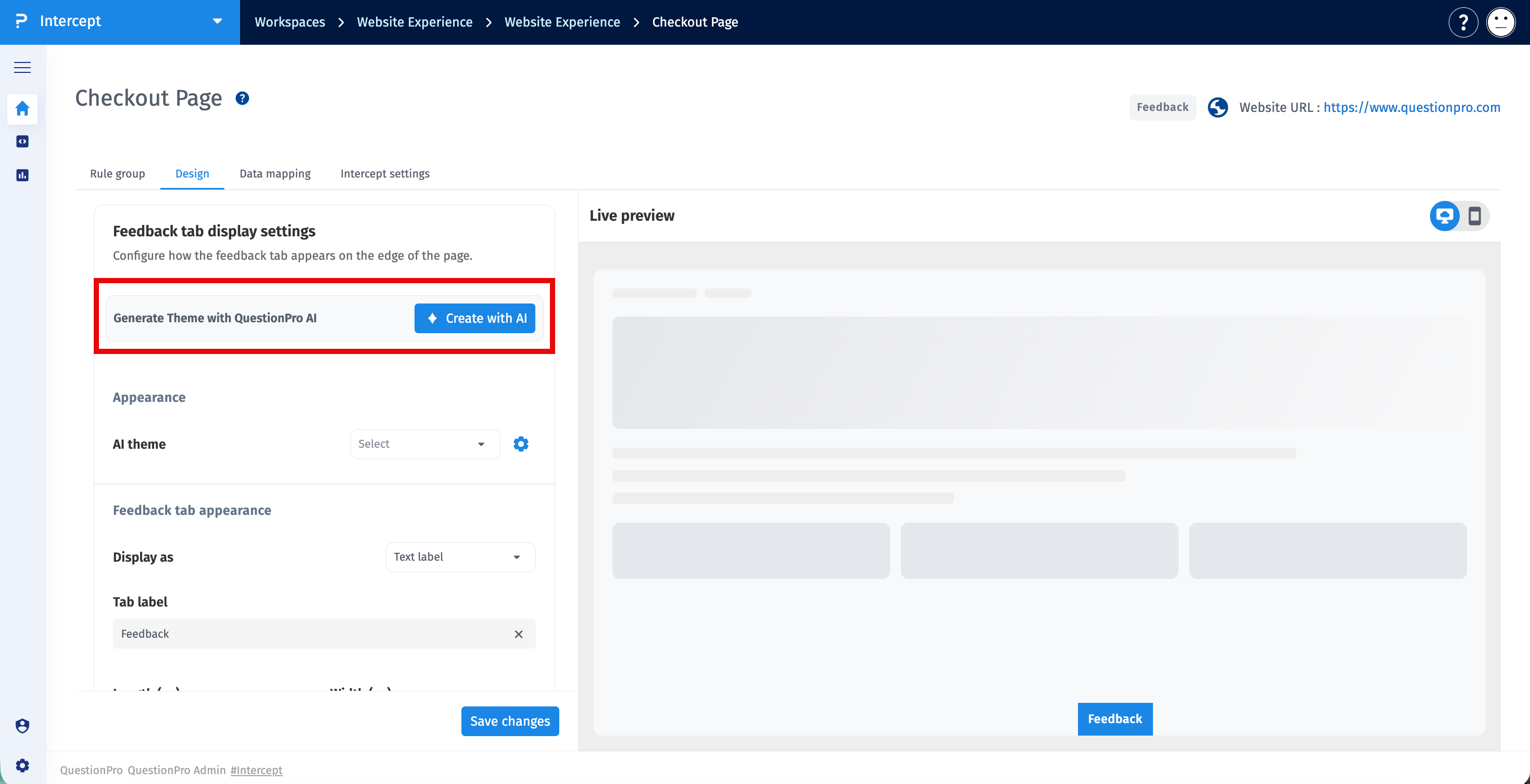
- Select the Intercept for which you want to generate an AI-powered theme.
- Click the Create with AI button.
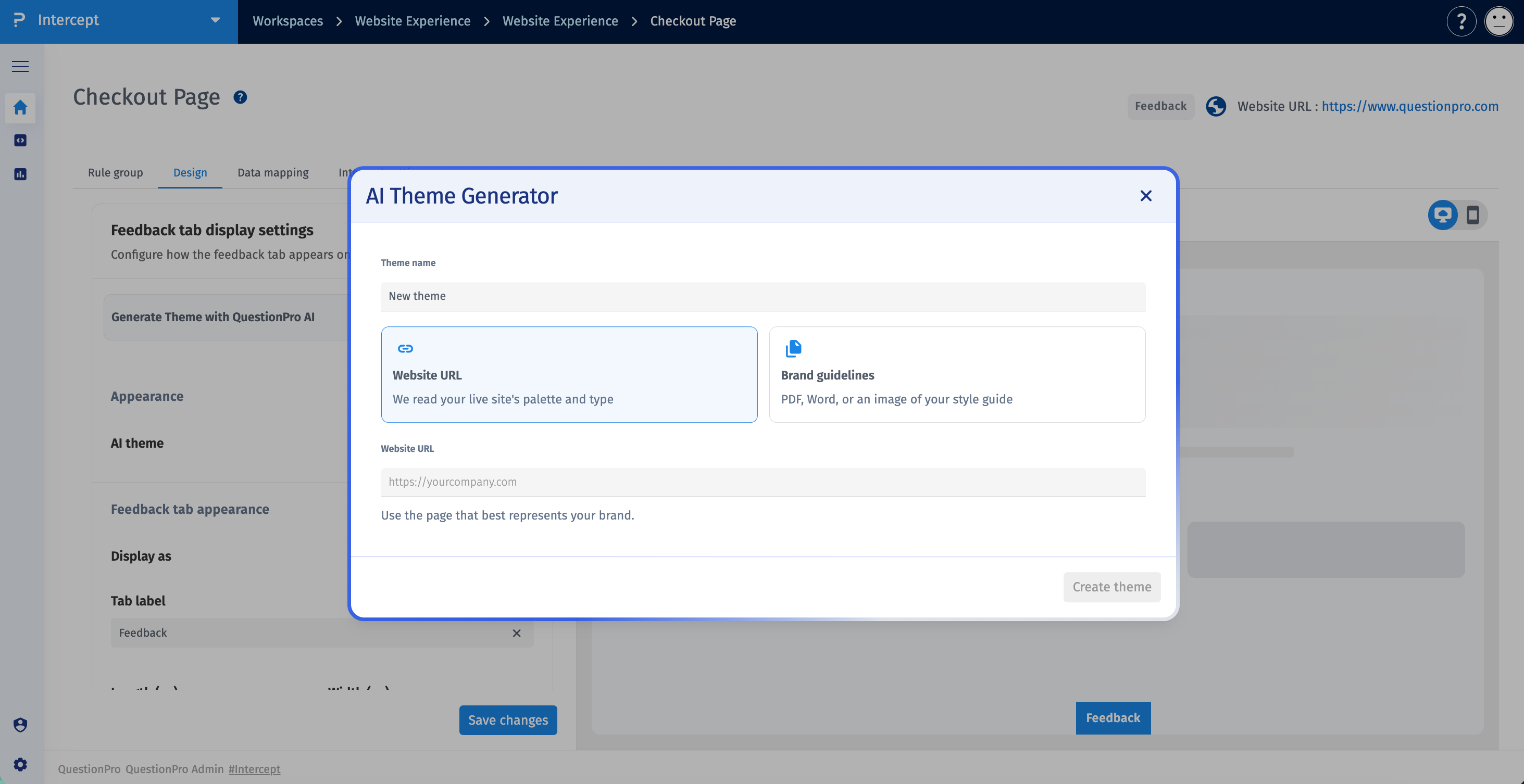
- A modal will open. Enter a theme name.
-
Select the source for your brand guidelines:
- URL: Provide the URL containing your brand guidelines.
- Brand Document: Upload your brand guidelines as PDF, DOC/DOCX, JPG, or PNG file.
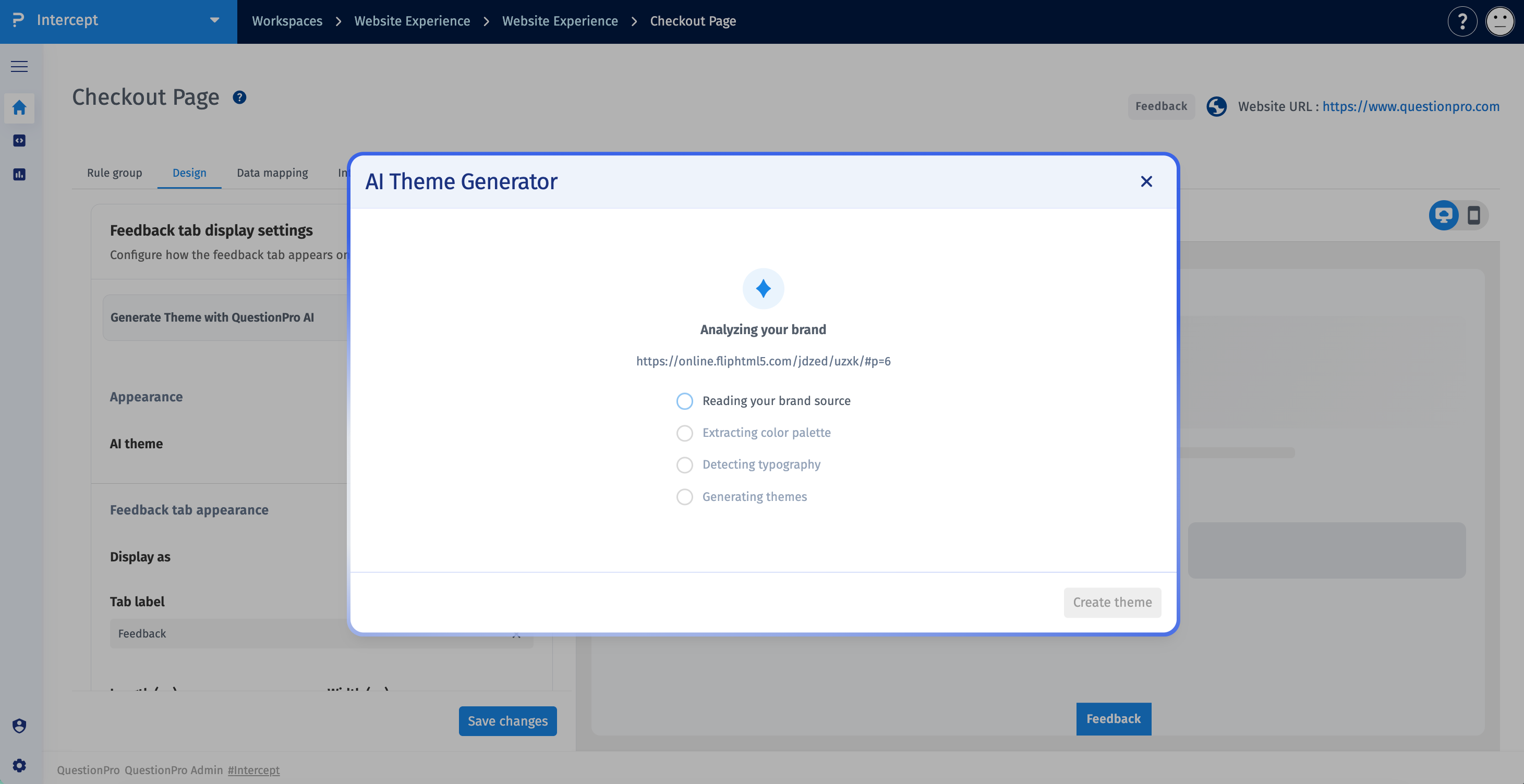
- Let QuestionPro AI analyze your brand guidelines.
- QuestionPro AI analyzes the provided content and generates theme options based on the brand elements identified from your guidelines.
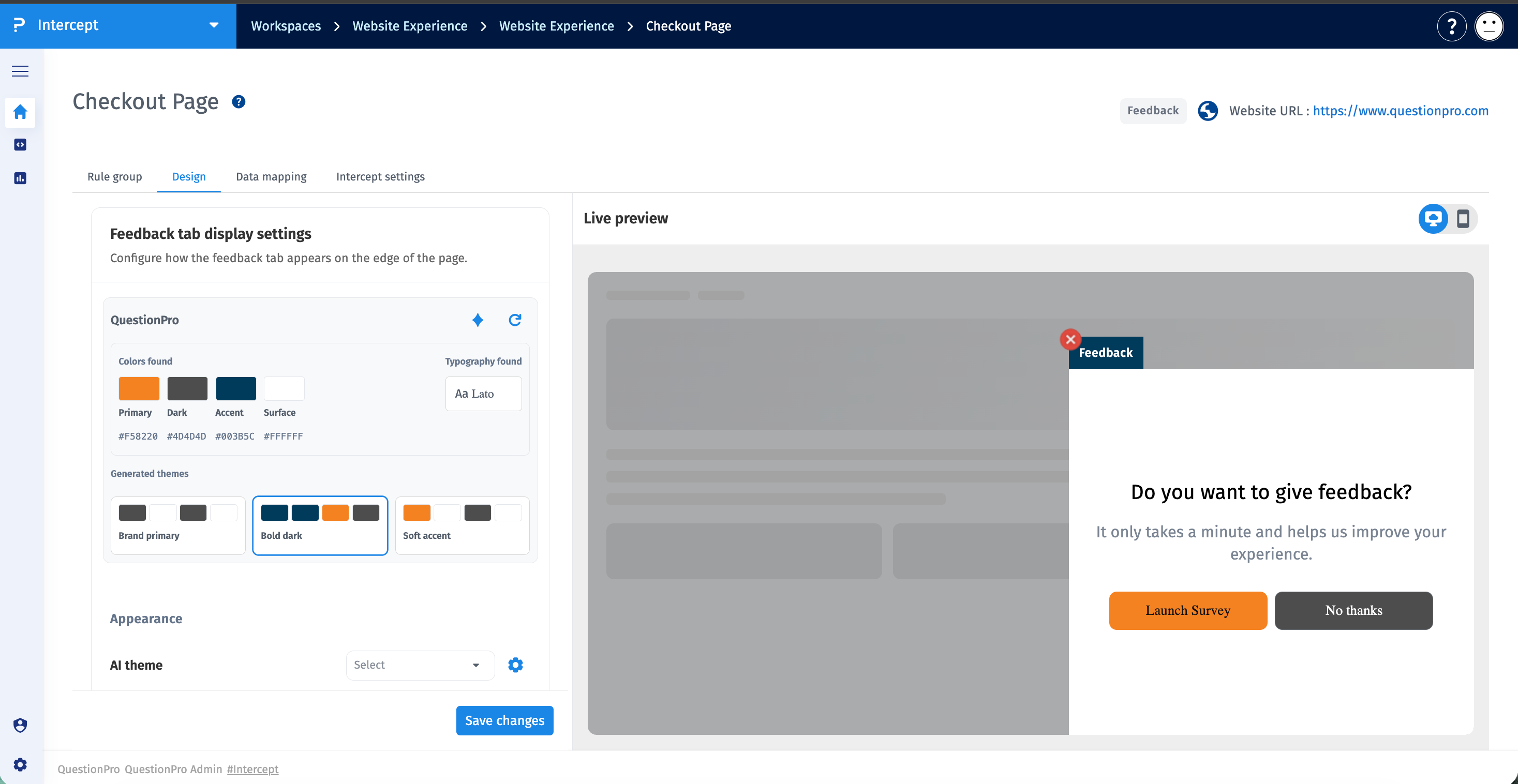
- After the themes are generated, review the available theme options.
- Select the theme you want to use, then click on it to apply it to your Intercept widget.
- Check the widget in the Preview to see how the selected theme looks when applied.
- Review the colors, fonts, and other widget styling to make sure they match your brand requirements.
- If you are satisfied with the theme, click Save Changes.
You can preview a theme before saving it, allowing you to verify the appearance of the Intercept widget before applying the changes permanently.
- If the generated themes do not meet your requirements, click Regenerate.
- QuestionPro AI will generate a new set of themes based on the provided brand guidelines.
- Review the newly generated themes and apply one of them to the widget preview.
- Continue regenerating the themes if required, subject to the available generation limit.
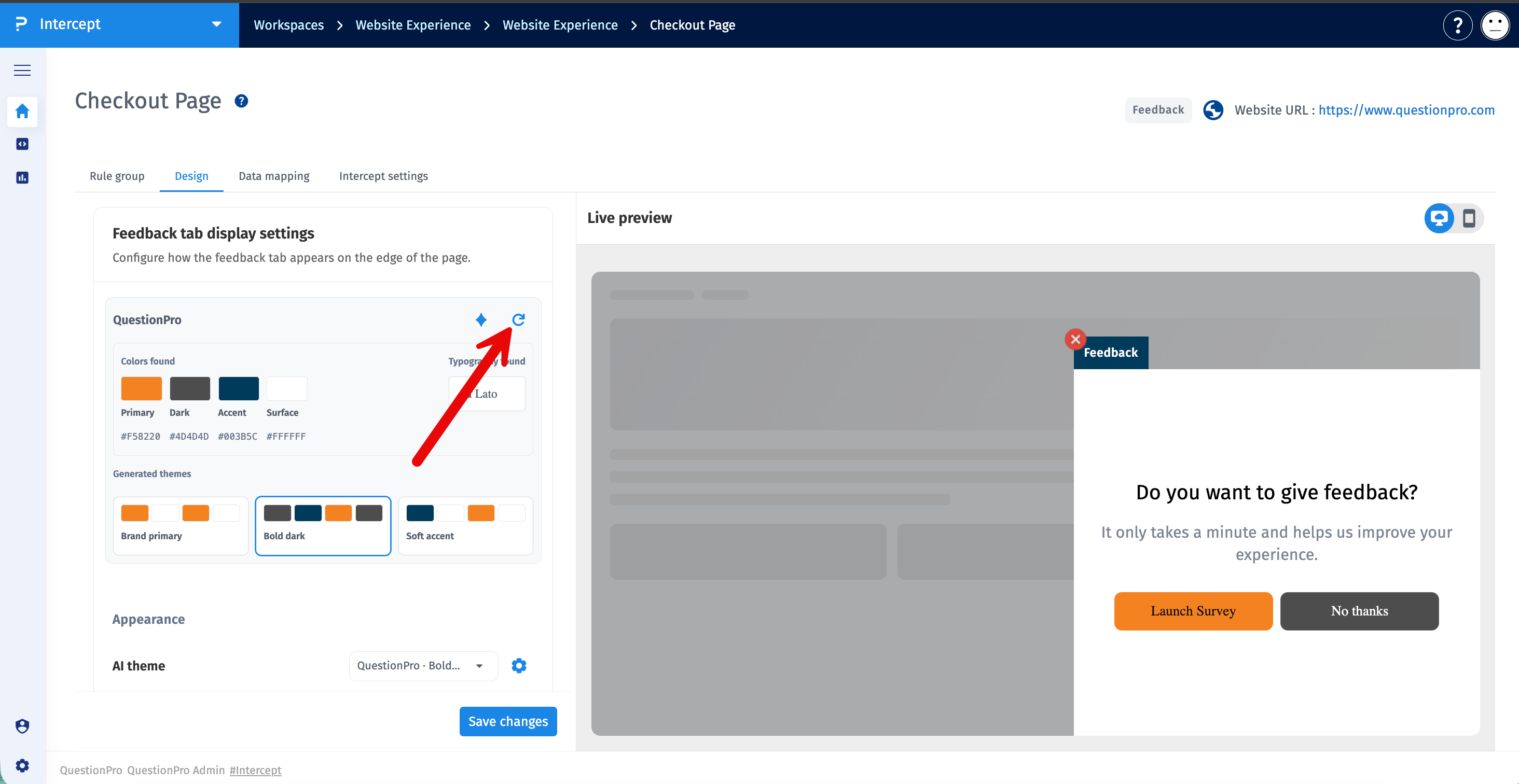
AI Themes can be generated or regenerated up to three times.
- Navigate to the Intercept where you want to use an existing theme.
- Open Design.
- Open the Themes dropdown.
- Select one of the previously saved themes.
- Apply the theme and check the widget in the Preview.
- Click Save Changes to apply the theme to the Intercept.
Saved themes can be reused across Intercepts within the same project, helping maintain a consistent brand experience without creating the theme again.
QuestionPro AI analyzes the provided brand guidelines and identifies relevant brand elements that can be used to configure the Intercept widget. These can include:
- Brand colors
- Fonts and typography
- Other relevant visual styling elements
The identified brand elements are used to automatically create the widget theme settings.
- URL: Provide a URL that contains your organization's brand guidelines.
- Brand Document: Upload a brand guidelines document in PDF, DOCX, JPG, or PNG format.
For the best results, use a URL or document that contains clear and up-to-date information about your brand colors, fonts, typography, and visual identity.
QuestionPro AI generates three themes each time you generate AI themes.
You can review the three options, apply them to the widget preview, and save the theme that best meets your requirements.
You can generate or regenerate AI themes up to three times.
Each generation produces a new set of three theme options.
- AI Themes uses the information available in the provided URL or brand document. Make sure your brand guidelines are complete and up to date.
- You can provide brand guidelines using a URL or upload a PDF or DOCX document.
- QuestionPro AI generates three themes for each generation.
- You can regenerate the themes up to three times if the generated options do not meet your requirements.
- Always use the Preview to check how the theme looks on the Intercept widget before saving changes.
- Once saved, themes are available from the Themes dropdown and can be reused across Intercepts within the project.
- AI Themes does not apply to Inline Embed.
Can I preview a theme before saving it?
Yes. You can apply a generated theme and check how it looks in the widget preview before saving your changes.
Can I use a saved theme for another Intercept?
Yes. Saved themes are available in the Themes dropdown and can be reused across Intercepts within the project.
What happens if I don't like any of the generated themes?
You can click Regenerate to generate another set of three themes, subject to the three-generation limit.
Can I upload my brand guidelines?
Yes. You can upload your brand guidelines as a PDF or DOCX file.
Can I provide a URL instead of uploading a document?
Yes. You can provide a URL containing your brand guidelines.
Does AI Themes work with Inline Embed?
No. AI Themes currently does not apply to Inline Embed.
