

- Custom Variable Widget
- Priority Matrix
- Heatmap Widget
- Grid Widget
- Weighted mean widget
- Comment List widget
- Widget Filters
- Ranking List Widget
- Distribution Chart
- NPS Widget
- Trend Widget
- Word Cloud Widget
- Cross tab widget
- KPI Comparison Widget
- Bubble chart
- Custom Metric Trend Chart
- Trend Comparison Widget

Sentiment Based Ticket Creation
Sentiment-based ticket creation allows you to automatically create Closedloop tickets based on the sentiment detected in an open-ended survey response. You can select an open-ended question and define the sentiment range for which a ticket should be created. This helps you identify and take action on customer feedback that requires attention, such as negative or very negative responses.
For example, you can configure a notification to create a Closedloop ticket whenever the sentiment of a customer's response to an open-ended question is detected as Very Negative or Negative.
Here is a glimpse of the sentiment-based ticket creation option:
- Select the workspace » Select the Survey » Edit » Notifications
- Click on the +New Notification button.
- Enter a name for your notification and click on Add Notification.
- For the notification, create a New Criteria.
- In the criteria configuration, select Sentiment as the criteria type.
- Select the Open-Ended Question for which you want to analyze the sentiment.
- Select the sentiment range that should trigger the notification.
- The sentiment range can be selected from Very Negative to Very Positive.
- Once the sentiment criteria is configured, select Create Closedloop Ticket as the action to be performed when the criteria is met.
- Configure the Closedloop ticket settings and click on Save Changes.
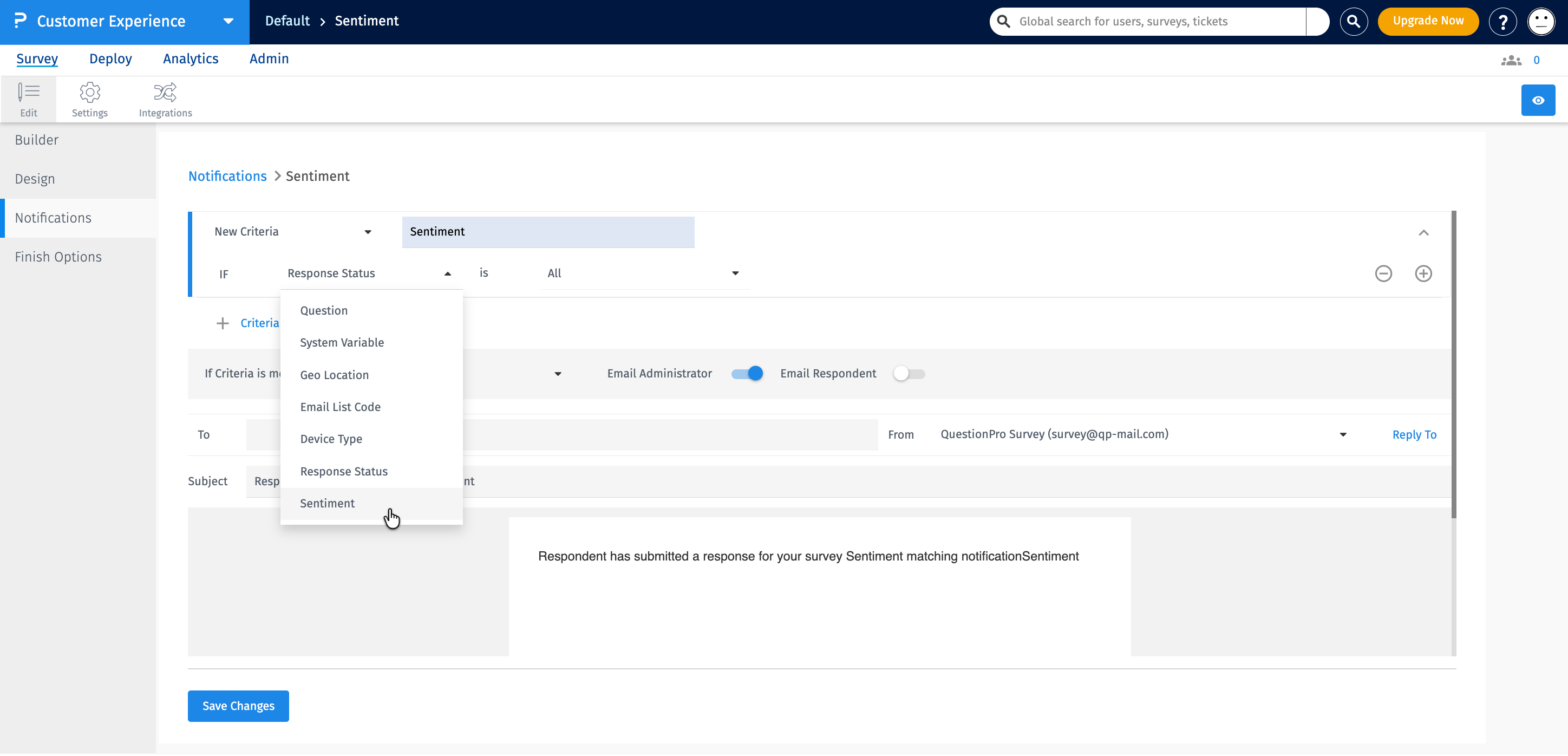
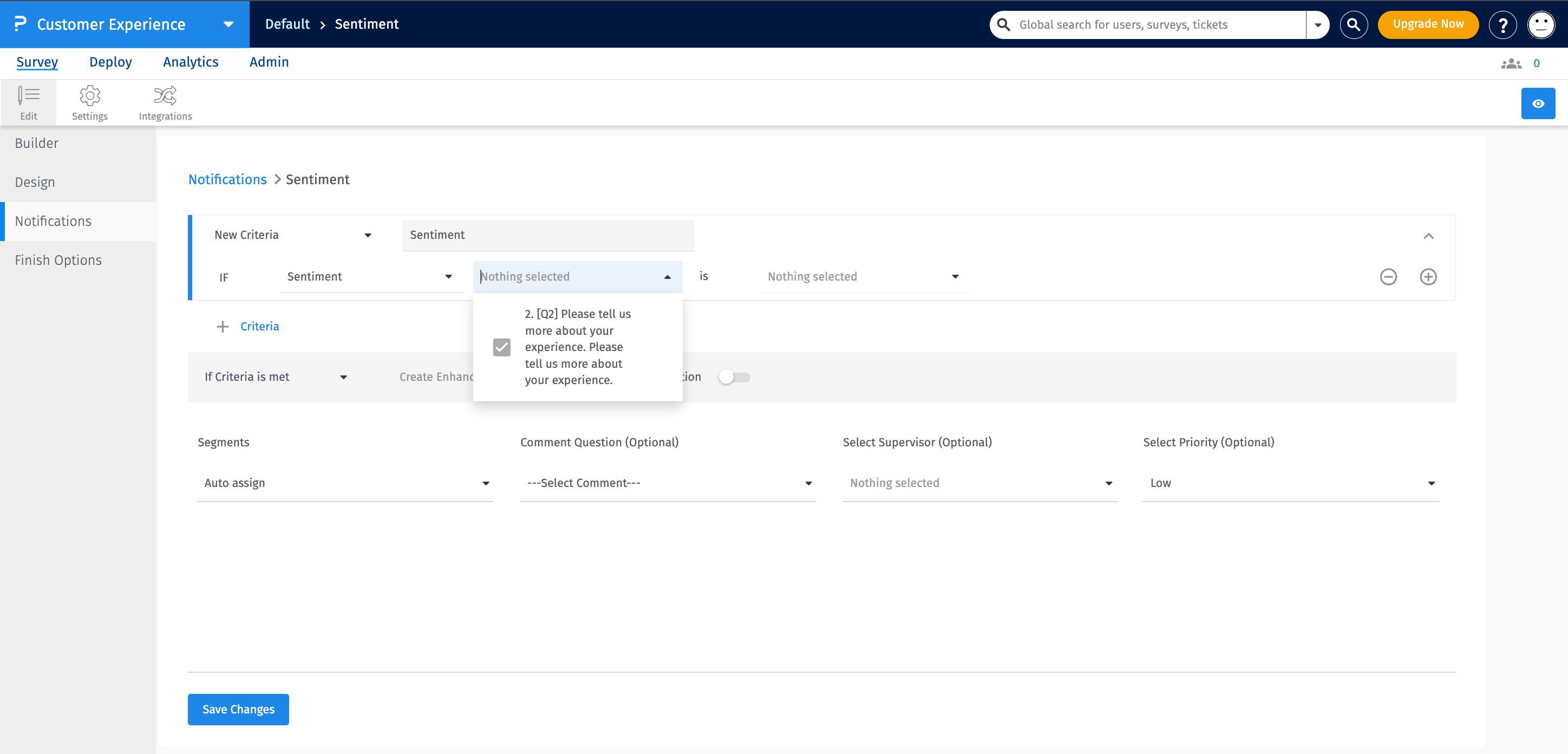
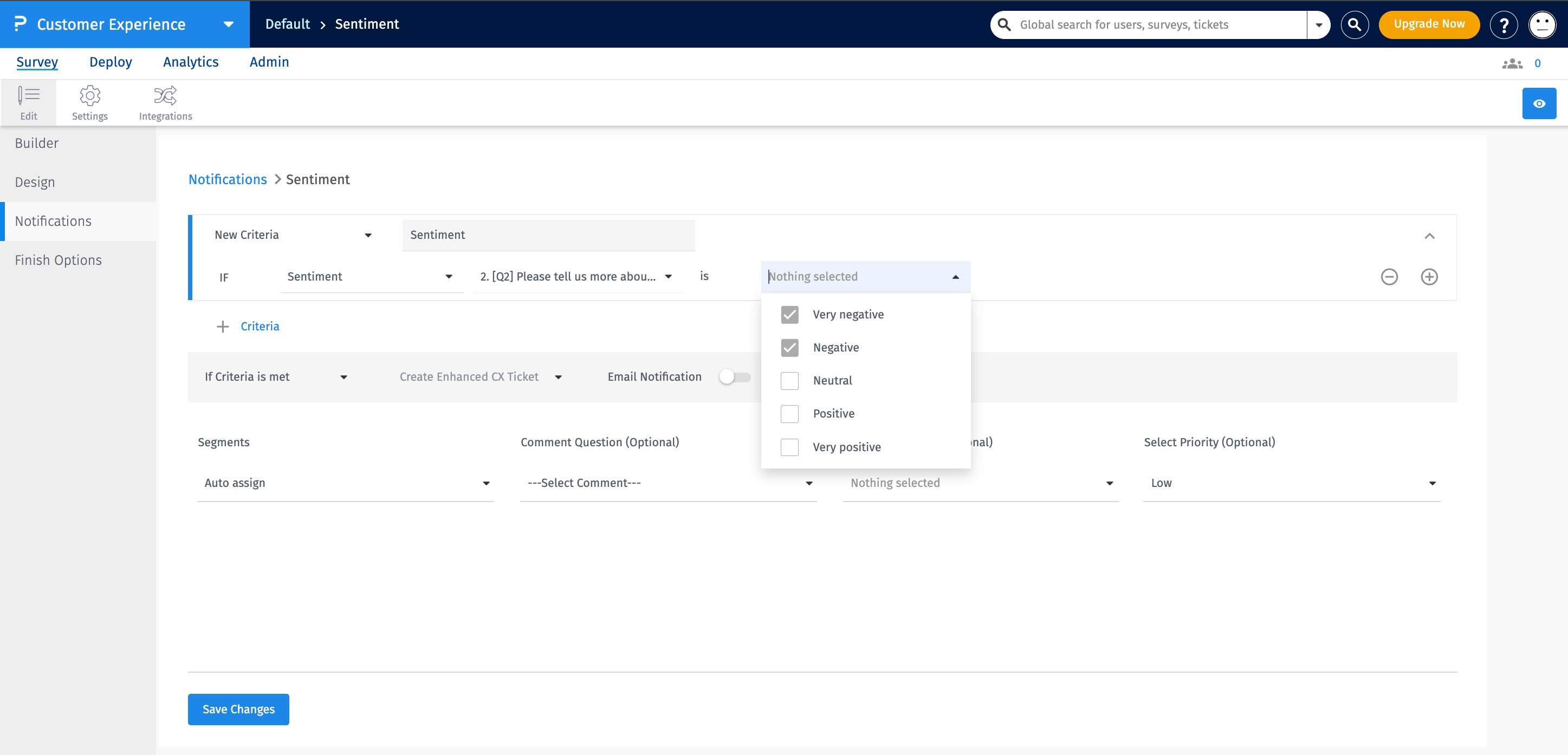
When a respondent submits a response to the selected open-ended question, the system analyzes the response and determines its sentiment. If the detected sentiment falls within the sentiment range configured in the notification criteria, the selected action is triggered.
For example, if you configure the criteria as:
- Criteria Type - Sentiment
- Open-Ended Question - "Please tell us about your recent experience."
- Sentiment - Very Negative to Negative
- Action - Create Closedloop Ticket
A Closedloop ticket will be automatically created when the response to the selected open-ended question is classified as either Very Negative or Negative.
You can select the sentiment range based on the level of sentiment you want to use for triggering the notification.
- Very Negative
- Negative
- Neutral
- Positive
- Very Positive
You can select the required sentiment range depending on your business requirement. For example, selecting Very Negative to Negative will trigger the notification for responses classified as Very Negative or Negative.
- Segments and Select Supervisor - You have two options to set in here:
- Auto assign - When Auto assign is selected, the system will show all the managers/supervisors grouped under their segments under the Select Supervisor dropdown. You can choose the managers from the segments to whom Closed-Loop tickets must be assigned if a ticket is created.
- Single Segment selected - If you choose a segment in the Segments dropdown, managers assigned to that segment will only be shown under the Select Supervisor dropdown. If multiple managers are assigned to a single segment, you can choose the managers to whom the system must assign the Closedloop tickets when created.
- Comment Question - You can choose an open-ended question here. The response to this question will be added to the description of the created Closedloop ticket.
- Select Priority - You can set the priority of the Closedloop ticket created using this notification alert. By default, it will be set to Low. You can assign the priority as Low, Medium, High, or Critical.
You can enable email notifications for all Closedloop tickets created using the Create Closedloop Ticket option. To do this, simply toggle on the Email Notification setting.
Once enabled, you can customize various email-related settings, including:
- To - Specify who should receive the email.
- Subject - Set a custom subject for the email.
- Email Body - Personalize the content of the message.
- Additional Options - Configure other available email preferences as needed.
This ensures that the right people are notified automatically whenever a Closedloop ticket is generated based on the configured sentiment criteria.
Response criteria create notifications based on specific survey response conditions, while sentiment criteria create notifications based on the sentiment detected in an open-ended response.
- Response Criteria - Triggers an action when the respondent's answer matches the configured response condition.
- Sentiment Criteria - Triggers an action when the sentiment detected in the selected open-ended response matches the configured sentiment range.
Sentiment-based criteria are particularly useful when the meaning or emotional tone of a customer's feedback is more important than a specific response option.
