

- Custom Variable Widget
- Priority Matrix
- Heatmap Widget
- Grid Widget
- Weighted mean widget
- Comment List widget
- Widget Filters
- Ranking List Widget
- Distribution Chart
- NPS Widget
- Trend Widget
- Word Cloud Widget
- Cross tab widget
- KPI Comparison Widget
- Bubble chart
- Custom Metric Trend Chart
- Trend Comparison Widget

Business Hours & Holiday Calendar
Business Hours and Holiday Calendar allow Workspace Admins to define the working schedule used for Service Level Agreement (SLA) calculations within Closedloop. SLA timers use these settings to calculate Action and Resolution deadlines based only on configured working periods.
Business Hours define your workspace's working days and working hours. The Holiday Calendar allows you to configure non-working days that should be excluded from SLA calculations.
These settings apply to all SLA policies configured within the workspace.
Watch this video for a quick overview of configuring Business Hours and Holiday Calendar in Closedloop.
Click to download video
Only Workspace Admins can configure Business Hours and Holiday Calendar settings.
Workspace Admins include:
- Workspace Owner (System Administrator)
- Shared users (Sub Accounts) with administrative access to the workspace
Navigate to: Closedloop → Workspace → Workspace Settings → General Settings
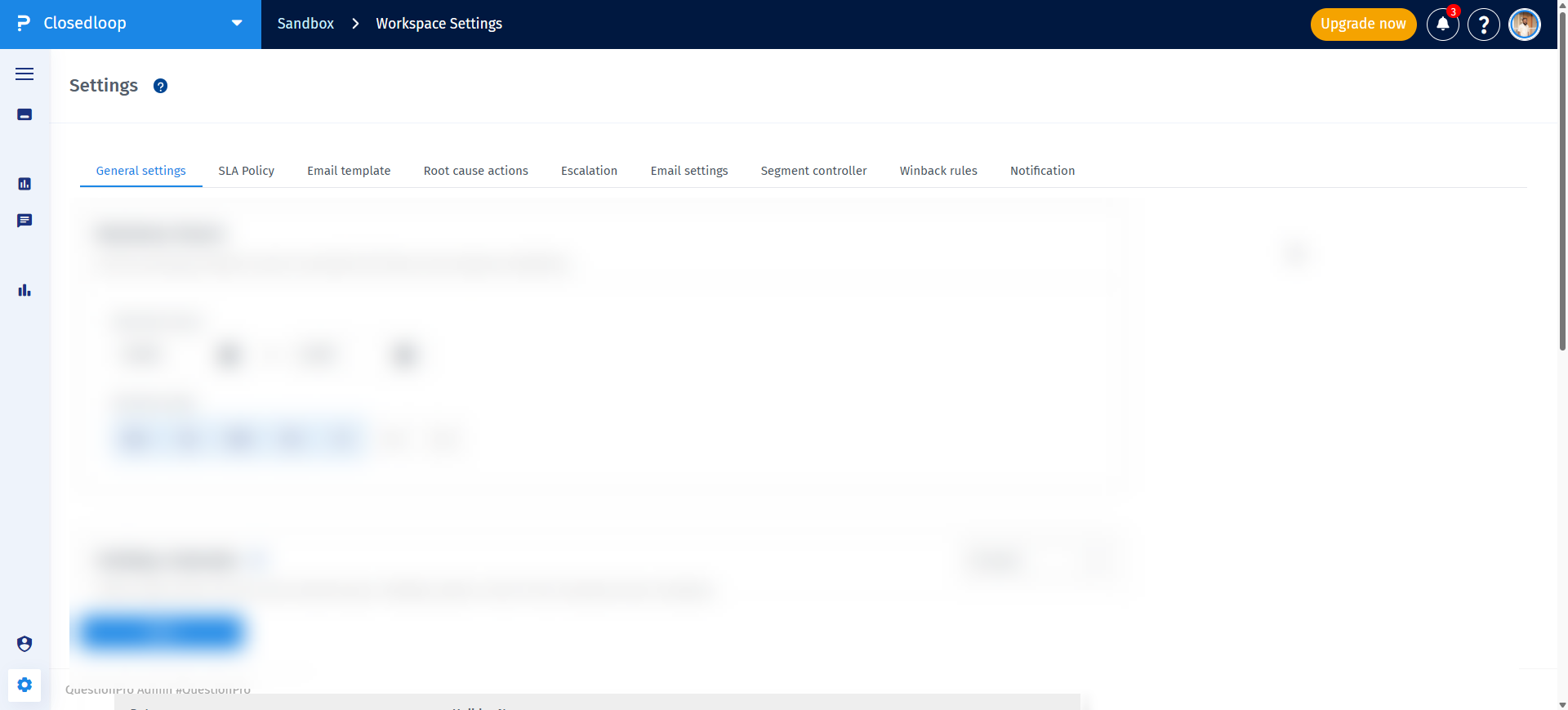
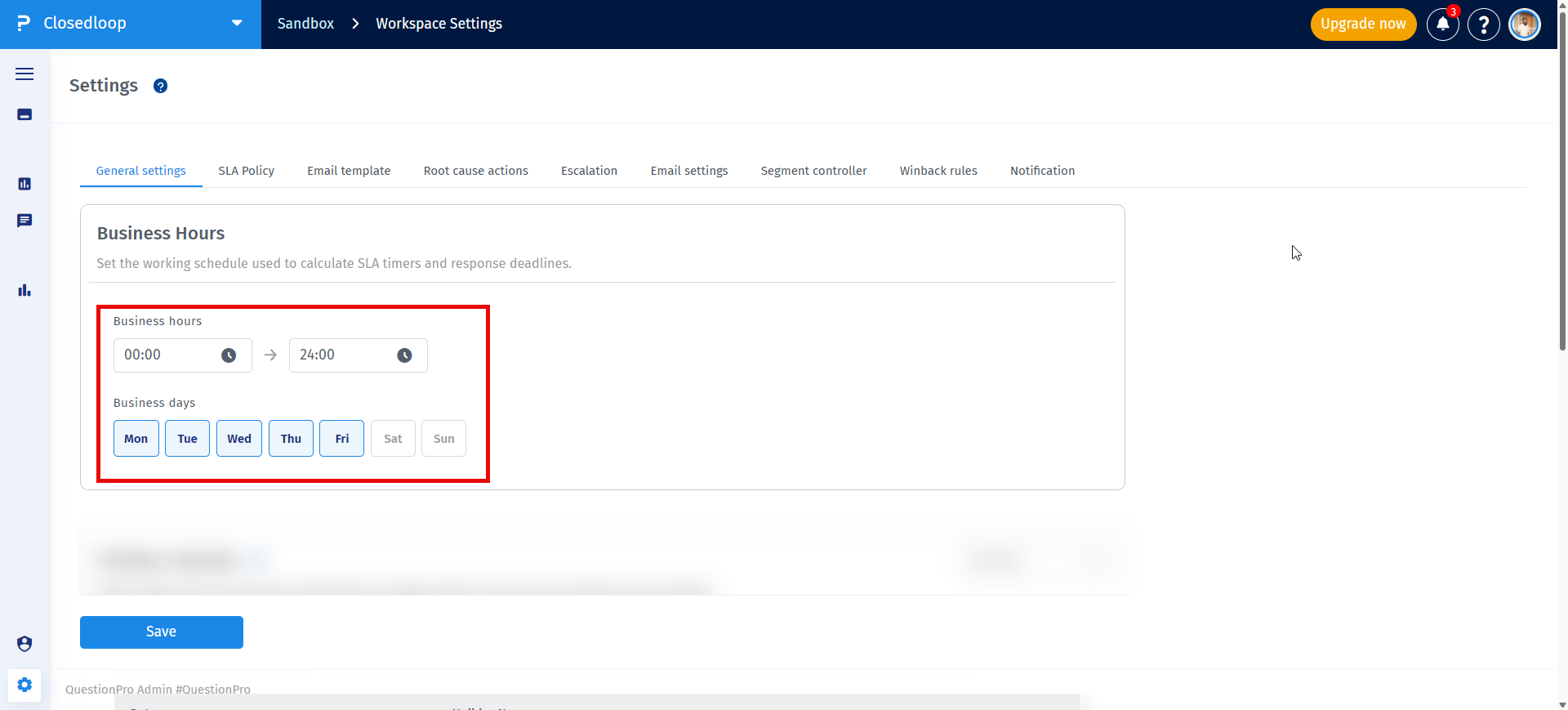
- Go to the Business Hours section on the general settings page.
-
Select the business days that apply to your workspace. Specify the
Start Time and
End Time using the 24-hour time format.

-
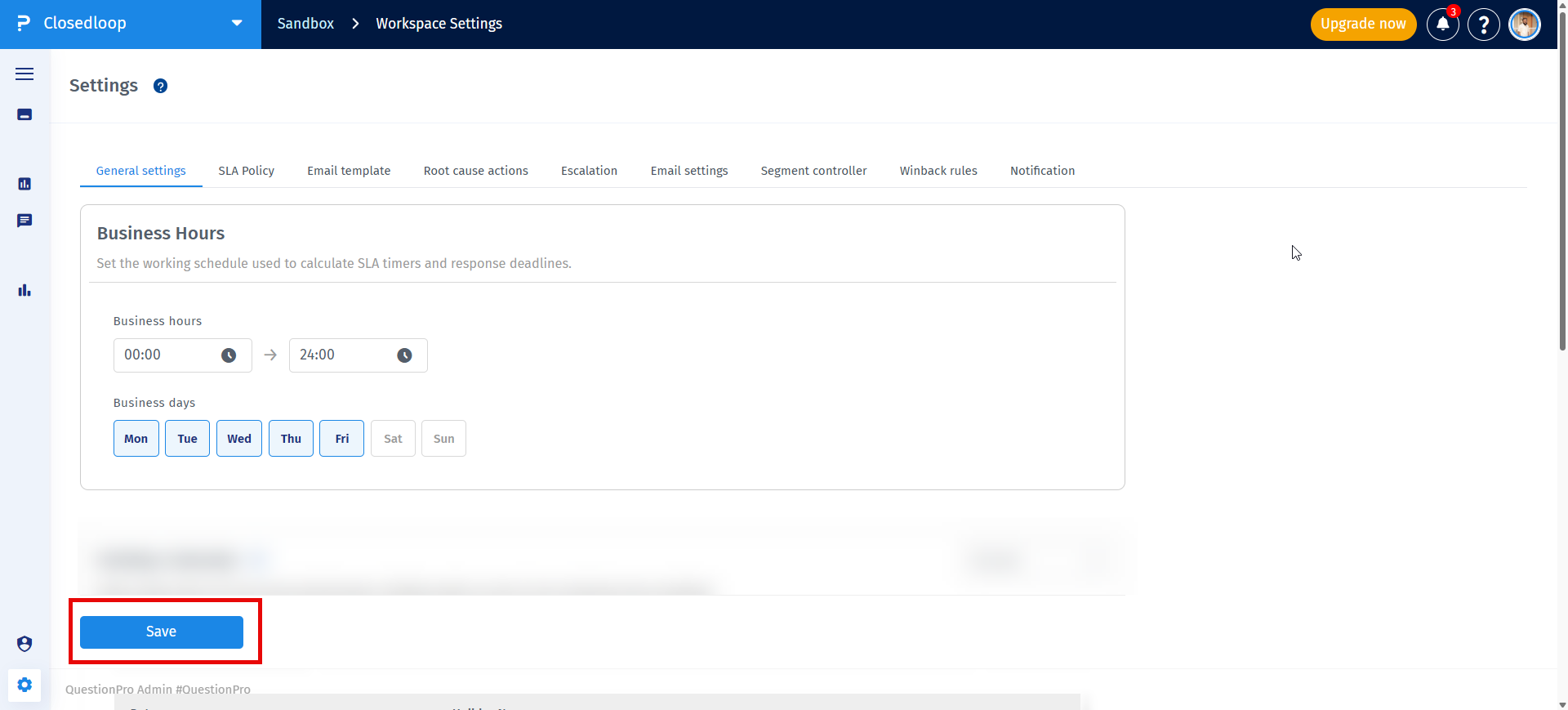
Click
Save to apply the Business Hours configuration.
-
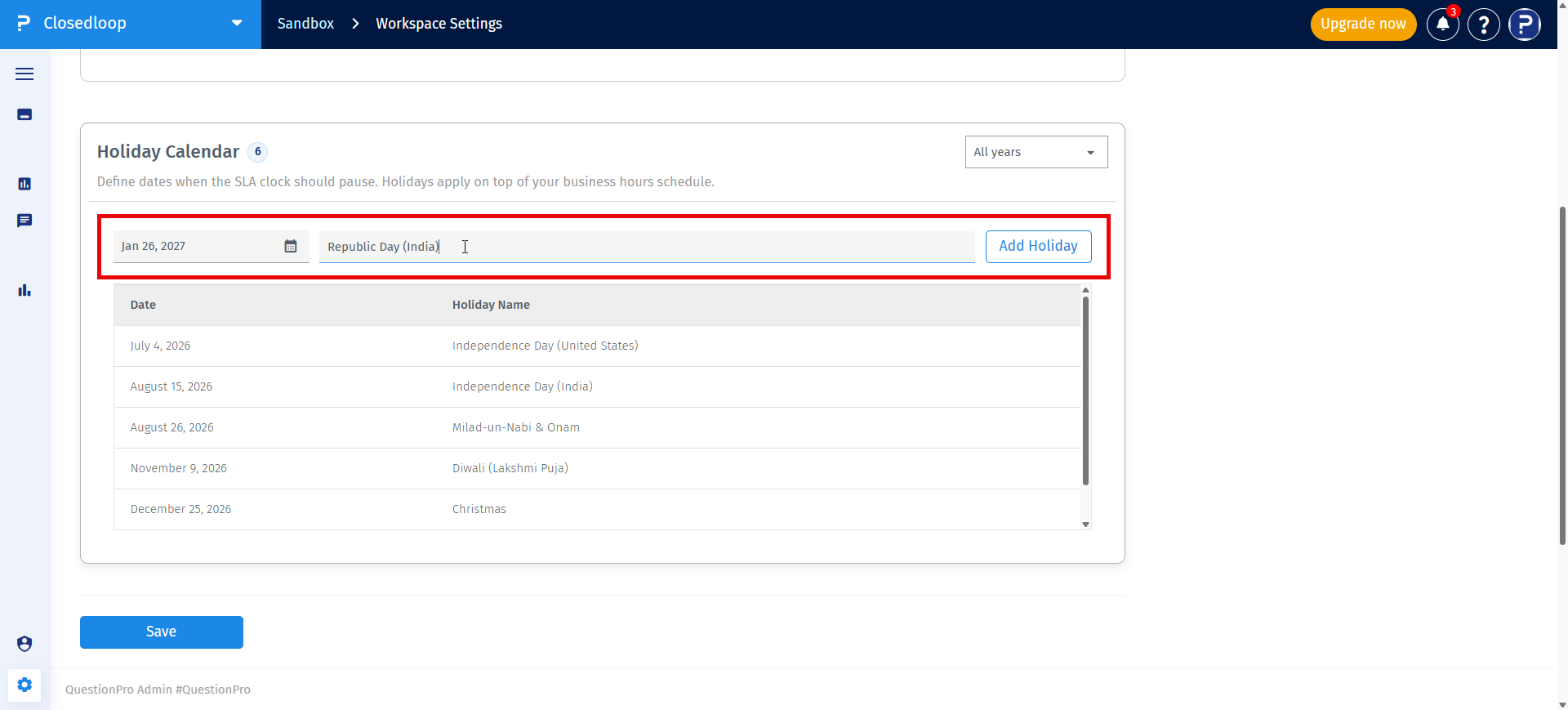
Go to the
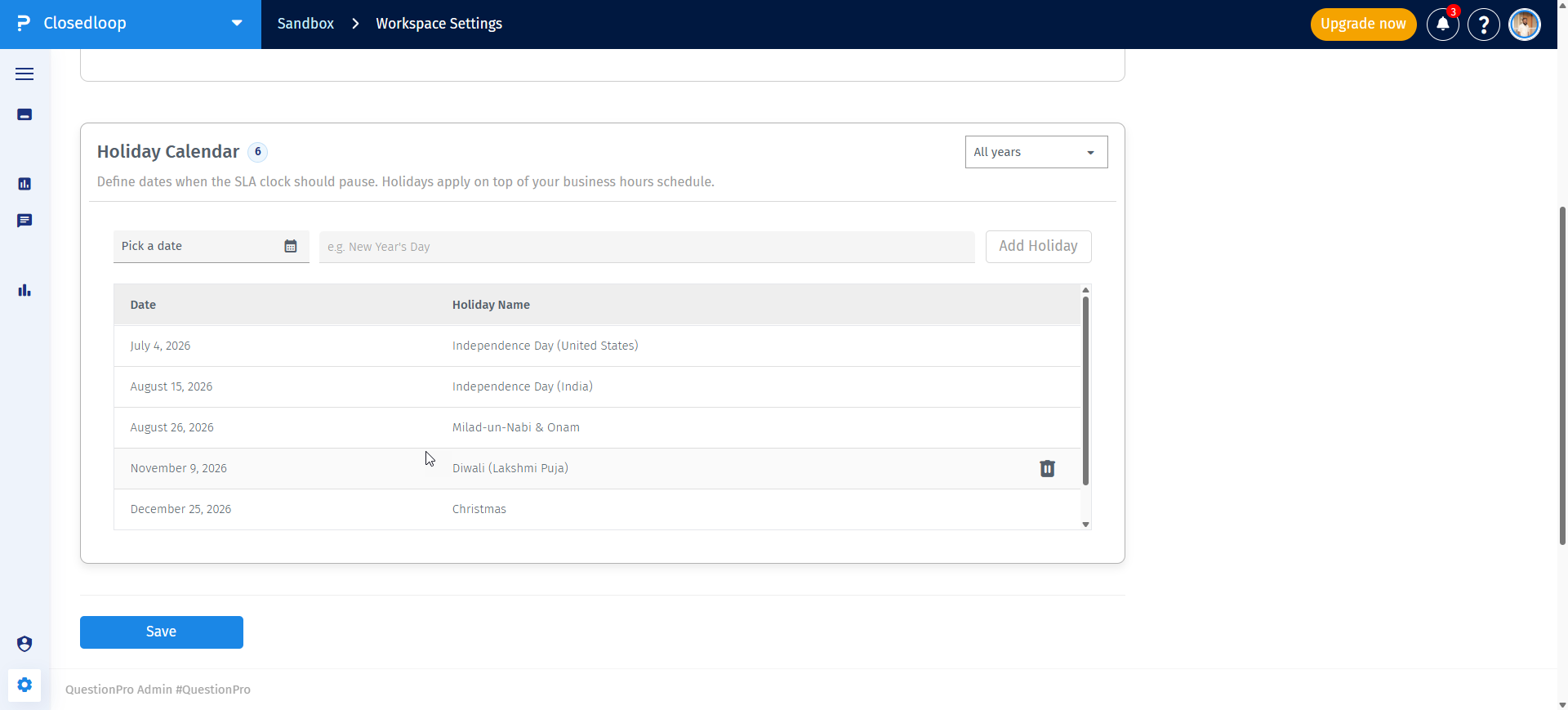
Holiday Calendar section.
-
Select the holiday date, enter the holiday name and click on Add Holiday
- SLA timers run only during configured business hours.
- Non-working hours are excluded from SLA calculations.
- Configured holidays are excluded from SLA calculations.
- If a ticket is created outside business hours, the SLA countdown starts at the next available business period.
- If a ticket is created during a configured holiday, the SLA countdown begins on the next available business period.
To configure a workspace that operates continuously:
- Select all seven days (Monday through Sunday) as business days.
- Set the Business Hours from 00:00 to 24:00.
This configuration allows SLA timers to run continuously throughout the week.
No. Each workspace supports a single continuous business schedule.
No. The same working hours apply to all selected business days.
No. Holidays must be added manually.
No. Existing holidays cannot be edited. Delete the holiday and create a new one if changes are required.
Yes. Workspace Admins can delete holidays from the Holiday Calendar.
No. Each workspace uses a single Holiday Calendar that applies to all SLA policies.
- Review Business Hours before creating SLA policies.
- Keep the Holiday Calendar updated throughout the year.
- Verify the workspace timezone before saving Business Hours.
- Use the 24×7 configuration only when support is available continuously.
