

- Custom Variable Widget
- Priority Matrix
- Heatmap Widget
- Grid Widget
- Weighted mean widget
- Comment List widget
- Widget Filters
- Ranking List Widget
- Distribution Chart
- NPS Widget
- Trend Widget
- Word Cloud Widget
- Cross tab widget
- KPI Comparison Widget
- Bubble chart
- Custom Metric Trend Chart
- Trend Comparison Widget

Share a Journey Map
A journey map does the most good when the people who shape the customer experience can see it. With Share, you can bring product, CX, marketing, and support teams into the same view of the customer journey, so everyone works from one picture of what customers see, feel, and do at each stage.
You choose exactly who gets in. Invite specific collaborators, open the map to your whole workspace, or keep it private while it's still a draft. When you're ready to present, copy the link and drop it into an email, a chat, or a slide deck. Stakeholders can open the map and see the full journey without needing an export or a separate deck.
All sharing controls live in one window, so you can keep collaboration open while still controlling who has access.
- Open the journey map you want to share.
- Click the Share icon in the top-right corner of the map, next to the layers and settings icons.
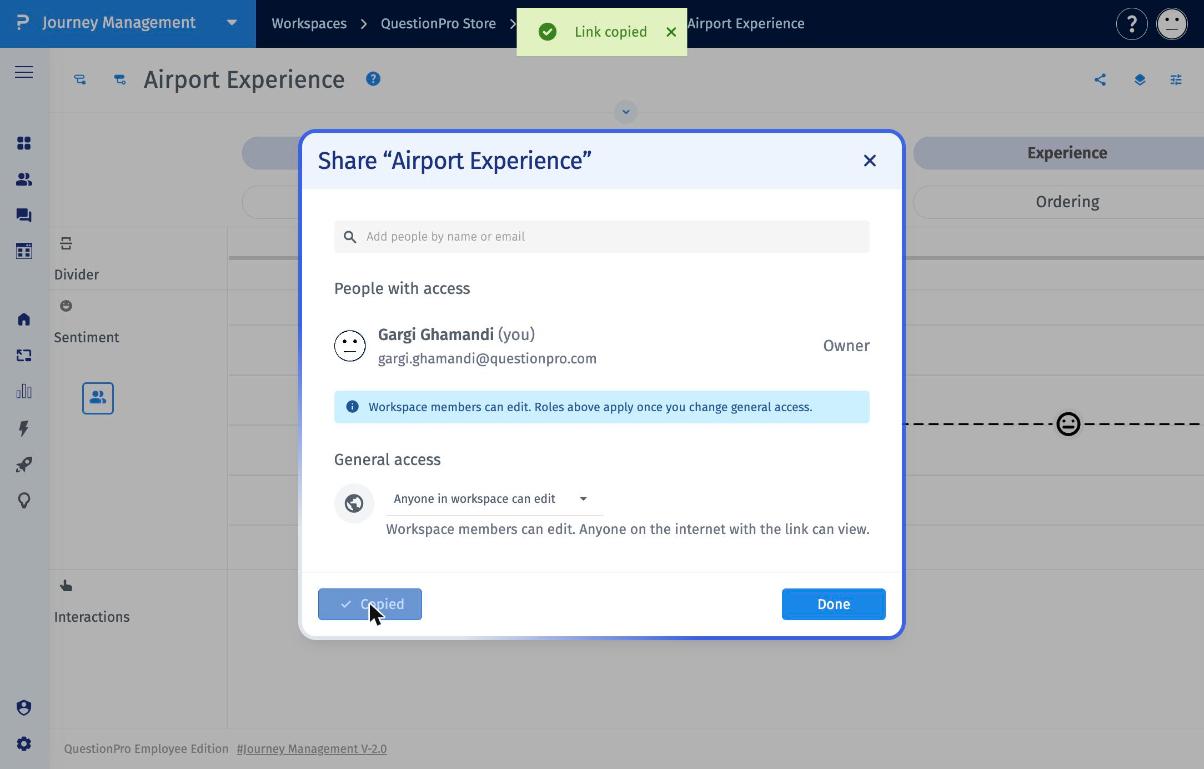
- The Share window opens, showing the name of your map at the top.
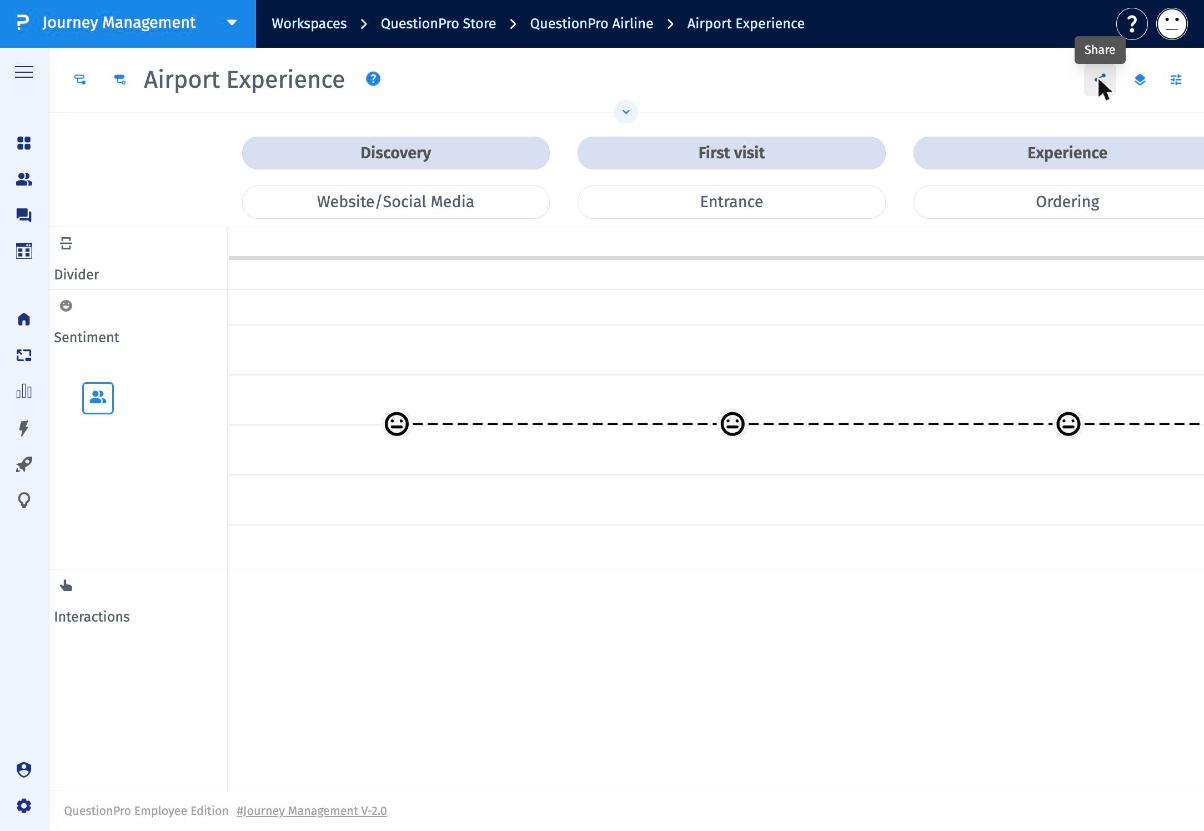
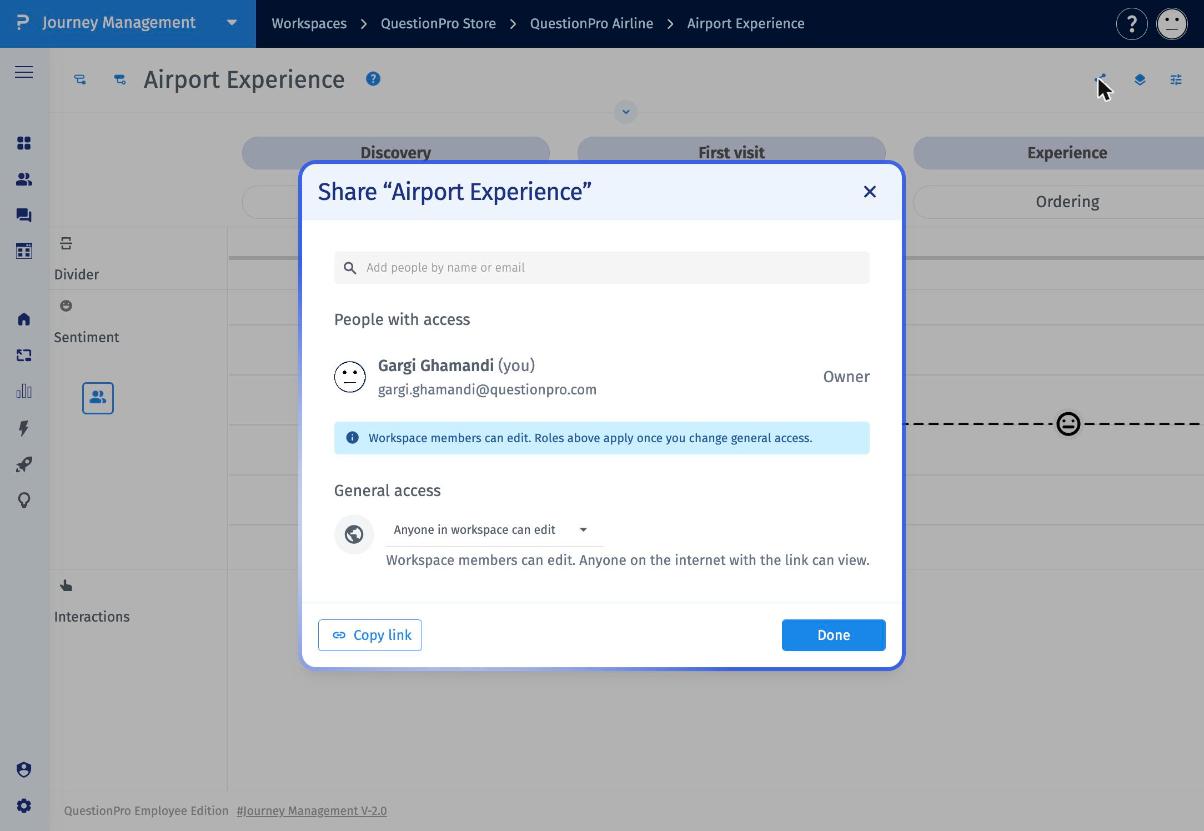
From the Share window, you can take four actions:
- Add people: Invite colleagues from your QuestionPro organization by name or email.
- Review who has access: See everyone under People with access, along with their role (for example, Owner).
- Set general access: Decide whether the map is restricted, open to anyone with the link, or editable by your whole workspace.
- Copy the link: Copy the map link to share it in an email, a chat, or a presentation.
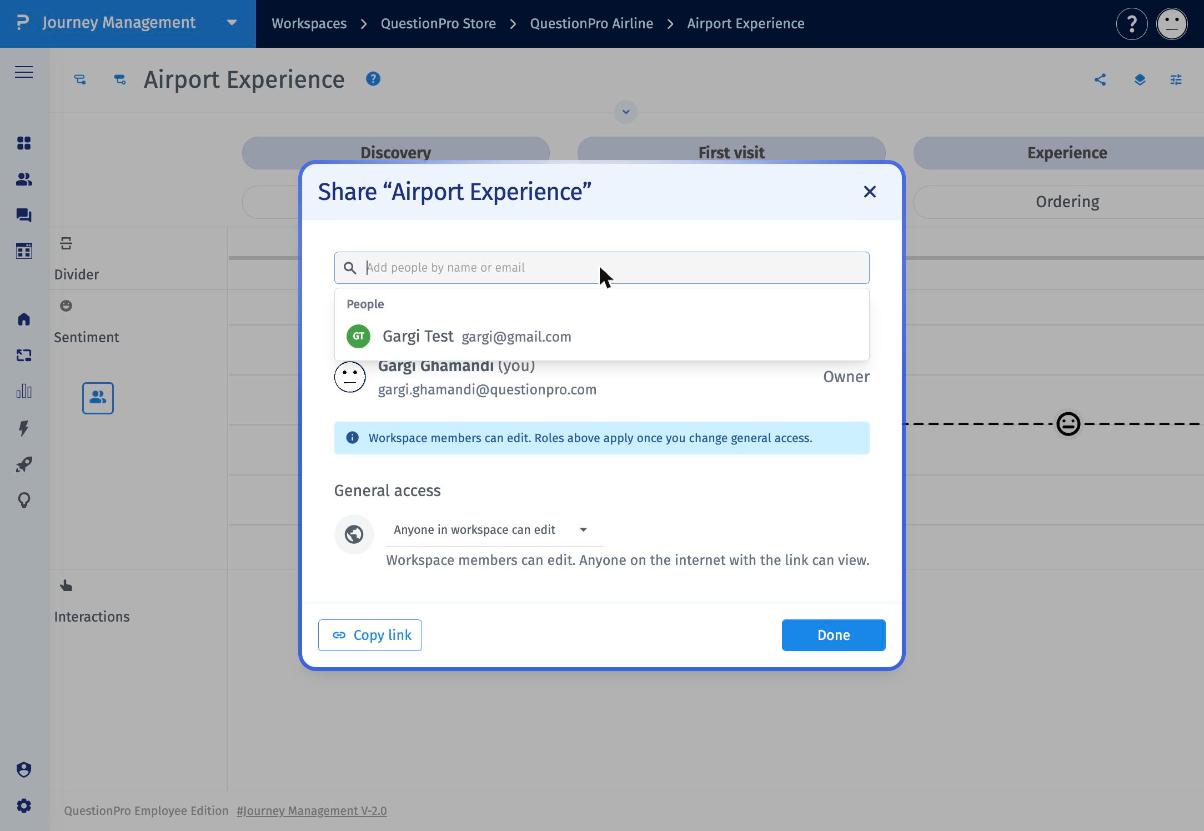
- Click the Add people by name or email field.
- A People list shows members of your QuestionPro organization. Type a name or email to narrow the list.
- Select the person you want to add.
- Click Done.
Note: While general access is set to Anyone in workspace can edit, the banner reads "Workspace members can edit. Roles above apply once you change general access." Individual roles take effect only after you change general access to a more limited option.
Click the General access dropdown to choose who can open the map by default.
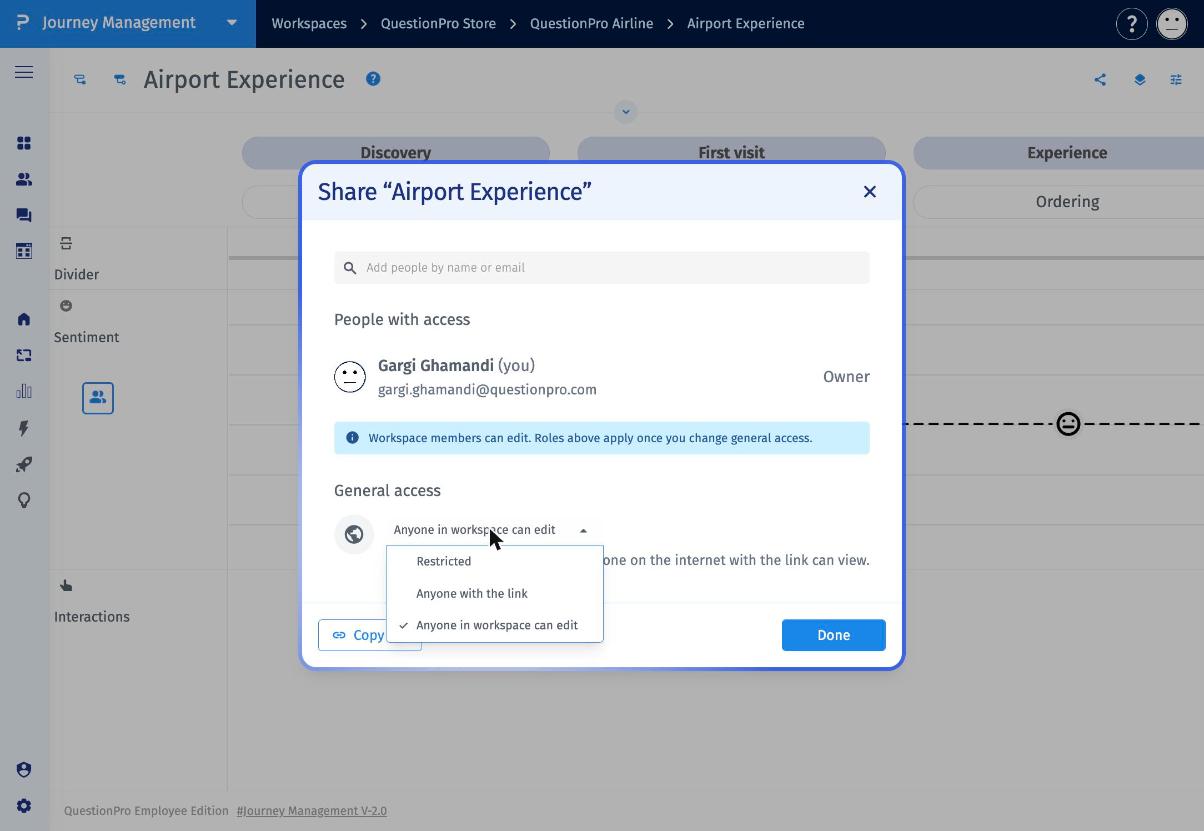
- Restricted: Only the people listed under People with access can open the map. Everyone else in the workspace loses access, and the public link stops working.
- Anyone with the link: Anyone who has the map link can open it.
- Anyone in workspace can edit (default): All workspace members can edit the map. Anyone on the internet with the link can view it.
A Restrict access? confirmation appears, because this option removes access for others.
- Review the message. It shows how many people will keep access.
- Click Restrict to apply the change, or Cancel to keep the current setting. Use the back arrow to return to the Share window.
- In the Share window, click Copy link.
- The button changes to Copied, and a Link copied message appears at the top of the screen.
- Paste the link wherever you want to share it.
- Click Done to close the Share window.
- Use Restricted for maps that contain sensitive or draft content.
- Add people individually when only a few collaborators need access.
- Remember that the default setting lets anyone with the link view the map.
- Review People with access before changing general access.
Who can change sharing settings?
The map owner, shown as Owner under People with access.
Can people outside my workspace view the map?
With Anyone in workspace can edit, anyone on the internet with the link can view it. Choose Restricted to stop this.
Why don't the roles I assign apply?
Roles apply only after you change general access from Anyone in workspace can edit.
What happens to the link if I restrict access?
The public link stops working. Only the people listed keep access.
