Your dashboard is ready. The findings are useful. Now the presentation needs to fit the audience.
An agency may need a client’s palette. An internal insight team may use a consistent set of sentiment colors. A researcher may want larger titles for a review meeting. Repeating those appearance choices takes attention away from the findings.
Design Settings in TextAI brings the main appearance controls into the dashboard. Choose colors and typography, review the preview, and save a combination you can use again.
Give the findings a consistent presentation
TextAI organizes open-ended feedback into themes, sub-themes and sentiment. Once that analysis is ready, its presentation helps stakeholders follow the story across widgets.
The broader qualitative intelligence workflow connects those findings to the responses behind them. Design settings add a practical presentation step: choose a coherent visual style without changing the analysis.
Make appearance decisions in one place
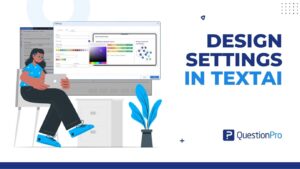
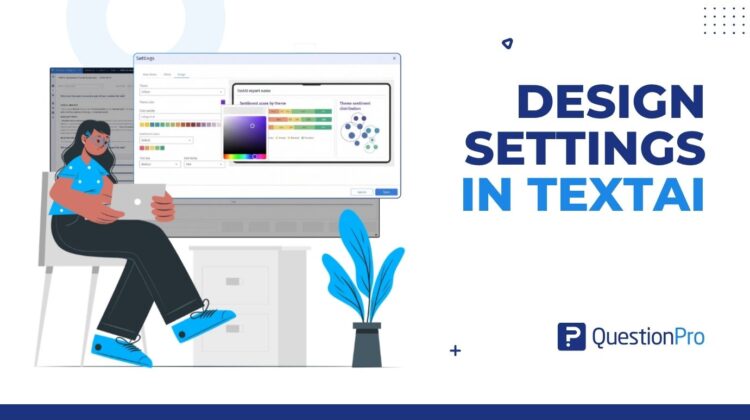
Open Settings > Design in an existing TextAI dashboard. The controls sit beside a preview, so you can see the effect of a draft before saving it.
- Theme color sets the accent used by widget titles and other supported elements.
- Color palette sets the colors used in theme or sub-theme chart areas.
- Sentiment colors lets you keep the standard mapping or choose custom category colors.
- Font size and Font family style widget titles and other supported chart or table text.
Use the right color for the right purpose
A theme palette and a sentiment palette communicate different things. A chart palette can distinguish themes and sub-themes, while sentiment colors represent categories such as Negative and Positive.
TextAI keeps those controls separate. Custom palette swatches can be edited, added or removed. Custom sentiment colors apply to the sentiment areas in Gauge and stacked-bar widgets, their legends, and Text viewer sentiment icons. Mixed and Neutral remain separate labels and share the center color swatch.
Save a design you can return to
Save applies the design to the current dashboard. Existing widgets update in their supported areas, and new widgets inherit the saved settings.
For a configuration you want to reuse, choose Save As and give the theme a unique name. The theme stores the accent, palette, sentiment colors, size and font together. Select it on another dashboard when that reporting style is needed again.
When editing a custom theme, Save & Apply updates the named theme and applies it to the current dashboard. If you decide not to keep a draft, close the popup before saving.
How to get started
- Open your TextAI dashboard and select Settings from the dashboard settings menu.
- Open Design and review the current options.
- Choose the colors, font size and font family you need.
- Review the preview, then save the dashboard design.
- Use Save As when you want to retain the configuration as a named theme.
A practical example for recurring client reporting
Consider a research agency reporting guest feedback for a hospitality client. The analyst chooses an accent aligned with the client’s palette, sets the chart colors, and keeps a deliberate sentiment mapping for the feedback review.
Larger widget titles can support a meeting presentation. The analyst saves the configuration under the client’s reporting name, then selects it on the next dashboard. New widgets added to the current dashboard inherit its saved design.
The responses and their classifications remain the same. The benefit is a repeatable presentation workflow around the analysis.
Keep reporting work inside the dashboard
QuestionPro BI dashboards bring research findings into a view stakeholders can explore. TextAI Design settings helps teams make those views visually consistent before discussing the results.
The settings apply to supported areas. For example, Text viewer response text retains its standard formatting, while widget titles follow the selected design typography. This keeps the feature’s scope clear when planning a reporting style.
A repeatable design for your next review
A dashboard should be easy to follow as well as useful to explore. Design settings gives TextAI users one place to make the main appearance choices.
Preview the configuration. Save it to the dashboard. Keep a named theme when the combination should be used again.
The result is a more consistent way to present feedback, with less repeated formatting around each reporting cycle.