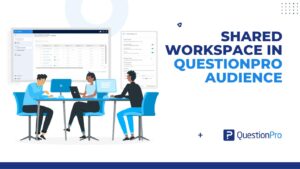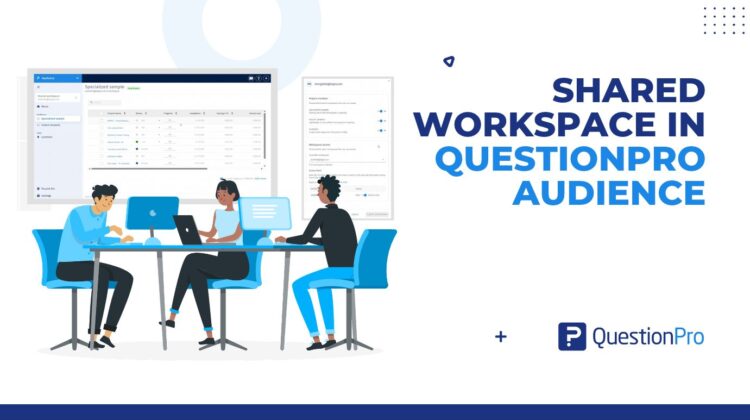
Your colleague can check the fieldwork, pull the report, or pause the study. The project and its owner stay exactly where they are. That is how shared workspace in QuestionPro Audience keeps research moving.
Access and ownership are not the same thing
A shared workspace in QuestionPro Audience works like lending a colleague your car without signing over the title. Nobody finds that strange. They drive it, you still own it, and everyone knows who to call if something rattles.
Research projects haven’t always worked that way. In Audience, you recruit survey respondents from a research panel. Every project sat with the person who created it. If someone else needed to watch it, pause it, or pull a report, the fix was often a support request. Someone had to transfer or recover access. That’s selling the car so somebody can nip to the shops.
Shared workspace changes the arrangement. A colleague opens your workspace, does what you’ve allowed, and the projects never move.
Learn more: Shared workspace help file for Audience
Every Audience user has a personal space called my workspace. It holds the projects you create. A shared workspace is just a colleague’s workspace that your organization has let you open.
You switch into it from the top of the left menu. The header then shows your colleague’s name and a small chip that tells you what you can do there. The project list shows only their projects, so you aren’t wading through your own.
Nothing gets copied. Nothing gets moved. The person who created a project stays its owner, no matter who’s looking at it.
The list holds specialized sample projects. Those are the ones where you recruit a defined group of respondents from the Audience panel.
Read or read and write: picking the right level
Everyone you share with gets one of two levels.
- Read.
They can view projects, project details, monitoring, and reports. Anything that changes a project (push, edit, pause, resume, close) is hidden. So is the button to create a project.
- Read and write.
They can manage projects the way you would in your own workspace, including creating a project there. Ownership still doesn’t change.
Read and write is the default when access is granted. If you want someone to look but not touch, choose read on purpose.
A stakeholder who wants numbers, not controls
An insights lead at a UK retailer has a brand tracker in the field. The commercial director wants a progress check before Thursday’s meeting. With read access, the director opens the project, glances at monitoring and reads the report. The pause and close buttons aren’t even on screen, so nothing gets stopped by accident.
An agency where one person sells and another delivers
At a research agency, the account lead sets up a client study. A fieldwork manager runs it day to day. Give the fieldwork manager read and write access to the account lead’s workspace. The account lead stays the owner. The manager monitors, pauses, and chases.
A Monday overview across a whole team
A research operations manager looks after four analysts, each running their own studies. On Monday morning, she opens each analyst’s workspace in turn and spots the lagging project. With read and write, she can add respondents to a live project there and then. Nobody has to forward a screenshot.
Cover for leave
A project is in the field, and its owner is on holiday. A teammate with read and write opens the owner’s workspace and keeps an eye on progress. When the owner returns, everything is where they left it, including ownership.
Who decides, and what stays with your admin
Every organization has one primary user, and only that person can give or remove access. They open the workspace switcher, choose organization access, and select manage next to a colleague. The step-by-step view of how access works is on our product blog.
Two separate decisions live on that screen. First, which project types the colleague can create: specialized sample, instant answers, and synthetic. Second, whose workspaces they can open, and at what level for each one.
Because those are separate, you can let someone look at a teammate’s studies without letting them start new ones. Audience also asks for confirmation before it removes access. It asks again before it cuts someone from read and write down to read. A slip of the mouse won’t lock anyone out.
Shared workspace is built for working together on the original project. It isn’t built for everything.
- Handing a project over for good. Ownership stays with the creator, and this feature doesn’t transfer it.
- Sharing outside your organization. Access is limited to colleagues in the same organization.
- Sharing a single project. Access covers a colleague’s workspace, not individual projects. This feature doesn’t include folders, time-limited access, or an audit log.
If one of those is your real need, talk to your account manager about the options.
- Open the workspace switcher at the top of the left menu. It shows where you are right now.
- Under Shared workspace, pick the colleague whose projects you need.
- Check the header. It shows their name and your access chip: read or read and write.
- Work in their specialized sample list. Only their projects appear.
- When you’re done, open the switcher again and choose my workspace.
A few things worth knowing. Audience opens your own workspace every time you log in, so you won’t land in someone else’s by accident. The workspace you pick stays selected until you log out. If nobody has shared one with you, the switcher says so. The next step is a word with your primary user.
Get started
Good teamwork on live research shouldn’t depend on who happens to be at their desk. If you use Audience, open the workspace switcher and see what’s been shared with you. If you’re the primary user, organization access is where you decide who sees what.
New to QuestionPro? Create a free account and see how a project looks from the inside.
Frequently asked questions
Shared workspace is an Audience feature that lets you open a colleague’s workspace and view or, if you’re allowed, manage the projects they created. Nothing is copied or moved, and the creator stays the owner. Your organization’s primary user decides who can open which workspace and whether each person gets read-only or read-and-write access.
Ask your organization’s primary user to grant your colleague read access to your workspace. With read access, they can open project details, monitoring, and reports. Push, edit, pause, resume, close, and create projects are all hidden. That makes it a safe way to keep a stakeholder informed without risking accidental changes.
Yes, in two ways. Read access hides the Create Project button entirely. Beyond that, the primary user chooses which project types a person may create, such as specialized sample, instant answers, or synthetic, and separately chooses whose workspaces they can open. So a teammate can monitor your studies without starting studies of their own.
No. Only your organization’s primary user can grant or remove access in the workspace switcher. If you’d like a teammate to open your workspace, ask that person to add it. This keeps one person accountable for who can see and change live research projects.
No. Access applies to a colleague’s workspace, not to individual projects. This feature also doesn’t include folders, time-limited access, or an audit log. Anyone who is given access can see the projects in that workspace at the level chosen, so decide on read or read and write with that in mind.
No. Workspace access is limited to users in the same organization, so an external client or agency partner can’t open your workspace this way. If you regularly need to work with people outside your organization, talk to your account manager about the best way to set that up.
You’ll see an access unavailable message with a button that says go to my workspace. Select it, and you’re back in your own projects. Ownership never changes, because the person who created each project remains its owner whether or not anyone else has access.