The first chart is rarely the only thing a dashboard needs.
You also need a useful layout, a consistent visual style, and ways to look at different groups. Setting all of that up can take time before the conversation about the results even begins.
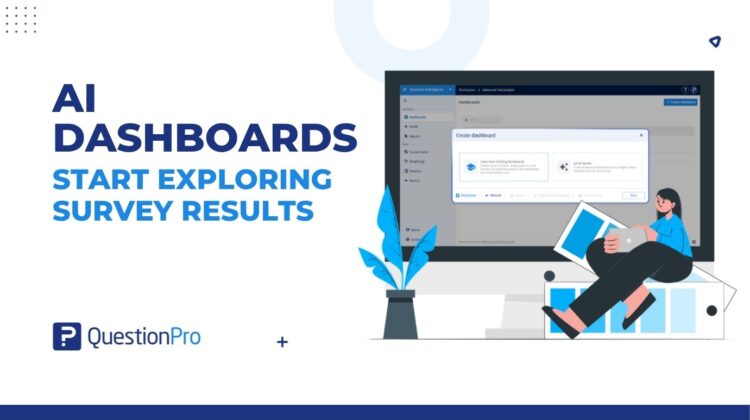
QuestionPro BI offers two routes for creating an AI dashboard. Both use the data source you select for the new dashboard; the difference is how you guide its setup.
- Let AI Decide: choose your source data and let AI choose the initial dashboard context, layout, widgets, filters, and data slicers. No written prompt or reference dashboard is required.
- Learn from Existing Dashboards: choose your source data, then select up to five existing dashboards to guide the layout and widgets. Choose one selected dashboard as the theme reference for the theme, color palette, and sentiment colors.
Start with the data or with a reporting example
For a new study, you may want to see what AI makes of the responses before deciding which views to keep. For a recurring study, you may already know the kind of dashboard your audience expects.
Choose Let AI Decide for an AI-selected starting dashboard. Choose Learn from Existing Dashboards when you want an established reporting approach to guide a new dashboard for your selected data.
That fits the purpose of a smart survey dashboard: bring results together in a view your team can read and explore. Explore how smart survey dashboards bring results together
Route 1: Let AI Decide
Choose Let AI Decide when you want AI to select the dashboard context, widgets, filters, and data slicers. Select your source data, review the confirmation, and create the dashboard. There is no prompt to write.
The result gives you something concrete to work with. You can examine the charts, check which questions they use, and refine the dashboard for the discussion you need to have.
Route 2: Learn from Existing Dashboards
Choose Learn from Existing Dashboards when your team has reporting examples worth following.
Select up to five reference dashboards. AI learns layout and widget patterns from their first tabs. Choose one of those dashboards as the theme reference for the theme, color palette, and sentiment colors.
This is useful when a new study should feel familiar to its audience. The references guide the new dashboard; you still review how the result fits the new source data.
How it works
- Open Dashboards, click Create dashboard, enter a name, and choose AI dashboard.
- Choose Let AI Decide or Learn from Existing Dashboards.
- Select the source data you want to report on.
- For reference-based creation, select up to five dashboards and one theme reference.
- Review the confirmation, create the dashboard, and refine the generated result.
Charts and ways to explore them
AI creation includes filters and data slicers in the initial setup. A filter narrows the results to matching responses. A slicer provides a named comparison group within supported widgets.
Review these controls along with the charts. Check the question, operator, and answer selections, then confirm that the displayed responses match the group you intend to discuss. You can adjust the setup in the dashboard settings.
A familiar report for the next feedback study
Consider a research team preparing a new customer feedback dashboard. The previous report brought together recommendation scores, service ratings, and feature usage. Its first tab provides a useful reference for the next study.
The analyst selects Learn from Existing Dashboards, chooses the new study’s survey, then selects several trusted dashboards as references. One selected dashboard supplies the theme reference. After creation, the analyst reviews the new questions and charts, checks the filters and comparison groups, and adjusts the dashboard for the current study.
When the findings are ready for a presentation, the team can also use PowerPoint export to prepare selected dashboard views for a stakeholder readout. See the PowerPoint export workflow
Keep the review close to the analysis
A generated dashboard is a starting point you can inspect and improve. Review the response counts, choose the views that answer the team’s questions, and finish any widget-specific setup before sharing the report.
Whether you let AI make the first choices or guide it with existing dashboards, you can begin the work of interpreting results with a dashboard already in front of you.
Open Dashboards and choose AI dashboard to get started.