
Salesforce survey integration connects your survey responses directly to Salesforce records, so feedback data lives alongside the customer information your sales and support teams already use every day.
Instead of feedback sitting in a separate report that nobody checks, integration pushes it straight into Contacts, Cases, Leads, or custom objects. That means a support rep can see a customer’s latest satisfaction score without leaving the case they are already working on.
This guide covers how the integration works, how to set it up, and where teams commonly get it wrong. If you need a starting point for the survey itself, an NPS survey template is one of the most common surveys teams connect to Salesforce first.
What is Salesforce survey integration?
Salesforce survey integration is a connection between a survey platform and Salesforce that automatically sends survey responses into Salesforce records and can trigger surveys directly from Salesforce events.
In practice, this means a completed transaction in Salesforce can automatically fire off a satisfaction survey, and the resulting response data flows back into the customer’s record without anyone manually exporting a spreadsheet. The connection runs in both directions: Salesforce can launch a survey, and survey results can update Salesforce fields.
Why integrate surveys with Salesforce?
Integrating surveys with Salesforce matters because feedback that stays disconnected from CRM data rarely gets acted on in time to save the relationship.
According to Forrester’s research on closing the customer feedback loop, a majority of companies still lack a formal process for following up with customers who share feedback. When survey data sits in a separate tool from the CRM, that follow-up step is easy to miss entirely.
Connecting feedback directly to Salesforce closes that gap. A sales or service rep sees the score in context, right next to the account history, instead of hunting through a different dashboard for it.
Single-object vs multi-object mapping: What is the difference?
Single-object mapping sends one survey’s responses to exactly one Salesforce object, while multi-object mapping lets a single survey push data to several Salesforce objects at once through the same connection.
Older QuestionPro-Salesforce connections, set up with a username and password, are limited to single-object mapping. Newer connections, authenticated through oAuth, support multi-object mapping. OAuth authentication lets QuestionPro access Salesforce data with limited, revocable permissions instead of requiring a shared password, and it removes the need to build a separate survey for every object you want to update.
For most teams, multi-object mapping is the more practical choice, since it avoids duplicating surveys just to route data to different parts of Salesforce.
How to connect QuestionPro surveys to Salesforce
Setting up the integration takes a handful of steps inside the survey editor.
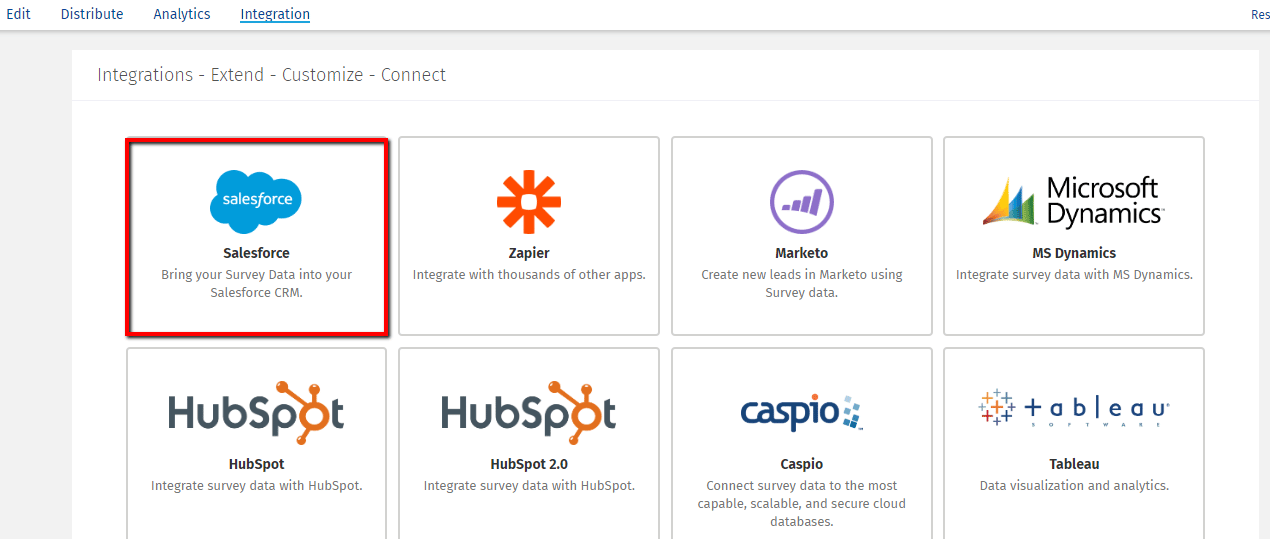
- Go to Survey, then Integration, then Salesforce, and enter a connection name.
- Sign in with your Salesforce credentials to authorize the connection through oAuth.
- Click “Add New Mapping” to create a field mapping between the survey and a Salesforce object.
- Choose the action for each new response: create a new record, update an existing one, or update if a match exists and otherwise create new to avoid duplicates.
- Select the mapping type, whether that is a survey question, a custom variable, a system variable like response ID or timestamp, or a specific answer value.
- Match each question or variable to the correct Salesforce object field, then repeat for any additional fields before continuing.
- Publish the survey and start collecting responses. Data only flows to Salesforce once actual responses come in through the live survey link.
You can edit each mapping later in the integration settings. This means Salesforce field changes won’t force you to rebuild the connection.
Real-world example: closing the loop with Salesforce data
A support team using QuestionPro CX might trigger a satisfaction survey automatically after a Salesforce case closes. If a customer responds as a detractor, that response can update the Case record and flag it for a manager’s follow-up call within the same day.
Teams already mapping touchpoints with a customer journey mapping tool can use the same Salesforce connection to tie survey scores back to the exact stage where the experience broke down, using the same underlying survey software that powers the rest of the program.
Without integration, a detractor response sits unnoticed in a separate dashboard for days. Connected systems alert the account team immediately. This gives you time to fix the relationship before the customer churns.
How to measure the success of your Salesforce integration
A working integration should show up in three places: field accuracy, response speed, and follow-up time.
Check that mapped fields in Salesforce actually match incoming survey data instead of showing blank or mismatched values. Track how quickly triggered surveys go out after the qualifying Salesforce event, since delays reduce response rates. Finally, measure how fast flagged responses, like detractor scores, result in an actual follow-up action from the account team.
If any of these three lag, the integration is technically working but not delivering the operational value it is meant to provide.
Common mistakes to avoid when integrating surveys with Salesforce
A few recurring setup mistakes limit how useful the integration actually becomes.
- Forgetting to collect responses through the live survey URL, which means no data ever reaches Salesforce even though the mapping is correct.
- Mapping the wrong action type, such as always creating new records instead of updating existing ones, which leads to duplicate entries.
- Sticking with single-object, username-and-password connections when multi-object oAuth mapping would save real setup time.
- Never reviewing mapped fields after a Salesforce admin changes field names or object structure on their end.
- Treating the integration as “set and forget” instead of checking periodically that data is still flowing correctly.
Catching these early saves significant rework compared to discovering a broken mapping months into a survey program.
Making feedback part of the daily workflow
The real value of Salesforce survey integration is not the connection itself. It is what your team does with the feedback once it shows up where they are already working.
When a satisfaction score or open-ended comment appears directly on a Contact or Case record, follow-up becomes part of the normal workflow instead of an extra task someone has to remember. That shift, more than any single feature, is what turns scattered survey data into something a team actually acts on.
Frequently Asked Questions (FAQs)
No, mapping fields and connecting a survey to Salesforce objects can be done directly inside the survey platform’s settings. Developer involvement is usually only needed for custom Salesforce automation beyond the standard field mapping.
Yes, if the connection uses oAuth authentication rather than a username and password. This allows a single survey to map to several objects, which removes the need to duplicate surveys for each object.
The mapping will likely break or stop updating that field correctly, so it needs to be reviewed and reconnected. This is why periodic checks on mapped fields matter, especially in orgs where admins update field structures often.
No, sales and HR teams can use it too, mapping responses like deal feedback or candidate satisfaction to Leads, Opportunities, or custom objects. The same core mapping process applies regardless of which Salesforce object receives the data.
A triggered survey fires automatically based on a Salesforce event, like a closed case or a won opportunity, without anyone manually sending it. A standard emailed link requires someone to remember to send it, which introduces delay and inconsistency into the feedback process.