Half your respondents love it. Half want it gone. Now your data can say who and why. Using TextAI output in datasets makes it easy to filter sentiment across customer segments and get to the root cause.
One seasonal latte, four thousand opinions
It’s pumpkin spice season. Say you run insights for a US coffee chain that launched a pumpkin spice latte three weeks ago. Your post-purchase survey just closed with four thousand open-ended comments.
Half the comments adore the flavor. The other half want it gone by Halloween. Your marketing lead asks a simple question: who loves it, who hates it, and why? You can read comments until midnight. Or you can guess, and hope the guess survives the next meeting.
This is where TextAI output in datasets could have saved the day.
Learn More: TextAI output in datasets help documentation
What is TextAI output in datasets?
TextAI reads your open-ended responses and sorts them into themes, sub-themes, and sentiment. TextAI output in datasets brings that output into a QuestionPro BI dataset as fields.
Once the fields land in your dataset, they sit next to your other data. You can chart them and compare them across segments in your BI dashboards.
It works with external datasets and with survey datasets, so it fits wherever your feedback lives. It also replaces a clumsy workaround: comments in one view, segments in another, and a spreadsheet trying to connect them.
A worked example: settling the seasonal latte debate
Before: a theme chart and a hunch
You’d have themes in one view. Age band, region, and visit frequency would sit in another. Connecting the two meant a lot of manual matching, and the room heard your best guess.
After: one dashboard that answers the question
You process the comments in a TextAI dashboard. You import the output into your survey dataset. Then you build a BI dashboard. A bar chart shows the themes, and another supporting chart shows sentiment. Age band and region sit right beside them.
Filter to negative sentiment and a pattern shows up. Say the complaints cluster in one age band, driven by a single sweetness sub-theme. Apply a slicer for the other bands and compare. Now your marketing lead has a finding, not a hunch. The recipe conversation happens before the next batch ships.
The advantages of TextAI output in datasets
Here is what changes when open-ended feedback becomes dataset fields.
- Numbers and words in one place.
- Themes, sub-themes, and sentiment sit beside your other dataset fields, so you stop switching views to connect them.
- Segment-level answers.
Apply filters or slicers to compare feedback patterns across the segments you already track.
- Two ways in.
Import through an external dataset or through a dataset mapped to a QuestionPro survey, whichever matches your data.
- Reusable fields.
Pick the TextAI-enabled dataset when you create or configure a BI dashboard. The same fields then work across supported widgets and compatible reports.
- Refresh on your terms.
When the source output changes, use Re-sync TextAI data. It is a refresh you run, not a live feed.
Want the basics of how TextAI builds those themes first? The Advanced Text Analytics dashboard guide walks through it.
When to use it, and when not to
Use it when you already run TextAI on open-ended answers. The payoff comes when you compare themes or sentiment across segments in BI dashboards.
Skip it, for now, if you haven’t processed your responses in a TextAI dashboard. The import brings in TextAI output, so that step comes first. If you only need to read comments or explore that dashboard, you can stay there.
It isn’t a stand-in for collecting responses or running the first text analysis. It also won’t prove what caused a business result. And the dashboard has to match the dataset or survey you import into. An unrelated source won’t work.
How to bring TextAI output into a dataset
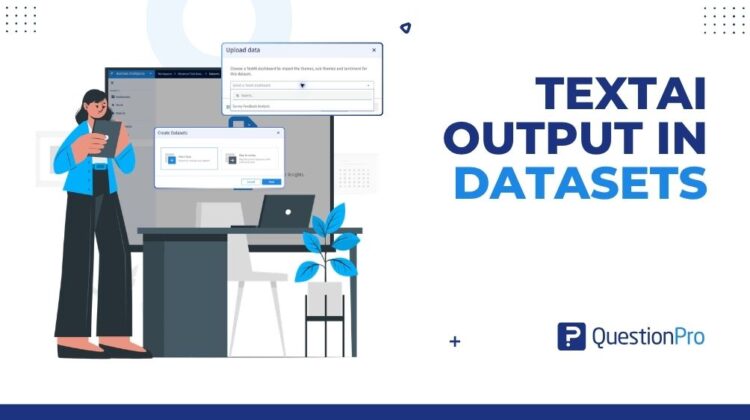
Start in your BI workspace. For external data, go to Datasets and open the external dataset behind your TextAI dashboard. Click Upload data, choose TextAI, select the matching dashboard, and click Import. The dataset adds theme, sub-theme, and sentiment fields.
For survey data, click New Dataset, choose Map to survey, and select the survey behind your TextAI dashboard. Then open the new dataset and follow the same upload steps.
Once the import finishes, add a BI widget and select Datasets as the data source. Choose your dataset, pick a theme, sub-theme, or sentiment variable, and choose a chart type. The step-by-step help article walks through every screen.
Get started
Your open-ended answers already hold the reasons behind your numbers. Now they can sit right next to those numbers. Create a free QuestionPro account and try it on your own open-ended data.
Create your free QuestionPro account
Frequently asked questions
TextAI output in datasets is a QuestionPro BI capability. It brings the themes, sub-themes, and sentiment generated by a TextAI dashboard back into a dataset as fields. You can use them in BI widgets, filters, and data slices. Combine them with compatible survey or dataset fields to compare feedback across segments.
You need to process your source data in a TextAI dashboard first, because the import brings in TextAI output. For external data, use the same external dataset behind that dashboard. For survey data, create a dataset mapped to the same survey. Only dashboards built from that dataset or survey can be selected during import.
No. It works with both source types, and only the survey route needs a new dataset. For external data, the output goes back into the existing source dataset. For survey data, create a new dataset with Map to Survey. Then open it and use Upload data to import the TextAI output.
Yes. The import includes a dashboard dropdown. If several TextAI dashboards use the same source, pick the one whose output you want. Only dashboards built from that dataset or survey appear, so you can’t pull in output from an unrelated source.
Use Re-sync TextAI data to refresh the dataset when the source TextAI output changes. It is a refresh you run yourself, not a real-time sync. The help article shows this step in the external dataset workflow. Check it for the latest guidance before you plan a refresh routine.
Yes. Select the TextAI-enabled dataset when you create or configure a BI dashboard. Then use theme, sub-theme, and sentiment as dimensions in supported widgets. Combine them with compatible dataset fields, then apply filters or slicers to compare feedback patterns across segments.
The TextAI dashboard is where you process and explore your open-ended responses. TextAI output in datasets goes one step further. It imports the themes, sub-themes, and sentiment into a dataset. Your BI dashboards can then chart them next to your other fields, not in a separate view.
Availability depends on your QuestionPro license, so the quickest way to confirm is to ask your account admin. To see it first, request a demo and walk through the import on your own data. That shows you exactly how the fields behave in your own dashboards.