Your dashboard already holds the findings. Getting them onto slides shouldn’t take your whole evening. Using the PowerPoint export in QuestionPro BI dashboard lets you quickly convert your charts into slides without wasting time on endless screenshots.
It’s Sunday night, and the dashboard is done
It’s 9 PM. The tracker dashboard is finished. The filters are set, and you’ve checked every widget twice. The readout is Monday at 9 AM.
So you open a blank deck. You screenshot the first chart, paste it, and resize it. Then you do the same for the second. By slide six, you’re squinting at a number and wondering whether it matches the dashboard.
Nobody puts this part on the project plan. The analysis took weeks. The slides are eating your Sunday. And the people in the room don’t want a tour of thirty widgets anyway. They want six slides and a clear point.
This is where PowerPoint export in QuestionPro BI could have saved your evening.
Learn More: PowerPoint exports in QuestionPro BI help documentation
What is PowerPoint export in QuestionPro BI?
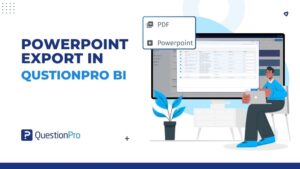
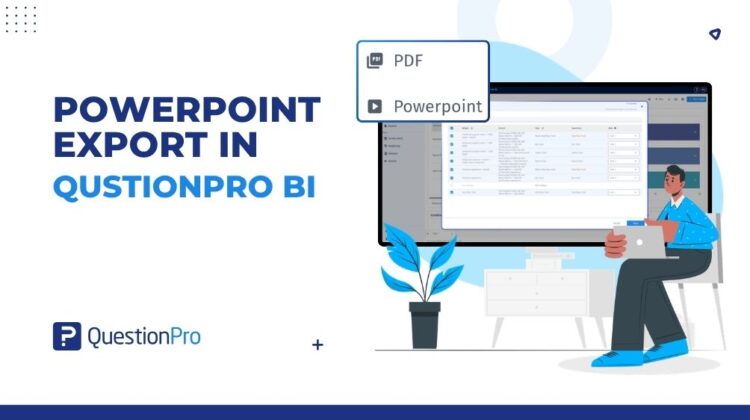
PowerPoint export turns selected widgets from a QuestionPro BI dashboard into a presentation. Open a dashboard, click the Download icon, and choose PowerPoint Export. Then pick your widgets, decide which slide each one lands on, and download a .pptx file.
It’s how you turn a dashboard into a presentation without starting from a blank slide. It replaces the screenshot folder and the copy-and-paste routine. It all happens inside the dashboard you already built.
It also has limits, and they’re worth knowing up front. It isn’t a stand-in for the dashboard. It isn’t a live feed that keeps your slides in sync. And it doesn’t promise that every widget becomes an editable PowerPoint chart.
Haven’t built a dashboard yet? Our overview of turning research data into dashboards with QuestionPro BI is a good place to start.
How to use PowerPoint export in your research
Picture a consumer insights team at a regional retailer. They run a quarterly customer satisfaction tracker. The BI dashboard holds thirty widgets across several tabs, and Monday’s audience is the leadership team.
Before: the screenshot loop
An analyst screenshots each chart leadership might want and pastes it into a blank deck. Then they resize it to fit and check every number against the dashboard. Twice. Decisions about what matters get made at 10 PM, when nobody is at their sharpest.
After: pick, place, export
Now the analyst opens the dashboard and ticks the six widgets leadership needs. The Slide dropdowns set the order. The intro slide gets a title, and the outro slide gets the next steps. One click on Export, then one click on the file once the Progress panel hits 100%.
The evening goes to the two slides that need a point of view, not to resizing charts. Next week, the same dashboard can feed a client deck. Different widgets get ticked, in a different order, and nothing gets rebuilt.
What’s left is the work only you can do: explaining what the numbers mean and what to do next.
The advantages of PowerPoint export
The payoff is less busywork between the analysis and the meeting.
- A direct path from dashboard to deck.
The export starts from the Download menu, so the dashboard is your source instead of a blank presentation.
- Only the widgets you need.
Checkboxes include or exclude each supported widget, so the deck fits the audience instead of mirroring the whole dashboard.
- Slide order is set before you export.
The Slide dropdown puts each widget where it belongs in the story, so you’re not rearranging after download.
- Intro and outro on your terms.
Edit the text, fonts, and images, or turn off either slide.
- Fewer transcription slips.
The export reuses dashboard content, so you’re not retyping values or redrawing charts. Review the file before you share it.
- Progress you can see.
The progress panel shows the status, and the file link appears at 100%.
Building the dashboard comes first. For a refresher on bringing survey and outside data into it, read our post on QuestionPro BI datasets.
When to use it, and when not to
Use it when a finished dashboard needs to become a slide-based update. Think executive reviews, client readouts, and recurring study reports. It fits best when the same dashboard feeds the same kind of meeting every cycle.
Skip it when the audience needs to explore. If people want to filter and drill into the data, share the dashboard instead.
Check the export window first, too. Unsupported widgets can’t be selected. Not every exported widget is an editable PowerPoint chart. And the file is an exported presentation, not a live link. If the dashboard changes, export again.
How to export a dashboard to PowerPoint
- Open Dashboards in your BI workspace and click the dashboard you want to export.
- Click the Download icon in the top-right corner, then select PowerPoint Export.
- Tick the checkbox beside each widget you want. The Source, Type, and Exports as columns tell you what each one is and how it will export.
- Open the Slide dropdown beside a widget to move it to a different slide.
- Click Next to open the intro and outro settings. Edit the text, or turn either slide off.
- Click Export and follow the Progress panel in the bottom-right corner. At 100%, click the file name to download the .pptx file.
- Open the file in PowerPoint and check the widgets, slide order, and intro and outro before you share it.
The full walkthrough is in the PowerPoint exports help documentation.
Get started
Your dashboard already did the hard part. Now the deck can keep up.
Create a free account and start your Research Edition trial. Then build a dashboard in QuestionPro BI, part of the Research Suite, and export your first deck. Your Sunday evening stays yours.
Frequently asked questions
PowerPoint export is a QuestionPro BI feature that turns selected dashboard widgets into a downloadable PowerPoint presentation. You choose the widgets, assign each to a slide, customize the intro and outro, and download a .pptx file. It gives you a first draft to review and refine. You spend less time copying charts and more time explaining findings.
Open the dashboard, click the Download icon in the top-right corner, and select PowerPoint Export. Tick the widgets you want, adjust their slides, click Next to set the intro and outro, then click Export. At 100% in the Progress panel, click the file name to download the .pptx file. Review it before you share it.
Yes. Checkboxes let you include or leave out each widget. The Slide dropdown beside a selected widget sets its destination slide. The source, type, and exports columns help you identify each widget and see how it will export. Widgets that aren’t supported can’t be selected, so check the export window to see what’s available for your dashboard.
Yes. After you choose your widgets, click Next to open the intro and outro settings. You can edit the text, change fonts and sizes, and add images. The two toggles work independently, so you can keep both slides, keep one, or leave both out. For example, open with a title and close with a summary or thank-you message.
Not always. Widget support and export formats vary, so you shouldn’t assume every exported widget is an editable PowerPoint chart. The Exports as column in the export window shows how each widget will come through. Open the downloaded file and check every slide before you share it. That includes the order and the intro and outro content.
No. The download is an exported presentation, not a live link to the dashboard. If your data or dashboard changes, export again to get a fresh file. Treat the deck as a presentation snapshot. Use the dashboard itself when your audience needs to filter, drill down, or explore on their own.
Availability depends on your QuestionPro license. Your account admin can confirm whether it’s included in your plan. You can also request a demo to see it work on a real dashboard. If PowerPoint Export isn’t under the Download icon, check with your admin before you plan a reporting cycle around it.