


Dynamic Public Sharing
Dynamic Public Sharing in BI allows you to create customized public dashboard experiences using unique shareable links.
Instead of duplicating dashboards for different audiences, you can configure individual shared links with their own permissions, filters, interactive controls, commenting access, and language preferences.
This makes it easier to securely share tailored dashboard views with executives, clients, partners, or internal teams while maintaining a single source dashboard.
-
Custom Public Dashboard Experiences
Create multiple public sharing links from a single dashboard with independent configurations and viewing experiences. -
Dynamic and Interactive Filters
Allow viewers to interact with dashboard filters, date ranges, response statuses, and editable filter values. -
Configurable Access Controls
Control whether viewers can access insights, comments, and filter interactions within the shared dashboard. -
Base Filter Support
Apply predefined filters so dashboards always open with specific data conditions. -
Multilingual Dashboard Support
Select the language in which the shared dashboard experience should appear.
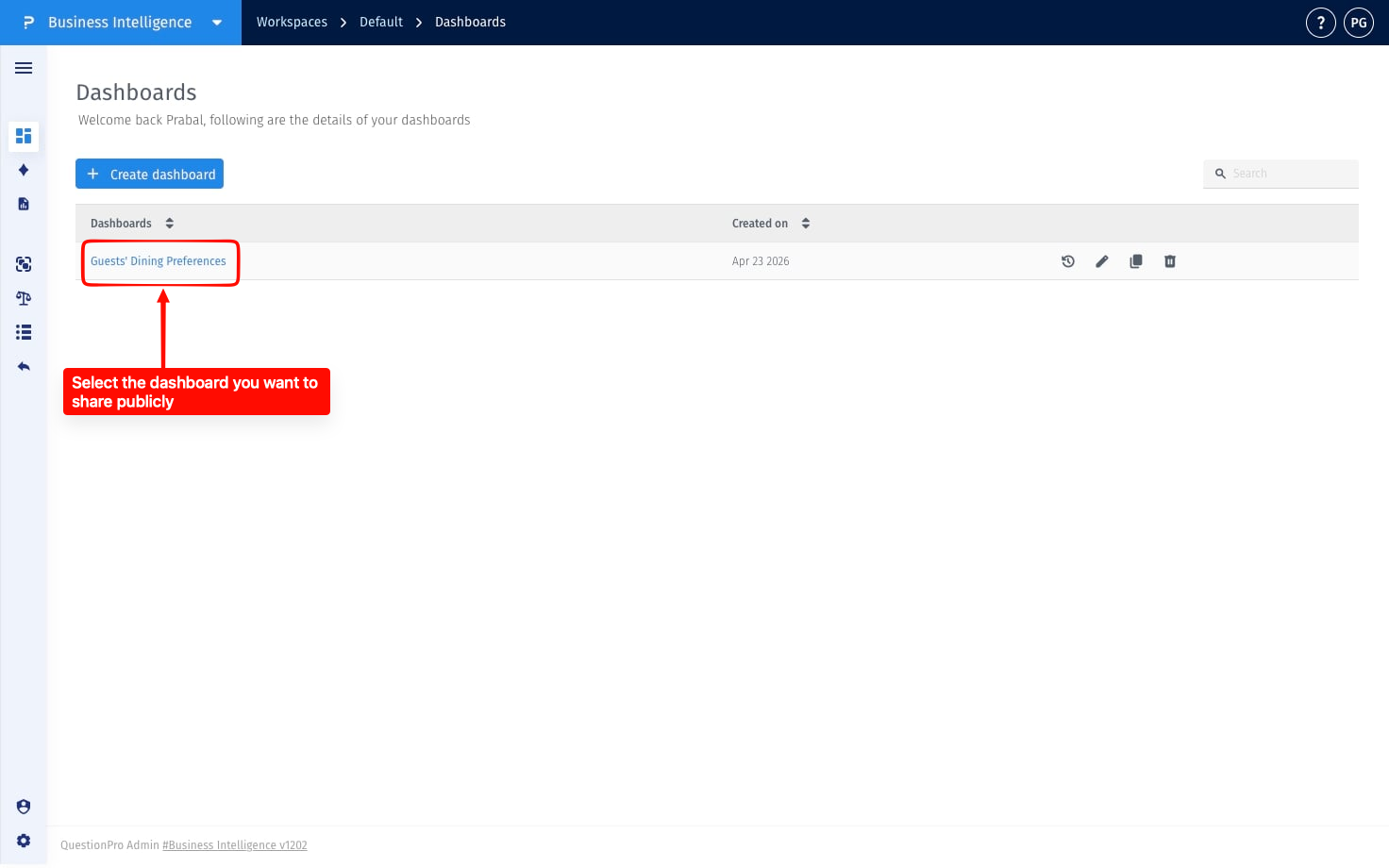
Step 1: Open the dashboard for which you want to create a public sharing link.
Navigate to BI and select the dashboard you want to share publicly.
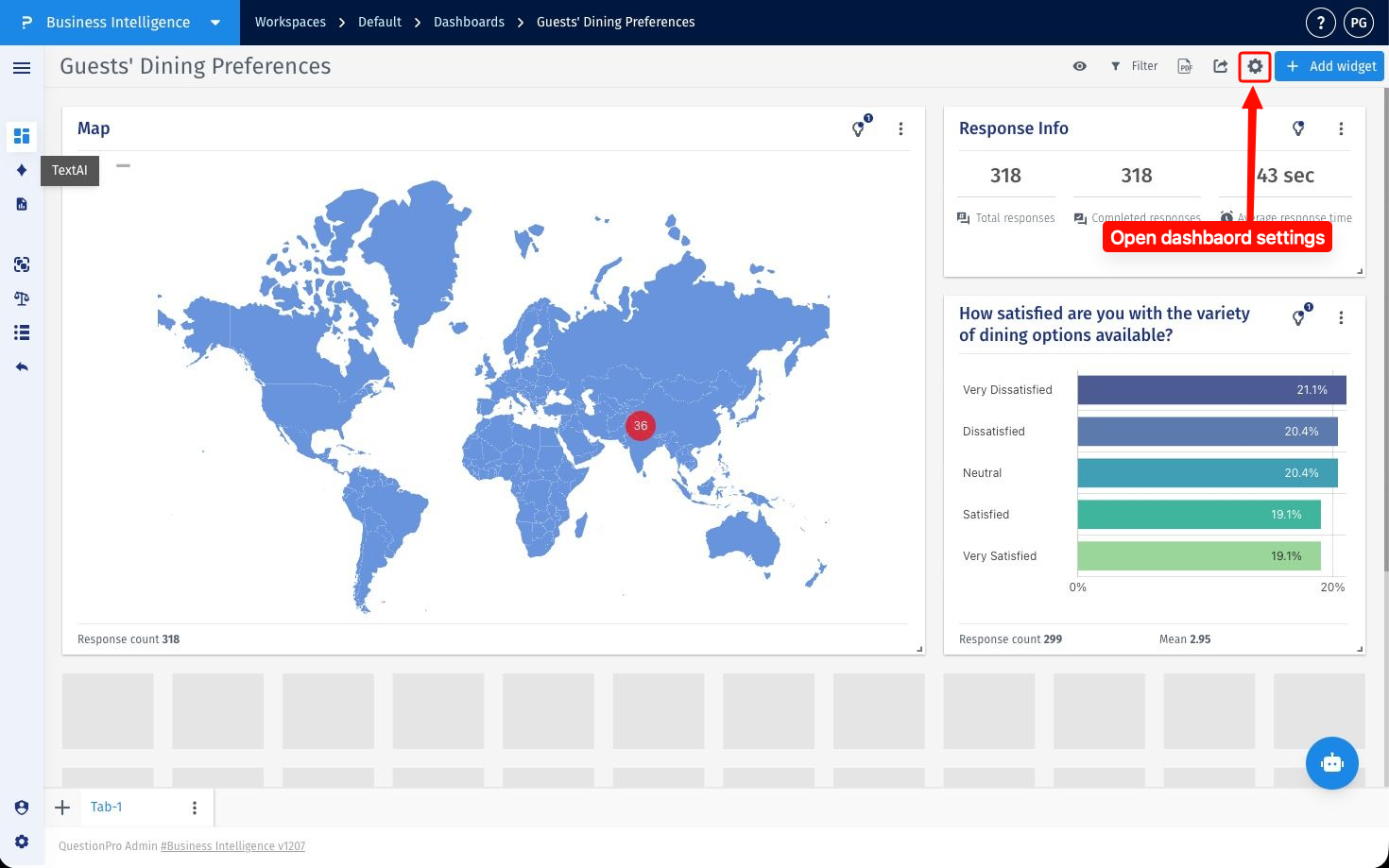
Step 2: Open dashboard settings.
Click the Settings option from the dashboard toolbar.
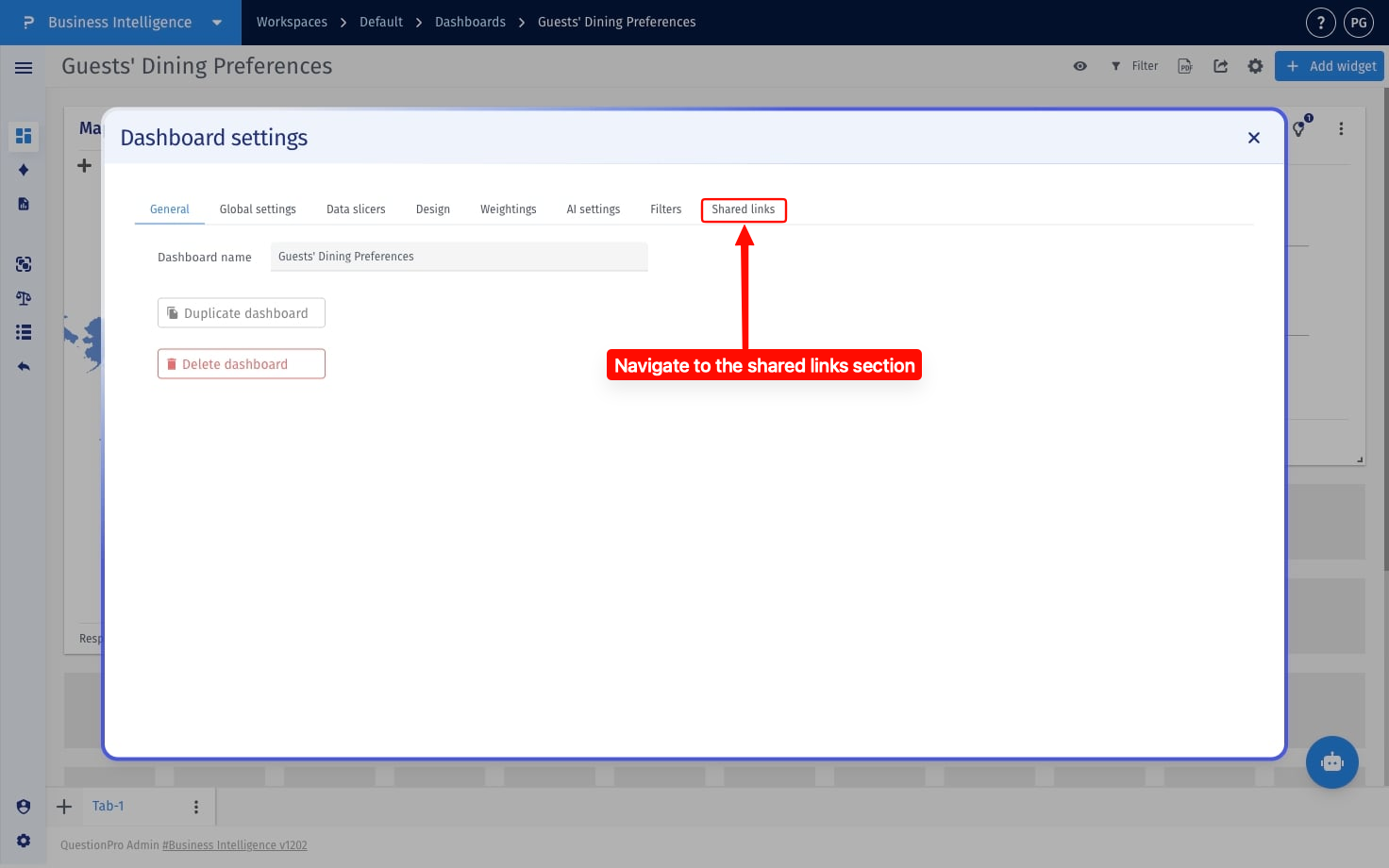
Step 3: Navigate to Shared links.
Open the Shared links tab to manage public sharing configurations.
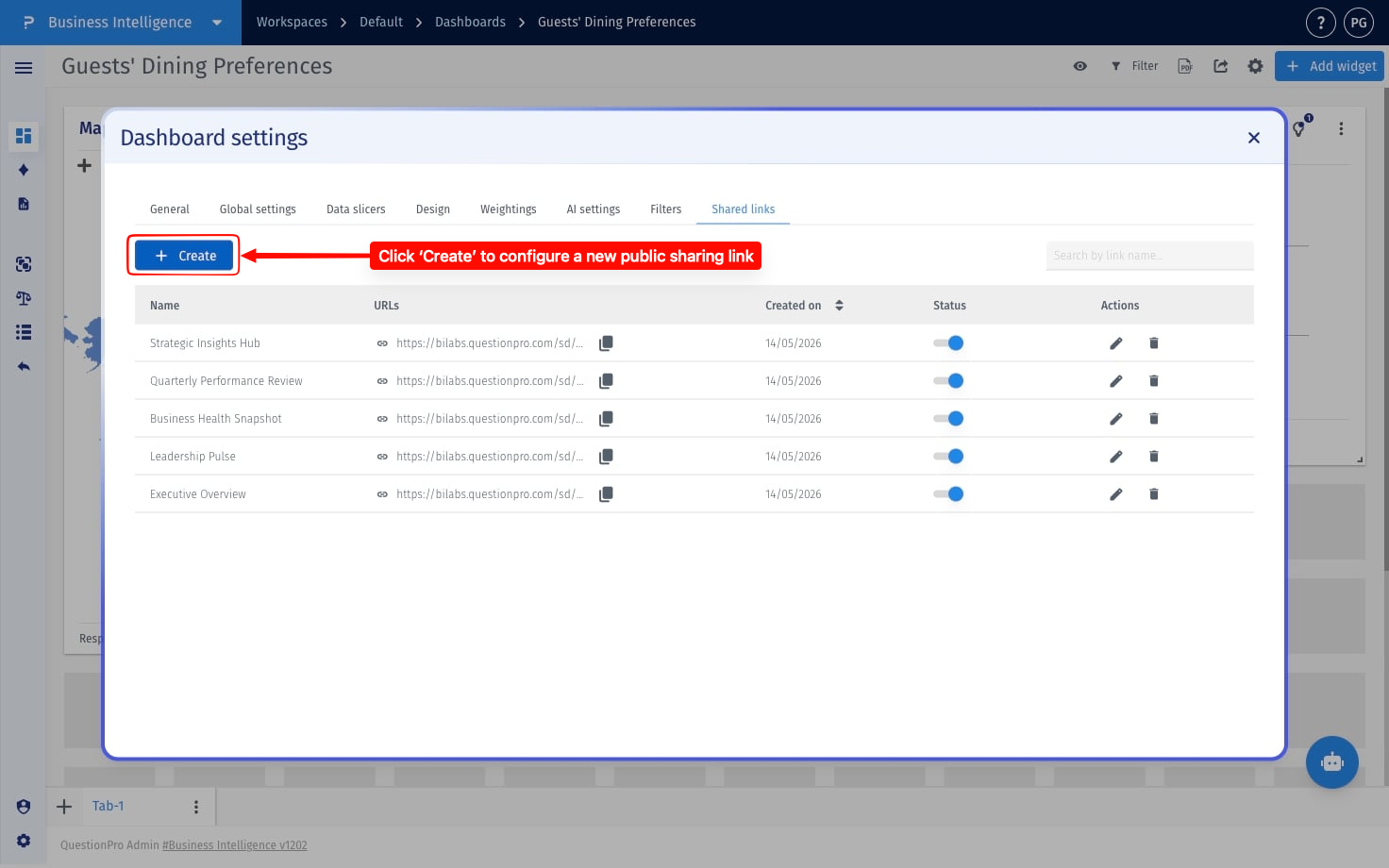
Step 4: Start creating a new public sharing link.
Click the Create button to open the public sharing configuration window.
Step 5: Configure basic sharing settings.
Provide a link name and configure optional settings such as Insights and Comments access.
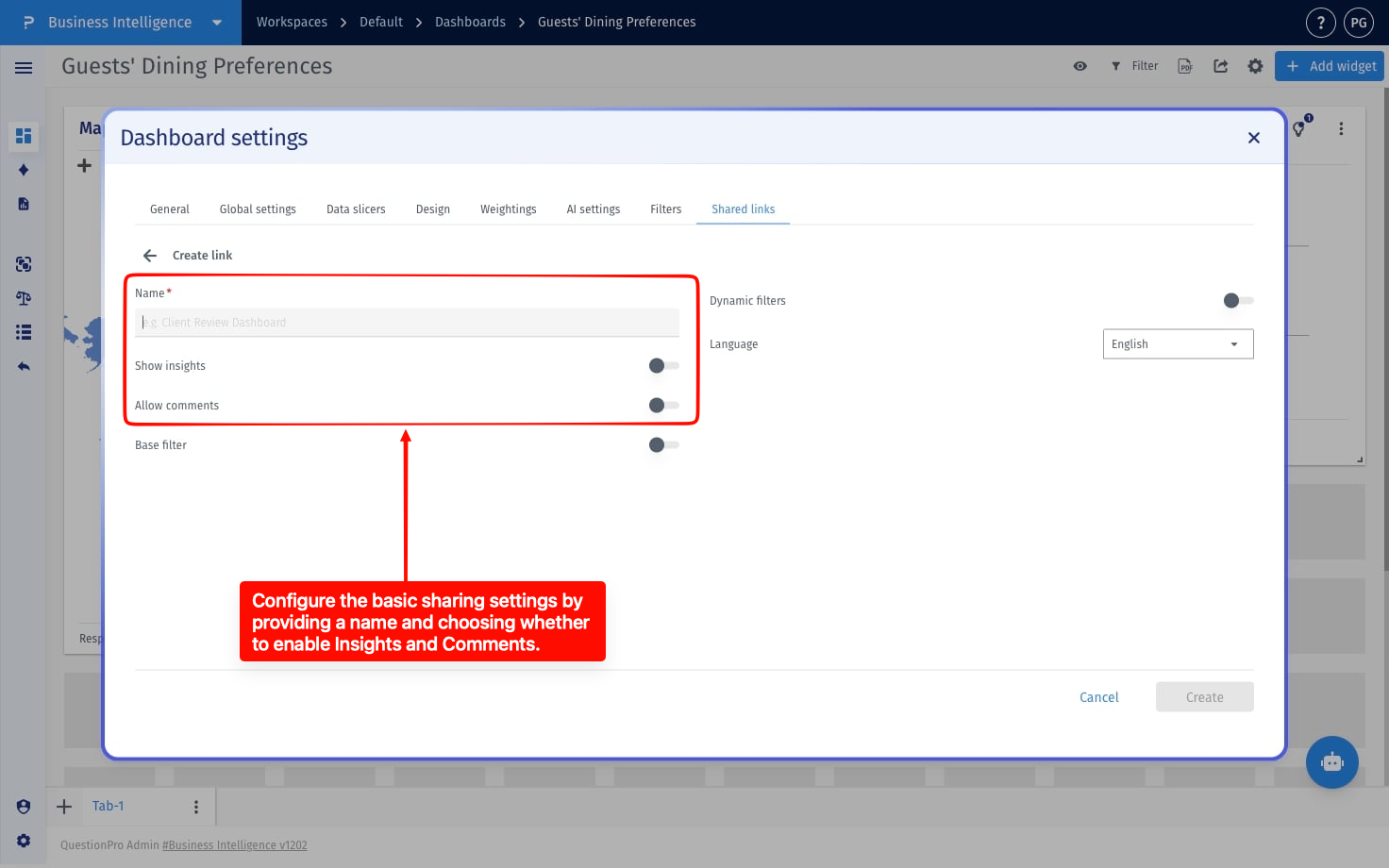
Step 6: Configure base filters.
Enable Base Filters to apply a predefined filter whenever the shared dashboard is opened.
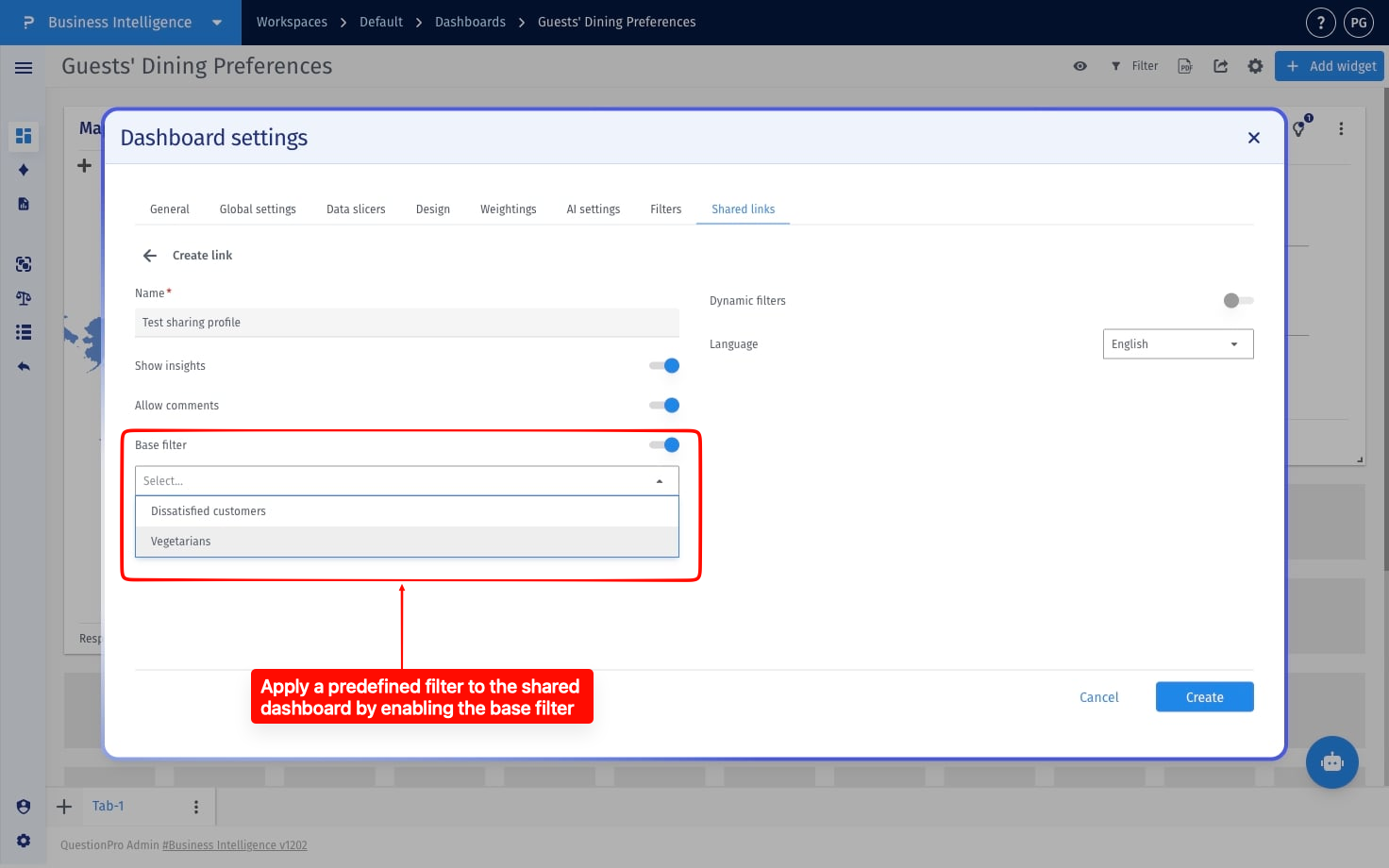
Step 7: Configure dynamic filters.
Enable Dynamic Filters to allow viewers to interact with dashboard filters in the shared view. Enable Show only saved filters to restrict the shared dashboard to predefined saved filters only.
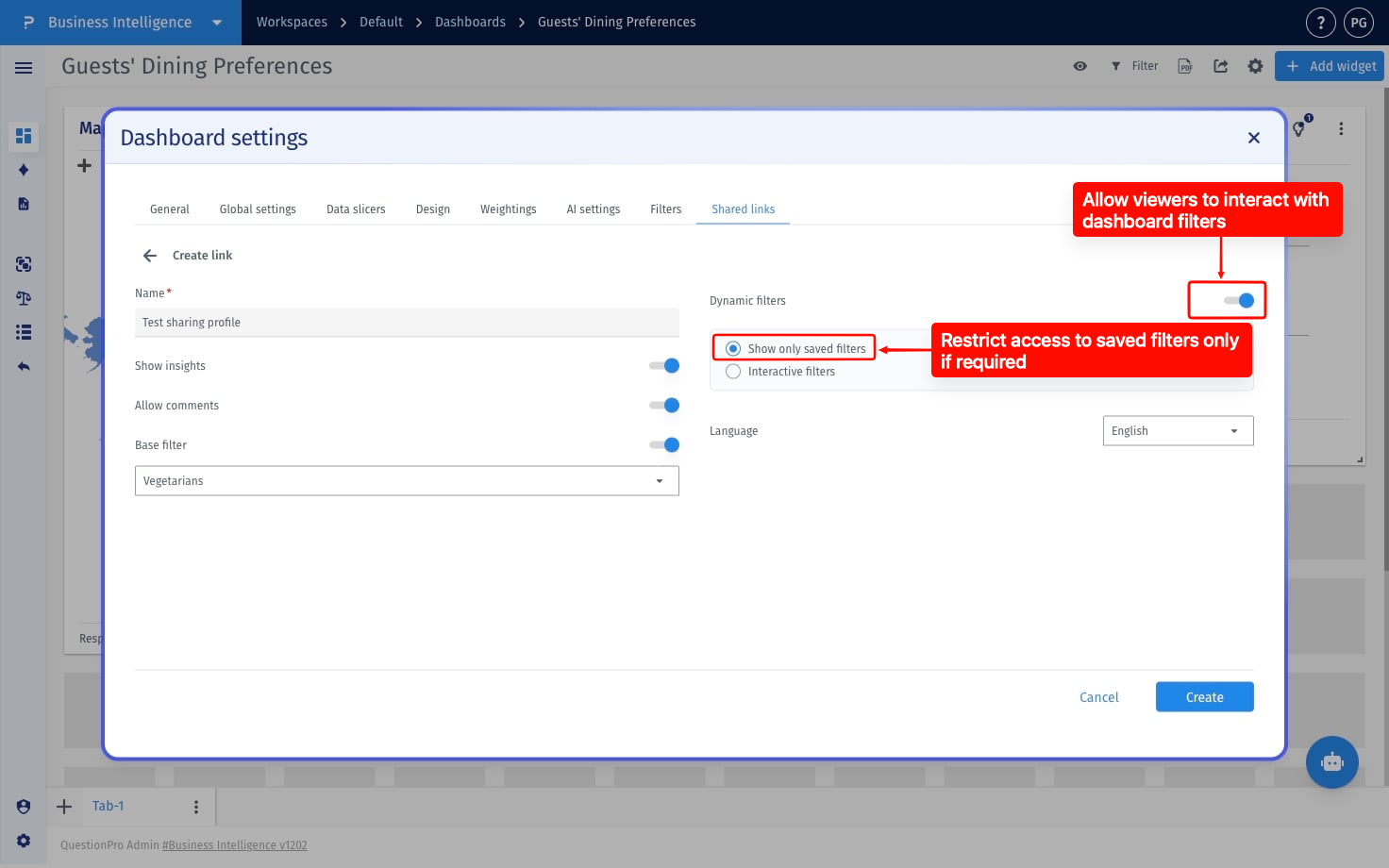
Step 8: Configure interactive filters.
Select which interactive filter should be available, along with Date Filters, Response Status, and editable filter values.
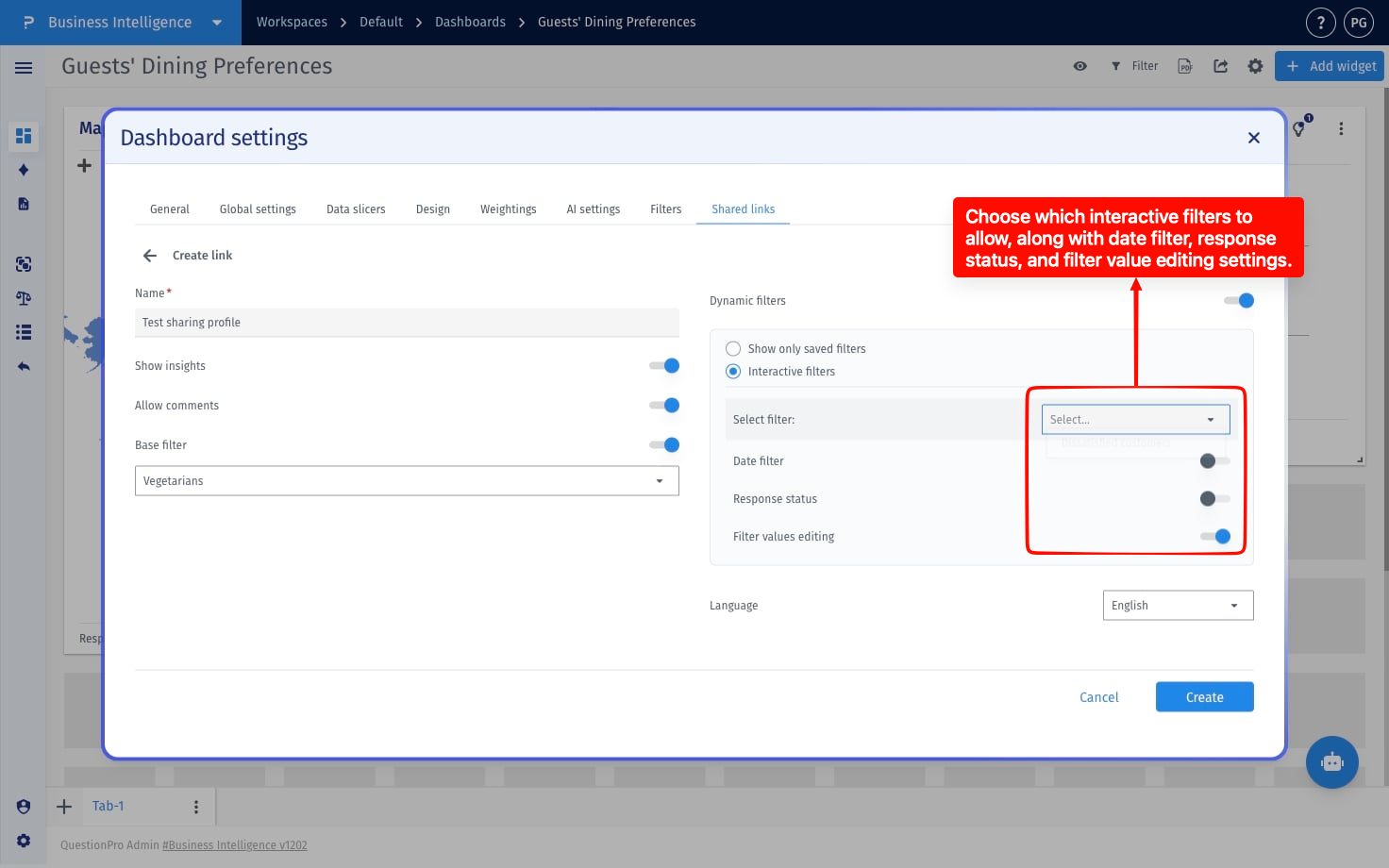
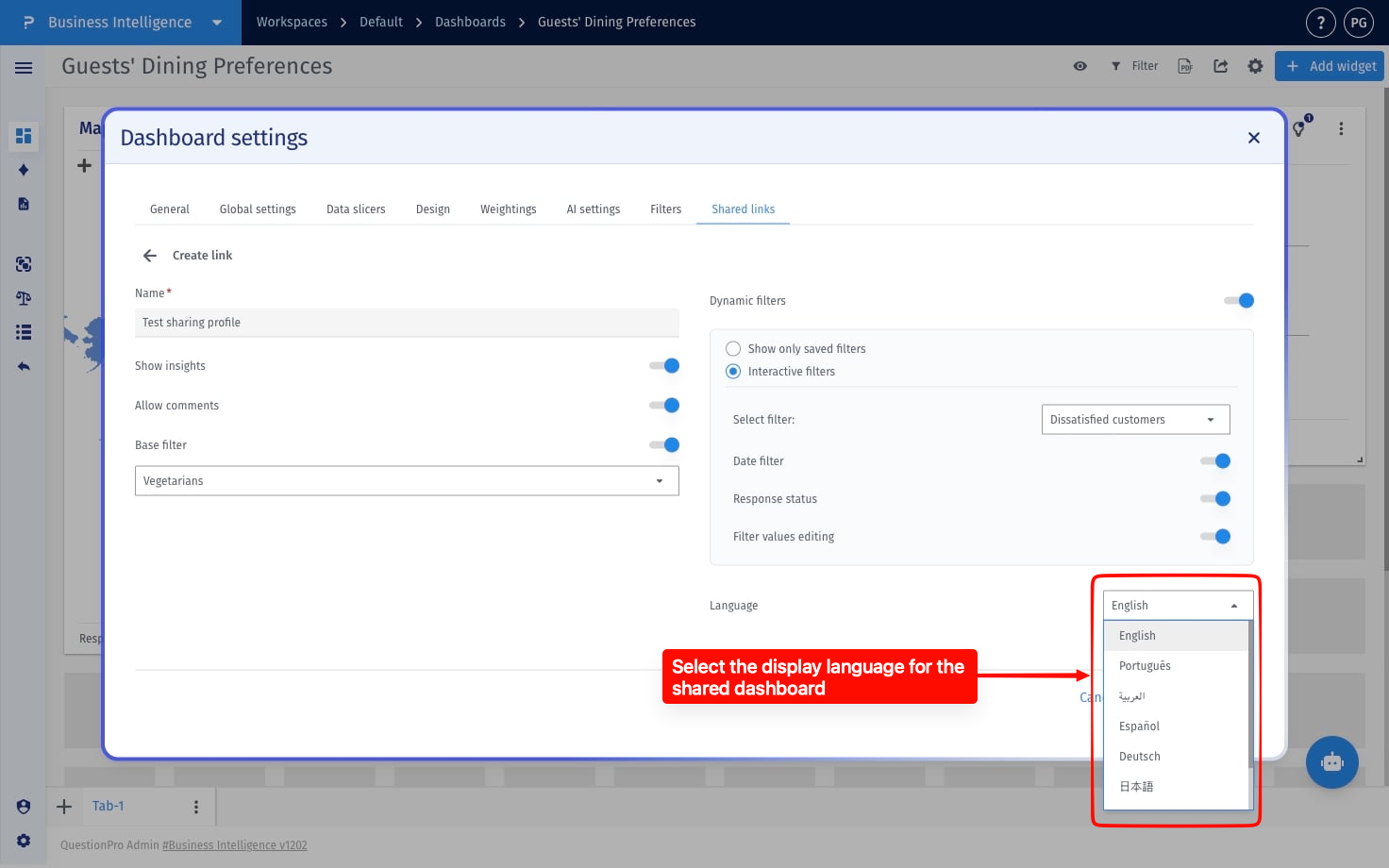
Step 9: Select dashboard language.
Choose the language in which the shared dashboard experience should appear.
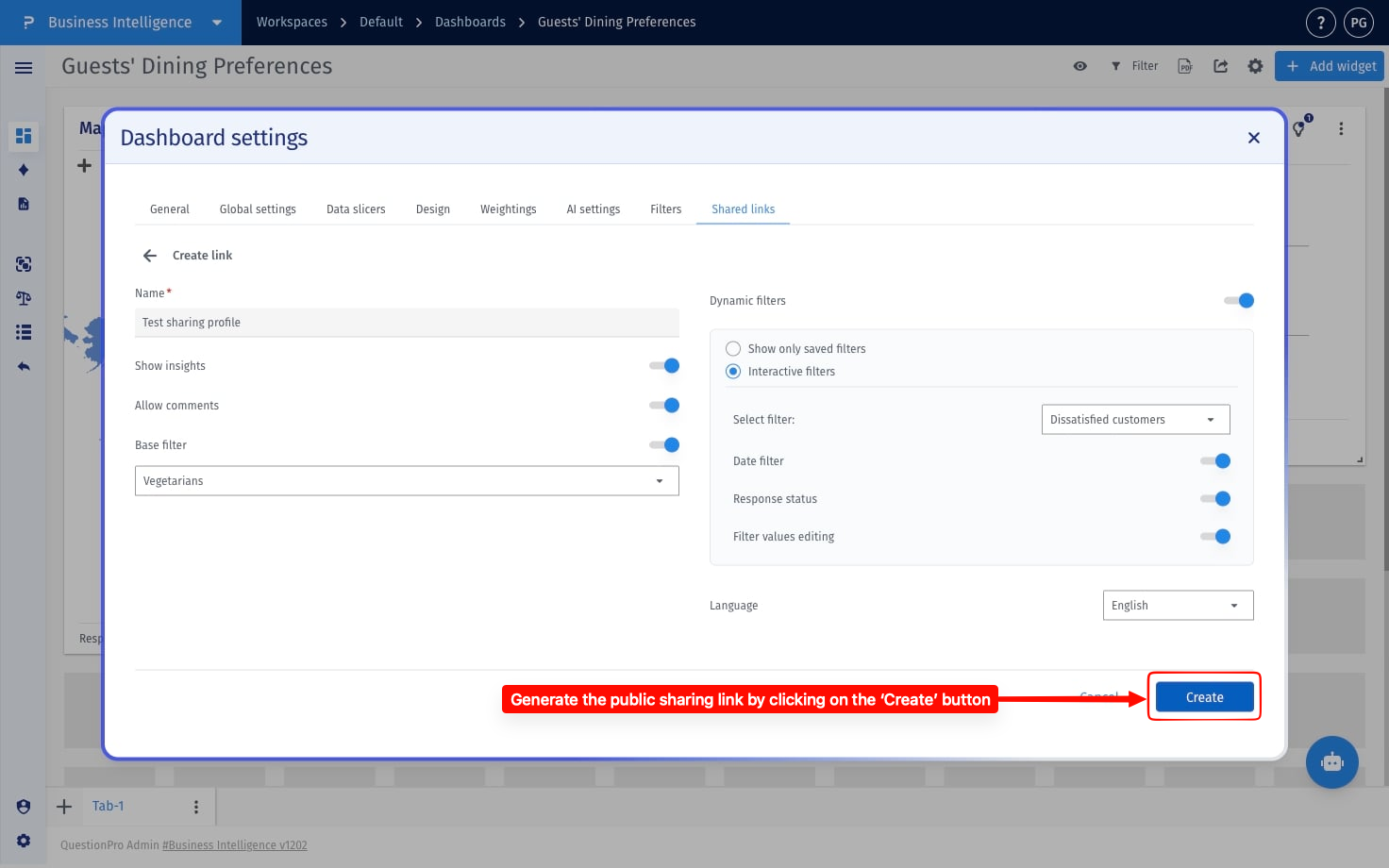
Step 10: Create the public sharing link.
After configuring all required settings, click the Create button to generate the public sharing link.
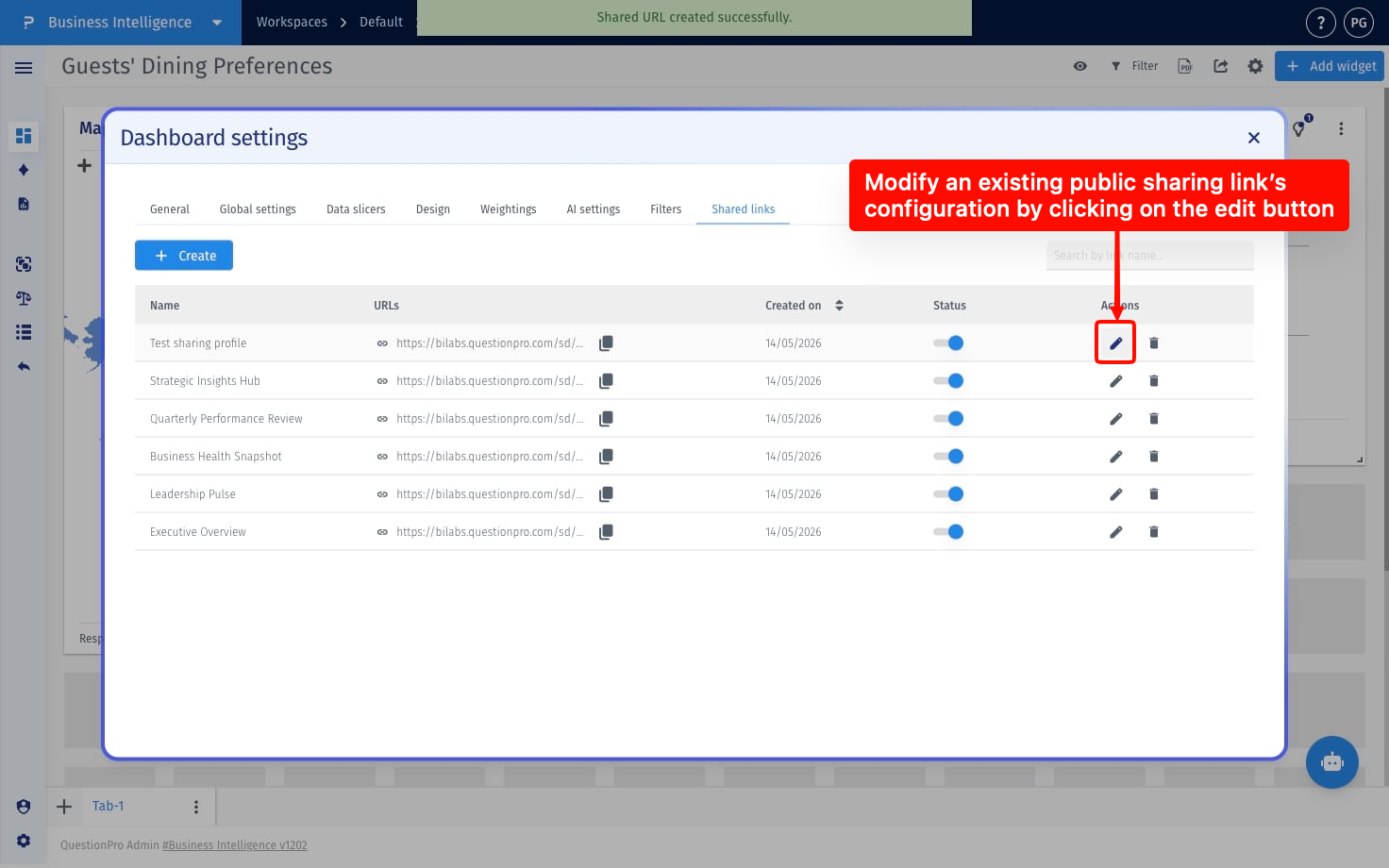
How to edit an existing public sharing link?
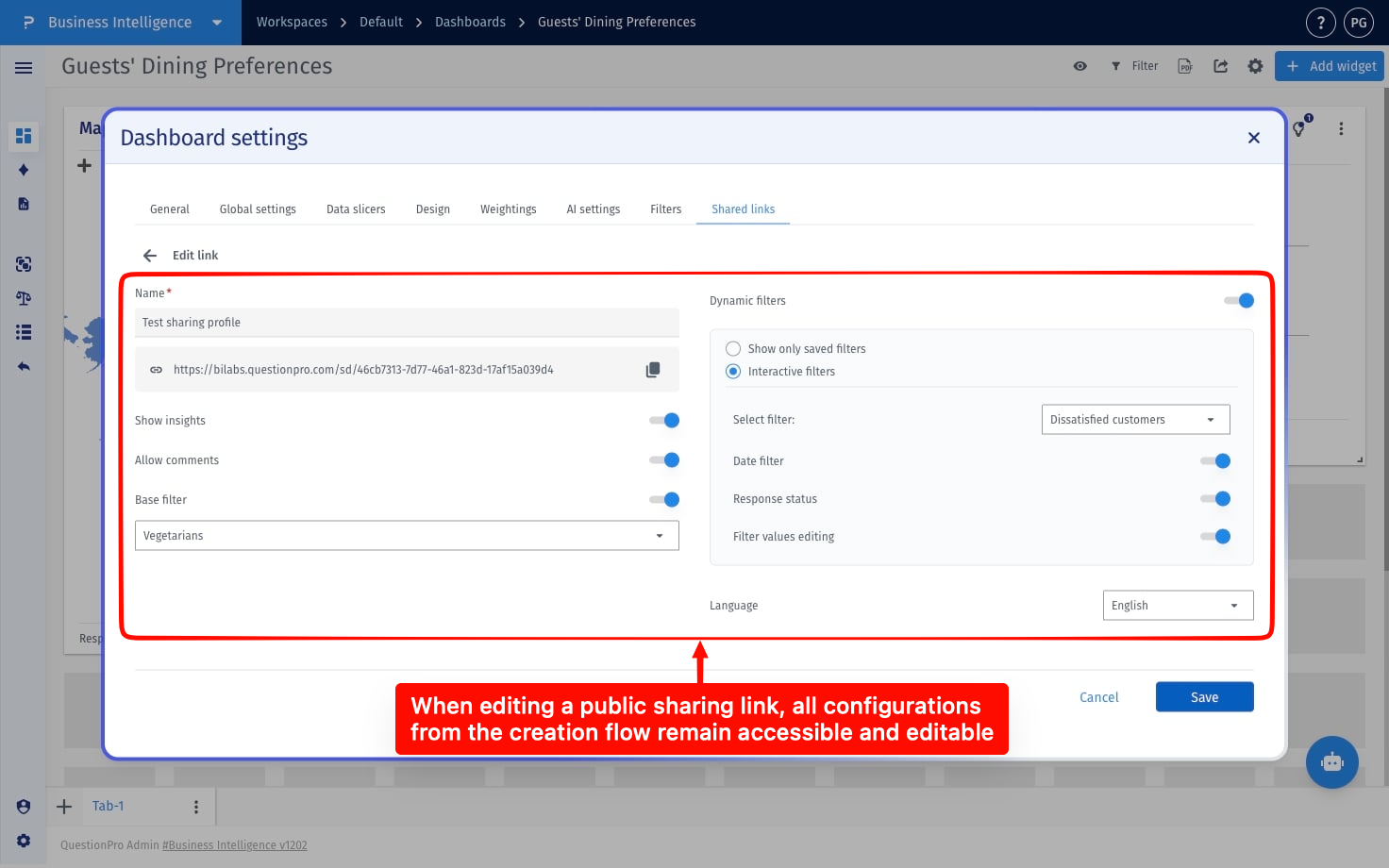
Use the Edit option from the Actions column to modify existing configurations such as filters, permissions, language preferences, and interactive controls.
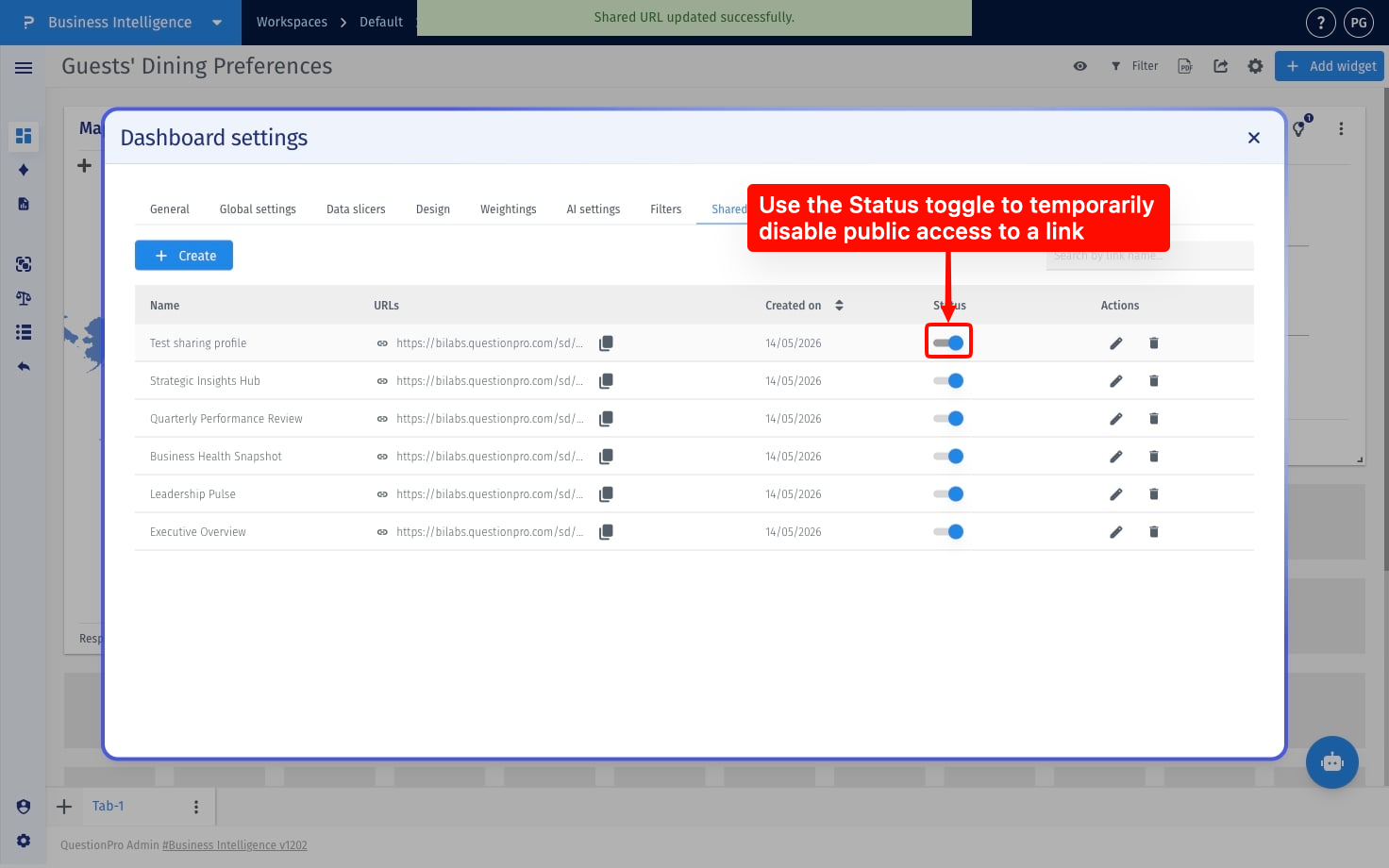
How to disable a public sharing link?
Use the status toggle to temporarily disable public access without deleting the shared link.
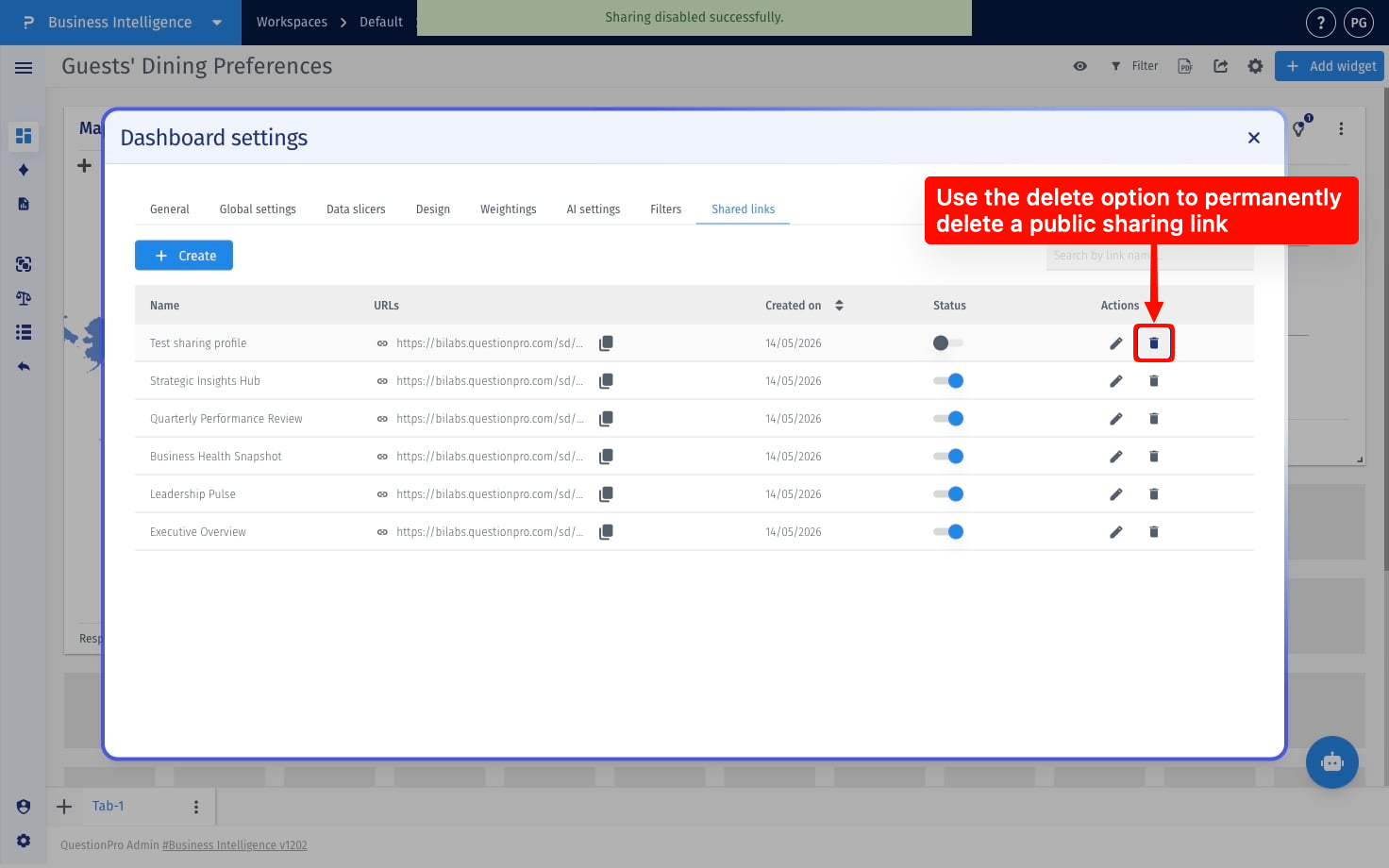
How to delete a public sharing link?
Use the Delete option from the Actions column and confirm the action from the popup to permanently remove the shared link.
- Dynamic Public Sharing: A BI capability that allows creation of customizable public dashboard links with independent configurations.
- Base Filter: A predefined filter automatically applied when a shared dashboard is opened.
- Dynamic Filters: Interactive filters that viewers can use while exploring the shared dashboard.
- Interactive Filters: Advanced filter controls that allow viewers to modify filter selections and values directly.
- Shared link: A publicly accessible dashboard link with customizable permissions and configurations.
This feature is available with the following licenses :
Team Edition Research Edition Communities Customer Experience Employee Experience
